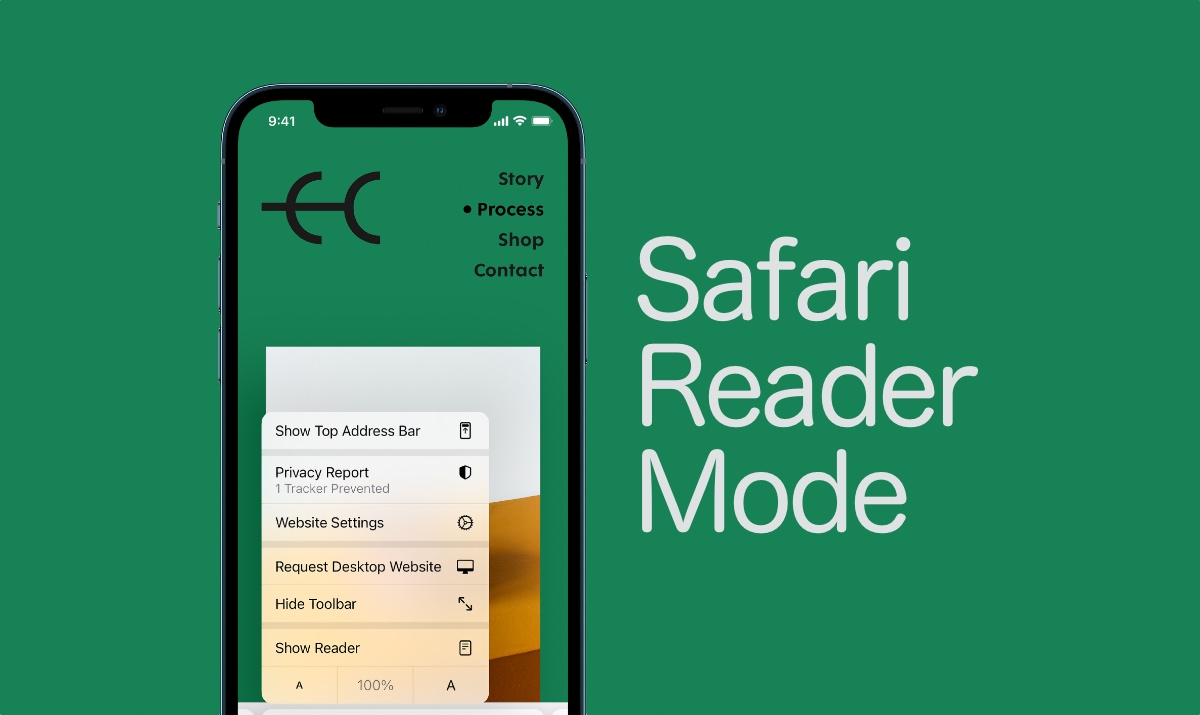
How to Request a Desktop View of a Webpage on iPhone

This post provides a guide to viewing the desktop version of a website on an iPhone, including how to switch between desktop and mobile versions and enabling Reader Mode.

RAYMOND OGLESBY @RaymondOglesby2
May 21, 2024

Viewing the desktop version of a website can sometimes help you find something unavailable on the mobile version. Of course, the iPhone always defaults to the mobile site, but there is a way to force Safari to load the desktop version. Let’s check out how to request a desktop site on iPhone.

This is for the iPhone running iOS 17+. Screenshots are from iPhone 14 Pro running iOS 17+

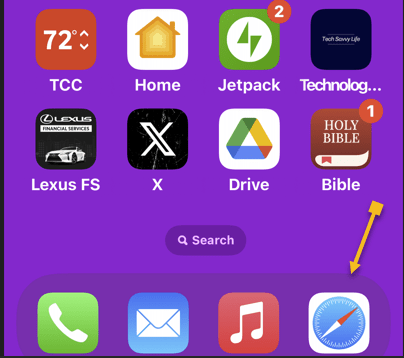
First, open Safari. Refer to the below image:
Request Desktop1
Selecting the Safari app

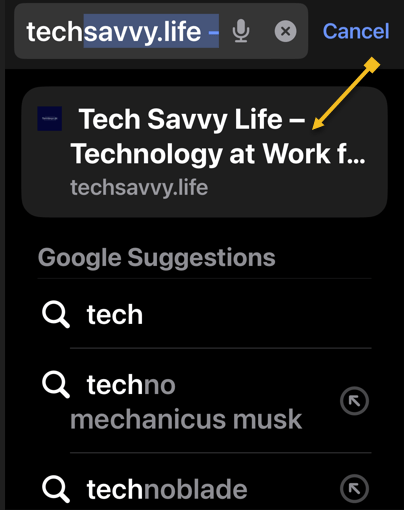
Next, search and open a webpage. We are opening TechSavvy.Life. See the below image:
Request Desktop 2
Opening a webpage in Safari

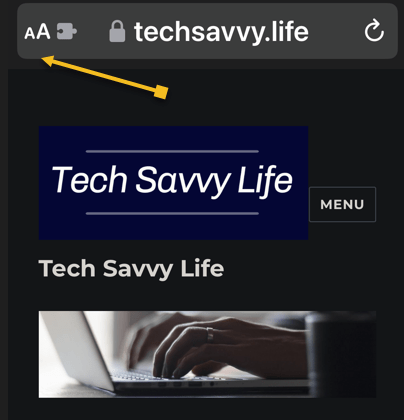
Now, tap the Reader Mode icon (the aA icon) in the upper left corner.

Note! For whatever reason. not all websites support the Reader view. Most likely because they do not want you to miss their advertisements.

See the following image:
Request Desktop 3
Selecting the Reader Mode icon

Next, tap the Request Desktop Website option. Refer to the below image:
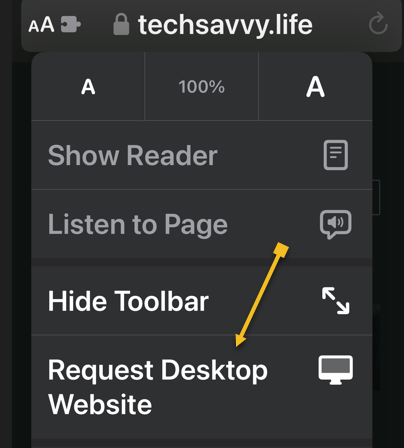
Request Desktop 4
Selecting the Request Desktop Website option

You can now browse the desktop version of the website, taking advantage of any features that do not exist on the mobile site.

Now, if you want to switch back to the mobile site, with the webpage open, tap the Request Mobile Website option. See the below page:
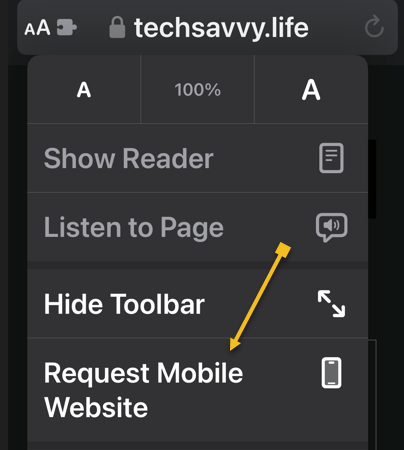
Request Desktop 5
Selecting the Request Mobile Website option

Next, you may want to view the webpage automatically in Reader Mode. If so, while viewing the webpage, tap the Website Settings option. See the following image:
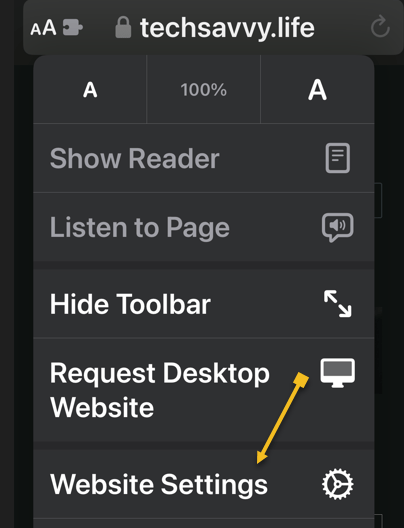
Request Desktop 6
Selecting the Website Settings option

Now, toggle Use Reader Automatically to ON then tap Done, Refer to the below image:
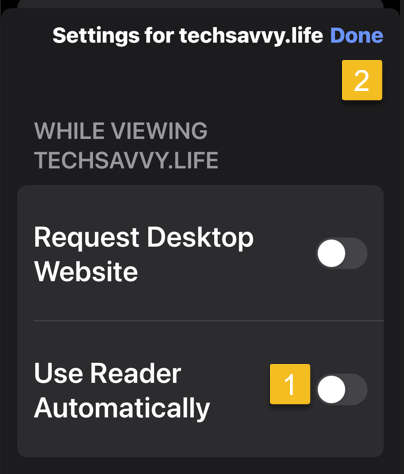
Request Desktop 7
Setting the Use Reader Automatically toggle to ON

Disclaimer

Technology is always changing. Rarely is there static tech for smartphones and desktops. Thus, the contents of this post are only valid at the time of writing. Blog posts older than six months may have directions incompatible with your device or OS. Hopefully, older post content will continue to work as advertised. Thank you for reading TechSavvy.Life for Technology at Work For You.

Success is not final, failure is not fatal: it is the courage to continue that counts.

Winston Churchill

You are finished. Please feel free to share this post! One way to share is via Twitter.

Just click the Tweet icon below. This will launch Twitter where you click its icon to post the Tweet.

Checkout TechSavvy.Life for blog posts on smartphones, PCs, and Macs! You may email us at contact@techsavvy.life for comments or questions.

Please feel free to leave a comment. I would love to hear from you. Do you have a computer or smart device tech question? I will do my best to answer your inquiry. Just send an email to contact@techsavvy.life. Please mention the device, app, and version you are using. To help us out, you can send screenshots of your data related to your question.

You can access the E-book from a Kindle device, or the Kindle App for a desktop or smartphone. The apps are free.

The author’s Vietnam eBook on the Battle for Tra Bong Vietnam: Events and Aftermath

How to Use Hidden Reader Mode in Chrome

Most web browsers have a built-in “Reader Mode” that converts web pages into a more reader-friendly view. Strangely, Google Chrome does not have this feature; unless you know how to find it.

RAYMOND OGLESBY @RaymondOglesby2
May 23, 2023

Most web browsers have a built-in “Reader Mode” that converts web pages into a more reader-friendly view. Strangely, Google Chrome does not have this feature; unless you know how to find it. Let’s find out where it is.

This is for devices running Google Chrome. Screenshots are from Windows 10

Google Chrome has included a hidden Reader Mode all the way back to version 75. However, it’s never been upgraded to a stable, standard feature. Even Microsoft Edge; which is also based on Chromium; has a Reader Mode. So let’s enable it in Chrome.

Enable Hidden Reader Mode

First, we will need to enable a Chrome feature flag. Open the Chrome browser on your computer, and type:

chrome://flags

in the address bar, and hit Enter. Refer to the below image:

Chrome Reader 1
Accessing Chrome flags

Next, search for “Reader Mode” in the text box at the top and enable the flag titled “Enable Reader Mode.” See the below image:

Chrome Reader 2
Enabling Reader Mode

Now, after enabling the flag, click the “Relaunch” button at the bottom of the screen to apply the changes. See the following image:

Chrome Reader 3
Restarting Chrome

Next, when you now visit a webpage that has a lot of text, you will see a little book icon on the right side of the address bar. Click it to switch to Reader Mode.

You can also click:

Menu > Enter Reader Mode

to activate it. Refer to the below image:

Chrome Reader 4
Selecting the Reader Mode icon

Now, you are now looking at a much simpler, less cluttered view of the webpage. Images still appear, but ads and some other items are removed. To adjust the view, click the “A” icon in the top right. See the below image:

Chrome Reader 5
Changing Font size

Next, from here you can change the font, text size, and background color. See the following image:

Chrome Reader 6
Customizing appearance

That’s all there is to it! You can now minimize distractions while reading long articles in Chrome. It’s strange that Google has kept this a hidden feature for years, but at least you know how to enable it yourself.

Disclaimer

Technology is always changing and rarely is there static tech for smartphones and desktops. Thus, the contents of this post are only valid at the time of writing. Blog posts older than six months may have directions incompatible with your device or OS. Hopefully, older post content will continue to work as advertised. Thank you for reading TechSavvy.Life for Technology at Work For You.

Quote For the Day

Man is still the most extraordinary computer of all.

John F Kennedy

Tweet Info

That’s it. Please feel free to share this post! One way to share is via Twitter.

Note! Twitter may be no longer supported by WordPress. If so, the below Tweet button will not work.

Just click the Tweet icon below. This will launch Twitter where you click its icon to post the Tweet.

Checkout TechSavvy.Life for blog posts on smartphones, PCs, and Macs! You may email us at contact@techsavvy.life for comments or questions.

I Would Like to Hear From You

Please feel free to leave a comment. I would love to hear from you. Do you have a computer or smart device tech question? I will do my best to answer your inquiry. Just send an email to contact@techsavvy.life. Please mention the device, app, and version you are using. To help us out, you can send screenshots of your data related to your question.

The author’s Vietnam eBook on the Battle for Tra Bong Vietnam: Events and Aftermath