


RAYMOND OGLESBY @RaymondOglesby2
July 23, 2024 – 5 minutes read
This is for the iPhone and iPad using Apple Maps. Screenshots are from iPhone 14 Pro running iOS 17.5.1
For certain malls and airport locations, Apple has indoor maps viewing directly from the Maps app. You will love this feature because it allows you to figure out where you are without locating a directory or physical map somewhere inside the location. Let’s explore this feature.
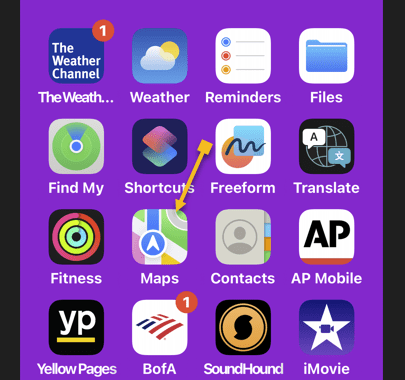
First, open Maps on your iPhone. Refer to the below page:
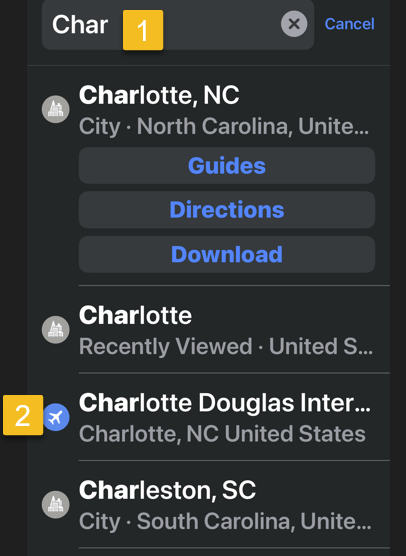
Next, tap the Search box and type in the name of the airport or mall. See the below image:

Now, tap it or swipe up to access the menu options until you see the location you want and tap it. See the following image:
Next, depending on what map you are looking at, you will see options for various stores and/or locations within the building. Tap one of the options to see it plotted on the map. Refer to the below image:
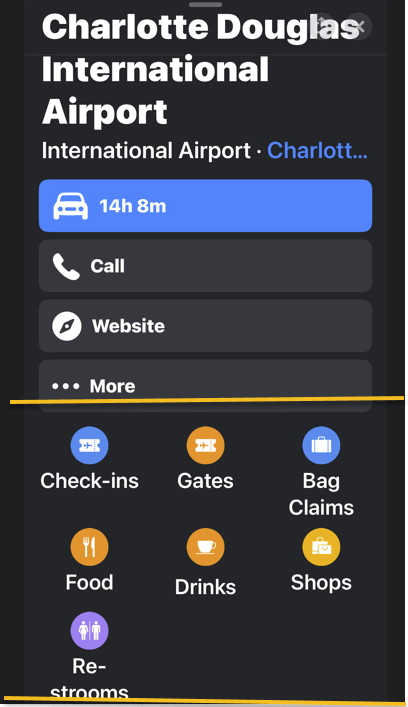
Now, you will see all the gates, shops, or other type of location you selected. For example, we are accessing the Charlotte Douglas International Airport airport gates. See the below image:

Next, swipe up for a list of all locations. See the following image:

Now, when you tap a location, it will get larger on the map, making it easier to find. Refer to the below image:

For a 2024 Apple Indoor Maps listing, tap here.
And that’s how you view indoor maps! Apple is constantly updating its inventory of indoor maps, so hopefully, we will have access to even more of them in the future.
Disclaimer
Technology is always changing. Rarely is there static tech for smartphones and desktops. Thus, the contents of this post are only valid at the time of writing. Blog posts older than six months may have directions incompatible with your device or OS. Hopefully, older post content will continue to work as advertised. Thank you for reading TechSavvy.Life for Technology at Work For You.
Quote For the Day
“You will either step forward into growth or you will step back into safety.”
Abraham Maslow
X (Twitter) Info
That’s it. Please feel free to share this post! One way to share is via Twitter.
Just click the Tweet icon below. This will launch Twitter where you can tap the Post icon to post the Tweet.
Checkout TechSavvy.Life for blog posts on smartphones, PCs, and Macs! You may email us at contact@techsavvy.life for comments or questions.
Tweet
I Would Like to Hear From You
Was this post helpful? We would love to hear your comments. Do you have a computer or smart device tech question? I will do my best to answer your inquiry. Just send an email to contact@techsavvy.life. Please mention the device, app, and version you are using. To help us out, you can send screenshots of your data related to your question
You can access the E-book from a Kindle device, or the Kindle App for a desktop or smartphone. The apps are free.

 Tech Savvy Life