


RAYMOND OGLESBY @RaymondOglesby2
October 24, 2023
This is for iPhone and Android. Screenshots are from iPhone 14 Pro running iOS 16+
Nobody likes receiving calls from No Caller ID numbers, as they are usually scams. But there might be cases where you will want your iPhone or Android to hide your phone number to protect your privacy. Whether the person at the other end of the line picks up or not, you can still block your phone number so it’s hidden when you call others.
There are two ways to hide your phone number. One involves using a specific shortcode before the phone number you want to dial. The other is having the operating system block your number permanently. We will show you both, and a tip that makes blocking your number a two-second process.
Using the Quickest Option
If you plan on blocking your number only for certain calls, there’s no reason to mess with the iPhone or Android phone’s settings. Instead, just add *67 before the number you are about to dial. When you do this, it tells your carrier not to show any Caller ID for that call.
An example of the phone number string to dial would be *67-555-555-5555.
Each country has different shortcodes to hide phone numbers. This is the US version. In the UK, you would need to dial 141 before the number.
Block Your Number on iPhone
If you want to hide your phone number routinely, you will need to go into the phone’s settings to enable it.
On iPhone, head to:
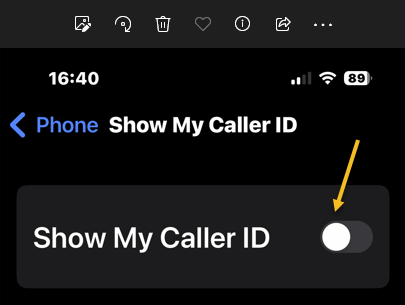
Settings > Phone > Show My Call ID
You might have to wait a short while until the toggle appears. Toggle the switch to OFF. Refer to the below image:
The feature can come in handy if you are using your personal phone number for work-related calls and do not want others to find out your number. But it can be a hassle if you forget to reenable it when calling family and friends. They will see No Caller ID appear on their devices and might not pick up.
Block Your Number on Android
The same warning applies to Android. You can block your phone number on Android phones just as easily as on iPhones. But you will have to remember to unblock it for your closest contacts to see your Caller ID.
To hide your phone number on Android, go to:
Phone > Setting > Calls and Additional Settings > Hide Number
and toggle the switch to OFF.
Repeat the steps to reenable the Caller ID on your Android phone when you are done blocking access to it.
Dealing With No Caller ID Calls
While we are at it, we will remind you there are ways to deal with spammy No Caller IDs on iPhone and Android and ensure they are not too big a hassle for you. Check a related post below to avoid no Caller ID calls.
RELATED
Disclaimer
Technology is always changing and rarely is there static tech for smartphones and desktops. Thus, the contents of this post are only valid at the time of writing. Blog posts older than six months may have directions incompatible with your device or OS. Hopefully, older post content will continue to work as advertised. Thank you for reading TechSavvy.Life for Technology at Work For You.
Quote For the Day
When you innovate, you’ve got to be prepared for people telling you that you are nuts.
Larry Ellison
Tweet Info
That’s it. Please feel free to share this post! One way to share is via Twitter.
Just click the Tweet icon below. This will launch Twitter where you click its icon to post the Tweet.
Checkout TechSavvy.Life for blog posts on smartphones, PCs, and Macs! You may email us at contact@techsavvy.life for comments or questions.
Tweet
I Would Like to Hear From You
Please feel free to leave a comment. I would love to hear from you. Do you have a computer or smart device tech question? I will do my best to answer your inquiry. Just send an email to contact@techsavvy.life. Please mention the device, app, and version you are using. To help us out, you can send screenshots of your data related to your question.
Author’s E-Book
You can access the e-book from a Kindle device, the Kindle App for the desktop or smartphone, which is a free app.

 Tech Savvy Life