

RAYMOND OGLESBY @RaymondOglesby2
November 7, 2023
This is for the iPhone. Screenshots are from iPhone 14 Pro running iOS 16+
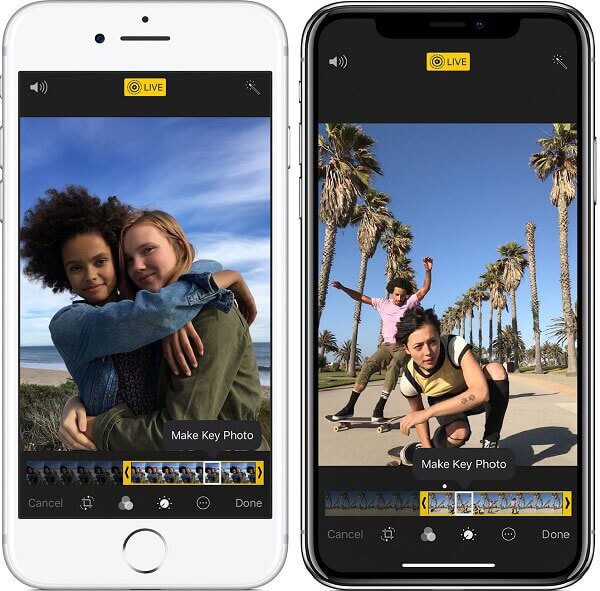
If you can not do something in the Apple Photos app on your iPhone, chances are there is a third-party photo-editing app that can. For instance, have you ever viewed a Live Photo and realized it would make a much better video? Get it done with the Shortcuts app. It only takes a few minutes to set up and a couple taps to perform. Let’s explore this feature.
Convert Live Photo to Video
First, Apple’s Shortcuts app should already be on your iPhone, but you can also download it from the App Store. Refer to the below image:
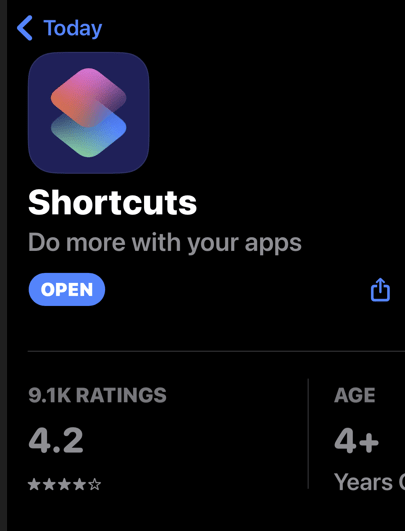
While the app comes loaded with many different pre-existing shortcuts, you must download a specific one from Apple’s website to convert Live Photos to videos.
Next, head to the Convert LivePhotos to Video page and tap the Add Shortcut button. See the below image:

Now, this will add it to your Shortcuts app. See the following image:
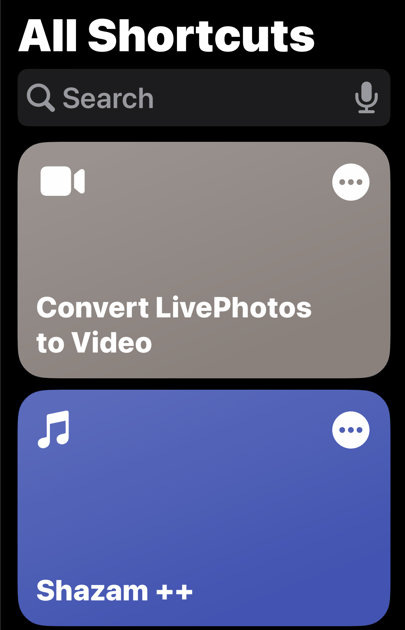
Next, all you have to do is select the Convert Live Photos to Video shortcut and pick the Live Photo you wish to convert. That’s all it takes. The new video will automatically be added to your Camera Roll as if you captured the clip with your phone’s camera. Refer to the below image:
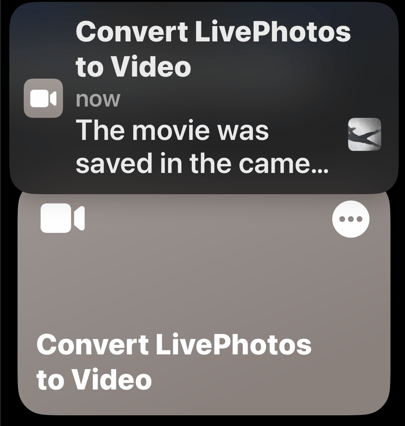
Now, if you have ever edited a Live Photo, you might notice that most of the photo outside the Key Photo can be quite blurry. However, your new video will retain the quality of the main photo throughout, giving you a crisp and clear clip. Click on the image to play the video:
Tips for Better Live Photos
This process is as simple as can be, but there are a few tricks to get the best results possible.
- This might sound obvious, but the shortcut only works with Live Photos.
- When selecting photos to convert, filter out all still images in Apple Photos by selecting Albums > Live Photos to make sure you are only viewing Live Photos.
- For best results, select photos that depict movement. For example, fireworks, moving cars, grass blowing in the wind, ocean waves crashing, etc. These will make for a better video than a stationary moment.
- You can use Live Photos with the Bounce, Loop, or Long Exposure effect.
- While you can not make a Boomerang out of a Live Photo, or a photo with the Bounce effect, you can convert your Live Photo to a video and make a Boomerang.
Related
Convert a Live Photo to a Still Photo
Disclaimer
Technology is always changing and rarely is there static tech for smartphones and desktops. Thus, the contents of this post are only valid at the time of writing. Blog posts older than six months may have directions incompatible with your device or OS. Hopefully, older post content will continue to work as advertised. Thank you for reading TechSavvy.Life for Technology at Work For You.
Quote For the Day
So often people are working hard at the wrong thing. Working on the right thing is probably more important than working hard.
Caterina Fake
Tweet Info
You are finished. Please feel free to share this post! One way to share is via Twitter.
Just click the Tweet icon below. This will launch Twitter where you click its icon to post the Tweet.
Just click the Tweet icon below. This will launch Twitter where you click its icon to post the Tweet.
Tweet
I Would Like to Hear From You
Please feel free to leave a comment. I would love to hear from you. Do you have a computer or smart device tech question? I will do my best to answer your inquiry. Just send an email to contact@techsavvy.life. Please mention the device, app, and version you are using. To help us out, you can send screenshots of your data related to your question.
Author’s E-Book

 Tech Savvy Life