


RAYMOND OGLESBY @RaymondOglesby2
March 5, 2024
This is for the iPhone. Screenshots are from iPhone 14 Pro running iOS 17+
Notifications on your iPhone provide important updates and information at a glance. However, if you are like us and do not dismiss or interact with your notifications, they can start to pile up. When your Notification Center becomes cluttered and clogged up, you can easily clear notifications on your iPhone simultaneously. Let’s explore this easy feature.
Clear All Your iPhone Notifications
If you are feeling overwhelmed by all the unread notifications in your Notification Center, clearing them might help.
Unlock your phone and swipe down from the top left of your screen
OR
swipe up from your Lock Screen to pull them up.to open the Notification Center.
Tap and hold the “X” icon for a moment. Refer to the below image:
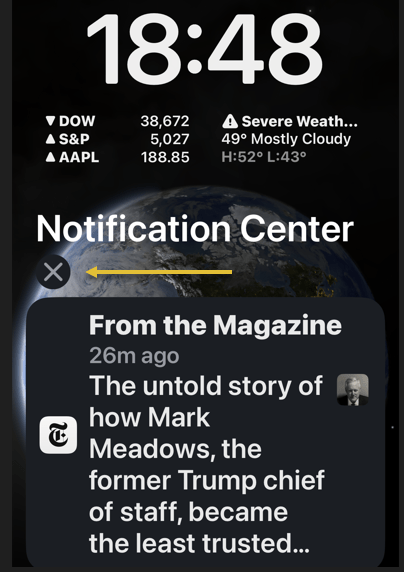
Tap Clear or Clear All Notifications when it pops up. See the below image:

Once you tap Clear or Clear All Notifications, all of your notifications will instantly disappear from the Notification Center. Now you do not have to deal with hundreds of notifications clogging up your phone every day!
Clear One
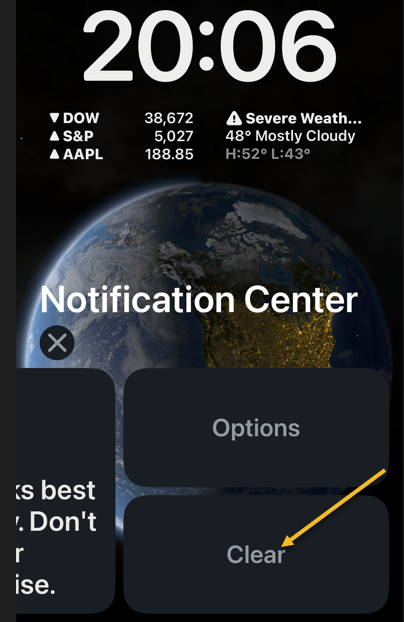
You can delete them one at a time by swiping the notification to the left, and then tap Clear or Clear All. See the following image:
Disclaimer
Technology is always changing and rarely is there static tech for smartphones and desktops. Thus, the contents of this post are only valid at the time of writing. Blog posts older than six months may have directions incompatible with your device or OS. Hopefully, older post content will continue to work as advertised. Thank you for reading TechSavvy.Life for Technology at Work For You.
Quote for the Day
The way to get things done is not to mind who gets the credit for doing them.
Benjamin Jowett
spacer
Tweet Info
That’s it. Please feel free to share this post! One way to share is via Twitter.
Just click the Tweet icon below. This will launch Twitter where you click its icon to post the Tweet.
Checkout TechSavvy.Life for blog posts on smartphones, PCs, and Macs! You may email us at contact@techsavvy.life for comments or questions.
Tweet
Author’s E-Book
You can access the e-book from a Kindle device, the Kindle App for the desktop or smartphone, which is a free app.

 Tech Savvy Life