

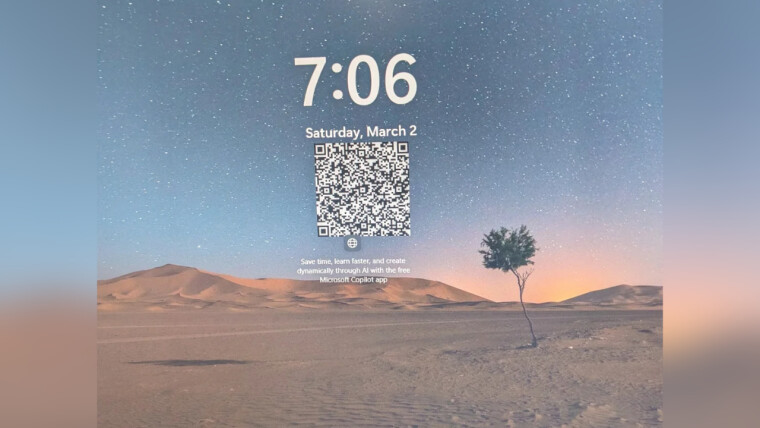
RAYMOND OGLESBY @RaymondOglesby2
March 12, 2024
This is for the iPhone. Screenshots are from iPhone 14 Pro running iOS 17+
What to Know
- Problem With Apple Wallet
- Lock Screen Solution
- Show Digital Tickets on the Lock Screen
- Summary
We hate giving our iPhones to strangers asking to scan a digital ticket with an unlocked screen. Yes, it’s incredibly easy to pull up a barcode or QR code on the screen so you can prove you have a valid ticket, loyalty program membership, or discount. And it’s very easy to add most of these digital tickets to Apple Wallet. In fact, you should do that whenever you can.
There will be instances where you may not perform the scan yourself. In such cases, you will have to unlock the iPhone, open the app that contains the digital ticket, and show or hand your phone to your friend. Now, we know the person handling my iPhone has better things to do than swipe up and snoop on our texts and photos. But it’s the principle of the thing.
The iPhone’s security is only as good as the Lock Screen password. And who knows what else can happen in a crowded place with people waiting for their tickets to be scanned?
But the iPhone’s Lock Screen offers a brilliant solution. We can set temporary wallpapers that display whatever digital ticket we might have to show to gain entry to an event or place. And we will never have to unlock the iPhone when handing it over to others to have a ticket scanned.
It’s incredibly easy to set up, and it’s an easy way to have all your digital tickets and subscriptions ready, whether they support Apple Wallet or not.
Problem With Apple Wallet
We mentioned Apple Wallet a few times, which is the place to store your credit cards, digital keys, and tickets. But to access its contents, you would still have to authenticate via Face ID, Touch ID, or your PIN to unlock the screen.
Also, not all apps support Apple Wallet. Or you might not be using Apple Wallet to begin with. Maybe you are using a code you photographed in real life. In such scenarios, you will not be able to add your digital tickets to Apple Wallet.
We also would point out that you can use both the Apple Ballet and the Lock Screen trick at the same time.
Lock Screen Solution
After the iOS 16 upgrade, we could use the Lock Screen customization support to set up as many wallpapers as we wanted and then just switch between them.
That is, screenshots of the digital ticket were the only way to do it is to hand off our iPhones.
Show Digital Tickets on the Lock Screen
Longtime iPhone users may have realized how the whole thing works. But if you still do not know how to pull it off, we will describe the steps below.
First, go to the app that shows the digital ticket. Maybe it’s an email or an app for an airline. Or a ticket to a concert, or a loyalty card you have to scan often. Whatever it is, find the barcode or QR code and take a screenshot.
You can crop the code if there’s a lot of stuff in the screenshot you do not need. We usually take a few seconds to crop the image.
Next, go to the Lock Screen, tap, and hold it until the wallpaper carrousel pops into view. Refer to the below image:

Now, tap on the Add New icon. See the below image:
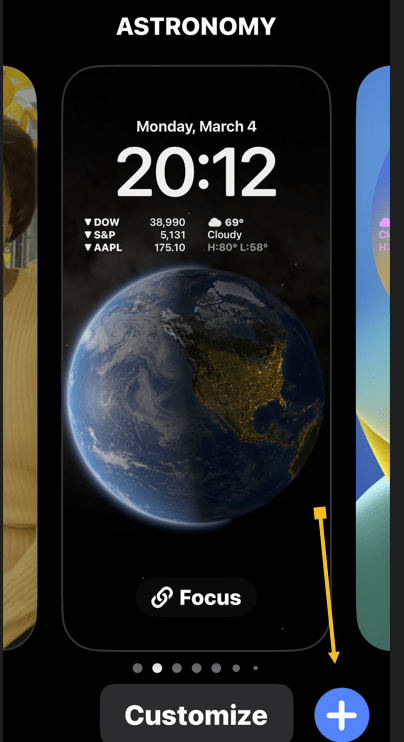
Next, go to Photos and tap All. See the following image:

Now, select the screenshot of the digital ticket you have just saved. Refer to the below image:

Next, comes the tricky part. Whether you have cropped the digital ticket in the screenshot or not, you will have to fit it on the Lock Screen. That means some cropping will follow as you will want to ensure that the code is not covered with any other elements, like screen widgets, the clock, or the Flashlight and Camera buttons. See the the below image:
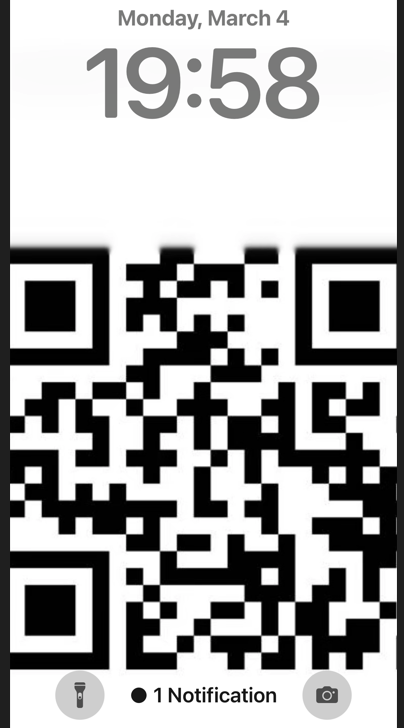
As you can see, we have squeezed a QR code between the Flashlight and Camera buttons.
Now, once you have figured out the position of the digital ticket, save the wallpaper.
That’s it. You are now ready to have your ticket scanned.
Summary
Next time you give the phone to someone else to check their ticket, just hand them your iPhone without unlocking it. Tell them to tap the screen, and the ticket will come into view. Ask them to keep tapping the screen if they need more time because the screen will turn off quickly when your iPhone is locked.
Once you are done, switch back to the wallpaper you want to use.
You can repeat this for any type of digital ticket/membership you routinely have to show around. You can save as many Lock Screens as you want, so they cover all your memberships.
Remember, you should delete the Lock Screens once the digital tickets showing on them are no longer valid.
Disclaimer
Technology is always changing and rarely is there static tech for smartphones and desktops. Thus, the contents of this post are only valid at the time of writing. Blog posts older than six months may have directions incompatible with your device or OS. Hopefully, older post content will continue to work as advertised. Thank you for reading TechSavvy.Life for Technology at Work For You.
Quote For the Day
Don’t find customers for your products, find products for your customers.
Seth Godin
Tweet Info
That’s it. Please feel free to share this post! One way to share is via Twitter.
Just click the Tweet icon below. This will launch Twitter where you click its icon to post the Tweet.
Checkout TechSavvy.Life for blog posts on smartphones, PCs, and Macs! You may email us at contact@techsavvy.life for comments or questions.
Tweet
I would Like to Hear From You
Please feel free to leave a comment. I would love to hear from you. Do you have a computer or smart device tech question? I will do my best to answer your inquiry. Just send an email to contact@techsavvy.life. Please mention the device, app, and version you are using. To help us out, you can send screenshots of your data related to your question.
Author’s E-Book
You can access the e-book from a Kindle device, the Kindle App for the desktop or smartphone, which is a free app.

 Tech Savvy Life