


RAYMOND OGLESBY @RaymondOglesby2
April 16, 2024
This is for the iPhone. Screenshots are from iPhone 14 Pro running iOS 17+
Do you regularly call extensions for your work or personal phone calls? If so, you are probably sick of dialing through phone trees to reach the person you want to reach. We will show you how to dial an extension on iPhone to skip the whole phone-tree nonsense, and how to add an extension to a phone number in Contacts for later use.
We will start by showing you how to dial an extension on your iPhone. Then, in the next section, we will cover how to add an extension to a phone number in iPhone Contacts.
Dial an Extension
- Open the Phone app, and tap the Keypad tab if it is not already selected.
- Dial the main number you are calling, then tap and HOLD the “*” key (asterisk) until a comma appears. The comma acts as a pause and lets your phone know it’s dialing an extension.
- Now enter the extension number after the comma.
- Tap the green phone Call button and you will dial straight to the person you are trying to reach.
Refer to the below image:
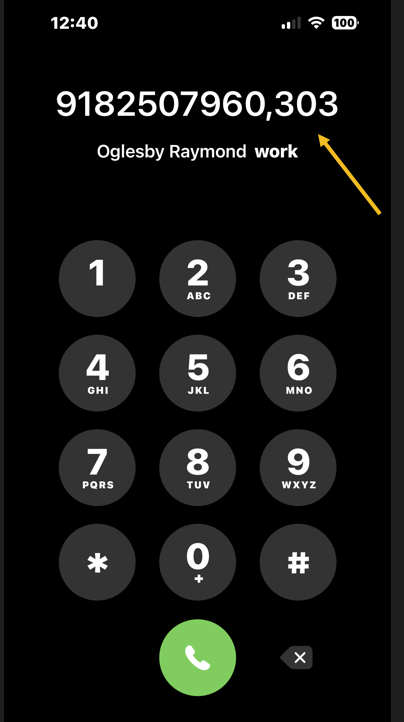
That’s all there is to it! Now, you know how to dial an extension on your iPhone.
Add Extension to a Contact
If you plan to regularly call a phone number extension, you can save it in your Contacts. That way, the next time you go to dial the extension, it will already be saved as it needs to be dialed.
- Open the Contacts app.
- Tap on the contact if you want to add an extension. If you do not already have the number saved, simply create a new contact by tapping the “+” plus icon.
- Tap Edit in the upper-right corner.
- Tap the number you are adding the extension to, or tap the “+” icon next to the phone to add a new phone number for the contact.
- Tap the Symbols button on your keyboard.
- Now tap the Pause button.
- Now enter the extension.
- Tap Done to save.
See the below image:

Now you can dial an extension before you even get to the operator, and you can also add an extension to a phone number in your iPhone Contacts.
Disclaimer
Technology is always changing and rarely is there static tech for smartphones and desktops. Thus, the contents of this post are only valid at the time of writing. Blog posts older than six months may have directions incompatible with your device or OS. Hopefully, older post content will continue to work as advertised. Thank you for reading TechSavvy.Life for Technology at Work For You.
Quote For the Day
Be undeniably good. No marketing effort or social media buzzword can be a substitute for that.
Anthony Volodkin
Tweet Info
You are finished. Please feel free to share this post! One way to share is via Twitter.
Just click the Tweet icon below. This will launch Twitter where you click its icon to post the Tweet.
Checkout TechSavvy.Life for blog posts on smartphones, PCs, and Macs! You may email us at contact@techsavvy.life for comments or questions.
Tweet
I Would Like to Hear From You
Please feel free to leave a comment. I would love to hear from you. Do you have a computer or smart device tech question? I will do my best to answer your inquiry. Just send an email to contact@techsavvy.life. Please mention the device, app, and version you are using. To help us out, you can send screenshots of your data related to your question.
Author’s E-Book
You can access the E-book from a Kindle device, the Kindle App for the desktop or smartphone, which is a free app.

 Tech Savvy Life