


RAYMOND OGLESBY @RaymondOglesby2
June 4, 2024
This is for the iPhone. Screenshots are from iPhone 14 Pro running iOS 17.5+
When Low Power Mode is enabled, the Battery icon at the top of your phone will appear yellow, and features like mail fetch, background app refresh, automatic downloads, and some visual effects will be reduced or disabled until it is turned off. There are two primary ways to turn on Low Power Mode.
Use Settings
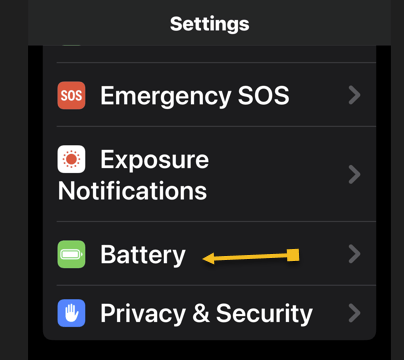
First, open Settings and tap the Battery option. Refer to the below image:
Now, toggle the Low Power Mode to ON. See the below image:

Use the Control Center
If you want quick and easy access to the Low Power Mode setting but do not want to go into your Settings and scroll to access it, let’s add it to your Control Center.
First, open Settings and tap the Control Center option. See the following image:

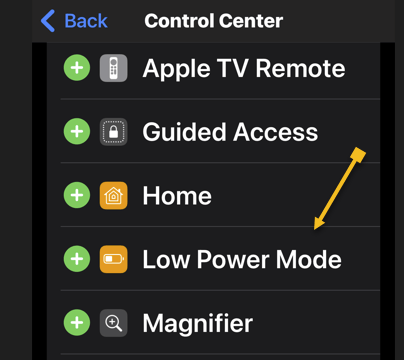
Next, tap Low Power Mode to add it to your Control Center. (If you see a red minus sign instead of a green plus side here, it means Low Power Mode is already in your Control Center.) Refer to the below image:
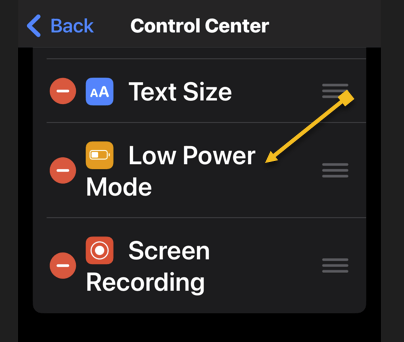
When added, the option will be in your Control Center. See the below image:
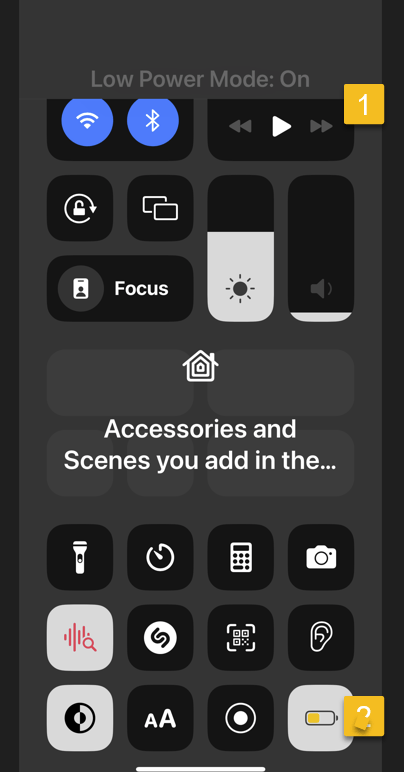
Next, swipe down from the top right of the screen. See the following image:

Now, tap the Battery icon to toggle Low Power Mode ON or OFF. At the top of your screen, you will see the option status. Refer to the below image:
What Does Low Power Mode Do
Your iPhone’s Low Power Mode does many things to save battery power. It automatically changes some settings to save battery power, like disabling the automatic fetching of new mail, reducing your screen brightness, and automatically locking the phone and powering off its display more quickly. Apps can detect low power mode is enabled and choose to disable animations and other battery-hungry features, too.
Motion effects and animated wallpapers are also disabled. Background activities and networking are paused to prevent unnecessary power drain in the background. Your iPhone even automatically reduces the performance of its CPU and GPU, which makes it perform a bit slower but saves battery life. Tests have found that this slows iPhones by about 40 percent when Low Power Mode is enabled.
By entering Low Power Mode you will save some battery life until you can get to your charger.
Disclaimer
Technology is always changing. Rarely is there static tech for smartphones and desktops. Thus, the contents of this post are only valid at the time of writing. Blog posts older than six months may have directions incompatible with your device or OS. Hopefully, older post content will continue to work as advertised. Thank you for reading TechSavvy.Life for Technology at Work For You.
Quote For the Day
If you can’t do great things, do small things in a great way.
Napoleon Hill
Tweet Info
That’s it. Please feel free to share this post! One way to share is via Twitter.
Just click the Tweet icon below. This will launch Twitter where you click its icon to post the Tweet.
Checkout TechSavvy.Life for blog posts on smartphones, PCs, and Macs! You may email us at contact@techsavvy.life for comments or questions.
Tweet
I Would Like to Hear From You
Was this post helpful? We would love to hear your comments. Do you have a computer or smart device tech question? I will do my best to answer your inquiry. Just send an email to contact@techsavvy.life. Please mention the device, app, and version you are using. To help us out, you can send screenshots of your data related to your question.
You can access the E-book from a Kindle device, or the Kindle App for a desktop or smartphone. The apps are free.

 Tech Savvy Life