

RAYMOND OGLESBY @RaymondOglesby2
July 16, 2024 = 4 minutes read
This is for the iPhone Pro. Screenshots are from iPhone 14 Pro running iOS 17.5.1
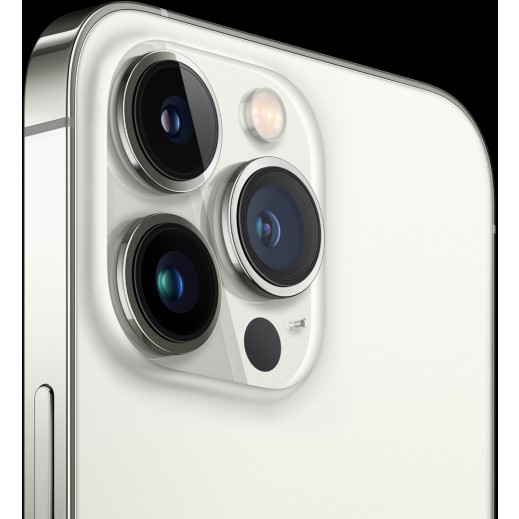
If you have a Pro iPhone, you have probably noticed the Flower icon while taking photos on your iPhone camera. This icon should only appear when your camera enters Macro mode for taking close-up pictures. Let’s explore how to use and disable the Macro mode Flower icon.
What is the Flower Icon on Your iPhone Camera
As you might have guessed, the icon indicates your iPhone’s macro camera is enabled. iPhone macro photography lets you take clear, extreme close-up shots of nearly any subject. If you do not need to use the iPhone’s macro lens, you can easily disable it from the camera by tapping the Flower icon.
How to Turn Off the Macro Lens
If you are uninterested in iPhone macro photography, you can disable the macro lens.
First, when the camera is open, tap the yellow Flower icon. Refer to the below image:

Next, when it is gray with a slash through it, that means it has been disabled. See the below image:
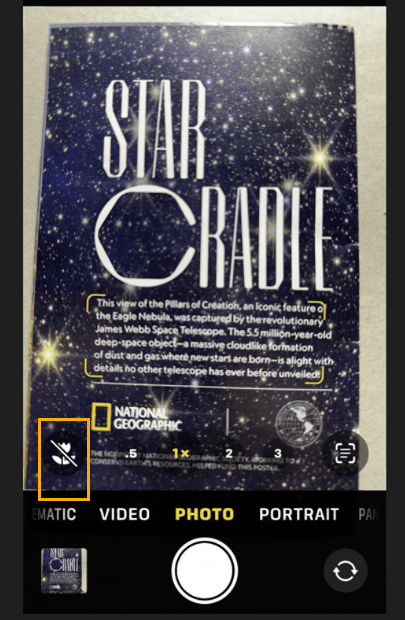
That’s how to disable the macro photography lens. If you want to disable the icon itself, see the below section.
How to Disable the Flower Icon in iPhone Camera
If you do not want the Flower icon to appear on your iPhone camera, you can disable that in the Settings app.
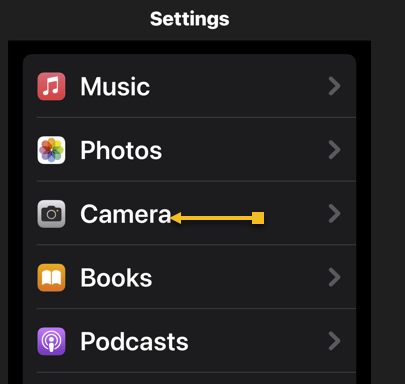
First, the Settings app, and tap Camera. See the following image:
Next, scroll to the bottom and tap the toggle next to Macro Control to disable or enable the Flower icon. Refer to the below image:
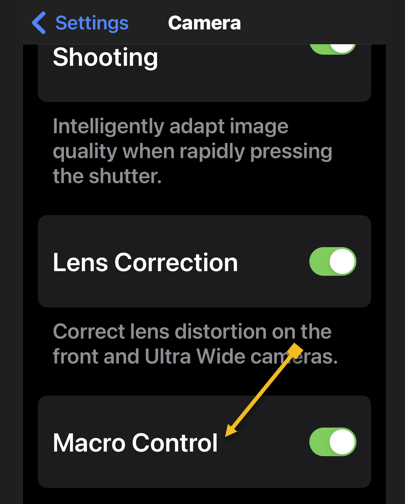
Note! This does not disable Macro mode, only the Flower icon. You will not be able to turn off Macro mode if you turn off the above toggle.
FAQ
What does Macro mode do?
Macro mode keeps the image clear while taking extreme close-up shots. This means you can take crisp photos of smaller subjects, like plants or animals.
Does the iPhone 15 have macro photography?
The standard iPhone 15 model does not have a Macro mode. However, all Pro models iPhones, including the iPhone 15 Pro and Pro Max, can capture macro photography images.
Disclaimer
Technology is always changing. Rarely is there static tech for smartphones and desktops. Thus, the contents of this post are only valid at the time of writing. Blog posts older than six months may have directions incompatible with your device or OS. Hopefully, older post content will continue to work as advertised. Thank you for reading TechSavvy.Life for Technology at Work For You.
Quote For the Day
“Don’t believe everything you hear: Real eyes, Realize, Real lies.”
Tupac Shakur
X (Twitter) Info
That’s it. Please feel free to share this post! One way to share is via Twitter.
Just click the Tweet icon below. This will launch Twitter where you click its icon to post the Tweet.
Checkout TechSavvy.Life for blog posts on smartphones, PCs, and Macs! You may email us at contact@techsavvy.life for comments or questions.
Tweet
I Would Like to Hear From You
Was this post helpful? We would love to hear your comments. Do you have a computer or smart device tech question? I will do my best to answer your inquiry. Just send an email to contact@techsavvy.life. Please mention the device, app, and version you are using. To help us out, you can send screenshots of your data related to your question.
You can access the E-book from a Kindle device, or the Kindle App for a desktop or smartphone. The apps are free.

 Tech Savvy Life