


RAYMOND OGLESBY @RaymondOglesby2
January 21, 2025 – 4 minutes read time
Overview
Can you lock apps on the iPhone? Yes! For a long time, there was no way to lock apps on iOS. However, the latest updates added a new feature that allows you to lock down an app.
This is useful because it means you can unlock your iPhone and hand it to someone to look at something, knowing they will not be able to open the locked apps. Suppose someone using your iPhone tries to open an app you have manually locked using the method described below. In that case, they will see a popup informing them that it can not be accessed without secondary authentication via Face ID (or Touch ID on the iPhone SE).
If Stolen Device Protection is active, entering a passcode to unlock an app is not an option, so even if your iPhone is stolen and the thief knows your passcode, they can open the app. However, if Stolen Device Protection is not enabled, a passcode prompt appears that can be used to unlock the app after three failed Face ID attempts.
It’s worth noting that not all apps can be locked. Apple does not provide the lock option for apps like Maps, Clock, Calculator, and Settings. Otherwise, almost every other app can be locked, including third-party apps. Let’s explore how this is done.
Why You Will Like This Tip
- Prevent others from accessing apps with personal information.
- Secure apps that do not have a Face ID login option.
System Requirements
This is for the iPhone running iOS 18 or later. The screenshots are from iPhone 14 Pro running iOS 18.2.1.
Click here to learn how to update your iPhone to the latest iOS version.
How to Lock an App
First, find the app you want to lock, and long-press on it. Refer to the below page:
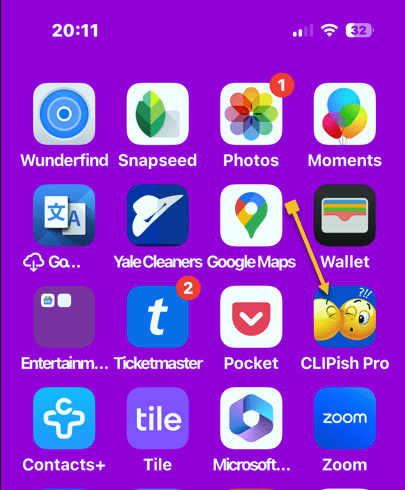
Next, when the menu appears, select Require Face ID. See the below image:

Now, tap Require Face ID. See the following image:

Next, Face ID will scan your face. When you open the app, there will be a message telling you that Face ID is required to open the app. Refer to the below image:

Now, you can tap Try Face ID Again if Face ID fails. See the below image:

Next, if Face ID fails a second time, you can select Enter Passcode to unlock the app with your iPhone passcode. See the following image:

How to Unlock an App
Simply long-press on the app’s icon and choose the Don’t Require Face ID. See the below image:

As long as you have Stolen Device Protection enabled, turning the lock on and off requires a Face ID scan, so it can not be turned off without your knowledge.
Summary
That’s how to lock an app on the iPhone. Now you can keep your apps protected from prying eyes.
Source: Apple Support, MacRumors
Disclaimer
Technology is always changing. Rarely is there static tech for smartphones and desktops. Thus, the contents of this post are only valid at the time of writing. Blog posts older than six months may have directions incompatible with your device or OS. Hopefully, older post content will continue to work as advertised. Thank you for reading TechSavvy.Life for Technology at Work For You.
Quote For the Day
Technology should improve your life… not become your life.
– Billy Cox
X (Twitter) Info
That’s it. Please feel free to share this post! One way to share is via Twitter.
Just click the Tweet icon below. This will launch Twitter where you click its icon to post the Tweet.
Checkout TechSavvy.Life for blog posts on smartphones, PCs, and Macs! You may email us at contact@techsavvy.life for comments or questions.
Tweet
I Would Like to Hear From You
Was this post helpful? We would love to hear your comments. Do you have a computer or smart device tech question? I will do my best to answer your inquiry. Just send an email to contact@techsavvy.life. Please mention the device, app, and version you are using. To help us, you can send screenshots of the data related to your question.
The author’s Vietnam eBook on the “Battle for Tra Bong Vietnam: Events and Aftermath” can be accessed from a Kindle device or the Kindle App for a desktop or smartphone. The apps are free.

 Tech Savvy Life