

RAYMOND OGLESBY @RaymondOglesby2
February 4, 2025 – 4 minutes read time
Overview
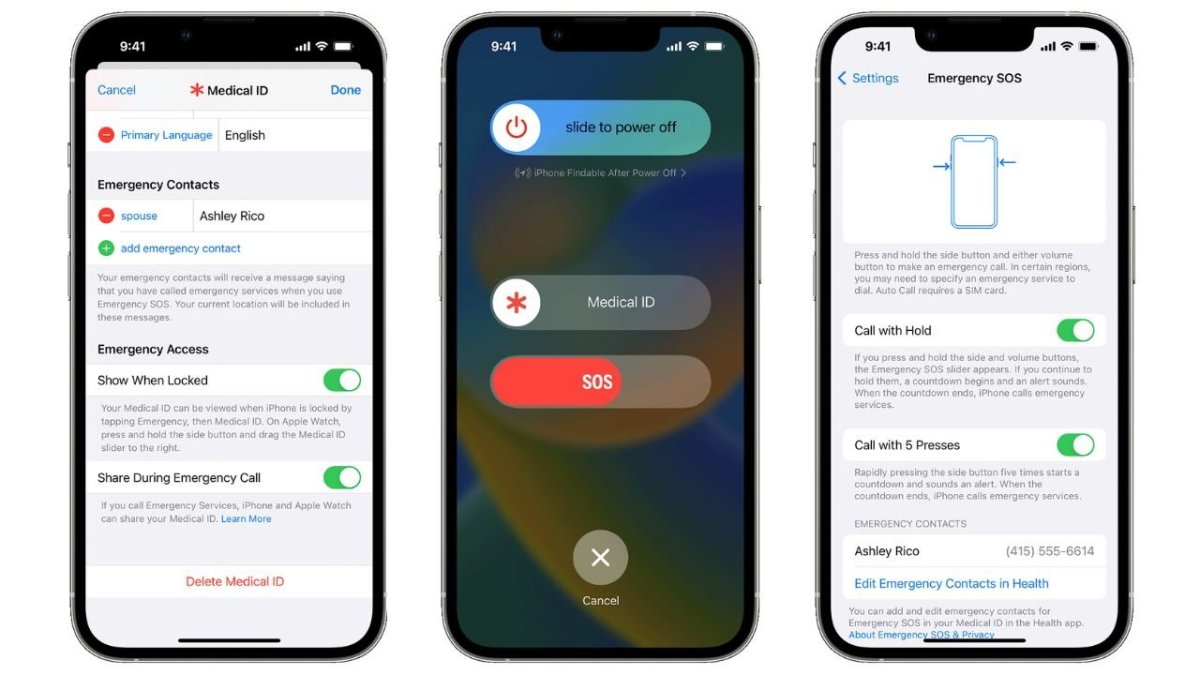
The Emergency SOS feature lets you call for help in many different ways, including discreetly by holding down a button, via satellite, and even automatically if a car crash or fall is detected. After an Emergency SOS call ends, your iPhone will automatically send a message with your location to your Emergency contact(s). Add an extra layer of security to your life by adding your iPhone emergency contact(s).
Why You Will Like This Tip
- Give your loved ones peace of mind by adding them as Emergency contacts.
- Customize your Emergency SOS settings to suit your needs.
System Requirements
This tip works on iPhones 14 and above running iOS 18 or later.
Screenshots are from iPhone 14 Pro running iOS 18.3
Click here to learn how to update your iPhone to the latest iOS version.
Setup Emergency Contacts
There are many different ways to set up and activate Emergency SOS depending on what devices and device models you have. Only iPhone 14 and newer models can use Emergency SOS via satellite and have automatic Crash Detection (on by default.) iPhones running iOS 18 can use Live Video during emergency calls. You will need a newer Apple Watch model to use automatic Fall Detection. Here’s how to set your iPhone’s Emergency SOS contact(s). In this example, we are setting up Zoey Oglesby as an emergency contact,
First, open the Health app on your iPhone. Refer to the below image:

Next, tap your Profile icon in the to right corner. See the below image:

Now, select Medical ID. See the following image:

Next, under Emergency Access section, toggle Show When Locked and Share During Emergency Call to ON. Refer to the below image:

Now, scroll down to Emergency Contacts and tap Edit. See the below image:
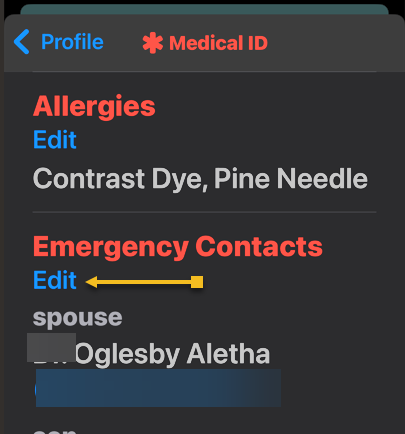
Next, tap the green plus sign to add a new emergency contact. See the following image:

Now, your Contacts will pop up. Find the contact you want and tap on their name. Refer to the below image:

Next, select their relationship with you. See the below image:
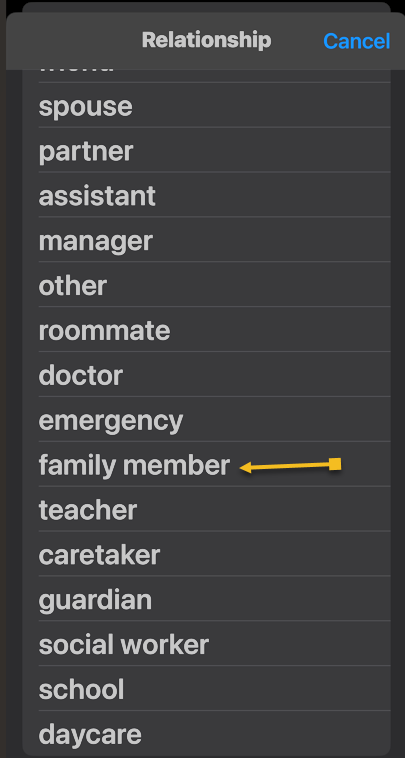
Next, tap Done. See the following image:
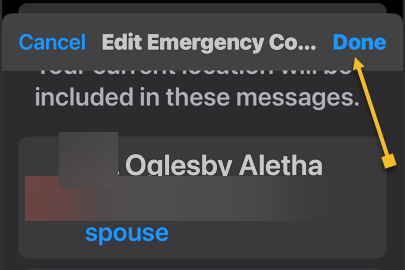
Your emergency contact(s) will now receive a text message and your location should you make an emergency call using Emergency SOS on your iPhone. In your Contacts, the emergency contact(s) are indicated by an asterisk (*) next to their name. Refer to the image below, where four family members are indicated as emergency contacts (others are on a different contact page):

Accessing your Medical ID within the Health app allows you to display only your emergency contacts. When the Show When Locked option is turned on, your emergency contact information will appear on the Lock screen.
Disclaimer
Technology is constantly evolving, and smartphone and desktop tech rarely remains static. Therefore, the information in this post is only accurate as of the date it was written. Blog posts that are older than six months may contain instructions that are no longer compatible with your device or operating system. We hope that the content from previous posts continues to function as intended. Thank you for reading TechSavvy.Life, where technology works for you.
Quote For the Day
The technology you use impresses no one. The experience you create with it is everything.
-Sean Gerety
X (Twitter) Info
That’s it. You have just setup emergency contacts that may save your life. Please feel free to share this post! One way to share is via Twitter.
Just click the Tweet icon below. This will launch Twitter where you click its icon to post the Tweet.
Checkout TechSavvy.Life for blog posts on smartphones, PCs, and Macs! You may email us at contact@techsavvy.life for comments or questions.
Tweet
I Would Like to Hear From You
We value your feedback! Was this post helpful? Please share your comments with us. If you have a tech question related to your computer or smart device, feel free to reach out. Just send an email to contact@techsavvy.life, and be sure to include the device, app, and version you are using. To assist us further, you can also attach screenshots related to your inquiry.
The author’s Vietnam eBook on the “Battle for Tra Bong Vietnam: Events and Aftermath” can be accessed from a Kindle device or the Kindle App for a desktop or smartphone. The apps are free.

 Tech Savvy Life