


RAYMOND OGLESBY @RaymondOglesby2
March 25, 2025 – 5 minutes read time
Overview
It would be convenient if Apple added a numbers row to the standard iPhone keyboard, but it has not happened yet. If you want an iPhone keyboard with numbers, here’s an iPhone texting trick. This post shows how to access iOS keyboard symbols and numbers without leaving the standard keyboard.
Why You Will like This Tip
- Type numbers quickly and efficiently without having to switch to the number keyboard.
- Impress your friends with your iPhone keyboard-shortcut knowledge.
System Requirements
While the steps below work on previous iOS software versions, the screenshots shown were captured using iOS 18.3.2 on iPhone 14 Pro.
Click here to learn how to update your iPhone to the latest iOS version.
Typing Numbers
Have you been wishing for an iPhone keyboard with numbers and symbols? Let’s go over how to access numbers and symbols without leaving the ABC keyboard on your iPhone.
First, open any app where you want to use a keypad with numbers, such as Messages or Notes.
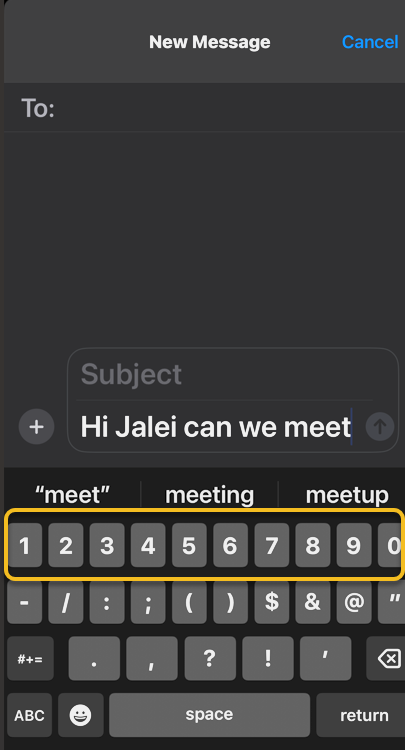
Next, when typing, touch and hold the 123 button to bring up the keypad with numbers. Since the button is on the left side of the screen, it works best to do this with your left hand. You will need to keep holding it while you type the numbers and/or symbols. Refer to the below image:

Now, while still holding the 123 buttons, type the numbers or symbols you need using the other hand. See the below image:
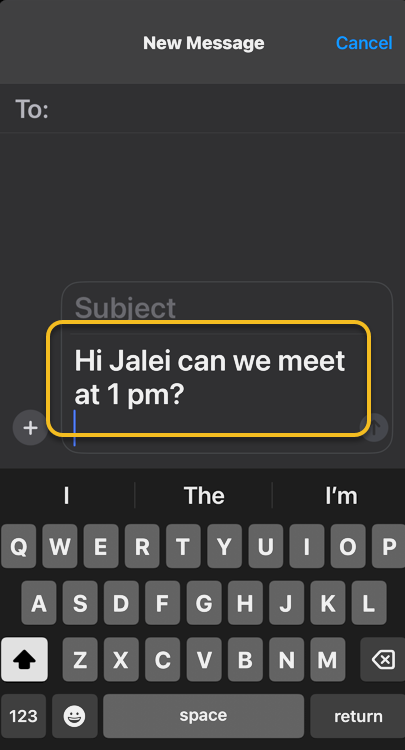
Next, release the 123 button, which will automatically switch back to the ABC keys. You can then carry on typing in the standard iPhone keyboard to complete your text. See the following image:
That’s how to get numbers on an iPhone keyboard the quickest way! For those who already type with two hands, this will be a breeze. If you typically type with only one hand, this iPhone keyboard shortcut may take a little bit of getting used to, but it’s still faster than having to navigate from the ABC keyboard to the 123 keyboard and back!
BONUS: A Favorite Useless Tip
This tip uses the StandBy feature introduced in iOS 17. It should be enabled by default in iOS 17 and higher, but you will still want to confirm that it’s set up for this tip to work.
This nameless tip will show the time in the middle of your screen upon a certain action.
First, head to:
Settings > StandBy
and make sure StandBy and Always On (if you have that feature) are enabled.
Next, if you want to see notifications, turn on Show Notifications.
Now, tap the Display option, then enable the Night Mode switch if you want the screen to take on a red tint in reaction to low ambient light at night so it does not disturb your sleep. Refer to the below image:

Bext, you simply press and hold down the Time indicator in the status bar (top left). The current time will be displayed in the middle of your screen and stay there until you release the Time indicator. We ask, why? Some Apple engineer had too much time on his hands. See the below image:

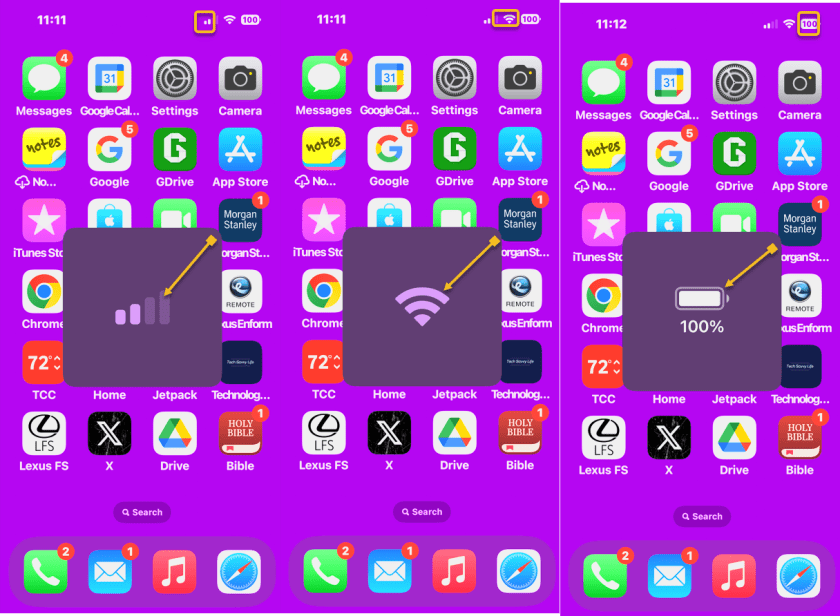
Want more useless information? Press and hold the other indicators (signal strength, WiFi and Battery). See the following image:
Disclaimer
Technology is constantly evolving, and smartphone and desktop tech rarely remains static. Therefore, the information in this post is only accurate as of the date it was written. Blog posts that are older than six months may contain instructions that are no longer compatible with your device or operating system. We hope that the content from previous posts continues to function as intended. Thank you for reading TechSavvy.Life, where technology works for you.
Quote For the Day
“Please, no matter how we advance technologically, please don’t abandon the book. There is nothing in our material world more beautiful than the book.”
-Patti Smith
X (Twitter Info)
That’s it. Please feel free to share this post! One way to share is via Twitter.
Just click the Tweet icon below. This will launch Twitter where you click its icon to post the Tweet.
Checkout TechSavvy.Life for blog posts on smartphones, PCs, and Macs! You may email us at contact@techsavvy.life for comments or questions.
Tweet
I Would Like to Hear From You
We value your feedback! Was this post helpful? Please share your comments with us. If you have a tech question related to your computer or smart device, feel free to reach out. Just send an email to contact@techsavvy.life, and be sure to include the device, app, and version you are using. To assist us further, you can also attach screenshots related to your inquiry.
The author’s Vietnam eBook on the “Battle for Tra Bong Vietnam: Events and Aftermath” can be accessed from a Kindle device or the Kindle App for a desktop or smartphone. The apps are free.

 Tech Savvy Life