

RAYMOND OGLESBY @RaymondOglesby2
September 23, 2025 – 7 minutes read time
Overview
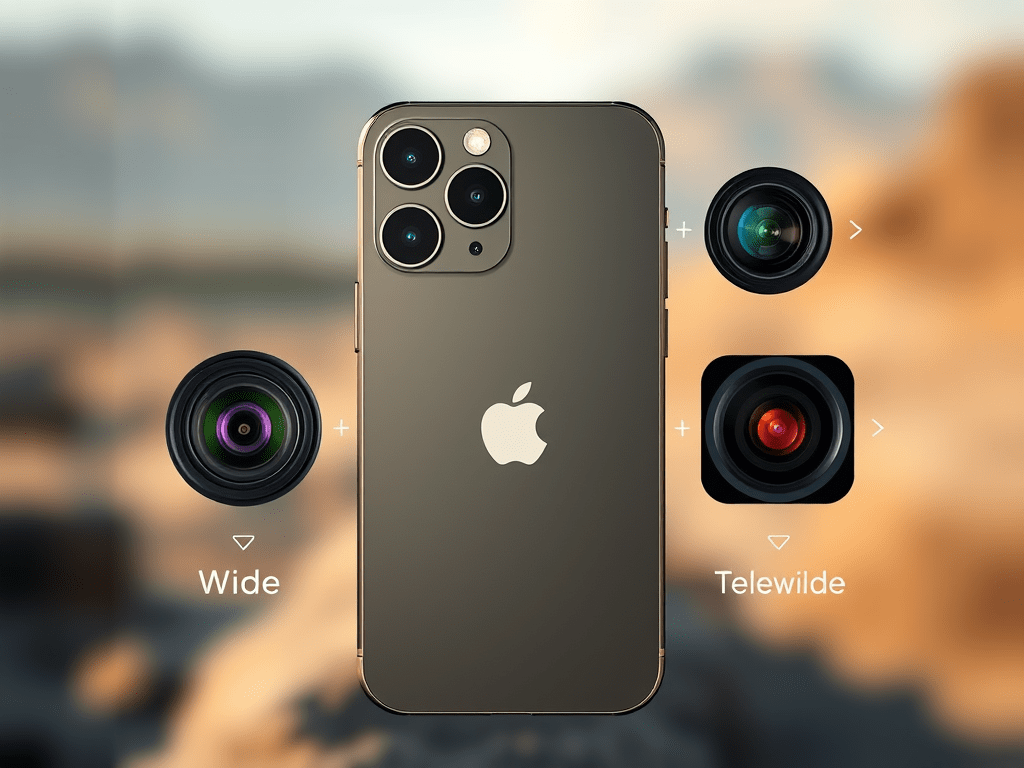
Since the release of the iPhone 11 Pro in September 2019, seeing three lenses on an iPhone has become the norm, at least for the Pro models. In this post we will explain why iPhones, iPads, and most Android phones have multiple lenses and what each iPhone 16 lens does. Let’s go over all the different iPhone camera lenses!
What to Know
- The Wide lens is the main camera lens that every iPhone has.
- Most models after the iPhone 11 have an Ultra Wide lens.
- Only the Pro models have an iPhone telephoto lens.
Wide Lens Explained
The wide camera lens on the iPhone is the standard lens that has no optical zoom and shows the subject the way you see it with your eyes. Every iPhone that ever existed has had one, but that does not mean that they are all the same.
The Original 2007 iPhone’s wide lens had a resolution of 320×480 and 2 Megapixels with a pixel size of 163 pixels per inch. Today’s most powerful iPhone, the iPhone 16 Pro Max, has a resolution of 2796×1290 and 48 Megapixels with 460 pixels per inch. The iPhone 16e has a new type of camera lens that Apple calls a 2-in-1 48 MP Fusion camera. It’s a single lens that can functions both as a wide lens and a telephoto lens.
Typically, on an iPhone with three cameras (or an iPhone with two cameras), the bottom lens will be the Wide lens. If your device only has one lens, you can buy a third-party telephoto or macro lens for your iPhone, regardless of its model.
Ultra Wide Angle Lenses Explained
Ultra Wide Angle Lens: iPhone SE 2 & SE 3, & 11–16
The Ultra Wide lens can be used to “zoom out” of the frame before taking the photo. It is sometimes called a fisheye lens. If you are backed against a wall and want the camera to show more of what’s ahead of you, switch to the Ultra Wide lens. The Ultra Wide lens is also the key to taking great macro mode photos.
Keep in mind that the image may appear distorted around the edges when you use this lens. This is sometimes called the fisheye effect. You can turn on Lens Correction in your Camera settings to make it look more natural. You can find an Ultra Wide Angle lens, sometimes simply called the wide-angle lens, on the iPhone SE 2, iPhone SE 3, and any model of iPhone 11 to 16.
When you see an iPhone with two lenses, one will be the regular Wide lens, and the other will be the Ultra Wide lens. On an iPhone with three cameras, the Ultra Wide lens is in the middle. What many people do not realize is that even though the Wide lens has a 0.5x zoom, you can pinch your fingers to zoom between the range of 0.5 and 1x.
Telephoto Lens Explained
Telephoto Lens: Pro Models of iPhone 11–16
What is a Telephoto lens? The iPhone zoom lens, officially known as the Telephoto lens, has a higher zoom and can take close-up photos of your subject; it is useful for Portrait mode photos. The Telephoto lens can help you see faraway objects closer without compromising quality. For example, if your subject is a wild animal and you cannot get physically closer, you might use the Telephoto lens on your iPhone to make it look closer than it actually is.
So which iPhone has a Telephoto lens? Only the Pro models of the iPhone 11 through the 16 have the Telephoto lens. The iPhone 16 Telephoto lens is the top one and has a 5x zoom with a focal length of 120 mm, ƒ/2.8 aperture, as well as a 2x zoom that has a focal length of 48 mm, ƒ/1.78 aperture, and a digital zoom of up to 25x. What’s confusing is that 5x zoom does not mean that the image will be magnified five times. The magnification depends on the focal length of the lens.
Every iPhone Telephoto lens happens to have a different zoom:
- The iPhone 11 has a 2x zoom
- The iPhone 12 has a 2.5x zoom
- The iPhone 13 has a 3x zoom.
- The iPhone 14 has a 2x and a 3x zoom
- The iPhone 15 has a 2x and a 5x zoom
- The iPhone 16 has a 2x and a 5x zoom
Note! The two telephoto zooms on the Pro models of iPhone 14, 15, and 16 are why Portrait mode on these phones has a different zoom amount, so if you upgrade to a newer model, you’ll notice that it has a different magnification.
iPhone is known for having one of the best phone cameras on the market, thanks to its powerful lenses. When shopping for a new iPhone, you may be wondering which iPhone has the best camera. Currently, the iPhone 16 Pro Max has the best resolution and highest zoom, but every iPhone with ‘zoom lenses’ (Pro models with Telephoto lenses) is an excellent option. Plus, it has LiDAR sensors for better low-light photography. While the newest pro model tends to have the best camera, even older models and the SE take great photos, so it really depends on your individual photography and videography needs. Next, find out how to share your pictures with your non-iPhone friends!
FAQ
- Can you buy third-party iPhone camera lenses?Yes! Many third-party companies create lenses and other iPhone camera attachments that can be clipped onto your existing lenses. I recommend checking out Sandmarc and Moment lenses in particular. Moment has a great telephoto lens for iPhone (also called a zoom lens for iPhone or a telescoping lens for iPhone).
- What is LiDAR? LiDAR sensors accurately measure distances between objects.
- How does the iPhone telephoto lens work? The iPhone telephoto lens lets you “zoom in” or take close-up photos of your subjects or a landscape. The slight protrusion of the lenses is what makes it possible for newer iPhones to have up to 5x digital (and 25x optical) zoom.
Disclaimer
Technology is constantly evolving, and smartphone and desktop tech rarely remains static. Therefore, the information in this post is only accurate as of the date it was written. Blog posts that are older than six months may contain instructions that are no longer compatible with your device or operating system. We hope that the content from previous posts continues to function as intended. Thank you for reading TechSavvy.Life, where technology works for you.
Quote For the Day
“When it comes to technology, curiosity is the new currency.”
– Susan Wojcicki, Former CEO of YouTube
(X) Twitter Info
That’s it. Please feel free to share this post! One way to share is via Twitter.
Just click the Tweet icon below. This will launch Twitter where you click its icon to post the Tweet.
Checkout TechSavvy.Life for blog posts on smartphones, PCs, and Macs! You may email us at contact@techsavvy.life for comments or questions.
Tweet
I Would Like to Hear From You
We value your feedback! Was this post helpful? Please share your comments with us. If you have a tech question related to your computer or smart device, feel free to reach out. Just send an email to contact@techsavvy.life, and be sure to include the device, app, and version you are using. To assist us further, you can also attach screenshots related to your inquiry.
The author’s Vietnam eBook on the “Battle for Tra Bong Vietnam: Events and Aftermath” can be accessed from a Kindle device or the Kindle App for a desktop or smartphone. The apps are free.

 Tech Savvy Life