

RAYMOND OGLESBY @RaymondOglesby2
December 10, 2024 – 6 minutes read time
Overview
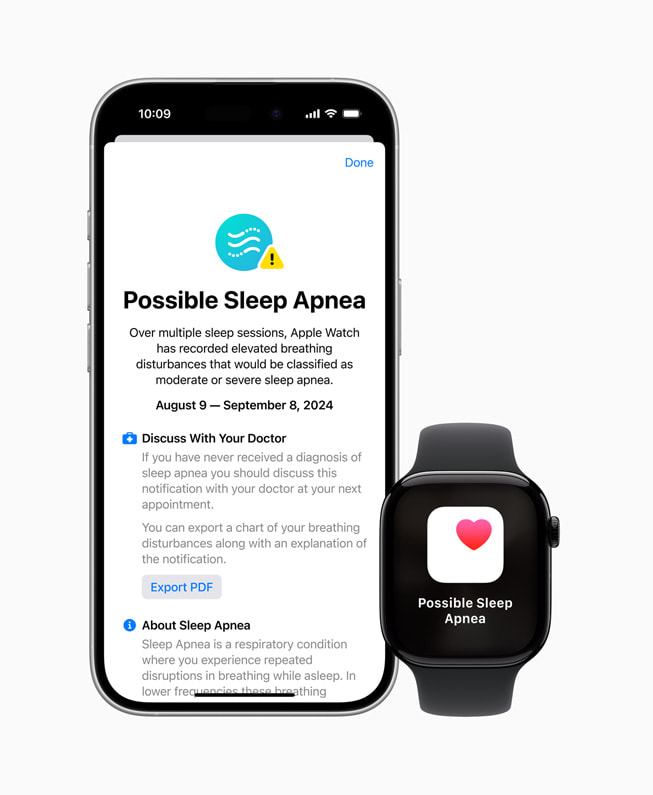
The new Sleep Apnea Apple Watch feature uses the watch’s internal accelerometer to detect breathing disturbances. Sleep apnea detection is only available on newer Apple Watch models and users over 18 years old who have not been diagnosed with sleep apnea in the past.
About Sleep Apnea
Sleep apnea is a respiratory condition where you experience repeated disruptions in your breathing while you sleep. These breathing disturbances are fairly common, and people typically experience a few disturbances a night. Your alcohol intake, upper respiratory illnesses, and even some medications can lead to elevated breathing disturbances. When you wear your Apple Watch to bed, it uses the accelerometer to look for breathing disturbances while you sleep. These are categorized as “Elevated” or “Not Elevated.” Over a 30-day evaluation period, if you consistently experience “Elevated” breathing disturbances, you receive a notification, letting you know it identified signs of sleep apnea. You should talk to your doctor if you receive a sleep apnea notification.
Why You Will Like This Tip
- Set up Sleep apnea Apple Watch notifications to learn if you are experiencing any signs of sleep apnea.
- Sleep apnea notifications can help you know when it’s time to make an appointment with your doctor.
System Requirements
- An Apple Watch Series 9 or later or Apple Watch Ultra 2, with the latest version of watchOS.
- Update your iPhone to the latest version of iOS.
- Sleep must be set up with Track Sleep with Apple Watch turned on.
- You must wear your Apple Watch to sleep for a minimum of 10 nights over a 30 day period. Your data will be analyzed every 30 days.
- Sleep apnea notifications are intended for use by people 18 years or older who have not been diagnosed with sleep apnea.
The screenshots are from iPhone 14 Pro running iOS 18.1.1.
Set Up Notifications
Sleep Apnea is a much-anticipated Apple Watch feature that is finally here. This post explores how to set up and use notifications for sleep apnea breathing disturbances.
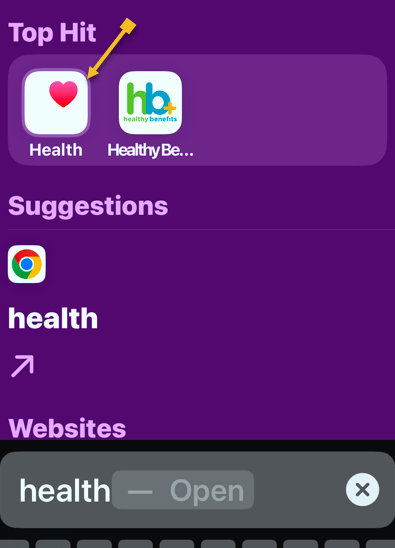
First, open the Health app. Refer to the below image:
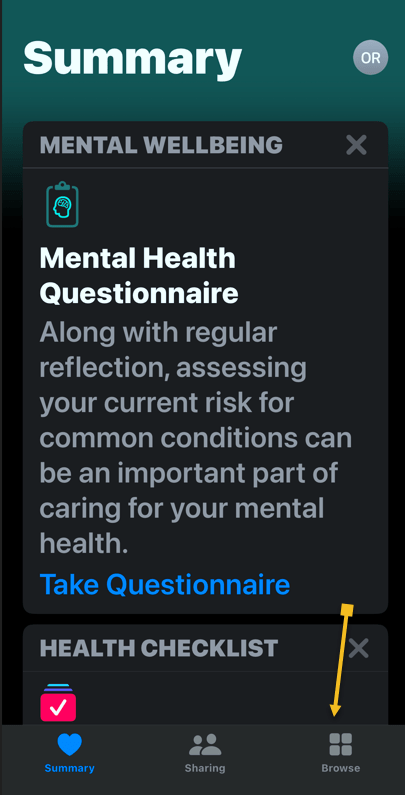
Next, navigate to the Browse tab if you are not already there. See the below image:
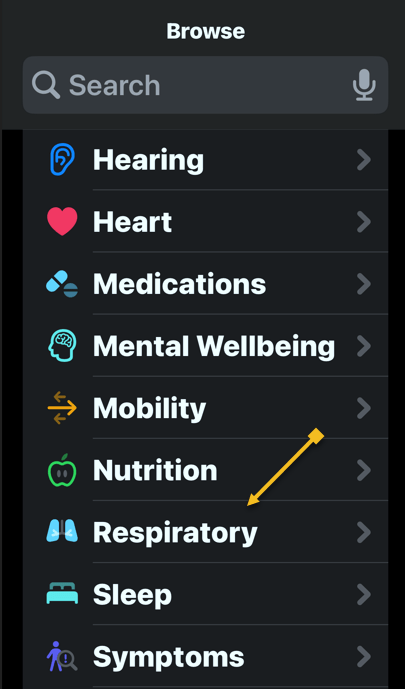
Now, scroll down and select either Sleep or Respiratory. See the following image:
Next, scroll down until you see Sleep Apnea Notifications, tap Set Up. Refer to the below image:
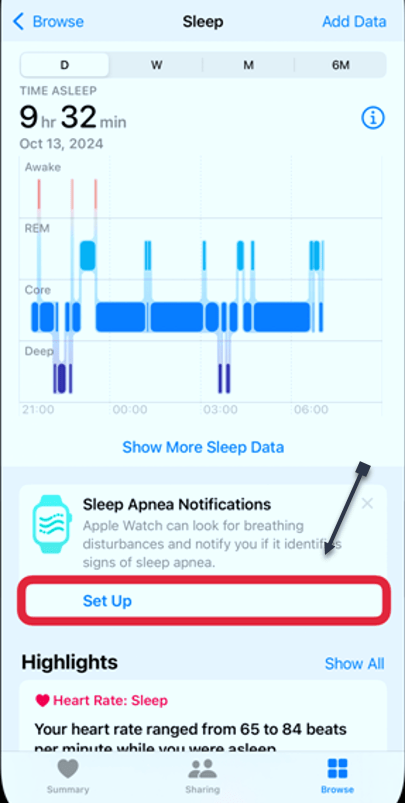
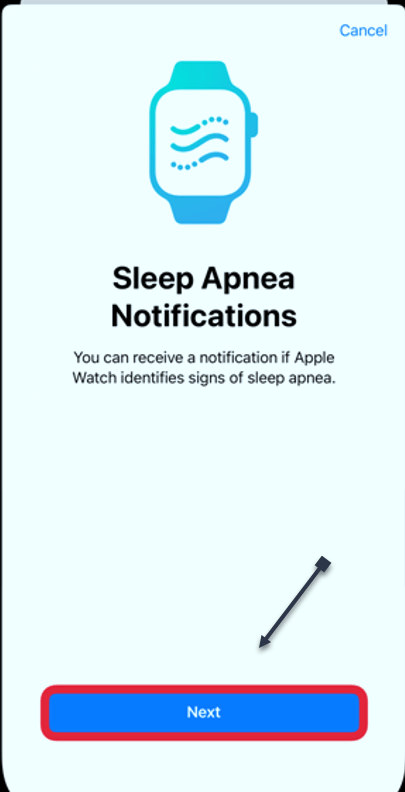
Now, tap Next. See the below image:
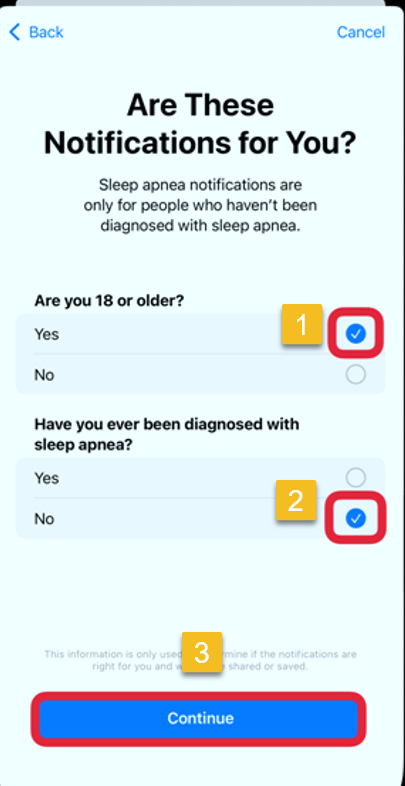
Next, you can only track sleep apnea if you are over 18 and have not been diagnosed with sleep apnea. If applicable, tap on Yes and No respectively. Then tap Continue. See the following image:
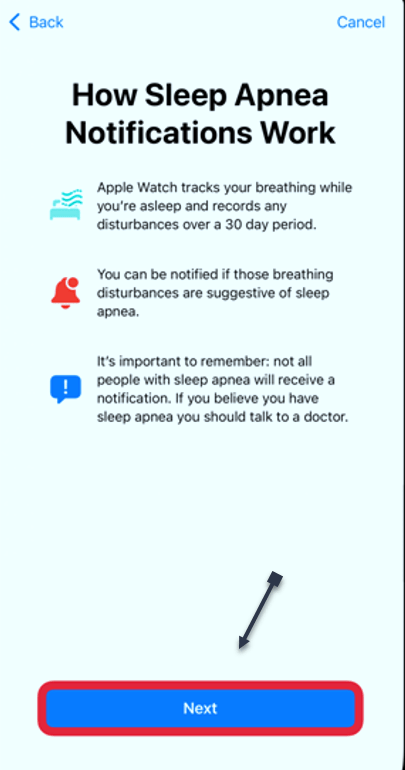
Now, tap Next. Refer to the below image:
Next, you will be taken to a page showing Breathing Disturbances. If this is your first time using the app, you will not see any data here yet. But you can scroll down to read more about them to learn what to expect. See the below image:
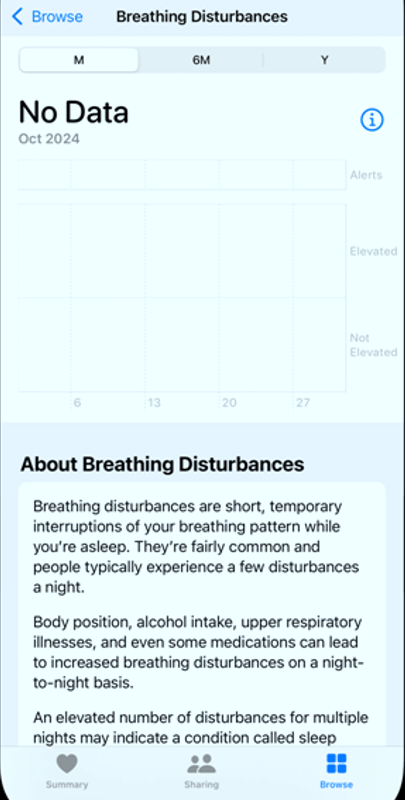
There is no specific Sleep Apnea app, but you can track any disturbance within the Health app. From now on, you will be notified if any breathing disturbances are detected. Please keep in mind that while the Apple Watch may be able to detect sleep apnea, you will have to see your doctor to get a proper diagnosis and receive any necessary medical care.
Enabling the Apple Watch
- Turn on Track Sleep with Apple Watch. It should appear during the initial setup, although you can go to the Watch app on your iPhone > My Watch Tab.
- Select Sleep and toggle on Track Sleep with Apple Watch.
- Wear your watch to sleep for at least 10 nights in a 30-day period to get analyzed results.
Viewing Your Results
Your results will be reflected in the Health app as soon as your first night. If it detects an elevated level of breathing disturbances, it will proactively send you an alert.
If you want to view the data for yourself, you can open the Health app once more and navigate back to breathing disturbances. It will show each night’s results on a graph, ranging from not elevated to elevated. You can view it each night or over time. See the following image:
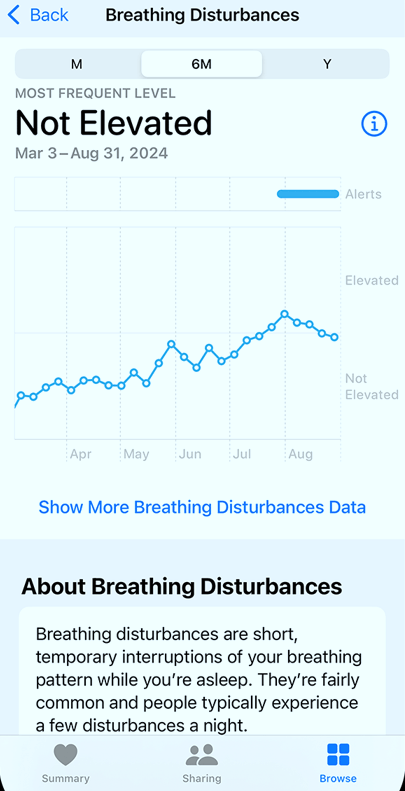
To be clear, if a positive detection is triggered, it’s not diagnosing you with anything. The data can be exported and shared with your health care provider where they can make a further diagnosis.
Turning Off Sleep Apnea Notifications
First, open the Health app on your iPhone and tap your photo or initials at the top right.
Next, tap
Health Checklist > Sleep Apnea Notifications
Now, turn Sleep Apnea Notifications to OFF.
Summary
- The Sleep Apnea Notifications feature is not intended to diagnose, treat, or aid in the management of sleep apnea.
- Not all people with sleep apnea receive a notification.
- If you believe you have sleep apnea, talk to your doctor.
Disclaimer
Technology is constantly evolving, and smartphone and desktop tech rarely remains static. Therefore, the information in this post is only accurate as of the date it was written. Blog posts that are older than six months may contain instructions that are no longer compatible with your device or operating system. We hope that the content from previous posts continues to function as intended. Thank you for reading TechSavvy.Life, where technology works for you.
Quote For the Day
“Technology is a word that describes something that doesn’t work yet.”
― Douglas Adams
X (Twitter) Info
That’s it. Please feel free to share this post! One way to share is via Twitter.
Just click the Tweet icon below. This will launch Twitter where you click its icon to post the Tweet.
Checkout TechSavvy.Life for blog posts on smartphones, PCs, and Macs! You may email us at contact@techsavvy.life for comments or questions.
Tweet
I Would Like to Hear From You
We value your feedback! Was this post helpful? Please share your comments with us. If you have a tech question related to your computer or smart device, feel free to reach out. Just send an email to contact@techsavvy.life, and be sure to include the device, app, and version you are using. To assist us further, you can also attach screenshots related to your inquiry.
The author’s Vietnam eBook on the “Battle for Tra Bong Vietnam: Events and Aftermath” can be accessed from a Kindle device or the Kindle App for a desktop or smartphone. The apps are free.
 Tech Savvy Life