How to Use the App Library to Organize Your Home Screen

Apple’s App Library has been designed to help iPhone and iPad users manage and locate their apps more easily by organizing them into folders based on specific categories. This feature is available on iPhone iOS 14 or higher and iPad iOS 15 or higher. Users can also move apps from the App Library to the Home screen, but can’t change a misallocated folder. A search function guides users to find specific apps.

RAYMOND OGLESBY @RaymondOglesby2
October 31, 2023

This is for the iPhone and iPad. Screenshots are from iPhone 14 Pro running iOS 16+

Thanks to Apple’s App Library, you no longer have to keep every app on the Home Screen. iPhone and iPad apps are organized in folders, so you can locate them more easily.

Keeping track of all the apps on your iPhone or iPad can be challenging, but the App Library has made it more accessible. This feature lets you remove apps from the Home screen and organize them into folders based on specific categories. Open the App Library with a simple swipe to browse all your apps or search for the right one.

To use the feature, you need to update your iPhone to iOS 14 or higher and your iPad to iPadOS 15 or higher if you have not already done so. On either device, go to

Settings > General > Software Update

Your device will indicate that your software is up to date or prompt you to download and install the latest update.

Overall, the App Library is a helpful tool for managing your apps and finding the ones you need. It’s really useful if you have not already manually organized your apps into different folders. Let’s explore how this feature works.

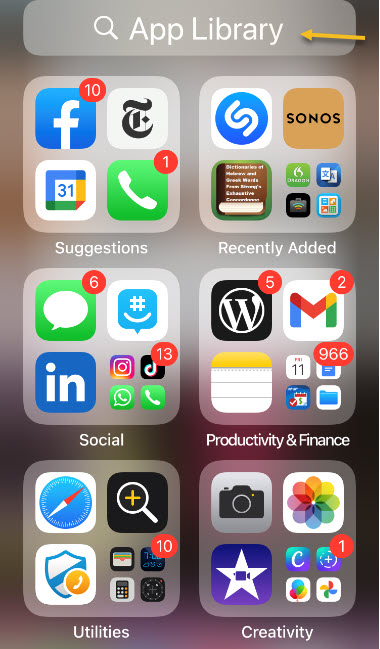
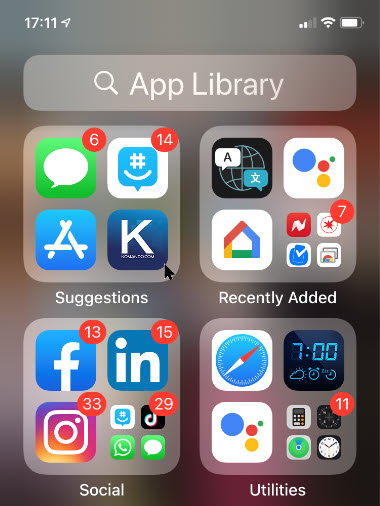
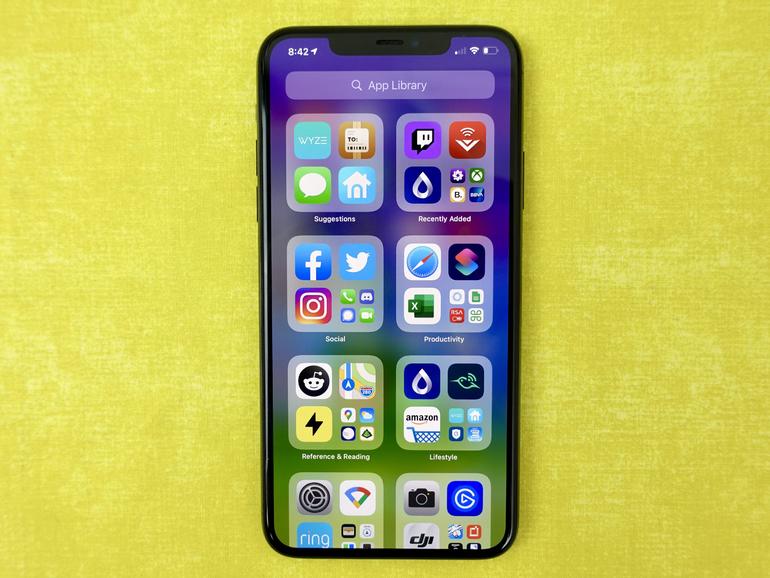
To access your App Library, open the Home screen and swipe to the left until you see a screen with apps automatically organized into folders. Here, you will see folders called Suggestions, Recently Added, Social, Entertainment, Shopping, Music, Games, and more, depending on what apps you have on your device. Refer to the below image:

Apps 1
Your App Library screen

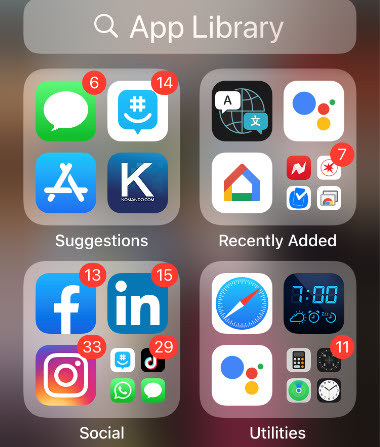
You will notice that some of the apps in a folder have large icons, while others sport smaller icons grouped in fours. To open an app that has a large icon, all you have to do is tap it.

For the smaller app icons, you have to tap the group of four apps to bring up a screen showing all the apps in that category. From there, simply tap an icon to open the corresponding app. See the below image:

Apps 2
Your sub icons under a master icon screen

Apps can be moved from the App Library to the Home screen, or deleted entirely, but apps in the library can not be moved from one folder to another. If you feel an app has been categorized in the wrong folder, there’s nothing you can do.

If you are having trouble finding a specific app, you can search for it by name. Start typing the name of the app you want in the App Library search field at the top to see the corresponding apps. Tap the app icon to launch the app. See the following image:

Apps 3
Using Search

Otherwise, you can swipe down on the App Library screen to view an alphabetical list of all the apps installed on the device. To find a specific app faster, tap a letter on the right-hand side to see all apps starting with that letter. Refer to the below image:

Apps 4
Using alphabetical list

You can add an app from the App Library to your Home screen if it’s not already there. Long-press on the icon to open the command menu and then tap Add to Home Screen. The app’s icon appears on the next free spot on your Home screen but also remains in the App Library. See the below image:

Apps 5
Add to your Home screen option

Another method of moving apps from the App Library to the Home screen is to hold down on an app until all the icons start jiggling. Press down on the icon for the app you want to move and then drag it to the left until the Home screen appears, allowing you to place the icon into the correct position. See the following image:

Apps 6
Using jiggling

You can also press down on an icon from the Home screen and select the Edit Home Screen command from the menu to make all the apps jiggle and then go to the App Library to move an icon to the Home screen. Refer to the below image:

Apps 7
Edit your Home Screen option

Note! Tap on any blank area of your Home screen to turn off the giggles.

Disclaimer

Technology is always changing and rarely is there static tech for smartphones and desktops. Thus, the contents of this post are only valid at the time of writing. Blog posts older than six months may have directions incompatible with your device or OS. Hopefully, older post content will continue to work as advertised. Thank you for reading TechSavvy.Life for Technology at Work For You.

You just have to pay attention to what people need and what has not been done.

Russell simmons

That’s it. Please feel free to share this post! One way to share is via Twitter.

Just click the Tweet icon below. This will launch Twitter where you click its icon to post the Tweet.

Checkout TechSavvy.Life for blog posts on smartphones, PCs, and Macs! You may email us at contact@techsavvy.life for comments or questions.

Please feel free to leave a comment. I would love to hear from you. Do you have a computer or smart device tech question? I will do my best to answer your inquiry. Just send an email to contact@techsavvy.life. Please mention the device, app, and version you are using. To help us out, you can send screenshots of your data related to your question.

You can access the e-book from a Kindle device, the Kindle App for the desktop or smartphone, which is a free app.

The author’s Vietnam eBook on the Battle for Tra Bong Vietnam: Events and Aftermath

How to View an Alphabetical List of Your iPhone Apps

The App Library is an iPhone-only feature in iOS 14 and above bringing, among other things, an overview of all the apps installed on the iPhone, that can be sorted alphabetically for quick and effortless browsing,

The App Library is an iPhone-only feature in iOS 14 and above bringing, among other things, an overview of all the apps installed on the iPhone, that can be sorted alphabetically for quick and effortless browsing,

This is for the iPhone

Dilbert and Trust
Copyright Scott Adams, Inc./Distributed by Universal Uclick for UFS

Find Your App Library Page

To find the App Library, visit your iPhone’s Home Screen and swipe left as many times as it takes to reach the App Library screen or tap, hold, and swipe right on the Dots Bar to move quickly through your pages. Refer to below image:

Alpha 1
The Dots Bar to swipe through pages quickly

This is always the last page after your Home Screen icons. Once you are there, you will see groups of app icons sorted automatically by category. See below image:

Alpha 2
The App Library page

Note! If you do not see it, you have yet to update to the latest version of iOS.

Using Your Alphabetical List

To see an alphabetical list of apps, swipe downward from the middle of the App Library screen or tap the Search bar at the top. See following image:

Alpha 3
Accessing the App Library

A new screen will appear that lists your apps sorted by the first letter of each app’s name. Refer to below image:

Alpha 4
Alphabetical listing of the App Library

You can swipe your finger up and down to browse through the list. To launch an app, just tap it.

If you would like to quickly scroll through the list of apps, slide your finger along the vertical letter index on the far right side of the screen (on your iPhone it’s very small letters) and the list will quickly navigate to that position. See below image:

Alpha 5
Alphabetical listing using the list on right side of your screen

You can also type a search in the Search bar at the top of the screen, and the results will immediately appear below. Once again, tap an app to launch it. See following image:

Alpha 6
Alphabetical listing using the Search bar at the top of your screen

Cancel Your Alphabetical List

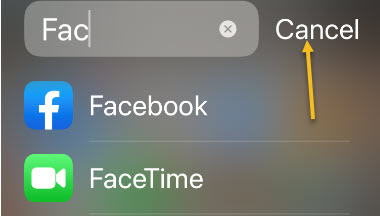
If you would like to return to the App Library screen, tap Cancel just to the right of the Search bar. Refer to below image:

Alpha 7
Return back to your App Library screen

You are finished. Please feel free to share this post! One way to share is via Twitter, as mentioned below.

I hope you have found this post helpful. If so, click the Tweet icon below. This will launch Twitter where you click its icon to post the Tweet.

Check them out for blog posts on smartphones, Macs and PCs! You may email us at techsavvy.life for comments or questions.

I Would Like to Hear From You

Please feel free to leave a comment. I would love hearing from you. Do you have a computer or smart device tech question? I will do my best to answer your inquiry. Just send an email to contact@techsavvy.life. Please mention the device, app and version that you are using. To help us out, you can send screenshots of your data related to your question.

The author’s Vietnam eBook on the Battle for Tra Bong: Events and Aftermat

How to Move iPhone Apps From App Library to Home Screen in iOS 14

So as to not clutter up your Home Screen, newly-downloaded apps from the App Store can be sent directly to the App Library. But what if you later want to open the app without digging through the library?

Ina previous post, we discussed how to move an app from your Home Screen to your App Library. In this post, we are learning the opposite; moving an app from your App Library to your Home Screen in iOS 14.

Related

If inactive, coming soon!
How to Move iPhone Apps From Home Screen to App Library in iOS 14

So as to not clutter up your Home Screen, newly-downloaded apps from the App Store can be sent directly to the App Library. But what if you later want to open the app without digging through the library?

In regards to moving an app, we are not deleting an app. Your app remains in the App Library. Apple should have used the terminalogy of “copying” an app instead of “moving” one. Anyway, lets explore how to move an app from the App Library to your Home Screen.

This is for the iPhone running iOS 14

Dilbert and Context
Copyright Scott Adams, Inc./Distributed by Universal Uclick for UFS

Check out TechSavvy.Life for their blog posts on smartphone apps, PCs. and Macs!

Move an App

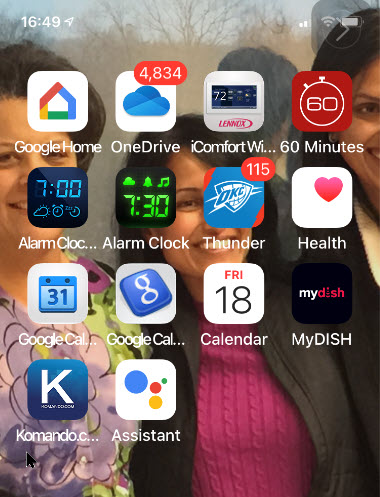
First, swipe over to the right-most Home Screen page, or press on the Dots Bar at bottom of screen and swipe; to view your App Library. Next, locate an app that you would like to move that isn’t already on your Home Screen. Press and hold down on the app. In my example, I am wanting to move the Kim Komando app under the Entertainment grouping. Refer to below image:

App Library 1
Locating an app to move

Next, tap the Add to Home Screen option from the pop-up context menu. Note! the app has moved to a different position because Apple automatically organizes the apps based on usage. See below image:

App Library 2
Selecting Add to Home Screen option

The application will be moved and placed on your Home Screen automatically in the first unused icon area which may not be your first screen. In my example, the app is moved to my eighth page because my preceeding seven pages are full. See following image:

App Library 3
The app added to Home Screen

Heading back to the App Library, notice that the Kim Komando app is still in the App Library under the Enertainment grouping. Refer to below image:

App Library 4
The app is still in your App Library

If an app is already on one of your Home Screens(s) (visible or hidden), the Add to Home Screen option won’t appear in the pop-up context menu. Instead, you’ll have to enter Jiggle mode.

Enter Jiggle Mode

Locate an app (not a folder) in your iPhone’s App Library that’s already on your Home Screen. Press and hold on the app’s icon. After a second, a pop-up context menu will appear. Continue holding down on the app until it appears on your Home Screen.

You will activate Jiggle mode (where your apps and folders will bounce around on your screen). See below image:

App Library 5
Entering Jiggle mode

Placing Your App

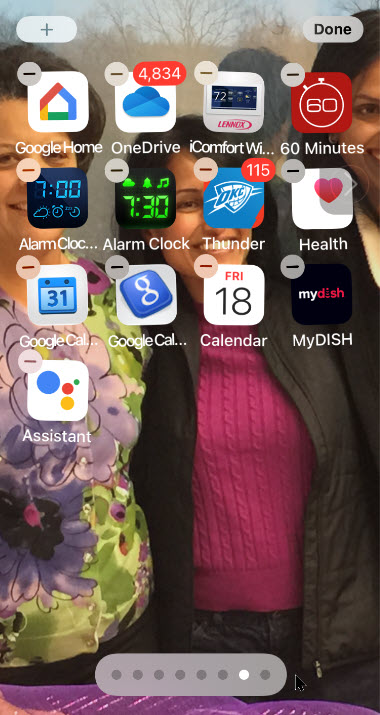
Hold down on your app and place it wherever you like on your iPhone. Tap the Done button in the top-right corner when you are finished moving the app. In my example, I am moving the Kim Komado app to the sixth screen. (Note! In between screengrabs, I deleted a page.) See following image:
App Library 6
Placing your app

Use the Search Bar

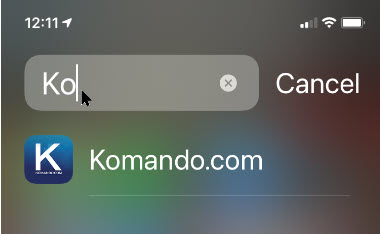
If you can not find a specific app in one of the App Library’s automatically-generated groupings, you can tap on the Search Bar at the top to locate the application. Just type in a few characters of the app name. Refer to below image:

App Library 7
Using the Search Bar to find your app

Use the Alphabet List

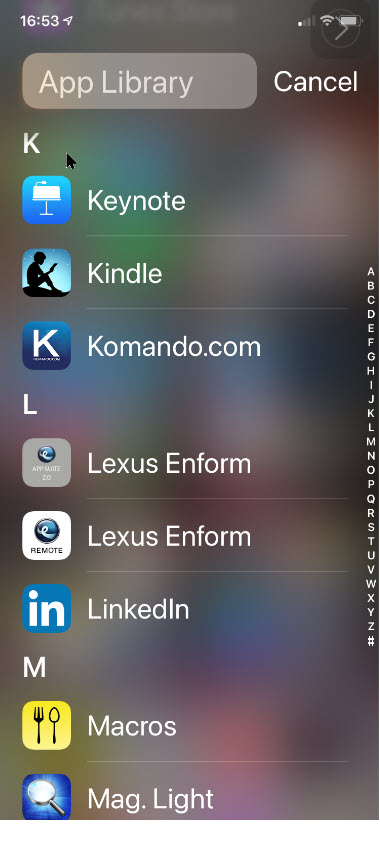
You may use the alphabetical list to find an app. Next, press and hold the listing until it is highlighted. The block will look like it is hovering above the rest of the menu when properly selected. See following image for my selection of “K”.

App Library 8
Using the alphabetical list to locate your app

In my example, when I release the hold, I can see the Kim Komando app. Refer to below image:

App Library 9
Viewing the found app

Enter Home Screen

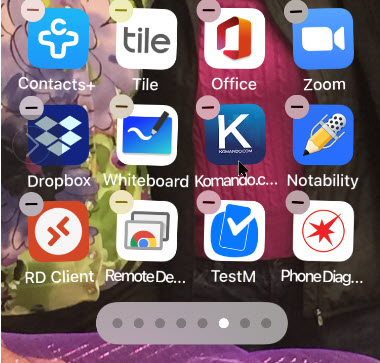
Now, press and hold the app to move it to the left or right. You will be immediately shifted to your Home Screen with Jiggle mode enabled. See below image:

App Library 10
App being added to your Home Screen

Tap the Done button in the top-right corner when you are finished moving the app. See See following image for my placement of the Kim Komando from App Linrary to Home Screen by swiping left:

App Library 11
Viewing the app on your Home Screen

Related

If inactive, coming soon!
How to Move iPhone Apps From Home Screen to App Library in iOS 14

That was a lot of swipes and knowing when and where to swipe. I find iOS 14 cumbersome to use; it’s like Apple created the App Library feature as an afterthought. Have you found the App Library useful?
I have found TechSavvy.Life blog posts extremely helpful. Check them out for posts on smart phone apps, Macs and PCs!

I Would Like to Hear From You

Please feel free to leave a comment. I would love hearing from you. Do you have a computer or smart device tech question? I will do my best to answer your inquiry. Please mention the device, app and version that you are using. To help us out, you can send screenshots of your data related to your question.

The author’s Vietnam eBook on the Battle for Tra Bong: Events and Aftermath

How to Move iPhone Apps From Home Screen to App Library in iOS 14

Apple added an App Library to the iPhone with the release of iOS 14. To view the App Library page, swipe all the way to the left, or press on the Dots Bar at bottom of screen and swipe; it will be your last page. To exit the App Library, swipe up. Ready to remove an app from your Home Screen to reduce your screen clutter?

In a previous post, we discussed how to move an app from your App Library to your Home Screen. In this post, we are learning the opposite; moving an app from your Home Screen to your App Library in iOS 14.

Related

If inactive, coming soon?
How to Move iPhone Apps from App Library to Home Screen in iOS 14

Apple added an App Library to the iPhone with the release of iOS 14. To view the App Library page, swipe all the way to the left, or press on the Dots Bar at bottom of screen and swipe; it will be your last page. To exit the App Library, swipe up. Ready to remove an app from your Home Screen to reduce your screen clutter? Lets explore how this is done

This is for the iPhone running iOS 14

Dilbert and Lying
Copyright Scott Adams, Inc./Distributed by Universal Uclick for UFS

Check out TechSavvy.Life for their blog posts on smartphone apps, PCs. and Macs!

Move an App

First, locate an app on your Home Screen you would like to move. Press and hold down the app. In my example, I am wanting to move the Kim Komando app. Refer to below image:

Home Screen 1
Viewing the Kim Komando app on the Home Screen

Next, tap the Remove App option from the pop-up context menu. See below image:

Home Screen 2
The pop-up menu for the Kim Komando app

Your iPhone will display a message asking if you want to move the selected app to the App Library or delete it. Just select the Move to App Library. See following image:

Home Screen 3
The message notification for the Kim Komando app

Use Alphabetical List

The app will now disappear from your Home Screen. Now, swipe over to the right-most Home Screen page, or press on the Dots Bar at bottom of screen and swipe; to view your App Library. You can find the app that you moved in one of the automatically-generated groupings, or by tapping on the App Library Search bar, or by tapping on a letter in the alphabetical list of installed apps. Refer to below image for searching by the alphabetical list:

Home Screen 5
Accessing the alphabetical list

Use Search Bar

You may start typing into the App Library Search Bar the first couple of letters of the app’s name to find it. See below image in locating the Kim Komando app:

Home Screen 6
Typing in a few characters to locate the Kim Komando app

Launch the App

Once you have found the app, just tap it to launch the app. See following image for my Kim Komando app in the Suggestions library:

Home Screen 4
The App Library showing the Kim Komando app

For now, Apple doesn’t allow you to create your own groups or to decide which app should go in which group. Hopefully, Apple will improve the feature over the coming months.

Related

If inactive, coming soon!
How to Move iPhone Apps From App Library to Home Screen in iOS 14

I have found TechSavvy.Life blog posts extremely helpful. Check them out for posts on smart phone apps, Macs and PCs!

I Would Like to Hear From You

Please feel free to leave a comment. I would love hearing from you. Do you have a computer or smart device tech question? I will do my best to answer your inquiry. Please mention the device, app and version that you are using. To help us out, you can send screenshots of your data related to your question.

The author’s Vietnam eBook on the Battle for Tra Bong: Events and Aftermath

How to Send New iPhone Apps to App Library in iOS 14

When you download an app it usually appears either on your Home Screen or a subsequent screen of apps. In iOS 14, you can have it moved straight to the App Library and the relevant app category, instead of it appearing on the Home Screen or another screen of apps. By doing so, you can reduce the Home Screen clutter

When you download an app it usually appears either on your Home Screen or a subsequent screen of apps. In iOS 14, you can have it moved straight to the App Library and the relevant app category, instead of it appearing on the Home Screen or another screen of apps. By doing so, you can reduce the Home Screen clutter. Let’s explore how this is done.

This is for the iPhone running iOS 14

Dilbert and Write
Copyright Scott Adams, Inc./Distributed by Universal Uclick for UFS

Check out TechSavvy.Life for their blog posts on smartphone apps, PCs. and Macs!

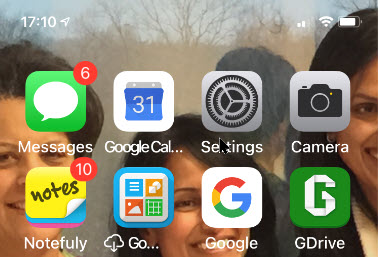
First, open the Settings app (the gear icon). Refer to below image:

Send New Apps 1
Accessing Settings

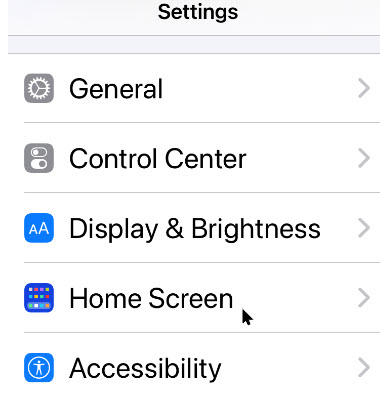
Now, scroll down to the Home Screen section and tap it, See below image:

Send New Apps 2
Acc essing the Home Screen section

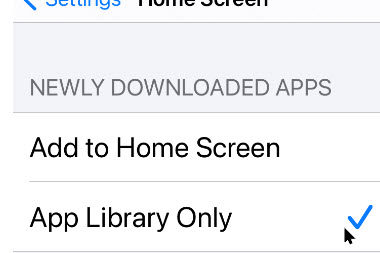
Next, under the New App Downloads heading, select the App Library Only option. See following image:

Send New Apps 3
Enabling sending new apps to the App Library

If you want to see notification badges (like number of unread Tweets) for apps in the App Library, tap the toggle next to the Show In App Library option. Refer to below image:

Send New Apps 4
Enabling new apps notifications

That it’s . When you download new apps, they will show up in the App Library instead of on your Home Screen. See below image fpr an App Library page:

Send New Apps 5
The App Libtary page (trhe last page of your Home Screen)

I have found TechSavvy.Life blog posts extremely helpful. Check them out for posts on smart phone apps, Macs and PCs!

I Would Like to Hear From You

Please feel free to leave a comment. I would love hearing from you. Do you have a computer or smart device tech question? I will do my best to answer your inquiry. Please mention the device, app and version that you are using. To help us out, you can send screenshots of your data related to your question.

The author’s Vietnam eBook on the Battle for Tra Bong: Events and Aftermath

How to Remove Pages on iPhone in iOS 14

With iOS 14, there are new ways to find and organize the apps on your iPhone — so you see what you want, where you want. It is called the App Library, the main feature of iOS 14.

With iOS 14, there are new ways to find and organize the apps on your iPhone — so you see what you want, where you want. It is called the App Library, the main feature of iOS 14.

The App Library is added and configured automatically once you install iOS 14.

To view the App Library page, swipe all the way to the left, or press on the Dots Bar at bottom of screen and swipe; it will be your last page. Refer to below image:

App Library Pages 5
The App Library page

Your apps are automatically sorted into categories. For example, you might see your social media apps under a Social category. The apps that you use most frequently will automatically reorder based on your usage.

Now that all apps are available in the App Library, it brings up the question. Why should you keep all those pages on the Home Screen as well? Let’s explore how to remove pages from your Home Screen.

This is for the iPhone and iPad running iOS 14

Dilbert and Tracker
Copyright Scott Adams, Inc./Distributed by Universal Uclick for UFS

Check out TechSavvy.Life for their blog posts on smartphone apps, PCs. and Macs!

Seldom Used Page(s)

If you’re like us, you probably have a couple of pages filled with apps that you almost never visit. You might want to remove some or all the pages between your first page and the App Library page.

First, go to a page you seldom visit or any page. In my example, I am on the last page of my Home Screen. See below image:

App Library Pages 1
A seldom used page

Editing a Page

Now, tap and hold on an empty part of your iPhone’s Home Screen to enter editing mode. See following image:

App Library Pages 2
Entering edit mode

Next, tap the Page Dots found above the dock at the bottom of the device’s display. In my example, I have 7 dots representing 7 pages.

This will bring up a new User Interface (UI) that lists all of the pages in a grid. Tap the checkmark below a page to remove it. You can do this for as many pages as you want (except for the first page).

You can come back here at any time to re-enable a page. Once you’re done editing, tap the Done button in the upper right-hand corner. In my example, I have checkmarked my last page. Refer to below image:

pp Library Pages 3
Selecting a page to be removed from Home Screen

Viewing Your Changes

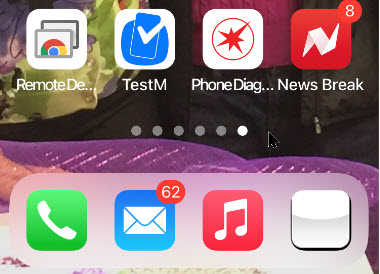
Once you go back to the Home Screen, you will see that the page dots at the bottom of the screen have reduced in number. Depending on how many pages you have removed; allows faster access to the App Library page. The apps are not being deleted, just removed from a page. Notice I now have 6 dots or 6 pages. See below image:

pp Library Pages 4
Viewing your removal of page(s)

Once you are on the App Library page, swipe up to return to your Home Screen..

Now you have a cleaner look and fewer swipes for navigation of your pages.

I have found TechSavvy.Life blog posts extremely helpful. Check them out for posts on smart phone apps, Macs and PCs!

I Would Like to Hear From You

Please feel free to leave a comment. I would love hearing from you. Do you have a computer or smart device tech question? I will do my best to answer your inquiry. Please mention the device, app and version that you are using. To help us out, you can send screenshots of your data related to your question.

The author’s Vietnam eBook on the Battle for Tra Bong: Events and Aftermath