


RAYMOND OGLESBY @RaymondOglesby2
March 19, 2024
This is for the iPhone. Screenshots are from iPhone 14 Pro running iOS 17+
Ever run into car trouble, and you are unsure what those symbols on your dashboard mean? Or, do you just want to know information about the symbols? Now, you can use your iPhone to easily identify car dashboard symbols and meanings by simply snapping a picture. Let’s explore how to use this cool new Visual Look Up feature.
With the latest version of iOS, you can now use Visual Look Up to easily identify your car dashboard’s symbols. This handy new feature makes diagnosing your car troubles a breeze.
First, open the Camera app, and snap a picture of the car dashboard symbols you want to identify. It’s best to take the photo in a dark environment. Refer to the below image:

Next, tap the Image Preview to open it. Then tap the Info icon at the bottom of the screen. It might change into a Steering Wheel icon. See the below image:

Now, tap Look Up Auto Symbol. See the following image:

Next, your iPhone should display the meaning of the symbols. Refer to the below image:
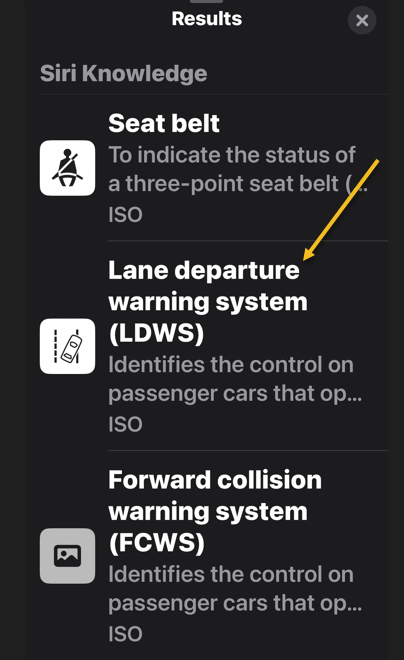
Now, tap on the result entry to see more information. See the below image:

Now you know how to use Visual Look Up to identify your car’s maintenance symbols! Visual Look Up can be a tricky feature to get working right. If your iPhone is having trouble identifying your car dashboard symbols, try a different angle, moving closer or further away, different lighting, etc.
Also, Visual Look Up can be used to identify various objects in photos and videos.
Disclaimer
Technology is always changing and rarely is there static tech for smartphones and desktops. Thus, the contents of this post are only valid at the time of writing. Blog posts older than six months may have directions incompatible with your device or OS. Hopefully, older post content will continue to work as advertised. Thank you for reading TechSavvy.Life for Technology at Work For You.
Quote For the Day
I insist on a lot of time being spent, almost every day, to just sit and think. That is very uncommon in American business. I read and think. So I do more reading and thinking, and make less impulse decisions than most people in business. I do it because I like this kind of life.
Warren Buffett
Tweet Info
You are finished Please feel free to share this post! One way to share is via Twitter.
Just click the Tweet icon below. This will launch Twitter where you click its icon to post the Tweet.
Checkout TechSavvy.Life for blog posts on smartphones, PCs, and Macs! You may email us at contact@techsavvy.life for comments or questions.
Tweet
I Would Like to Hear From You
Please feel free to leave a comment. I would love to hear from you. Do you have a computer or smart device tech question? I will do my best to answer your inquiry. Just send an email to contact@techsavvy.life. Please mention the device, app, and version you are using. To help us out, you can send screenshots of your data related to your question.
Author’s E-Book
You can access the E-book from a Kindle device, the Kindle App for the desktop or smartphone, which is a free app.
 Tech Savvy Life