

RAYMOND OGLESBY @RaymondOglesby2
September 10, 2024 – 3 minutes read time
Overview
You can easily block any number if you receive texts and calls from a saved contact or a random number. Let’s explore how this is accomplished.
System Requirements
This post works on iPhones running iOS 15 or later. Screenshots are from iPhone 14 Pro running iOS 17.6.1
Click here to learn how to update your iPhone to the latest iOS version.
Block a Person in Your Contacts
If the person you want to block is already saved in your iPhone’s contact list, you can block them via the contacts tab in the Phone app.
First, open your Phone app. Refer to the below image:

Next, tap the Contacts icon. See the below image:

Now, tap the contact you want to block. See the following image:
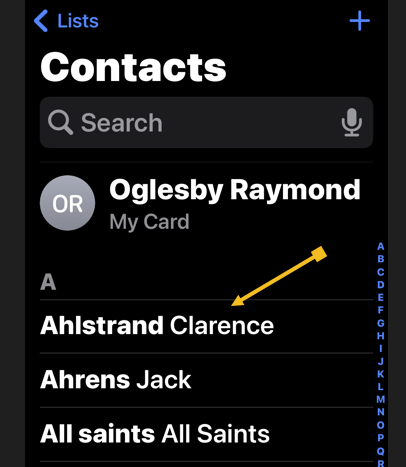
Next, tap the Block Caller option. Refer to the below image:

Now, tap the Block Contact menu option. See the below image:

Block a Number
If the number you want to block is not saved in your iPhone contact list, you can still block it in the Phone app.
First, open the Phone app. Refer to the below image:
Next, tap the Recents icon. See below image:

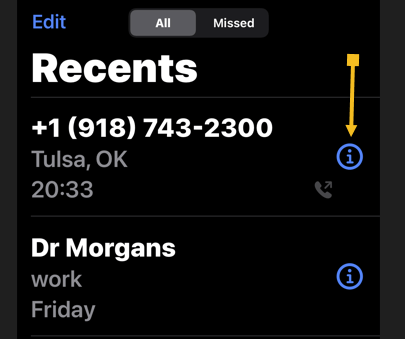
Now, fund the number you want to block and tap the Info button. See the following image:
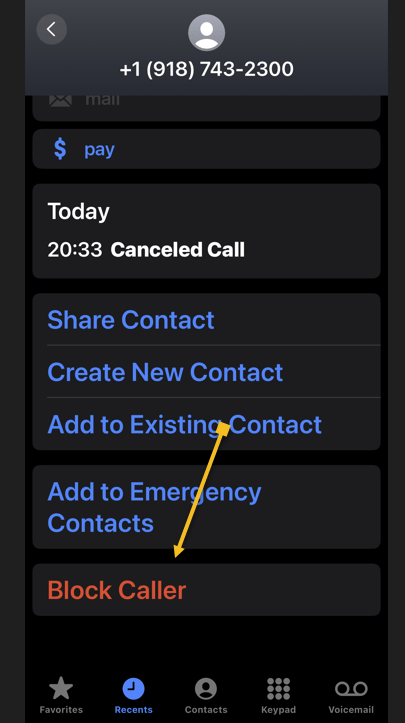
Next, tap the Block Caller option. Refer to the below image:
Now, tap the Block Contact menu option. See the below image:

And that’s how you block a number or a contact on your iPhone. You can always unblock a caller by the above steps and tapping the Unblock Caller option.
Disclaimer
Technology is always changing. Rarely is there static tech for smartphones and desktops. Thus, the contents of this post are only valid at the time of writing. Blog posts older than six months may have directions incompatible with your device or OS. Hopefully, older post content will continue to work as advertised. Thank you for reading TechSavvy.Life for Technology at Work For You.
Quote For the Day
“Success is not achieved by winning all the time. Real success comes when we rise after we fall. Some mountains are higher than others. Some roads steeper than the next. There are hardships and setbacks but you cannot let them stop you. Even on the steepest road you must not turn back.”
Muhammad Ali
X (Twitter Info
Yea, you are finished. Please feel free to share this post! One way to share is via Twitter.
Just click the Tweet icon below. This will launch Twitter where you click its icon to post the Tweet.
Checkout TechSavvy.Life for blog posts on smartphones, PCs, and Macs! You may email us at contact@techsavvy.life for comments or questions.
Tweet
I Would Like to Hear From You
Was this post helpful? We would love to hear your comments. Do you have a computer or smart device tech question? I will do my best to answer your inquiry. Just send an email to contact@techsavvy.life. Please mention the device, app, and version you are using. To help us, you can send screenshots of the data related to your question.
The author’s Vietnam eBook on the “Battle for Tra Bong Vietnam: Events and Aftermath” can be accessed from a Kindle device or the Kindle App for a desktop or smartphone. The apps are free.
 Tech Savvy Life