iPhone Battery Health: Monitoring, Optimization, and Maintenance Tips

Apple faced backlash for slowing down older iPhone models to preserve battery life. Users can now monitor battery health and enable optimized battery charging to prolong battery lifespan. Additionally, they can track battery usage by app and learn to conserve battery and prevent overheating.

RAYMOND OGLESBY @RaymondOglesby2
September 17, 2024 – 4 minutes read time

Apple landed in hot water with customers several years ago when a feature designed to slow the processors of older iPhone models to keep them from suddenly shutting down came to light. Critics maintained that Apple was throttling the speed of earlier iPhone models to push customers toward newer devices. At the same time, Apple insisted that the feature was necessary to cope with aging batteries. Now, Apple lets users monitor the health of their iPhones’ battery. Let’s explore this feature.

This post works on iPhones running iOS 15 or later

Click here to learn how to update your iPhone to the latest iOS version.

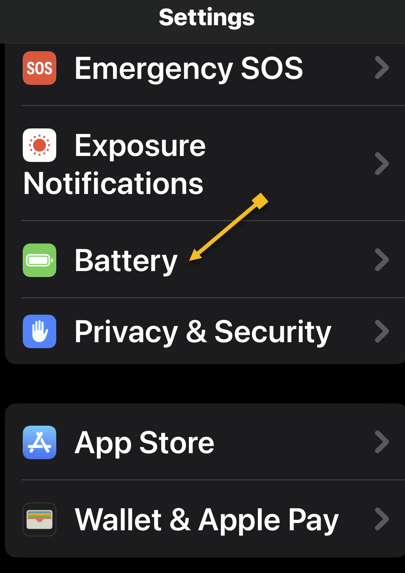
First, open the Settings app, and tap on Battery. Refer to the below image:
Battery 8
Accessing the Battery option

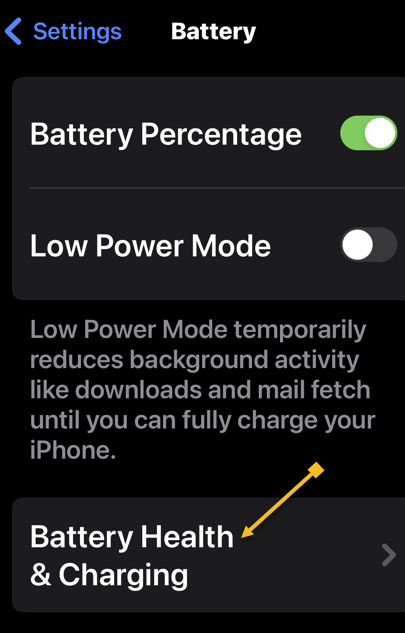
Next, tap on Battery Health & Charging. See the below image:
Battery 7
Accessing the Battery Health option

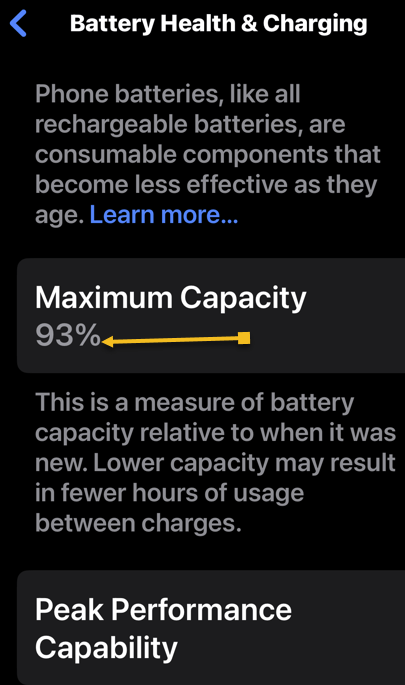
Now, you will see your battery capacity next to Maximum Capacity. See the following image:
Battery 6
Viewing the Maximum Capacity of the battery

The Maximum Capacity tells you your iPhone battery’s capacity compared to its capacity when it was brand new. For example, if your Maximum Capacity is 85%, that is all your battery can charge. On this screen, you can also enable Optimized Battery Charging, which reduces aging by optimizing how your battery behaves when charging. Refer to the below image:

Battery 5
Enabling Optimized Battery Charging

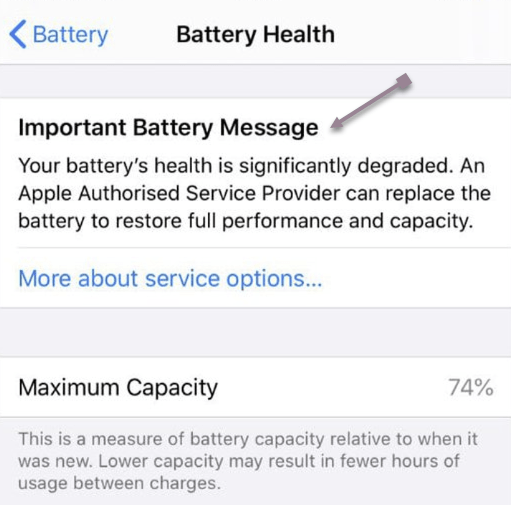
If your battery’s Maximum Capacity has dropped below 80%, a message like this will pop up on your screen if you experience an unexpected shutdown. See the below image:
Battery 1
Viewing Battery Health degradation warning message

You can tap Disable to turn off battery throttling on your iPhone or you may want to consider replacing your battery to improve your iPhone’s performance and the amount of time it can operate between charges.

To view your battery usage by app, go back to:

Settings > Battery

Swipe down on the Battery settings screen and you will discover battery usage by app, starting with the biggest battery hogs. By default, the tool shows you the percentage of battery charge by each app. Tap Show Activity or a specific app, and the information changes to display the time the app has used the battery, both in the foreground and background. See the following image:

Battery 4
Viewing Battery Usage

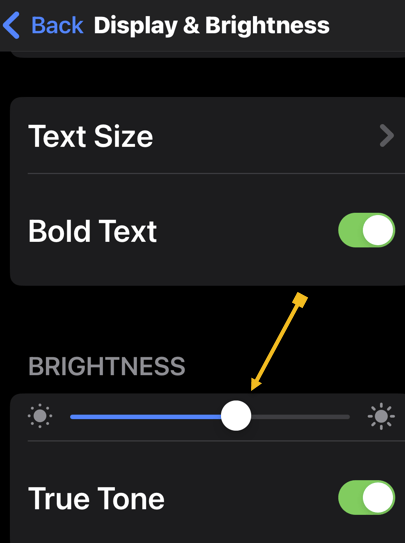
Besides Optimized Battery Charging you can conserve your battery, turning down the brightness of your screen will increase battery health. To adjust the screen brightness, head to:

Settings > Display & Brightness 

and moving the slider. Refer to the below image:
Battery 3
Turning down Brightness to conserve battery usage

 Using your iPhone in hot conditions can permanently shorten battery life. Store your device where the temperature is between -20º and 45º C (-4º to 113º F). Do not leave your device in your car, because temperatures in parked cars can exceed this range.

If your device gets too warm or too cold, certain features might become temporarily disabled. In extreme conditions, your device might become temporarily disabled. A temperature warning screen will be displayed. See the below image:

Battery 2
iPhone is too hot warning message

Technology is always changing. Rarely is there static tech for smartphones and desktops. Thus, the contents of this post are only valid at the time of writing. Blog posts older than six months may have directions incompatible with your device or OS. Hopefully, older post content will continue to work as advertised. Thank you for reading TechSavvy.Life for Technology at Work For You.

The real secret to a life of abundance is to stop spending your days searching for security and to start spending your time pursuing opportunity.

Robin S. Charma

That’s it. Please feel free to share this post! One way to share is via Twitter.

Just click the Tweet icon below. This will launch Twitter where you click its icon to post the Tweet.

Checkout TechSavvy.Life for blog posts on smartphones, PCs, and Macs! You may email us at contact@techsavvy.life for comments or questions.

Was this post helpful? We would love to hear your comments. Do you have a computer or smart device tech question? I will do my best to answer your inquiry. Just send an email to contact@techsavvy.life. Please mention the device, app, and version you are using. To help us, you can send screenshots of the data related to your question.

The author’s Vietnam eBook on the “Battle for Tra Bong Vietnam: Events and Aftermath” can be accessed from a Kindle device or the Kindle App for a desktop or smartphone. The apps are free.

The author’s Vietnam eBook on the Battle for Tra Bong Vietnam: Events and Aftermath

How to Charge Your IPhone Fast

This post provides comprehensive tips for fast iPhone charging without degrading battery life. It emphasizes using Apple’s 20W charger and USB-C cable, along with additional tricks like Low Power Mode and closing apps. It concludes with a disclaimer on changing technology and a quote by Arthur Koestler. Always keep your device and OS up to date for the best experience.

RAYMOND OGLESBY @RaymondOglesby2
January 30, 2024

This is for the iPhone. Screenshots are from iPhone 14 Pro running iOS 17+

One of the most controversial topics when talking about the iPhone is related to charging and battery life. Even with a former Apple employee giving life-saving iPhone battery tips, you can always do more.

We have compiled a comprehensive guide to help you charge your iPhone as fast as possible without degrading your battery too fast. The process is more straightforward than you might imagine, but there are a few tips and tricks to make the most of it.

Newer iPhones charge at 20W maximum, so you do not need to use a Mac’s 96W plug or any fancy GaN charger that could give enough juice to your car, iPad, Mac, and phone simultaneously. For example, Apple’s own 20W charger solution is perfect for that.

You do not need to overthink, going all-in with Apple already ensures you can hit the fastest charge possible on your device.

That said, it does not mean you can not use Samsung’s charger with a Belkin USB-C to USB-C cable. Of course, you can, but you do not need to worry that much if you already have Apple’s accessories.

Now that you know that Apple’s 20W charger and its USB-C to USB-C cable are fully capable of charging your iPhone 15 at maximum speed, there are other tips and tricks to ensure you will get the fastest charging possible.

Now that you have the proper plug and the right cable, you can do a little more to ensure your device charges as fast as it can. Just follow these tips:

  • Turn on Low Power Mode: Since the iPhone consumes energy even if it’s charging, putting on hold background activity, ProMotion, and other technologies will help improve the charging speeds. See Settings >Battery
  • Close your apps: With no apps opened, they do not require more power from your iPhone.
  • Check for the right temperature: If it’s too hot or cold, your iPhone might not charge properly. That said, never put your iPhone with the sun on it while charging or avoid freezing temperatures as well.
  • Do not use your phone while charging: It might be difficult, but try to do another activity when charging your phone. Go read a book, walk in the park, or watch some TV.
  • Turn on Airplane Mode and turn off Wi-Fi and Bluetooth: If you want to quickly charge your iPhone, turning off Wi-Fi and Bluetooth while turning on Airplane Mode will help charge your iPhone as fast as it can. See Settings

With these tips and tricks, it’s easier to charge your iPhone as fast as possible. Also, do not forget that your phone will charge 50% in 30 minutes, but to get full power, you might also need to follow these little tricks.

Disclaimer

Technology is always changing and rarely is there static tech for smartphones and desktops. Thus, the contents of this post are only valid at the time of writing. Blog posts older than six months may have directions incompatible with your device or OS. Hopefully, older post content will continue to work as advertised. Thank you for reading TechSavvy.Life for Technology at Work For You.

Courage is never to let your actions be influenced by your fears.

Arthur Koestler

You are finished. Please feel free to share this post! One way to share is via Twitter.

Just click the Tweet icon below. This will launch Twitter where you click its icon to post the Tweet.

Checkout TechSavvy.Life for blog posts on smartphones, PCs, and Macs! You may email us at contact@techsavvy.life for comments or questions.

Please feel free to leave a comment. I would love to hear from you. Do you have a computer or smart device tech question? I will do my best to answer your inquiry. Just send an email to contact@techsavvy.life. Please mention the device, app, and version you are using. To help us out, you can send screenshots of your data related to your question.

You can access the e-book from a Kindle device, the Kindle App for the desktop or smartphone, which is a free app.

The author’s Vietnam eBook on the Battle for Tra Bong Vietnam: Events and Aftermath