


RAYMOND OGLESBY @RaymondOglesby2
September 24, 2024 – 3 minutes read time
Overview
How do you turn on the flash notification on your iPhone? Sometimes we might need an extra alert if an important message or phone call is expected.
This feature is intended to be used by the deaf or hard of hearing, but it can be helpful for anyone who would rather receive visual alerts. Be aware that turning on this feature could deplete your battery life rather quickly, depending on how many notifications you get throughout the day. Let’s explore how to turn on flashlight notifications on iPhones.
System Requirements
This post works on iPhones running iOS 16 or later. Screenshots are from iPhone 14 Pro running iOS 17.6.1
Click here to learn how to update your iPhone to the latest iOS version.
Reasons For This Tip
- Get an extra visual alert any time you receive notifications.
- Make sure you never miss an important text or phone call.
Turn on Flash Notifications
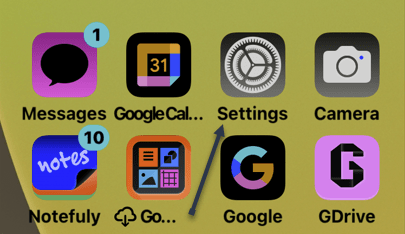
Open the Settings app, and tap Accessibility. Refer to the below image:

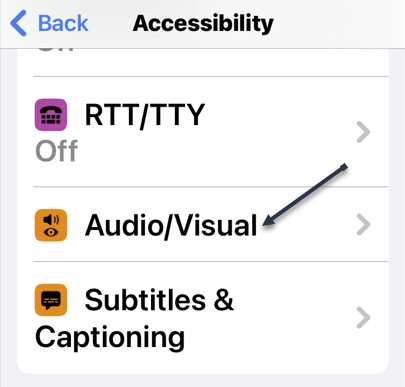
Tap Audio & Visual. See the below image:

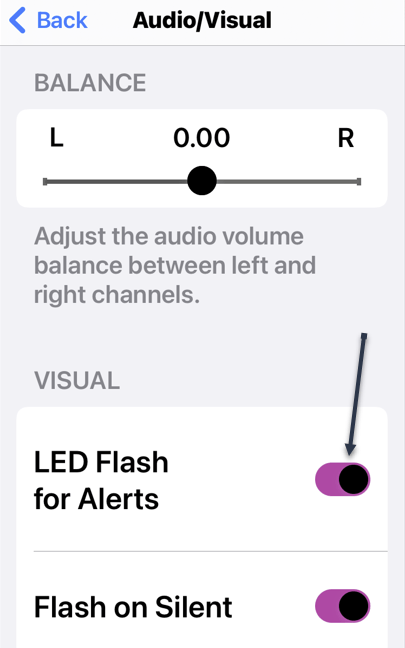
Select LED Flash for Alerts. See the following image:

Tap the toggle next to LED Flash for Alerts to enable this feature. Refer to the below image:

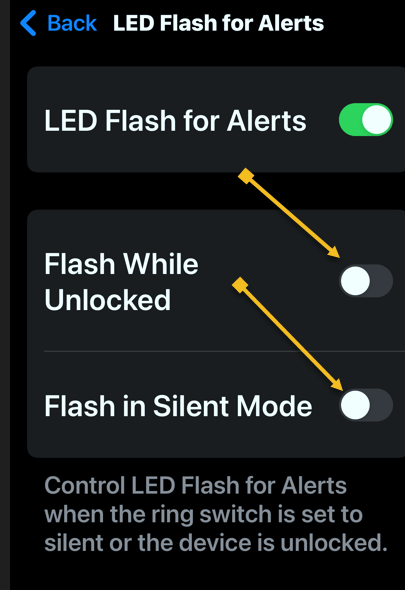
By default, the LED will only flash if your iPhone is locked and the ringer is on. However, two toggles allow you to make it so that the flash will still go off when your device is unlocked or if Silent mode is enabled. See the below image:
That’s how to use your iPhone flashlight for notifications. Since the flash is on the back of your phone, placing your phone face down when you set it down is best. Just make sure you have a good scratch-protectant cover on the screen.
Disclaimer
Technology is always changing. Rarely is there static tech for smartphones and desktops. Thus, the contents of this post are only valid at the time of writing. Blog posts older than six months may have directions incompatible with your device or OS. Hopefully, older post content will continue to work as advertised. Thank you for reading TechSavvy.Life for Technology at Work For You.
Quote For the Day
When times are bad is when the real entrepreneurs emerge.
Robert T Kiyosaki
X (Twitter) Info
You are finished. Please feel free to share this post! One way to share is via Twitter.
Just click the Tweet icon below. This will launch Twitter where you click its icon to post the Tweet.
Checkout TechSavvy.Life for blog posts on smartphones, PCs, and Macs! You may email us at contact@techsavvy.life for comments or questions.
Tweet
I Would Like to Hear From You
Was this post helpful? We would love to hear your comments. Do you have a computer or smart device tech question? I will do my best to answer your inquiry. Just send an email to contact@techsavvy.life. Please mention the device, app, and version you are using. To help us, you can send screenshots of the data related to your question.
The author’s Vietnam eBook on the “Battle for Tra Bong Vietnam: Events and Aftermath” can be accessed from a Kindle device or the Kindle App for a desktop or smartphone. The apps are free.



 Tech Savvy Life