How to Set Up Auto-Reply on iPhone’s Driving Focus

The Driving Focus feature on iPhones allows users to set personalized auto-replies for texts received while driving. This function, available in iOS 15 and newer versions, enables customized messages for specific contact groups. Adjustments can be made in the Settings app under Focus and Driving modes to enhance communication.

RAYMOND OGLESBY @RaymondOglesby2
December 16, 2025 – 4 minutes read time

The Driving Focus allows you to send a customized auto-reply text on your iPhone to friends and family, explaining that you are unable to respond right now, but in a friendly way without relying on cold, scripted replies.

Driving is currently the only Focus mode that can send an auto-reply text message on iPhone, but others may include this functionality in later updates. However, the iPhone’s auto-reply text does not indicate that it is from Driving Focus except through the default message, so you can easily customize the message to suit other times you might want to send automatic text replies from your iPhone.

Let’s dive into how to set up the automatic text reply on your iPhone!

  • Set an auto-reply message, so you never leave someone hanging when they text you while you are driving.
  • Apple’s scripted auto-reply messages can sound terse, but you can personalize your message to sound more like you!

This tip works on iPhones running iOS 15 or newer but is demonstrated on an iPhone 17 Pro running iOS 26.1.

Click here to learn how to update your iPhone to the latest iOS version.

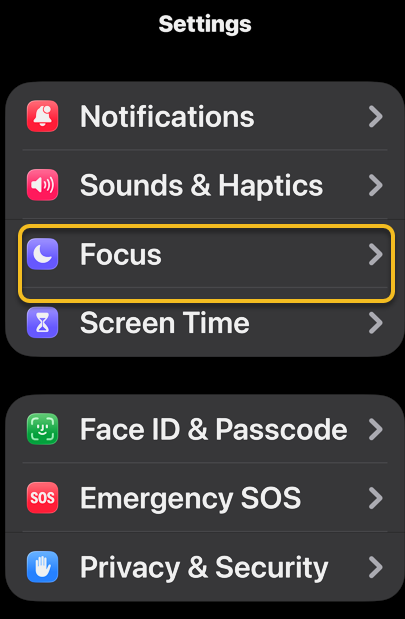
First, open Settings, and tap Focus. Refer to the image below:
Auto Reply 1
Selecting the Focus option

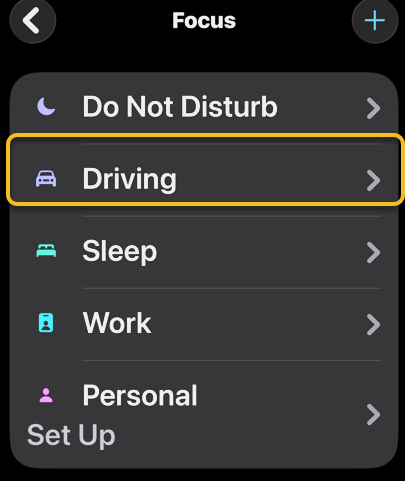
Bext, tap on Driving. If you do not see this option, you may have deleted it, so you’ will need to tap the Plus icon in the top right corner and select Driving. See the image below:
Auto Reply 2
Selecting the Driving option

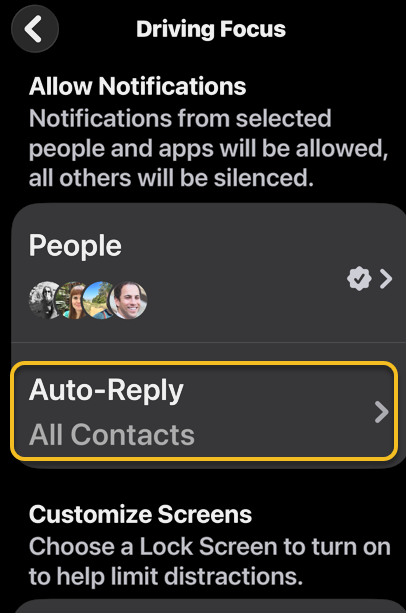
Now, tap Auto-Reply. see the following image:
Auto Reply 3
Selecting the Auto-Reply option

Next, chose who will receive your auto-replies: No OneRecentsFavorites, or All Contacts. If you select No One, Auto-Reply will be disabled. If you select Recents, contacts you’ve responded to within the last day will receive an auto-reply text when Focus is enabled. If yoselect Favorites, contacts in your Favorites list will receive an auto-reply text. If you select All Contacts, all of your contacts will receive an auto-reply text. Refer to the image below:
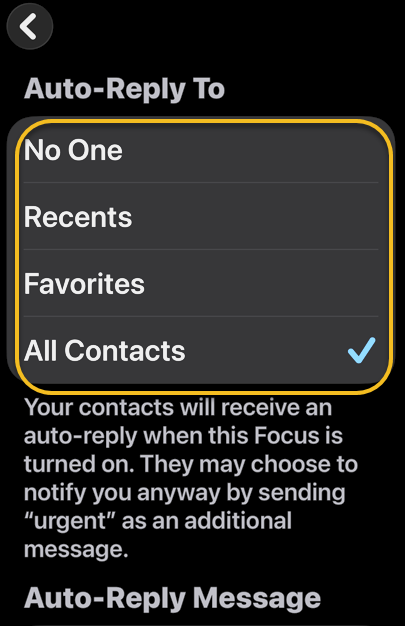
Auto Reply 4
Selecting who is to receive the auto-reply text

Now, edit the Auto-Reply Messageto say whatever you would like it to say. Your changes will be saved automatically, so you can leave the settings however you prefer. See the image below:
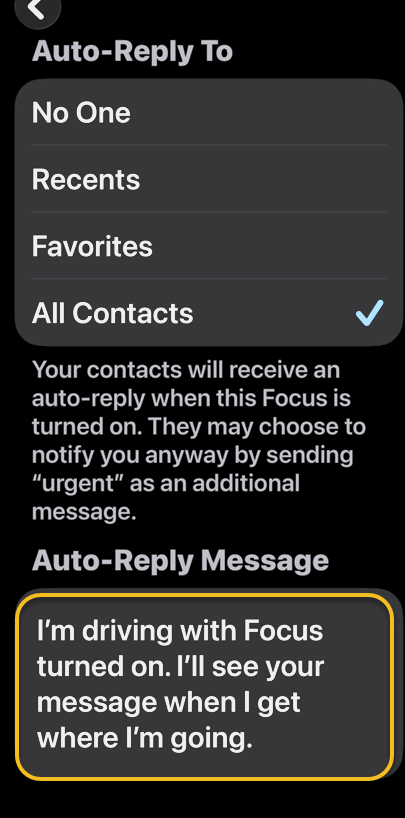
Auto Reply 5
Your auto-reply message

Next, when you receive a text while your Driving Focus mode is on, the auto-response text will be sent like a regular text message. See the following image:
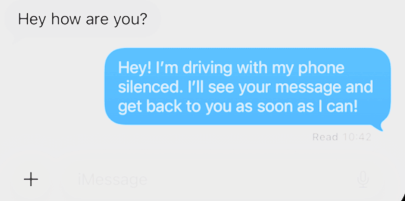
Auto Reply 6
The auto-reply message sent to your recipients

Tip: If your Auto-Replies do not seem to be going out as intended, check the Settings for Messages and make sure the toggle next to Focus under Allow Messages to Access is turned on (green). If it’s off, it does not matter how your Focus is set up; no Auto-Reply will go out, no matter what happens.

That’s how to auto-respond to text messages on your iPhone. Now, whenever you enable the Driving Focus filter, the group of contacts you selected will receive your personalized auto-reply text when they try to contact you.

Technology is constantly evolving, and smartphone and desktop tech rarely remains static. Therefore, the information in this post is only accurate as of the date it was written. Blog posts that are older than six months may contain instructions that are no longer compatible with your device or operating system. We hope that the content from previous posts continues to function as intended. Thank you for reading TechSavvy.Life, where technology works for you.

“AI is probably the most important thing humanity has ever worked on.”

– Sundar Pichai, CEO of Alphabet and Google

That’s it. Please feel free to share this post! One way to share is via Twitter.

Just click the Tweet icon below. This will launch Twitter where you click its icon to post the Tweet.

Checkout TechSavvy.Life for blog posts on smartphones, PCs, and Macs! You may email us at contact@techsavvy.life for comments or questions.

We value your feedback! Was this post helpful? Please share your comments with us. If you have a tech question related to your computer or smart device, feel free to reach out. Just send an email to contact@techsavvy.life, and be sure to include the device, app, and version you are using. To assist us further, you can also attach screenshots related to your inquiry.

Author’s eBook

The author’s Vietnam eBook on the “Battle for Tra Bong Vietnam: Events and Aftermath” can be accessed from a Kindle device or the Kindle App for a desktop or smartphone. The apps are free.

The author’s Vietnam eBook on the Battle for Tra Bong Vietnam: Events and Aftermath

Using Focus on the iPhone

The iPhone is generally considered a “simple” smartphone to use, but it has become packed with features over the years. “Focus” is one feature that is particularly jam-packed with powerful tools.

RAYMOND OGLESBY @RaymondOglesby2
January 12, 2023

The iPhone is generally considered a “simple” smartphone to use, but it has become packed with features over the years. “Focus” is one feature that is particularly jam-packed with powerful tools. Let’s take a look at this feature.

This is for the iPhone. Screenshots are from iPhone XR running iOS 16+

Dilbert and VP
Copyright Scott Adams, Inc./Distributed by Universal Uclick for UFS

What is Focus

Focus Mode, actually called just “Focus” on the iPhone, is essentially Do Not Disturb for specific situations. Rather than having a one-size-fits-all Do Not Disturb mode, Apple made it possible to create a bunch of specialized modes.

The long-standing Do Not Disturb mode is still present, by the way, but Focus makes it more useful. While you may have only used Do Not Disturb while you sleep, now it can be customized for a bunch of different situations.

Related

Five Great iPhone Features You Should be Using

Do Not Disturb

Focus 1
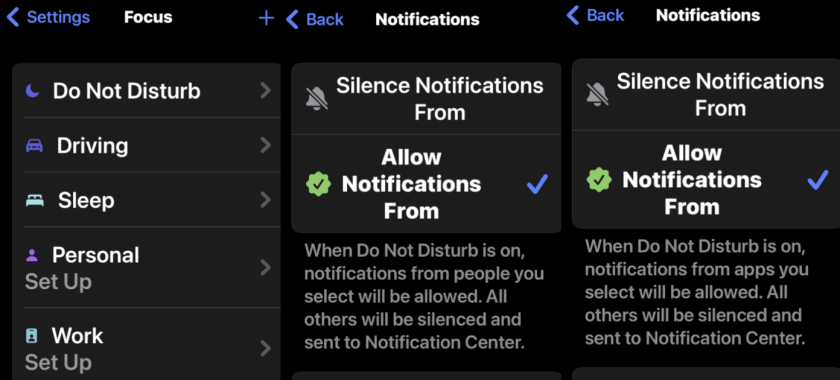
Do Not Disturb Notifications

Distractions management is still a core part of Focus, but it goes far beyond traditional Do Not Disturb. Each Focus Mode you create can be customized with which people and apps you want to allow to send notifications. Maybe you do not care about getting a text from your friend in the middle of your workout, but you might not want that distraction while studying.

The cool thing about Focus is it can go beyond just simply allowing certain people and apps to send notifications. It can actually filter out conversations from the Messages apps, hide calendars in the Calendar app, and limit you to specific Tab Groups in Safari.

That’s part of the reason why Focus is so useful. With other Do Not Disturb modes, you may be able to block notifications, but all the distractions are still on your phone if you look. Focus not only can block notifications, but it can also block the actual distraction too.

Different iPhones For Different Situations

Focus 2
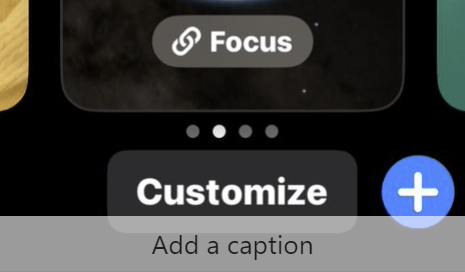
Enabling Focus

Another big part of Focus is customizable screens. You can actually create a specific Lock screen and Home screen setup to use in different Focus modes. It’s like having a different iPhone for each situation.

Let’s say you have a Focus Mode you use while you are at work. You can create a Lock screen with Widgets that pertain to your job and set up a Home screen with the apps you use throughout the workday. You could also create a “Weekend” mode for unwinding with a plain Lock screen and a single Home screen page with only essential apps.

It’s essentially like switching between user profiles. Set up the Focus mode once, then it’s simply a matter of tapping a toggle and you are looking at a whole new phone.

So Much to Discover

If you have not noticed, a lot is going on with Focus. Apple has really fleshed out this feature into a powerful tool, but it does require some poking around to get the most out of it.

For example, you can set up an “Auto Reply” message to text messages when you are in Focus Mode. You can share your “Focus state” across devices, to let people know you are not ignoring them. Focus modes can be scheduled to come on automatically by time, location, or when opening specific apps.

Focus is packed with cool and useful options, and if you have not taken the time to dive in, you owe it to yourself to take a look. You can really make your iPhone more enjoyable to use by setting up a few Focus modes.

Quote For the Day

We are stuck with technology when what we really want is just stuff that works.

Douglas Adams

Tweet Info

That’s it. Please feel free to share this post! One way to share is via Twitter.

Just click the Tweet icon below. This will launch Twitter where you click its icon to post the Tweet.

Checkout TechSavvy.Life for blog posts on smartphones, PCs, and Macs! You may email us at contact@techsavvy.life for comments or questions.

I Would Like to Hear From You

Please feel free to leave a comment. I would love to hear from you. Do you have a computer or smart device tech question? I will do my best to answer your inquiry. Just send an email to contact@techsavvy.life. Please mention the device, app, and version you are using. To help us out, you can send screenshots of your data related to your question.

Author’s E-Book

You can access the e-book from a Kindle device, the Kindle App for the desktop or smartphone, which is a free app.

The author’s Vietnam eBook on the Battle for Tra Bong Vietnam: Events and Aftermath

How to Delete a Focus From iPhone/iPad

In iOS/iPad OS 15, Apple’s Focus feature lets you set up Focus modes, that when enabled, help reduce distractions and allow you to turn your attention to things more important.

RAYMOND OGLESBY @RaymondOglesby2
November 17,2021

In iOS/iPad OS 15, Apple’s Focus feature lets you set up Focus modes, that when enabled, help reduce distractions and allow you to turn your attention to things more important.

iOS/iPadOS 15‌ comes with a handful of pre-set Focus modes, like Sleep, Personal, and Work, and you can also create your own custom configurations to filter notifications based on what you are doing. But how do you delete a Focus you no longer use? Let’s explore how to do this.

This is for the iPhone and iPad running iOS or iPadOS 15 or higher

Dilbert and Decide
Copyright Scott Adams, Inc./Distributed by Universal Uclick for UFS

Can I Remove Any Focus

Along with the custom Focus, you can also delete the default Personal, Sleep, and Work modes, provided you have set them up. Since Focus syncs to all your devices connected to the same iCloud account, removing one from iPhone or iPad will also erase it from the other devices.

Remove a Focus

First, open the Settings app on your iPhone or iPad. Refer to the below image:

Focus 1
Accessing the Settings app

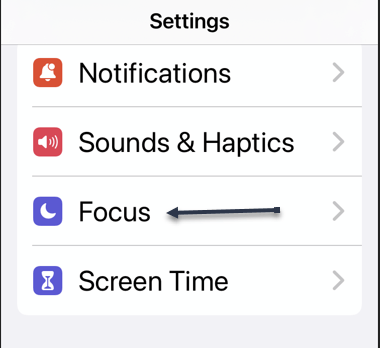
Next, scroll down and tap on Focus. See the below image:

Focus 2
Selecting the Focus option

Now, if you want to delete a Focus from just one iPhone or iPad, then you will need to toggle OFF the switch for Share Across Devices. After that, the changes you make to the Focus modes on your iPhone or iPad will not sync to the other devices connected to the same iCloud account. If you want it deleted from all devices, continue on to the next step. See the following image:

Focus 3
Toggle OFF the Share Across Devices for deletion of Focus on one device

Next, on the confirmation pop up, tap OK. Refer to the below image:

Focus 4
Confirm your Share Across Device toggle

Now, tap on a Focus mode you wish to remove. When it opens, scroll down and select Delete Focus. See the below image:

Focus 5
Selecting to delete a Focus

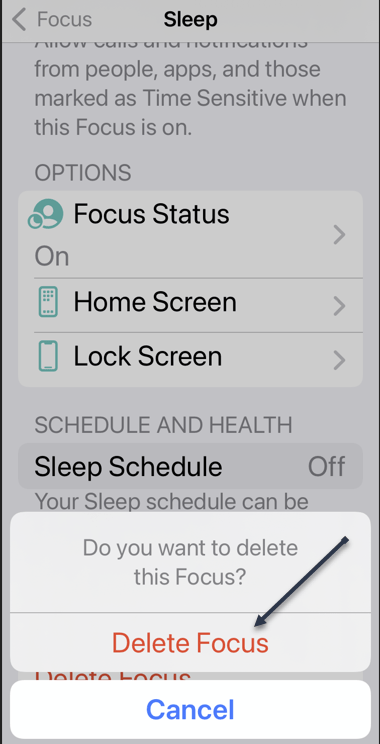
Next, select Delete Focus from the confirmation pop-up window. See the following image:

Focus 6
Deleting a Focus

Repeat the process for each Focus you want to remove, then close the Settings app.

Quote For the Day

That’s been one of my mantras – focus and simplicity. Simple can be harder than complex: You have to work hard to get your thinking clean to make it simple. But it’s worth it in the end because once you get there, you can move mountains.

Steve Jobs

You are finished. Please feel free to share this post! One way to share is via Twitter.

Just click the Tweet icon below. This will launch Twitter where you click its icon to post the Tweet.

Check out TechSavvy.Life for blog posts on smartphones, PCs, and Macs! You may email us at contact@techsavvy.life for comments or questions.

I Would Like to Hear From You

Please feel free to leave a comment. I would love to hear from you. Do you have a computer or smart device tech question? I will do my best to answer your inquiry. Just send an email to contact@techsavvy.life. Please mention the device, app, and version you are using. To help us out, you can send screenshots of your data related to your question.

The author’s Vietnam eBook on the Battle for Tra Bong Vietnam: Events and Aftermath