How to Use the App Library to Organize Your Home Screen

Apple’s App Library has been designed to help iPhone and iPad users manage and locate their apps more easily by organizing them into folders based on specific categories. This feature is available on iPhone iOS 14 or higher and iPad iOS 15 or higher. Users can also move apps from the App Library to the Home screen, but can’t change a misallocated folder. A search function guides users to find specific apps.

RAYMOND OGLESBY @RaymondOglesby2
October 31, 2023

This is for the iPhone and iPad. Screenshots are from iPhone 14 Pro running iOS 16+

Thanks to Apple’s App Library, you no longer have to keep every app on the Home Screen. iPhone and iPad apps are organized in folders, so you can locate them more easily.

Keeping track of all the apps on your iPhone or iPad can be challenging, but the App Library has made it more accessible. This feature lets you remove apps from the Home screen and organize them into folders based on specific categories. Open the App Library with a simple swipe to browse all your apps or search for the right one.

To use the feature, you need to update your iPhone to iOS 14 or higher and your iPad to iPadOS 15 or higher if you have not already done so. On either device, go to

Settings > General > Software Update

Your device will indicate that your software is up to date or prompt you to download and install the latest update.

Overall, the App Library is a helpful tool for managing your apps and finding the ones you need. It’s really useful if you have not already manually organized your apps into different folders. Let’s explore how this feature works.

To access your App Library, open the Home screen and swipe to the left until you see a screen with apps automatically organized into folders. Here, you will see folders called Suggestions, Recently Added, Social, Entertainment, Shopping, Music, Games, and more, depending on what apps you have on your device. Refer to the below image:

Apps 1
Your App Library screen

You will notice that some of the apps in a folder have large icons, while others sport smaller icons grouped in fours. To open an app that has a large icon, all you have to do is tap it.

For the smaller app icons, you have to tap the group of four apps to bring up a screen showing all the apps in that category. From there, simply tap an icon to open the corresponding app. See the below image:

Apps 2
Your sub icons under a master icon screen

Apps can be moved from the App Library to the Home screen, or deleted entirely, but apps in the library can not be moved from one folder to another. If you feel an app has been categorized in the wrong folder, there’s nothing you can do.

If you are having trouble finding a specific app, you can search for it by name. Start typing the name of the app you want in the App Library search field at the top to see the corresponding apps. Tap the app icon to launch the app. See the following image:

Apps 3
Using Search

Otherwise, you can swipe down on the App Library screen to view an alphabetical list of all the apps installed on the device. To find a specific app faster, tap a letter on the right-hand side to see all apps starting with that letter. Refer to the below image:

Apps 4
Using alphabetical list

You can add an app from the App Library to your Home screen if it’s not already there. Long-press on the icon to open the command menu and then tap Add to Home Screen. The app’s icon appears on the next free spot on your Home screen but also remains in the App Library. See the below image:

Apps 5
Add to your Home screen option

Another method of moving apps from the App Library to the Home screen is to hold down on an app until all the icons start jiggling. Press down on the icon for the app you want to move and then drag it to the left until the Home screen appears, allowing you to place the icon into the correct position. See the following image:

Apps 6
Using jiggling

You can also press down on an icon from the Home screen and select the Edit Home Screen command from the menu to make all the apps jiggle and then go to the App Library to move an icon to the Home screen. Refer to the below image:

Apps 7
Edit your Home Screen option

Note! Tap on any blank area of your Home screen to turn off the giggles.

Disclaimer

Technology is always changing and rarely is there static tech for smartphones and desktops. Thus, the contents of this post are only valid at the time of writing. Blog posts older than six months may have directions incompatible with your device or OS. Hopefully, older post content will continue to work as advertised. Thank you for reading TechSavvy.Life for Technology at Work For You.

You just have to pay attention to what people need and what has not been done.

Russell simmons

That’s it. Please feel free to share this post! One way to share is via Twitter.

Just click the Tweet icon below. This will launch Twitter where you click its icon to post the Tweet.

Checkout TechSavvy.Life for blog posts on smartphones, PCs, and Macs! You may email us at contact@techsavvy.life for comments or questions.

Please feel free to leave a comment. I would love to hear from you. Do you have a computer or smart device tech question? I will do my best to answer your inquiry. Just send an email to contact@techsavvy.life. Please mention the device, app, and version you are using. To help us out, you can send screenshots of your data related to your question.

You can access the e-book from a Kindle device, the Kindle App for the desktop or smartphone, which is a free app.


The author’s Vietnam eBook on the Battle for Tra Bong Vietnam: Events and Aftermath

How to Make Custom Wallpapers on iPhone

Changing your iPhone Lock screen and Home screen wallpaper is probably the most effective way of making your phone look and feel unique.

RAYMOND OGLESBY @RaymondOglesby2
October 25, 2022

Changing your iPhone Lock screen and Home screen wallpaper is probably the most effective way of making your phone look and feel unique. Now you can take your wallpaper to the next level by creating or modifying your own designs in just a few taps; no app is required.

This is for the iPhone running iOS 16+. Screenshots are from iPhone XR

Dilbert and AI
Copyright Scott Adams, Inc./Distributed by Universal Uclick for UFS

iOS 16 Required

You can access the new wallpaper creation tools and Lock Screen gallery using iOS 16. If you do not see the Lock screen gallery when you long-press your Lock screen, you might need to update your iPhone to iOS 16.

If you need to, you can upgrade to iOS 16 by going to:

Settings > General > Software Update

Create a Wallpaper

You can create your own wallpapers using the Lock screen gallery. To access the gallery, first, tap and hold the Lock screen to reveal it.

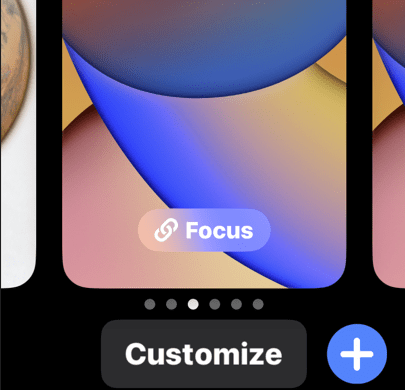
Next, tap Customize to modify your existing Lock screen or tap the plus “+” icon to create a new Lock screen. Refer to the below image:

Customize Wallpaper 1
Customize or add a wallpaper

Now, creating a new Lock screen will take you straight to the wallpaper picker. You will then see a few options at the top of the screen that will allow you to create your own wallpaper:

  • Photos: Pick a photo from your media library, then customize it by swiping left and right to apply different filters.
  • Photo Shuffle: Using shuffle mode, you can choose more than one background image. These photos will then change throughout the day. You can also have your iPhone pick photos for you.
  • Emoji: Pick your favorite emoji, then choose from different patterns and background colors.
  • Weather: The weather option is a dynamic background that changes based on the weather conditions in your area.
  • Astronomy: This dynamic background changes based on the position of the earth, the moon, or the planets in our solar system.
  • Color: Pick a solid color, then swipe left and right to choose different effects like gradients and color intensity.

Next, you can create multiple wallpapers and save them to the Lock screen gallery, then switch between them as you please by tapping and holding your Lock screen at any time. See the below image:

Customize Wallpaper 2
Select a wallpaper

Now, the most fun you can have here is by creating custom Emoji and color wallpapers. Creating wallpapers using your own photos is easier using these tools too. There’s no need to edit or apply filters to your photos inside the Photos app first.

Next, some photos can even be used to create a Depth Effect that overlays subjects on top of the clock (though getting this to work is a bit hit-and-miss).

Using Existing Designs

You can also use the Lock screen gallery to pick from existing or featured designs. Now, take a look at the Featured and Collections areas to see some of Apple’s best offerings. See the following image :

Customize Wallpaper 3
Select template wallpapers

Next, iOS will also put photos in the Suggested Photos slider that should work well on a Lock screen, many of which are compatible with the Depth Effect mentioned above.

If you use Widgets on your Lock screen, you forgo the ability to use the Depth Effect.

There’s also a huge range of apps in the App Store for creating or downloading custom wallpapers, including, Vellum, Everpix, and Pixs. Unlike those apps, Apple’s built-in options are completely free to use.

Related

How to Use Lock and Home Screen Wallpapers

Quote For the Day

I’d rather check my Facebook than face my checkbook.

Craig Coelho

Tweet Info

That’s it. Please feel free to share this post! One way to share is via Twitter.

Just click the Tweet icon below. This will launch Twitter where you click its icon to post the Tweet.

Checkout TechSavvy.Life for blog posts on smartphones, PCs, and Macs! You may email us at contact@techsavvy.life for comments or questions.

I Would Like to Hear From You

Please feel free to leave a comment. I would love to hear from you. Do you have a computer or smart device tech question? I will do my best to answer your inquiry. Just send an email to contact@techsavvy.life. Please mention the device, app, and version you are using. To help us out, you can send screenshots of your data related to your question.

Author’s E-Book

You can access the e-book from a Kindle device, the Kindle App for the desktop or smartphone, which is a free app.

The author’s Vietnam eBook on the Battle for Tra Bong Vietnam: Events and Aftermath

How to Use Lock and Home Screen Wallpapers on iPhone in iOS 16+

Wallpaper is probably the easiest way to customize the look of your iPhone, and you have two areas to do it; the Home screen and the Lock screen.

RAYMOND OGLESBY @RaymondOglesby2
October 4, 2022

Wallpaper is probably the easiest way to customize the look of your iPhone, and you have two areas to do it; the Home screen and the Lock screen. Let’s explore this iOS 16+ feature.

This is for the iPhone. Screenshots are from iPhone XR running iOS 16+

Dilbert and Late
Copyright Scott Adams, Inc./Distributed by Universal Uclick for UFS

Tip: It is recommended you view the post on “How to Add Widgets on iPhone Lock Screen in iOS 16+” next.

The iPhone has supported separate wallpapers on the Home screen and Lock screen for a while, but iOS 16 introduced a big reworking of the process in 2022.

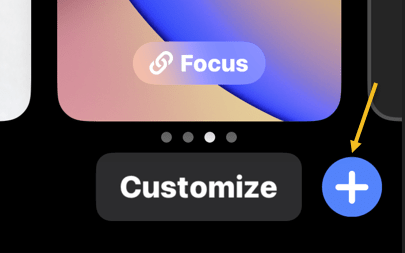
First, unlock your iPhone and tap and hold on a blank space on the Lock screen. The Lock screen will zoom out, and you will see a Customize and a plus button. Tap the plus button. Refer to the below image:

Lock 1
Selecting to add a wallpaper

If this is your first time playing with the Lock screen wallpaper in iOS 16, you will need to tap Add New when prompted. This will switch you over to the new Lock screen style. See the below image:

Lock 2
Add a new wallpaper

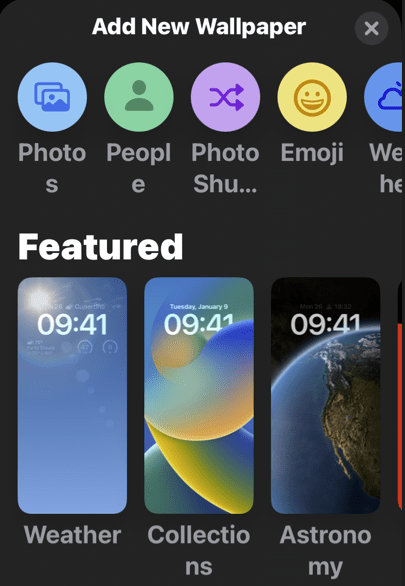
Next, you have a bunch of different options for wallpapers. At the top, you can select from a few categories. Scroll down to see a bunch of pre-made Lock screens. Choose a wallpaper for the Lock screen to proceed. See the following image:

Lock 3
Choosing a wallpaper

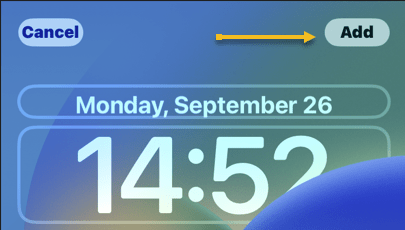
Now, once you have a wallpaper that you want to use for the Lock screen, tap the Add button in the top right-hand corner. Refer to the below image:

Lock 4
Selecting the Add button

Next, here’s where you have to option to use a different wallpaper for the Home screen. Tap Customize Home Screen to proceed. See the below image:

Lock 5
Selecting Customize Home Screen button

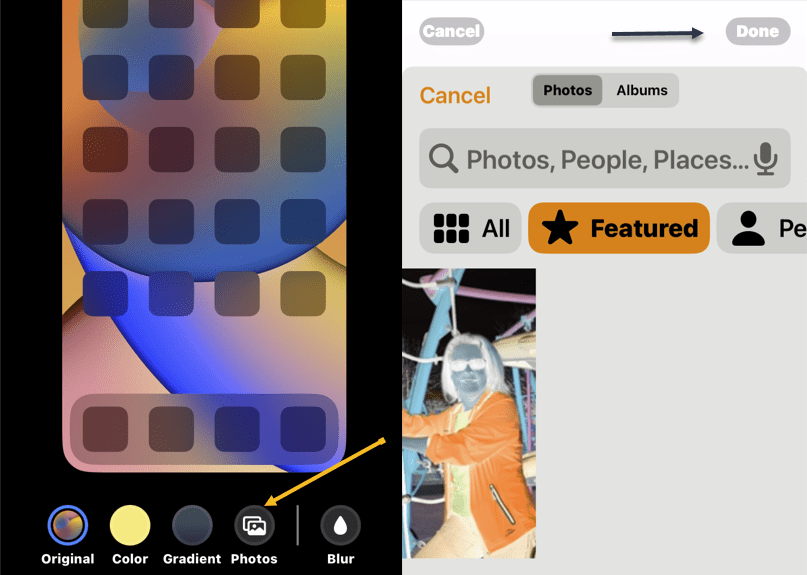
Now, you have a few options to choose from. You can blur the Lock screen wallpaper, choose a color based on the Lock screen wallpaper, a gradient based on the Lock screen wallpaper, or from your photos. After you have made your selection, tap Done in the top right-hand corner (if you choose a photo, you will need to tap Done twice). See the following image:

Lock 6
Adding a Home Screen wallpaper

Next, you will be brought back to the Lock screen preview screen. Tap the Lock screen to leave and see your new Lock screen and Home screen wallpapers! Refer to the below image:

Lock 7
Your Lock Screen

This is just a fraction of what you can do with the Lock screen on iOS 16+. You can also add widgets, customize the clock font, and apply a cool 3D depth effect to some wallpapers. More on this in another post as mentioned above.

Delete a Wallpaper

First, unlock your iPhone. Next, long-press anywhere on the unlocked Lock screen. See the below image:

Lock 8
Accessing the Lock Screen for deletion

Now, when the Lock screen goes into edit mode, you will see your current Lock screen as a preview among other Lock screens. Swipe to the wallpaper you want to delete. Then, swipe up on the wallpaper preview to reveal more options.

Note: The swipe-up gesture only works if you have another wallpaper added to your Lock screen collections. If you are trying to delete the only remaining Lock screen wallpaper from your iPhone, you will not be able to perform the swipe gesture on this wallpaper. 

Next, you will now see a red-colored Trash icon below the selected wallpaper. Tap on the Trash icon to delete this Lock screen wallpaper permanently from your iPhone. See the following image:

Lock 9
Selecting the Trash icon to delete

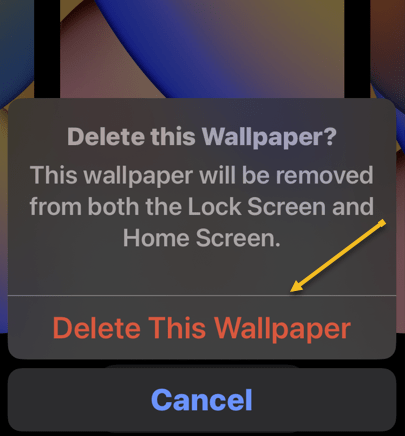
Now, to confirm your action, tap on Delete This Wallpaper in the prompt that appears at the bottom. Refer to the below image:

Lock 10
Confirming the deletion

The selected wallpaper will now be removed from the edit screen and iOS will now load up your previous wallpaper for your Lock screen. 

Quote For the Day

Technology like art is a soaring exercise of the human imagination.

Daniel Bell

Tweet Info

You are finished. Please feel free to share this post! One way to share is via Twitter.

Just click the Tweet icon below. This will launch Twitter where you click its icon to post the Tweet.

Checkout TechSavvy.Life for blog posts on smartphones, PCs, and Macs! You may email us at contact@techsavvy.life for comments or questions.

I Would Like to Hear From You

Please feel free to leave a comment. I would love to hear from you. Do you have a computer or smart device tech question? I will do my best to answer your inquiry. Just send an email to contact@techsavvy.life. Please mention the device, app, and version you are using. To help us out, you can send screenshots of your data related to your question.

Author’s E-Book

You can access the e-book from a Kindle device, the Kindle App for the desktop or smartphone, which is a free app.

The author’s Vietnam eBook on the Battle for Tra Bong Vietnam: Events and Aftermath