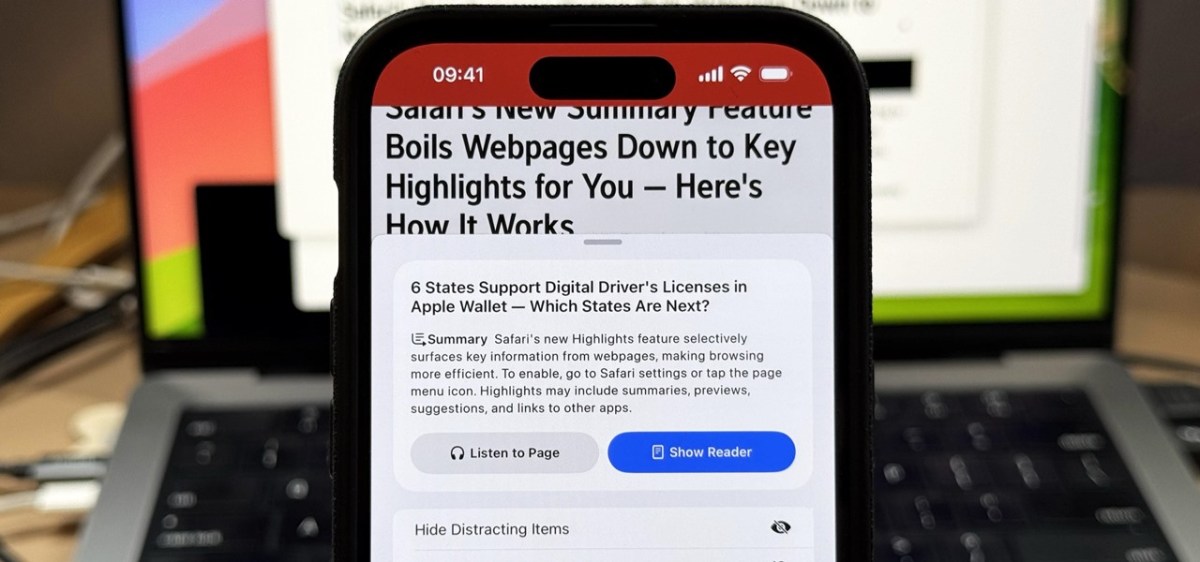
Unlock Safari’s New Summary Feature in iOS 18

The iOS 18.1 update introduces Safari Summaries, allowing users to quickly grasp webpage content without extensive scrolling. Apple Intelligence, integrated into various devices, offers tailor-made AI tools like image generation, message prioritization, and smart replies, while emphasizing user privacy. This feature enhances the browsing experience by providing clear website summaries.

RAYMOND OGLESBY @RaymondOglesby2
January 7, 2025 – 4 minutes read time

If you have ever been lost in the middle of a website and wished you could just get the gist without reading through the entire page, I have good news for you.

Safari gets Apple Intelligence! The iOS 18.1 update brings Safari summaries to webpages, letting you get the gist of an article quickly and clearly. This is one of the top iOS 18 Safari highlights, and it’s easy to implement. Here’s how

  • iOS 18 will summarize a website for you so you can skip the scrolling.
  • Enjoy a clear website summary without reading the whole thing.
  • Discover quickly if the article has the information you need.

This tip requires an iPhone 15 Pro and later models running iOS 18.1 or later. Screenshots are from iPhone 15 Pro running iOS 18.1.1.

Click here to learn how to update your iPhone to the latest iOS version.

Apple Intelligence is a suite of AI-powered tools that use your personal data to generate information and recommendations tailored to you. It’s available on the iPhone, iPad, and Mac, and is integrated into the core of the operating system and existing apps. 

Apple Intelligence includes features like: 

  • Image Playground: A tool for generating cartoon-style images based on text descriptions 
  • Genmoji: A tool for creating emojis for any situation 
  • Writing Tools: Tools for enhancing your writing, including ChatGPT integration and reformatting tools like List and Table 
  • Priority Messages: A tool for prioritizing messages in your inbox 
  • Notification summaries: A tool for scanning long or stacked notifications with key details 
  • Reduce Interruptions: A Focus that surfaces only notifications that might need immediate attention 
  • Smart Reply: A tool in Mail that identifies questions you were asked in an email and offers relevant selections to include in your response 

Apple Intelligence is designed to protect your privacy at every step. It’s aware of your personal information without collecting it, and it uses on-device processing and Private Cloud Compute to handle more complex requests. 

Open your webpage in Safari and tap the Page Settings button at the bottom left. Refer to the below image:
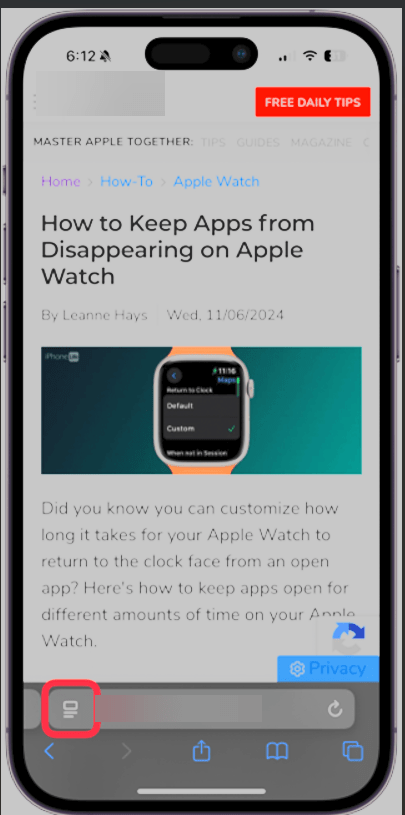
Summarize 1
Selecting Page Settings button

Next, tap Show Reader. See the below image:
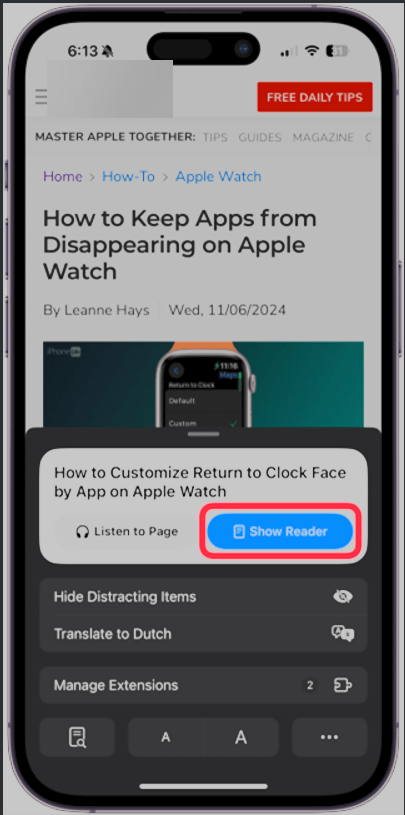
Summarize 2
Selecting Show Reader button

Now, tap Summarize. See the following image:
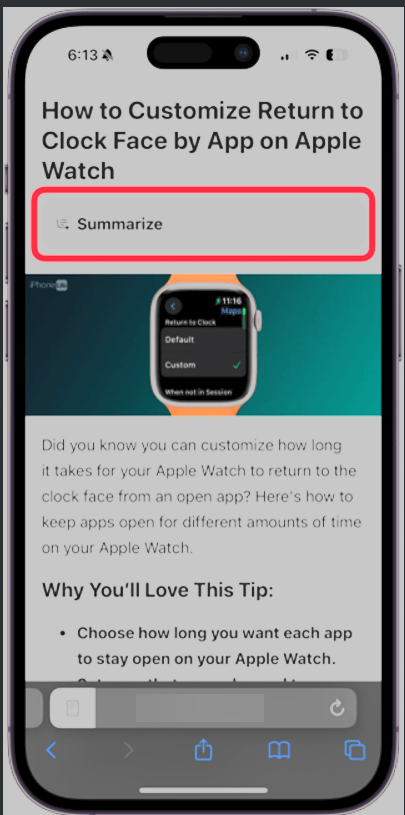
Summarize 3
Selecting Summarize button

Next, you will see the summary displayed at the top of the page in a gray box. Refer to the below image:
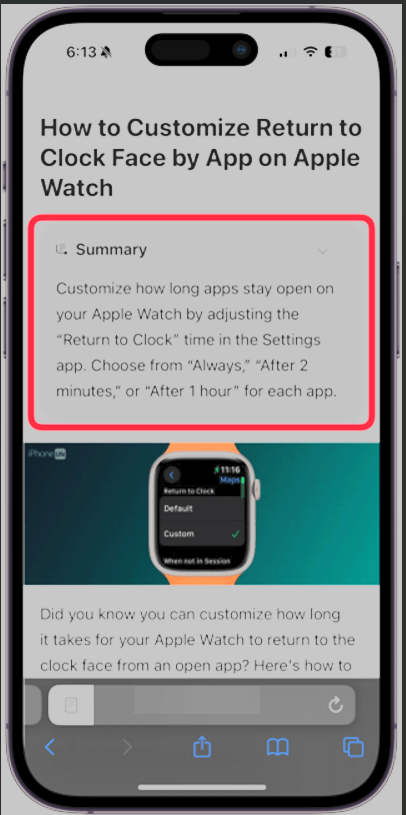
Summarize 4
The Summary

It’s that easy! Now, you can enjoy clear, concise summaries of the webpages you do not want to have to read through or make sure a website has the information you need before you spend ten minutes scrolling.

Disclaimer

Technology is constantly evolving, and smartphone and desktop tech rarely remains static. Therefore, the information in this post is only accurate as of the date it was written. Blog posts that are older than six months may contain instructions that are no longer compatible with your device or operating system. We hope that the content from previous posts continues to function as intended. Thank you for reading TechSavvy.Life, where technology works for you.

 “Technology is a word that describes something that doesn’t work yet.” 

― Douglas Adams

That’s it. Please feel free to share this post! One way to share is via Twitter.

Just click the Tweet icon below. This will launch Twitter where you click its icon to post the Tweet.

Check out TechSavvy.Life for blog posts on smartphones, PCs, and Macs! If you have comments or questions, email us at contact@techsavvy.life.

We value your feedback! Was this post helpful? Please share your comments with us. If you have a tech question related to your computer or smart device, feel free to reach out. Just send an email to contact@techsavvy.life, and be sure to include the device, app, and version you are using. To assist us further, you can also attach screenshots related to your inquiry.

Author’s eBook

The author’s Vietnam eBook on the “Battle for Tra Bong Vietnam: Events and Aftermath” can be accessed from a Kindle device or the Kindle App for a desktop or smartphone. The apps are free.

The author’s Vietnam eBook on the Battle for Tra Bong Vietnam: Events and Aftermath

How to Use Dynamic Island for iPhone Flashlight Control | TechSavvy.Life

This post provides instructions for using the Dynamic Island feature to control the flashlight on iPhone 14 Pro and iPhone 15 models. The upcoming iOS 18 update will introduce new features for controlling the flashlight.

RAYMOND OGLESBY @RaymondOglesby2
September 3, 2024 – 3 minutes read

This is for iPhone 14 Pro, iPhone 14 Max, and iPhone 15 running iOS 17+. Screenshots are from iPhone 14 Pro running iOS 17.5.1.

Click here to learn how to update your iPhone to the latest iOS version.

Did you know you can use the Dynamic Island to control your iPhone’s flashlight? The Dynamic Island is one of the most useful features, thanks to shortcuts like this.

There are many different ways to turn off the flashlight on your iPhone. The iPhone 14 Pro and any iPhone 15 models introduced an extra option for switching off your flashlight with Dynamic Island. Let’s explore this feature.

The Dynamic Island is a relatively new interactive iOS 16 feature housing the TrueDepth front camera notch.

Dynamic Island is a pill-shaped zone on the upper side of the ‌iPhone‌ display. It adapts the camera hardware and is a shape-shifting hub for vital iPhone alerts or your ongoing activity. Since the feature is triggered automatically, you can view a multitasking bar within seconds without additional actions.

This UI area displays;

  • Alerts and Notifications
  • Background Activity
  • Access to Controls
  • Real-Time Updates

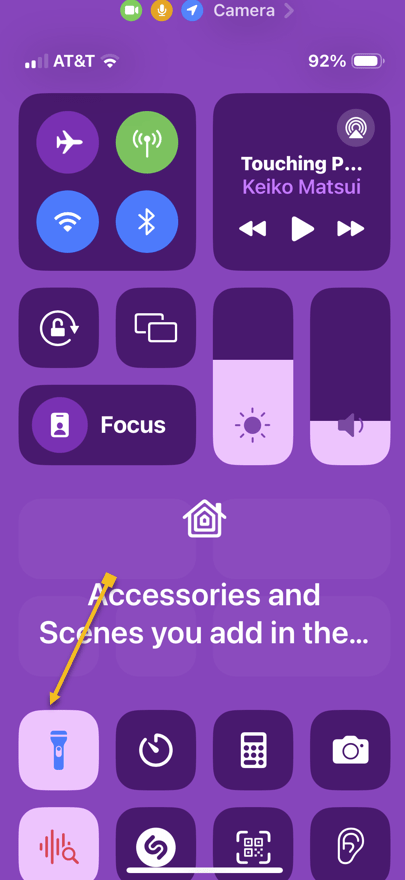
First, access the Flashlight by swiping down on your Home Screen from the upper right. Refer to the below image:

Flashlight 1
Swiping down to reveal the Control Panel

Now, the Control Center will be displayed. See the below image:

Flashlight 2
Your Control Panel

Next, tap the Flashlight icon. See the following image:

Flashlight 3
Selecting the Flashlight icon

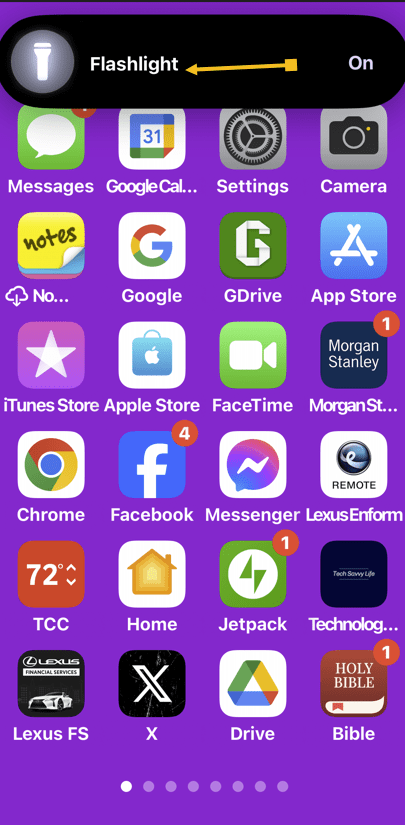
Now, you will see a tiny flashlight icon in the Dynamic Island. Tap it. Refer to the below image:

Flashlight 4
Taping the Flashlight icon in the Dynamic Island

Next, your Flashlight status will be shown in the Dynamic Island. Tap the icon to turn off the Flashlight. See the below image:

Flashlight 5
Taping the Flashlight icon to turn it off

In the September 2024 iOS 18 update Apple will add swipe capabilities to control the Flashlight beam and brightness.

Disclaimer

Technology is always changing. Rarely is there static tech for smartphones and desktops. Thus, the contents of this post are only valid at the time of writing. Blog posts older than six months may have directions incompatible with your device or OS. Hopefully, older post content will continue to work as advertised. Thank you for reading TechSavvy.Life for Technology at Work For You.

. “Real science can be far stranger than science fiction and much more satisfying.”

– Stephen Hawking

You are finished. Please feel free to share this post! One way to share is via Twitter.

Just click the Tweet icon below. This will launch Twitter where you click its icon to post the Tweet.

Checkout TechSavvy.Life for blog posts on smartphones, PCs, and Macs! You may email us at contact@techsavvy.life for comments or questions.

Was this post helpful? We would love to hear your comments. Do you have a computer or smart device tech question? I will do my best to answer your inquiry. Just send an email to contact@techsavvy.life. Please mention the device, app, and version you are using. To help us out, you can send screenshots of the data related to your question.

The author’s Vietnam eBook on the “Battle for Tra Bong Vietnam: Events and Aftermath” can be accessed from a Kindle device or the Kindle App for a desktop or smartphone. The apps are free.

The author’s Vietnam eBook on the Battle for Tra Bong Vietnam: Events and Aftermath