

RAYMOND OGLESBY @RaymondOglesby2
November 12, 2024 – 4 minutes read time
Overview
Did you find a web page you want to save for later? You can easily share it to the Notes app so that you can return to it again. Or if you find an article relevant to a project you are working on, you can share it with one of your notes, add text, and open your note anytime to find the link. Let’s explore how this is done.
Why You Will Like This Tip
- Save articles to read at a later date.
- Easily keep your thoughts about an important website in one place.
- Keep related web pages together in one note when planning projects.
System Requirements
This tip works on iPhones running iOS 16 or later. The screenshots are from iPhone 14 Pro running iOS 18.
Click here to learn how to update your iPhone to the latest iOS version.
Let’s Get Started
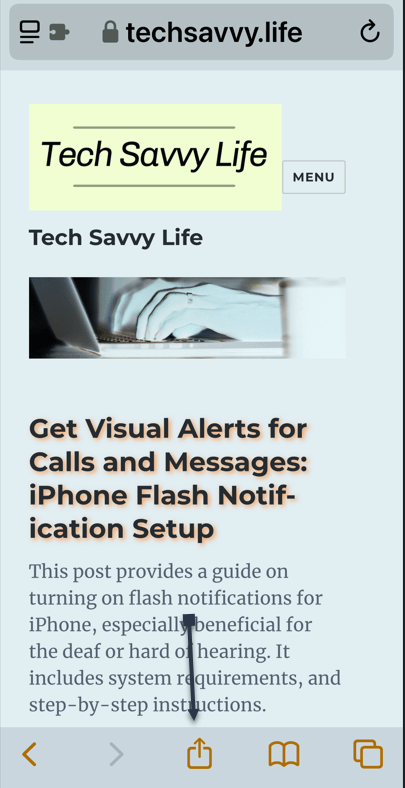
To share a webpage, you first need to open the page in Safari and tap the Share icon. Refer to the below image:
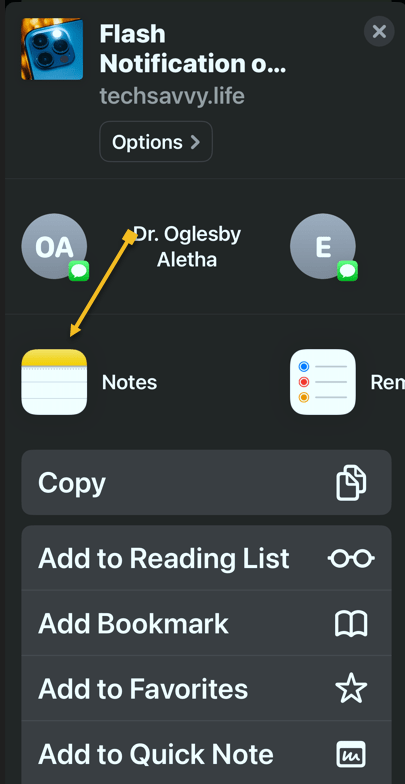
Next, scroll through the app list, and tap Notes. See the below image:
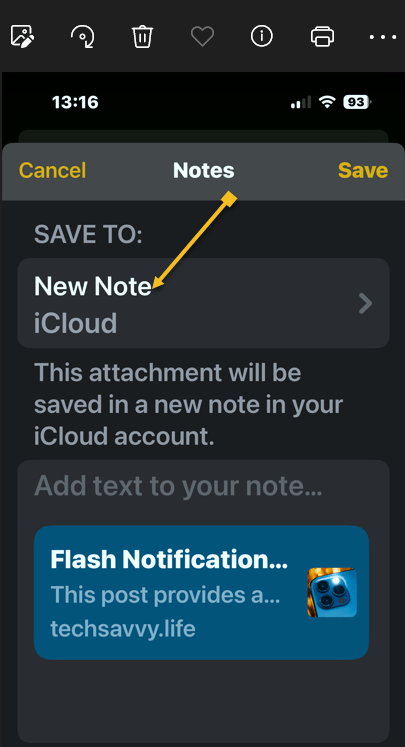
Now, tap a New Note to select whether you want to save this page to a new note or an existing one. See the following image:
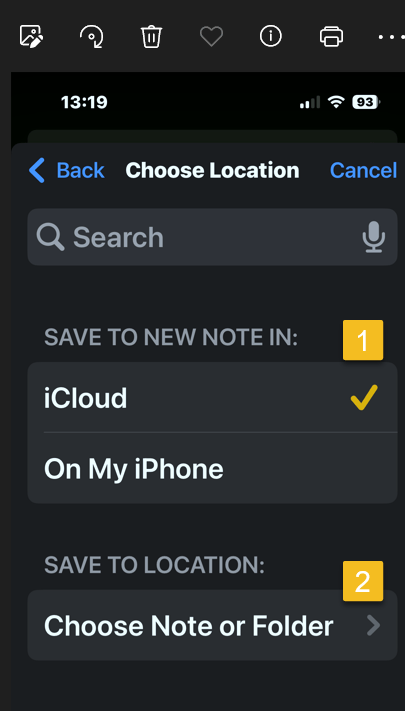
Next, choose where to save the new note, then tap Choose Note or Folder. Refer to the below image:
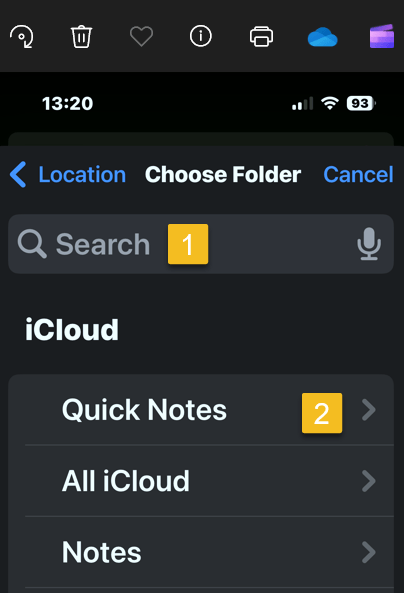
Now, tap the Search Bar to search for a specific one, or scroll and select one. In our example, we are selecting the Quick Notes folder. See the below image:
Next, tap Create New Note to create a new note and save the website to it. See the following image:

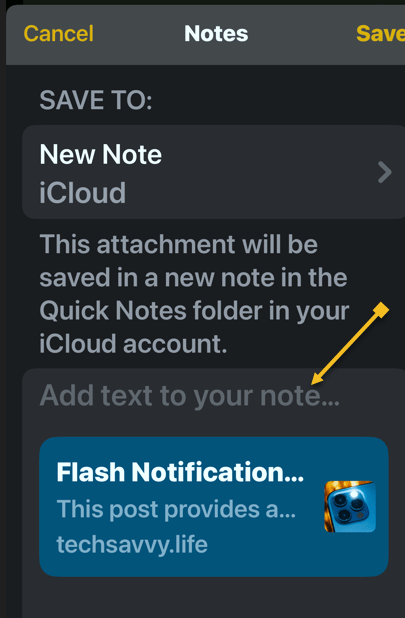
Next, tap Add text to your note… if there are any extra details you want to add. Refer to the below image:
Now, tap Save. See the below image:
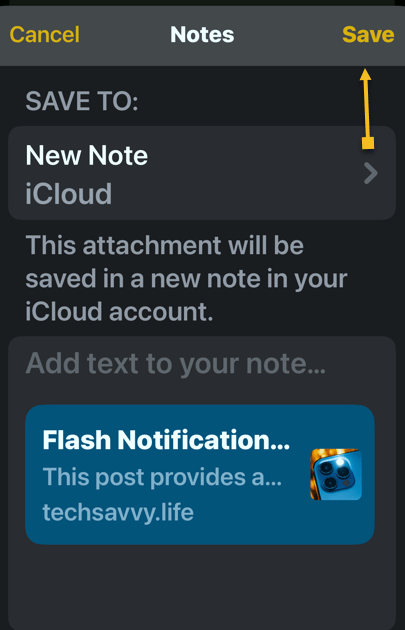
If you save it as a new note, it will have the same title as the web page. You can tap the thumbnail to open the article when you open your Note. See the following image:
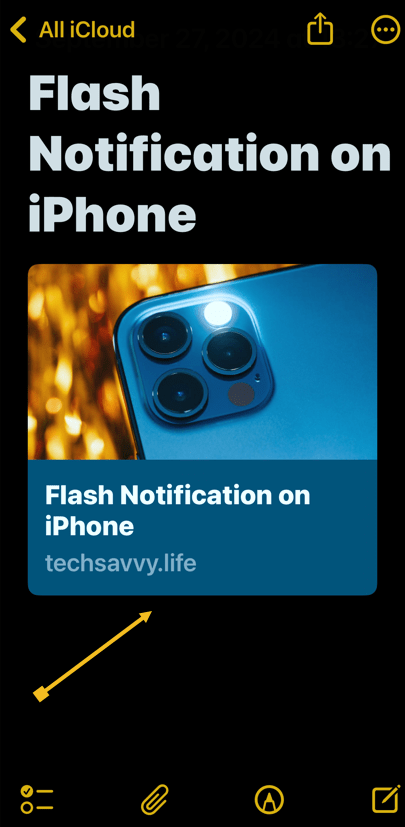
That’s how to add a hyperlink in the iPhone Notes app for sharing. You can return to this note when you want to read that article.
Disclaimer
Technology is always changing. Rarely is there static tech for smartphones and desktops. Thus, the contents of this post are only valid at the time of writing. Blog posts older than six months may have directions incompatible with your device or OS. Hopefully, older post content will continue to work as advertised. Thank you for reading TechSavvy.Life for Technology at Work For You.
Quote For the Day
“Order is one of the needs of life which, when it is satisfied, produces a real happiness.”
-Maria Montessori
X (Twitter) Info
That’s it. Please feel free to share this post! One way to share is via Twitter.
Just click the Tweet icon below. This will launch Twitter where you click its icon to post the Tweet.
Checkout TechSavvy.Life for blog posts on smartphones, PCs, and Macs! You may email us at contact@techsavvy.life for comments or questions.
Tweet
I Would Like to Hear From You
Was this post helpful? We would love to hear your comments. Do you have a computer or smart device tech question? I will do my best to answer your inquiry. Just send an email to contact@techsavvy.life. Please mention the device, app, and version you are using. To help us, you can send screenshots of the data related to your question.
The author’s Vietnam eBook on the “Battle for Tra Bong Vietnam: Events and Aftermath” can be accessed from a Kindle device or the Kindle App for a desktop or smartphone. The apps are free.
 Tech Savvy Life