Discover How to Use Apple Indoor Maps on iPhone and iPad

Apple Maps now offers indoor maps for certain malls and airports, accessible through the app on iPhone and iPad. This feature eliminates the need for physical maps, allowing users to easily navigate these indoor spaces. By following specific steps within the Maps app, users can view indoor locations and access additional details.

RAYMOND OGLESBY @RaymondOglesby2
July 23, 2024 – 5 minutes read

This is for the iPhone and iPad using Apple Maps. Screenshots are from iPhone 14 Pro running iOS 17.5.1

For certain malls and airport locations, Apple has indoor maps viewing directly from the Maps app. You will love this feature because it allows you to figure out where you are without locating a directory or physical map somewhere inside the location. Let’s explore this feature.

First, open Maps on your iPhone. Refer to the below page:
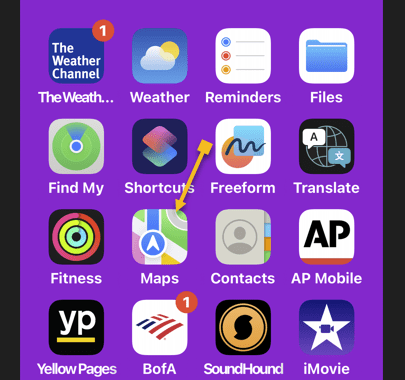
Indoor Maps 1
Accessing the Maps app

Next, tap the Search box and type in the name of the airport or mall. See the below image:

Indoor Maps 3
Selecting the Search box

Now, tap it or swipe up to access the menu options until you see the location you want and tap it. See the following image:
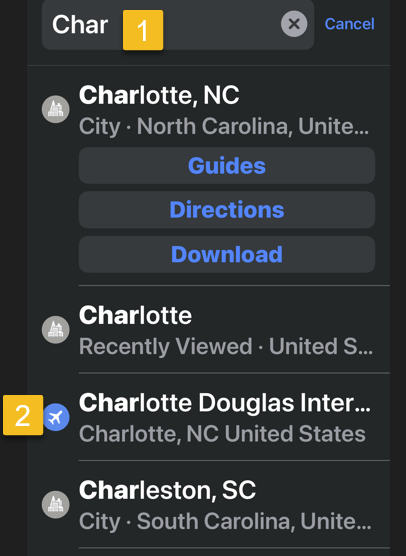
Indoor Maps 4
Selecting your search criteria

Next, depending on what map you are looking at, you will see options for various stores and/or locations within the building. Tap one of the options to see it plotted on the map. Refer to the below image:
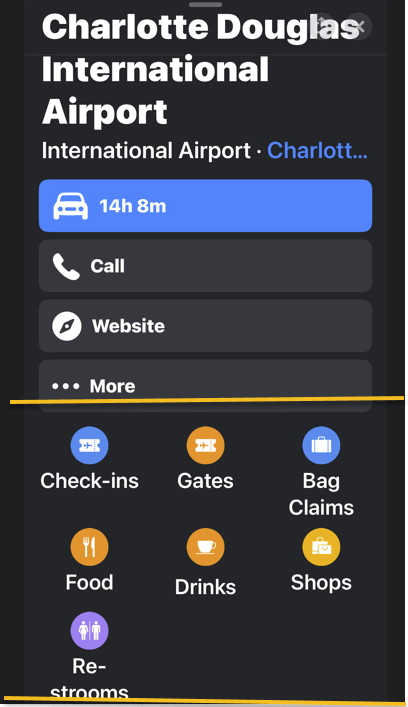
Indoor Maps 5
Search menu options

Now, you will see all the gates, shops, or other type of location you selected. For example, we are accessing the Charlotte Douglas International Airport airport gates. See the below image:

Indoor Maps 5
Selecting Gates for the airport

Next, swipe up for a list of all locations. See the following image:

Indoor Maps 6
Selecting aGate from the listing

Now, when you tap a location, it will get larger on the map, making it easier to find. Refer to the below image:

Indoor Maps 7
Your highlighted gate

For a 2024 Apple Indoor Maps listing, tap here.

And that’s how you view indoor maps! Apple is constantly updating its inventory of indoor maps, so hopefully, we will have access to even more of them in the future.

Disclaimer

Technology is always changing. Rarely is there static tech for smartphones and desktops. Thus, the contents of this post are only valid at the time of writing. Blog posts older than six months may have directions incompatible with your device or OS. Hopefully, older post content will continue to work as advertised. Thank you for reading TechSavvy.Life for Technology at Work For You.

“You will either step forward into growth or you will step back into safety.”

Abraham Maslow

That’s it. Please feel free to share this post! One way to share is via Twitter.

Just click the Tweet icon below. This will launch Twitter where you can tap the Post icon to post the Tweet.

Checkout TechSavvy.Life for blog posts on smartphones, PCs, and Macs! You may email us at contact@techsavvy.life for comments or questions.

Was this post helpful? We would love to hear your comments. Do you have a computer or smart device tech question? I will do my best to answer your inquiry. Just send an email to contact@techsavvy.life. Please mention the device, app, and version you are using. To help us out, you can send screenshots of your data related to your question

You can access the E-book from a Kindle device, or the Kindle App for a desktop or smartphone. The apps are free.
The author’s Vietnam eBook on the Battle for Tra Bong Vietnam: Events and Aftermath

How to Use Apple Maps For a City Flyover Tour on iPhone

The Apple Maps app’s Flyover feature provides an immersive 3D city tour experience. Users can select a city, initiate the tour, pause, and exit at will. This augmented reality feature offers a unique way to explore cities worldwide from the comfort of your home, with new cities continually being added.

RAYMOND OGLESBY @RaymondOglesby2
April 30, 2024

This is for the iPhone running iOS 17.3+. Screenshots are from iPhone 14 Pro running iOS 17.4

Did you know you can take a city tour from the comfort of your home with the Apple Maps app? Apple has a Flyover feature which allows you to view 3D modeling of large worldwide cities.

Flyover is an AR (augmented reality) feature to view a city in various ways as you move your iPhone around. For example, if you position your iPhone parallel to the floor, you can see a complete bird’s-eye view of cities such as New York, Florence, Paris, or Rome.

First, locate and open the Maps app. Refer to the below page:

Flyover 1
Selecting the Maps app

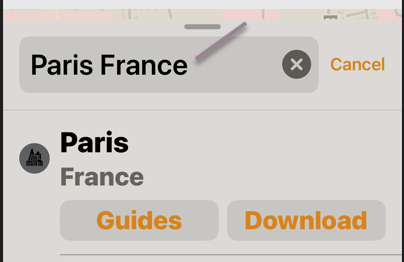
Next, search for a city, such as Paris, France. See the below image:

Flyover 2
Entering a City to flyover

Now, tap the Flyover button. See the following image:

Flyover 3
Selecting the Flyover option

Next, you will see an AR of the City! You can look around by turning your iPhone or by swiping the screen. Refer to the below image:

Flyover 4
AR view of your city

Now, tap Start Tour. See the below image:

Flyover 5
Selecting the Start Tour button

Next, you will view a tour around the city, stopping at various monuments and landmarks with the names listed at the bottom. See the following image:

Flyover 6
Viewing a specific site in your city

Now, you can pause the tour by tapping Pause Tour. Refer to the below image:

Flyover 7
Selecting the Pause Tour button

Next, you can also deviate from the tour if you would like to see something better. When you let go of the screen, the tour will continue. See the below image:

Flyover 8
A different view

You can exit the tour at any time by tapping the “X.” Icon. See the following image:

Flyover 9
Selecting to Exit the tour

Apple should continue adding more cities to the Flyover feature. You can also click to view the complete list of cities set up for the Flyover feature. 

Disclaimer

Technology is always changing. Rarely is there static tech for smartphones and desktops. Thus, the contents of this post are only valid at the time of writing. Blog posts older than six months may have directions incompatible with your device or OS. Hopefully, older post content will continue to work as advertised. Thank you for reading TechSavvy.Life for Technology at Work For You.

The true entrepreneur is a doer, not a dreamer.

Jan Bushnell

That’s it. Please feel free to share this post! One way to share is via Twitter.

Just click the Tweet icon below. This will launch Twitter where you click its icon to post the Tweet.

Checkout TechSavvy.Life for blog posts on smartphones, PCs, and Macs! You may email us at contact@techsavvy.life for comments or questions.

Please feel free to leave a comment. I would love to hear from you. Do you have a computer or smart device tech question? I will do my best to answer your inquiry. Just send an email to contact@techsavvy.life. Please mention the device, app, and version you are using. To help us out, you can send screenshots of your data related to your question.

You can access the E-book from a Kindle device, or the Kindle App for a desktop or smartphone. The apps are free.
The author’s Vietnam eBook on the Battle for Tra Bong Vietnam: Events and Aftermath

How to Set a Pin in iPhone Apple Maps

If you would like to mark a specific location to get directions to it, save it to your favorites list, or share it with someone, simply drop a pin on that location in Apple Maps on your iPhone.

RAYMOND OGLESBY @RaymondOglesby2
March 23, 2022

If you would like to mark a specific location to get directions to it, save it to your favorites list, or share it with someone, simply drop a pin on that location in Apple Maps on your iPhone. Let’s explore this feature.

This is for the iPhone. Screenshots are from iPhone XR

Dilbert and Honest
Copyright Scott Adams, Inc./Distributed by Universal Uclick for UFS

First, launch Apple Maps on your iPhone. In the app, navigate to the location by using the Search Maps to a specific address. Refer to the below image:

Maps 1
Accessing Search Maps

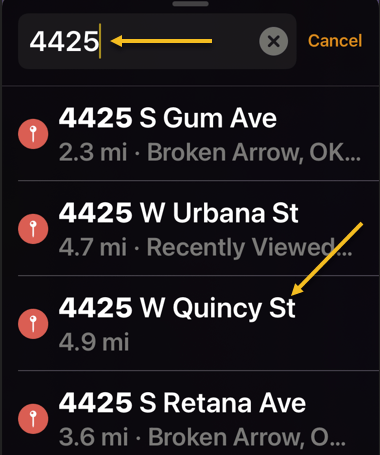
Next, type in the address, and a pop-up list of possible addresses will appear. Choose one from the list. See the below image:

Maps 2
Type in an address and select the address from the list

Now, a drop pin will be placed at that location. From here, tap the drop pin. See the following image :

Maps 3
Selecting the dropx pin

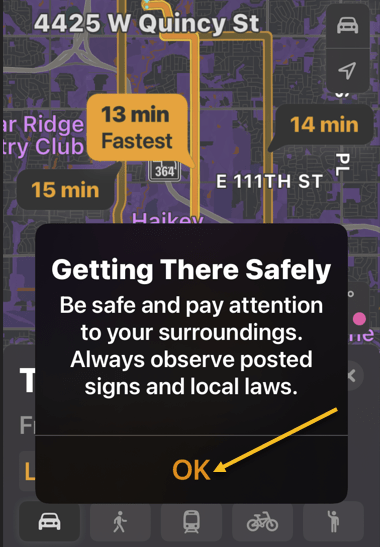
Next, tap OK on the Getting There Safely message. Refer to the below image:

Maps 5
Selecting OK

Now, the driving route(s) will appear. See the below image:

Maps 6
The routes

Next, tap the 3-dots next to the shortest route time. See the following image:

Maps 7
Accessing the menu

Now, tap on Directions. Refer to the below image:

Maps 4
Selecting Directions

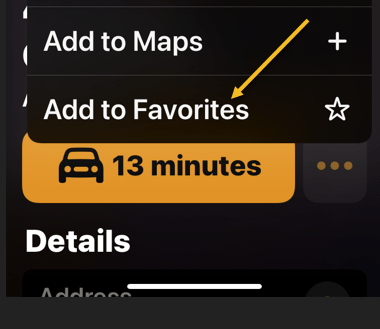
Next, in the pop-up that appears, tap Add to Favorites. You can share the location by tapping Share. See the below image:

Maps 8
Add to Favorites and/or Share

And that’s how you set and use pins in Apple Maps on iPhone.

Quote For the Day

What you get by achieving your goals is not as important as what you become by achieving your goals.

Zig Ziglar

That’s it. Please feel free to share this post! One way to share is via Twitter.

Just click the Tweet icon below. This will launch Twitter where you click its icon to post the Tweet.

Check out TechSavvy.Life for blog posts on smartphones, PCs, and Macs! You may email us at contact@techsavvy.life for comments or questions.

I Would Like to Hear From You

Please feel free to leave a comment. I would love to hear from you. Do you have a computer or smart device tech question? I will do my best to answer your inquiry. Just send an email to contact@techsavvy.life. Please mention the device, app, and version you are using. To help us out, you can send screenshots of your data related to your question.

Author’s E-book

You can access the e-book from a Kindle device, the Kindle App for the desktop or smartphone, which is a free app.

The author’s Vietnam eBook on the Battle for Tra Bong Vietnam: Events and Aftermath

How to Check the Air Quality on iPhone and iPad

In recent months, the USA has had numerous forest, refinery, and chemical fires, to name a few If you are worried about local air quality from these fires, pollen, or other environmental pollution, you can check the current Air Quality Index (AQI) using your iPhone or iPad. Currently, Apple only supports checking the AQI in certain countries that includes the USA, United Kingdom, India, and Germany. Apple plans to roll out the AQI in more regions in the future.

In recent months, the USA has had numerous forest, refinery, and chemical fires, to name a few If you are worried about local air quality from these fires, pollen, or other environmental pollution, you can check the current Air Quality Index (AQI) using your iPhone or iPad. Currently, Apple only supports checking the AQI in certain countries that includes the USA, United Kingdom, India, and Germany. Apple plans to roll out the AQI in more regions in the future.

This is for the iPhone and iPad

Dilbert and Help
Copyright Scott Adams, Inc./Distributed by Universal Uclick for UFS

To Tweet about this post, click the Tweet icon below to launch Twitter, then click its Tweet icon to post.

Check out TechSavvy.Life for their blog posts on smartphone apps, PCs. and Macs!

What is the Air Quality Index

The Air Quality Index (AQI) is a numerical indicator of regional outdoor air quality in your area. Each country has its own way of determining air quality. For example, in the USA, the AQI iss defined by the Environmental Protextion Agengy (EPA) as a composite scale from 0 to 500 that incorporates inormation about five different pollutants (ground-level ozone, particle pollution, carbon monoxide, sulfur dioxide, and nitrogen dioxide) into one index.

The USA. AQI is divided into six categories, each with its own color. An AQI above 100 means the air quality is dangerous to sensitive groups. As the AQI rises, the number of people impacted by the poor air quality increases. Refer to below image:

Air Quality 7
Air Quality Index chart

Other countries use their own custom AQI methodology, but the color codes are similar to the USA. Regardless of country, the goal of every AQI is to stand the crummy air and avoid getting sick . It is wise to know what the air is like so you can make the best decisions for your health.

Check AQI using Apple Maps

One of the fastest ways to check AQI for your area is by using Apple Maps on your iPhone or iPad running iOS or iPadOS 12.2 or later.

First, launch Settings. See below image:

Air Quality 1
Accessing Settings

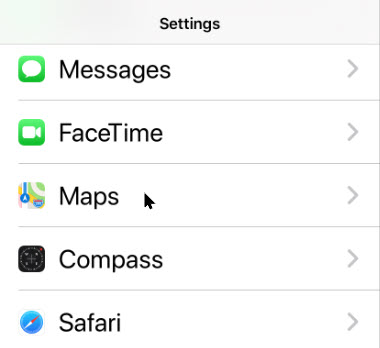
Next, scroll down till you see Maps and tap it. See followingimage:

Air Quality 2
Accessing Maps

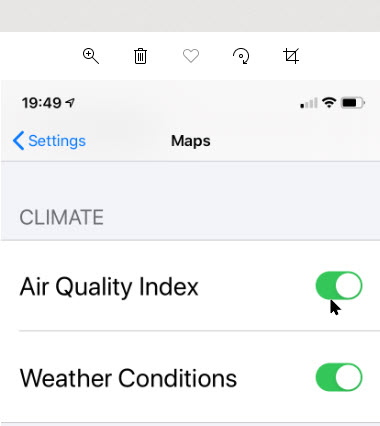
Now, scroll down to the CLIMATE section and enable Air Quality Index. Refer to below image:

Air Quality 3
Accessing Air Quality Index

Next, open the Apple Maps app and then tap the navigation arrow to center the map on your current location. (It is assumed you have enabled Location Services). See below image:

Air Quality 4
Accessing your current location

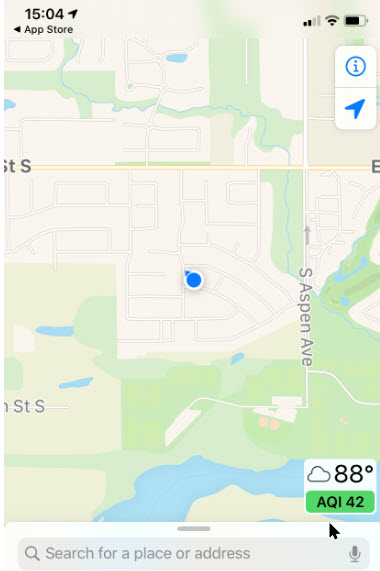
Once the map is correctly positioned, look for a small rectangular box in the bottom-right corner of your screen. If your country is supported, you will see a local temperature and an AQI number along with a category color code. See following image:

Air Quality 5
Positioning your current location

If you don’t see an AQI number in the corner, it might not be available in your country via Apple Maps. If the feature is supported, reposition the map, zoom in enough, wait a moment, and that area’s AQI will appear in the corner of your screen. Refer to below image:

Air Quality 6
Your local AQI from the Maps app

Check AQI using Apple Weather

You can also check the AQI using the Apple Weather pre-installed app. Open the the Weather app and then scroll down to the bottom of your local forecast page. There you will see the Air Qualtiy Index and Air Quality indication. Pretty neat! See below image:

Air Quality 8
Your local AQI from the Weather app

Third Party App

For a more global view of AQI, you may want to check out the Air Matters app, available on the Apple App store for the iPhone or iPad. Click here to preview and/or download. The free version comes with ads, but you can remove the ads with their paid version.

I hope you have found this post helpful. If so, click the Tweet icon below. This will launch Twitter where you click its icon to post the Tweet.

I have found TechSavvy.Life blog posts extremely helpful. Check them out for posts on smart phone apps, Macs and PCs!

The following is a previous Twitter feed so you can view how a Tweet will be displayed.

I Would Like to Hear From You

Please feel free to leave a comment. I would love hearing from you. Do you have a computer or smart device tech question? I will do my best to answer your inquiry. Please mention the device, app and version that you are using. To help us out, you can send screenshots of your data related to your question.

The author’s Vietnam eBook on the Battle for Tra Bong: Events and Aftermath