

RAYMOND OGLESBY @RaymondOglesby2
October 21, 2025 –3 minutes read time
Overview
It’s super convenient to be able to rotate your screen from portrait to landscape mode automatically, as well as lock it later when you need to. Luckily, both the iPhone’s and iPad’s screen rotation lock buttons are easily accessible via the Control Panel. With the Orientation Lock enabled, you can keep your screen from adjusting regardless of whether the device is rotated vertically or horizontally.
What does “portrait orientation lock” mean? The Portrait Orientation Lock button is located in the Control Center. When it is on, your iPhone or iPad will not automatically rotate. If you get annoyed when your iPhone or iPad screen flips and flops around every time you shift positions, this is the tip for you. Let’s explore how to rotate the screen on your iPhone and iPad.
Takeaways
- Learn how to quickly access the Portrait Orientation lock to enable or disable automatic screen rotation.
- Lock your screen’s orientation as horizontal or vertical so you can read or watch videos on your devices in any position.
System Requirements
This tip was performed on an iPhone 14Pro running iOS 26.
Click here to learn how to update your iPhone to the latest iOS version.
How to Lock/Unlock Screen Orientation
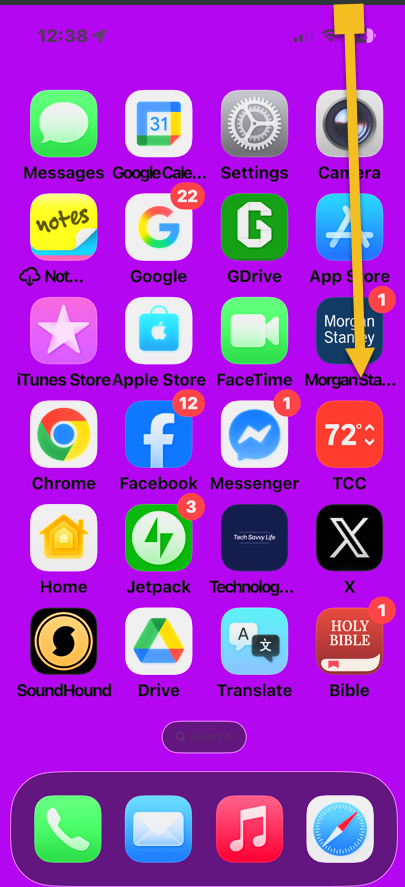
First, from the Home Screen of your iPhone, swipe down from the top right to access the Control Panel.
Note! Your Control Center will likely look different from the one in the screenshots below. We have customized the Control Center and rearranged the icons.
Refer to the image below:
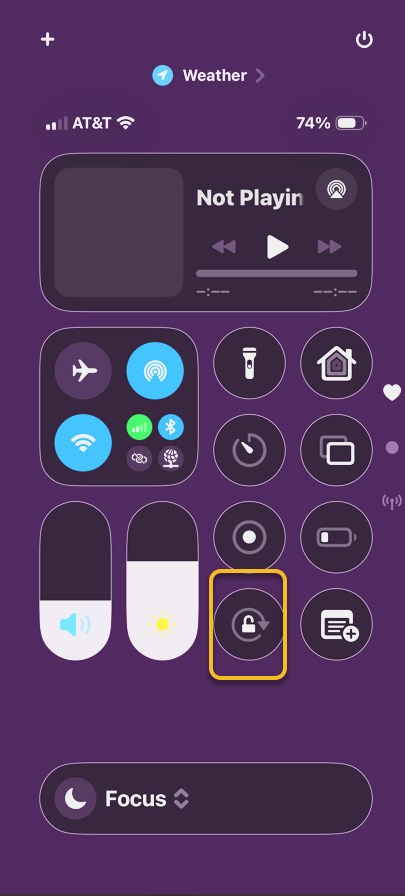
Next, the Portrait Orientation Lock is the button with a round arrow containing a lock. It will be gray when disabled. This means your iPhone will automatically rotate according to how you are holding it. See the image below:
To lock your screen orientation, tap Portrait Orientation Lock. It will be white when enabled. See the following image:
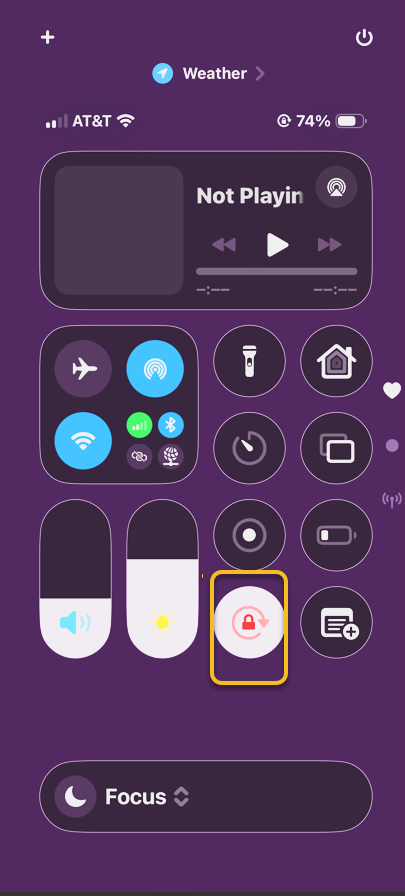
With your iPhone rotation lock enabled, your screen will no longer rotate when you turn your phone sideways unless you use an app that only has landscape mode. Using the iPhone orientation lock will prevent apps that offer both modes from auto-rotating. However, apps that are only available in landscape mode will not switch to portrait mode.
But what does the rotation lock button look like on my iPad? Well, the steps are essentially the same on the iPad. Just open your iPad’s Control Center and look for the circular arrow icon.
If you find your iPhone stuck on landscape mode, try turning the lock on and off until it rotates again. If you keep experiencing problems, restarting your iPhone should help.
Disclaimer
Technology is constantly evolving, and smartphone and desktop tech rarely remains static. Therefore, the information in this post is only accurate as of the date it was written. Blog posts that are older than six months may contain instructions that are no longer compatible with your device or operating system. We hope that the content from previous posts continues to function as intended. Thank you for reading TechSavvy.Life, where technology works for you.
Quote For the day
“Cybersecurity is much more than an IT topic—it’s a business imperative.”
– Raj Samani, Chief Scientist at Rapid7
(X) Twitter Info
That’s it. Please feel free to share this post! One way to share is via Twitter.
Just click the Tweet icon below. This will launch Twitter where you click its icon to post the Tweet.
Checkout TechSavvy.Life for blog posts on smartphones, PCs, and Macs! You may email us at contact@techsavvy.life for comments or questions.
Tweet
I Would Like to Hear From You
We value your feedback! Was this post helpful? Please share your comments with us. If you have a tech question related to your computer or smart device, feel free to reach out. Just send an email to contact@techsavvy.life, and be sure to include the device, app, and version you are using. To assist us further, you can also attach screenshots related to your inquiry.
The author’s Vietnam eBook on the “Battle for Tra Bong Vietnam: Events and Aftermath” can be accessed from a Kindle device or the Kindle App for a desktop or smartphone. The apps are free.
 Tech Savvy Life