How to Preview Safari Links Before Opening

Peeking at the URL of a link that you are about to open is a good way to make sure the URL is what you expect and not a trick by the website.

Peeking at the URL of a link that you are about to open is a good way to make sure the URL is what you expect and not a trick by the website. Let’s explore how to preview Safari links for iPhone, iPad and Mac.

This is for iPhone, iPad, and Mac using Safari

Dilbert and Zoom
Copyright Scott Adams, Inc./Distributed by Universal Uclick for UFS

How to Preview Safari Links on a Mac

Popular desktop web browsers have featured URL status bars for decades. But Safari for Mac does not enable one by default. If you want to quickly check the URL of a link, you can do so by enabling the status bar.

First, open the Safari app on your Mac. Click the View section in the menu bar and choose the Show Status Bar option. Refer to below image:

Safari Link 1
Enabling Status Bar option

Now, with this enabled, when you hover over any link, you will see its full URL address in the status bar in the bottom-left corner of the page. See below image:

Safari Link 2
Displaying URL address

If you ever want to disable this link preview, click:

View > Hide Status Bar

in the menu bar at the top of the screen.

How to Preview Safari Links on iPhone and iPad

Unlike the Mac, Safari on iPhone and iPad does not have a status bar. But it does let you peek into the page that you want to open. You can tap and hold any link to load the page in a pop-up preview window. If you do not like the full preview, you can switch to only viewing the URL (Like Safari on Mac).

First, open a page in Safari on your iPhone or iPad. Next, tap and hold any link on the page. See following image:

Safari Link 3
Accessing a link

Note! For this feature to work, you need to be running iOS 13, iPadOS 13, or higher. You will see a thumbnail preview of the page pop-up. To preview the URL instead, tap the Hide Preview button located at the top of the pop-up window. Refer to below image:

Safari Link 4
Accessing Hide Preview option

The thumbnail will disappear and you will see the URL listed in the box. If it looks safe and you want to open the page from this pop-up, tap the Open button in the menu list. See below image:

Safari Link 5
Open the link

If you want to get the thumbnail peek back, just tap and hold a link again and select Tap to show preview at the top of the pop-up window.

Keeping an eye on URLs is one way that browsing with more knowledge will help you avoid web-based scams and keep you safer on the web.

Quote For the Day

Common sense and a sense of humor are the same thing, moving at different speeds. A sense of humor is just common sense, dancing.

Clive James

That’s it. Please feel free to share this post! One way to share is via Twitter.

Just click the Tweet icon below. This will launch Twitter where you click its icon to post the Tweet.

Check out TechSavvy.Life for blog posts on smartphones, PCs, and Macs! You may email us at contact@techsavvy.life for comments or questions.

I Would Like to Hear From You

Please feel free to leave a comment. I would love hearing from you. Do you have a computer or smart device tech question? I will do my best to answer your inquiry. Just send an email to contact@techsavvy.life. Please mention the device, app and version that you are using. To help us out, you can send screenshots of your data related to your question.

The author’s Vietnam eBook on the Battle for Tra Bong: Events and Aftermath

How to Clear Recent History in Safari

As tracking goes, Safari keeping your recent browsing history is less about privacy and more about just being useful. It’s your history that means Safari remembers where to go to when you choose forward and back within a site, for instance.

As tracking goes, Safari seeing your recent browsing history is less about privacy and more about just being useful. It’s your history that means Safari remembers where to go to when you choose forward and back within a site, for instance.

While it’s possible to completely wipe your History in Settings, you can also erase only more recent history if you would like. Let’s explore this feature.

This is for the iPhone and iPad. Screenshots are from iPhone

Copyright Scott Adams, Inc./Distributed by Universal Uclick for UFS

Clear Recent History

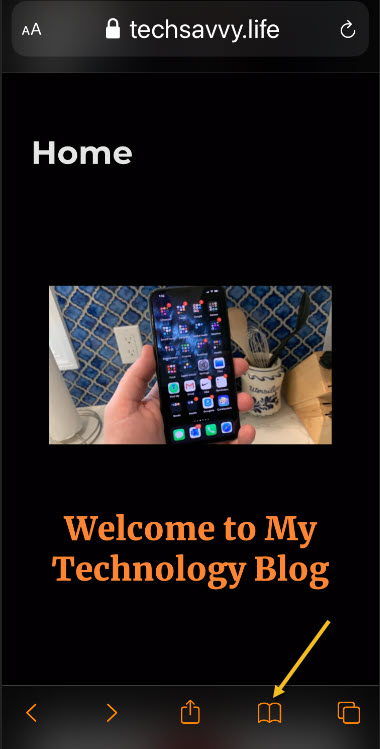
First, open Safari on your iPhone or iPad. Tap the Bookmarks button. On the iPad, you will find it in the upper-left corner of the screen beside the address bar. On an iPhone, it’s at the bottom of the screen. Refer to below image:

Accessing Bookmarks button

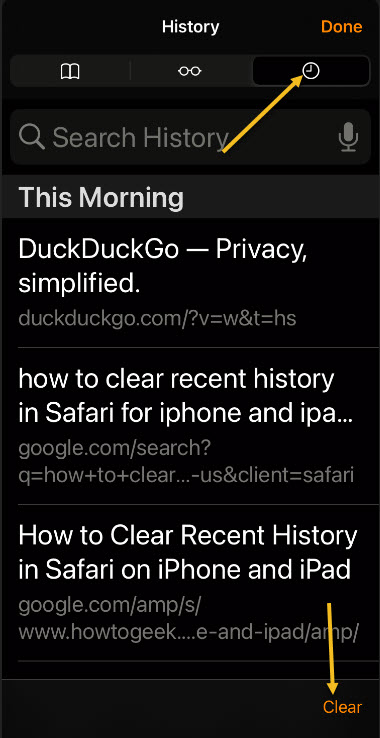
Next, in the pop-up that appears, tap the History tab (which looks like a clock face), and then tap the Clear button. See below image:

Accessing History tab

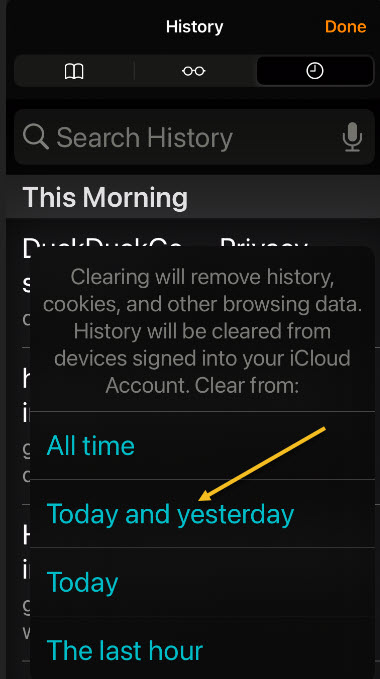
Now, after you tap Clear, another pop-up will give you another choice. You can select All time, Today and yesterday, Today, or The last hour.

Choosing one of these options will remove your browsing history, cookies, and other browsing data from the point you select until now. For example, if you click Today, all the browsing history from sites you visited today will disappear, but everything earlier than that will remain on the list.

Next, tap the option you would prefer (or you can tap outside the pop-up box to cancel). See following image:

Selecting an option for deletion of Recent history

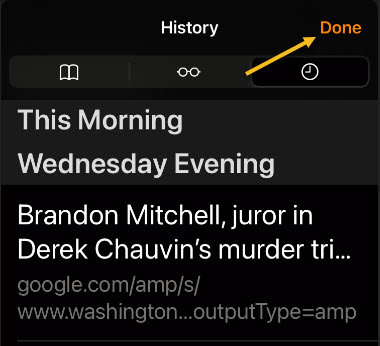
If you made a selection from the pop-up list, your browsing history will be cleared accordingly. Now, tap the Done button in upper right-hand corner to exit.

Erase a Single Entry

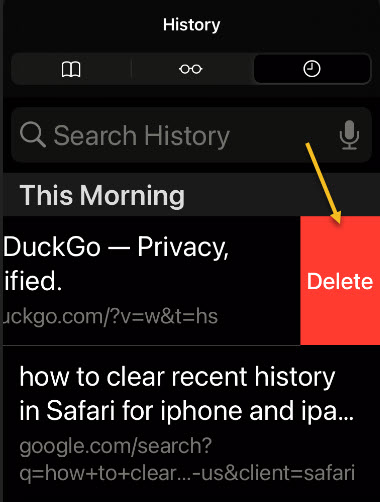
Also, you can delete individual entries by swiping to the left on them with your finger. When a red Delete button appears on the right, tap it. Refer to below image:

Selecting to delete a single Recent history item

When you are finished deleting single entries, tap the Done button in upper right-hand corner. See below image:

Exiting the History tab

Using this method, only the single entry you just swiped will be erased. This can be a easy way of erasing certain history items without having to clear everything at once.

Quote For the Day

Everybody gets so much information all day long that they lose their common sense.

Gertrude Stein

That’s it. Please feel free to share this post! One way to share is via Twitter.

Just click the Tweet icon below. This will launch Twitter where you click its icon to post the Tweet.

Check out TechSavvy.Life blog posts on smartphones, PCs, and Macs! You may email us at contact@techsavvy.life for comments or questions.

I Would Like to Hear From You

Please feel free to leave a comment. I would love hearing from you. Do you have a computer or smart device tech question? I will do my best to answer your inquiry. Just send an email to contact@techsavvy.life. Please mention the device, app and version that you are using. To help us out, you can send screenshots of your data related to your question.
The author’s Vietnam eBook on the Battle for Tra Bong: Events and Aftermath

How to Change Safari Text Size For a Website on iPhone and iPad

When you are browsing the web using Safari on your iPhone or iPad, sometimes it can be difficult to read small fonts on the screen. On the other hand, you might find a site that has huge fonts and it makes things equally difficult to read. If you are using Safari on your iPhone or iPad, here’s how to make the text size on a website larger or smaller.

When you are browsing the web using Safari on your iPhone or iPad, sometimes it can be difficult to read small fonts on the screen. On the other hand, you might find a site that has huge fonts and it makes things equally difficult to read. If you are using Safari on your iPhone or iPad, here’s how to make the text size on a website larger or smaller.

This is for iPhone and iPad running iOS 13+

Copyright Scott Adams, Inc./Distributed by Universal Uclick for UFS

You can use Safari’s built-in text zoom feature. This feature only changes the text size of the web page. It keeps everything else as it is. The images and other UI elements will stay the same. Once you have changed the text size of a website, Safari will remember it the next time you open the page.

First, open the Safari browser on your iPhone or iPad and visit the web page where you want to increase or decrease the text size.

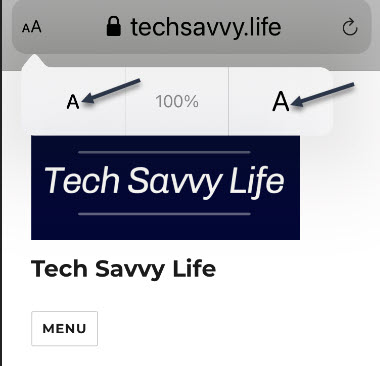
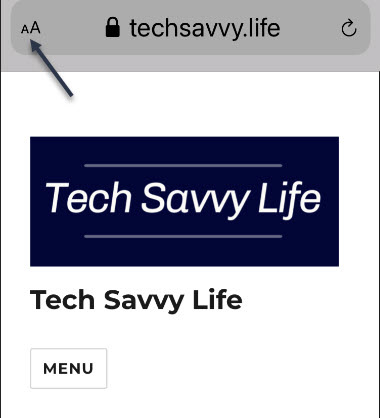
Next, tap the “aA” button on the top left-hand side. Refer to below image:

Selecting Text Size button

Now, tap the “a” button to reduce the text size, or tap the “A” button to increase the text size. See below image:

Decrease or increase Text Size

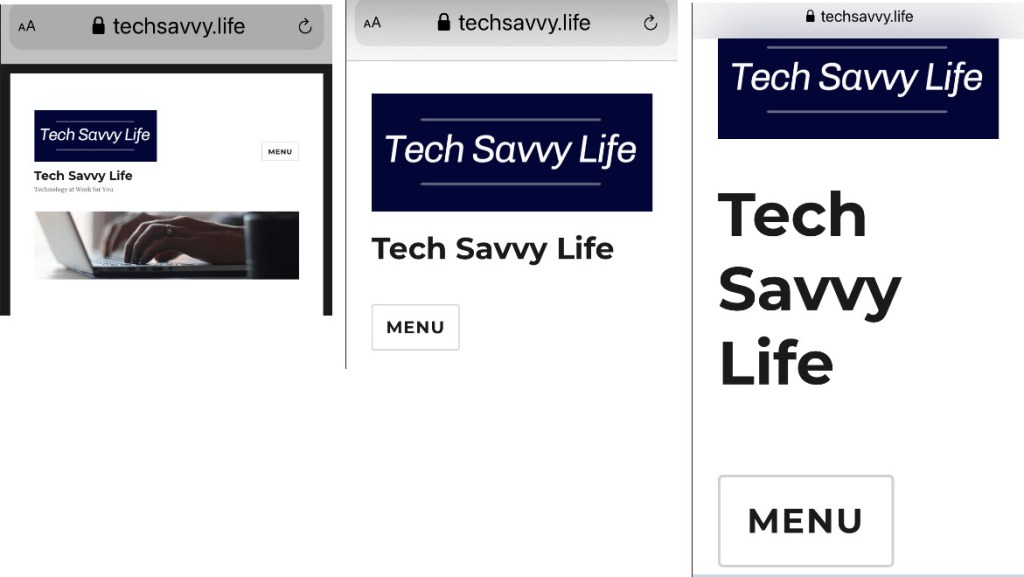
The default text zoom is set as 100%. You can reduce the text size to 50% or take it up all the way to 300%. See following image where the screen is displayed at 50%, 150%, and 300%:

Display of 50%, 150%, 300%

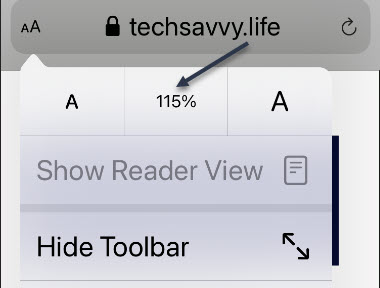
If you want to quickly reset the text size to the default, simply tap the percentage value in the middle. Refer to below image:

Reset Text Size

Safari’s text zoom feature works in the Reader Mode as well. If you would like to read a long article without the site elements in larger text size, we recommend that you use Reader View.

Now, after loading the page, tap and hold the “aA” button to enable the Reader View.

Note! Not all websites support Reader View.

See below image:

Enabling Reader View

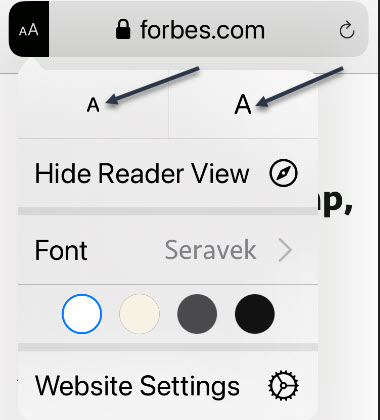
Next, tap the “aA” button again. From here, you can increase or decrease the text size. See following image:

Set Text Size in Reader View

Quote For the Day

One machine can do the work of fifty ordinary men. No machine can do the work of one extraordinary man.

Elbert Hubbard

That’s it. Please feel free to share this post! One way to share is via Twitter.

Just click the Tweet icon below. This will launch Twitter where you click its icon to post the Tweet.

Check out TechSavvy.Life for blog posts on smartphones, PCs, and Macs! You may email us at contact@techsavvy.life for comments or questions.

I Would Like to Hear From You

Please feel free to leave a comment. I would love hearing from you. Do you have a computer or smart device tech question? I will do my best to answer your inquiry. Just send an email to contact@techsavvy.life. Please mention the device, app and version that you are using. To help us out, you can send screenshots of your data related to your question.
The author’s Vietnam eBook on the Battle for Tra Bong: Events and Aftermath

How to Choose Your Safari Favorites Folder for iPhone and iPad

By default, Safari on iPhone and iPad displays a list of your Favorites when you open a new window or tab. We are going to choose another folder of bookmarks to display.

By default, Safari on iPhone and iPad displays a list of your Favorites when you open a new window or tab. We are going to choose another folder of bookmarks to display. Let’s explore how to do this.

This is for iPhone and iPad

Dilbert and Lunch
Copyright Scott Adams, Inc./Distributed by Universal Uclick for UFS

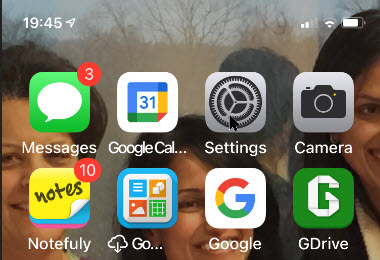
First, open Settings (the gear icon) app. Refer to below image:

Safari 1
Accessing Settings app

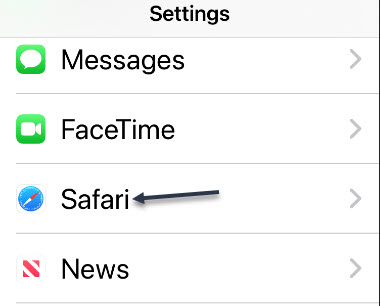
Next, scroll down and tap Safari. See below image:

Safari 2
Accessing Safari option

Now, tap Favorites. See following image:

Safari 3
Accessing Favorites option

Next, in the list that appears, choose another folder. (If no folders are present in the list, you can create a new folder in Safari by tapping the Bookmarks button, selecting Edit, then tapping the New Folder button.)

Note! Choosing a different folder here will also change your default Favorites folder. From now on, whenever you add a new bookmark to Favorites, it will appear in this folder. Refer to below image where we are choosing the Magazine folder for Favorites:

Safari 4
Selecting a bookmark folder

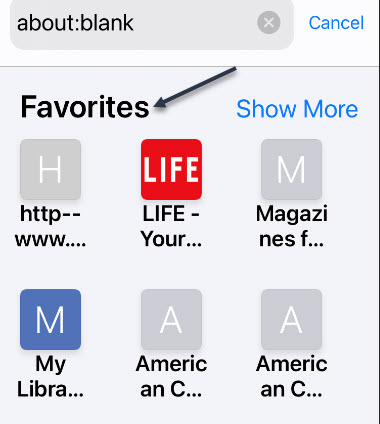
Now, tap back once, then exit Settings. The next time you open Safari to a New Tab page, you.will see a list of favorites pulled from the folder you just selected; in our case, the Magazine folder. See below image:

Safari 5
Your new Favorities folder

If you would prefer having nothing listed on your New Tab page, you can create an empty folder and select it instead. The next time you open a new tab, the page will be completely blank.

Related

How Do You Start Safari With a Blank Page

That’s it. Please feel free to share this post! One way to share is via Twitter.

Just click the Tweet icon below. This will launch Twitter where you click its icon to post the Tweet.

Check out TechSavvy.life for blog posts on smartphones, PCs, and Macs! You may email us at contact@techsavvy.life for comments or questions.

I Would Like to Hear From You

Please feel free to leave a comment. I would love hearing from you. Do you have a computer or smart device tech question? I will do my best to answer your inquiry. Just send an email to contact@techsavvy.life. Please mention the device, app and version that you are using. To help us out, you can send screenshots of your data related to your question.
The author’s Vietnam eBook on the Battle for Tra Bong: Events and Aftermath

How to Make Chrome the Default Browser on iPhone and iPad

The iPhone has been out for over a decade, and for most of that time, Apple has only allowed one browser to be the default. Safari, the one they built; till iOS 14 and higher, has been the only supported browser.

The iPhone has been out for over a decade, and for most of that time, Apple has only allowed one browser to be the default. Safari, the one they built; till iOS 14 and higher, has been the only supported browser.

This means that Google Chrome fans can finally set the app as their default, and use it for all their browsing.

As long as your device is running the latest version of the operating system, this setting should be available to you.

You can change the default browser in the Settings app. First, though, make sure you have downloaded the latest version of Chrome from the App Store and opened it at least once.

This is for iPhone and iPad

Dilbert and Trap
Copyright Scott Adams, Inc./Distributed by Universal Uclick for UFS

First, launch your Settings app (the gear icon). Refer to below image:

Browser 1
Accessing Settings

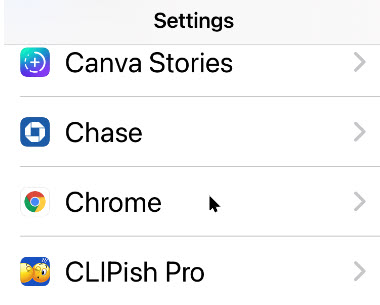
Next, scroll way down to the Chrome section and tap on it. See below image:

Browser 2
Selecting Chrome app settings

Now, tap the Default Browser App option. See following image:

Browser 3
Selecting Default Browser App option

You will see a list of installed browsers. Tap the Chrome app to place a checkmark by it. Refer to below image:

Browser 4
Selecting Chrome as the default browser

To ensure your setting, tap the Back text button. You may now exit Settings.

That’s all you need to do! Chrome is now your default browser on your iPhone and/or iPad.

You may still see Safari if an app uses this browser by default. If this happens, you can simply tap the associated browser icon to reopen the page in Chrome.

If you want to revert back to Safari or choose another browser, navigate back to the Default Browser App section in the Chrome or Safari settings.

You are done. Please feel free to share this post! One way to share is via Twitter, as mentioned below.

I hope you have found this post helpful. If so, click the Tweet icon below. This will launch Twitter where you click its icon to post the Tweet.

Check out TechSavvy.Life for blog posts on smartphones, PCs, and Macs! You may email us at contact@techsavvy.life for comments or questions

I Would Like to Hear From You

Please feel free to leave a comment. I would love hearing from you. Do you have a computer or smart device tech question? I will do my best to answer your inquiry. Just send an email to contact@techsavvy.life. Please mention the device, app and version that you are using. To help us out, you can send screenshots of your data related to your question.
The author’s Vietnam eBook on the Battle for Tra Bong: Events and Aftermath

How to View Privacy and Other Features in Safari for iPhone and iPad

Apple’s default web browser on iPhone or iPad is Safari, but have you ever taken the time to investigate its many hidden features and settings? We are going to concentrate on three features regarding security, privacy and the new start page. You may be amazed at what you find, at least we were.

Apple’s default web browser on iPhone or iPad is Safari, but have you ever taken the time to investigate its many hidden features and settings? We are going to concentrate on three features regarding security, privacy and the new start page. You may be amazed at what you find, at least we were.

With iOS or iPadOS 14 and higher, Safari has a few new tricks up its sleeve, including privacy reports, and password monitoring. Let’s explore three hidden features.

This is for the iPhone and iPad

Dilbert and Fedex
Copyright Scott Adams, Inc./Distributed by Universal Uclick for UFS

Your Privacy Report

Cross-site trackers monitor your web-based activities as you surf from one site to another, an activity that can certainly raise privacy concerns. Safari blocks such trackers from profiling you by default, and now allows you to see which sites and trackers are blocked.

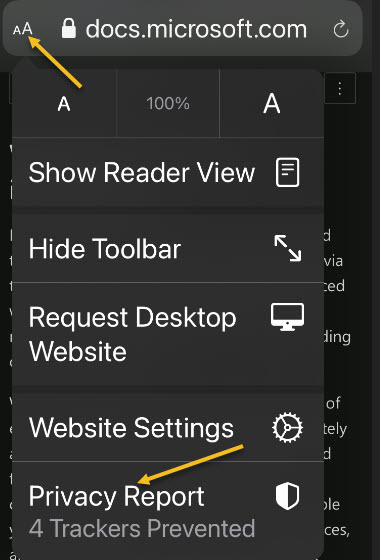
First, to check your Privacy Report, tap the aA icon in upper left-hand corner of a website. Next, tap Privacy Report. Refer to below image:

Safari 8
Accessing the Privacy Report

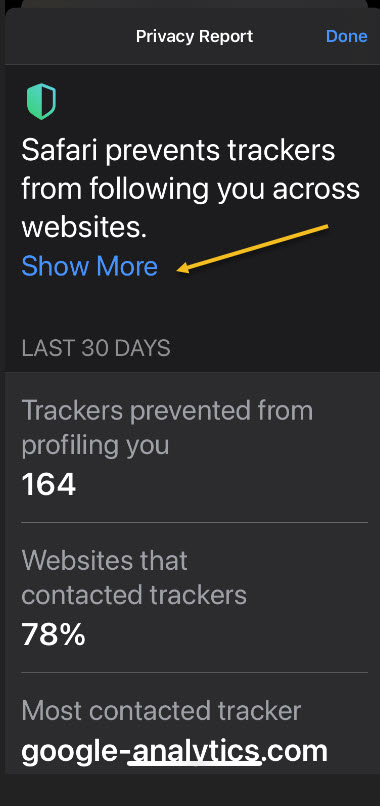
Now, your report will open. See below image:

Safari 7
Your Privacy Report

In my Privacy Report, I have 164 trackers with 78% of visited websites with trackers.

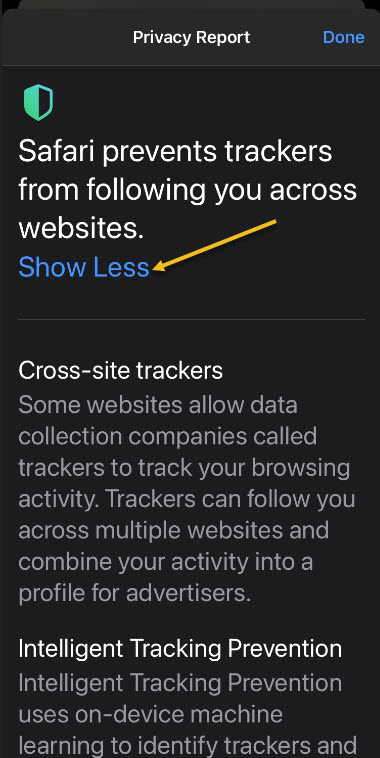
Next, click the Show More link to learn more about the cross-site tracking and how Apple blocks them and to read about trackers. The window reveals how many trackers were prevented from profiling you and how many sites contacted such trackers. See following image:

Safari 9
Stats about your browsing

Let’s go back one screen and tap the Show Less link. Now, scroll down till you see two tabs. Websites and Trackers tabs. Refer to below image:

Safari 10
Verbage about trackers

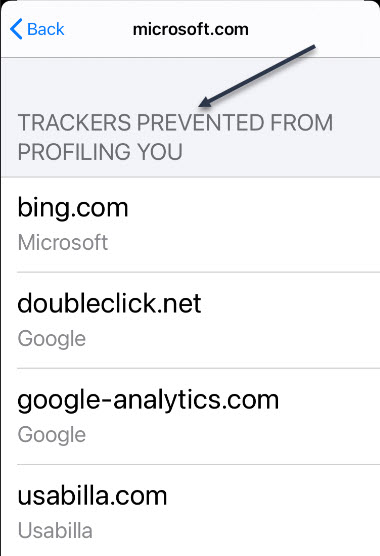
Next, tap on a Website to see which trackers were blocked. See below image:

Safari 5
Selecting a website for tracking info

In my example, I selected Microsoft.com. Yes, even Microsoft has trackers. You may be alarmed at the number and percentage of trackers wanting to profile you, especially if you access Safari a lot. Your device is blocking them.

You may tap on the Trackers link to see a list of trackers. See following image:

Safari 7
The list of trackers for a website

My son works for a cyber security firm. He helps recover “hacked” devices. If a person wants to “hack” your device, with the proper tools, they can. The best you can do, is to “protect” your device. by using security features on your device and apps, having strong passwords, using multi factor authentication, and the like.

Your iCloud Passwords

On your iPhone or iPad, you can now see any passwords saved in the iCloud Keychain that has been leaked in a data breach, are being reused for multiple login credentials, or are considered weak.

First, launch Settings (the gear icon). Refer to below image:

Safari 1
Accessing Settings

Now, scroll down to the Passwords option and tap it. See below image:

Safari 2
Accessing the Passwords option

Next, tap the Security Recommendations option. See following image:

Safari 3
Accessing Security Recommendations option

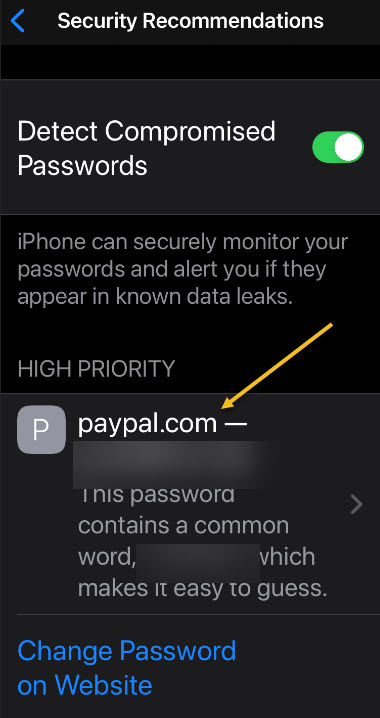
Now, you can tap a specific entry to delete or change the password. You may be surprised by passwords you have forgotten. Apple has provided a link to access the website for updating these passwords. In my example, I have one High Priority password that I need to change; one that I had forgotten about. The password for PayPal website has been erased for privacy purposes. Refer to below image:

Safari 4
Your comprised passwords

Your New Start Page

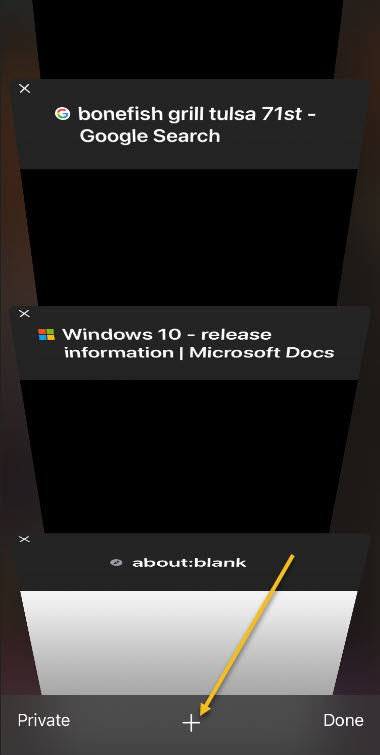
Safari debuted a new Start page with the release of iOS/iPadOS 13. Open a new tab by taping the plus “+” button at the bottom of your screen. See below image:

Safari 11
Selecting a new tab

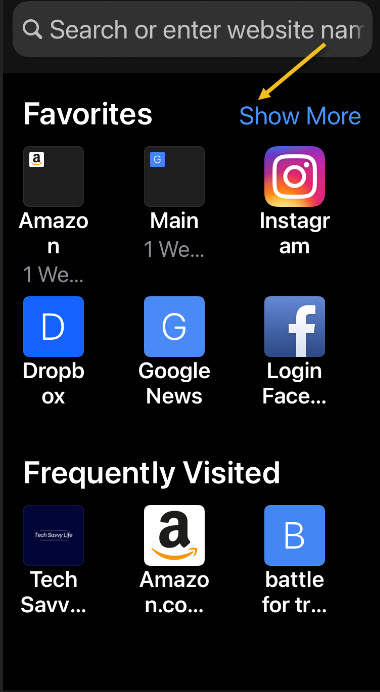
Now, you will see your bookmarks, frequently visited sites, and Siri suggested sites. Tap the Show More or Show Less link in the upper right to see more or fewer icons. See following image:

Safari 12
Your new Start page

Using SpeedTest

Althrough not a feature of privacy in Safari, you may want to know about the speed of your ISP for downloads and uploads. This tool is best used for a PC or Mac. Simply, head over to SpeedTest in your browser for your ISP speeds. Next, click the big round GO button. When it is finished, you will see your results like the image below:

Safari 13
Results of running SpeedTest

You can click the GO button again to rerun the test. Your results will differ depending on the time of day and Internet traffic. The firm, Ookla, has specific apps for your operating system that you can download and use.

That’s it. Please feel free to share this post! One way to share is via Twitter.

Just click the Tweet icon below. This will launch Twitter where you click its icon to post the Tweet.

Check out TechSavvy.Life for this post and similar blog posts on smartphones, PCs, and Macs!

I Would Like to Hear From You

Please feel free to leave a comment. I would love hearing from you. Do you have a computer or smart device tech question? I will do my best to answer your inquiry. Please mention the device, app and version that you are using. To help us out, you can send screenshots of your data related to your question.
The author’s Vietnam eBook on the Battle for Tra Bong: Events and Aftermath

How to Setup Safari for Offline Reading of Web Pages

Whether you’re underground between subway stops, caught in a dead zone, or your internet is out, the most reliable way to catch up on your digital reading is to make sure it’s downloaded and accessible offline.

Whether you’re underground between subway stops, caught in a dead zone, or your internet is out, the most reliable way to catch up on your digital reading is to make sure it’s downloaded and accessible offline.

If you have an iPhone or iPad linked to an iCloud account, you can save articles to your Reading List for later reading offline using a feature buried in Settings. Let’s explore how to do this.

This is for iPhone and iPad using Safari browser

Dilbert and Empathy
Copyright Scott Adams, Inc./Distributed by Universal Uclick for UFS

Check out TechSavvy.Life for similar blog posts!

Enable the Reading List

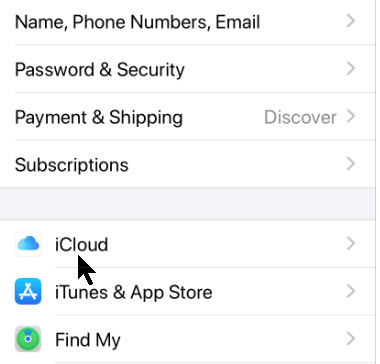
First we need to make sure iCloud is set up to save your Safari bookmarks and Reading List. To do that, open Settings and tap on your name at the very top. Refer to below image:

Offline Reading 1
Accessing Settings

Next, tap iCloud. See below image:

Offline Reading 2
Accessing iCloud

In iCloud settings, scroll down until you see Safari. Tap the toggle (it will turn green) to enable if it’s not already on. See following image:

Offline Reading 3
Accerssing Safari for iCloud

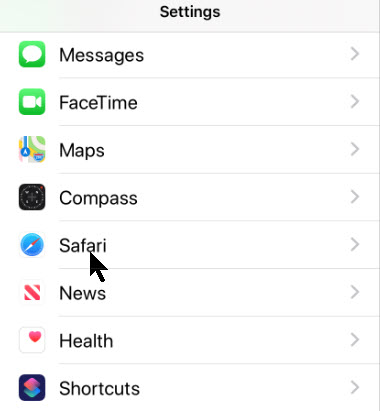
Return back to the Settings main screen. Scroll down to the Safari option and tap to open. Note! This is a different setting than the one mentioned above. Refer to below image:

Offline Reading 4
Accessing Safari from Settings

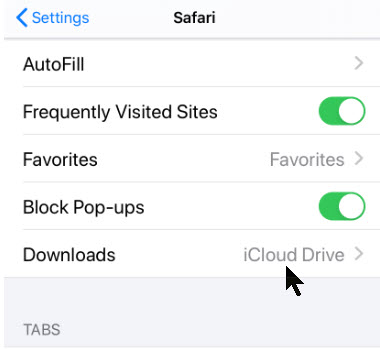
Now, scroll down to the Downloads option and ensure that iCloud Drive option is selected. In my example, the option is selected. See below image:

Offline Reading 5
Accessing Downloads

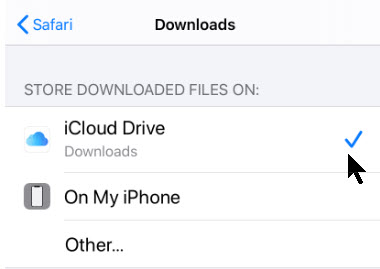
If not selected, tap the Downloads option and select iCloud Drive from the two available options. See following image:

Offline Reading 6
Accessing Downloads options

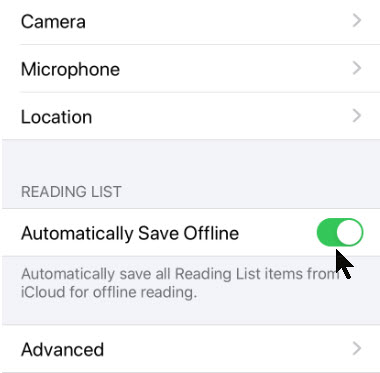
Continue to scroll down until you find the Reading List section. There you will see the toggle for Automatically Save Offline. Simply enable this toggle. When enabled, the toggle color will turn green. Refer to below image:

Offline Reading 7
Enabling offline reading

Save to the Reading List

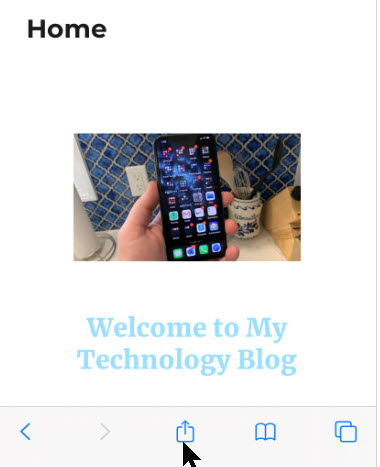
Now exit Settings and launch Safari. Whenever you’d like to save a web page to your Reading List for offline viewing, tap on the Share button at the bottom of your screen. See below image:

Offline Reading 8
Accessing the Share button

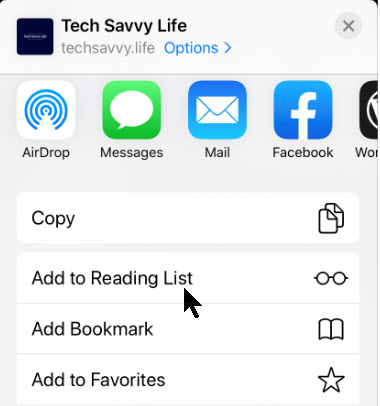
A pop-up menu will appearr. Select the Add To Reading List option. See following image:

Offline Reading 9
The Add to Reading List option

View Your Reading List

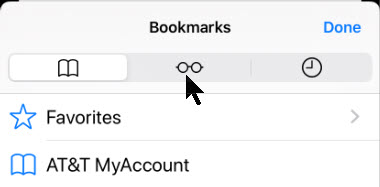
To view your Reading List later, tap the Bookmarks button at the bottom of your screen. Refer to below image:

Offline Reading 10
Accessing the Bookmarks button

Now, tap on the tab that looks like a pair of glasses in the uipper center of your screen. See below image:

Offline Reading 11
Accessing your offline Reading List

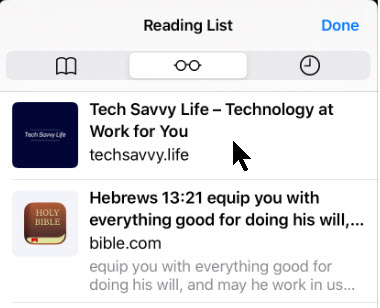
From here, you can tap on any one of the items you’ve saved and it should load even if no internet connection is available. See following image for my offline reading list:

Offline Reading 12
Previewing your offline Reading List

I hope you found this post helpful. If so, please leave a comment and or a tweet.

I have found TechSavvy.Life blog posts extremely helpful. Check them out for posts on smart phone apps, Macs and PCs!

I Would Like to Hear From You

Please feel free to leave a comment. I would love hearing from you. Do you have a computer or smart device tech question? I will do my best to answer your inquiry. Please mention the device, app and version that you are using. To help us out, you can send screenshots of your data related to your question.
The author’s Vietnam eBook on the Battle for Tra Bong: Events and Aftermath

How to Close Safari Tabs

The Apple iPhone has a built in browser called Safari. The icon for Safari is usually located in the bottom right of the Home screen. Starting with iOS 9 through the current version, iOS 13, you can have up to 500 tabs open in Safari.

This is a repost on Apple iPhone and its open tabs in Safari web browser

The Apple iPhone has a built in browser called Safari. The icon for Safari is usually located in the bottom right of the Home screen. Starting with iOS 9 through the current version, iOS 13, you can have up to 500 tabs open in Safari.

This is for iPhone, iPad and Mac or similar devices

Check out TechSavvy.Life for similar blog posts!

To chose all your tabs or the current one is not obvious. Here’s how to close these open tabs in Safari.

  • Tap on the Safari icon to open
  • In the lower right hand corner you will see an icon represented by two rectangles.
  • Press down on the icon and hold
  • You will see several options. Tap “Close All xxx Tabs” where xxx is a number
  • Confirm you want to close the tabs

Your tabs will now be closed. That it’s.

I Would Like to Hear from You

Please feel free to leave a comment. I would love hearing from you. Do you have a computer tech question? I will do my best to answer your inquiry. Please mention the app and version that you are using. To help me out, you can send screenshots of your data related to your question.

The author’s Vietnam eBook on the Battle for Tra Bong: Events and Aftermath

How to Use Private Browsing in Safari on Your iPhone or iPad

Maybe you’d like to checkout a website without leaving a record of it on your iPhone or iPad. Safari includes a Private Browsing Mode that allows you to do this.

Maybe you’d like to checkout a website without leaving a record of it on your iPhone or iPad. Safari includes a Private Browsing Mode that allows you to do this. Lets explore this Safari feature.

While using Private Browsing Mode on your iPhone or iPad, Safari will not save your browsing history, AutoFill form information, cookie changes and recent searches when you close each Private Browsing window. We will cover this later, but its important to note that you must close each window of your private browsing session.

Private Browsing Mode does not protect your browsing history from the host of your network (such as your business or school), your ISP or websites that might use your IP address to track you.

This is for iPhone and iPad using Safari web browser

Dilbert and No
Copyright Scott Adams, Inc./Distributed by Universal Uclick for UFS

Check out TechSavvy.Life for similar blog posts!

Using Safari Private Browsing Mode

First, open Safari. You should see a toolbar at bottom of the screen, if not, tap to reveal the toolbar.

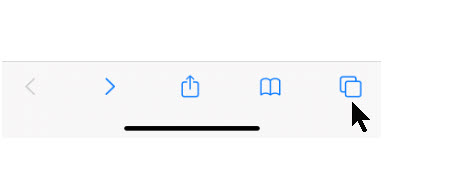
Next, tap the New Window icon in lower right hand corner. Refer to below image:

iPhone Privacy 1
The Safari New Window icon

Your screen will display your open browser windows. Now, tap the Private button in lower left-hand corner. See below image:

iPhone Privacy 2
The Safari Private button

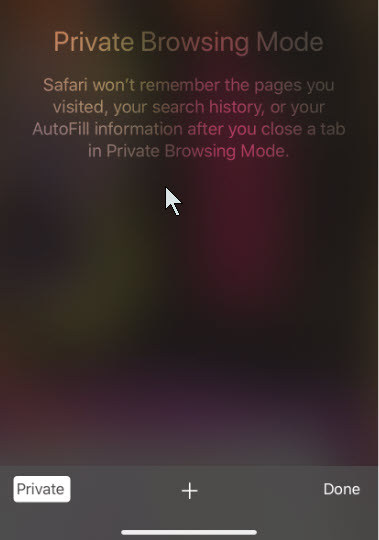
Your Private Browsing Mode is now setup. At the bottom of the screen, tap the plus “+” button to open a Private window. Note! You will not see the below screen again as long as your device is logged in, you will just go in or our of Private Browsing Mode. See following image:

iPhone Privacy 3
To enter Private Browsing Mode., tap the plus button

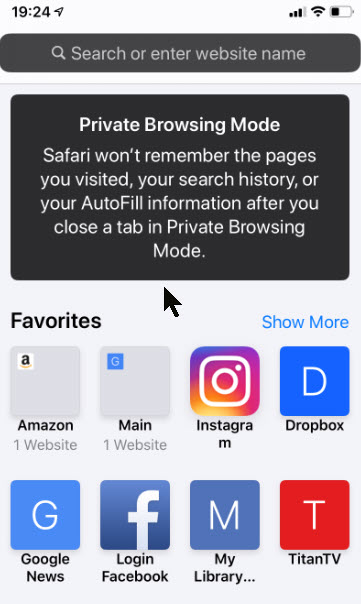
From here, you can type in an address or tap on a Favorites. In Private mode, you can use Safari as usual but it won’t track you locally. See below image:

iPhone Privacy 4
Your Private Mode Browsing Mode entry screen

Exit Private Browsing Mode

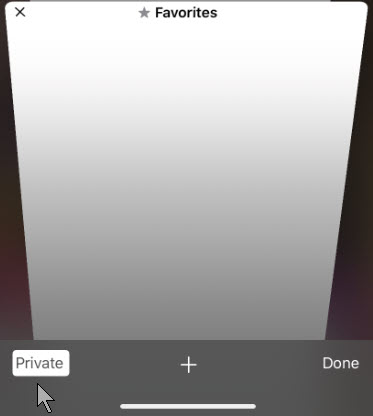
First, you need close each Private window you opened by clicking the “X” in upper left-hand corner.

Now, to exit Private Browsing Mode, tap the New Window icon, then tap the Private button in lower-left hand corner. The Private button will be in reverse color. You will be switched to non-Private Mode Browsing. Refer to below image:

iPhone Privacy 5
Exiting Private Browsing Mode

I have found TechSavvy.Life blog posts extremely helpful. Check them out for posts on smart phone apps, Macs and PCs!

I Would Like to Hear From You

Please feel free to leave a comment. I would love hearing from you. Do you have a computer or smart device tech question? I will do my best to answer your inquiry. Please mention the device, app and version that you are using. To help us out, you can send screenshots of your data related to your question.

The author’s Vietnam eBook on the Battle for Tra Bong: Events and Aftermath

How to Find Text Using Safari on Your iPhone and iPad

At times it’s tough to find specific information within a web page in Safari for iPhone or iPad. Fortunately, Safari allows you to search for text on any currently open web page using either the touch screen or an attached keyboard. Let’s explore how to do this.

If you don’t have a keyboard hooked up to your iPhone or iPad, you can search for text within the current page using the touchscreen, although the feature is in a non-obvious place. This technique works both on iPhone and iPad.

This is for iPhone and iPad using the Safari web browser

Dilbert and Virus Deaths
Copyright Scott Adams, Inc./Distributed by Universal Uclick for UFS

Click to tweet on how you like TechSavvy.Life!

Find a Web Page

First, open Safari and navigate to the page you’d like to find text in. Once the page is loaded, tap on the Address Bar at the top of the screen. Refer to below image:

Safari Text 1
Locate a web page to Search

An on-screen keyboard will appear at the bottom of the screen and the current web page address will be highlighted. If you want, you can clear the address bar by tapping the backspace key on the keyboard (or tap on the small “X” in a circle beside the address). See below image:

Safari Text 2
Keyboard available for your Search

Set Your Search

Type in what you’d like to find on the page. Locate the On This Page section at the bottom of the search pop-up. Tap on the line just below it that starts with Find. See following image:

Safari Text 3

Enter your Search criteria

View Your Search

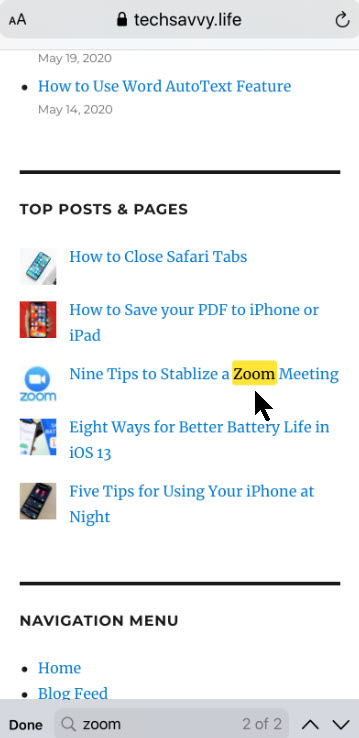
The pop-up will close and you will see the web page again with a search bar at the very bottom. Safari will highlight all occurrences of your search query on the current page. Refer to below image:

Safari Text 4
Your Search criteria highlighted

Navigate Your Search

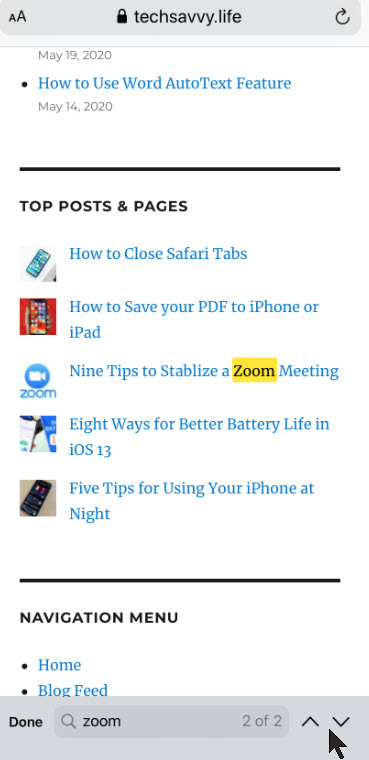
You can cycle through the results, up and down the page, with the arrows beside the search bar. See below image:

Safari Text 5
Navigate your Search

Close Your Search

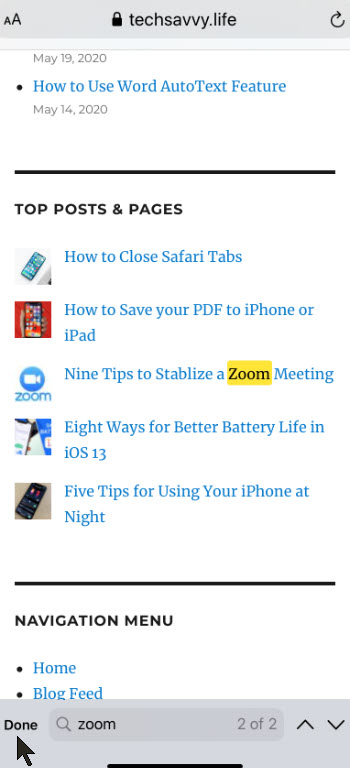
When you’re finished searching, tap Done in the lower-left corner of the screen. The Find in page mode will close. See following image:

Safari Text 6
Close your Search

Click to tweet if you find TechSavvy.Life blog posts extremely helpful. Check them out for posts on smart phone apps, Macs and PCs!

I Would Like to Hear From You

Please feel free to leave a comment. I would love hearing from you. Do you have a computer or smart device tech question? I will do my best to answer your inquiry. Please mention the device, app and version that you are using. To help us out, you can send screenshots of your data related to your question.
The author’s Vietnam eBook on the Battle for Tra Bong: Events and Aftermath