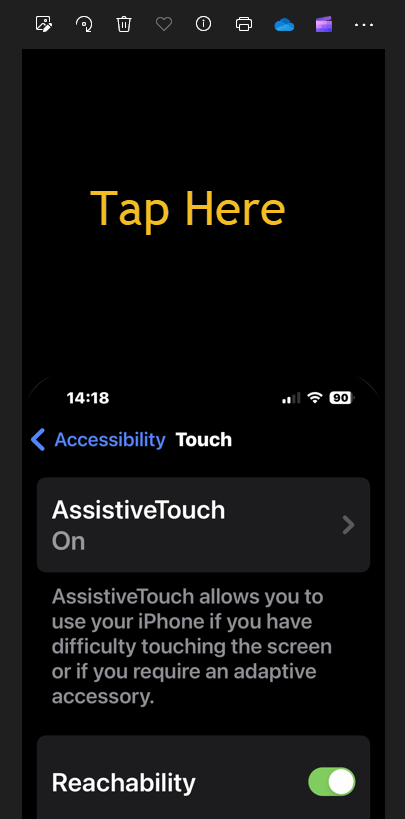
How to Jump to the Top or Bottom of Pages on iPhone

This post discusses a useful iPhone gesture that allows users to quickly scroll to the top of any app or page by tapping the Clock or Battery Indicator. It also explains how to use the Scrollbar to reach the bottom of web pages. The tips can enhance navigation across various applications.

RAYMOND OGLESBY @RaymondOglesby2
June 24, 2025– 4 minutes read time

Did you know that a simple iPhone gesture can save you seconds or millions of tedious scrolling back to the top of most apps? Across all apps, pages, and platforms, this simple tip will automatically return you to the top of any screen. Whether you want to know how to scroll to the top of Messages or Photos on iPhone, Instagram, or Facebook, or you have been searching in the Settings app, we will show you this simple feature.

One of my guiltiest pastimes is spending way too much time scrolling through Wikipedia pages on the Safari app. Some of the articles, while extremely informative, are excessively long. This simple trick will shoot you right back to the top of that Wikipedia article or any app.

Although not as fast, you can “scroll to the bottom” of web pages and certain documents through the Scrollbar. Let’s explore how to scroll up to the top or down to the bottom.

  • Don’t waste time scrolling all the way back up to the top or down to the bottom.
  • You can use this “scroll to the top” tip on any app, platform, or page.
  • You can access the bottom of a page using the Scrollbar.

This tip was performed on an iPhone 14 Pro running iOS 18.5.

Click here to learn how to update your iPhone to the latest iOS version.

First, open any app, and simply tap either the Clock, the Battery Indicator, or even the Dynamic Island itself at the top of your screen. Refer to the image below:
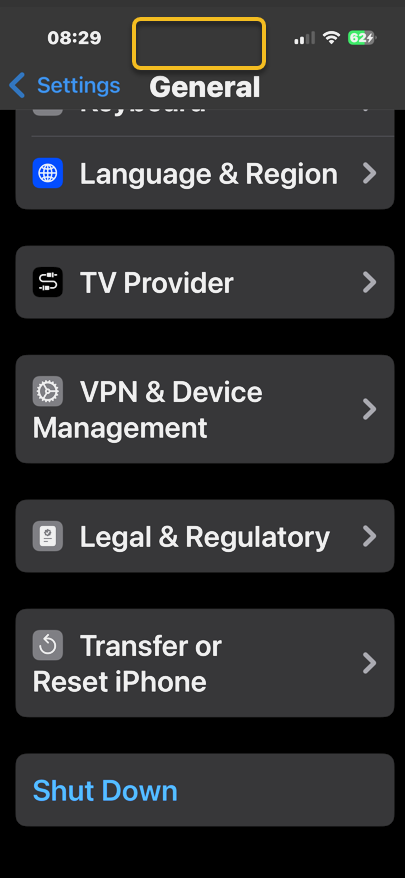
Scroll 1
Opening the Settings app, scroll to the bottom and tapping the Dynamic Island area

It should return you back to the top immediately. Be sure when you are doing this, you are tapping at the level of the Clock or Battery Indicator. If you tap just below, nothing will happen. See the image below:

Scroll 2
You are taken to the top of the Settings app

First, swipe once to reveal the Scrollbar on the right side of a page; then, tap and hold on the gray pill on the edge.

Next, when you feel a haptic (feedback) tap on your iPhone. That’s your signal you have now picked up the Scrollbar.

Now, while holding your finger on the Scrollbar swipe downwards to quickly scroll to the bottom of the page. Once you’ve reached the bottom, release your finger from the screen. See the following image:
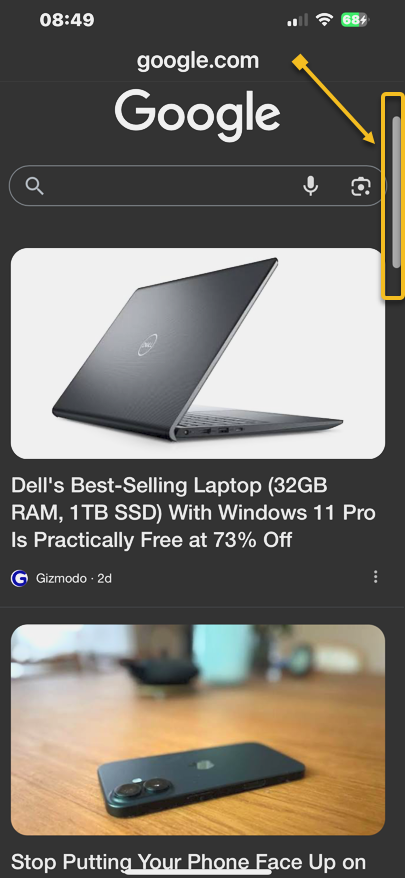
Scroll 3
Using the Scrollbar

It’s that simple! This “scroll to the top” tip works in nearly any app with screens you can scroll down on, whether you have scrolled through endless emails, a playlist in music, etc. The use of the Scrollbar allows you to quickly go to the bottom of a page. So, now you know how to jump to the top or bottom on an iPhone.

Disclaimer

Technology is constantly evolving, and smartphone and desktop tech rarely remains static. Therefore, the information in this post is only accurate as of the date it was written. Blog posts that are older than six months may contain instructions that are no longer compatible with your device or operating system. We hope that the content from previous posts continues to function as intended. Thank you for reading TechSavvy.Life, where technology works for you.

“I think that’s the single best piece of advice: constantly think about how you could be doing things better and questioning yourself.” 

Elon Musk,

That’s it. Please feel free to share this post! One way to share is via Twitter.

Just click the Tweet icon below. This will launch Twitter where you click its icon to post the Tweet.

Checkout TechSavvy.Life for blog posts on smartphones, PCs, and Macs! You may email us at contact@techsavvy.life for comments or questions.

We value your feedback! Was this post helpful? Please share your comments with us. If you have a tech question related to your computer or smart device, feel free to reach out. Just send an email to contact@techsavvy.life, and be sure to include the device, app, and version you are using. To assist us further, you can also attach screenshots related to your inquiry.

Author’s eBook

The author’s Vietnam eBook on the “Battle for Tra Bong Vietnam: Events and Aftermath” can be accessed from a Kindle device or the Kindle App for a desktop or smartphone. The apps are free.

The author’s Vietnam eBook on the Battle for Tra Bong Vietnam: Events and Aftermath

How to Jump to the Top in iPhone Apps

This post provides tips for iPhone users to quickly navigate to the top of any screen using simple gestures. It also explains how to use Reachability to access the top half of the screen with one hand.

This is for the iPhone. Screenshots are from iPhone 14 Pro running iOS 17.4

Did you know that a simple iPhone gesture can save your thumb the workout of scrolling back to the top of most apps? Across all apps, pages, and platforms, this simple tip will automatically return you to the top of any screen. Whether you have been scrolling Instagram or Facebook, or you have been searching in the Settings app, just tap once at the top of the iPhone’s screen to snap back to the beginning.

We are unsure why we forgot this hidden gesture. This is the BEST iPhone post we have written out of 100-plus posts on the iPhone.

First, open any app, and simply tap the top of the iPhone screen anywhere from the Time to Battery Indicator, known as the Dynamic Island area. We are using the Settings app for our example. Refer to the below image:

Top Screen 2
Tapping to jump to the top of the Settings screen

Next, it should return you back to the top immediately. Be sure when you are doing this, you are tapping at the level of the Time or Battery Indicator. If you tap just below, nothing will happen. See the below image:

Top Screen 1
You are now at the top of the Settings screen

Now, based on your iPhone model:, here is where to tap:

  • iPhone 15 or iPhone 14 Pro — you can tap on either side of the Dynamic Island and the phone will instantly scroll up. 
  • iPhone X or any of the models with the notch—you can tap on either side of the notch.  
  • If you have an older iPhone without Dynamic Island or a notch, you can achieve the same thing by tapping the Clock on the status bar.

It’s that simple! This works in nearly any app with screens you can scroll down on, whether you’ve scrolled through endless emails, a playlist in music, or photos. etc. Now go give that poor thumb a massage.

When you use an iPhone with one hand in Portrait orientation, you can use Reachability to lower the top half of the screen so it’s within easy reach of your thumb.

Head to:

Settings > Accessibility > Touch > Reachability

and toggle to ON. See the following image:

Top Screen 3
Turning on the Reachability option

To lower the top half of the screen, do one of the following:

  • On an iPhone with Face ID: Swipe down on the bottom edge of the screen.
  • On an iPhone with a Home button: Lightly double-tap the Home button.

Refer to the below image:

Top Screen 4
Swiping down to reveal the top half of the screen

To return to the full screen, tap the upper half of the screen or just wait a few seconds and the screen will return to full screen. See the below image:

Top Screen 5
Tapping the upper part of the screen to return to the full screen

In the Photos app, use the above to jump to the top. To return to the bottom, tap the Library icon or the All Photos button.

Note! If you have thousands of photos, tapping the All Photos button is faster.

See the following image:

Top Screen 6
Tapping the Library icon or All Photos button to return to the bottom

Disclaimer

Technology is always changing. Rarely is there static tech for smartphones and desktops. Thus, the contents of this post are only valid at the time of writing. Blog posts older than six months may have directions incompatible with your device or OS. Hopefully, older post content will continue to work as advertised. Thank you for reading TechSavvy.Life for Technology at Work For You.

Success is liking yourself, liking what you do, and liking how you do it.

-Maya Angelou

You are finished. Please feel free to share this post! One way to share is via Twitter.

Just click the Tweet icon below. This will launch Twitter where you click its icon to post the Tweet.

Checkout TechSavvy.Life for blog posts on smartphones, PCs, and Macs! You may email us at contact@techsavvy.life for comments or questions.

Was this post helpful? We would love to hear your comments. Do you have a computer or smart device tech question? I will do my best to answer your inquiry. Just send an email to contact@techsavvy.life. Please mention the device, app, and version you are using. To help us out, you can send screenshots of your data related to your question.

You can access the E-book from a Kindle device, or the Kindle App for a desktop or smartphone. The apps are free.

The author’s Vietnam eBook on the Battle for Tra Bong Vietnam: Events and Aftermath