

RAYMOND OGLESBY @RaymondOglesby2
November 28, 2023
This is for the iPhone running iOS 17+. Screenshots are from iPhone 14 Pro.
Are you considering inverting the colors on your iPhone? It can be a useful feature; especially for those with color blindness or for those who find phone screens difficult to read. The process of inverting your iPhone’s display colors is simple and can be done in no time. Let’s explore using the side button to toggle inverted colors on or off.
But first, what if you take a photo like the one below?

Next, you take a screenshot of your photo and it turns out ghostly blue as displayed below.

Yikes! How did this happen? We spent hours searching on Google how to fix this to no avail. Then we chatted with two Apple Support specialists before we got an answer on how to resolve this. This issue goes back to iOS 11.
How to Fix the Ghostly Blue Screenshot
To fix this problem:
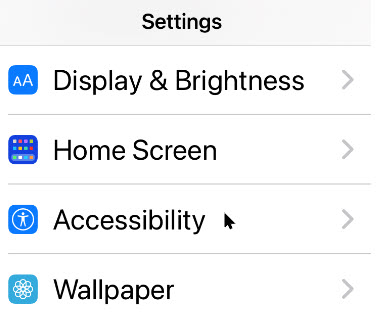
- Open the Settings app on your iPhone and go to Accessibility.
- Select Display and Text Size.
- Scroll down to Smart Invert and Classic Invert.
- Smart Invert will only invert the colors within the app you are currently using.
- Classic Invert will invert all the colors on your iPhone, including photos and videos.
- Turn both options to the OFF position.
This will make the screenshot resemble your photo. Refer to the below image:

Note! When you update your iOS, the Smart Invert option is reset to the ON position. If your iPhone is still displaying ghostly images from your Camera Roll or the Photos app while using Dark Mode, turn the Smart Invert and Classic Invert to the OFF position.
In Settings > Display & Brightness resetting the Options, True Tone and Night Shift options has no effect in eliminating the ghostly images as noted in various help articles..Only the steps described in this blog post fixes the problem.
Setup Shortcut to Invert Colors
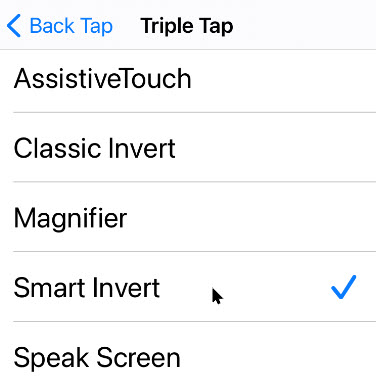
To quickly turn the inverted colors on or off on your iPhone, you can set up an Accessibility Shortcut. To do this, go to the Accessibility section of the Settings app then scroll down to select Accessibility Shortcut. Now, click either Smart Invert or Classic Invert. Once done, triple-click the power button on the side of your iPhone to toggle the inverted colors. To disable the shortcut, triple-click the power button again.
Why Would You Want to Invert Colors
Inverting the display colors on your iPhone can be a helpful tool for those who struggle with bright screens or color blindness, as it creates more contrast and, for some, an easier-to-read display. It’s important to note that while inverted colors can be a useful feature, they are not for everyone, and it may take some time to get used to inverted colors. However, if you find inverted colors to be helpful or think they do improve your overall viewing experience on an iPhone, it’s definitely worth enabling.
Disclaimer
Technology is always changing and rarely is there static tech for smartphones and desktops. Thus, the contents of this post are only valid at the time of writing. Blog posts older than six months may have directions incompatible with your device or OS. Hopefully, older post content will continue to work as advertised. Thank you for reading TechSavvy.Life for Technology at Work For You.
Quote For the Day
The best vision is insight.
Malcolm Forbes
Tweet Info
That’s it. Please feel free to share this post! One way to share is via Twitter.
Just click the Tweet icon below. This will launch Twitter where you click its icon to post the Tweet.
Checkout TechSavvy.Life for blog posts on smartphones, PCs, and Macs! You may email us at contact@techsavvy.life for comments or questions.
Tweet
I Would Like to Hear From You
Please feel free to leave a comment. I would love to hear from you. Do you have a computer or smart device tech question? I will do my best to answer your inquiry. Just send an email to contact@techsavvy.life. Please mention the device, app, and version you are using. To help us out, you can send screenshots of your data related to your question.
Author’s E-Book
You can access the e-book from a Kindle device, the Kindle App for the desktop or smartphone, which is a free app.





 Tech Savvy Life