You Can Have 500 Safari Tabs Open on iPhone

Among the things that can slow your iPhone down, a big pile of tabs in Safari is not one of them.

RAYMOND OGLESBY @RaymondOglesby2
January 17, 2023

Among the things that can slow your iPhone down, a big pile of tabs in Safari is not one of them.

Safari tabs simply do not slow the iPhone down. In fact, you can have 500 tabs open, and it has zero performance impact. And 500 more if you make a new group. And 500 more if you use private browsing. And 500 more if you make another group. Whether we had 50 tabs or 5,000 tabs in Safari for iPhone, there was simply no difference in performance.

This is for devices using Safari. Screenshots are from iPhone 14 Pro running iOS 16+

Dilbert and Pill
Copyright Scott Adams, Inc./Distributed by Universal Uclick for UFS

If you dislike the clutter and it feels like your mental burden is lighter if the tabs in your phone’s browser are wiped away, by all means, feel free to tidy up.

Your iPhone automatically manages Safari tabs, and the number of tabs has no impact on the performance of the phone. Open tabs cannot do work or use resources in the background.

There are, in fact, things that can slow down your phone. A really old and worn battery can make a phone feel sluggish. Updating an older phone to a current release of iOS can really show you how old the hardware has become. Stuffing your phone’s storage full of unused apps and undeleted blurry photos will do the trick, too.

View Number open Tabs

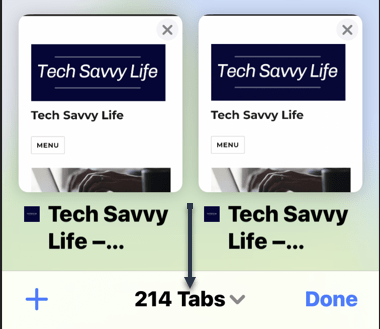
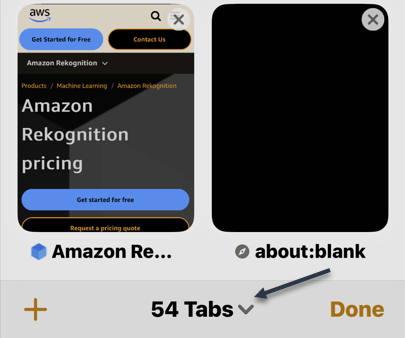
To see how many Safari tabs you have open, first, launch Safari and tap the double rectangle icon on the lower right-hand corner of your screen. Next, at the bottom, you will see your number of open tabs. Refer to the below image:
Tabs 1
Your number of open Safari tabs

Close All Open Tabs

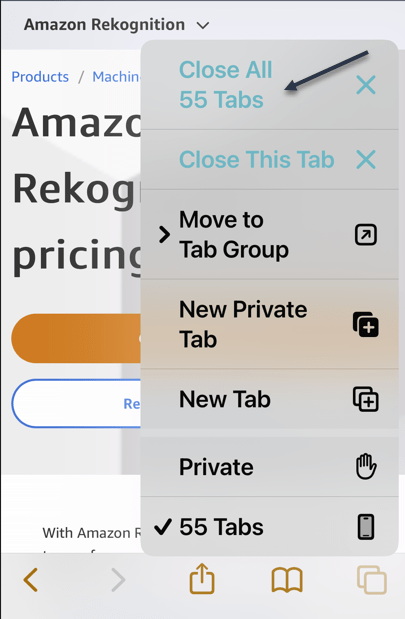
It’s easy to close all tabs at once in Safari on an iPhone or iPad. First, launch the browser, then tap and hold the View Tabs button in the bottom-right corner of the screen. Next, choose the Close All Tabs option to nuke your browsing session entirely. This works for the current session, so if you are in a Private browsing session then this will close all open private tabs. See the below image:
Tabs 2
Selecting to close all open Safari tabs

Reopen a Closed Tab

You can also get back any tabs you have recently closed. First, launch Safari, then tap tap the double rectangle icon on the lower right-hand corner of your screen.

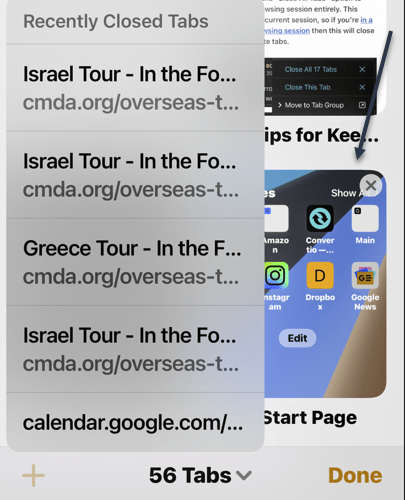
Next, long-press the plus “+” (New Tab) button. Now, select a tab to reopen. The recently closed tab will be launched in the new tab. See the following image:
Tabs 3
Launching a recently closed Safari tab

These tabs are limited only to tabs you have closed on the device you are using, rather than another device (like a Mac).

Reopen From History

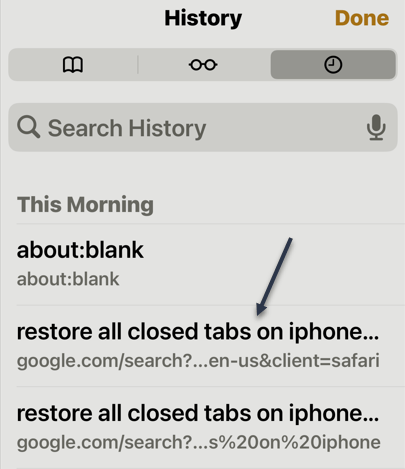
Using History, you can also get back any tabs you have recently closed. First, launch Safari, then tap the Book icon on the lower part of your screen.

Next, tap the History icon in the upper right-hand corner of your screen. Now, select a tab to reopen. The selected closed tab will be launched in the new tab. Refer to the below image:
Tabs 4
Launching a Safari tab from History

These tabs are limited only to tabs you have closed on the device you are using, rather than another device (like a Mac).

Disclaimer

Technology is always changing, and rarely is their static tech for smartphones and desktops. Thus, the contents of this post are only valid at the time of writing. Blog posts older than six months may have directions that are incompatible with your device or OS. Hopefully, older post content will continue to work as advertised. Thank you for reading TechSavvy.Life for Technology at Work For You.

Quote For the Day

I’d rather check my Facebook than face my checkbook.

Craig Coelho

Tweet Info

That’s it. Please feel free to share this post! One way to share is via Twitter.

Just click the Tweet icon below. This will launch Twitter where you click its icon to post the Tweet.

Just click the Tweet icon below. This will launch Twitter where you click its icon to post the Tweet.

I Would Like to Hear From You

Please feel free to leave a comment. I would love to hear from you. Do you have a computer or smart device tech question? I will do my best to answer your inquiry. Just send an email to contact@techsavvy.life. Please mention the device, app, and version you are using. To help us out, you can send screenshots of your data related to your question.

Author’s E-Book

You can access the e-book from a Kindle device, the Kindle App for the desktop or smartphone, which is a free app.
The author’s Vietnam eBook on the Battle for Tra Bong Vietnam: Events and Aftermath

How to Use Safari Tab Groups on iPhone and iPad

Are you overwhelming yourself with the number of tabs you have open in Safari? Using the Tab Groups that arrived with iOS 15 and iPadOS 15, you can organize them so your browser stays orderly.

RAYMOND OGLESBY @RaymondOglesby2
April 6, 2022

Are you overwhelming yourself with the number of tabs you have open in Safari? Using the Tab Groups that arrived with iOS 15 and iPadOS 15, you can organize them so your browser stays orderly. Let’s explore how this is done.

This is for iPhone and iPad using Safari and running iOS15 or iPadOS 15 or higher

Dilbert and Weather
Copyright Scott Adams, Inc./Distributed by Universal Uclick for UFS

Similar to how tab groups work in Google Chrome and Microsoft Edge, you can group several tabs together and give them a label. This allows you to easily find and pull up your tabs again when you need them without cluttering up your view.

First, you will need to open a few tabs in Safari to use the Tabs Groups feature. After that, tap the Tabs button in the bottom left-hand corner. Refer to the below image:

Tab Groups 1
Accessing the Tabs button

Next, the tab count of open tabs will appear on the bottom bar. Tap on the tab count to open the Tab Groups menu. See the below image:

Tab Groups 2
Accessing the Tabs count

Now, in the Tab Groups menu, you will get two options. The New Empty Tab Group means you will get to make a tab group first and then add the tabs to it. If you want to create a group from your open tabs, you will need to choose the New Tab Group from X Tabs option. See the following image:

Tab Groups 3
Create a new tab group

Next, enter a name for your new tab group and hit the Save button. Refer to the below image:

Tab Groups 4
Label the new tab group

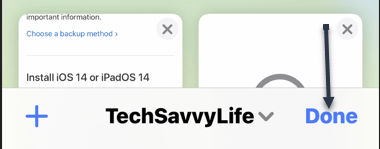
Now, Safari will switch you to a new tab group and show you the grid of open tabs. The name of the tab group will appear on the bottom bar. Tap Done to save the changes. See the below image:

Tab Groups 5
Save your change

Next, after creating a tab group in Safari, there are a few things you can do.

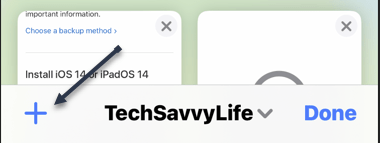
  • Tap the “+” (plus) button to add a new tab to a tab group. See the following image:
Tab Groups 6
Add a new tab
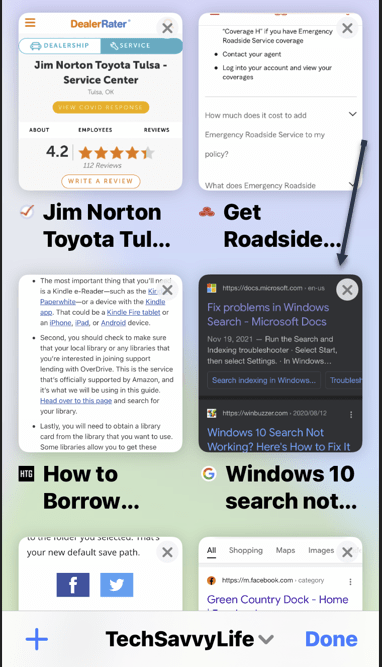
  • Hit the “x” cross sign in the top right-hand corner of the tab preview card to remove it from the group. Refer to the below image:
Tab Groups 7
Remove a tab
  • Tap on an open tab and drag it around to reorder it. Notice that the upper right-hand corner preview on the previous screen has been moved to the middle left. See the below image:
Tab Groups 8
Move your tabs

Now, hard-press on a tab, select Arrange Tabs By from the long-press menu and choose to Arrange Tabs By Title or Arrange Tabs By Websites. See the following image:

Tab Groups 9
Arrange your tabs

You can copy the links from the open tabs in a tab group to save them before closing all the tabs at once.

Quote For the Day

Take time to be kind and to say ‘thank you.’

Zig Ziglar

That’s it. Please feel free to share this post! One way to share is via Twitter.

Just click the Tweet icon below. This will launch Twitter where you click its icon to post the Tweet.

Check out TechSavvy.Life for blog posts on smartphones, PCs, and Macs! You may email us at contact@techsavvy.life for comments or questions.

I Would Like to Hear From You

Please feel free to leave a comment. I would love to hear from you. Do you have a computer or smart device tech question? I will do my best to answer your inquiry. Just send an email to contact@techsavvy.life. Please mention the device, app, and version you are using. To help us out, you can send screenshots of your data related to your question.

Author’s E-book

You can access the e-book from a Kindle device, the Kindle App for the desktop or smartphone, which is a free app.

The author’s Vietnam eBook on the Battle for Tra Bong Vietnam: Events and Aftermath