How to Find Kaleidoscope Wallpapers on iPhone

Apple’s iOS 17+ introduces new customization features for iPhones, including kaleidoscopic wallpapers that change appearance throughout the day. Users can explore these options in the Wallpaper menu within the Settings app and select images for Lock and Home screens. There are two categories of images to choose from: Jewels and Flowers. Widgets can also be added to the Kaleidoscope screen for further customization. Unfortunately, one can’t set up two different kaleidoscopic images for Lock and Home screens.

RAYMOND OGLESBY @RaymondOglesby2
December 5, 2023

This is for iPhones running iOS 17+. Screenshots are from iPhone 14 Pro.

The iPhone is boring, some people often say. As if Apple had to come up with a new design every year. As if it could significantly and regularly update the external appearance at this particular point in smartphone history, where nearly every device features an all-screen display. But you can make the iPhone a lot more fun by customizing the look of the software. You can change the icons to custom images, set wallpapers for each Focus mode, and then rotate them regularly.

Apple has plenty of good options in the Wallpapers gallery. And it so happens that iOS 17 brings over new kaleidoscopic wallpapers to iPhone that you can start using right away. Let’s find out about the Kaleidoscope wallpapers.

The new wallpapers might not be immediately visible, as you might need to do a bit of scrolling to find them. But they are there, and we will tell you exactly where to go.

What’s so special about the Kaleidoscope wallpapers, you ask? Well, there’s an algorithm at work here that will apply changes to them as the day passes.

First of all, since iOS 16, you have two ways of customizing the wallpaper on your iPhone. One involves pressing and holding your finger against the Lock Screen wallpaper until the customization menu pops up. The other is the one you might have been using since the early days of the iPhone. It involves going to the Settings app and looking for the Wallpaper menu.

Whatever the route, you will get to an Add New Wallpaper menu to select new images for your Lock and Home screens.

Once there, scroll until you find the Kaleidoscope category to select one of the new wallpapers. You might see the category in the Featured section, so you might not need to scroll. Refer to the below image:

Kai 1
Add a Kaleidoscope wallpaper

You will discover six Jewels kaleidoscope images and eight Flower ones. The Jewels will also feature Dark and Light modes, which means they will change appearance depending on how you have set up your iPhone. Unfortunately, the Flowers kaleidoscopes do not. But we would say the color palette is even better for the Flowers options.

Once you have selected the one you like best, you can set it as a Wallpaper Pair for both the Lock and Home screens. Or you can customize the Home screen with a separate image. You can always select a kaleidoscope for the Lock Screen and a different image for the Home Screen. Sadly, you can not set up two different kaleidoscopes, one for each screen.

Just like other Apple wallpapers, you can add widget(s) to your Kaleidoscope screen. See the below image:

Kai 2
Add Widgets

Related

We have TechSavvy.Life stats and Google Lens widgets for our wallpaper. Your new wallpaper will look similar to the one below. See the following image:
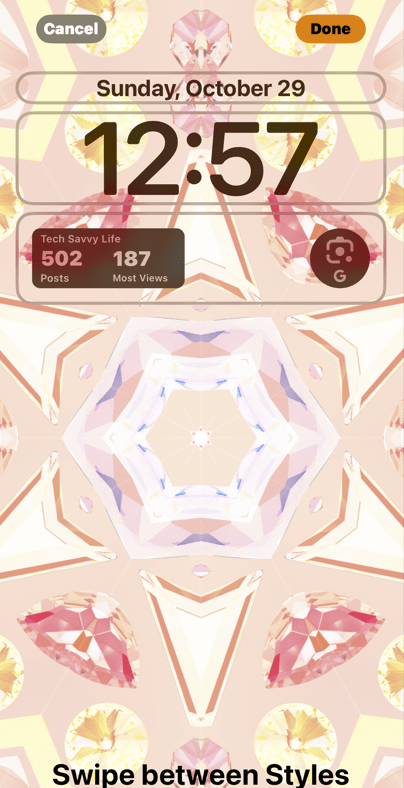
Kai 3
Your added Widgets

That’s all you have to do to take advantage of the new Kaleidoscope wallpapers on iPhone after updating to iOS 17 or higher.

Disclaimer

Technology is always changing and rarely is there static tech for smartphones and desktops. Thus, the contents of this post are only valid at the time of writing. Blog posts older than six months may have directions incompatible with your device or OS. Hopefully, older post content will continue to work as advertised. Thank you for reading TechSavvy.Life for Technology at Work For You.

If you are not willing to risk the unusual, you will have to settle for the ordinary.

Jim Rohn

That’s it. Please feel free to share this post! One way to share is via Twitter.

Just click the Tweet icon below. This will launch Twitter where you click its icon to post the Tweet.

Checkout TechSavvy.Life for blog posts on smartphones, PCs, and Macs! You may email us at contact@techsavvy.life for comments or questions.

Please feel free to leave a comment. I would love to hear from you. Do you have a computer or smart device tech question? I will do my best to answer your inquiry. Just send an email to contact@techsavvy.life. Please mention the device, app, and version you are using. To help us out, you can send screenshots of your data related to your question.

You can access the e-book from a Kindle device, the Kindle App for the desktop or smartphone, which is a free app.


The author’s Vietnam eBook on the Battle for Tra Bong Vietnam: Events and Aftermath

How to Make Custom Wallpapers on iPhone

Changing your iPhone Lock screen and Home screen wallpaper is probably the most effective way of making your phone look and feel unique.

RAYMOND OGLESBY @RaymondOglesby2
October 25, 2022

Changing your iPhone Lock screen and Home screen wallpaper is probably the most effective way of making your phone look and feel unique. Now you can take your wallpaper to the next level by creating or modifying your own designs in just a few taps; no app is required.

This is for the iPhone running iOS 16+. Screenshots are from iPhone XR

Dilbert and AI
Copyright Scott Adams, Inc./Distributed by Universal Uclick for UFS

iOS 16 Required

You can access the new wallpaper creation tools and Lock Screen gallery using iOS 16. If you do not see the Lock screen gallery when you long-press your Lock screen, you might need to update your iPhone to iOS 16.

If you need to, you can upgrade to iOS 16 by going to:

Settings > General > Software Update

Create a Wallpaper

You can create your own wallpapers using the Lock screen gallery. To access the gallery, first, tap and hold the Lock screen to reveal it.

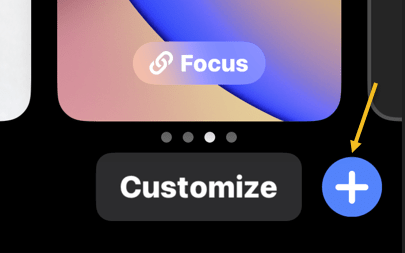
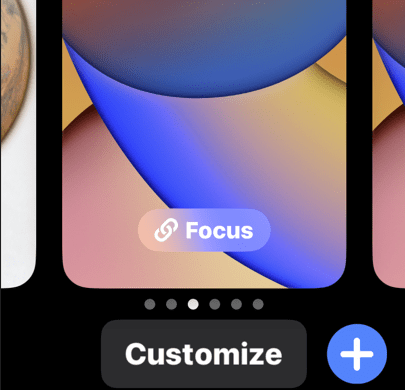
Next, tap Customize to modify your existing Lock screen or tap the plus “+” icon to create a new Lock screen. Refer to the below image:

Customize Wallpaper 1
Customize or add a wallpaper

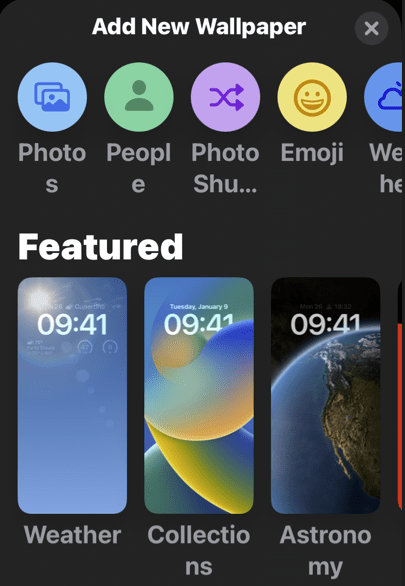
Now, creating a new Lock screen will take you straight to the wallpaper picker. You will then see a few options at the top of the screen that will allow you to create your own wallpaper:

  • Photos: Pick a photo from your media library, then customize it by swiping left and right to apply different filters.
  • Photo Shuffle: Using shuffle mode, you can choose more than one background image. These photos will then change throughout the day. You can also have your iPhone pick photos for you.
  • Emoji: Pick your favorite emoji, then choose from different patterns and background colors.
  • Weather: The weather option is a dynamic background that changes based on the weather conditions in your area.
  • Astronomy: This dynamic background changes based on the position of the earth, the moon, or the planets in our solar system.
  • Color: Pick a solid color, then swipe left and right to choose different effects like gradients and color intensity.

Next, you can create multiple wallpapers and save them to the Lock screen gallery, then switch between them as you please by tapping and holding your Lock screen at any time. See the below image:

Customize Wallpaper 2
Select a wallpaper

Now, the most fun you can have here is by creating custom Emoji and color wallpapers. Creating wallpapers using your own photos is easier using these tools too. There’s no need to edit or apply filters to your photos inside the Photos app first.

Next, some photos can even be used to create a Depth Effect that overlays subjects on top of the clock (though getting this to work is a bit hit-and-miss).

Using Existing Designs

You can also use the Lock screen gallery to pick from existing or featured designs. Now, take a look at the Featured and Collections areas to see some of Apple’s best offerings. See the following image :

Customize Wallpaper 3
Select template wallpapers

Next, iOS will also put photos in the Suggested Photos slider that should work well on a Lock screen, many of which are compatible with the Depth Effect mentioned above.

If you use Widgets on your Lock screen, you forgo the ability to use the Depth Effect.

There’s also a huge range of apps in the App Store for creating or downloading custom wallpapers, including, Vellum, Everpix, and Pixs. Unlike those apps, Apple’s built-in options are completely free to use.

Related

How to Use Lock and Home Screen Wallpapers

Quote For the Day

I’d rather check my Facebook than face my checkbook.

Craig Coelho

Tweet Info

That’s it. Please feel free to share this post! One way to share is via Twitter.

Just click the Tweet icon below. This will launch Twitter where you click its icon to post the Tweet.

Checkout TechSavvy.Life for blog posts on smartphones, PCs, and Macs! You may email us at contact@techsavvy.life for comments or questions.

I Would Like to Hear From You

Please feel free to leave a comment. I would love to hear from you. Do you have a computer or smart device tech question? I will do my best to answer your inquiry. Just send an email to contact@techsavvy.life. Please mention the device, app, and version you are using. To help us out, you can send screenshots of your data related to your question.

Author’s E-Book

You can access the e-book from a Kindle device, the Kindle App for the desktop or smartphone, which is a free app.

The author’s Vietnam eBook on the Battle for Tra Bong Vietnam: Events and Aftermath

How to Use Lock and Home Screen Wallpapers on iPhone in iOS 16+

Wallpaper is probably the easiest way to customize the look of your iPhone, and you have two areas to do it; the Home screen and the Lock screen.

RAYMOND OGLESBY @RaymondOglesby2
October 4, 2022

Wallpaper is probably the easiest way to customize the look of your iPhone, and you have two areas to do it; the Home screen and the Lock screen. Let’s explore this iOS 16+ feature.

This is for the iPhone. Screenshots are from iPhone XR running iOS 16+

Dilbert and Late
Copyright Scott Adams, Inc./Distributed by Universal Uclick for UFS

Tip: It is recommended you view the post on “How to Add Widgets on iPhone Lock Screen in iOS 16+” next.

The iPhone has supported separate wallpapers on the Home screen and Lock screen for a while, but iOS 16 introduced a big reworking of the process in 2022.

First, unlock your iPhone and tap and hold on a blank space on the Lock screen. The Lock screen will zoom out, and you will see a Customize and a plus button. Tap the plus button. Refer to the below image:

Lock 1
Selecting to add a wallpaper

If this is your first time playing with the Lock screen wallpaper in iOS 16, you will need to tap Add New when prompted. This will switch you over to the new Lock screen style. See the below image:

Lock 2
Add a new wallpaper

Next, you have a bunch of different options for wallpapers. At the top, you can select from a few categories. Scroll down to see a bunch of pre-made Lock screens. Choose a wallpaper for the Lock screen to proceed. See the following image:

Lock 3
Choosing a wallpaper

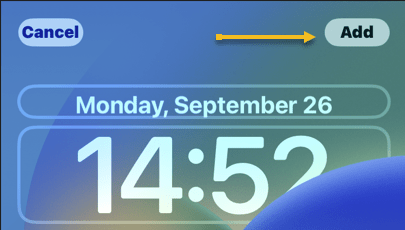
Now, once you have a wallpaper that you want to use for the Lock screen, tap the Add button in the top right-hand corner. Refer to the below image:

Lock 4
Selecting the Add button

Next, here’s where you have to option to use a different wallpaper for the Home screen. Tap Customize Home Screen to proceed. See the below image:

Lock 5
Selecting Customize Home Screen button

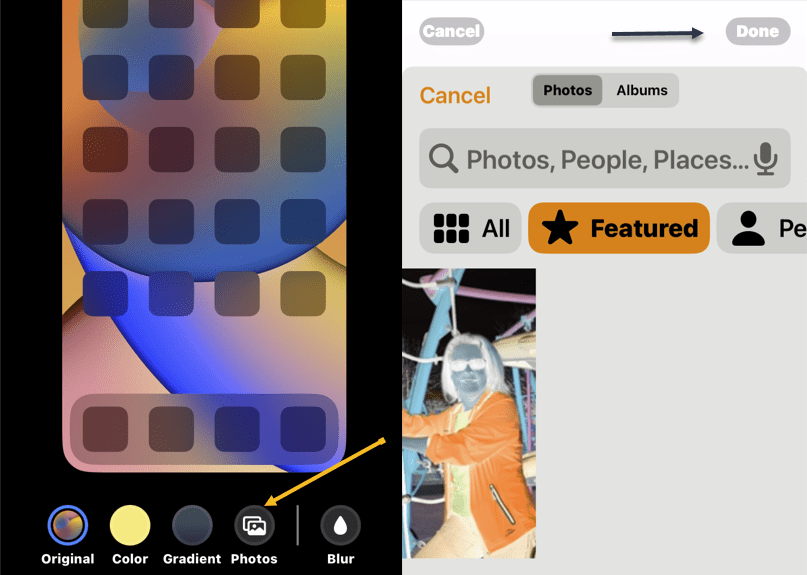
Now, you have a few options to choose from. You can blur the Lock screen wallpaper, choose a color based on the Lock screen wallpaper, a gradient based on the Lock screen wallpaper, or from your photos. After you have made your selection, tap Done in the top right-hand corner (if you choose a photo, you will need to tap Done twice). See the following image:

Lock 6
Adding a Home Screen wallpaper

Next, you will be brought back to the Lock screen preview screen. Tap the Lock screen to leave and see your new Lock screen and Home screen wallpapers! Refer to the below image:

Lock 7
Your Lock Screen

This is just a fraction of what you can do with the Lock screen on iOS 16+. You can also add widgets, customize the clock font, and apply a cool 3D depth effect to some wallpapers. More on this in another post as mentioned above.

Delete a Wallpaper

First, unlock your iPhone. Next, long-press anywhere on the unlocked Lock screen. See the below image:

Lock 8
Accessing the Lock Screen for deletion

Now, when the Lock screen goes into edit mode, you will see your current Lock screen as a preview among other Lock screens. Swipe to the wallpaper you want to delete. Then, swipe up on the wallpaper preview to reveal more options.

Note: The swipe-up gesture only works if you have another wallpaper added to your Lock screen collections. If you are trying to delete the only remaining Lock screen wallpaper from your iPhone, you will not be able to perform the swipe gesture on this wallpaper. 

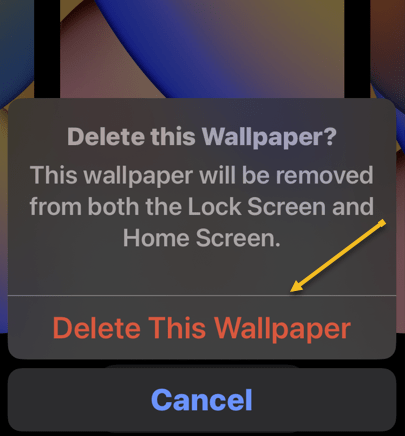
Next, you will now see a red-colored Trash icon below the selected wallpaper. Tap on the Trash icon to delete this Lock screen wallpaper permanently from your iPhone. See the following image:

Lock 9
Selecting the Trash icon to delete

Now, to confirm your action, tap on Delete This Wallpaper in the prompt that appears at the bottom. Refer to the below image:

Lock 10
Confirming the deletion

The selected wallpaper will now be removed from the edit screen and iOS will now load up your previous wallpaper for your Lock screen. 

Quote For the Day

Technology like art is a soaring exercise of the human imagination.

Daniel Bell

Tweet Info

You are finished. Please feel free to share this post! One way to share is via Twitter.

Just click the Tweet icon below. This will launch Twitter where you click its icon to post the Tweet.

Checkout TechSavvy.Life for blog posts on smartphones, PCs, and Macs! You may email us at contact@techsavvy.life for comments or questions.

I Would Like to Hear From You

Please feel free to leave a comment. I would love to hear from you. Do you have a computer or smart device tech question? I will do my best to answer your inquiry. Just send an email to contact@techsavvy.life. Please mention the device, app, and version you are using. To help us out, you can send screenshots of your data related to your question.

Author’s E-Book

You can access the e-book from a Kindle device, the Kindle App for the desktop or smartphone, which is a free app.

The author’s Vietnam eBook on the Battle for Tra Bong Vietnam: Events and Aftermath

How to Automatically Change Dark Mode Wallpaper on iPhone or iPad

Changing the wallpaper or background on your iPhone and iPad is a great way to update the appearance of your device, especially with the Dark Mode Apple wallpaper options to choose from. You need to have your device updated to at least iOS 13 or iPadOS 13. It’s best to update to iOS 14 if you’re looking to stay up to date

Changing the wallpaper or background on your iPhone and iPad is a great way to update the appearance of your device, especially with the Dark Mode Apple wallpaper options to choose from. You need to have your device updated to at least iOS 13 or iPadOS 13. It’s best to update to iOS 14 or higher if you are looking to stay up to date.

By using special wallpapers provided by Apple, they will automatically operate in both light and dark modes.

Let’s get started finding and changing our device’s wallpaper to a Dark Mode option.

This is for the iPhone and iPad

Dilbert and Info
Copyright Scott Adams, Inc./Distributed by Universal Uclick for UFS

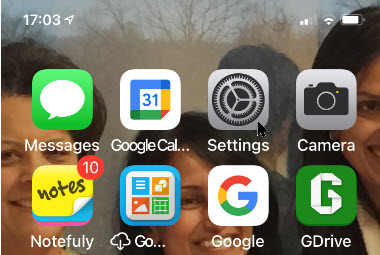
First, launch Settings (the gear icon). Refer to below image:

Wallpaper 1
Accessing Settings

Next, tap the Wallpaper option. See below image:

Wallpaper 2
Selecting Wallpaper option

Now, in its settings, tap the Choose a New Wallpaper option. See following image:

Wallpaper 3
Selecting the new Wallpaper option

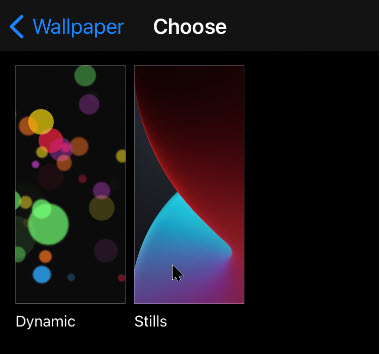
On the Choose screen, tap the Stills category. Refer to below image:

Wallpaper 4
Selecting the Stills category

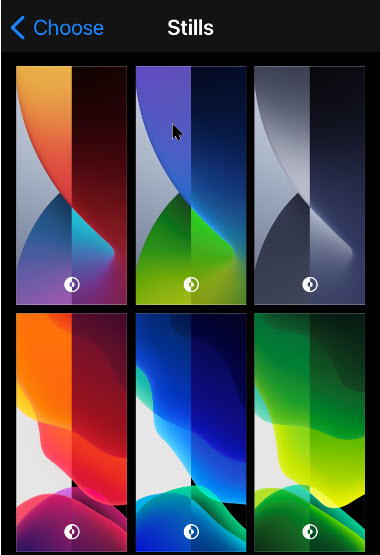
In the Stills category, select a wallpaper that includes the dark mode icon. This looks like several concentric circles with the center cut out of them. If you scroll down, you will notice stills without the icon; these will not work for our purposes. See below image:

Wallpaper 5
Choosing a Dark Mode Wallpaper

The wallpapers with the dark and light mode icon will change automatically between dark and light versions when dark or light mode is activated.

Once you have selected a still, tap the Set option. See following image:

Wallpaper 6
Selecting the Set option

Now, decide whether you want to see the wallpaper on your Lock screen, Home screen, or both; or Cancel your selection. Refer to below image:

Wallpaper 7
Choosing where to apply the new Wallpaper

Next, exit Settings and switch from light to dark mode (or vice versa) by opening Control Center, (swipe down from upper right-hand corner in iOS 14 or higher). Now, hold down the brightness slider, and tap the dark or light mode button to switch modes. After you switch, you will notice that the wallpaper you set changes automatically to match.

That’s it. Pretty neat trick. Please feel free to share this post! One way to share is via Twitter, as mentioned below.

I hope you have found this post helpful. If so, click the Tweet icon below. This will launch Twitter where you click its icon to post the Tweet.

Check out TechSavvy.Life for blog posts on smartphones, PCs, and Macs! You may email us at contact@techsavvy.life for comments or questions.

I Would Like to Hear From You

Please feel free to leave a comment. I would love hearing from you. Do you have a computer or smart device tech question? I will do my best to answer your inquiry. Just send an email to contact@techsavvy.life. Please mention the device, app and version that you are using. To help us out, you can send screenshots of your data related to your question..

The author’s Vietnam eBook on the Battle for Tra Bong: Events and Aftermath