


RAYMOND OGLESBY @RaymondOglesby2
May 7, 2024
This is for the desktop using Google One. Screenshots are from Windows 10
Table of Contents
- What is the Dark Web
- Personal Information on the Dark Web
- Who is Eligible
- Set Up Monitoring Profile
- How to Use Your Monitoring Profile
- Dark Web Monitoring Feature
- Enabling Dark Web Monitoring
- Viewing Your Dark Web Report
- Why Does Dark Web Monitoring Matter?
- Not a Google One Member?
- Availability of Dark Web Report
- Conclusion
What is the Dark Web
The dark web is a hidden part of the internet not indexed by traditional search engines like Google, Bing, or Yahoo. It is intentionally designed to be anonymous, making it a haven for illegal activities such as the sale of stolen data, drugs, weapons, and more stuff of nightmares. It’s where cybercriminals often trade in stolen personal information like credit card numbers, login credentials, and social security numbers. It’s also where lots of stolen personal data from breaches end up for sale.
Personal Information on the Dark Web
With a Google One membership, you can set up a profile to monitor the dark web to see if your info is found in breaches.
You can check for data on the dark web that might be associated with your email address or other info you add to your monitoring profile. Breach results may contain information including:
- Your name
- Address
- Phone number
- Social Security Number (SSN)
- Username
- Password
Tip: only accounts with a US billing method can add a Social Security Number to their monitoring profile.
Any information in the breach results will be displayed in redacted form to maintain data privacy.
With the results, you can review your information and make informed decisions about how to protect yourself.
Who is Eligible
You can set up a monitoring profile with a paid Google One membership. Click here for help on signing up for a Google One account.
You do not need a paid Google One membership to run a dark web report for the email address associated with your Google Account. Click here for help on scanning the dark web with your email address.
Set Up Monitoring Profile
You can monitor your Google Account email address or add other information to your monitoring profile.
- On your computer, click here if you have a Google One account.
- Under Dark web report, click Set up and then Start monitoring.
- To include additional Google Account personal information in your monitoring profile:
- Select the desired checkboxes.
- Click Allow.
- Confirm your selections and add any additional data you want to monitor.
- Click Done.
- To include additional Google Account personal information in your monitoring profile:
How to Use Your Monitoring Profile
When you set up your monitoring profile in Google One, your profile info is used to check whether a match was found on the dark web. If matching info is found, we will email or notify you. You can find guidance to protect your personal information on the Google One website and app.
Learn how Google One protects your privacy and keeps you in control.
Dark Web Monitoring Feature
Google’s Dark Web Monitoring feature is designed to help users stay informed about the presence of their personal information on the dark web. Here’s how it works:
- Continuous Scanning: One of Google’s many sophisticated algorithms scans the dark web continuously, looking for any signs of your personal information, such as email addresses, passwords, or financial details. The best part is you are in control of what it scans for.
- Alerts: If Google’s monitoring system detects any of your information on the dark web, it will send you an alert. This alert will prompt you to secure your accounts and data.
- Reporting: Once set up, you can view the report right away from your Google One homepage
Enabling Dark Web Monitoring
First, we need to set up the feature. Fortunately, Google has made this process relatively straightforward:
- Access Your Google Account: Start by logging into your Google account. Click here to log in.
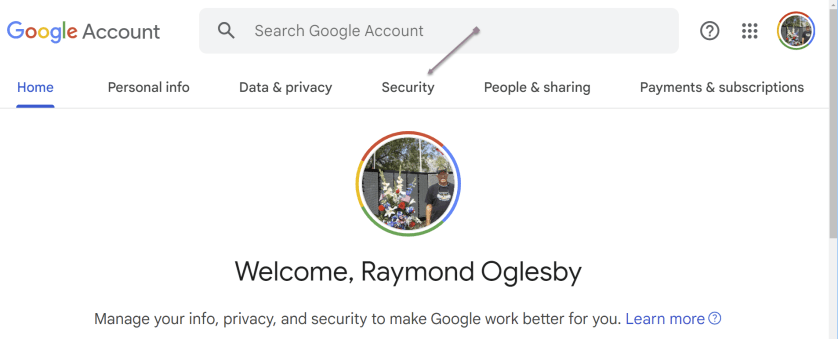
- Security Tab: Once logged in, click the Security tab at the top of the page. This section contains various settings related to your account’s security.
- Dark Web Monitoring: Scroll down to find the Dark Web Monitoring section. If it’s your first time accessing this feature, you might need to provide your password for verification.
- Turn On Dark Web Monitoring: Click the Turn On button to activate the feature. Google will ask you to confirm your choice.
- Verification: To ensure the security of this feature, Google may prompt you to re-enter your Google Account password.
- Confirmation: Once you have completed the above steps, you should receive a confirmation message that Dark Web Monitoring is active for your account.
Refer to the below image:
s
Viewing Your Dark Web Report
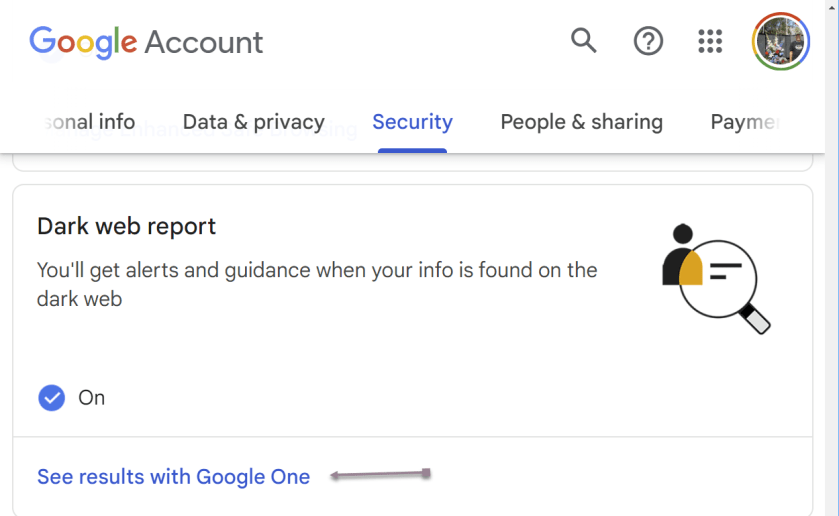
To view your report, click the Security tab, and scroll down to the Dark web report section. Now, click the link See results with Google One. See the below Image:
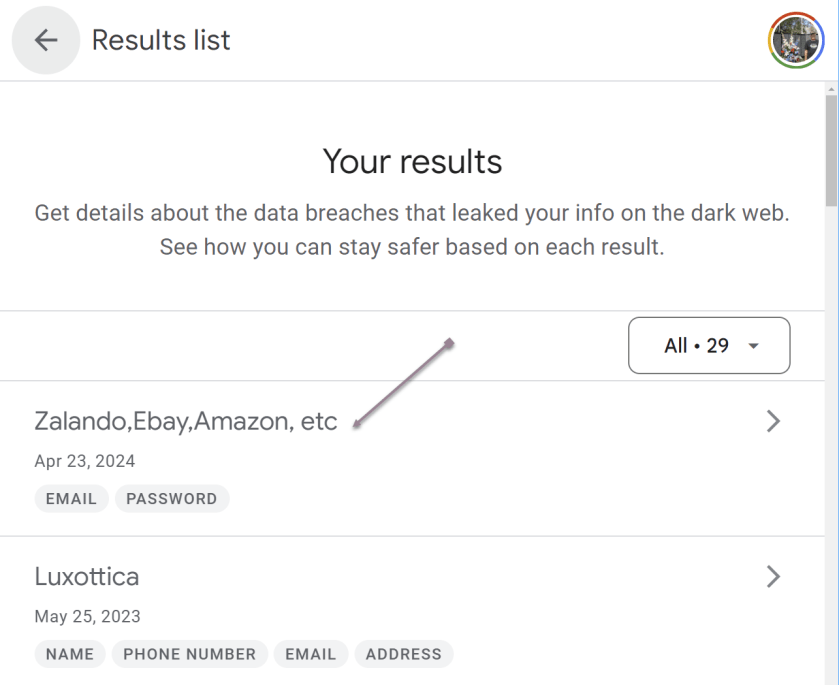
You will see a summary of your results. You can click an individual breech (or the All button; we have 29 breeches) to view detailed information and recommended actions. See the following image:
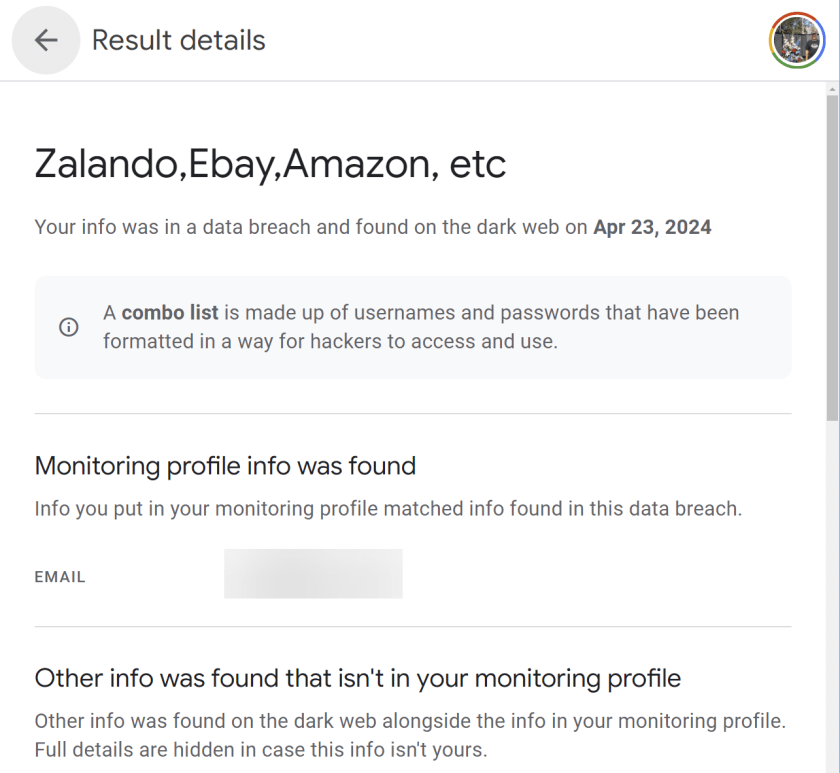
The selected breech details are now displayed. Refer to the below image:
Why Does Dark Web Monitoring Matter?
- Proactive Protection: With this feature, Google aims to provide proactive protection. Instead of waiting until a data breach occurs, you can take action as soon as your information appears on the dark web, reducing the potential impact of cyberattacks.
- User Convenience: Google’s Dark Web Monitoring is seamlessly integrated into the user experience, making monitoring their online security easier for everyday users. You need not be a cybersecurity expert to benefit from this feature.
- Comprehensive Monitoring: Google’s vast resources and expertise allow for comprehensive dark web monitoring. It can scan many sources, increasing the likelihood of detecting compromised information.
- Data Privacy: Google emphasizes data privacy and security. The company ensures that your personal data is protected while providing this service, addressing concerns about potential privacy breaches.
Not a Google One Member?
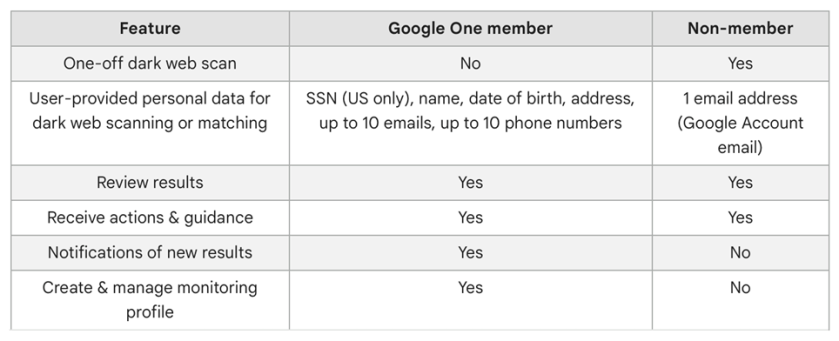
You can still access some features without the membership, it essentially boils down to whether you want continuous monitoring or not and if the other Google One features are enough to justify the monthly costs (depending on the plan you choose) Here’s a breakdown of what Google One members and non-members get. See the below image:
Availability of Dark Web Report
The Dark Web Report is available in the following countries or regions.
- Albania
- Algeria
- Argentina
- Austria
- Australia
- Bangladesh
- Belgium
- Bolivia
- Brazil
- Canada
- Chile
- Colombia
- Denmark
- Ecuador
- Finland
- France
- Germany
- Greece
- Iceland
- India
- Indonesia
- Ireland
- Israel
- Italy
- Japan
- Mexico
- Morocco
- Netherlands
- Nicaragua
- Norway
- Pakistan
- Philippines
- Senegal
- Slovenia
- South Korea
- Spain
- Sri Lanka
- Sweden
- Switzerland
- Taiwan
- Türkiye
- Ukraine
- United Kingdom
- United States
- Venezuela
- Vietnam
Conclusion
Your personal data is constantly under threat. Google’s Dark Web Monitoring feature represents a significant step toward enhancing online security and protecting your digital identity. By providing continuous scanning, timely alerts, and actionable recommendations, Google empowers users to take control of their online safety. While no security measure is foolproof, this feature is a valuable addition to Google’s suite of tools aimed at helping users stay one step ahead of cybercriminals. Your digital identity is worth safeguarding, and it appears Google is here to help you.
Source: Google Help
Disclaimer
Technology is always changing. Rarely is there static tech for smartphones and desktops. Thus, the contents of this post are only valid at the time of writing. Blog posts older than six months may have directions incompatible with your device or OS. Hopefully, older post content will continue to work as advertised. Thank you for reading TechSavvy.Life for Technology at Work For You.
Quote For the Day
Visualize this thing you want. See it, feel it, believe in it. Make your mental blueprint and begin.
Robert Collier
Tweet Info
That’s it. Please feel free to share this post! One way to share is via Twitter.
Just click the Tweet icon below. This will launch Twitter where you click its icon to post the Tweet.
Checkout TechSavvy.Life for blog posts on smartphones, PCs, and Macs! You may email us at contact@techsavvy.life for comments or questions.
Tweet
I Would Like to Hear From You
Please feel free to leave a comment. I would love to hear from you. Do you have a computer or smart device tech question? I will do my best to answer your inquiry. Just send an email to contact@techsavvy.life. Please mention the device, app, and version you are using. To help us out, you can send screenshots of your data related to your question.
Author’s E-Book
You can access the E-book from a Kindle device, or the Kindle App for a desktop or smartphone. The apps are free.

 Tech Savvy Life
One thought on “How to Setup a Dark Web Monitoring Profile and View the Web Report”