


RAYMOND OGLESBY @RaymondOglesby2
July 9, 2024 – 3 minute read
This is for the iPhone. Screenshots are from iPhone 14 Pro running iOS 17+
The first thing we used to do to free storage on my previous iPhones was to head to the Photos app and delete pictures and videos. We usually did this after a backup or AirDrop the files we wanted to keep to our PC. However, there were exceptions to the rule, and we sometimes accidentally deleted photos and videos we still needed.
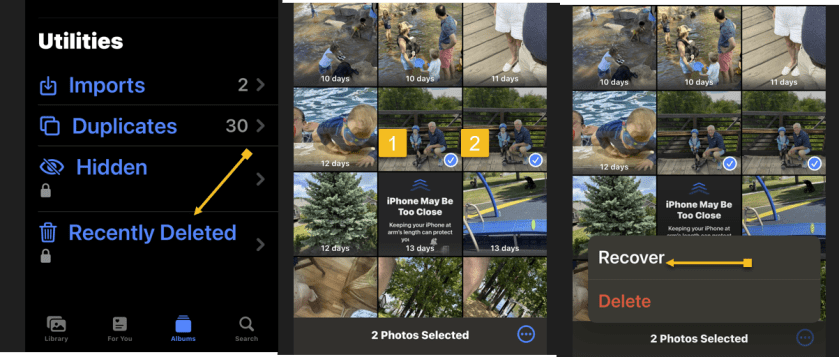
If you accidentally delete files while cleaning up, you should not panic. The files are not actually lost. Go to the Albums section of your iPhone and look for the Recently Deleted folder. You must unlock it with Face ID, Touch ID, or PIN code. In there, tap the Select button and check the photos you deleted by mistake, tap the three dots menu button at the bottom, and then tap Recover. Refer to the below image:
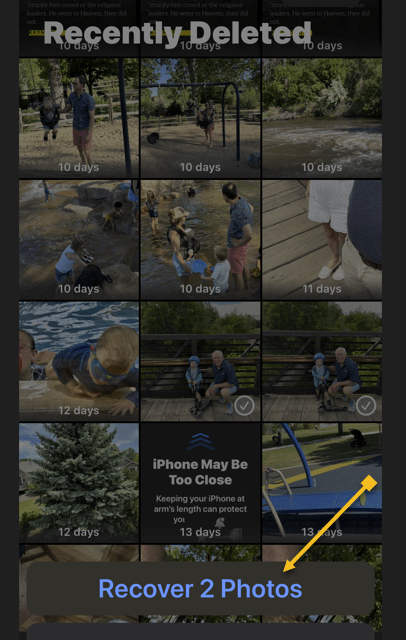
If you have selected more than one photo, click the recover multiple photos button. See the below image:
We already knew how to rescue those files, as there’s a simple rule about deleting stuff on iPhone. The files do not get permanently removed. Instead, they sit for 30 days in the Trash folders of the various apps where you can delete content. The Photos app is one of them. And that’s how easy it is to recover those deleted photos and videos.
It gets even better if you do regular backups via iCloud or use a third-party alternative to Apple Photos. Google Photos easily comes to mind, as it’s a great app to store and back up photos.
Default Photo App
Most iPhone users will use the default Photos app. That’s where to start when viewing photos and videos and managing the storage.
Another option is to bring a single photo into view and then look for the same Recover button. This method only lets you recover photos and videos one by one.
Once that’s done, the recovered files will be available in the Photos app.
You have to remember to recover your deleted photos within 30 days. That’s how long you have until the iPhone permanently removes them. We went to this folder on iPhones with lower storage than my current iPhone 14 Pro to permanently delete the files we did not need. That’s the only way to free storage immediately.
The best way to ensure your photos and videos are safe is to perform routine backups. Whether via iCloud or your PC, the backups will help you recover files. Another option is to manually transfer the photos to a computer and store them on external devices.
There are many Photo Recovery apps from the App Store you can install.
Using Google Photos
Google Photos is a handy tool for storing images and photos on your iPhone. But, like the default Apple Photos app, you can accidentally delete files in Google Photos.
The solution is similar to Apple Photos. Google does not delete the images directly, moving them to a Trash file in the Library tab. You have 30 days to recover the file if the photo or video was not backed up to the cloud. That goes up to 60 days if the files you deleted accidentally were backed up to the cloud.
Google Photos is also available on the web and other devices.
What if You Deleted Your Photos for Good?
Whether you forget the 30-day recovery deadline or accidentally empty the trash, recovering permanently deleted files might be a big problem. Third-party software solutions might help you get those files back.
But as Gizmodo points out, not all of them might work. The blog also mentions Stellar Data Recovery as a well-reviewed solution for recovering deleted files from iPads and iPhones.
The software is not free, starting at $49.99, and there are no guarantees it will work. But if you must try anything to recover a particularly dear deleted photo from your iPhone, you will want to look into third-party apps that claim they can do the job.
Disclaimer
Technology is always changing. Rarely is there static tech for smartphones and desktops. Thus, the contents of this post are only valid at the time of writing. Blog posts older than six months may have directions incompatible with your device or OS. Hopefully, older post content will continue to work as advertised. Thank you for reading TechSavvy.Life for Technology at Work For You.
Quote For the Day
Kites rise highest against the wind, not with it.
Winston Churchill
X (Tweeter) Info
That’s it. Please feel free to share this post! One way to share is via Twitter.
Just click the Tweet icon below. This will launch Twitter where you click its icon to post the Tweet.
Checkout TechSavvy.Life for blog posts on smartphones, PCs, and Macs! You may email us at contact@techsavvy.life for comments or questions.
Tweet
I Would Like to Hear From You
Was this post helpful? We would love to hear your comments. Do you have a computer or smart device tech question? I will do my best to answer your inquiry. Just send an email to contact@techsavvy.life. Please mention the device, app, and version you are using. To help us out, you can send screenshots of your data related to your question.
You can access the E-book from a Kindle device, or the Kindle App for a desktop or smartphone. The apps are free.

 Tech Savvy Life