

RAYMOND OGLESBY @RaymondOglesby2
April 7, 2026 – 4 minutes read time
Overview
If you have ever wanted to customize the shortcut buttons at the bottom of your Lock Screen, you are in luck! You can now swap out your iPhone Flashlight shortcut or Camera shortcut to pretty much any shortcut of your choosing.
With the addition of the Action button and now Camera Control buttons, the usefulness of having your Camera and Flashlight as your Lock Screen shortcuts is rapidly waning. Fortunately, you can swap these shortcuts out for different options.
It’s important to note that the shortcut will only be for that Lock Screen. If you have multiple Lock Screens, the others will have the a Flashlight and Camera defaults unless you manually change them.
Note! you can only swap out the default icons; not add new ones. (Sad, come on Apple, add this feature!). But you can add app shortcuts (widgets) below the Clock area.
Key Takeaways
- Swap out the default flashlight and camera controls for other shortcuts, like the timer or alarm app.
- Keep your favorite shortcuts right on your Lock Screen.
- Access apps or actions quickly without unlocking your iPhone.
Let’s explore how to swap out the default Lock Screen shortcuts on your iPhone.
System Requirements
This tip was performed on an iPhone 17 Pro running iOS 26.3.
Click here to learn how to update your iPhone to the latest iOS version.
Change Your Lock Screen Shortcuts
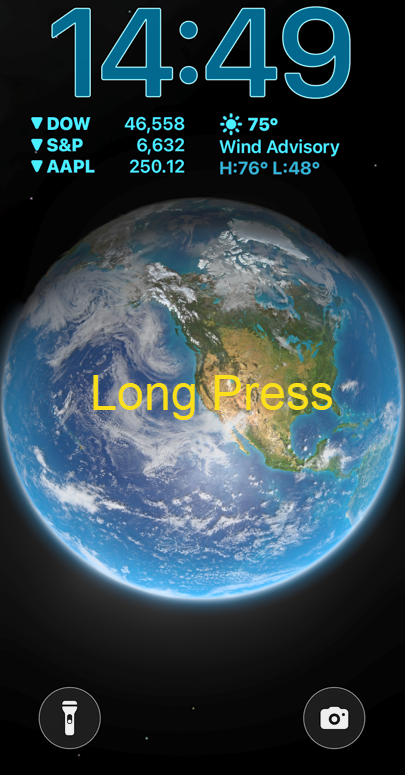
First, long-press on your Lock Screen. Refer to the image below:
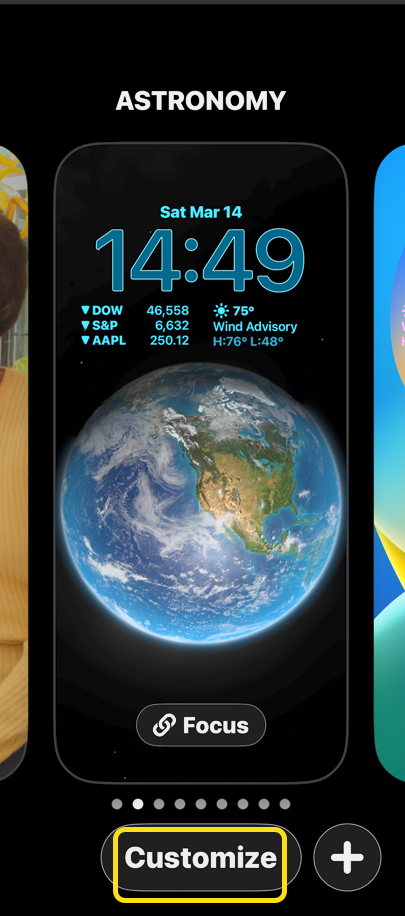
Now, tap Customize. See the image below:
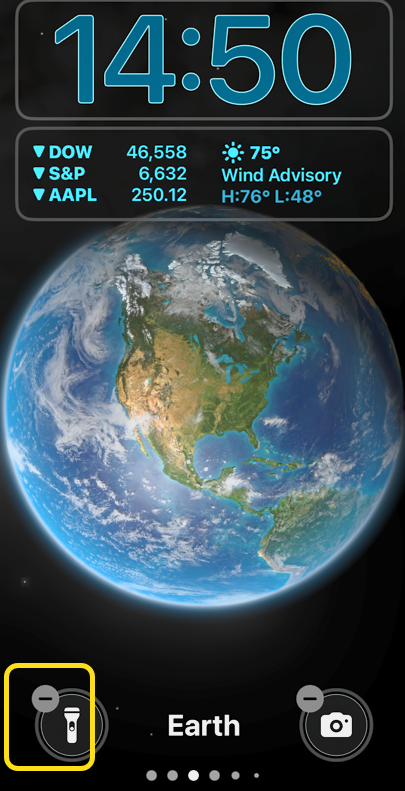
Next, tap the minus symbol on the top left corner of the shortcut you want to replace. See the following image:
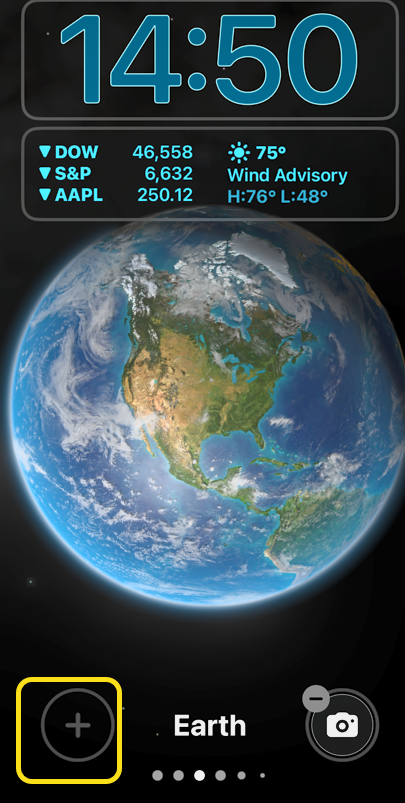
Now, tap the plus icon where the shortcut just was. Refer to the image below:
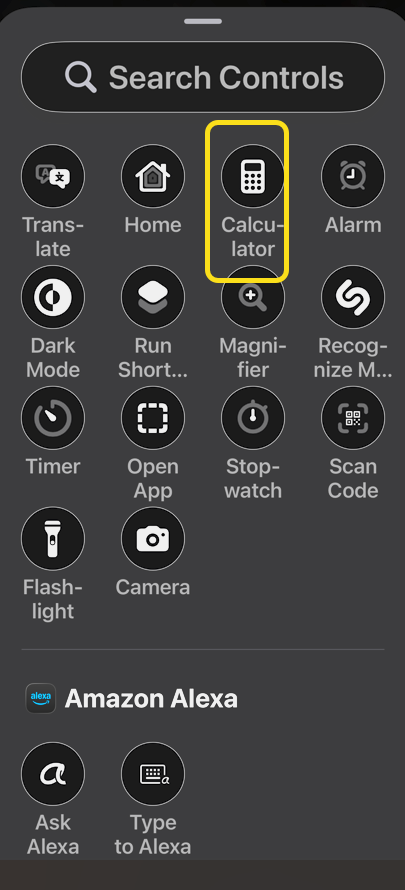
Next, scroll through your new shortcut options and tap the shortcut you want to add. See the image below:
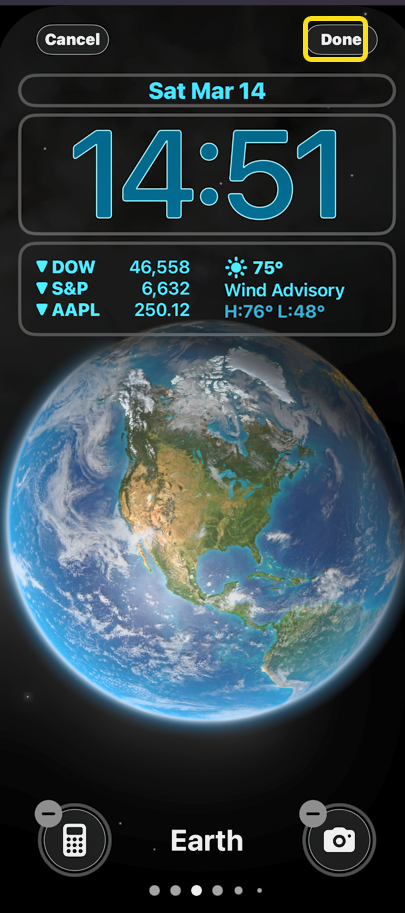
Now, tap Done to finalize your Lock Screen. See the following image:
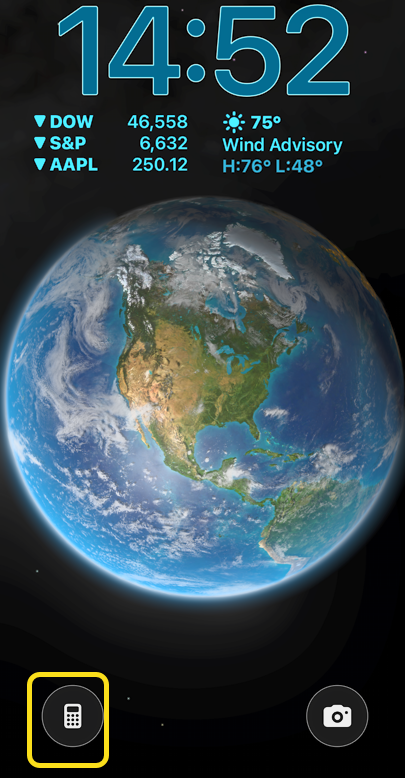
Next, you can now tap that iPhone Lock Screen shortcut to launch the new app or function you selected. Refer to the image below:
That’s how to change shortcuts on iPhone Lock Screen. These can easily be swapped out by following this same step procedure each time. Remember, you’ll have to do it individually for each Lock Screen.
Disclaimer
Technology is constantly evolving, and smartphone and desktop tech rarely remains static. Therefore, the information in this post is only accurate as of the date it was written. Blog posts that are older than six months may contain instructions that are no longer compatible with your device or operating system. We hope that the content from previous posts continues to function as intended. Thank you for reading TechSavvy.Life, where technology works for you.
Quote For the Day
Technological progress has merely provided us with more efficient means for going backwards.
– Aldous Huxley
(X) Twitter Info
That’s it. Please feel free to share this post! One way to share is via Twitter.
Just click the Tweet icon below. This will launch Twitter where you click its icon to post the Tweet.
Checkout TechSavvy.Life for blog posts on smartphones, PCs, and Macs! You may email us at contact@techsavvy.life for comments or questions.
Tweet
I Would Like to Hear From You
We value your feedback! Was this post helpful? Please share your comments with us. If you have a tech question related to your computer or smart device, feel free to reach out. Just send an email to contact@techsavvy.life, and be sure to include the device, app, and version you are using. To assist us further, you can also attach screenshots related to your inquiry.
The author’s Vietnam eBook, “Battle for Tra Bong Vietnam: Events and Aftermath,” is available on Kindle devices and the Kindle App for desktop, laptop, and smartphone. The apps are free.

 Tech Savvy Life