How to Enable Read Receipts on iPhone

This post explains how to identify if your text messages have been read using iMessage with Read Receipts enabled. It details how to turn on or off Read Receipts for all contacts or specific individuals on an iPhone and includes a disclaimer about potential changes in technology.

RAYMOND OGLESBY @RaymondOglesby2
May 12, 2026 – 4 minutes read time

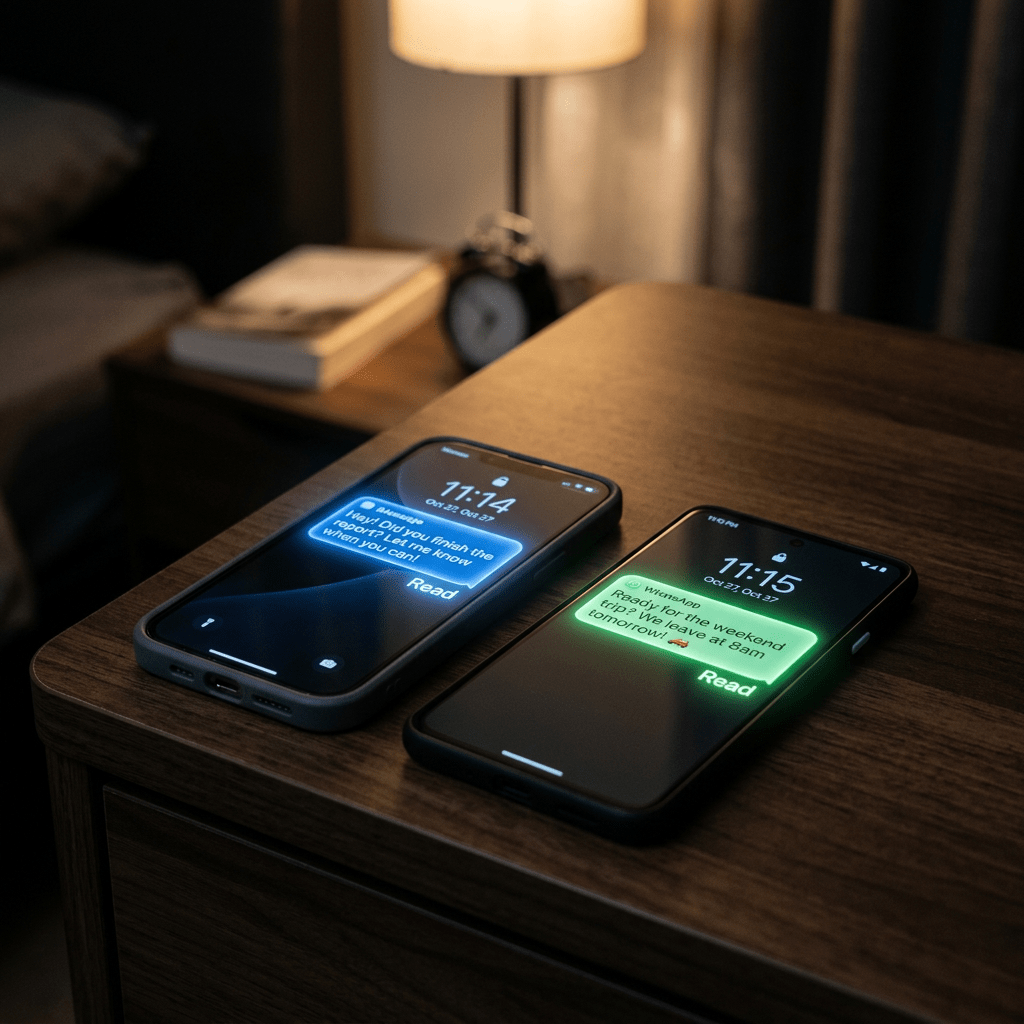
How do you know if someone read your text? Texting can be a quick way to communicate, as long as the other person reads the message. Here’s how to tell a text has been read, so you can stop worrying your text did not go through.

Unfortunately, you do not have direct control over this. The people you text will have to be using iMessage and have Read Receipts enabled.

  • Let your friends know you have seen their texts without having to respond.
  • See if your friends have received your messages, and stop wondering if people are getting your texts.
  • Learn how to turn off Read Receipts on iPhone if you do not want people to know you have read their text message.

This tip was checked on an iPhone 17 Pro running iOS 26.2.

Click here to learn how to update your iPhone to the latest iOS version.

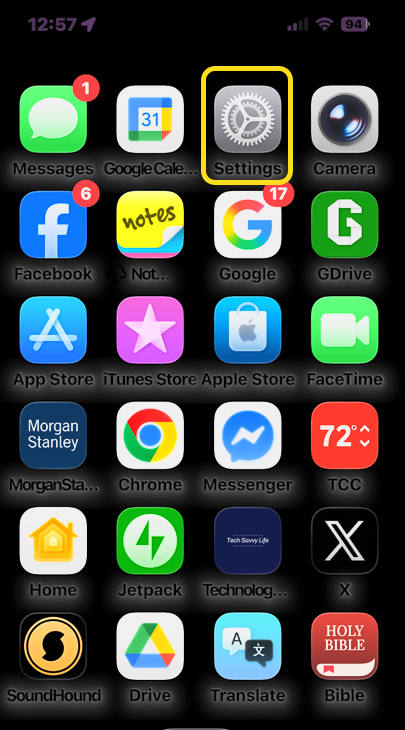
First, open the Settings app. Refer to the image below:

Read Receipt 1
Selecting Settings app

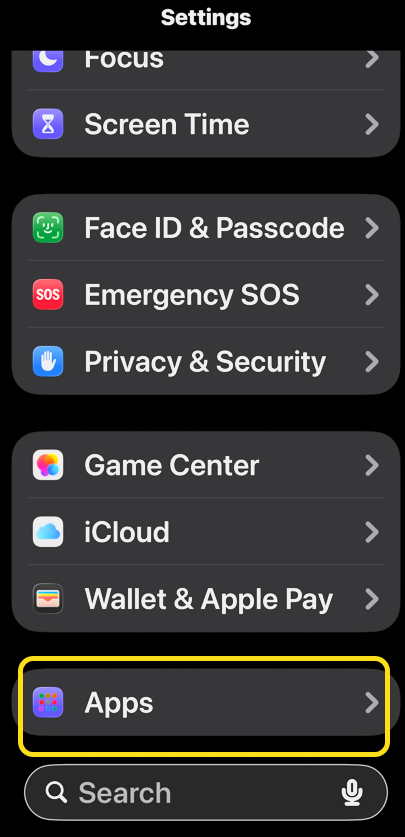
Next, scroll down to the bottom and tap Apps. See the image below:

Read Receipts 2
Selecting Apps option

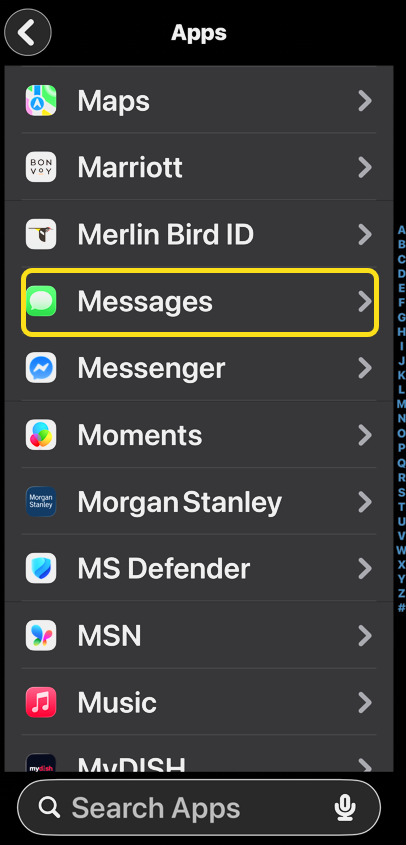
Now, tap Messages. See the following image:

Read Receipts 3
Selecting Messages option

Next, toggle Send Read Receipts. The slider will be to the right and green if it is on.

If Read Receipts on your device is toggled off, the person who sent you the text will not be able to see if you read it or not. Likewise, if the person you sent a text to has disabled Read Receipts, you can not see if they have read your text.

You can also customize the Read Receipts option for individual contacts. For example, you can disable Read Receipts on iPhone for a coworker but still have them available for other contacts.

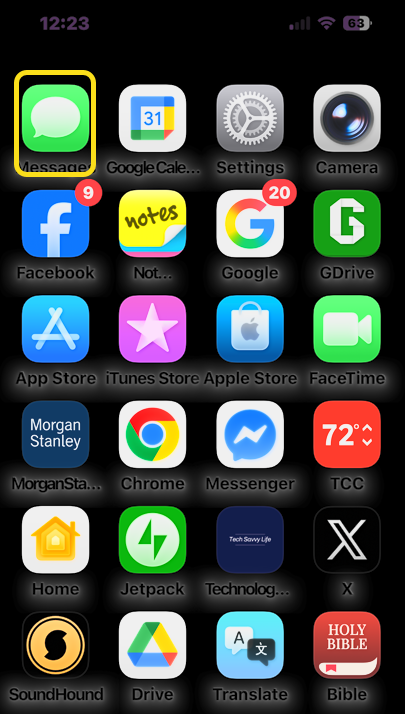
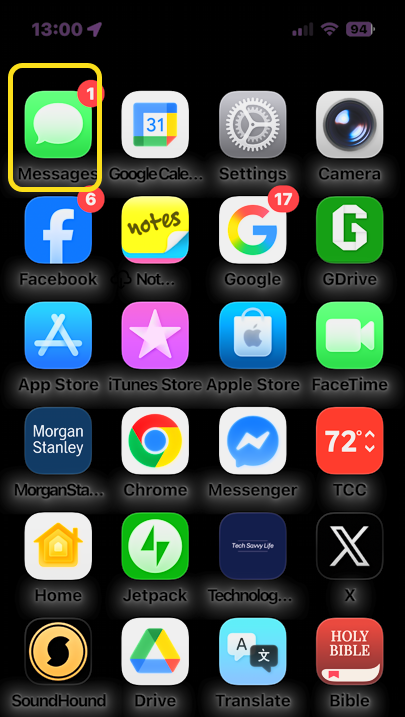
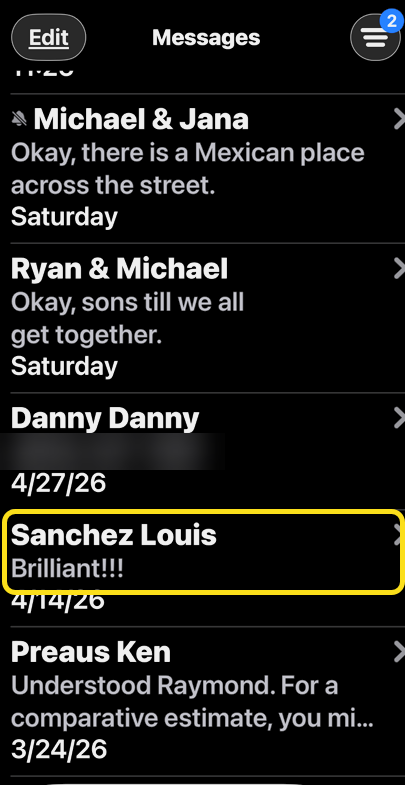
First, ooen the Messages app. Refer to the image below:

Read Receipts 5
Selecting Messages app

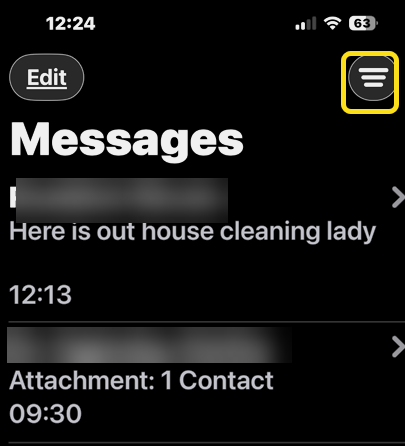
Next, tap the text conversation with the contact for whom you want to turn Read Receipts on or off. See the image below:

Read Receipts 6
Selecting a message

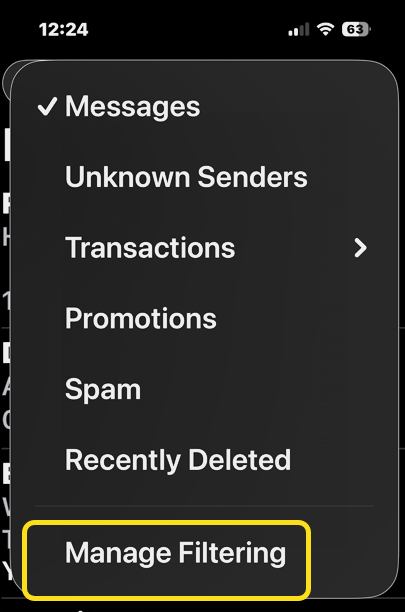
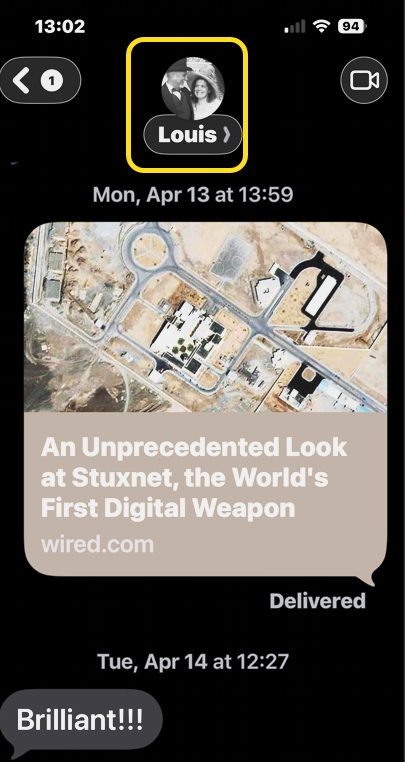
Now, tap the Contact icon at the top of the page. See the following image:

Read kReicpts 8
Selecting the Contact icon

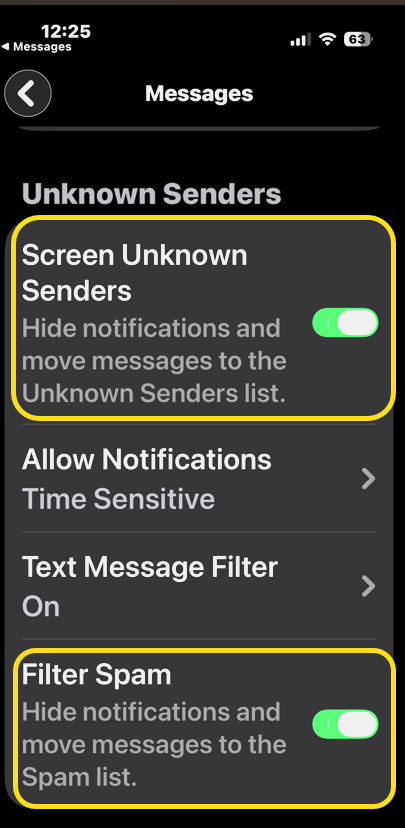
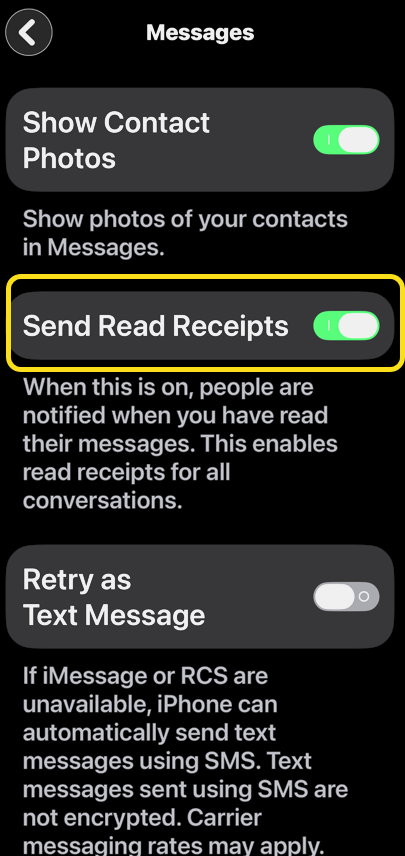
Next, toggle  Send Read Receipts either on or off. Refer to the image below:

Read Receipts 5
Toggling Send Read Receipts

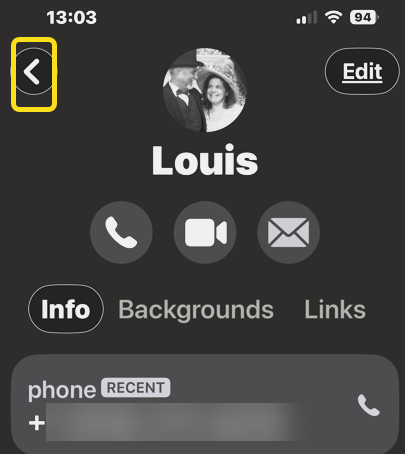
Now, tap the Back arrow to return to Messages. See the image below:

Read kReicpts 8
Selecting Back icon

Now you know how to turn on/off Read Receipts on iPhone, for all or individual contacts. As long as the people you text have this feature enabled, you will be able to see if and when they have read your message.

Technology is constantly evolving, and smartphone and desktop tech rarely remains static. Therefore, the information in this post is only accurate as of the date it was written. Blog posts that are older than six months may contain instructions that are no longer compatible with your device or operating system. We hope that the content from previous posts continues to function as intended. Thank you for reading TechSavvy.Life, where technology works for you.

Old robots are becoming more human and young humans are becoming more like robots.

– Lorin Morgan-Richards

That’s it. Please feel free to share this post! One way to share is via Twitter.

Just click the Tweet icon below. This will launch Twitter where you click its icon to post the Tweet.

Checkout TechSavvy.Life for blog posts on smartphones, PCs, and Macs! You may email us at contact@techsavvy.life for comments or questions.

We value your feedback! Was this post helpful? Please share your comments with us. If you have a tech question related to your computer or smart device, feel free to reach out. Just send an email to contact@techsavvy.life, and be sure to include the device, app, and version you are using. To assist us further, you can also attach screenshots related to your inquiry.

Author’s eBook

The author’s Vietnam eBook, “Battle for Tra Bong Vietnam: Events and Aftermath,” is available on Kindle devices and the Kindle App for desktop, laptop, and smartphone. The apps are free.

The author’s Vietnam eBook on the Battle for Tra Bong Vietnam: Events and Aftermath

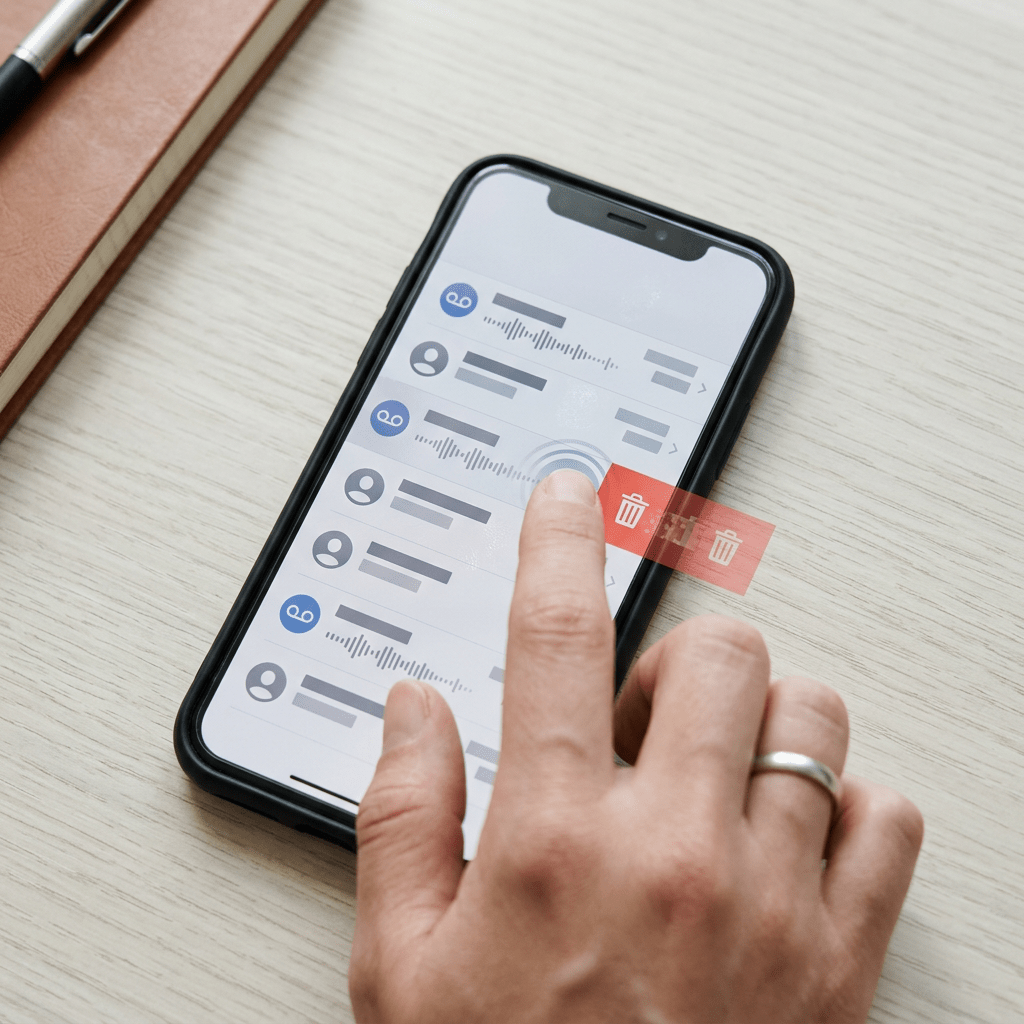
How to Permanently Delete Voicemails on iPhone

Voicemails consume storage on your iPhone. Deleting voicemails moves them to a Deleted Voicemails folder, maintaining your storage. To effectively free up space, you must empty this hidden folder by either deleting individual voicemails or using the Clear All option. Confirm the deletion to ensure the space is cleared.

RAYMOND OGLESBY @RaymondOglesby2
May 5 2026 – 4 minutes read time

Do voicemails take up storage on your iPhone? Yes, so if you are looking to clear up storage, delete old voicemails! If you clear all voicemail but notice no change in your storage space, it’s because there’s a hidden folder for deleted voicemails on your iPhone.

When you delete a voicemail, it is moved to a special folder. This means your storage space remains the same. You have to delete the voicemails from this special folder to free up storage on your iPhone.

How do you empty voicemail? To truly clear voicemail, you need to clear Deleted Voicemails. Deleted Voicemails on iPhone can be listened to, undeleted, and permanently deleted with a Clear All. Let’s explore how to delete your voicemails on iPhone permanently.

  • Clear up storage space that’s being taken up by voicemails.
  • Get rid of junk voicemails you don’t need anymore.

This tip was performed on an iPhone 17 Pro running uOS 26.4.

Click here to learn how to update your iPhone to the latest iOS version.

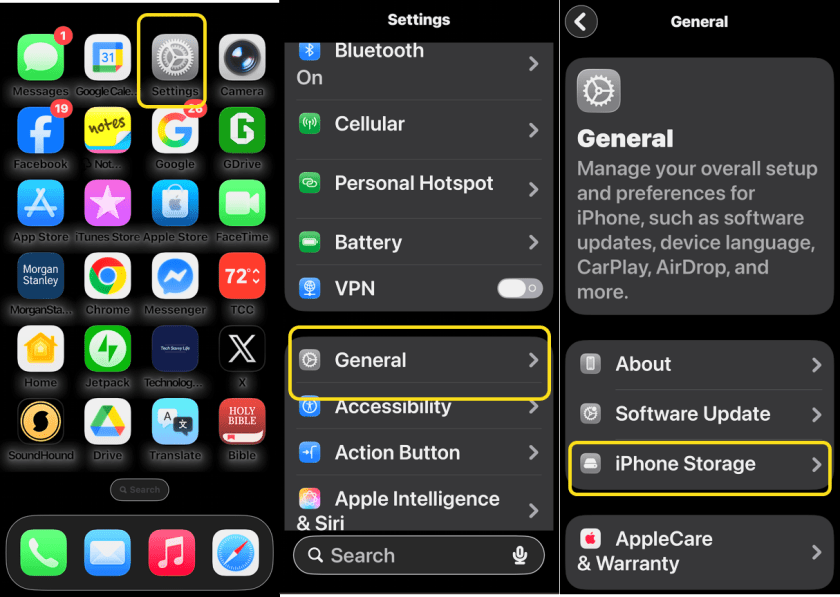
First, let’s examine your iPhone’s storage space. Head to:

Settings > General > iPhone Storage

Refer to the image below:

Deleted Messages 1
Accessing your iPhone Storage

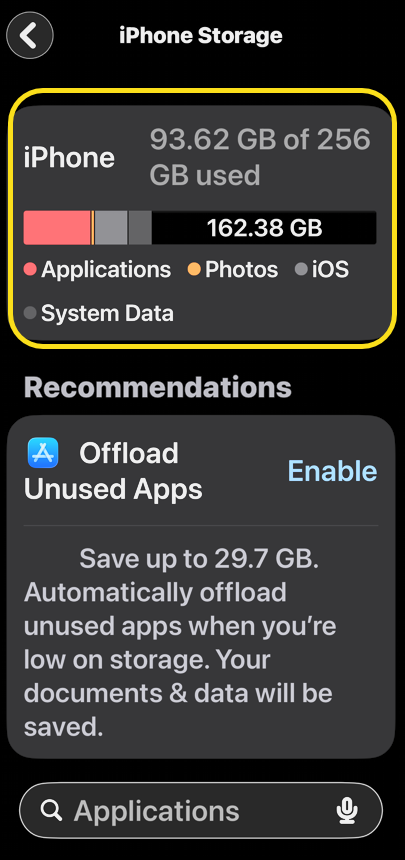
Next, take a screenshot of your iPhone Storage screen. See the image below:

Deleted Messages 2
Your iPhone Storage screenshot

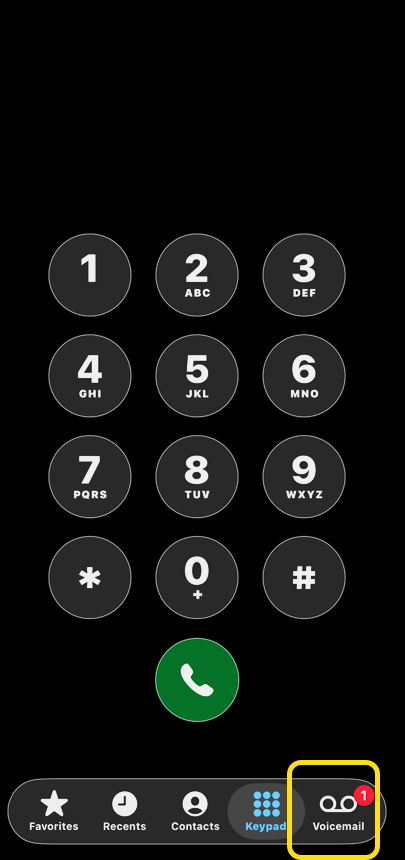
First, open the Phone app, and tap the Voicemail icon. Refer to the image below:

Deleted Messages 3
Selecting your Voicemail icon

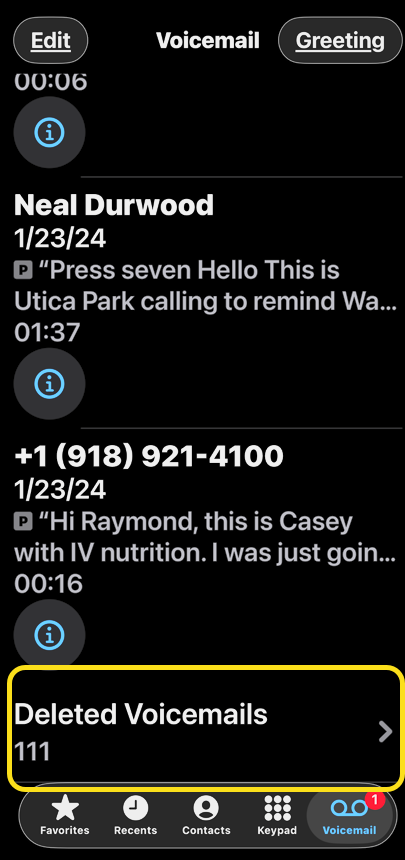
Next, tap Deleted Voicemails at the bottom of your list of voicemails. You may have to scroll down a lot, depending on the number of voicemails you have, to reach the bottom of the list. See the image below:

Deleted Messages 4
Selecting your Deleted Voicemails option

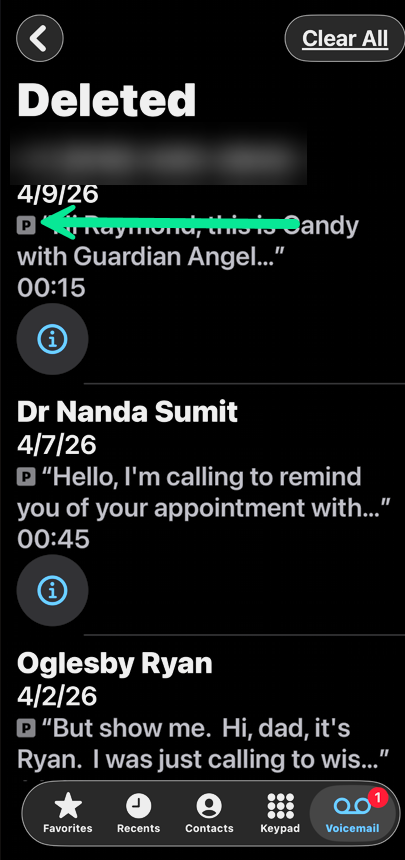
Now, you can delete an individual voicemail by swiping left on it. See the following image:

Deleted Messages 5
Swipe left to select an individual Voicemail

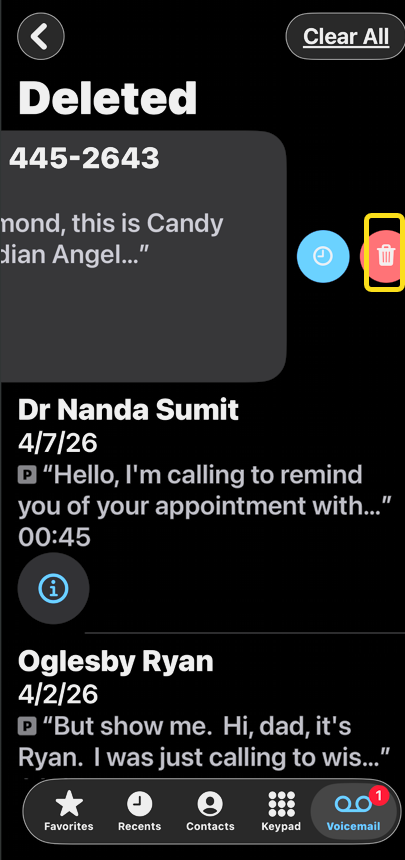
Next, tap the Trash icon to clear it. Refer to the be image below:

Deleted Messages 6
Select the Trash icon to delete the individual Voicemail

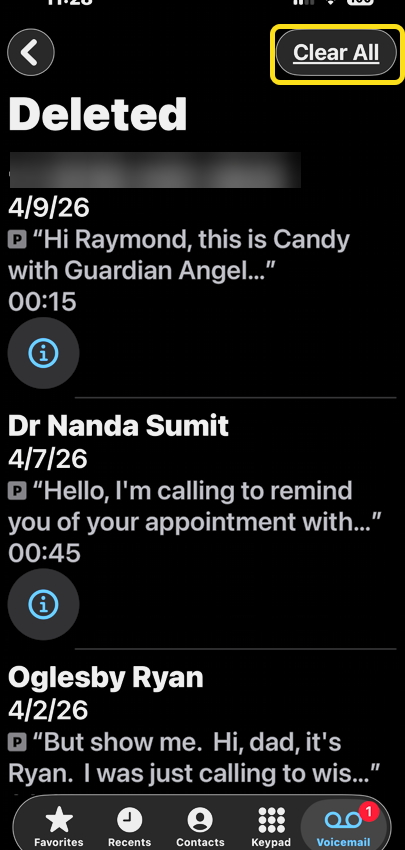
Alternatively, you can delete all your voicemails by tapping Clear All. See the image below:

Deleted Messages 7
Select the Clear All option to delete ALL Voicemails

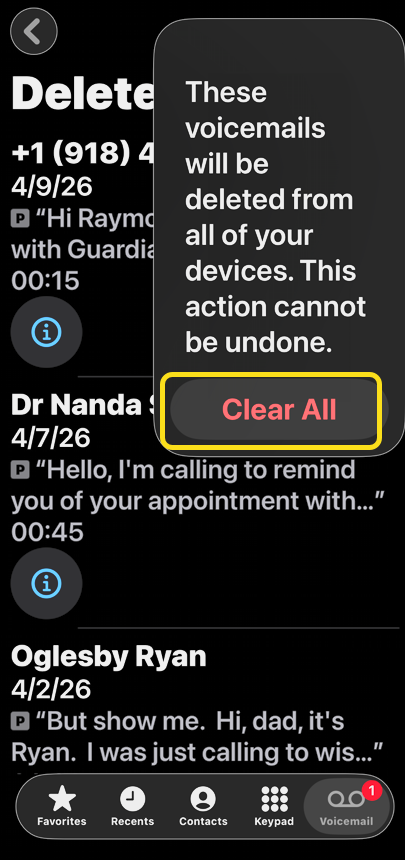
Now, tap Clear All again to confirm. See the following image:

Deleted Messages 8
Confirm you wish to delete ALL Voicemails

Let’s examine your iPhone’s storage space again by following the steps under View Your Storage Space. Hopefully, you increased your storage space.

That’s all there is to it! If someone sends you a voicemail you delete, know that it isn’t gone until it’s been completely cleared. This is reassuring if you accidentally deleted a priceless, hilarious voicemail from a friend. Depending on your cellular provider, the Deleted Voicemails folder might not automatically Clear All voicemails. If your carrier does not automatically clear your voicemails, you will have to do it manually.

Technology is constantly evolving, and smartphone and desktop tech rarely remains static. Therefore, the information in this post is only accurate as of the date it was written. Blog posts that are older than six months may contain instructions that are no longer compatible with your device or operating system. We hope that the content from previous posts continues to function as intended. Thank you for reading TechSavvy.Life, where technology works for you.

Technological progress has merely provided us with more efficient means for going backwards.

– Aldous Huxley

That’s it. Please feel free to share this post! One way to share is via Twitter.

Just click the Tweet icon below. This will launch Twitter where you click its icon to post the Tweet.

Checkout TechSavvy.Life for blog posts on smartphones, PCs, and Macs! You may email us at contact@techsavvy.life for comments or questions.

We value your feedback! Was this post helpful? Please share your comments with us. If you have a tech question related to your computer or smart device, feel free to reach out. Just send an email to contact@techsavvy.life, and be sure to include the device, app, and version you are using. To assist us further, you can also attach screenshots related to your inquiry.

Author’s eBook

The author’s Vietnam eBook, “Battle for Tra Bong Vietnam: Events and Aftermath,” is available on Kindle devices and the Kindle App for desktop, laptop, and smartphone. The apps are free.
The author’s Vietnam eBook on the Battle for Tra Bong Vietnam: Events and Aftermath

Customizing Apple’s Liquid Glass Design on iOS 26

In 2025, Apple rebranded its operating systems by release year, introducing iOS 26 with a Liquid Glass design. While it enhances aesthetics, some users dislike its transparency, especially in Dark Mode. Apple offers updates to customize this feature, including options to reduce transparency and tweak lighting effects for better usability.

RAYMOND OGLESBY @RaymondOglesby2
April 28, 2026 –4 minutes read time

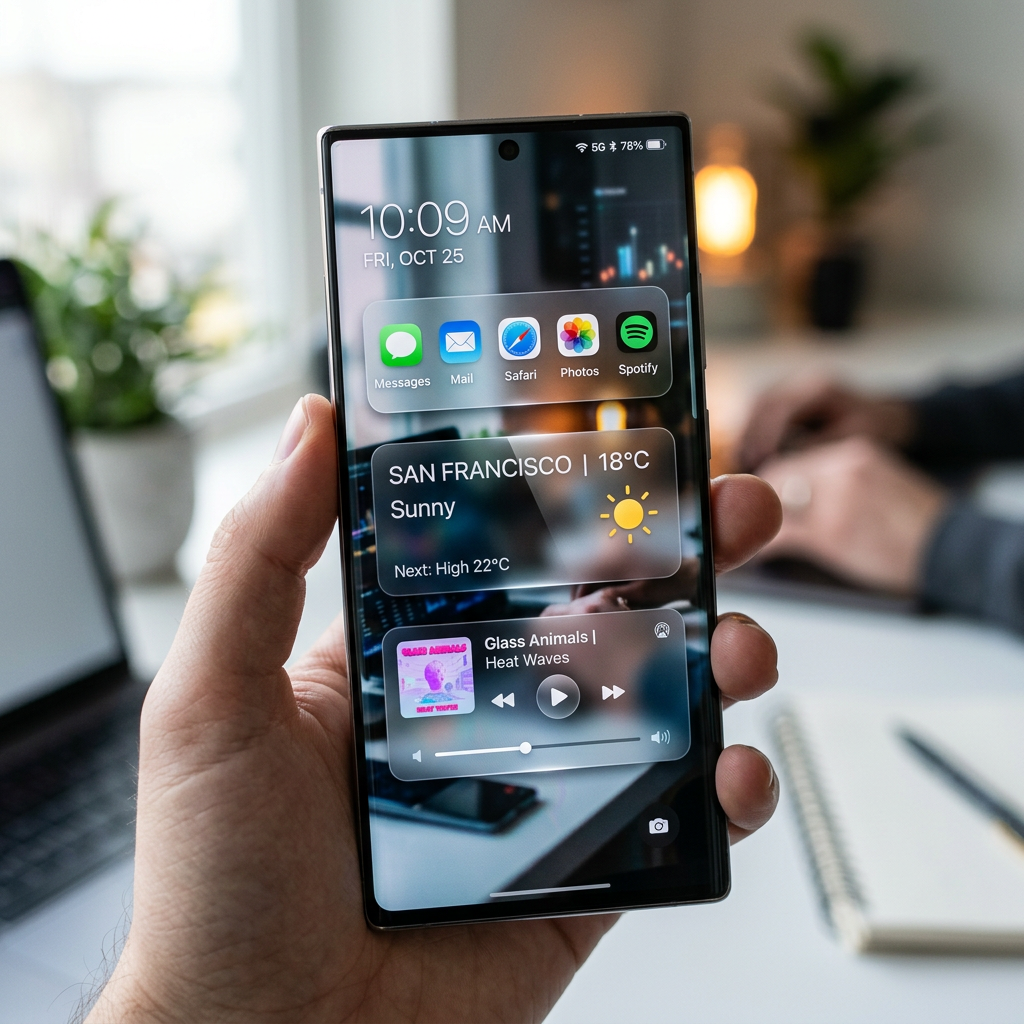
In 2025, Apple changed the naming scheme for its operating systems to align them by release year, so we currently have iOS 26 rather than iOS 19. Tying it all together is the Liquid Glass design, which gives your icons, toolbars, menus, and other elements a translucent appearance, as if you are looking through glass. The problem? Not everyone loves the new look.

Some people have even complained that it makes them feel sick in Dark Mode. Unfortunately, you cannot turn off Liquid Glass, but Apple has released a few OS updates to reduce its transparency, most recently in iOS 26.4. Let’s explore this updated feature.

  • Customize your Lock screen Liquid Glass to your liking.
  • Enhance the appearance of your iPhone or iPad display.

This tip was performed on an iPhone 17 Pro running iOS 26.4.

Click here to learn how to update your iPhone to the latest iOS version.

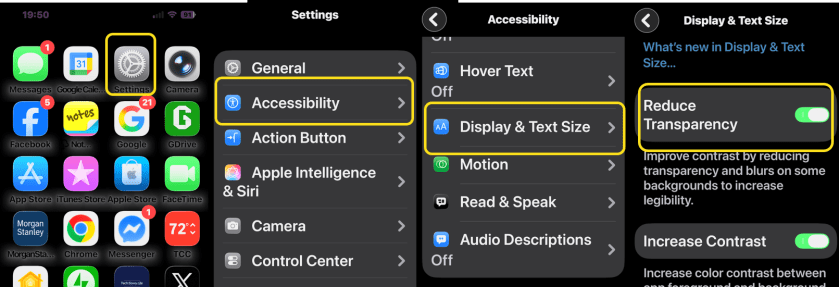
If you want to tone down the effect on an iPhone or iPad, head to:

Settings > Accessibility > Display & Text Size

and enable Reduce Transparency. Now, when you look back at the folders and menus on your Home screen, you should see that the translucent look has been replaced by a more opaque one. Refer to the image below:

Liquid Glass 1

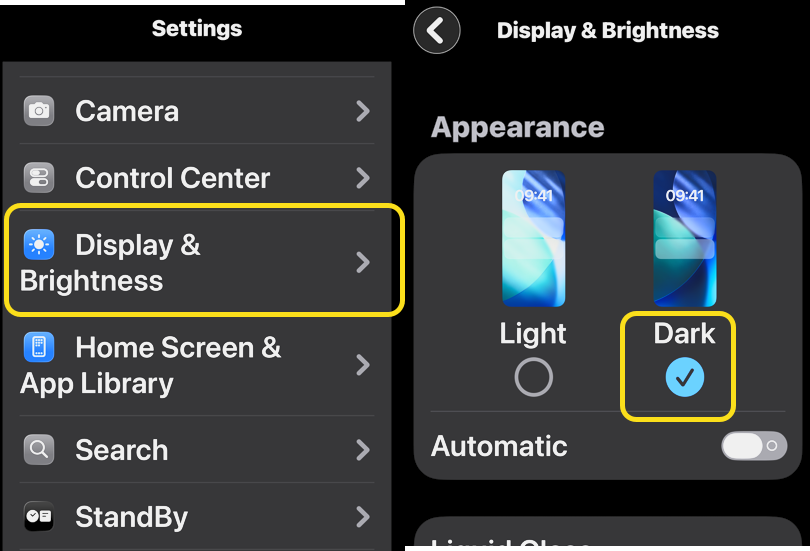
Liquid Glass looks better in Dark Mode instead of Light Mode because it hides much of the new design. To do this on an iPhone or iPad, head to:

 Settings > Display & Brightness

 and set the appearance to Dark. See the image below:

Liquid Glass 2
Enable Dark Mode

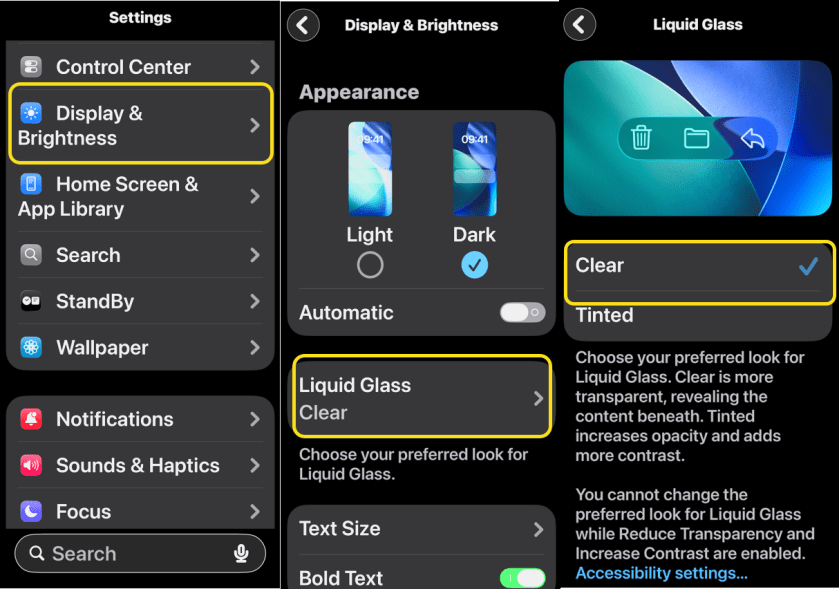
Apple first introduced greater control over the look and feel of the Liquid Glass design with iOS 26.1. To customize, head to:

Settings > Display & Brightness > Liquid Glass

then choose between Clear (more transparent) and Tinted (more opaque). The latter option is recommended if you want more contrast. You can also pair this with Dark Mode for better readability. See the following image:

Liquid Glass 3
Setting your display appearance

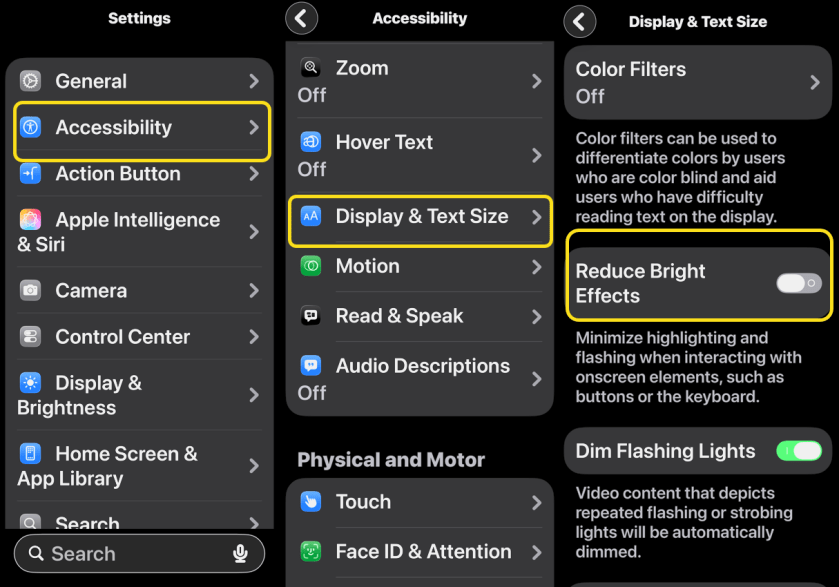
You now have the ability to tone own some of the lighting effects that come with the Liquid Glass redesign. Head to:

Settings > Accessibility > Display & Text Size

then enable Reduce Bright Effects to make the change.

It’s a subtle difference, but one that might help make the theme more tolerable. Refer to the image below:

Liquid Glass 4
Enable Reduce Bright Effects option

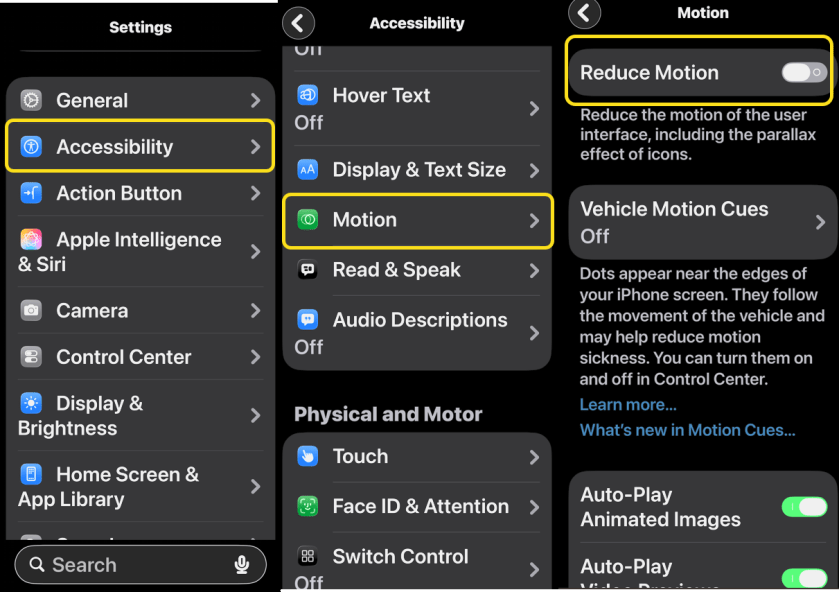
It’s also worth noting that Apple has enhanced its Reduce Motion option to incorporate Liquid Glass effects. Just go to:

Settings > Accessibility > Motion

and enable Reduce Motion. See the image below:

Liquid Glass 5
Enable Reduce Motion option

Technology is constantly evolving, and smartphone and desktop tech rarely remains static. Therefore, the information in this post is only accurate as of the date it was written. Blog posts that are older than six months may contain instructions that are no longer compatible with your device or operating system. We hope that the content from previous posts continues to function as intended. Thank you for reading TechSavvy.Life, where technology works for you.

Technology feeds on itself. Technology makes more technology possible.

 – Alvin Toffler

Yea. You are finished.. Please feel free to share this post! One way to share is via Twitter.

Just click the Tweet icon below. This will launch Twitter where you click its icon to post the Tweet.

Check out TechSavvy.Life for blog posts on smartphones, PCs, and Macs! You may email us at contact@techsavvy.life for comments or questions.

We value your feedback! Was this post helpful? Please share your comments with us. If you have a tech question related to your computer or smart device, feel free to reach out. Just send an email to contact@techsavvy.life, and be sure to include the device, app, and version you are using. To assist us further, you can also attach screenshots related to your inquiry.

Author’s eBook

The author’s Vietnam eBook, “Battle for Tra Bong Vietnam: Events and Aftermath,” is available on Kindle devices and the Kindle App for desktop, laptop, and smartphone. The apps are free.
The author’s Vietnam eBook on the Battle for Tra Bong Vietnam: Events and Aftermath

Quick Guide: Change Wi-Fi on iPhone Easily

The post explains how to efficiently connect to Wi-Fi on iPhones and iPads using the Control Center, offering a quicker alternative to the Settings app. It details the steps for connecting, changing, and disconnecting from Wi-Fi networks. The content emphasizes the importance of an up-to-date iOS for compatibility.

RAYMOND OGLESBY @RaymondOglesby2
April 21, 2026 – 3 minutes read time

Do you know how to connect to Wi-Fi, change the network you are using, and how to turn off Wi-Fi directly from your iPhone or iPad’s Control Center? This method is much quicker than sorting through the Settings app to find available networks.

Connecting to nearby Wi-Fi networks on iPhone is relatively simple. You can do it from the Settings app, or if you have the setting enabled, a pop-up will sometimes appear, asking if you would like to connect to a nearby network. But the quickest way to get Wi-Fi is from your iPhone’s Control Center: Let’s explore how this is done.

  • Quickly open your iPad and iPhone Wi-Fi Settings to turn on or turn off Wi-Fi.
  • Easily access the Wi-Fi network when you arrive at a friend’s house to turn on Wi-Fi on your iPhone or iPad.

This tip was performed on an iPhone 17 Pro running iOS 26.4.

Click here to learn how to update your iPhone to the latest iOS version.

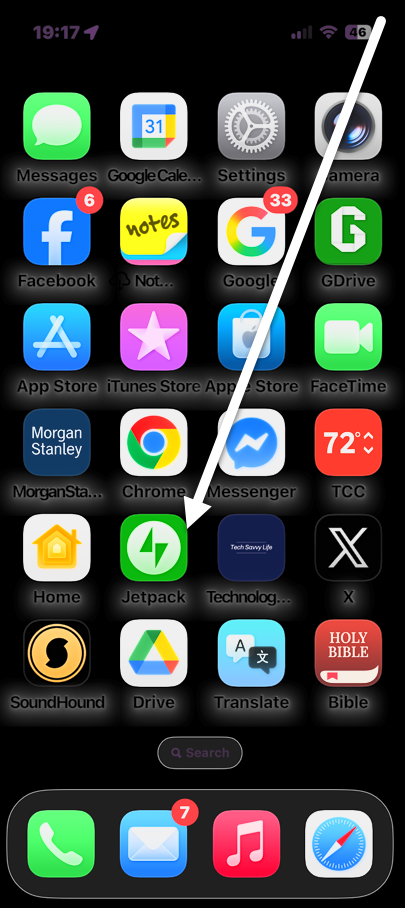
First, swipe down from the upper-right corner to open the Control Center. Refer to the image below:

WiFi 1
Accessing the Control Center

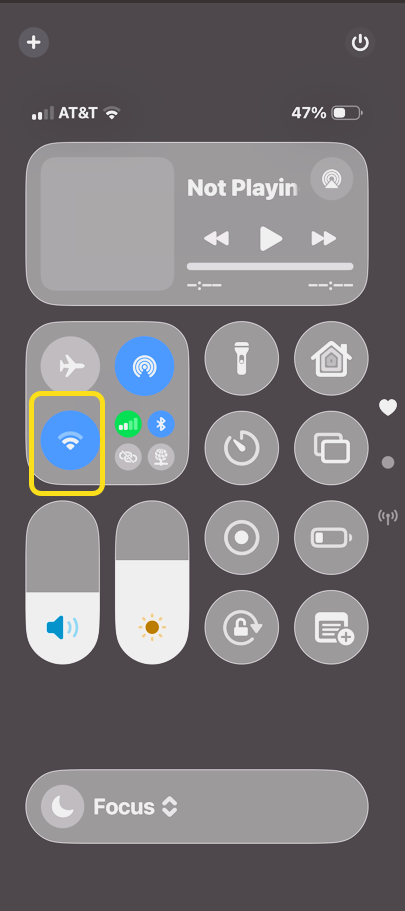
Next, tap and hold the Wi-Fi icon. See the image below:

WiFi 2
Selecting the Wi-Fi icon

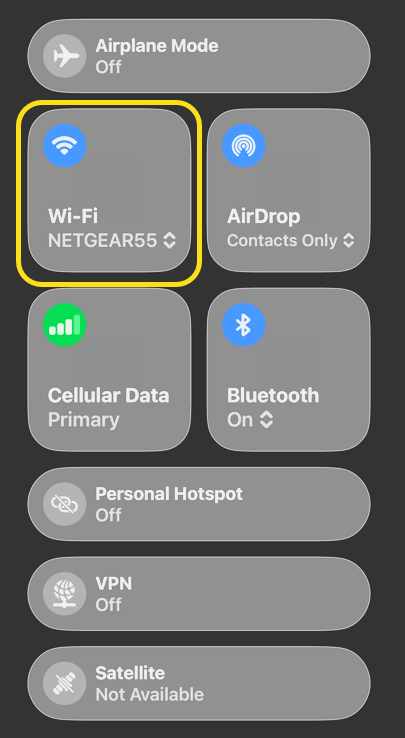
Now, tap the Wi-Fi option. See the following image:

WiFi 3
Selecting the Wi-Fi option

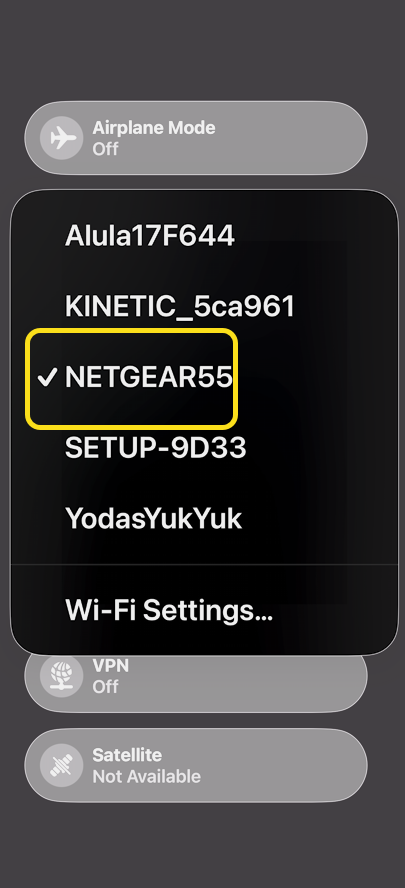
Next, select your Wi-Fi network. Refer to the image below:

WiFi 4
Selecting a Wi-Fi network.

Now you know how to connect to the internet using a Wi-Fi network. You might need to enter a password before you can connect your iPhone to Wi-Fi, but your device will remember the username and password once you’ve joined a network, so all you will need to do next time is tap the name in the Wi-Fi menu to join. Any time you’d like to change the Wi-Fi network you are using, follow the same steps, and tap a different option on the Wi-Fi network list. You can also use these steps to disconnect your iPhone or iPad from a Wi-Fi network.

Now you know how to quickly get a Wi-Fi connection on your iPhone or iPad.

Technology is constantly evolving, and smartphone and desktop tech rarely remains static. Therefore, the information in this post is only accurate as of the date it was written. Blog posts that are older than six months may contain instructions that are no longer compatible with your device or operating system. We hope that the content from previous posts continues to function as intended. Thank you for reading TechSavvy.Life, where technology works for you.

Technology… the knack of so arranging the world that we don’t have to experience it.

– Max Frisch

That’s it. Please feel free to share this post! One way to share is via Twitter.

Just click the Tweet icon below. This will launch Twitter where you click its icon to post the Tweet.

Checkout TechSavvy.Life for blog posts on smartphones, PCs, and Macs! You may email us at contact@techsavvy.life for comments or questions.

We value your feedback! Was this post helpful? Please share your comments with us. If you have a tech question related to your computer or smart device, feel free to reach out. Just send an email to contact@techsavvy.life, and be sure to include the device, app, and version you are using. To assist us further, you can also attach screenshots related to your inquiry.

Author’s eBook

The author’s Vietnam eBook, “Battle for Tra Bong Vietnam: Events and Aftermath,” is available on Kindle devices and the Kindle App for desktop, laptop, and smartphone. The apps are free.
The author’s Vietnam eBook on the Battle for Tra Bong Vietnam: Events and Aftermath

How to Enable Emergency Bypass on Your iPhone

Emergency Bypass on iPhone allows priority contacts to reach you during Focus modes, like Sleep, ensuring essential calls and texts come through. To set it up, edit a contact in the Contacts app, enable Emergency Bypass for both Ringtone and Text Tone, and save the changes.

IRAYMOND OGLESBY @RaymondOglesby2
April 14, 2026 – 4 minutes read time

What is emergency bypass on iPhone? Emergency Bypass allows specific contacts to reach you even when you have certain Focus enabled, such as Sleep Focus. When Emergency Bypass is enabled, your phone will still ring even when you have a Focus enabled to silence calls and texts. Here’s how to bypass your Focus settings or Silent mode with Emergency Bypass, so important contacts can still reach you in emergencies, regardless of other enabled settings.

Note!! This is a must-do tip you want to set up.

  • Use the Emergency Bypass iPhone feature to designate priority contacts on your iPhone.
  • Priority contacts on your iPhone can call, text, or both with Do Not Disturb on, so you are never out of touch.

This tip was performed on an iPhone 17 Pro running iOS 26.3.

Click here to learn how to update your iPhone to the latest iOS version.

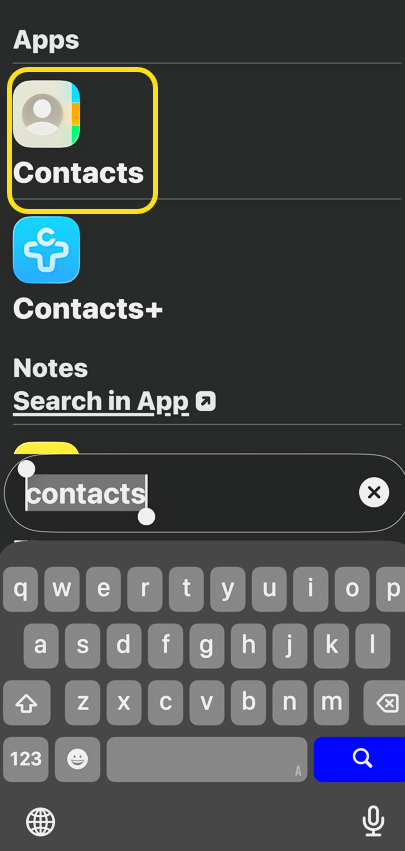
First, open the Contacts app or search for the app. Refer to the image below:

Emerg Bypass 1
Selecting the Contacts app

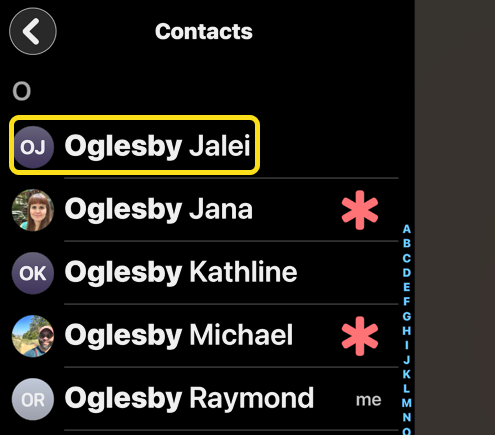
Next, tap the contact you want to designate as an emergency contact who can reach you even when you have a Focus, such as Sleep, turned on. See the image below:

Note! If the contact has an asterisk to the right of the name, that person is already an emergency contact.

Emerg Bypass 2
Selecting a Contact

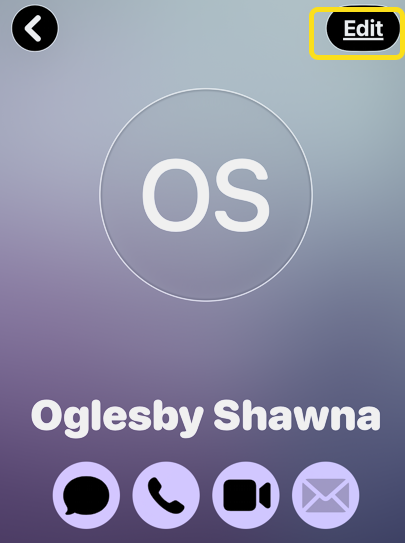
Next, tap Edit in the top right corner. See the following image:

Emerg Bypass 4
Selecting to Edit the contact

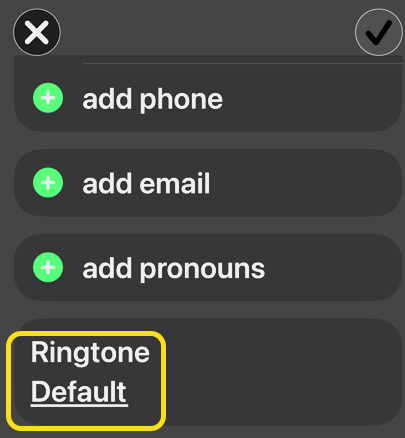
Now, tap  Ringtone. Refer to the image below:

Emerg Bypass 4
Selecting the Ringtone option

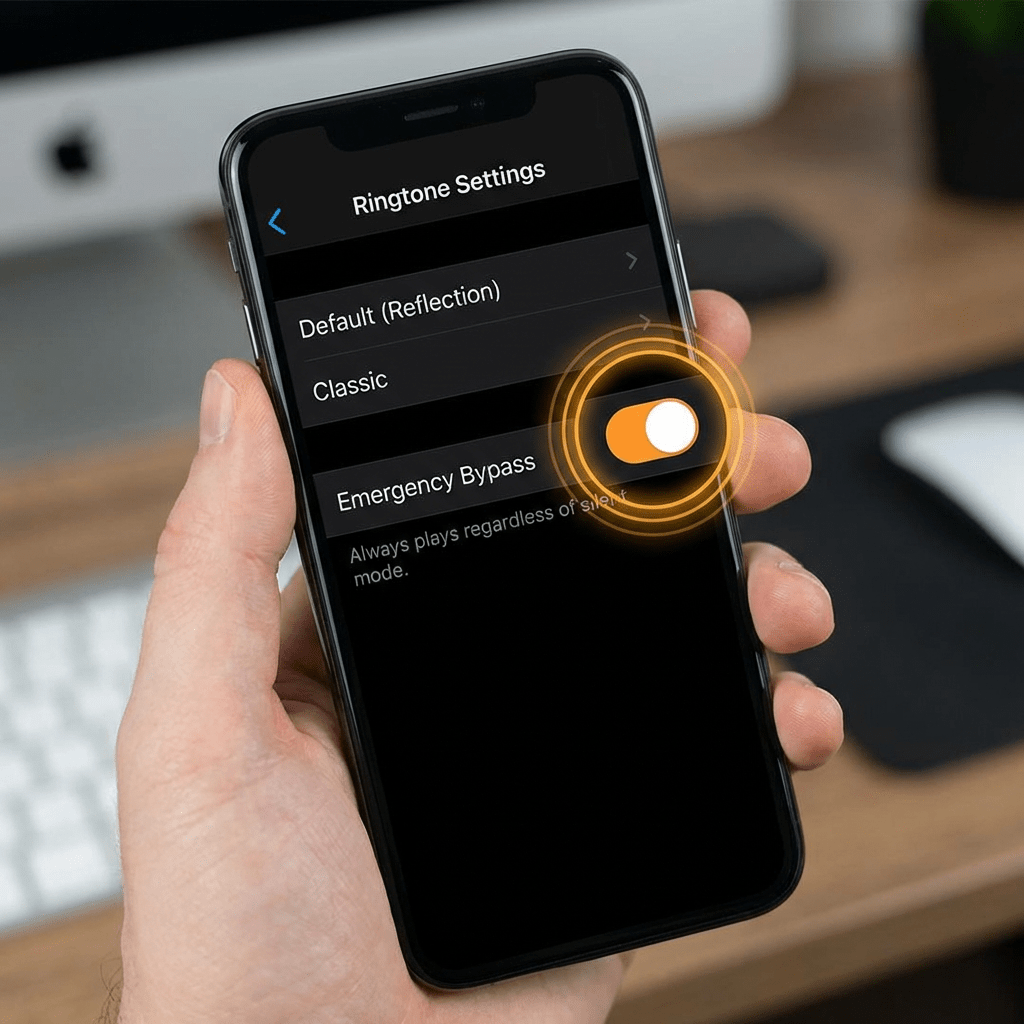
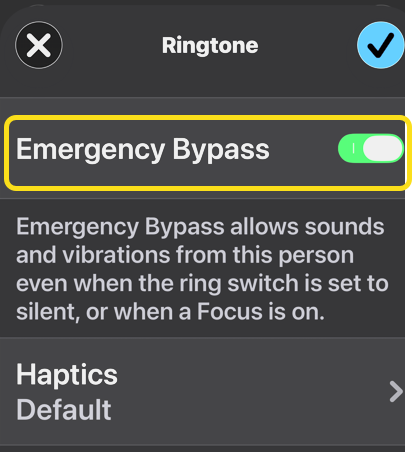
Next, toggle on Emergency Bypass. This will allow phone calls from that person to always go through. See the image below:

Emerg Bypass 5
Enabling the Emergency Bypass toggle

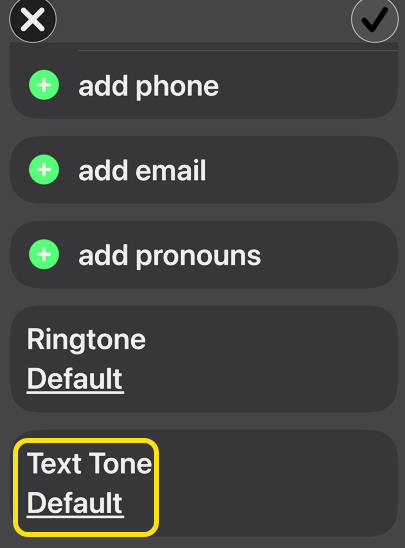
Now, repeat these steps for Text Tone to allow texts to bypass your Focus status as well. See the following image:

Emerg Bypass 6
Selecting the Text Tone option

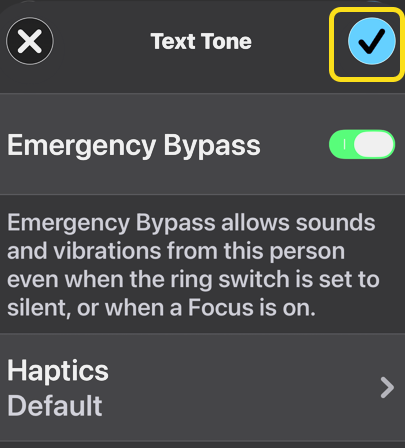
Next, tap the checkmark icon when you are done. Refer to the image below:

Emerg Bypass 7
Tapping the Done checkmark

Now, when you tap the checkmark, the contact will have Emergency Bypass On for Rungtone and Text Tone. See the image below:

Emerg Bypass 8
Emergency Bypass is now on for the contact

Now you know how to set an Emergency Bypass contact on iPhone to let priority contacts on iPhone contact you even when you have a Focus mode set. You can repeat these steps for all the emergency bypass contacts you would like to add.

Technology is constantly evolving, and smartphone and desktop tech rarely remains static. Therefore, the information in this post is only accurate as of the date it was written. Blog posts that are older than six months may contain instructions that are no longer compatible with your device or operating system. We hope that the content from previous posts continues to function as intended. Thank you for reading TechSavvy.Life, where technology works for you.

The art challenges the technology, and the technology inspires the art.

 – John Lasseter

That’s it. Please feel free to share this post! One way to share is via Twitter.

Just click the Tweet icon below. This will launch Twitter where you click its icon to post the Tweet.

Checkout TechSavvy.Life for blog posts on smartphones, PCs, and Macs! You may email us at contact@techsavvy.life for comments or questions.

We value your feedback! Was this post helpful? Please share your comments with us. If you have a tech question related to your computer or smart device, feel free to reach out. Just send an email to contact@techsavvy.life, and be sure to include the device, app, and version you are using. To assist us further, you can also attach screenshots related to your inquiry.

Author’s eBook

The author’s Vietnam eBook, “Battle for Tra Bong Vietnam: Events and Aftermath,” is available on Kindle devices and the Kindle App for desktop, laptop, and smartphone. The apps are free.
The author’s Vietnam eBook on the Battle for Tra Bong Vietnam: Events and Aftermath

Customize Your iPhone Lock Screen Shortcuts

You can now customize your iPhone Lock Screen shortcuts by swapping the default flashlight or camera icons with shortcuts like the timer or alarm app. This feature allows for quicker access to preferred apps without unlocking your device, though changes must be made for each Lock Screen individually.

RAYMOND OGLESBY @RaymondOglesby2
April 7, 2026 – 4 minutes read time

If you have ever wanted to customize the shortcut buttons at the bottom of your Lock Screen, you are in luck! You can now swap out your iPhone Flashlight shortcut or Camera shortcut to pretty much any shortcut of your choosing.

With the addition of the Action button and now Camera Control buttons, the usefulness of having your Camera and Flashlight as your Lock Screen shortcuts is rapidly waning. Fortunately, you can swap these shortcuts out for different options.

It’s important to note that the shortcut will only be for that Lock Screen. If you have multiple Lock Screens, the others will have the a Flashlight and Camera defaults unless you manually change them.

Note! you can only swap out the default icons; not add new ones. (Sad, come on Apple, add this feature!). But you can add app shortcuts (widgets) below the Clock area.

  • Swap out the default flashlight and camera controls for other shortcuts, like the timer or alarm app.
  • Keep your favorite shortcuts right on your Lock Screen.
  • Access apps or actions quickly without unlocking your iPhone.

Let’s explore how to swap out the default Lock Screen shortcuts on your iPhone.

This tip was performed on an iPhone 17 Pro running iOS 26.3.

Click here to learn how to update your iPhone to the latest iOS version.

First, long-press on your Lock Screen. Refer to the image below:

LS Shortcuts 1
Long press on the lock screen

Now, tap Customize. See the image below:

LS Shortcuts 2
Tap the Customize button

Next, tap the minus symbol on the top left corner of the shortcut you want to replace. See the following image:

LS Shortcuts 3
Tap a shortcut icon

Now, tap the plus icon where the shortcut just was. Refer to the image below:

LS Shortcuts 4
Tap the shortcut icon plus sign

Next, scroll through your new shortcut options and tap the shortcut you want to add. See the image below:

LS Shortcuts 5
Select a shortcut control

Now, tap Done to finalize your Lock Screen. See the following image:

LS Shortcuts 6
Tap Done when finished

Next, you can now tap that iPhone Lock Screen shortcut to launch the new app or function you selected. Refer to the image below:

LS Shortcuts 7
Tap on your new shortcut icon to open

That’s how to change shortcuts on iPhone Lock Screen. These can easily be swapped out by following this same step procedure each time. Remember, you’ll have to do it individually for each Lock Screen.

Technology is constantly evolving, and smartphone and desktop tech rarely remains static. Therefore, the information in this post is only accurate as of the date it was written. Blog posts that are older than six months may contain instructions that are no longer compatible with your device or operating system. We hope that the content from previous posts continues to function as intended. Thank you for reading TechSavvy.Life, where technology works for you.

Technological progress has merely provided us with more efficient means for going backwards.

– Aldous Huxley

That’s it. Please feel free to share this post! One way to share is via Twitter.

Just click the Tweet icon below. This will launch Twitter where you click its icon to post the Tweet.

Checkout TechSavvy.Life for blog posts on smartphones, PCs, and Macs! You may email us at contact@techsavvy.life for comments or questions.

We value your feedback! Was this post helpful? Please share your comments with us. If you have a tech question related to your computer or smart device, feel free to reach out. Just send an email to contact@techsavvy.life, and be sure to include the device, app, and version you are using. To assist us further, you can also attach screenshots related to your inquiry.

Author’s eBook

The author’s Vietnam eBook, “Battle for Tra Bong Vietnam: Events and Aftermath,” is available on Kindle devices and the Kindle App for desktop, laptop, and smartphone. The apps are free.

The author’s Vietnam eBook on the Battle for Tra Bong Vietnam: Events and Aftermath

Quick Access: View Notifications on iPhone Lock Screen

The article discusses how to quickly view notifications from the Lock screen on an iPhone 17 Pro running iOS 26.3. It outlines two methods: swiping up on the Lock screen or tapping the unread notification count. Additionally, it provides a setup guide for enabling notification previews.

RAYMOND OGLESBY @RaymondOglesby2
March 24, 2026 – 3 minutes read time

Want to view notifications fast? There are two ways of doing this from your Lock screen. We used to open my iPhone to view notifications; now there’s a faster way. Let’s explore this nifty feature.

View your notifications quickly.
See the number of unread notifications from the Lock screen.

This tip was performed on an iPhone 17 Pro running iOS 26.3.

Click here to learn how to update your iPhone to the latest iOS version.

First, open Settings, then tap Notifications. Refer to the image below:

Notifications 1
Selecting the Notifications option

Next, under Display As, tap on the Count option. See the below image;

Notifications 2
Selecting the Count option

Now, scroll down to Notification Style section and tap on the Mail option. See the following image

Notifications 3
Selecting the Mail option

Next, on your Mail screen:

Enable Allow Notifications toggle
Checkmark Notification Cebter toggle
Enable Badges toggle

Refer to the image below:

Notifications 4
Enabling three items

Now, under Settings, tap Face ID & Passcode option. See the image below:

Notifications 6
Selecting the Face ID & Passcode option

Next, enable the Notification Center toggle. See the following image:

Notifications 7
Enabling the NotificationCenter toggle

Now that you have finished the setup process, there are two ways to view your notifications on the Lock screen. On your activated Lock screen, hold your finger near the bottom and slowly swipe up until the Notification Center appears. Refer to the image below:

Notifications 5
Slowly swipe up to reveal Notification Center

Or if you have unread Notifications, the number will be displayed at the bottom of your Lock screen. Just tap on it to view your notifications. See the image below:

Notifications 8
Tap on Notification to reveal the Notification Center

Technology is constantly evolving, and smartphone and desktop tech rarely remains static. Therefore, the information in this post is only accurate as of the date it was written. Blog posts that are older than six months may contain instructions that are no longer compatible with your device or operating system. We hope that the content from previous posts continues to function as intended. Thank you for reading TechSavvy.Life, where technology works for you.

We are stuck with technology when what we really want is just stuff that works.

– Douglas Adams

– Douglas AdamsThat’s it. Please feel free to share this post! One way to share is via Twitter.

Just click the Tweet icon below. This will launch Twitter where you click its icon to post the Tweet.

Checkout TechSavvy.Life for blog posts on smartphones, PCs, and Macs! You may email us at contact@techsavvy.life for comments or questions.

We value your feedback! Was this post helpful? Please share your comments with us. If you have a tech question related to your computer or smart device, feel free to reach out. Just send an email to contact@techsavvy.life, and be sure to include the device, app, and version you are using. To assist us further, you can also attach screenshots related to your inquiry.

Author’s eBook

The author’s Vietnam eBook, “Battle for Tra Bong Vietnam: Events and Aftermath,” is available on Kindle devices and the Kindle App for desktop, laptop, and smartphone. The apps are free.
The author’s Vietnam eBook on the Battle for Tra Bong Vietnam: Events and Aftermath

Quick Guide to Sharing Contacts on iPhone

The post explains how to easily share iPhone contacts through the Contacts app without the need for manual entry. Users can customize which parts of the contact card to share and choose various sharing methods like email or AirDrop. It emphasizes simplicity and efficiency in sharing contact information.

RAYMOND OGLESBY @RaymondOglesby2
March 3, 2026 – 3 minutes read time

You can share iPhone contacts (also known as a contact card) directly from the Contacts app on your iPhone, and it does not involve copying and pasting or tediously typing it out!

When you add people to your contacts, a contact card is automatically created on your iPhone for each contact so that all of the contact’s information is grouped into one place. This makes it simple to share or send a contact on iPhone. Let’s explore how to share a contact on iPhone.

  • Learn how to share contacts on iPhone so you can send your own or someone else’s contact card; no more typing out numbers!
  • Customize which parts of the contact card you want to share; you can leave off the email address, phone number, first name, and/or last name.

This tip was performed on an iPhone 17 Pro running iOS 26.2.1.

Click here to learn how to update your iPhone to the latest iOS version.

First, open the Contacts app. In our example, we are selecting a contact group from Contacts. Refer to the image below:

Contacts 1
Opening your Contacts app

Next, tap the contact you wish to share. See the image below:

Contacts 2
Selecting a contact

Now, tap Share Contact. See the following image:

Contacts 3
Selecting the Share Contact option

Next, tap the blue dot next to any part of the contact card you do NOT wish to share, then tap the check mark in the blue circle at upper right. Refer to the image below:

Contacts 4
Unselect items you do NOT want to share and save your results

Now, tap a sharing method, such as email, text message, AirDrop, and more. See the image below:

Contacts 5
Selecting a sharing method

Next, choose a recipient and tap the Send icon to share the contact. See the following image:

Contacts 6
Selecting a recipient and sending the contact info

Now you know how to send contact information on iPhone to recipients using the contact card on your phone! It’s never been easier to share a contact on iPhone.

Technology is constantly evolving, and smartphone and desktop tech rarely remains static. Therefore, the information in this post is only accurate as of the date it was written. Blog posts that are older than six months may contain instructions that are no longer compatible with your device or operating system. We hope that the content from previous posts continues to function as intended. Thank you for reading TechSavvy.Life, where technology works for you.

It’s supposed to be automatic, but actually, you have to push this button.

– John Brunner

That’s it. Please feel free to share this post! One way to share is via Twitter.

Just click the Tweet icon below. This will launch Twitter where you click its icon to post the Tweet.

Checkout TechSavvy.Life for blog posts on smartphones, PCs, and Macs! You may email us at contact@techsavvy.life for comments or questions.

We value your feedback! Was this post helpful? Please share your comments with us. If you have a tech question related to your computer or smart device, feel free to reach out. Just send an email to contact@techsavvy.life, and be sure to include the device, app, and version you are using. To assist us further, you can also attach screenshots related to your inquiry.

Author’s eBook

The author’s Vietnam eBook on the “Battle for Tra Bong Vietnam: Events and Aftermath” can be accessed from a Kindle device or the Kindle App for a desktop or smartphone. The apps are free.
The author’s Vietnam eBook on the Battle for Tra Bong Vietnam: Events and Aftermath

Improve iPhone Text Size for Better Readability

This post offers guidance on enhancing readability on iPhones and iPads through accessibility settings. Users can learn to bold text, adjust size, and add navigation aids like button borders and on/off labels. The tutorial outlines steps for changing these settings, ensuring a more user-friendly experience for visually impaired individuals.

RAYMOND OGLESBY @RaymondOglesby2
February 10, 2026 – 4 minutes read time

Are you tired of squinting while looking at content on your iPhone? Good news! You can change the display and text size on your iPhone and iPad for easier readability.

Apple’s accessibility settings allow individuals to customize their display settings so they can more easily navigate and view content on their devices. Follow the steps below to learn how to bold text on your iPhone and iPad, change text size, and add button shapes and toggle labels.

  • Make text larger and bolded for easier readability of text messages, emails, and more.
  • Add borders to buttons and on/off labels to toggles for easier navigation.

This tip was performed on an iPhone 17 Pro running iOS 26.2.

Click here to learn how to update your iPhone to the latest iOS version.

First, open the Settings app. Refer to the image below:

Font 1
Accessing Settings

Next scroll down and tap Accessibility. See the image below:

Font 2
Selecting the Accessibility option

Now, tap Display & Text Size. See the following image:

Font 3
Selecting the Display & Text Size option

Next, if you want the text on your iPhone or iPad to be bolded, tap the Bold Text toggle to enable it. The toggle is green when enabled. Refer to the image below:

Font 4
Enabling the Bold Text toggle

Now, to change the text size, tap Larger Text.See the image below:

Font 5
Selecting the Larger Text option

Next, tap to enable the Larger Accessibility Sizes toggle. Once enabled, apps that allow you to change the text size will display your preferred font size. See the following image:

Font 6
Enabling the Larger Accessibility Sizes toggle

Now, once you have set your preferred font size, tap the back icon to return to main Display & Text Size menu. Refer to the image below:

Font 8
Go back to main screen

Next. to set your preferred text size, drag the slider left to decrease font size or right to increase font size. See the image below:

Font 7
Drag the slider to increase or decrease font size

Now, if you want to add on/off labels to toggles, you can also tap to enable the On/Off Labels toggle. The “I” indicates the toggle is on, and “O” indicates it is off. See the following image:

Font 9
Enabling the On/Off Labels toggle

Finally, you can toggle on Show Borders (our favorite) to get thin borders around buttons that would otherwise lack a clear border. Refer to the image below:

Font 10
Enabling the Show Borders option

Technology is constantly evolving, and smartphone and desktop tech rarely remains static. Therefore, the information in this post is only accurate as of the date it was written. Blog posts that are older than six months may contain instructions that are no longer compatible with your device or operating system. We hope that the content from previous posts continues to function as intended. Thank you for reading TechSavvy.Life, where technology works for you.

The most technologically efficient machine that man has ever invented is the book.

– Northrop Frye

You are finished. Please feel free to share this post! One way to share is via Twitter.

Just click the Tweet icon below. This will launch Twitter where you click its icon to post the Tweet.

Checkout TechSavvy.Life for blog posts on smartphones, PCs, and Macs! You may email us at contact@techsavvy.life for comments or questions.

We value your feedback! Was this post helpful? Please share your comments with us. If you have a tech question related to your computer or smart device, feel free to reach out. Just send an email to contact@techsavvy.life, and be sure to include the device, app, and version you are using. To assist us further, you can also attach screenshots related to your inquiry.

AAuthor’s eBook

The author’s Vietnam eBook on the “Battle for Tra Bong Vietnam: Events and Aftermath” can be accessed on a Kindle device or the Kindle App for a desktop or smartphone. The apps are free.
The author’s Vietnam eBook on the Battle for Tra Bong Vietnam: Events and Aftermath

How to Control Background App Refresh on iPhone

Background App Refresh can consume data and battery life on your device. Users can optimize its usage by enabling it only when connected to Wi-Fi. This setting helps preserve cellular data and battery life while keeping apps up-to-date when needed. Instructions for adjusting these settings are provided for iPhone users.

RAYMOND OGLESBY @RaymondOglesby2
February 3 , 2026 – 4 minutes read time

Background App Refresh can siphon off your data and battery without you noticing. But you can choose to turn Background App Refresh on only when your device is connected to Wi-Fi. That way, you can enjoy the perks of the feature without worrying about how much data it’s using.

For years, it has been recommended to turn off Background App Refresh on your device to save battery life and cellular data. Background App Refresh automatically refreshes apps you have open in the background, so when you go back to them, the page is already up to date and loaded. This can consume data and battery life. Here’s how to set background app refresh to Wi-Fi only on iPhone.

Note! All iPhone users should setup this tip. Why Apple does not make this the default is beyond us.

  • Save battery life by preventing apps from constantly refreshing.
  • Ensure you do not use up extra cellular data by allowing apps to refresh only over Wi-Fi.

This tip was performed on an iPhone 17 Pro running iOS 26.2.

Click here to learn how to update your iPhone to the latest iOS version.

First, open Settings, and select General. Refer to the image :

Refresh 1
Selecting the General option

Next, tap Background App Refresh. See the image below:

Refresh 2
Selecting the Background App Refresh option

Now, select Background App Refresh again. See the following image:

Refresh 3
Selecting the Background App Refresh option again

Next, select Wi-Fi to turn on Background App Refresh only when your device is connected to Wi-Fi. Refer to the image below:

Refresh 4
Turning Wi-Fi on

Now, you can enable/disable background refresh per app by tapping its toggle. see the image below:

efresh 5
Disable Background App Refresh

That’s how to adjust the settings for background app refresh on iPhone. If you want to know how to turn off background app refresh completely, just select Off in the last step. This is a good option if you do not want your apps updating without you knowing. This can stop updates you actually do not want from being installed on your phone (which can be a huge advantage), but it will be annoying when you open an app you need to use now, only to get a notification that you will have to update before you can use it.

Technology is constantly evolving, and smartphone and desktop tech rarely remains static. Therefore, the information in this post is only accurate as of the date it was written. Blog posts that are older than six months may contain instructions that are no longer compatible with your device or operating system. We hope that the content from previous posts continues to function as intended. Thank you for reading TechSavvy.Life, where technology works for you.

Our technological powers increase, but the side effects and potential hazards also escalate.

. – Alvin Toffler

That’s it. Please feel free to share this post! One way to share is via Twitter.

Just click the Tweet icon below. This will launch Twitter where you click its icon to post the Tweet.

Checkout TechSavvy.Life for blog posts on smartphones, PCs, and Macs! You may email us at contact@techsavvy.life for comments or questions.

We value your feedback! Was this post helpful? Please share your comments with us. If you have a tech question related to your computer or smart device, feel free to reach out. Just send an email to contact@techsavvy.life, and be sure to include the device, app, and version you are using. To assist us further, you can also attach screenshots related to your inquiry.

Author’s eBook

The author’s Vietnam eBook on the “Battle for Tra Bong Vietnam: Events and Aftermath” can be accessed from a Kindle device or the Kindle App for a desktop or smartphone. The apps are free.
The author’s Vietnam eBook on the Battle for Tra Bong Vietnam: Events and Aftermath