How to Setup Screen Time on iPhone

Apple has tools to help you track your iPhone usage. Apple’s Screen Time settings include a bunch of handy things to help you foster healthy phone habits. That includes setting limits for how much you can use apps and checking up on your screen time.

RAYMOND OGLESBY @RaymondOglesby2
December 1, 2021

Apple has tools to help you track your iPhone usage. Apple’s Screen Time settings include a bunch of handy things to help you foster healthy phone habits. That includes setting limits for how much you can use apps and checking up on your screen time. Let’s explore this feature.

This is for the iPhone

Dilbert and Firing
Copyright Scott Adams, Inc./Distributed by Universal Uclick for UFS

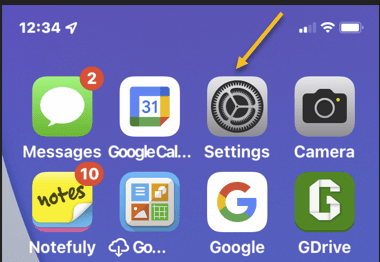
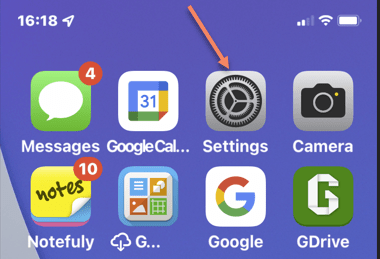
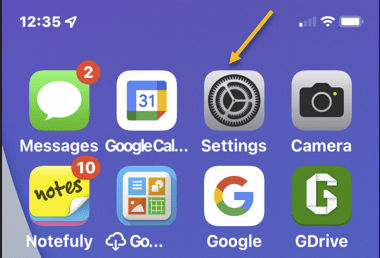
First, launch the Settings app from the Home screen. Refer to the below image:

Screen Time 1
Accessing Settings app

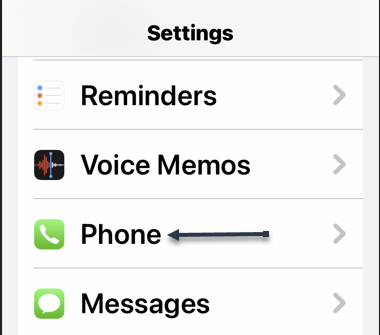
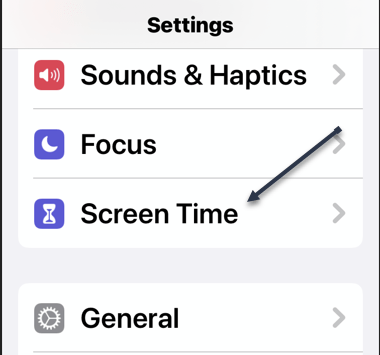
Next, scroll down to Screen Time. See the below image:

Screen Time 2
Selecting Screen Time option

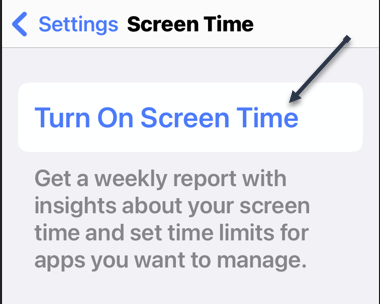
Now, you will need to turn on Screen Time. Tap Turn On Screen Time to proceed. See the following image:

Screen Time 3
Enabling Screen Time

Next, a pop-up will appear with information about what you can do with Screen Time. Tap the Continue button at the bottom of the screen. Refer to the below image:

Screen Time 4
Verbiage about Screen Time

Now, you can choose whether this is your iPhone or your child’s iPhone. For this post, , we are focusing on checking your own Screen Time. See the below image:

Screen Time 5
Selecting which phone for Screen Time

Next, Screen Time usage is only recorded after you opt-in to the feature. You will not be able to retroactively view past screen time data. However, once you use your phone for a while, you will see data in the chart. Tap See All Activity for a deeper breakdown. See the following image:

Screen Time 6
Your Screen Time stats

Now, you will see the apps that are taking up that Screen Time. Refer to the below image:

Screen Time 7
Your Screen Time Most Used apps

To turn off Screen Time, navigate to:

Settings > Screen Time

and scroll down to the bottom. Here, tap on the Turn Off Screen Time option. Note! all your Screen Time stats will be reset.

This is a quick and easy way to get a glimpse at how you are using your phone. These numbers can be surprising to some people.

Quote For the Day

You can’t just ask customers what they want and then try to give that to them. By the time you get it built, they’ll want something new.

Steve Jobs

That’s it. Please feel free to share this post! One way to share is via Twitter.

Just click the Tweet icon below. This will launch Twitter where you click its icon to post the Tweet.

Check out TechSavvy.Life for blog posts on smartphones, PCs, and Macs! You can email us at contact@techsavvy.life for comments or questions.

I Would Like to Hear From You

Please feel free to leave a comment. I would love hearing from you. Do you have a computer or smart device tech question? I will do my best to answer your inquiry. Just send an email to contact@techsavvy.life. Please mention the device, app, and version you are using. To help us out, you can send screenshots of your data related to your question.


The author’s Vietnam eBook on the Battle for Tra Bong Vietnam: Events and Aftermath

How to Drag and Drop Photos Between iPhone Apps

Multitasking can be difficult on a small phone screen. Apple’s drag and drop tool makes it easy to move photos, text, links, and more between your favorite apps. This powerful feature can improve your photo or text manipulation.

RAYMOND OGLESBY @RaymondOglesby2
November 3, 2021

Multitasking can be difficult on a small phone screen. Apple’s drag and drop tool makes it easy to move photos, text, links, and more between your favorite apps. This powerful feature can improve your photo or text workflow.

 iOS 15 gives you the ability to simply drag something, such as a photo, from one app, and drop it in another. No messing around with downloading items or copy and pasting. Lets see how this is done.

This is for the iPhone running iOS 15 or higher

Copyright Scott Adams, Inc./Distributed by Universal Uclick for UFS

Drag and Drop Requirements

There are quite a few things you can drag and drop on the iPhone. Photos and text are the most obvious, but you can also grab videos, documents, links, audio files, and PDFs. However, you will need a source and destination app that supports the feature.

Developers need to implement drag and drop support in their app, which means the feature is not available everywhere. Apple’s own apps support it, including Safari, Mail, Messages, and Files. Other supported apps include Gmail, and WhatsApp.

Drag and Drop Essentials

First, open an app that supports the feature. In our example, we will be dragging a photo from Photos to Messages, but the action is exactly the same for text, links, and other items. If you are unable to find your Photos app, navigate to your first screen and use the Spotlight Search, to find the app. Refer to below image for the Photos app:

Photos 1
Accessing Photos app

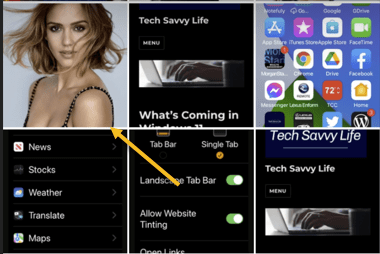
Next, select a photo. See below image:

Photos 2
Find a photo to drag and drop

Now, hold a finger down on a photo until you feel a little vibration. Keep your finger pressed on the screen and drag the photo until it floats. Do not stop holding the selecting object. In our example, we have moved the photo to another spot on the Photos screen, my finger is still holding down on the photo. See following image:

Photos 3
Dragging a Photo while holding down my finger on the photo

Now, with a different finger, navigate around the iPhone like you normally would. Keep the first finger pressed on the photo and use your other finger to open the destination. In our example, we are dropping the photo onto a Message, then release your finger. Refer to below image:

Photos 4
Dropping the photo onto a Message and releasing your finger

Quote For the Day

I was lucky – I found what I loved to do early in life. Woz and I started Apple in my parents’ garage when I was 20. We worked hard, and in 10 years, Apple had grown from just the two of us in a garage into a $2 billion company with over 4000 employees.

Steve Jobs

That’s it you now know how to drag and drop a photo. Please feel free to share this post! One way to share is via Twitter.

Just click the Tweet icon below. This will launch Twitter where you click its icon to post the Tweet.

Check out TechSavvy.Life for blog posts on smartphones, PCs, and Macs! You may email us at contact@techsavvy.life for comments or questions.

I Would Like to Hear From You

Please feel free to leave a comment. I would love hearing from you. Do you have a computer or smart device tech question? I will do my best to answer your inquiry. Just send an email to contact@techsavvy.life. Please mention the device, app, and version you are using. To help us out, you can send screenshots of your data related to your question.

The author’s Vietnam eBook on the Battle for Tra Bong Vietnam: Events and Aftermath

How to Upload a Smartphone Video to YouTube

Do you have videos on your smartphone that you want to upload to YouTube but not sure how to do this? If you have recorded videos with your smartphone, you can upload them directly to your YouTube channel from your iPhone or Android device.

RAYMOND OGLESBY @RaymondOglesby2
October 27, 2021

Do you have videos on your smartphone that you want to upload to YouTube but not sure how to do this? If you have recorded videos with your smartphone, you can upload them directly to your YouTube channel from your iPhone or Android device. Let’s see how this is done.

This is for iPhone and Android

Dilbert and No
Copyright Scott Adams, Inc./Distributed by Universal Uclick for UFS

First, to upload a video to YouTube from your iPhone or Android device, you will need the official YouTube app on your phone. Download and install the app on your iPhone or Android device, if you have not already done so. To search for the app on an iPhone, go to your very first screen, the Spotlight Search, and type in “YouTube” to locate the app.

Uploading a Video

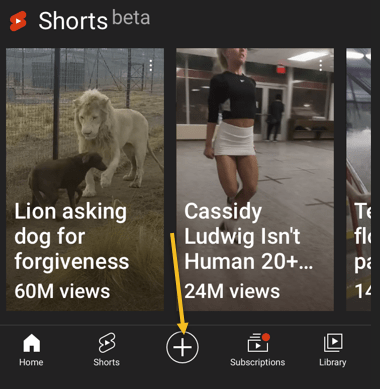
Next, launch the YouTube app on your phone and log in to your YouTube (Google) account. Then, from the bar at the bottom of the app, select the “+” (plus) sign. Refer to below image:

YouTube 1
Accessing the Add icon

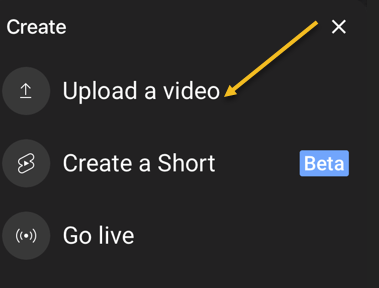
Now, YouTube will open a Create menu. Select Upload a video from this menu. Note! If you want to make a YouTube Short, tap the Create a Short option, or, to stream a video, tap the Go live option. See below image:

YouTube 2
Selecting to Upload a video

Next, you will see an Upload screen that displays all your phone’s videos. Here, tap the video that you would like to upload to YouTube. Then, when the video begins to play, tap NEXT at the top-right corner of the app. See following image:

YouTube 3
Your Video to upload

Add Details

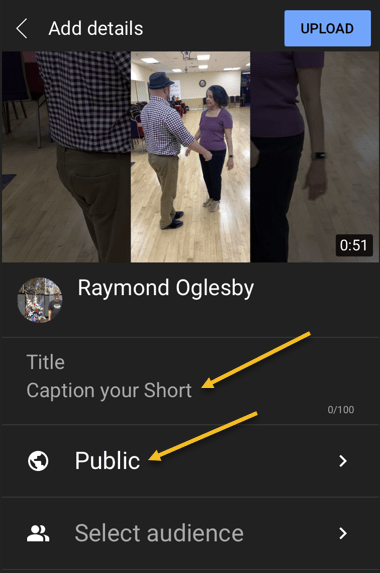
Now, you are on the Add details screen. Here, tap the Title field and enter a title for your video. Then tap Public to choose who can watch your video on YouTube. Refer to below image:

YouTube 4
Add some details about your Video

Set Visibility, Schedule, and Audience

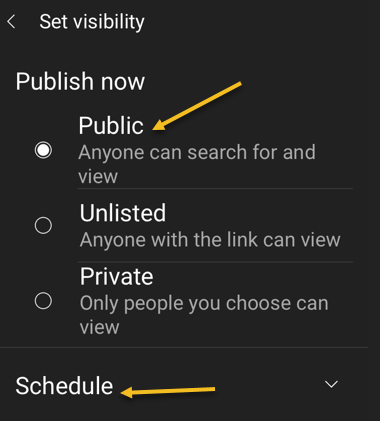
Next, on the Set Visibility screen, select one of these visibility options for your video:

  • Public: This allows anyone on YouTube to watch your video.
  • Unlisted: With this option, only the people you share your video’s link with can watch the video.
  • Private: Only you and the people you choose can watch the video.

Now, tap Schedule to release your video on YouTube at a specific time. See below image:

YouTube 5
Selecting who can see your Video

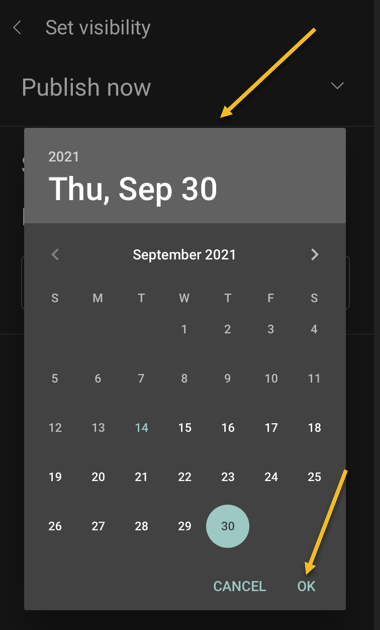
Set your date then tap OK. See following image:

YouTube 6
Selecting the Video scheduled date

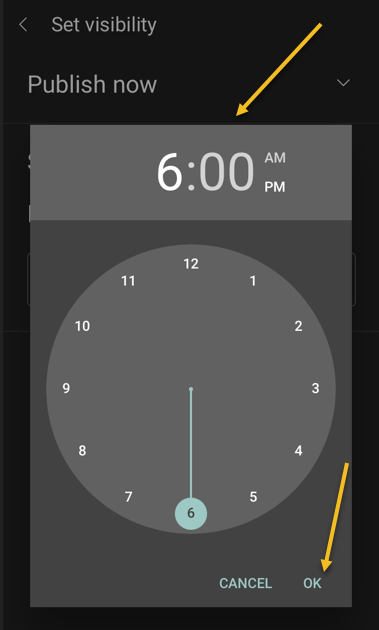
Set your time then tap OK. Refer to below image:

YouTube 7
Selecting the Video scheduled time

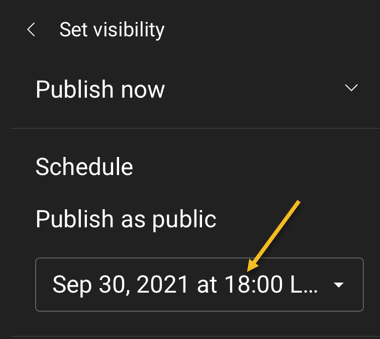
Your scheduled release of the video is displayed. See below image:

YouTube 8
Your Video release date and time

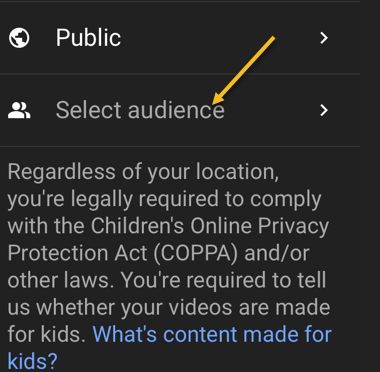
Next, tap the Select audience option. See following image:

YouTube 9
Selecting your Audience

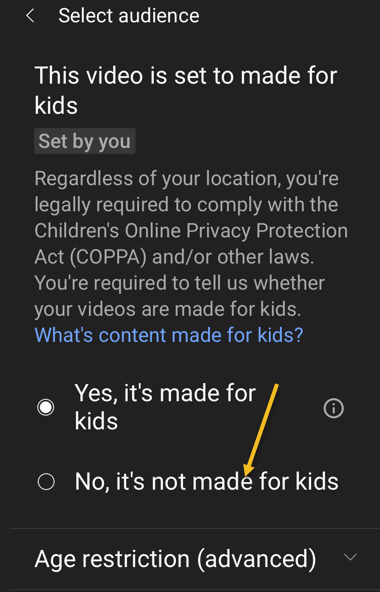
If your video is meant for kids, select the Yes, it’s made for kids option. Otherwise, select the No, it’s not made for kids option. If you choose the No… option, you can specify further options by tapping Age restriction (advanced). Next, at the top-right corner of the app, tap Upload (not shown). Refer to below image where we selected the video is made for kids:

YouTube 10
Selecting who is your Audience

Edit Your Video Details

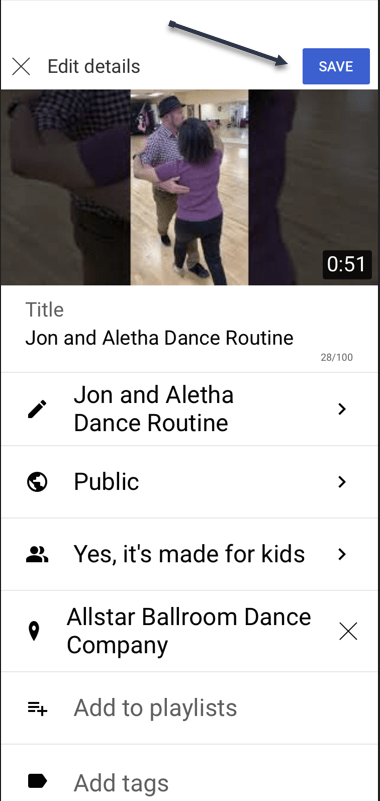
Your video will begin to upload to YouTube. When that’s done, go to Library > Your videos section of the YouTube app. Then, tap the video 3 dots menu button. Now, tap Edit to open the Edit Details screen and make any changes. When you are finished, tap Save. See below image:

YouTube 12
Edit your Video details

Your Videos Listing

Next, access Your videos section to see your uploaded video. See following image:

YouTube 13
Your recently uploaded Video

And that’s how you begin your journey of becoming a YouTuber!

Quote For the Day

Remembering that you are going to die is the best way I know to avoid the trap of thinking you have something to lose. You are already naked. There is no reason not to follow your heart.

Steve Jobs

You are finished. Please feel free to share this post! One way to share is via Twitter.

Just click the Tweet icon below. This will launch Twitter where you click its icon to post the Tweet.

Check out TechSavvy.Life for blog posts on smartphones, PCs, and Macs! You may email us at contact@techsavvy.life for comments or questions.

I Would Like to Hear From You

Please feel free to leave a comment. I would love hearing from you. Do you have a computer or smart device tech question? I will do my best to answer your inquiry. Just send an email to contact@techsavvy.life. Please mention the device, app and version that you are using. To help us out, you can send screenshots of your data related to your question.

The author’s Vietnam eBook on the Battle for Tra Bong Vietnam: Events and Aftermath

How to Change Back to Old Safari on iPhone

iOS 15 introduced a redesigned Safari interface that puts the address bar at the bottom of the screen.

If you prefer to keep it at the top of the screen, like most web browsers, it can be easily swapped

RAYMOND OGLESBY @RaymondOglesby2
September 29, 2021

iOS 15 introduced a redesigned Safari interface that puts the address bar at the bottom of the screen. Refer to below image:

Safari 1
New Safari

If you prefer to keep it at the top of the screen, like most web browsers, it can be easily swapped. Let’s explore how this is done.

This is for the iPhone running iOS 15 or above

Dilbert and Project
Copyright Scott Adams, Inc./Distributed by Universal Uclick for UFS

There are a few advantages to having the address bar at the bottom. First, it’s easier to reach with one hand on a large screen. Second, it puts all the browser controls in one place. If you are still not convinced to give it a try, let’s switch it back. Personally, I like the old Safari.

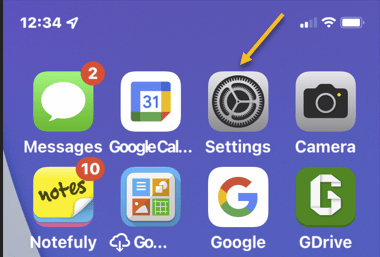
First, open the Settings app from the home screen. See below image:

Safari 2
Accessing Settings

Now, scroll way down and tap Safari. See following image:

Safari 3
Accessing Safari

Next, go to the Tabs section and switch it to Single Tab. Refer to below image:

Safari 4
Toggle to Single Tab

Now, the address bar is back at the top of the screen and the other browser controls are still at the bottom. See below image:

Safari 5
The old Safari

Regardless of which interface you prefer, the same amount of content is visible, so it’s just a matter of what you like best.

Quote For the Day

Creativity is just connecting things. When you ask creative people how they did something, they feel a little guilty because they didn’t really do it, they just saw something. It seemed obvious to them after a while. That’s because they were able to connect experiences they’ve had and synthesize new things.

Steve Jobs

That’s it for getting back the old Safari interface. Please feel free to share this post! One way to share is via Twitter.

Just click the Tweet icon below. This will launch Twitter where you click its icon to post the Tweet.

Check out TechSavvy.Life for blog posts on smartphones, PCs, and Macs! You may email us at contact@techsavvy.life for comments or questions.

I Would Like to Hear From You

Please feel free to leave a comment. I would love hearing from you. Do you have a computer or smart device tech question? I will do my best to answer your inquiry. Just send an email to contact@techsavvy.life. Please mention the device, app and version that you are using. To help us out, you can send screenshots of your data related to your question.
The author’s Vietnam eBook on the Battle for Tra Bong Vietnam: Events and Aftermath

How to Listen to Background Sounds on iPhone

One of the upgrades to Accessibility in iOS and iPadOS 15 is a new Background Sounds feature that plays relaxing audio tracks to help you stay calm and focused, and to block out background distractions.

RAYMOND OGLESBY @RaymondOglesby2
September 1, 2021

One of the upgrades to Accessibility in iOS and iPadOS 15 is a new Background Sounds feature that plays relaxing audio tracks to help you stay calm and focused, and to block out background distractions.

This is for iPhone and iPad

Dilbert and Healing
Copyright Scott Adams, Inc./Distributed by Universal Uclick for UFS

What Are Background Sounds

Background Sounds are like having a sound machine from your bedroom in your iPhone and iPad. The sounds can also be played over Bluetooth to external devices.

With thenew Background Sounds feature, you can play balanced, bright, and dark noise, as well as ocean, rain, and stream sounds to help you concentrate and relax when using your iPhone or iPad.

The feature may negate the need to purchase or subscribe to third-party background noise apps. Its not a dedicated app, but rather hidden away inside your device’s Accessibility settings.

It’s worth noting that at the current time, there is no way to load your own background sound. Note as well that they do not have a time limit. They will only turn off when you disable them. This is a glaring omission by Microsoft. I would like to turn on sound at night as I fall asleep and have it automatically turn off at a certain time. Anyway. let’s explore how to use this feature.

Background Sounds in Accessibility

Apple sees Background Sounds as a way to diversify its array of accessibility features by being more inclusive.

The company says in its official announcement of the feature that it targets “support of neurodiversity” and aims to mitigate “distracting, discomforting, or overwhelming” everyday noises. In other words, the feature can help you focus and relax during the day and mitigate distracting sounds that are bothering you.

That being said, the feature has the ability to appeal to many different people, so it’s interesting that Apple decided to stick with the accessibility angle instead of a more generalized approach.

Enable Background Sounds

First, open the Settings app. Refer to below image:

Sounds 1
Accessing Settings app

Next, scroll down and tap Accessibility. See below image:

Sounds 2
Accessing Accessibility option

Now, under the Hearing section, tap Audio/Visual. See following image:

Sounds 3
Accessing Audio/Visual option

Next, tap Background Sounds. Refer to below image:

Sounds 4
Accessing Background Sounds option

Now, you can toggle Background Sounds On and Off and choose which sound you would like. You can also adjust the volume of the sound as it plays over other media. If you do not want the background sound to play while, for example, listening to music, uncheck Use When Media Is Playing. See below image.

Sounds 5
Selecting your sound

You are ready to listen to relaxing, distraction-free sound from your iPhone or iPad. If you want other particular sounds, consider trying out a third-party white noise app.

Quote For the Day

It’s not going to do any good to land on Mars if we’re stupid.

Ray Bradbury

That’s it. Please feel free to share this post! One way to share is via Twitter.

Just click the Tweet icon below. This will launch Twitter where you click its icon to post the Tweet.

Check out TechSavvy.Life for blog posts on smartphones, PCs, and Macs. You may email us at contact@techsavvy.life for comments or questions.

I Would Like to Hear From You

Please feel free to leave a comment. I would love hearing from you. Do you have a computer or smart device tech question? I will do my best to answer your inquiry. Just send an email to contact@techsavvy.life. Please mention the device, app and version that you are using. To help us out, you can send screenshots of your data related to your question.
The author’s Vietnam eBook on the Battle for Tra Bong Vietnam: Events and Aftermath

How to View Your Most Used Apps on iPhone

A big part of your daily time is spent using your iPhone. Whether you want to understand your app usage, change your lifestyle, or just know which apps you need to cut down on, its helpful to know about your most used apps.

RAYMOND OGLESBY @RaymondOglesby2
August 25, 2021

A big part of your daily time is spent using your iPhone. Whether you want to understand your app usage, change your lifestyle, or just know which apps you need to cut down on, its helpful to know about your most used apps. Let’s explore this feature, called Screen Time.

This is for the iPhone

Dilbert and Story
Copyright Scott Adams, Inc./Distributed by Universal Uclick for UFS

Enable Screen Time

Before you can find out which apps you use the most on your iPhone, you will need to turn on a free feature built into iOS called Screen Time. This feature helps you keep track of how you use your iPhone. It can also help you put limits on your app usage if you would like, although that’s optional.

First, open the Settings app, and then tap the Screen Time option. Refer to below image:

Apps 1
Accessing Screen Time option

Next, tap Turn on Screen Time and tap This is My iPhone or This is My Child’s iPhone. See below image:

Apps 2
Enable Screen Time

Now, you will see a Screen Time summary page with no data, but we will fix that problem. Note! Each time you enable Screen Time, you data is removed.

Check Screen Time Again

The catch with using Screen Time is that it needs to be enabled to start gathering data about which apps you use the most. If you just turned it on, you will not have a most-used app list to look at.

So, now that Screen Time has been enabled, use your iPhone as you normally would. After a while, you can check back in with Screen Time and see some statistics.

Next, open the Settings app and tap Screen Time again. See following image:

Apps 1
Accessing Screen Time option

Now, on the Screen Time summary page, you will see a chart that shows your average daily activity. Just under that chart, tap See All Activity. Refer to below image:

Apps 4
Selecting to See All Activity

Next, choose whether you want to see your most used apps over the period of a day, week, month, or year at the top of the screen. See below image:

Apps 5
Selecting your time period

Now, scroll down to the Most Used section, and you will see a list of apps sorted by which you used the most over the selected time period, with your most used apps listed at the top. Tap an app to see more details. See following image:

Apps 6
Selecting an app to view its details

Add a Limit

Next, while on the detailed-view screen, if you want to set a time limit to prevent you from using the app too much, scroll down and tap Add Limit. Refer to below image:

Apps 7
Selecting Add a Limit to control how much time you spend using the app

Now, you will see a screen where you can set a time limit for the app in hours or minutes. When you’re done, tap Add. See below image:

Apps 8
Setting the time limit

From now on, whenever your time is up, you will see an alert pop up, reminding you not to use the app anymore.

Quote For the Day

True terror is to wake up one morning and discover that your high school class is running the country.

Kurt Vonnegut

That’s it. Please feel free to share this post! One way to share is via Twitter.

Just click the Tweet icon below. This will launch Twitter where you click its icon to post the Tweet.

Check out TechSavvy.Life for blog posts on smartphones, PCs, and Macs! You may email us at contact@techsavvy.life for comments or questions.

I Would Like to Hear From You

Please feel free to leave a comment. I would love hearing from you. Do you have a computer or smart device tech question? I will do my best to answer your inquiry. Just send an email to contact@techsavvy.life. Please mention the device, app and version that you are using. To help us out, you can send screenshots of your data related to your question.
The author’s Vietnam eBook on the Battle for Tra Bong: Events and Aftermath

How to Pin/Unpin a Twitter Tweet

Generally speaking, the more you tweet, the further your past tweets move down your profile page. However, Twitter makes it possible to pin a tweet so that it stays at the top of your page until you remove it.

If you use Twitter regularly, you may occasionally post a message that gains attention with other users or that you want to stand out from the rest of your feed.

Generally speaking, the more you tweet, the further your past tweets move down your profile page. However, Twitter makes it possible to pin a tweet so that it stays at the top of your page until you remove it.

Pinning tweets to the top of your Twitter profile will not take more than a few seconds, and you can unpin a tweet or choose a new one to pin in its place at any time. Let’s explore how to do this.

Note! You can only have one pinned tweet at a time. Pinning a new tweet will unpin any tweet you already have pinned.

This is for the iPhone and Android using Twitter

Dilbert and Hackers
Copyright Scott Adams, Inc./Distributed by Universal Uclick for UFS

Pin a Tweet

Twitter’s mobile apps for iOS and Android allow you to pin tweets to your profile. You can also do this on your desktop.

First, open the Twitter app. Make sure you are logged in to your account.

Next, in the top-left corner of the app, tap the three horizontal lines. Refer to below image:

Twitter 1
Accessing the Twitter menu

In the menu that opens, select Profile. See below image:

Twitter 2
Accessing your Profile

Your Twitter profile opens. Now, scroll down and find the tweet to pin.

When you find the tweet, at the top-right corner of that tweet, tap the three-dots hamburger menu. See following image:

Twitter 3
Accessing the Tweet menu

From the menu that pops up from the bottom of your phone’s screen, select Pin to profile. Refer to below image:

Twitter 4
Accessing Pin tweet to your Profile

Select Pin in the prompt that appears in the middle of your phone’s screen. See below image:

Twitter 5
Pin your tweet

Your selected tweet is now pinned to your profile page. See following image:

Twitter 6
Your pinned tweet

Unpin a Tweet

To unpin the tweet, scroll to the top of your profile page in Twitter’s mobile app. Then, at the top-right corner of the pinned tweet, tap the three-dots hamburger menu. Refer to below image:

Twitter 7
Accessing your tweet menu

In the menu that appears from the bottom of your phone’s screen, tap Unpin from profile. See below image:

Twitter 8
Accessing Unpin tweet from your Profile

Select Unpin in the prompt. See following image:

Twitter 9
Unpin your tweet

And your tweet disappears from the top area of your Twitter profile.

It’s easy to pin and unpin tweets on Twitter, and you should make use of this feature to display your most important tweet at the top of your profile page.

Quote For the Day

The true sign of intelligence is not knowledge but imagination.

Albert Einstein

That’s it, a nifty feature. Please feel free to share this post! One way to share is via Twitter.

Just click the Tweet icon below. This will launch Twitter where you click its icon to post the Tweet.

Check out TechSavvy.Life for blog posts on smartphones, PCs, and Macs! You may email us at contact@techsavvy.life for comments or questions.

I Would Like to Hear From You

Please feel free to leave a comment. I would love hearing from you. Do you have a computer or smart device tech question? I will do my best to answer your inquiry. Just send an email to contact@techsavvy.life. Please mention the device, app and version that you are using. To help us out, you can send screenshots of your data related to your question.

The author’s Vietnam eBook on the Battle for Tra Bong: Events and Aftermath

How to Turn Off and Restart an iPhone

Turning off your iPhone seems like it should be a simple task; and it is, provided you remember the specific buttons you are supposed to press to power down your device. The challenge is that Apple has changed the method every few models so that turning off your iPhone on an older device is quite different than what’s required to turn off the newer models.

Turning off your iPhone seems like it should be a simple task; and it is, provided you remember the specific buttons you are supposed to press to power down your device. The challenge is that Apple has changed the method every few models so that turning off your iPhone on an older device is quite different than what’s required to turn off the newer models. Let’s explore how to turn off and on your device.

This is for the iPhone

Dilbert and Pandemic
Copyright Scott Adams, Inc./Distributed by Universal Uclick for UFS

To help you turn off your iPhone, there are the different ways you can shut down an iPhone based on Apple’s assorted models. It all comes down to the position of the Sleep/Wake button and whether your iPhone is unlocked with a Passcode, Touch ID, or FaceID.

Sometimes you need to completely shut down your iPhone, perhaps to help with troubleshooting, or to save your battery life during a long period of inactivity, or the device is acting strangely. Fortunately, it’s easy to do.

What is Sleep Mode vs Shutting Down

Normally, when you briefly press the top or side button on your iPhone, the screen on your device turns off, but the iPhone stays running. This is called sleep mode or lock mode. While it turns off the screen, it does not completely power off the device.

In contrast, shutting down your iPhone starts a special software shutdown process where your iPhone cleans up and prepares for power-off. Then, your iPhone turns off completely.

Perform Hardware Shutdown

If you need to turn off your iPhone, the easiest way to do so is by using a hardware button on your device. How to do this varies slightly by model, since certain iPhones include different types of buttons:

  • On iPhones without a Home Button: Simultaneously hold the side button and the volume up or down button for about four seconds until the power-off slider appears on the screen.
  • On iPhones with a Home Button and a Side Button: Hold the side button for a few seconds until the power-off slider appears.
  • On iPhones with a Home Button and a Top Button: Press and hold the top button until the power-off slider appears.

Refer to below image:

Turn Off 1
Apple

When the Slide to Power Off slider appears, swipe your finger to the right. See below image:

Turn Off 2
Hardware shut down

Now, your iPhone will shut down and power off completely.

Perform Shutdown via Settings

First, open Settings on your iPhone. See following image:

Turn Off 3
Accessing Settings

Next, in the Settings app, tap General. Refer to below image:

Turn Off 4
Accessing General option

Now, on the General page, scroll down to the bottom of the page and tap Shut Down. See below image:

Turn Off 5
Accessing Shut Down option

When the Slide to Power Off slider appears, swipe your finger to the right. See following image:

Turn Off 6
Software shut down

Now, your iPhone will shut down and power off completely.

Restart

If you just powered off, waiting 10 seconds is a good rule of thumb before a restart.

For newer models, (12, 11, 10), press and quickly release the volume up button, press and quickly release the volume down button, then press and hold the side button. When the Apple logo appears, release the button.

For iPhone SE (2nd generation), 8, 7, or 6, press and hold the side button until you see the Apple logo, then release the button.

Quote For the Day

A little more persistence, a little more effort, and what seemed hopeless failure may turn to glorious success.

Elbert Hubbard

That was easy.. Please feel free to share this post! One way to share is via Twitter.

Just click the Tweet icon below. This will launch Twitter where you click its icon to post the Tweet.

Check out TechSavvy.Life for blog posts on smartphones, PCs, and Macs! You may email us at techsavvy.life for comments or questions.

I Would Like to Hear From You

Please feel free to leave a comment. I would love hearing from you. Do you have a computer or smart device tech question? I will do my best to answer your inquiry. Just send an email to contact@techsavvy.life. Please mention the device, app and version that you are using. To help us out, you can send screenshots of your data related to your question.

The author’s Vietnam eBook on the Battle for Tra Bong: Events and Aftermath

How to Access iPhone Camera From Lock Screen

If you need to quickly take a photo or video on your iPhone, you can swipe into the Camera app quickly without unlocking your phone. Let’s explore how this is done.

If you need to quickly take a photo or video on your iPhone, you can swipe into the Camera app quickly without unlocking your phone. Let’s explore how this is done.

This is for the iPhone

Dilbert and Hats
Copyright Scott Adams, Inc./Distributed by Universal Uclick for UFS

First, wake up your iPhone. Place your finger anywhere on the lock screen and swipe it to the left until the Camera app appears. If you try to swipe on a notification that will reveal options for the notification rather than opening the Camera app. Refer to below image:

Camera 1
Swipe left to open the Camera

Next, with the Camera app open, you can take photos or videos as you normally would, and they will be saved automatically to your Photos library. You can even use the volume buttons to trigger the shutter if you like. See below image that will be saved to Photos library:

Camera 2
Your photo

Now, to exit Camera mode, press the top button (for iPhones with home buttons) or the side button (for iPhones without home buttons) to turn off your screen. The photos you took will still be saved.

iPhones Without Home Button

If you have an iPhone without a home button (one that uses Face ID) you might notice a tiny camera icon in the lower-right corner of your lock screen. See following image:

Camera 3
Access Camera by the photo icon

You can use this button to launch the Camera app with a long-press. Just place your finger on the camera icon for a moment. When you lift your finger, the Camera app will launch.

When you are done, press the side button, and the photos and videos you have taken will be saved automatically.

Quote For the Day

The beginning is the most important part of the work.

Plato

You are finished. Please feel free to share this post! One way to share is via Twitter.

Just click the Tweet icon below. This will launch Twitter where you click its icon to post the Tweet.

Check out TechSavvy.Life for blog posts on smartphones, PCs, and Macs! You may email us at contact@techsavvy.life for comments or questions.

I Would Like to Hear From You

Please feel free to leave a comment. I would love hearing from you. Do you have a computer or smart device tech question? I will do my best to answer your inquiry. Just send an email to contact@techsavvy.life. Please mention the device, app and version that you are using. To help us out, you can send screenshots of your data related to your question.
The author’s Vietnam eBook on the Battle for Tra Bong: Events and Aftermath

How to Enable Two Important Features on iPhone

On the iPhone, there are two features you should be using; the SOS Contacts and Comprised Passwords.

On the iPhone, there are two features you should be using; the SOS Contacts and Comprised Psswords. Let’s explore how to use these two features.

This is for iPhone running iOS 14+

Dilbert and Hackers
Copyright Scott Adams, Inc./Distributed by Universal Uclick for UFS

Create a SOS Contact

First, ensure that your most important people are in your Contacts. Now, search for your Health app either from your App Library (your last screen) or the Spotlight Search (your first screen). We are using the Spotlight Search. Just type the name “health” in the search box (without the quotes) and click the result. Refer to below image:

Features 1
Accessing your Health app

Next, the Summary screen will be displayed. Now, click the Review Medical ID Access link. See Below image:

Features 2
Displaying your Health Summary screen

Next, the Emergency Access to Medical ID screen will be displayed. Click on the Review Medical ID button at the bottom. See following image:

Features 3
Displaying your Medical ID screen

Now, your Emergency Contacts will be shown (if any). Click on add emergency contact to add a SOS contact you want notified in case of an emergency. Refer to below image:

Features 4
Displaying your Emergency Contacts and add one

SOS also contacts emergency services. A red asterisk icon will now appear next to Emergency Contacts in your Contacts list.

To send an SOS, hold down the power button on the right and one of the volume buttons on the left at same time. You can either use the Emergency SOS slider, or keep holding the button. A countdown will start, an alert will sound, and when the call goes through to 911, messages are sent to your Emergency Contacts. See below image:

Features 5
Accessing your Emergency SOS slider

Security Recommendations

iOS 14 features Security Recommendations, which are handy if you store a lot of passwords in iOS, be it for apps or website visits. It will tell you if a password appeared in a known data breach/leak, and suggest you make changes if you have repeated passwords (because that is a big no-no).

First, launch your Settings (the gear icon) app. See following image:

Features 6
Your Settings app

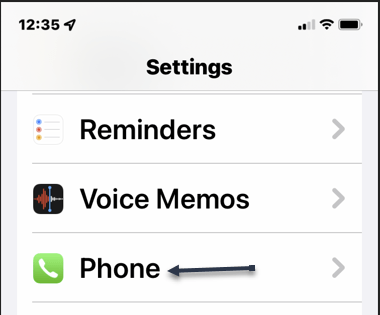
Next, scroll down and tap the Passwords option. Refer to below image:
Features 7
Accessing your Passwords option

Now, the Security Recommendations screen will be shown. The number to the right indicates security risks found. Next, tap on the label. See below image:
Features 8
Your number of security risks

Now, on the Security Recommendations screen, toggle Detected Comprised Passwords to On. Next, go through your list of compromised passwords and click the Change Password link as necessary. See following image:

Features 9
Enabling the Detect Comprised Passwords toggle and reviewing your risks

Note! Some of your comprised passwords may be from old leaks. You know you have changed it since the date of the leak. If so, click the label to open the entry, then click Delete Password.

Next, go back to your Security Recommendations screen to check if your comprised passwords has been resolved. Now, exit Settings.

Quote For the Day

Civilization advances by extending the number of important operations which we can perform without thinking of them.

Alfred North Whitehead

That’s it. You have now setup two important features on the iPhone. Please feel free to share this post! One way to share is via Twitter.

Just click the Tweet icon below. This will launch Twitter where you click its icon to post the Tweet.

Check out TechSavvy.Life for blog posts on smartphones, PCs, and Macs! You may email us at contact@techsavvy.life for comments or questions.

I Would Like to Hear From You

Please feel free to leave a comment. I would love hearing from you. Do you have a computer or smart device tech question? I will do my best to answer your inquiry. Just send an email to contact@techsavvy.life. Please mention the device, app and version that you are using. To help us out, you can send screenshots of your data related to your question.d

The author’s Vietnam eBook on the Battle for Tra Bong: Events and Aftermath