

RAYMOND OGLESBY @RaymondOglesby2
June 18, 2024 -3 minutes read time
This is for the iPhone with iOS 17 or above. Screenshots are from iPhone 14 Pro running iOS 17+
If you like talking on the phone for long periods but do not love holding the iPhone to your face for hours, you may prefer to use the speaker. You can turn on a setting that automatically makes all calls through your speaker. Also, you can set the Auto-Answer feature to answer your phone within a certain time frame. This is useful for those working using a headset. Let’s explore these features.
Using Your Speaker
First, head to
Settings > Accessibility > Touch
Refer to the below image:

Next, select Call Audio Routing. See the below image:

Now, tap the Speaker option. See the following image:
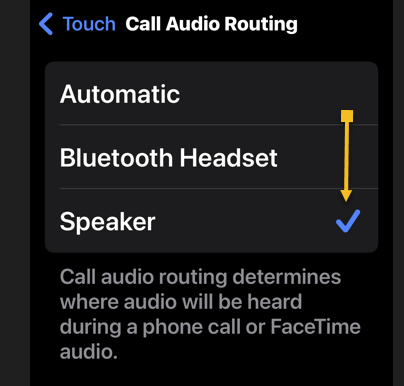
Next, when you get a phone call, it will automatically use the speaker when you answer!
If you have paired your iPhone to your car audio system, we recommend leaving the Speaker setting to Automatic. This will send/receive your calls through your audio system speakers.
Auto-Answer
While you are here, you can set the Auto-Answer feature and the time to pick up a call.
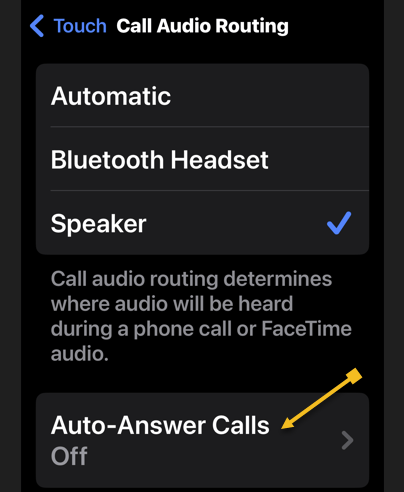
First, tap the Auto-Answer Calls option. Refer to the below image:
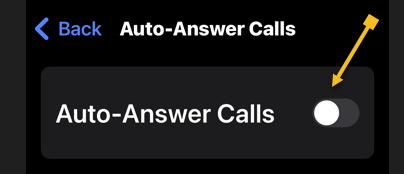
Next, tap the Auto-Answer Calls toggle to ON. See the below image:
Now, set your time duration to auto-answer a call (default is 3 seconds). See the following image:

Disclaimer
Technology is always changing. Rarely is there static tech for smartphones and desktops. Thus, the contents of this post are only valid at the time of writing. Blog posts older than six months may have directions incompatible with your device or OS. Hopefully, older post content will continue to work as advertised. Thank you for reading TechSavvy.Life for Technology at Work For You.
Quote For the Day
Logic will get you from A to B. Imagination will take you everywhere.
Albert Einstein
Tweet Info
Just click the Tweet icon below. This will launch Twitter where you click its icon to post the Tweet.
Just click the Tweet icon below. This will launch Twitter where you click its icon to post the Tweet.
Checkout TechSavvy.Life for blog posts on smartphones, PCs, and Macs! You may email us at contact@techsavvy.life for comments or questions.
Tweet
I Would Like to Hear From You
Was this post helpful? We would love to hear your comments. Do you have a computer or smart device tech question? I will do my best to answer your inquiry. Just send an email to contact@techsavvy.life. Please mention the device, app, and version you are using. To help us out, you can send screenshots of your data related to your question.
You can access the E-book from a Kindle device, or the Kindle App for a desktop or smartphone. The apps are free.
 Tech Savvy Life