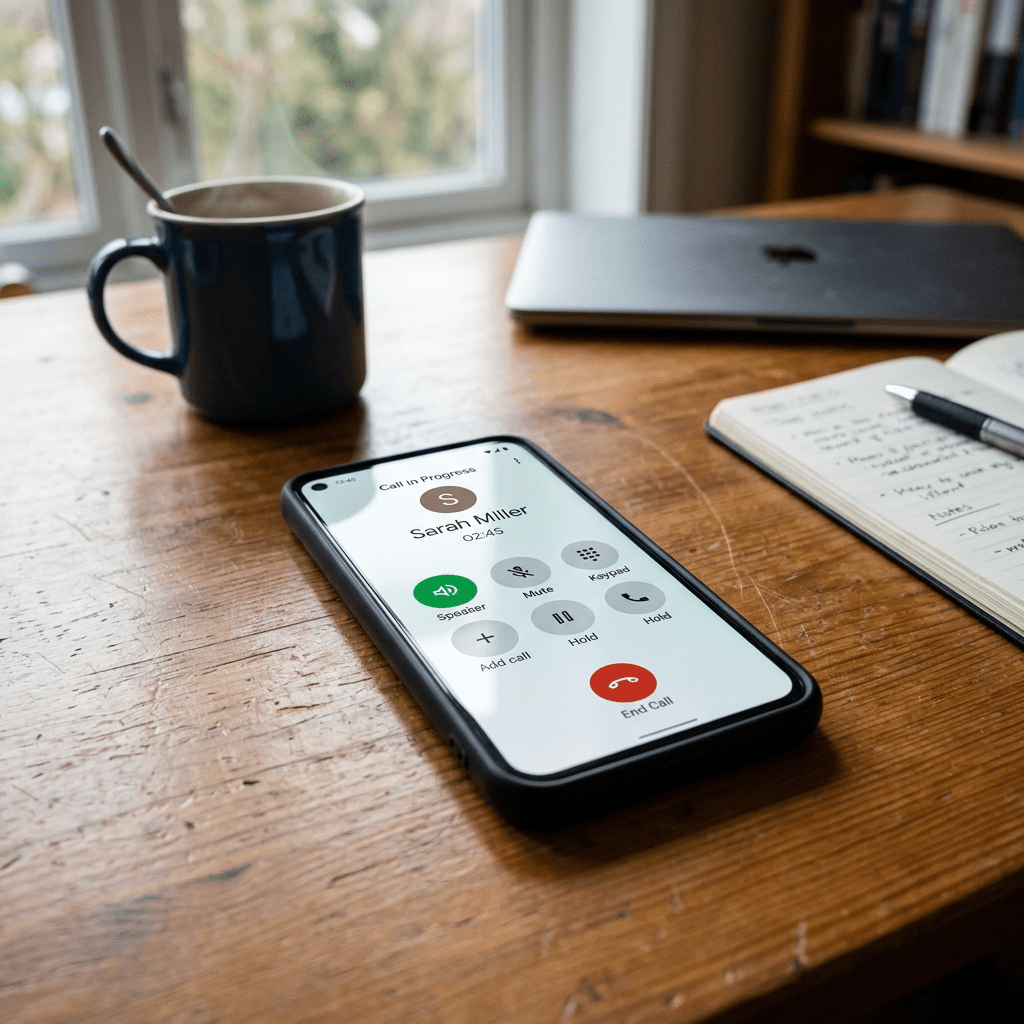
How to Use Automatic Speaker on iPhone

The post discusses the convenience of using automatic speaker mode on iPhones for long-distance calls. It provides a step-by-step guide to enable or disable this feature via the Accessibility settings. It highlights the benefits of avoiding direct phone contact with the face, ensuring a cleaner screen and easier conversations.

RAYMOND OGLESBY @RaymondOglesby2
August 11, 2026 – 3 minutes read time

We love talking on the phone for periods of time with all my long-distance friends. But we may not love holding the iPhone to my face for hours; that’s why we prefer to use speaker mode. Did you know you can turn on automatic speaker on your iPhone? If your iPhone automatically goes to speaker and you do not want it to, you can turn off speaker mode, too.

We take our iPhones with us everywhere, and everything our fingers touch inevitably ends up smeared on our phone screen. That’s why we love this tip that allows me to keep my phone away from my face while chatting. If you are wondering why your iPhone goes to speaker automatically, it’s to do with the Call Audio Routing iPhone feature. Here’s how to turn on automatic speaker on iPhone.

  • Avoid holding your iPhone to your face when you get a phone call without having to press any buttons.
  • Use automatic speaker on iPhone to default to speakerphone when you answer an incoming phone call.
  • Learn how to turn off automatic speaker on iPhone if this feature annoys you.

This tip was performed on iPhone 17 Pro running iOS 26.5.

Click here to learn how to update your iPhone to the latest iOS version.

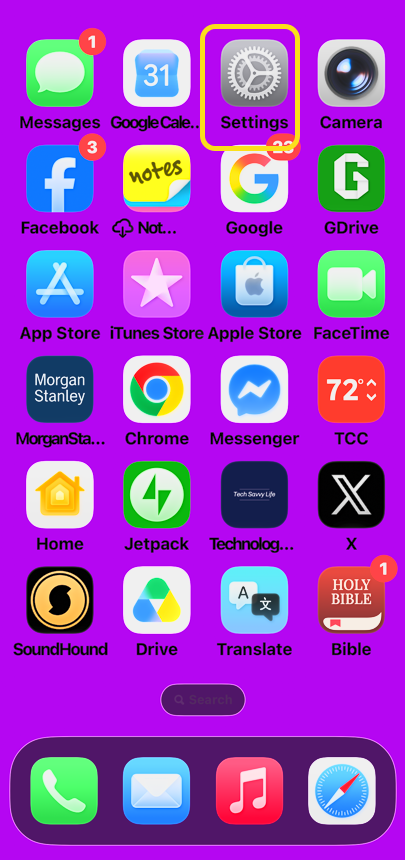
1. Open the Settings app on your iPhone. Refer to the image below:
Speaker 1
Selecting Settings app

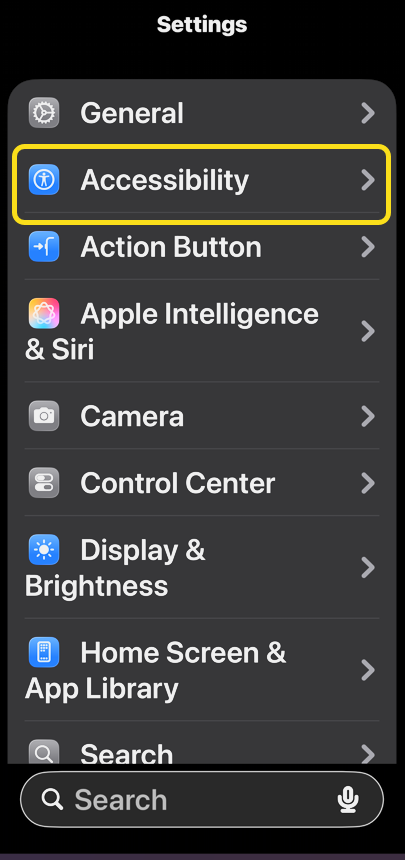
2. Tap Accessibility. See the image below image:
Speaker 2
Selecting Accessibility option

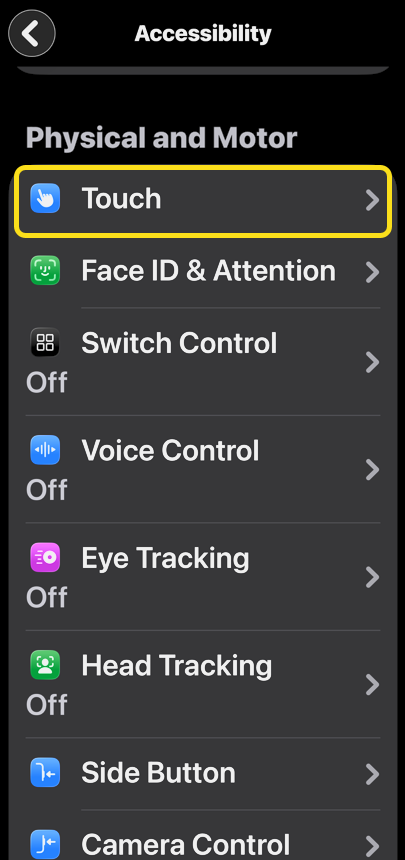
3. Tap Touch. See the following image:
Speaker 3
Selecting Touch option

4. Tap Call Audio Routing. Refer to the image below:
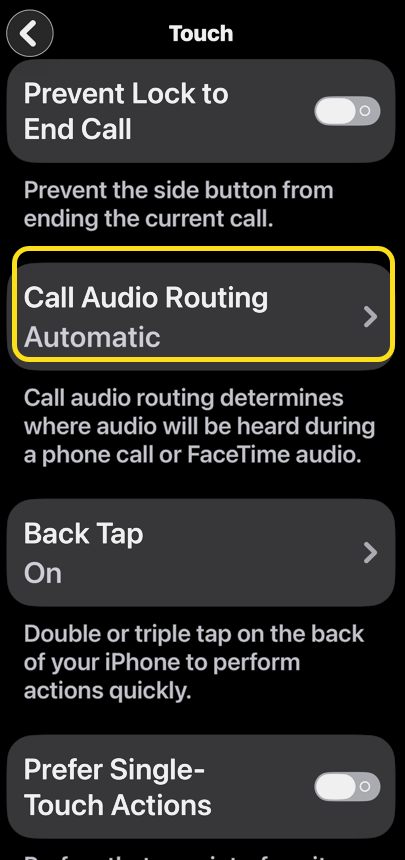
Speaker 4
Selecting Call Audio Routing option

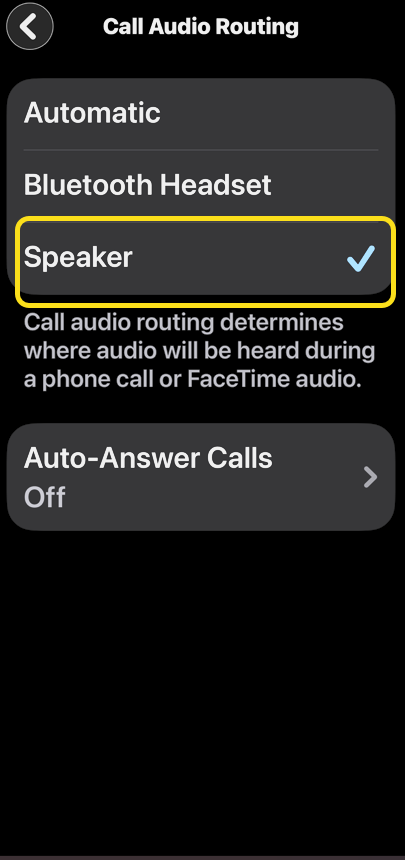
5. Tap Speaker. See the image below:

Speaker 5
Selecting Speaker option

6. Now, when you get a phone call, your iPhone automatically goes to speaker! If you do not want your iPhone to enter speaker mode automatically, select Automatic in step 5 above.

Technology is constantly evolving, and smartphone and desktop tech rarely remains static. Therefore, the information in this post is only accurate as of the date it was written. Blog posts that are older than six months may contain instructions that are no longer compatible with your device or operating system. We hope that the content from previous posts continues to function as intended. Thank you for reading TechSavvy.Life, where technology works for you.

Technology presumes there’s just one right way to do things and there never is.

– Robert M. Pirsig

That’s it. Please feel free to share this post! One way to share is via Twitter.

Just click the Tweet icon below. This will launch Twitter where you click its icon to post the Tweet.

Checkout TechSavvy.Life for blog posts on smartphones, PCs, and Macs! You may email us at contact@techsavvy.life for comments or questions.

We value your feedback! Was this post helpful? Please share your comments with us. If you have a tech question related to your computer or smart device, feel free to reach out. Just send an email to contact@techsavvy.life, and be sure to include the device, app, and version you are using. To assist us further, you can also attach screenshots related to your inquiry.

Author’s eBook

The author’s Vietnam eBook, “Battle for Tra Bong Vietnam: Events and Aftermath”, is available on Kindle devices and the Kindle App for desktop, laptop, and smartphone. The apps are free.
The author’s Vietnam eBook on the Battle for Tra Bong Vietnam: Events and Aftermath

How to Route iPhone Calls to Your Speaker and Set Auto-Answer

This post provides guidance for iPhone users on enabling the speaker for all calls and setting up the Auto-Answer feature.

RAYMOND OGLESBY @RaymondOglesby2
June 18, 2024 -3 minutes read time

This is for the iPhone with iOS 17 or above. Screenshots are from iPhone 14 Pro running iOS 17+

If you like talking on the phone for long periods but do not love holding the iPhone to your face for hours, you may prefer to use the speaker. You can turn on a setting that automatically makes all calls through your speaker. Also, you can set the Auto-Answer feature to answer your phone within a certain time frame. This is useful for those working using a headset. Let’s explore these features.

First, head to

Settings > Accessibility > Touch

Refer to the below image:

Accessing the Touch option

Next, select Call Audio Routing. See the below image:

Selecting the Call Audio Routing option

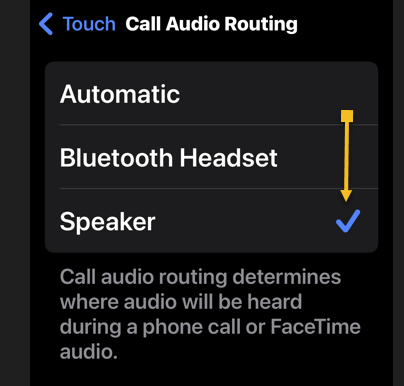
Now, tap the Speaker option. See the following image:

Selecting the Speaker for all calls

Next, when you get a phone call, it will automatically use the speaker when you answer!

If you have paired your iPhone to your car audio system, we recommend leaving the Speaker setting to Automatic. This will send/receive your calls through your audio system speakers.

While you are here, you can set the Auto-Answer feature and the time to pick up a call.

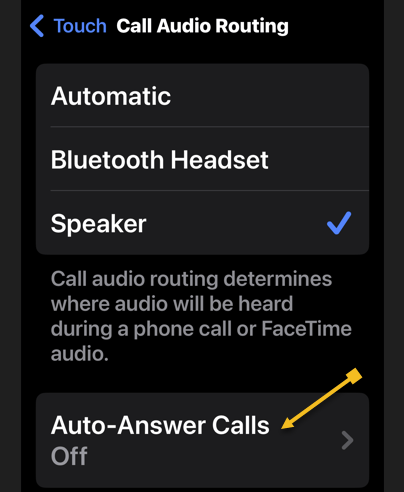
First, tap the Auto-Answer Calls option. Refer to the below image:

Accessing the Auto-Answer Calls option

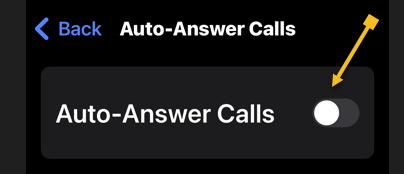
Next, tap the Auto-Answer Calls toggle to ON. See the below image:

Toggle the Auto-Answer Calls to ON

Now, set your time duration to auto-answer a call (default is 3 seconds). See the following image:

Setting time duration for Auto-Answer

Disclaimer

Technology is always changing. Rarely is there static tech for smartphones and desktops. Thus, the contents of this post are only valid at the time of writing. Blog posts older than six months may have directions incompatible with your device or OS. Hopefully, older post content will continue to work as advertised. Thank you for reading TechSavvy.Life for Technology at Work For You.

Logic will get you from A to B. Imagination will take you everywhere.

Albert Einstein

Just click the Tweet icon below. This will launch Twitter where you click its icon to post the Tweet.

Just click the Tweet icon below. This will launch Twitter where you click its icon to post the Tweet.

Checkout TechSavvy.Life for blog posts on smartphones, PCs, and Macs! You may email us at contact@techsavvy.life for comments or questions.

Was this post helpful? We would love to hear your comments. Do you have a computer or smart device tech question? I will do my best to answer your inquiry. Just send an email to contact@techsavvy.life. Please mention the device, app, and version you are using. To help us out, you can send screenshots of your data related to your question.

You can access the E-book from a Kindle device, or the Kindle App for a desktop or smartphone. The apps are free.

The author’s Vietnam eBook on the Battle for Tra Bong Vietnam: Events and Aftermath