How to Keep Library Books on a Kindle Past Their Return Date

One of the best features of Amazon Kindle eReaders is the ability to borrow library books. However, just like physical books from a library, they come with return dates.

RAYMOND OGLESBY @RaymondOglesby2
April 11, 2023

One of the best features of Amazon Kindle eReaders is the ability to borrow library books. However, just like physical books from a library, they come with return dates. Let’s explore a nifty trick to “keep” a book after its return date.

This is for the Amazon Kindle. Screenshots are from Kindle Paperwhite (11 generation)

It may seem strange, but digital eBooks from the library are treated the same as physical books. That means there are a limited number of eBooks to check out, and you typically only get them for 14 days. When those 14 days are up, you can check it out again, but there’s usually a waitlist of people who you will have to wait behind.

There’s a very simple “trick” that will allow you to read a library book on your Kindle for an indefinite length of time. All you have to do is put your Kindle in Airplane mode before the due date and never close out of the book. Wait, are we suggesting you steal from the library?

The best part about this trick is it’s a victimless “crime”. You are not preventing the next person on the waitlist from getting the book. The eBook has still technically been “returned,” but your Kindle does not know that.

To enable Airplane mode on your Kindle, tap the down arrow at the top of the Home screen. If you are in a book, tap toward the top of the screen to reveal the down arrow. Refer to the below image:
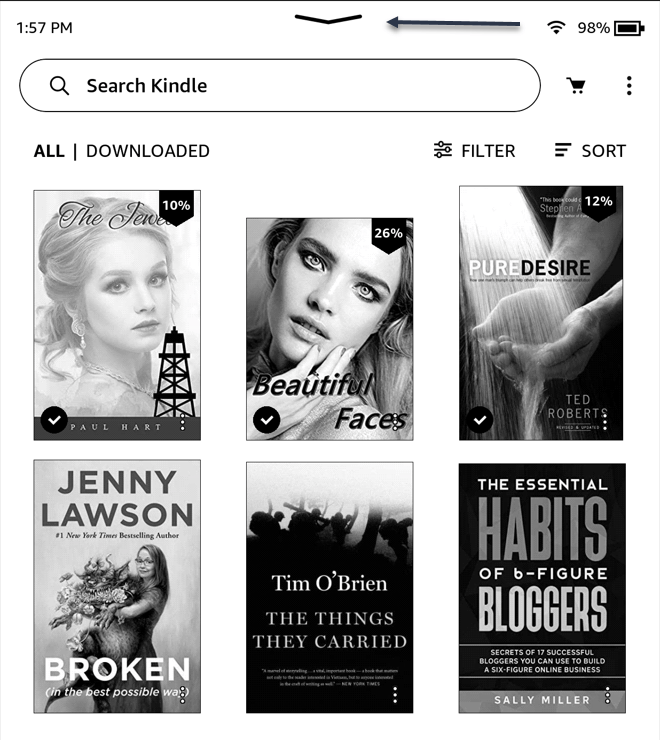
Kindle Trick 1
Taping the down arrow at top of the screen

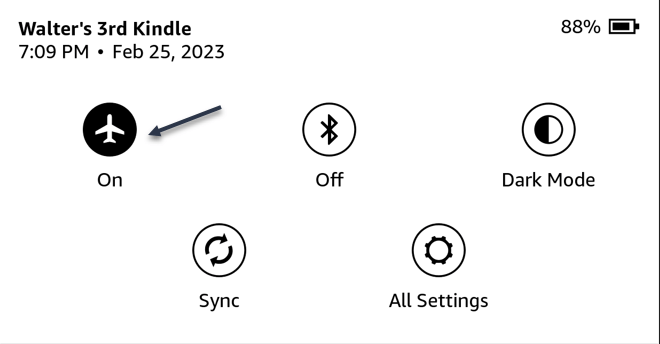
Next, tap the Airplane icon to turn it ON. See the below image:
Kindle Trick 2
Enable Airplane Mode

That’s it! Now just open the book and do not leave it until you are done. That also includes if the eReader powers off due to a low battery. Theoretically, you should be able to read the book for as long as you need. Your Kindle can hold a lot of books, but sometimes one takes a while, and that’s okay.

Disclaimer

Technology is always changing and rarely is there static tech for smartphones and desktops. Thus, the contents of this post are only valid at the time of writing. Blog posts older than six months may have directions incompatible with your device or OS. Hopefully, older post content will continue to work as advertised. Thank you for reading TechSavvy.Life for Technology at Work For You.

Quote for the Day

It’s not information overload. It’s filter failure.

Clay Shirky

Tweet Info

That’s it. Please feel free to share this post! One way to share is via Twitter.

Just click the Tweet icon below. This will launch Twitter where you click its icon to post the Tweet.

Checkout TechSavvy.Life for blog posts on smartphones, PCs, and Macs! You may email us at contact@techsavvy.life for comments or questions.

I Would Like to Hear From You

Please feel free to leave a comment. I would love to hear from you. Do you have a computer or smart device tech question? I will do my best to answer your inquiry. Just send an email to contact@techsavvy.life. Please mention the device, app, and version you are using. To help us out, you can send screenshots of your data related to your question.

Author’s E-Book

You can access the e-book from a Kindle device, the Kindle App for the desktop or smartphone, which is a free app.
The author’s Vietnam eBook on the Battle for Tra Bong Vietnam: Events and Aftermath

How to Remove Books From Kindle

Kindles can hold a lot of eBooks, but you may want to remove some. eBooks are stored in two places; on the eReader itself and your Kindle Library.

RAYMOND OGLESBY @RaymondOglesby2
September 1, 2022

Kindles can hold a lot of eBooks, but you may want to remove some. eBooks are stored in two places; on the eReader itself and your Kindle Library. We will show you how to remove your books.

This is for a Kindle. Screenshots are from Kindle Paperwhite

Dilbert and Inflation
Copyright Scott Adams, Inc./Distributed by Universal Uclick for UFS

When you buy an eBook from Amazon, rent one from your local library, or send one to your Kindle, it’s added to your Kindle Library. This is essentially iCloud storage for your eBooks. When you open the book on your Paperwhite, that’s when it downloads the eBook file to the device’s storage.

Remove an E-Book From Kindle

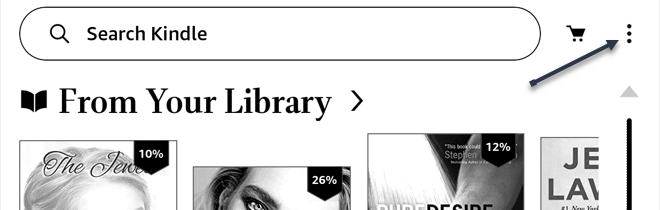
First, we will remove the actual eBook file from your Kindle. Note that this does not remove the book from your Kindle Library. On your Kindle home screen, tap the three-dot menu icon in the top-right corner. Refer to the below image:

Kindle 1
Accessing the Menu

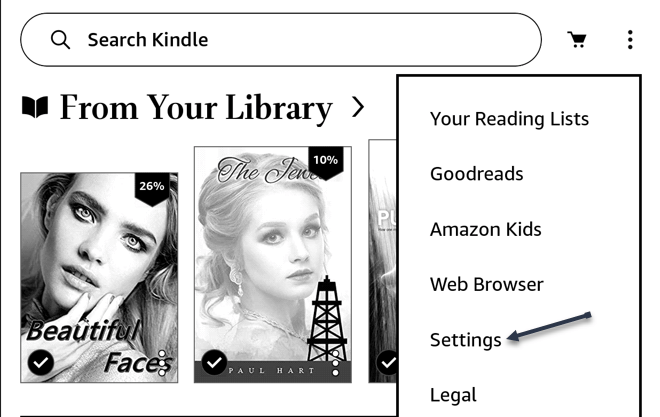
Next, select Settings from the menu. See the below image:

Kindle 2
Accessing Settings

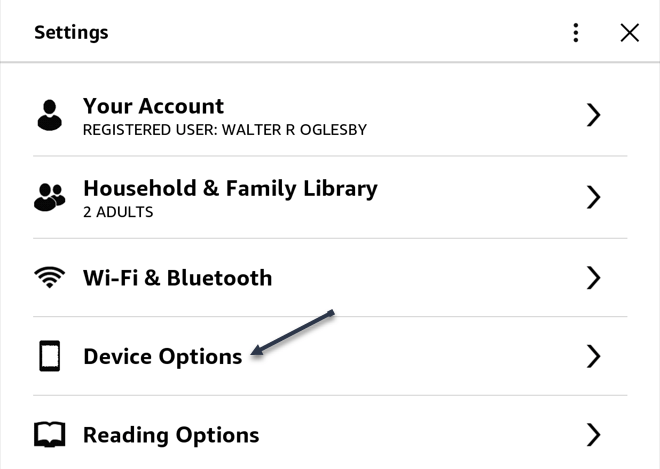
Now, go to Device Options. See the following image:

Kindle 3
Accessing Device Options

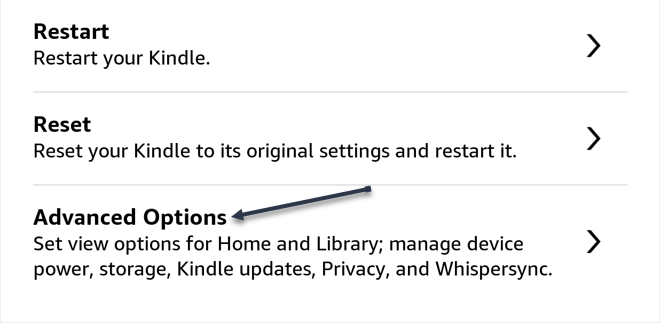
Next, go to Advanced Options. Refer to the below image:

Kindle 4
Accessing Advanced Options

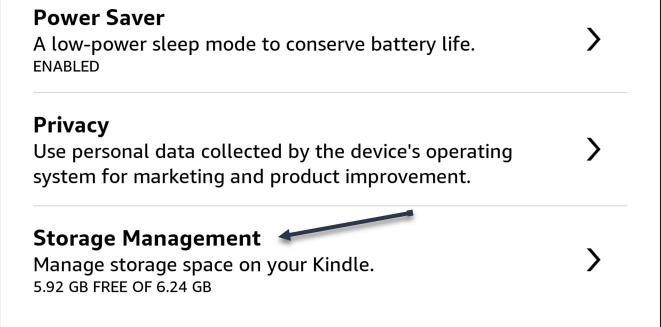
Now, select Storage Management. See the below image:

Kindle 5
Accessing Storage Management

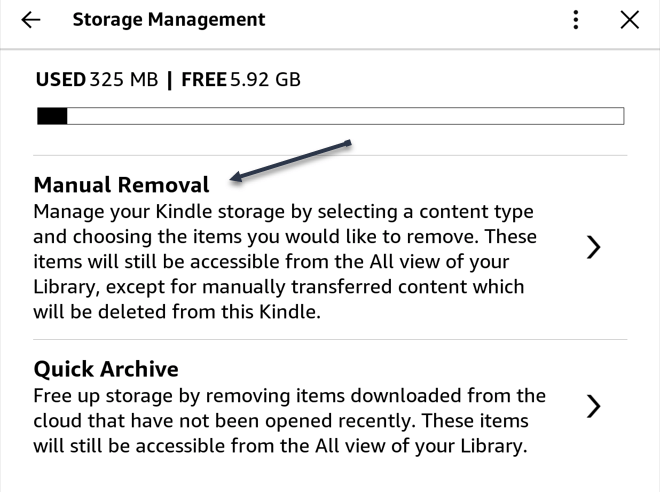
Next, select Manual Removal. See the following image:

Kindle 6
Accessing Manual Removal

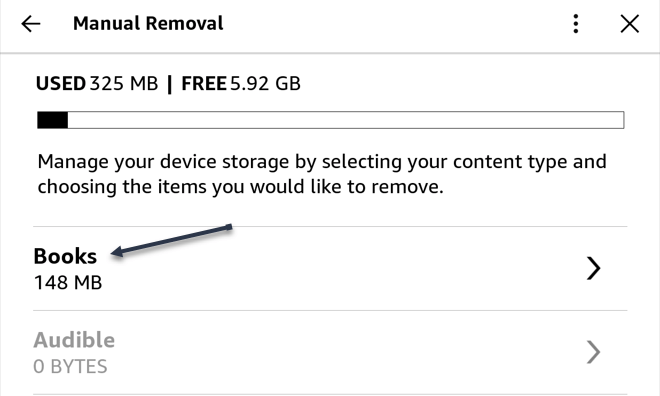
Now, select the Books category. Refer to the below image:

Kindle 7
Accessing Books

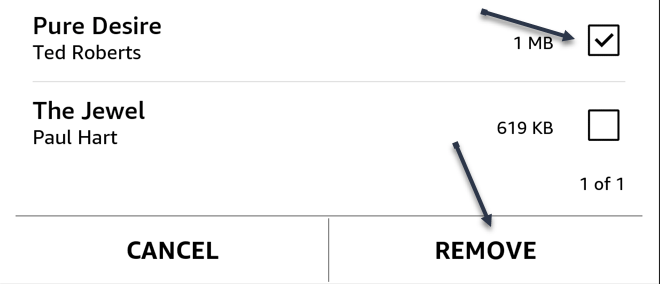
Next, choose the books you do not need anymore and tap Remove. See the below image:

Kindle 8
Selecting Books and Remove them

Your books will no longer be taking up storage space on your Kindle Reader. It will still be in your Kindle Library.

Remove a Book From Kindle Library

You can also remove books from the Library, which will disassociate them from your account.

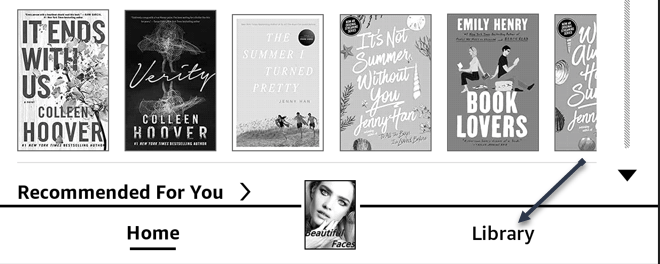
Removing eBooks from your Library can be done from the Kindle app on iPhone, iPad, or Android and the eReader itself. First, open the app or go to the Kindle home screen and select the Library tab. See the following image:

Kindle 9
Accessing Library

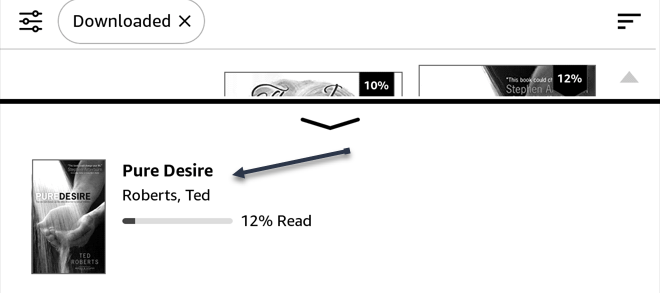
Next, find the book you want to remove and press and hold until a menu appears. Refer to the below image:

Kindle 10
Select a Book to delete/remove

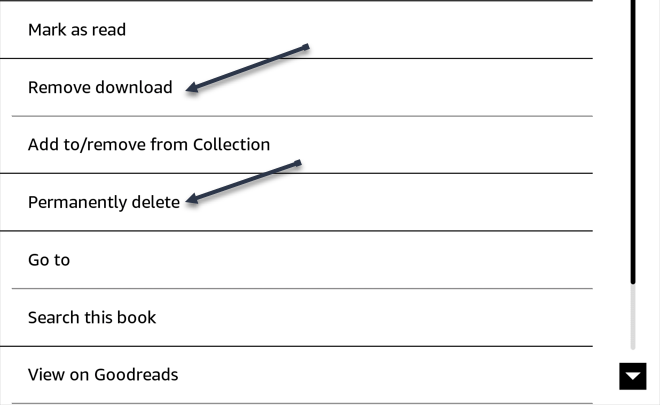
Now, select Remove from Download/Library or Permanently Delete from the menu. See the below image:

Kindle 11
Removing/Deleting the Book from your Library

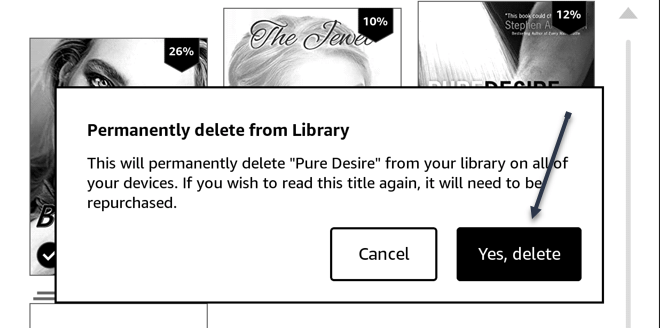
Next, confirm you want to remove the eBook, and you are done! The eBook will no longer appear in your Kindle Library. If you want the book again, you will need to re-purchase or send it to your Library again. See the following image:

Kindle 12
Confirm the removal or deletion

Quote For the Day

It’s not that we use technology, we live technology.

Godfrey Reggio

Tweet Info

You are finished. Please feel free to share this post! One way to share is via Twitter.

Just click the Tweet icon below. This will launch Twitter where you click its icon to post the Tweet.

Checkout TechSavvy.Life for blog posts on smartphones, PCs, and Macs! You may email us at contact@techsavvy.life for comments or questions.

I Would Like to Hear From You

Please feel free to leave a comment. I would love to hear from you. Do you have a computer or smart device tech question? I will do my best to answer your inquiry. Just send an email to contact@techsavvy.life. Please mention the device, app, and version you are using. To help us out, you can send screenshots of your data related to your question.

Author’s E-Book

You can access the e-book from a Kindle device, the Kindle App for the desktop or smartphone, which is a free app.
The author’s Vietnam eBook on the Battle for Tra Bong Vietnam: Events and Aftermath