The Reminders app has seen significant improvements with iOS 13 and iOS 14. Earlier it was a simple application with basic functionalities. Now, Reminders is laden with robust features that let you add subtasks, images, and more! iOS 14.5 even lets you print reminders and sort them accordingly.
The Reminders app has seen significant improvements with iOS 13 and iOS 14. Earlier it was a simple application with basic functionalities. Now, Reminders is laden with robust features that let you add subtasks, images, and more! iOS 14.5 even lets you print reminders and sort them accordingly. Let’s explore some basic features.
This is for iPhone and iPad
Copyright Scott Adams, Inc./Distributed by Universal Uclick for UFS
Before You Begin: Make sure iCloud Reminders are set up so that everything syncs across all your Apple devices.
On iPhone and iPad: Open:
Settings app → your name from the top → iCloud
and make sure the switch for Reminders is turned ON.
Add a List
First, open your Reminders app or use Spotlight Search (your very first screen) to locate it and open. Next, tap the Add List blue link in lower right-hand corner. Refer to below image:
Selecting Add List
Now, give the list a name and tap Done. See below image:
Naming the Reminder
Add a Reminder
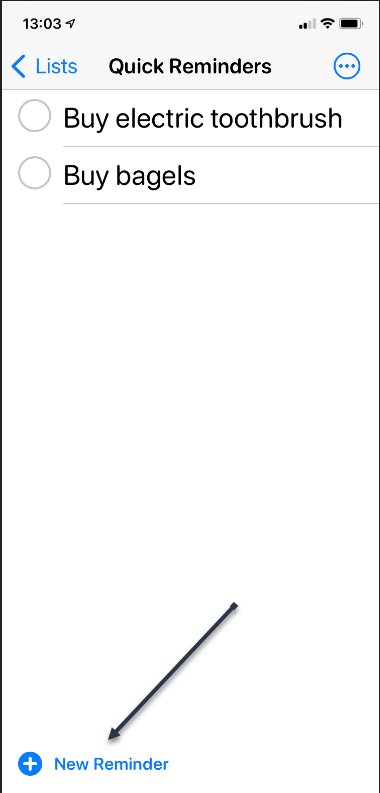
First, tap the New Reminder blue link at the bottom or tap a blank area on your screen and enter your reminder text. See following image:
Selecting a New Reminder
Next, tap the Reminder, then tap the Info Circle icon to set your optional Details for the reminder. Refer to below image:
Selecting more information for the Reminder
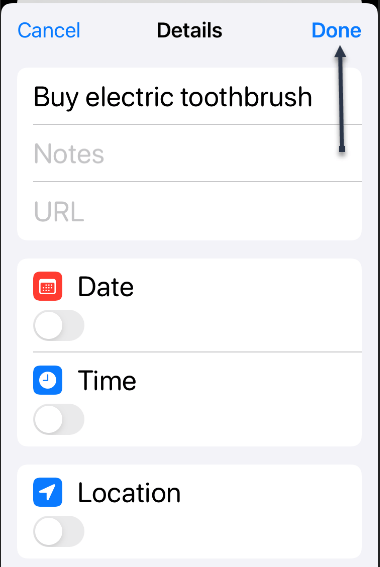
Now, after you have set your optional details like Date, Time, Location, and more, tap Done. See below image:
Setting the Details options
Delete a Reminder
Tap the circle next to the reminder text and tap Done. A unique way to do this is just tap the circle, wait a moment, and your Reminder disappears. See following image:
Delete a Reminder
View Your Reminders
Tap your Reminders icon, then tap your newly created list to view your Reminders. Refer to below image:
Viewing your Reminders
Quote For the Day
There is a cult of ignorance in the United States, and there has always been. The strain of anti-intellectualism has been a constant thread winding its way through our political and cultural life, nurtured by the false notion that democracy means that my ignorance is just as good as your knowledge.
Isaac Asimov
You are finished. Please feel free to share this post! One way to share is via Twitter.
Just click the Tweet icon below. This will launch Twitter where you click its icon to post the Tweet.
Check out TechSavvy.Life for blog posts on smartphones, PCs, and Macs! You may email us at contact@techsavvy.life for comments or questions.
Please feel free to leave a comment. I would love hearing from you. Do you have a computer or smart device tech question? I will do my best to answer your inquiry. Just send an email to contact@techsavvy.life. Please mention the device, app and version that you are using. To help us out, you can send screenshots of your data related to your question.
The author’s Vietnam eBook on the Battle for Tra Bong: Events and Aftermath
It’s easy to run out of space on Google Drive, since it stores data across much of your Google account. Fortunately, it’s also easy to delete data and free up some storage. As you will see, I am running out of space. Let’s explore how to do this.
It’s easy to run out of space on Google Drive, since it stores data across much of your Google account. Fortunately, it’s also easy to delete data and free up some storage. As you will see, I am running out of space. Let’s explore how to do this.
This is for devices using Google Drive. Screenshots are from Drive on Windows 10 PC
Copyright Scott Adams, Inc./Distributed by Universal Uclick for UFS
If you use Google Drive to share large files, it’s quite easy to hit the 15GB free data limit on your Google account. While you can upgrade, for a price, it’s best to manually delete some data for more space first. After doing this, I upgraded to the 100GB plan, yet I am still out of space.
You will not need to spend hours combing through every nook and cranny in Google Drive. The website has a storage management feature that lists all your files, sorting them based on their file size.
First, open the Drive website in your browser.
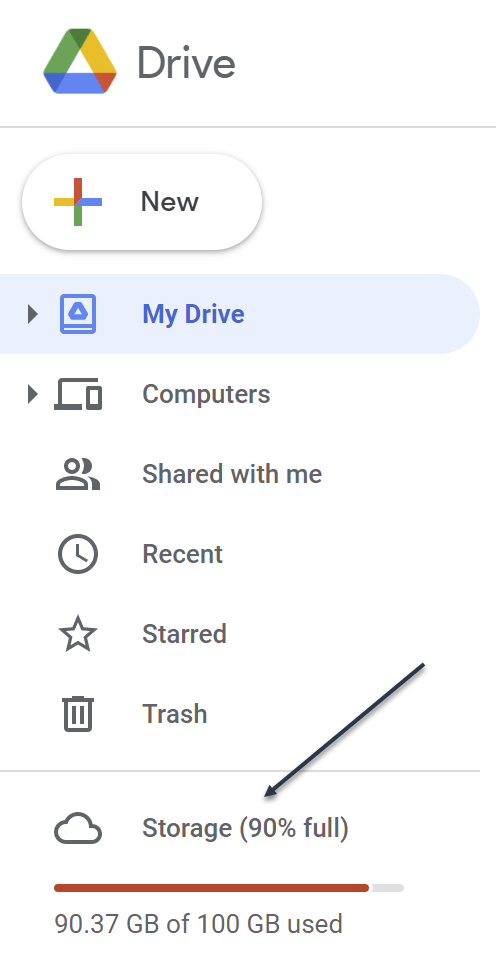
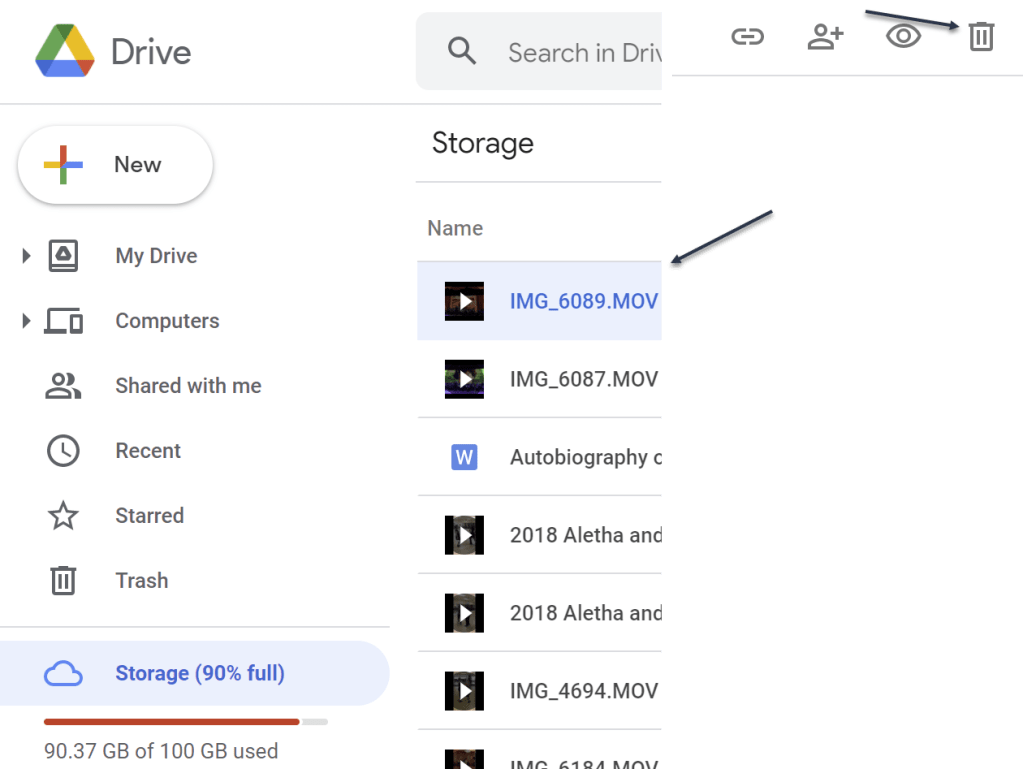
You will see the Storage section at the bottom of the left sidebar. This will show you how much storage space you have left in your account. Now, click the Storage button. Refer to below image:
Your used Storage space
Next, you will see a list of all the large files in your account. Just click a file to select it. To select multiple files, hold the Command/Control key while selecting the file.
Now, to delete the file (or files), click the Remove button (the Trashcan icon) in the top toolbar. See below image:
Delete a file
Google Drive will remove the file and send it to the Trash.
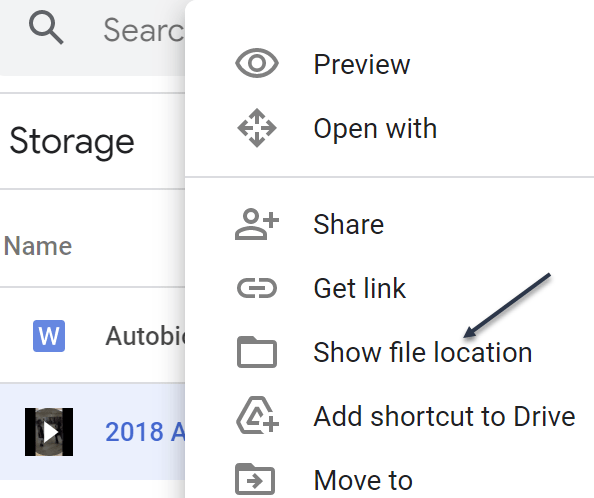
If you want to find and open a folder where a particular file is saved (or find more files to delete), right-click and choose the Show File Location option. See following image:
Find more files
Next, you can select multiple files and use the Remove (Trashcan icon) in the toolbar to delete all the files at once. (You can use this method to delete entire folders as well.)
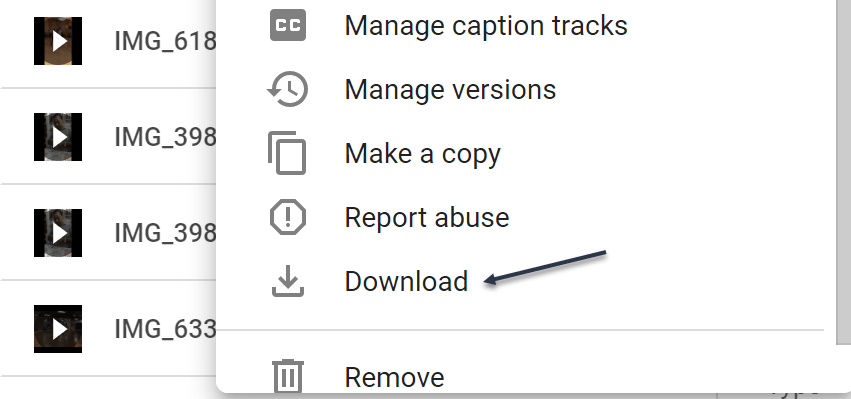
If you do not have a backup of the file that you are planning to delete, click the Download button in the right-click menu to download a copy of the file to your local storage. Refer to below image:
Download a file before deletion
Once you delete files like this, the files are no longer available in Google Drive, but you have not recovered any storage space yet. That’s because Google Drive does not actually delete the files for 30 days. So, if you change your mind, you have up to 30 days to recover the data.
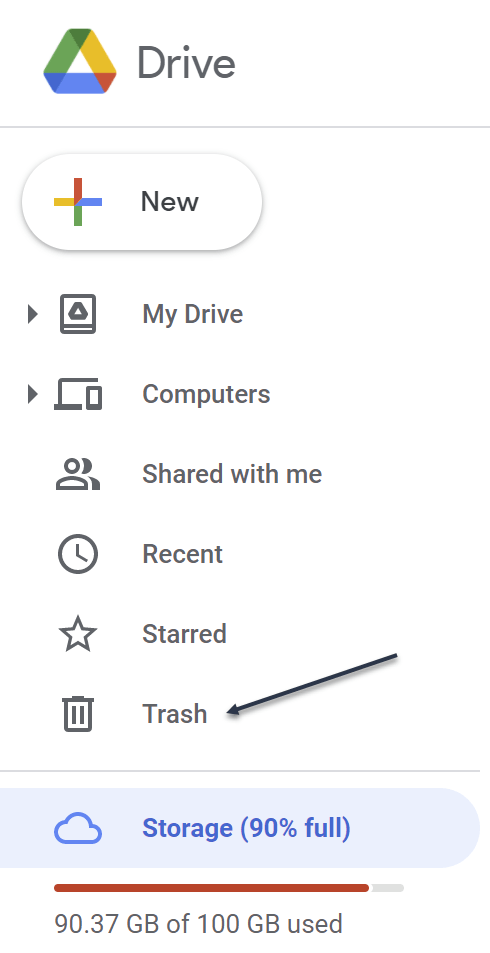
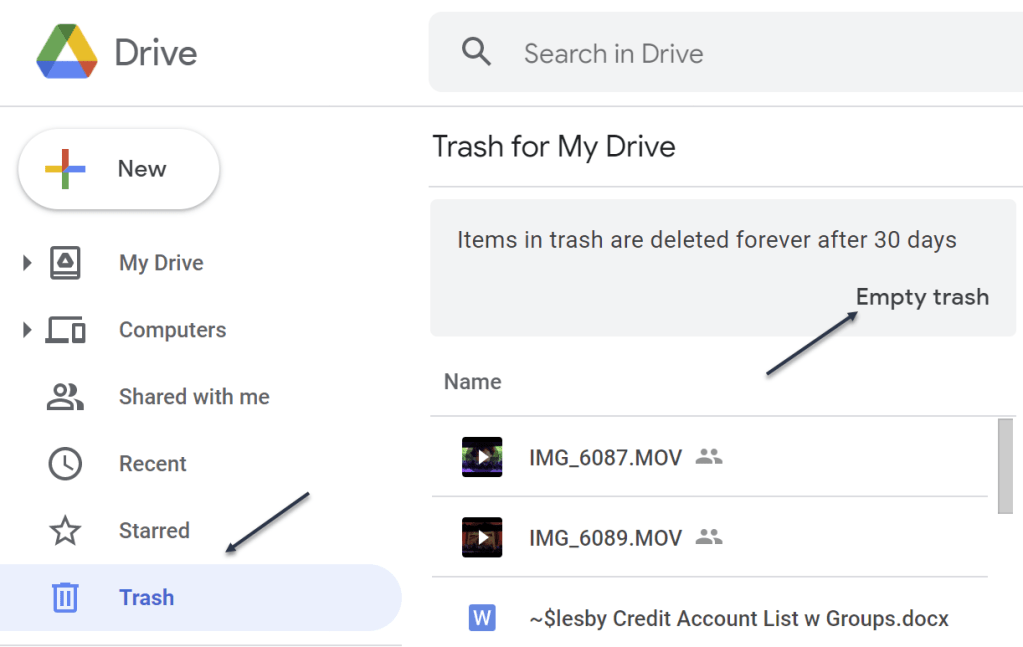
If you want to reclaim the storage space, you will have to force Google Drive to permanently delete the data. To do this, go to the Trash or Bin section in the sidebar. See below image:
Accessing the Trash
Now, in the Trash, you will see a list of files that have yet to be deleted. To individually delete a file, right-click and choose the Delete Forever option. Or, click Empty Trash to delete all the files. See following image:
Delete your file(s)
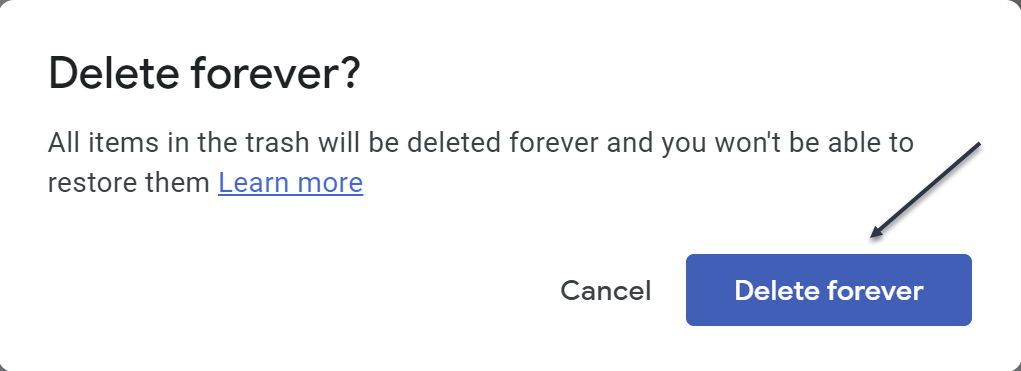
Next, in the pop-up that appears, confirm using the Delete Forever button. Refer to below image:
Confirm to delete the file(s) forever
Now, all the files will be deleted. Once you reload the page, you will see that the storage space has been recovered.
Quote For the Day
I have noticed even people who claim everything is predestined, and that we can do nothing to change it, look before they cross the road.
Stephen Hawking
You now know how to clean up storage space on Google Drive. Please feel free to share this post! One way to share is via Twitter.
Just click the Tweet icon below. This will launch Twitter where you click its icon to post the Tweet.
Check out TechSavvy.Life for blog posts on smartphones, PCs, and Macs! You may email us at contact@techsavvy.life for comments or questions.
Please feel free to leave a comment. I would love hearing from you. Do you have a computer or smart device tech question? I will do my best to answer your inquiry. Just send an email to contact@techsavvy.life. Please mention the device, app and version that you are using. To help us out, you can send screenshots of your data related to your question.
The author’s Vietnam eBook on the Battle for Tra Bong: Events and Aftermath
In June 2021, Apple offered lossless audio for iPhone and iPad running iOS and iPadOS 14.6 or higher, and the Mac for all subscriptions at no extra cost
In June 2021, Apple offered lossless audio for iPhone and iPad running iOS and iPadOS 14.6 or higher, and the Mac for all subscriptions at no extra cost. Let’s explore this feature.
This is for iPhone and iPad running iOS and iPadOS 14.6 or higher, and Mac
Copyright Scott Adams, Inc./Distributed by Universal Uclick for UFS
You can stream most music in lossless format except for broadcast radio, live and on-demand content, and music videos.
What is Lossless Playback
Music is compressed to save on space, particularly when it comes to streaming. The bitrate of a particular file or stream determines the quality of the music, with more bits generally meaning better quality. When you choose a higher bitrate, you will also consume more bandwidth (streaming) or space on your device (downloading).
Until recently, Apple Music could only be streamed using “lossy” AAC (Advanced Audio Codec) compression. While Apple claims that “the difference between AAC and lossless audio is virtually indistinguishable,” the company now offers lossless compression that uses ALAC (Apple Lossless Audio Codec) instead.
ALAC is an open-source format that uses around 50% of the space of uncompressed audio. Support ranges from 16-bit/44.1 kHz CD quality to more modern 24-bit/192kHz recordings. Enabling lossless audio playback for Apple Music is easy and comes at no extra financial cost, but there’s more to lossless than simply flipping a switch.
Check Your OS
First, go to;
Settings > General > Software Update
There you will see your version number. If not 14.6 or higher, tap the blue link to download and install. After installation, go back to your Home Screen.
Enable Lossless Playback on iPhone and iPad
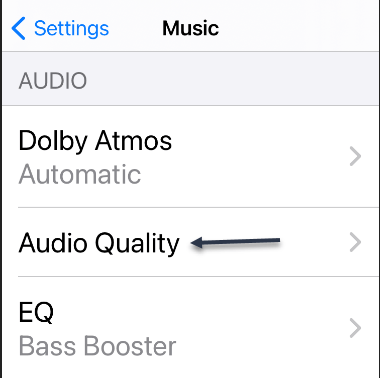
First, you must be a subscriber to Apple Music to enable Lossless audio. After subscribing (3 months free trial), then launch Settings and tap on Music. Next, tap on Audio Quality. Refer to below image:
Selecting Audio Quality option
Now, under Audio Quality, toggle Lossless Audio to ON. See below image:
Enabling Lossless Audio
Next, tap Wi-Fi Streaming. See following image:
Accessing Wi-Fi Streaming
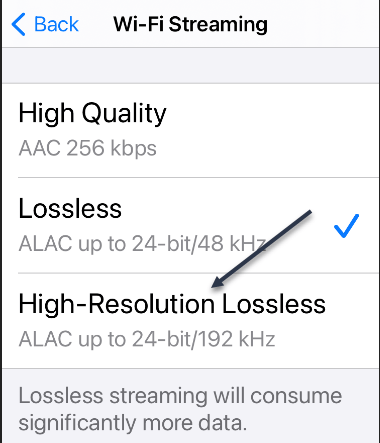
:Now, choose between a Lossless 48kHz sample rate or a High-Resolution Lossless 192kHz sample rate. Refer to below image
Selecting High-Resolution Lossless option
If you choose High-Resolution Lossless and do not have a converter, you will receive a message. See below image:
Message about using a DAC converter
Next, make a choice and exit Settings.
Enable Lossless Playback on a Mac
First, open your Apple Music app, and then click on
Music > Preferences
in the menu bar. Now, on the Playback tab, select Audio Quality. Next, toggle Lossless to ON. Next, choose between 48kHz and 192kHz sample rates. If you do not see the option, you may need to update your macOS.
Using AirPods
Wireless headphones and earphones use compression to stream music from your iPhone to your ears. This includes Apple’s AirPods, AirPods Pro, AirPods Max, and the Beats range of earphones and headphones. Since audio must be compressed for use with wireless Bluetooth audio, lossless audio offers no benefits.
To enjoy lossless audio, you will need to use a wired pair of headphones or speakers or the built-in speakers on your iPhone.
But wait, there is a catch. The iPhone cannot output the higher sample rate of 192kHz (Hi-Res Lossless) without an external digital-to-analog converter (DAC). The DAC in the iPhone is limited to 48kHz output.
Listening Difference
If you are frustrated that your expensive AirPods Max will not support lossless audio, consider for a minute that most people can not tell the difference. The best that you can do is to make sure that high-quality streaming is enabled under
Settings > Music
on your iPhone or iPad so that you are getting the best possible quality that’s available to you.
Quote For the Day
Imagination will often carry us to worlds that never were. But without it we go nowhere.
Carl Sagan
That’s it. Please feel free to share this post! One way to share is via Twitter
Just click the Tweet icon below. This will launch Twitter where you click its icon to post the Tweet.
Check out TechSavvy.Life for blog posts on smartphones, PCs, and Macs! You may email us at contact@techsavvy.life for comments or questions.
Please feel free to leave a comment. I would love hearing from you. Do you have a computer or smart device tech question? I will do my best to answer your inquiry. Just send an email to contact@techsavvy.life. Please mention the device, app and version that you are using. To help us out, you can send screenshots of your data related to your question.
The author’s Vietnam eBook on the Battle for Tra Bong: Events and Aftermath
The Shortcuts app that comes pre-installed on iOS and iPadOS devices has proven to be incredibly useful especially with the release of iOS & iPadOS 14. There are so many things that you can do now with the Shortcuts app, Although you have access to a set of suggested shortcuts, you are not limited to using those alone. In fact, third-party shortcuts created by the community can be installed on your device too.
The Shortcuts app that comes pre-installed on iOS and iPadOS devices has proven to be incredibly useful especially with the release of iOS & iPadOS 14. There are so many things that you can do now with the Shortcuts app, Although you have access to a set of suggested shortcuts, you are not limited to using those alone. In fact, third-party shortcuts created by the community can be installed on your device too. Let’s explore how to do this.
This is for the iPhone and iPad
Copyright Scott Adams, Inc./Distributed by Universal Uclick for UFS
There are several shortcuts websites to chose from. We will be focused on using the Shortcuts Gallery, one of the largest repositories of shortcuts. It includes proper descriptions, steps, and download links. Shortcuts are also sorted by category, so it’s easy to find what you want.
Enable Untrusted Shortcuts
Before you can start installing third-party shortcuts, you have to enable the feature. By default, shortcuts downloaded from the web are blocked because they have not been verified by Apple.
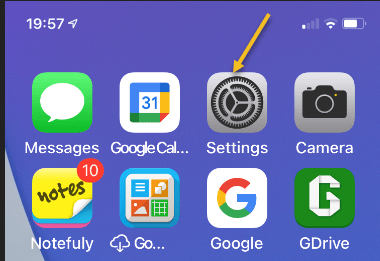
First, tap your Settings app on your iPhone or iPad. Refer to below image:
Accessing Settings
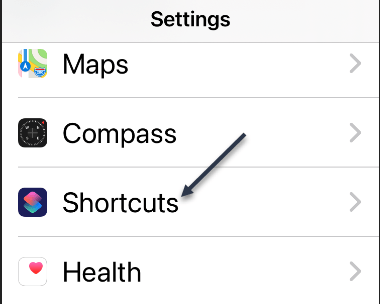
Next, scroll down and tap Shortcuts. See below image:
Accessing Shortcuts
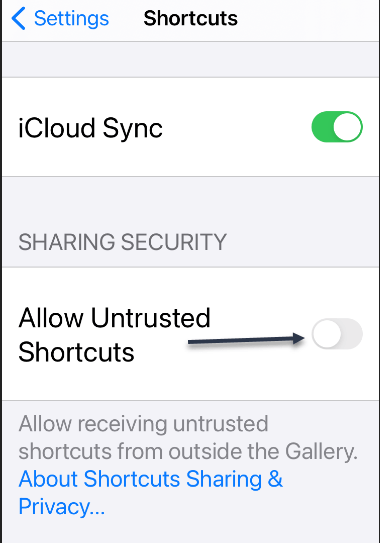
Now, toggle to On the Untrusted Shortcuts option. (Note! If you see a message saying you must first run a shortcut, then download a Shortcut from your Shortcut app and run it.) See following image:
Enabling Untrusted Shortcuts
Next, in the pop-up message that appears, tap Allow. Refer to below image:
Allow Untrusted Shortcuts
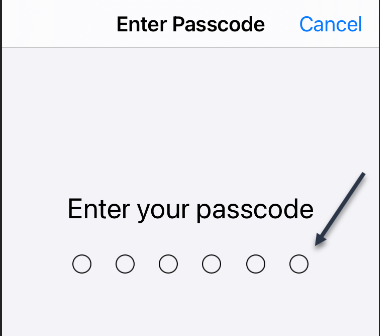
Next, enter your device’s passcode to verify that you own this iPhone or iPad. See below image:
Entering your Passcode
You are ready to go to install third-party shortcuts.
Install Third-Party Shortcuts
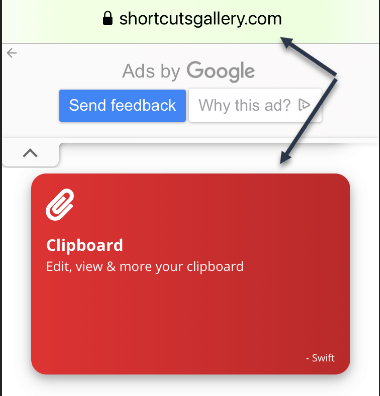
In our example, we will install the Clipboard shortcut from the Shortcuts Gallery website. Open the website in your browser on your iPhone or iPad. Now, tap the shortcut you want to download. See following image:
Finding a Shortcut
Next, tap the Get Shortcut button. Refer to below image:
Get the chosen Shortcut
Now, the shortcut in the Shortcuts app will open. Scroll to the bottom, and then tap Add Untrusted Shortcut. See below image:
Adding the Untrusted Shortcut
Your new shortcut will be at the top of the list in your My Shortcuts. Just tap it to start using it. See following image:
Your newly added Shortcut
After you have downloaded more shortcuts, you can organize them in folders. This will make it easier to launch them from an iPhone Home screen Widget.
Quote For the Day
We cannot solve our problems with the same thinking we used when we created them.
Albert Einstein
That’s it. Please feel free to share this post! One way to share is via Twitter.
Just click the Tweet icon below. This will launch Twitter where you click its icon to post the Tweet.
Check out TechSavvy.Life for blog posts on smartphones, PCs, and Macs! You may email us at contact@techsavvy.life for comments or questions.
Please feel free to leave a comment. I would love hearing from you. Do you have a computer or smart device tech question? I will do my best to answer your inquiry. Just send an email to contact@techsavvy.life. Please mention the device, app and version that you are using. To help us out, you can send screenshots of your data related to your question.
The author’s Vietnam eBook on the Battle for Tra Bong: Events and Aftermath
If your iPhone or iPad storage is full, or you just want to clean up, it’s easy to delete screenshots that you might not need on your device using the built-in Photos app. The latest iOS and iPadOS versions have a separate folder for just screenshots.
If your iPhone or iPad storage is full, or you just want to clean up, it’s easy to delete screenshots that you might not need on your device using the built-in Photos app. The latest iOS and iPadOS versions have a separate folder for just screenshots. Let’s explore how to delete screenshots.
This is for the iPhone and iPad
Copyright Scott Adams, Inc./Distributed by Universal Uclick for UFS
Accessing Media Types
First, open the Photos app on your iPhone or iPad. If you can not find it, swipe downward with one finger from the middle of the home screen to open Spotlight search. Now, type “photos,” and then tap the Photos app icon. Refer to below image:
Accessing Photos
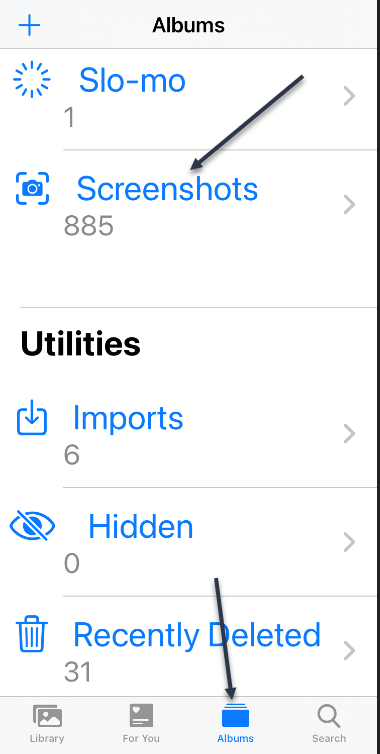
For the iPhone: Tap Albums at the bottom of the screen, and then select Screenshots from the Media Types list. See below image:
Accessing Screenshots for iPhone
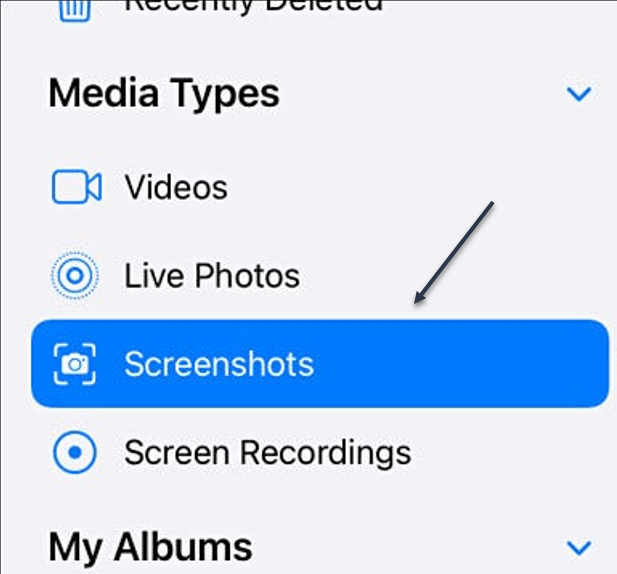
For the iPad: In Photos, open the sidebar by tapping Photos in the upper-left corner of the screen. Now, select Screenshots from the Media Types section. See following image:
Accessing Screenshots for iPad
Delete a Screenshot
Your album of all the screenshots stored on your device will be displayed. To delete a single screenshot, tap its thumbnail to open it in a detailed view. Refer to below image:
Open a Screenshot
Next, when you have a screenshot open for closer viewing, delete it by tapping the Trashcan icon in the lower-left (iPhone) or upper-right (iPad) corner of the screen. See below image:
Delete a single Screenshot
Now, you will see a pop-up menu asking to confirm. Just select Delete Photo.
Delete Multiple Screenshots
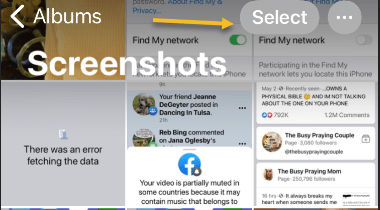
To delete multiple screenshots, go back to the Screenshots album overview that shows thumbnails of all your screenshots. Next, tap the Select button in the upper-right corner of the screen. See following image:
Selecting multiple Screenshots
You are now in selection mode. You can select all the screenshots in the album by tapping Select All, or you can select multiple screenshots by tapping their thumbnails. When it’s selected, each photo’s thumbnail will have a small circle with a check mark in the lower-right corner. Refer to below image:
Your selected Screenshots
You can also quickly select a large number of screenshots by tapping a thumbnail with your finger and holding it down lightly while you drag it halfway down the screen. The screenshot thumbnail list will start scrolling while selecting images. To stop selecting, lift your finger.
When you have selected all the screenshots that you want to delete, tap the Trashcan icon in the corner of the screen. Next, when you are asked to confirm, tap Delete Photos. See below image:
Delete your selected Screenshots
By default, the screenshots that you just deleted will be permanently removed from your device in 30 days.
Delete All Screenshots
If you want to permanently remove the screenshots sooner, first, navigate to your Recently Deleted album in the Photos app.
For the iPhone: Navigate to Albums > Recently Deleted.
For the iPad: Open the sidebar and tap Recently Deleted under Utilities.
See following image:
Open Recently Deleted album
When you see the gallery of your recently deleted screenshot thumbnails, you can individually select and delete them with the Delete button. To delete all Recently Deleted images at once, tap Select in the corner of the screen, and then select Delete All. Refer to below image:
Delete All Screenshots
Now, when you are asked to confirm, tap Delete Photos. All of your screenshots will be permanently deleted.
Quote For the Day
Look up at the stars and not down at your feet. Try to make sense of what you see, and wonder about what makes the universe exist. Be curious.
Stephen Hawking
You are finished. Please feel free to share this post! One way to share is via Twitter.
Just click the Tweet icon below. This will launch Twitter where you click its icon to post the Tweet.
Check out TechSavvy.Life blog posts for smartphones, PCs, and Macs! You may email us at contact@techsavvy.life for comments or questions.
Please feel free to leave a comment. I would love hearing from you. Do you have a computer or smart device tech question? I will do my best to answer your inquiry. Just send an email to contact@techsavvy.life. Please mention the device, app and version that you are using. To help us out, you can send screenshots of your data related to your question.
The author’s Vietnam eBook on the Battle for Tra Bong: Events and Aftermath
Safari on the iPhone and iPad has a hidden feature that lets you quickly bookmark all open websites to a single folder. To keep things as you had left it, quickly bookmark all the tabs in Safari using this feature.
Safari on the iPhone and iPad has a hidden feature that lets you quickly bookmark all open websites to a single folder. To keep things as you had left it, quickly bookmark all the tabs in Safari using this feature.
This is for iPhone and iPad
Copyright Scott Adams, Inc./Distributed by Universal Uclick for UFS
First, open the Safari app on your iPhone or iPad and then tap the URL bar. Here, enter a URL and then press the Go button to open the website. Repeat this process to open all of the websites that you want to bookmark at once. Refer to below image:
Entering a URL to save
Method 1 – Closing a Few Bookmarks
If you already have websites open, tap the Tabs button, and close any webpage that you do not want to bookmark.
Method 2 – Closing All Bookmarks
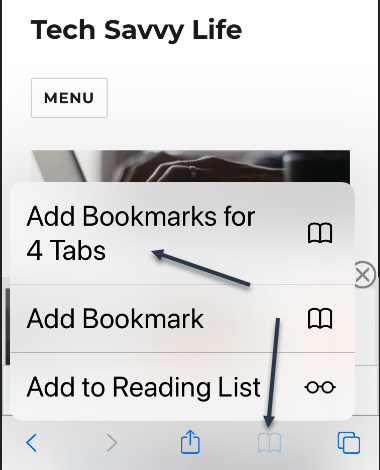
If you have lots of open bookmarks, tap and hold the Bookmarks button and then view the Add BookmarksFor X Tabs option. You may want to close all, then add tabs using the above process. (In my example. I am closing 208 and adding 4 bookmarks). Once you have done this, select the Add BookmarksFor X Tabs option.
Now, from the next page, give the new folder a name. By default, Safari will save the folder in Favorites but you can tap the button to see all available locations.
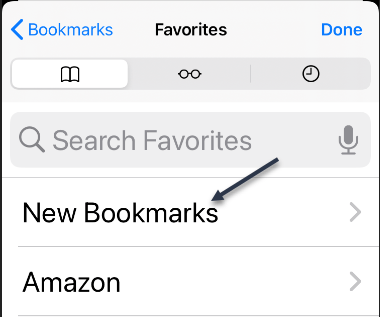
Next, after choosing the folder, tap the Save button. (In my example, I entered a new folder of New Bookmarks with 4 tabs). See following image:
Creating a new bookmarks folder
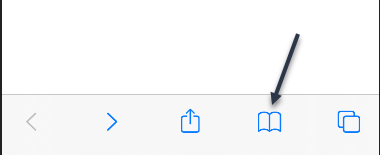
Safari has now saved all of your open tabs. To access the tabs later, tap the Bookmarks button from the bottom toolbar. Refer to below image:
Accessing the bookmarks
Now, locate the folder where you saved the bookmarks. Then tap and hold the folder to see the options. See below image:
Accessing your new bookmarks folder
Deletion Process
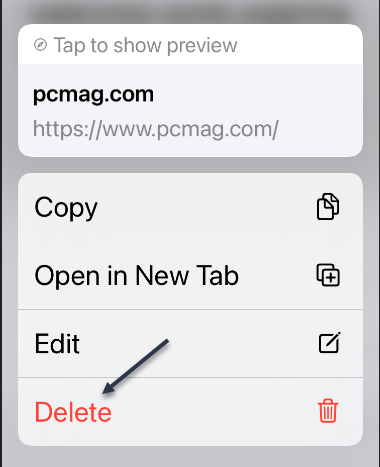
Next, tap the Open In New Tabs button to reopen all of the tabs. Also, you can tap the Delete button to delete the folder. See following image:
Open or Delete bookmark(s)
Now, select a tab to see its options, then tap the Delete option to delete the bookmark. Note! If you do not select a bookmark and press Delete, all your tabs will be deleted, so be careful. Refer to below image:
Delete a bookmark
Quote For the Day
The past, like the future, is indefinite and exists only as a spectrum of possibilities.
Stephen Hawking
That’s it. Please feel free to share this post! One way to share is via Twitter.
Just click the Tweet icon below. This will launch Twitter where you click its icon to post the Tweet
Check out TechSavvy.Life for blog posts on smartphones, PCs, and Macs! You may email us at contact@techsavvy.life for comments or questions.
Please feel free to leave a comment. I would love hearing from you. Do you have a computer or smart device tech question? I will do my best to answer your inquiry. Just send an email to contact@techsavvy.life. Please mention the device, app and version that you are using. To help us out, you can send screenshots of your data related to your question.
The author’s Vietnam eBook on the Battle for Tra Bong: Events and Aftermath
Autofill gives you the ability to save contact and credit card information on Safari so you do not have to re-enter the long card number and expiration date every time you buy something on the Web.
Autofill gives you the ability to save contact and credit card information on Safari so you do not have to re-enter the long card number and expiration date every time you buy something on the Web.
Old cards remain saved on Autofill, even when they have expired. Let’s explore this feature.
This is for iPhone and iPad
Copyright Scott Adams, Inc./Distributed by Universal Uclick for UFS
View Your Credit Cards
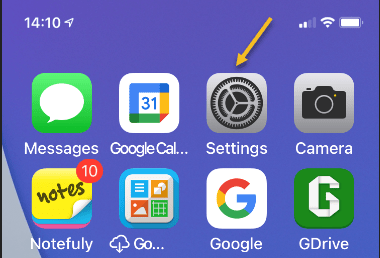
First, open Settings on your iPhone or iPad. Refer to below image:
Accessing Settings
Next, in Settings, tap Safari. See below image:
Accessing Safari option
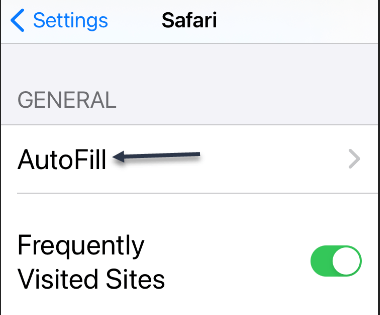
Now, in Safari, tap AutoFill. See following image:
Accessing AutoFill option
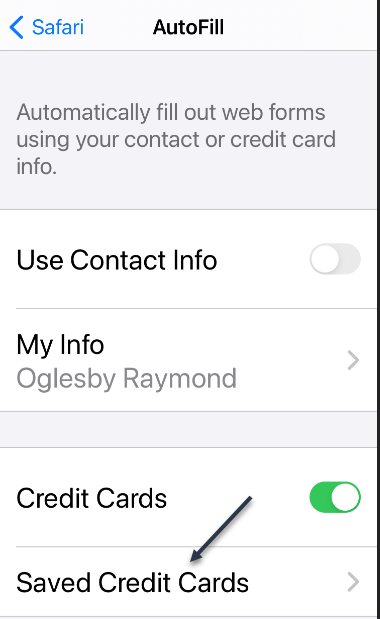
Next, in Safar’sAutoFill settings, tap Saved Credit Cards. Refer to below image:
Accessing your Saved Credit Cards
Now, when prompted, enter your PIN or validate your identity with Touch ID or Face ID, Next, you will see a list of credit cards that Safari has saved. Tap any entry in the list to see more details.
On the details screen, you will see the full credit card number and expiration date for the card if Safari has saved that information (Note that the three-digit CVV number on the card’s back is never stored.) See below image:
Viewing Saved Credit Card list
Next, if you need to edit the information on the card, tap Edit in the upper right-hand corner. See following image:
Editing a credit card
Now, when you are done editing, tap Done.
Add a CreditCard
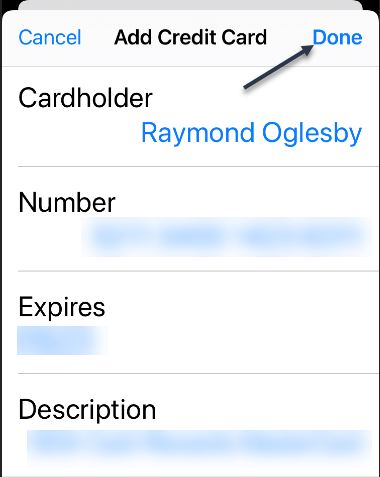
If you go back one screen to the credit card list, you can also add a credit card to the list by tapping Add Credit Card. Just enter your information for the credit card. Refer to below image:
Adding a credit card
Delete a CreditCard
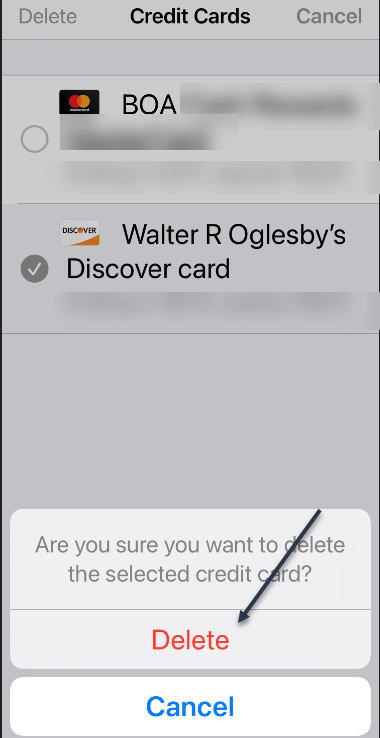
As well as add, you can delete a card from the list by tapping Edit, checkmark the card, and tapping Delete. See below image:
Deleting a credit card
A pop-up message will appear asking you to confirm the deletion. See following image:
Confirming the deletion
When you are done, exit Settings.
Quote For the Day
Technology is a useful servant but a dangerous master.
Christian Lous Lange
You are finished. Please feel free to share this post! One way to share is via Twitter.
Just click the Tweet icon below. This will launch Twitter where you click its icon to post the Tweet.
Check out TechSavvy.Life for blog posts on smartphones, PCs, and Macs! You may email us at contact#@techsavvy.life for comments or questions.
Please feel free to leave a comment. I would love hearing from you. Do you have a computer or smart device tech question? I will do my best to answer your inquiry. Just send an email to contact@techsavvy.life. Please mention the device, app and version that you are using. To help us out, you can send screenshots of your data related to your question.
Copyright Scott Adams, Inc./Distributed by Universal Uclick for UFS
In iOS 14 and iPadOS 14 or higher you can train Siri to learn your go-to music app. Siri will ask you which audio app you would like to use and remembers your choice.
In iOS 14 and iPadOS 14 or higher you can train Siri to learn your go-to music app. Siri will ask you which audio app you would like to use and remembers your choice.
This if for the iPhone and iPad running iOS or iPadOS 14 or higher
Copyright Scott Adams, Inc./Distributed by Universal Uclick for UFS
First, update your iOS/iPadOS to 14 or higher. Next, launch Siri. On newer Apple devices, you can do this by saying “Hey Siri” (if you have it turned on) or long-press the Side/Top/Power button on your iPhone or iPad with Face ID. Refer to below image:
Accessing the Power button
On older iPhones or iPads with a Touch ID sensor, long-press the Home button.
Now, Siri will start listening for a voice command when you see its icon appear on-screen. Ask your phone or tablet to play a song, artist, podcast, or audiobook. For example, you can say “Play Carole King,” or “Play Horse With No Name,” or “Listen to the Vergecast.” See below image:
Siri enabled and listening
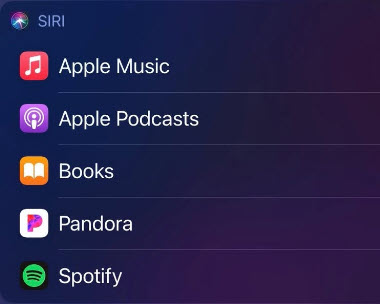
Next, your device will ask you which music or audio app you would like to listen to the song, artist, podcast, or audiobook on. Tap the app that you would like to use. See following image:
Select an audio app
Occasionally, Siri might ask for your permission to access an app’s data before it can control playback. Just grant the voice assistant permission by tapping the Yes button from the pop-up screen. Refer to below image:
Giving permission to access app
Now, Siri’s on-screen overlay will transform into an audio widget. You can control playback, volume, and more from this window. Tapping outside of the widget will make it disappear, but your music, audio, or podcast will continue playing in the background. See below image for the jazz song “Touching Peace.”
Siri audio widget
For the full playback screen from Apple Music, see following image:
Siri audio widget in full screen
From now on, if you ask Siri to play a song or audio program, your device will default to whichever app you selected. It will no longer automatically open the Apple Music app.
As mentioned, setting the default music app is not a setting “baked” into your device. On occasion, Siri might prompt you to reselect which audio app you would like to use to help train the Voice Assistant.
Also, you are not locked into only using the app you just chose. Instead, you can be specific in your command to Siri to open a song, artist, podcast, or audiobook in a particular app that you have installed on your device. For example, you can say, “Listen to 1984 by George Orwell in Audible.”
Quote For the Day
He who has a why to live can bear almost any how.
Friedrich Nietzsche
You are finished. Please feel free to share this post! One way to share is via Twitter.
Just click the Tweet icon below. This will launch Twitter where you click its icon to post the Tweet.
Check out TechSavvy.Life for blog posts on smartphones, PCs, and Macs! You may email us at contact@techsavvy.life for comments or questions.
Please feel free to leave a comment. I would love hearing from you. Do you have a computer or smart device tech question? I will do my best to answer your inquiry. Just send an email to contact@techsavvy.life. Please mention the device, app and version that you are using. To help us out, you can send screenshots of your data related to your question.
The author’s Vietnam eBook on the Battle for Tra Bong: Events and Aftermath
If you lose your Apple device or an object tagged with an AirTag, you can utilize a network of hundreds of millions of Apple devices with Bluetooth to help get it back.
If you lose your Apple device or an object tagged with an AirTag, you can utilize a network of hundreds of millions of Apple devices with Bluetooth to help get it back. Let’s explore this feature.
This is for Apple devices. Screenshots are from Apple and iPhone XR
Copyright Scott Adams, Inc./Distributed by Universal Uclick for UFS
What is Find My Network
Apple’s Find My network is a crowdsourced method of locating your lost iPhone, iPad, iPod Touch, AirPods, Apple Watch, or Mac. You can also use it to locate lost items that have AirTags attached to them. It’s available as a free service to Apple device owners.
The Find My network utilizes Bluetooth sensors on hundreds of millions of Apple products to report the location of missing Apple devices around them. When an Apple device on the network detects a missing Apple device nearby, it reports the lost item’s approximate location back to the device’s owner through the Internet.
What About Privacy
You might think that with a network of almost a billion Apple devices reporting back on the location of lost items, there might be some privacy issues. However, Apple has taken privacy into account when designing this network.
Apple has worked to avoid privacy issues whenever possible, engineering a system that utilizes end-to-end encryption while also transmitting anonymized data to keep your device’s location known only to you while also keeping your identity and location private when using a device that’s active in the Find My network. According to Apple, neither it nor third parties can access the location of your devices on the Find My network. Only the person seeking the lost device can see the item’s location. Hey, if you don’t trust Apple, who can you trust? I am pessimistic on this feature.
Apple’s AirTags do pose more of a privacy risk, but Apple has taken steps to make it harder to track people who use AirTags without their knowledge. Time will tell if those measures are sufficient.
Setup the Feature
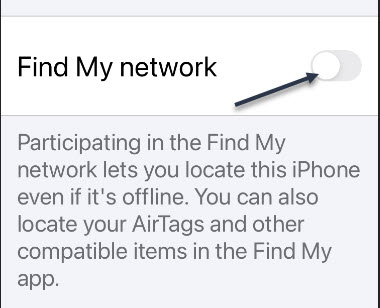
To do so on an iPhone, iPad, or iPod Touch, navigate to:
Settings > Apple ID > Find My > Find My iPhone/iPad/iPod Touch
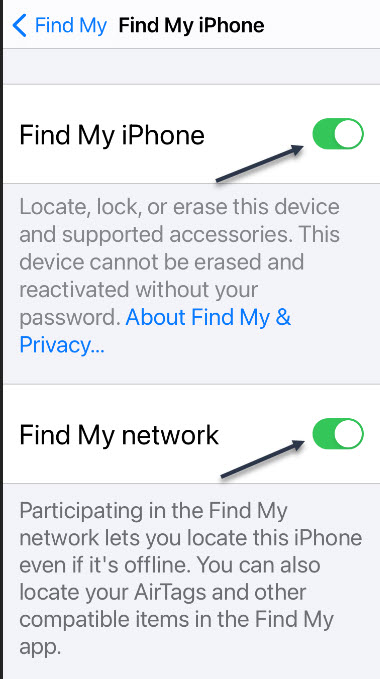
and tap to turn the Find My network switch On. While here, turn On the Find My <device>, for example, Find My iPhone as shown below. Now, exit Settings. Refer to below image:
Enabling the feature
How to Use the Feature
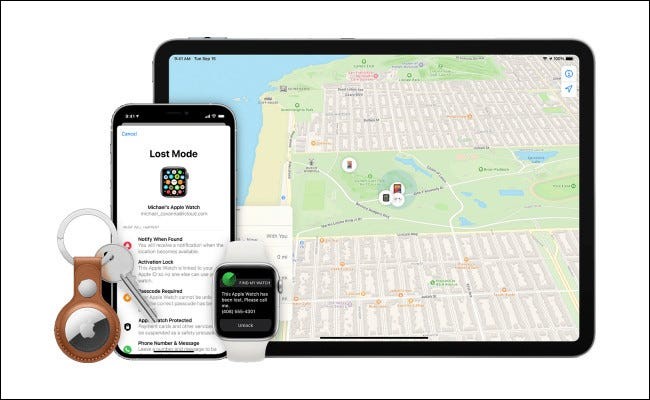
For you to use the Find My network your lost item or AirTag must first have Find My enabled and also be registered to your Apple ID. To locate the item, open the Find My app on your iPhone, iPad, iPod Touch, or Mac. Choose the devices tab, tap the device’s name, and you will see its location on a map. If you can’t see it, you can mark the device as lost and hope that someone finds it later and returns it to you. See below image from Apple:
Map of lost device – per Apple
Can I Opt Out
Even though the Find My network does not represent a privacy issue for most people (unless you work in a sensitive, high-security field, werecommend that you keep it enabled), you can still turn it off (and opt out) if you would like.
To do so on an iPhone, iPad, or iPod Touch, navigate to:
Settings > Apple ID > Find My > Find My iPhone/iPad/iPod Touch
and tap to turn the Find My network switch to Off. Now, exit Settings. See following image:
Disabling the feature
To opt out of Find My network on a Mac, open:
System Preferences > Apple ID > iCloud
and then click the Options button beside Find My Mac. In the pop-up window, click the Turn Off button beside Find My network.
Keep in mind that if you turn off the Find My network feature not only will your device’s Bluetooth sensors stop assisting others in locating lost devices, but also, you will not be able to take advantage of its benefits if you lose your device.
Throttled Back
Although not a part of this feature, Apple has been noted in recent lab tests to have “throttled back” (reduced speed) in iOS 14.5.1 on iPhone models 10, 11,and 12. You have to wait for the next iOS update for Apple to fix this issue.
Quote For the Day
Opportunity is missed by most people because it is dressed in overalls and looks like work.
Thomas A. Edison
You are finished. Please feel free to share this post! One way to share is via Twitter.
Just click the Tweet icon below. This will launch Twitter where you click its icon to post the Tweet.
Check out Techsavvy.Life for blog posts on smartphones, PCs, and Macs! You may email us at contact@techsavvy.life for comments or questions.
Please feel free to leave a comment. I would love hearing from you. Do you have a computer or smart device tech question? I will do my best to answer your inquiry. Just send an email to contact@techsavvy.life. Please mention the device, app and version that you are using. To help us out, you can send screenshots of your data related to your question.
The author’s Vietnam eBook on the Battle for Tra Bong: Events and Aftermath
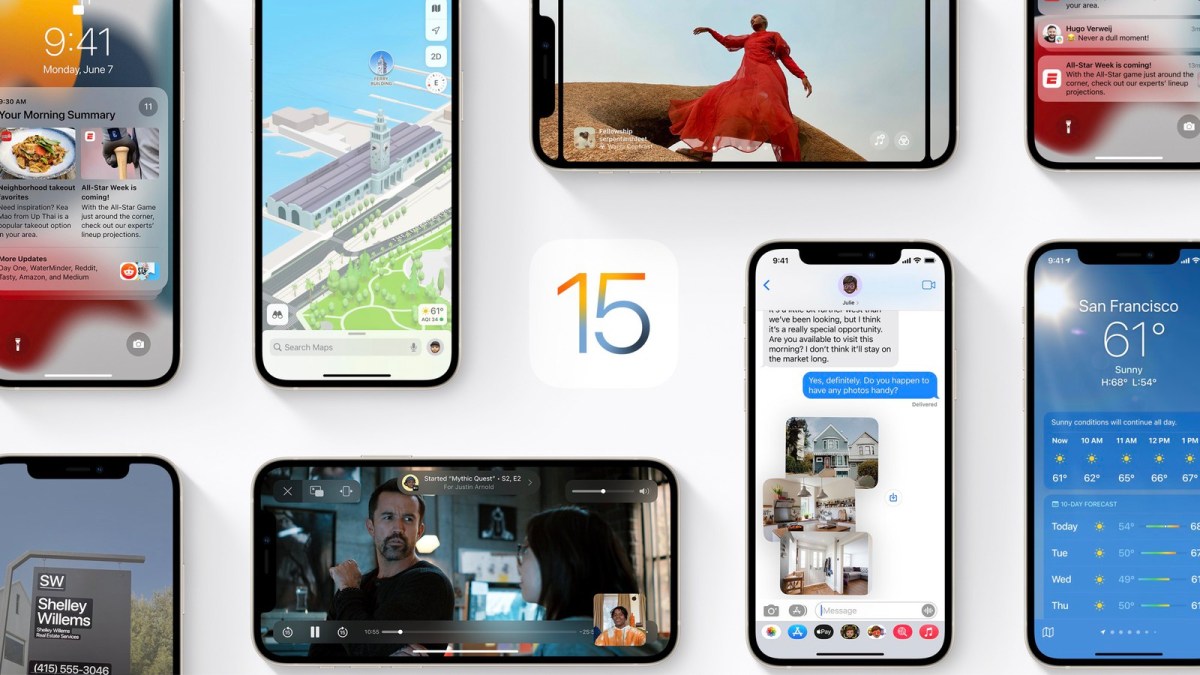
Apple in June 2021 introduced the latest version of its iOS operating system, iOS 15, which is set to be released in the fall. iOS 15 introduces new features for FaceTime calls, tools to reduce distractions, a new notifications experience, added privacy features, complete redesigns for Safari, Weather, and Maps, and more.
In June 2021 Apple introduced the latest version of its iOS operating system, iOS 15, which is set to be released in the fall. iOS 15 introduces new features for FaceTime calls, tools to reduce distractions, a new notifications experience, added privacy features, complete redesigns for Safari, Weather, and Maps, and more.
This is for devices running iOS and iPadOS 15
Copyright Scott Adams, Inc./Distributed by Universal Uclick for UFS
Notifications have been redesigned in iOS 15, adding contact photos for people and larger icons for apps. To reduce distraction, a notification summary collects notifications together for delivery at an appropriate time and arranges notifications by priority.
Focus is a new feature that can filter notifications and apps based on what a user wishes to focus on at a certain time. When a user’s Focus is blocking incoming notifications, their status will be displayed to others in Messages. iOS will suggest a Focus for different occasions, such as work hours or winding down for bed, using on-device intelligence, but users can also create a custom Focus. When a Focus is set on one Apple device, it automatically applies to other Apple devices.
Safari features a completely new design. Controls are now easier to reach with one hand and give more focus to a webpage’s content. There is a new, compact tab bar that floats at the bottom of the screen so users can easily swipe between tabs. Tab Groups allow users to save tabs and easily access them at any time across devices. There is also a customizable start page and web extensions for the first time.
The Maps app now offers a new 3D view in cities with significantly enhanced details, showing buildings, pedestrian crosswalks, bike lanes, and more. There is a new city-driving experience with added road details and improved Transit features, such as pinned favorite lines, notifications to disembark, and walking directions.
iOS 15 brings voice isolation and Spatial Audio to FaceTime calls so that voices appear to sound as if they are coming from where the person is located on the screen.
FaceTime also supports Portrait mode and offers a new grid view to see more faces at the same time. SharePlay is a new feature that allows users to share media together in sync during a FaceTime call. Users can also generate shareable links to a scheduled FaceTime call, which can also be opened in Android and Windows devices.
The Weather app has been redesigned in iOS 15, showing more graphical displays of weather data, full-screen maps, and dynamic layouts that change based on weather conditions. Totally new animated backgrounds can now more accurately reflect the sun’s position and current precipitation, and there are notifications to highlight when rain or snow starts and stops.
The Wallet app adds support for new key types in iOS 15, such as homes, offices, or hotel rooms. Later this year, customers in participating U.S. states will be able to add a driver’s license or state ID to the Wallet app.
The Photos app features a major update to Memories with a new design and an interactive interface. Memories how supports integration with Apple Music, using on-device intelligence to offer song suggestions for personalized Memories.
Live Text is a new feature that uses on-device intelligence to recognize text in a photo that users can search for, highlight, and copy it. Spotlight can now search for photos by location, people, scenes, objects, and text. Spotlight now offers web image search and richer results for actors, musicians, TV shows, and movies. Enhanced results for contacts show recent conversations, shared photos, and even their location if shared through Find My.
iOS 15 also introduces new privacy measures, such as processing Siri requests directly on the iPhone, which has the added benefit of better responsiveness, Mail Privacy Protection to stop senders knowing if an email has been opened and detecting a recipient’s IP address, and an App Privacy Report view to show how often apps use the permissions they have been granted.
There are dozens of tweaks and changes for other apps, such as user-created tags, mentions, and an Activity view in the Notes app, Trends, Walking Steadiness, and a new sharing tab in the Health app, a systemwide Shared with You feature for highlighting content that has been shared in Messages conversations, and a new For All of You row in the TV app to suggest entertainment for the whole household.
iOS 15 is compatible with the iPhone 6s and later, which means it runs on all devices able to run iOS 14, and will be released this fall, 2021.
As you have read, lots of new features. Look forward to learning about iOS 15 in upcoming TechSavvy.Life blog posts.
Quote For the Day
I am just a child who has never grown up. I still keep asking these ‘how’ and ‘why’ questions. Occasionally, I find an answer.
Stephen Hawking
That’s it. Please feel free to share this post! One way to share is via Twitter.
Just click the Tweet icon below. This will launch Twitter where you click its icon to post the Tweet.
Check out TechSavvy.Life for blog posts on smartphones, PCs, and Macs! You may email us at contact@techsavvy.life for comments oar questions.
Please feel free to leave a comment. I would love hearing from you. Do you have a computer or smart device tech question? I will do my best to answer your inquiry. Just send an email to contact@techsavvy.life. Please mention the device, app and version that you are using. To help us out, you can send screenshots of your data related to your question.
The author’s Vietnam eBook on the Battle for Tra Bong: Events and Aftermath








































 Tech Savvy Life