

RAYMOND OGLESBY @RaymondOglesby2
April 22, 2025 –5 minutes read time
Overview
With these hand-picked tips and pointers, customize your Windows 11 experience, learn about the best new features, and get the most out of Microsoft’s superb desktop OS.
Windows 11 has been out for a while now, but you likely do not know about every setting and feature this operating system offers. We have done all the hard work for you, collecting six of our favorite tips and tricks that help you maximize your enjoyment and productivity with Windows. Microsoft is always refining and updating Windows 11, of course, so we will continue to update this story with new and exciting pointers.
Why You Wil Like This Tip
- Learn some new tips about Windows 11.
- Improve the Windows 11 operating system.
System Requirements
Any device running Windows 11. Screenshots are from a desktop running Windows 11 Pro.
1,. Increase Security by Using Passkeys
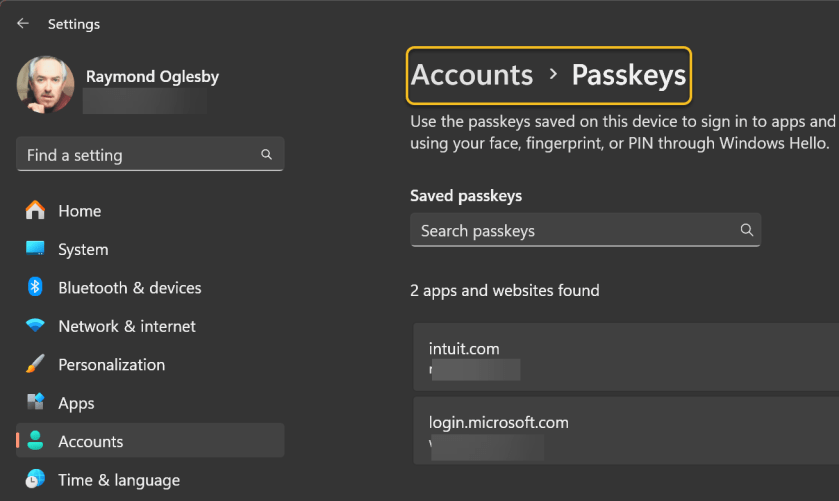
Passwords are so passé and not as secure as other options. Forward-minded websites and apps support more secure Passkeys to log in, which are linked to a specific device. Windows 11 can now store your passkeys or use those you store on other devices, such as your smartphone. On Windows 11, head to:
Settings > Accounts >Passkeys
Passkeys take advantage of Windows Hello authentication via facial recognition, fingerprint, or PIN.
2. Add Tabs to File Explorer
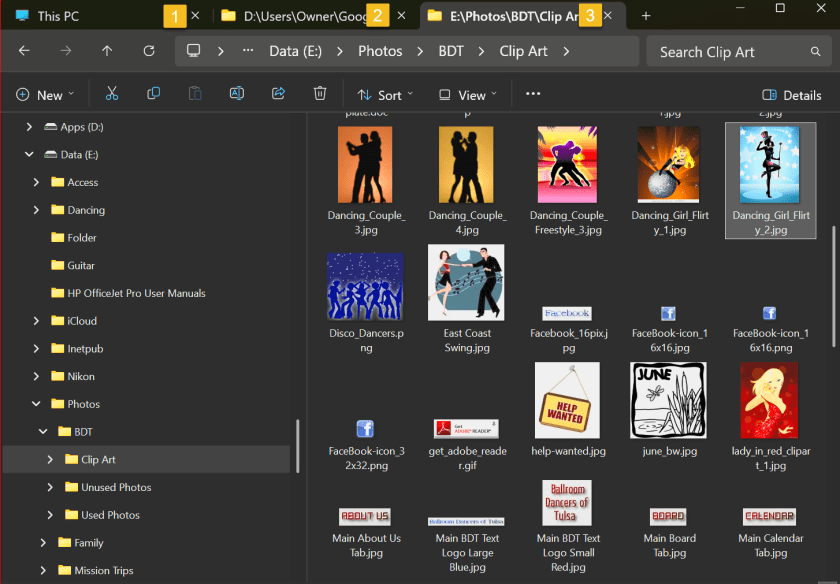
Explorer tabs save you from littering your desktop with multiple File Explorer windows when you need to view more than one at a time. Just right-click on a folder and choose Open in New Tab, like you would in a web browser. You can even drag a file between tabs. Just drag it to the desired tab and then down into the file list for that tab. You can also drag tabs sideways to rearrange them and press Alt-Left Arrow to navigate back in a tab (but not Ctrl-PgUp and Ctrl-PgDn as you can on a web browser).
With the initial Windows 11 release, Microsoft streamlined the ribbon at the top of the File Explorer menu. Cut, Copy, Paste, Rename, Share, Delete, Sort, and View choices get prominent buttons at the top, saving you from having to wade through multiple menus you seldom use. Windows 11 also adds a New button for creating new folders and shortcuts, as well as documents based on installed programs. The buttons change based on context, too. So, for example, when you are searching in the right-hand search box, you get a Search Options button.
3. Customize the Start Menu
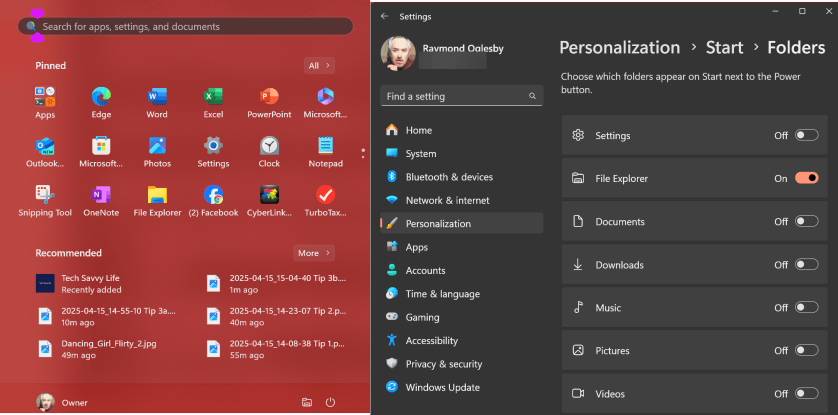
In Windows 10, the Settings button appears above the Start button when you tap it by default. Not so in Windows 11, but you can add it back via:
Settings > Personalization > Start > Folders
You can add folders from here, as well as Settings, File Explorer, and Network buttons, as well as folders for music, pictures, documents, and so on.
4. Listen With New Sound Modes
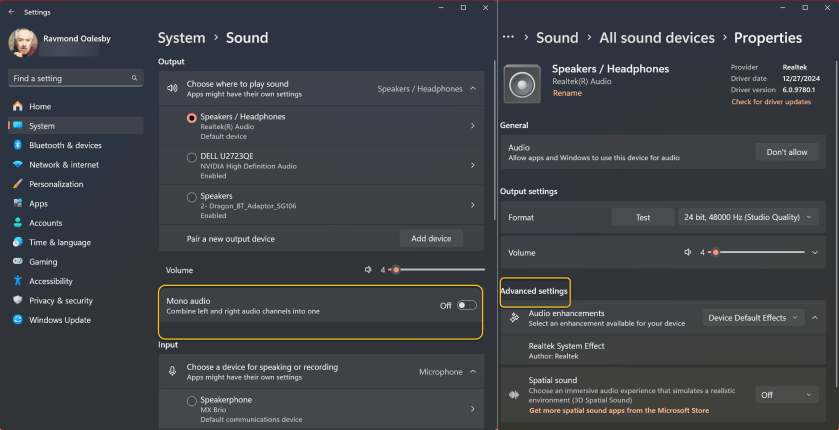
In Windows 11, you have extra control over your audio output, including mono audio and enhanced audio modes. To go Mono, open:
Settings > System > Sound
then enable Mono audio to combine the left and right audio channels.
For enhanced audio, which includes bass boost, loudness equalization, room correction, and virtual surround, under the Advanced Section, click:
All sound devices > (choose a device) > Properties
and enable its options.
5. Learn New Keyboard Shortcuts
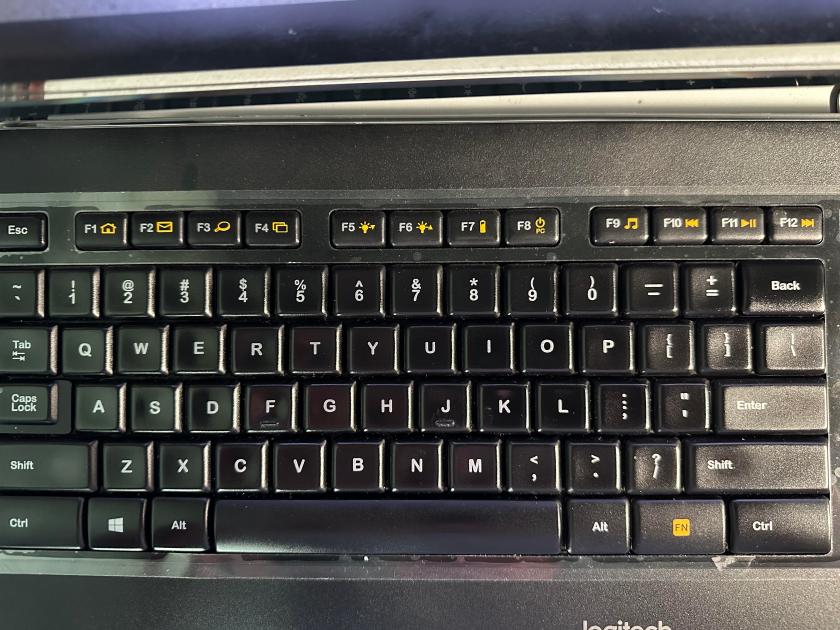
Windows 11 has new keyboard shortcuts, and they are worth learning:
- Windows Key-W to open the Widgets panel
- Windows Key-A to access the Quick Settings
- Windows Key-Z to access Snap Layouts
- Windows Key-K to Cast Media
A couple of the best keyboard shortcuts are still in place from Windows 10, including Windows Key-V to show clipboard history and Windows Key-Shift-S for the Screenshot Tool.
6. Clear Your Desktop With Title Bar Shake
(
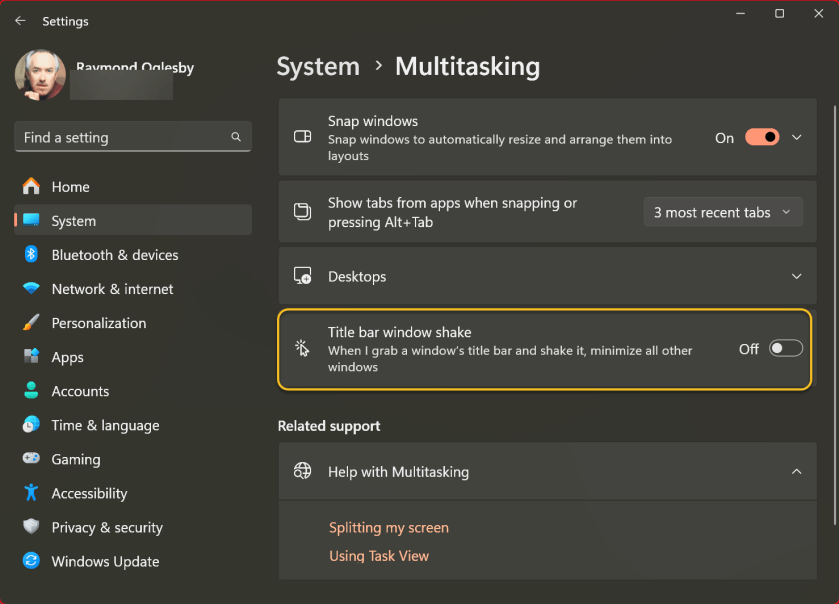
The Windows Title Bar Shake setting is a favorite of ours. It’s off by default, but you can enable it in:
Settings > System > Multitasking
(or just search for “shake” in Settings). It lets you grab a window’s top title bar and shake it to dismiss all other windows. We use it all the time to clear out a messy desktop and focus on the active window.
Disclaimer
Technology is constantly evolving, and smartphone and desktop tech rarely remains static. Therefore, the information in this post is only accurate as of the date it was written. Blog posts that are older than six months may contain instructions that are no longer compatible with your device or operating system. We hope that the content from previous posts continues to function as intended. Thank you for reading TechSavvy.Life, where technology works for you.
Quote For the Day
“What I did in my youth is hundreds of times easier today. Technology breeds crime.”
― Frank W. Abagnale
X (Twitter) Info
You are finished. Please feel free to share this post! One way to share is via Twitter.
Just click the Tweet icon below. This will launch Twitter where you click its icon to post the Tweet.
Checkout TechSavvy.Life for blog posts on smartphones, PCs, and Macs! You may email us at contact@techsavvy.life for comments or questions.
Tweet
I Would Like to Hear From You
We value your feedback! Was this post helpful? Please share your comments with us. If you have a tech question related to your computer or smart device, feel free to reach out. Just send an email to contact@techsavvy.life, and be sure to include the device, app, and version you are using. To assist us further, you can also attach screenshots related to your inquiry.
The author’s Vietnam eBook on the “Battle for Tra Bong Vietnam: Events and Aftermath” can be accessed from a Kindle device or the Kindle App for a desktop or smartphone. The apps are free.
 Tech Savvy Life