


RAYMOND OGLESBY @RaymondOglesby2
October 1, 2024 – 4 minutes read time
This is for the iPhone and PC running Yahoo Mail. Screenshots are from iPhone 14 Pro running iOS 17.7
Overview
Most companies today are selling your information in some way or form. Luckily, most companies allow you to opt out of having your data sold; if you know how to ask for it.
While you would think the “do not sell my personal information” setting would be on the Yahoo security page, you will find it under a different menu. Let’s explore telling Yahoo, “Do not sell my personal information” and control personalized ads.
System Requirements
- Yahoo Mail
- iOS 16 or later
- Browser
- Windows 11/10
- iPhone
Click here to learn how to update your iPhone to the latest iOS version.
Why Apply This Post
- Protect your privacy by stopping Yahoo from selling your information.
- Make sure your data stays out of the hands of third parties.
Opening Settings
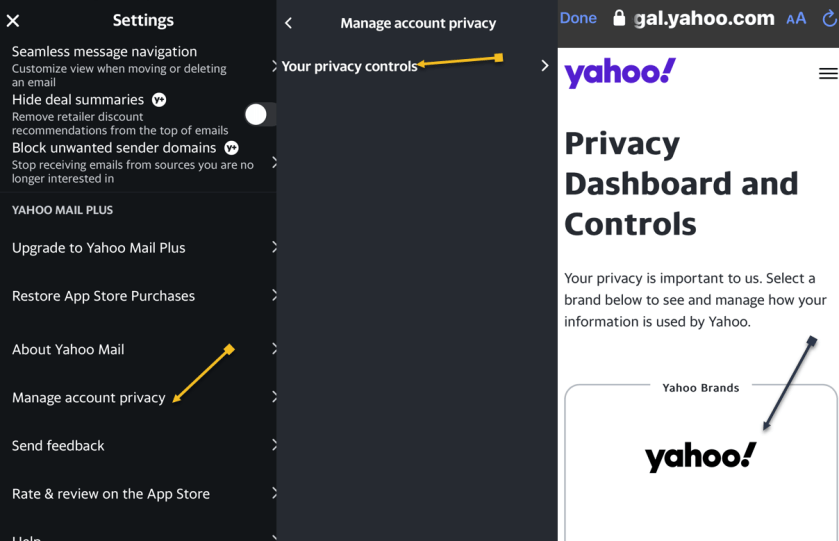
First, open the Yahoo Mail app. Next, tap your profile icon in the upper left. Now, tap Settings. Refer to the below image:

Accessing Privacy
First, scroll down and tap Manage account privacy. Next, tap Your Privacy controls. Now, tap the Yahoo logo. See the below image:
Setting the Do Not Sell Option
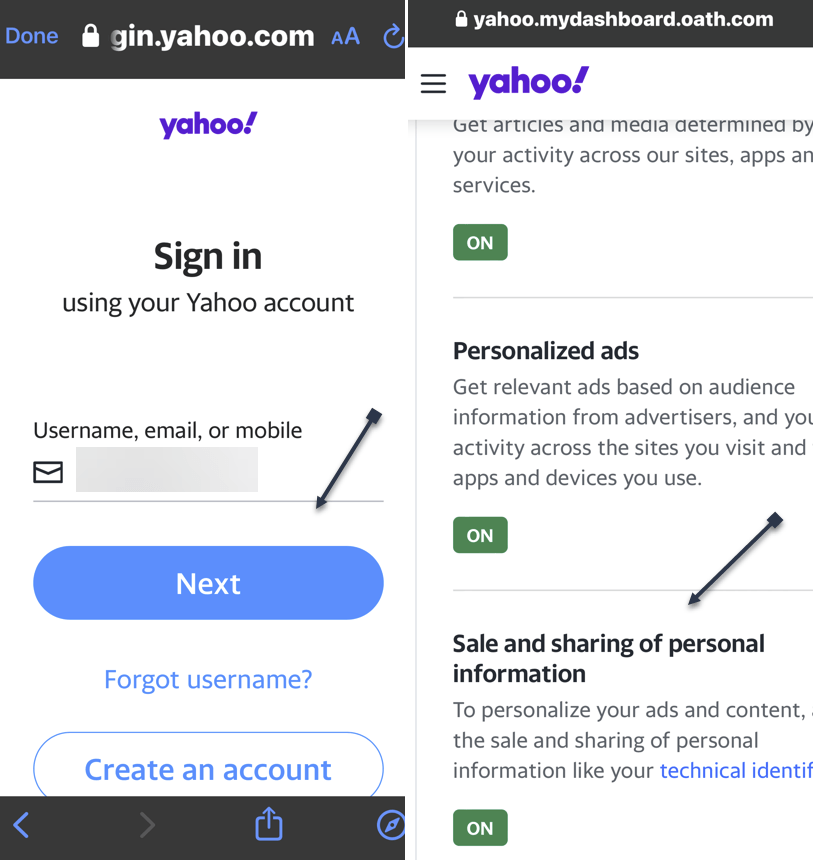
First, you will be prompted to log into your Yahoo mail account. Enter your username/email address, tap Next, and follow the on-screen prompts to log in. Next, After logging in, scroll down to the Sale and sharing of personal information and tap the link. See the following image:
Disable the Do Not Sell Option
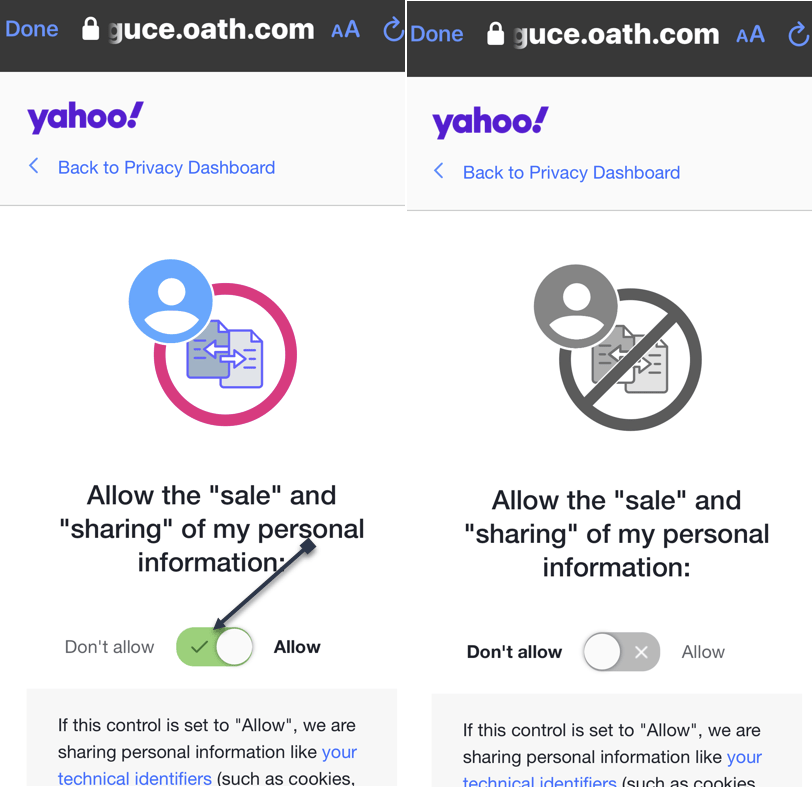
First, tap the toggle. The default is set to Allow Yahoo to sell your data. Next, the page and its toggle will turn gray, indicating that the setting has been disabled. Refer to the below image:
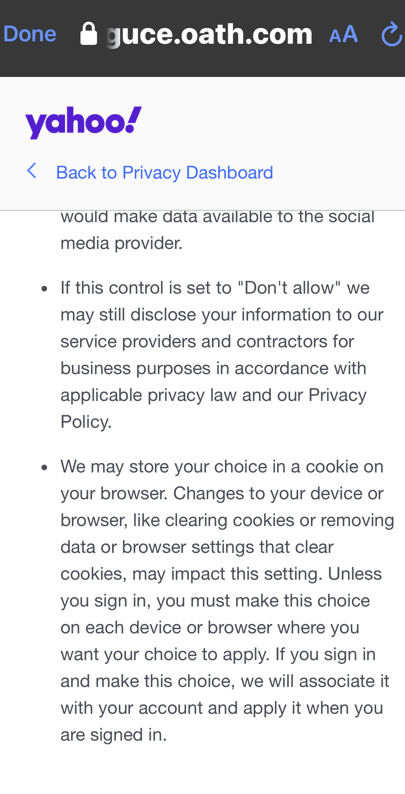
You may want to read the “fine print” about setting the option to Don’t Allow. If you clear cookies for your browser, the option is reset to Allow. See the below image:
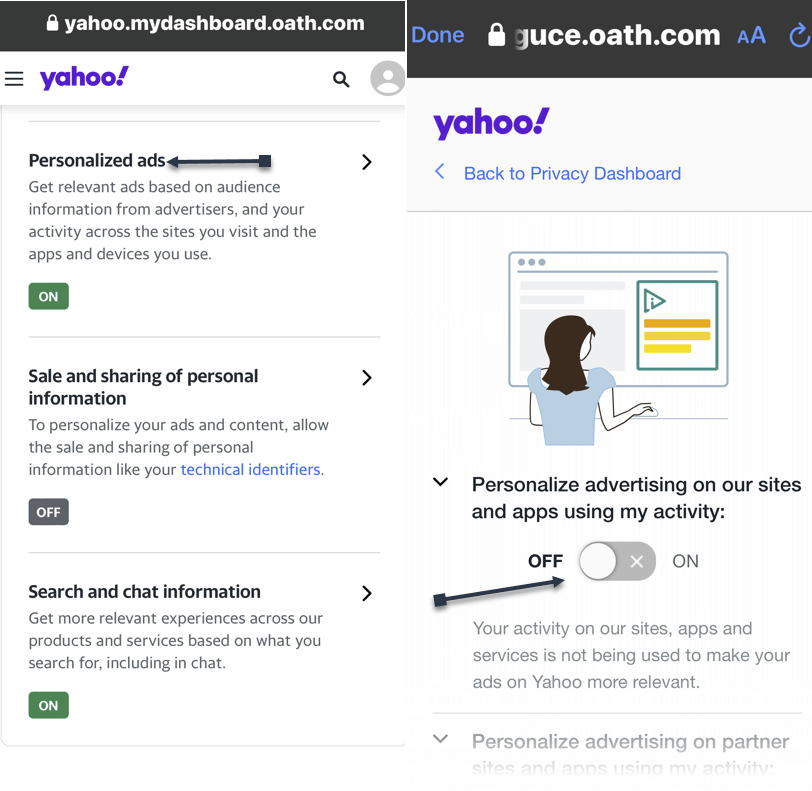
While here, go back to the Sale and sharing of personal information screen to control ads. Tap the Personalized ads link and turn off any option on delivering ads. See the following image on the first of four options:
Using a PC Desktop/Laptop Running Windows 10/11
- Open Yahoo Mail
- Click the Gear icon in the upper left below the Home icon
- Click the More settings link
- Click About our Ads menu option. You would think of accessing the Security and Privacy menu option, but Yahoo wants to hide selling your data.
- Under What choices do I have section, click View our other Privacy Controls
- click the Yahoo logo, and sign in
- Click the Sale and sharing personal information link
- Click the toggle. The default is set to Allow Yahoo to sell your data. Next, the page and its toggle will turn gray, indicating that the setting has been disabled. If you have set the toggle to Don’t Allow on your iPhone first, the toggle will already be disabled.
Disclaimer
Technology is always changing. Rarely is there static tech for smartphones and desktops. Thus, the contents of this post are only valid at the time of writing. Blog posts older than six months may have directions incompatible with your device or OS. Hopefully, older post content will continue to work as advertised. Thank you for reading TechSavvy.Life for Technology at Work For You.
Quote For the Day
“I play to win, whether during practice or a real game.”
– Michael Jordan
X (Twitter) Info
That’s it. Please feel free to share this post! One way to share is via Twitter.
Just click the Tweet icon below. This will launch Twitter where you click its icon to post the Tweet.
Checkout TechSavvy.Life for blog posts on smartphones, PCs, and Macs! You may email us at contact@techsavvy.life for comments or questions.
Tweet
I Would Like to Hear From You
Was this post helpful? We would love to hear your comments. Do you have a computer or smart device tech question? I will do my best to answer your inquiry. Just send an email to contact@techsavvy.life. Please mention the device, app, and version you are using. To help us out, you can send screenshots of the data related to your question.
The author’s Vietnam eBook on the “Battle for Tra Bong Vietnam: Events and Aftermath” can be accessed from a Kindle device or the Kindle App for a desktop or smartphone. The apps are free.

 Tech Savvy Life