

InseRAYMOND OGLESBY @RaymondOglesby2
October 28, 2025 – 4 minutes read time
Overview
Did you know that your Photos app comes with a built-in feature that allows you to add captions to photos on your iPhone? You do not have to download an extra app to add captions, and any captions added to photos on your iPhone will sync to the cloud if iCloud Photo Library is enabled.
Picture captions are handy for searching your iPhone Photo Library and reminding you of certain details when you come across the photo later. For these reasons, it’s best to keep the captions simple but useful—we recommend including notes about a holiday or occasion, if applicable, and any other keywords you may think of later when wanting to search for that photo.
Let’s explore how to caption pictures on iPhone:
Key Takeaways
- Captions added to photos on iPhone or iPad help keep track of picture details.
- Photo captions are searchable and appear in search results, making important photos easy to find.
- Photo captions are automatically applied to your synced iCloud photos.
System Requirements
This tip works on most iPhones, but the screenshots below were captured on an iPhone 14 Pro iOS 26.
Click here to learn how to update your iPhone to the latest iOS version.
Add a Photo Caption
First, open the Photos app. Refer to the image below:
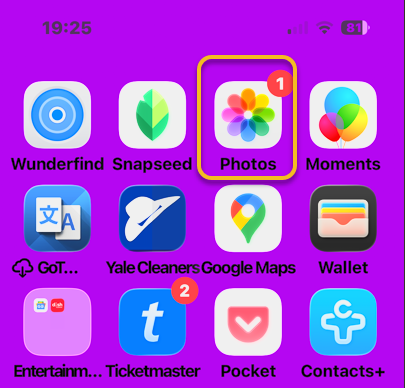
Next, tap a photo you would like to add a caption to. See the image below:

Now, when the photo opens, swipe up on the photo to reveal the Add a Caption area.
Tip:Make sure to place your finger on the photo itself before you swipe up; otherwise, you might accidentally start scrolling through recent photos instead of pulling up the photo information card.
See the following image:

Next, tap Add a Caption. Refer to the image below:
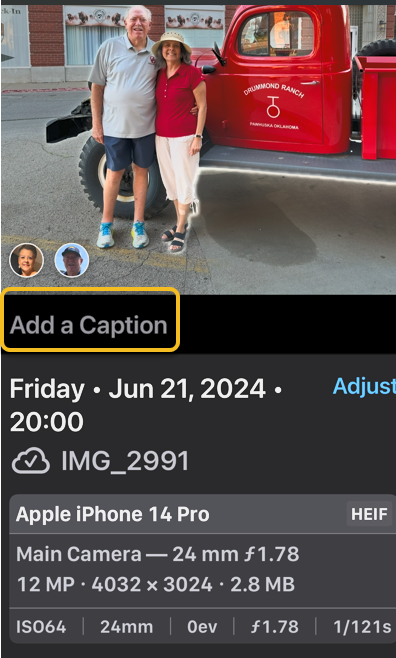
Now, type in your photo caption using the keyboard that appears, then tap the check mark in the blue circle to save the caption. See tjhe image below:

Next, reopen your Photos app and find your picture. You will see your added caption. See the following image:

And that’s how you add a caption to an iPhone photo. We especially love being able to access these photo captions across our devices.
Disclaimer
Technology is constantly evolving, and smartphone and desktop tech rarely remains static. Therefore, the information in this post is only accurate as of the date it was written. Blog posts that are older than six months may contain instructions that are no longer compatible with your device or operating system. We hope that the content from previous posts continues to function as intended. Thank you for reading TechSavvy.Life, where technology works for you.
Quote for the Day
“When you innovate, you’ve got to be prepared for everyone telling you you’re nuts.”
– Larry Ellison, Co-founder of Oracle
(X) Twitter Info
That’s it. Please feel free to share this post! One way to share is via Twitter.
Just click the Tweet icon below. This will launch Twitter where you click its icon to post the Tweet.
Checkout TechSavvy.Life for blog posts on smartphones, PCs, and Macs! You may email us at contact@techsavvy.life for comments or questions.
Tweet
I Would Like to Hear From You
We value your feedback! Was this post helpful? Please share your comments with us. If you have a tech question related to your computer or smart device, feel free to reach out. Just send an email to contact@techsavvy.life, and be sure to include the device, app, and version you are using. To assist us further, you can also attach screenshots related to your inquiry.
The author’s Vietnam eBook on the “Battle for Tra Bong Vietnam: Events and Aftermath” can be accessed from a Kindle device or the Kindle App for a desktop or smartphone. The apps are free.

 Tech Savvy Life