How to Scroll Your Home Screen Pages on iPhone or iPad in iOS 14

If you have a lot of apps, like me, you likely have a lot of Home Screen pages. With many pages, swiping them repetitively, over and over to find a specific page can feel very tedious. If this sounds like your iPhone experience, you should know their is a much faster way to get around your Home Screen pages, thanks to iOS 14 and iPadOS 14.

If you have a lot of apps, like me, you likely have a lot of Home Screen pages. With many pages, swiping them repetitively, over and over to find a specific page can feel very tedious. If this sounds like your iPhone experience, you should know their is a much faster way to get around your Home Screen pages, thanks to iOS 14 and iPadOS 14.

This if for the iPhone or iPad running iOS 14 or iPadOS 14

Dilbert and Technology
Copyright Scott Adams, Inc./Distributed by Universal Uclick for UFS

To Tweet about this post, click the Tweet icon below to launch Twitter, then click its Tweet icon to post.

Check out TechSavvy.Life for their blog posts on smartphone apps, PCs. and Macs!

There is the Dots Bar, that indicate which Home Screen page you are on. In portrait orientation, they are above the Home Screen Dock, while they are at the very bottom in landscape mode. They indicate which Home Screen page you are currently on. Refer to below image:

Scroll 1
The Dots Bar

With one finger, tap and hold the dots, and an outline will appear around them. See below image:

Scroll 2
The Dots Bar outlined

Without lifting your finger, slide your finger to the left or right. The Home Screen page will change. The faster you move your finger, the faster you will scroll through the pages. Lift your finger to stop scrolling and land on a page. Note! If you land on your last dot (a Home Screen page), you have to swipe left one more time to view your App Library page. To exit the App Library, swipe up.

This technique can come in very handy if you have many pages of apps. But both the new App Library and the new Home Screen Widgets (blog post coming) may make you rethink how your apps are organized.

That’s it. Your scrolling is now much faster.

I hope you have found this post helpful. If so, click the Tweet icon below. This will launch Twitter where you click its icon to post the Tweet.

I have found TechSavvy.Life blog posts extremely helpful. Check them out for posts on smart phone apps, Macs and PCs!

The following is a previous Twitter feed so you can view how a Tweet will be displayed.

I Would Like to Hear From You

Please feel free to leave a comment. I would love hearing from you. Do you have a computer or smart device tech question? I will do my best to answer your inquiry. Please mention the device, app and version that you are using. To help us out, you can send screenshots of your data related to your question.

The author’s Vietnam eBook on the Battle for Tra Bong: Events and Aftermath

How to Disable Picture-In-Picture on iPhone in iOS 14

iPhones with iOS 14 or later, now support Picture -In-Picture (PIP) mode like their cousin, the iPad. By default, when you switch from playing a full-screen video in a supported media app, it will continue playing in the corner of the screen. If you find this annoying, like me, you can easily turn it off.

iPhones with iOS 14 or later, now support Picture -In-Picture (PIP) mode like their cousin, the iPad. By default, when you switch from playing a full-screen video in a supported media app, it will continue playing in the corner of the screen. If you find this annoying, like me, you can easily turn it off. Here’s how to do this.

This is for the iPhone running iOS 14

Dilbert and Karma
Copyright Scott Adams, Inc./Distributed by Universal Uclick for UFS

To Tweet about this post, click the Tweet icon below to launch Twitter, then click its Tweet icon to post.

Check out TechSavvy.Life for their blog posts on smartphone apps, PCs. and Macs!

First, launch Settings (the gear icon). Refer to below image:

pip 1
Accessing Settings

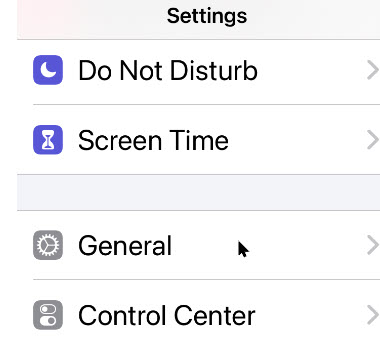
Now, scroll down and tap on the General option. See below image:

pip 2
Accessing the General option

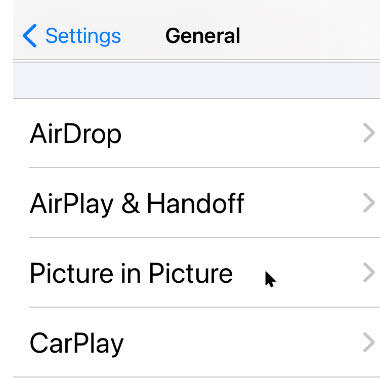
Next, tap on the Picture in Picture option. See following image:

pip 3
Accessing the PIP option

Tap on it to open the Picture in Picture settings. Now, toggle off (disable) the Start PIP Automatically option. Refer to below image:

pip 4
Disabling the PIP option

Now, the next time you return to the Home Screen while playing a video, the Picture-in-Picture will not pop-up automatically. To manually open Picture-inPicture, just tap the Picture-in-Picture button (if the app you are using supports it.)

That’s it. You just disabled a possible annoying feature of iOS 14.

I hope you have found this post helpful. If so, click the Tweet icon below. This will launch Twitter where you click its icon to post the Tweet.

I have found TechSavvy.Life blog posts extremely helpful. Check them out for posts on smart phone apps, Macs and PCs!>

The following is a previous Twitter feed so you can view how a Tweet will be displayed.

I Would Like to Hear From You

Please feel free to leave a comment. I would love hearing from you. Do you have a computer or smart device tech question? I will do my best to answer your inquiry. Please mention the device, app and version that you are using. To help us out, you can send screenshots of your data related to your question.

The author’s Vietnam eBook on the Battle for Tra Bong: Events and Aftermath

How to Check the Air Quality on iPhone and iPad

In recent months, the USA has had numerous forest, refinery, and chemical fires, to name a few If you are worried about local air quality from these fires, pollen, or other environmental pollution, you can check the current Air Quality Index (AQI) using your iPhone or iPad. Currently, Apple only supports checking the AQI in certain countries that includes the USA, United Kingdom, India, and Germany. Apple plans to roll out the AQI in more regions in the future.

In recent months, the USA has had numerous forest, refinery, and chemical fires, to name a few If you are worried about local air quality from these fires, pollen, or other environmental pollution, you can check the current Air Quality Index (AQI) using your iPhone or iPad. Currently, Apple only supports checking the AQI in certain countries that includes the USA, United Kingdom, India, and Germany. Apple plans to roll out the AQI in more regions in the future.

This is for the iPhone and iPad

Dilbert and Help
Copyright Scott Adams, Inc./Distributed by Universal Uclick for UFS

To Tweet about this post, click the Tweet icon below to launch Twitter, then click its Tweet icon to post.

Check out TechSavvy.Life for their blog posts on smartphone apps, PCs. and Macs!

What is the Air Quality Index

The Air Quality Index (AQI) is a numerical indicator of regional outdoor air quality in your area. Each country has its own way of determining air quality. For example, in the USA, the AQI iss defined by the Environmental Protextion Agengy (EPA) as a composite scale from 0 to 500 that incorporates inormation about five different pollutants (ground-level ozone, particle pollution, carbon monoxide, sulfur dioxide, and nitrogen dioxide) into one index.

The USA. AQI is divided into six categories, each with its own color. An AQI above 100 means the air quality is dangerous to sensitive groups. As the AQI rises, the number of people impacted by the poor air quality increases. Refer to below image:

Air Quality 7
Air Quality Index chart

Other countries use their own custom AQI methodology, but the color codes are similar to the USA. Regardless of country, the goal of every AQI is to stand the crummy air and avoid getting sick . It is wise to know what the air is like so you can make the best decisions for your health.

Check AQI using Apple Maps

One of the fastest ways to check AQI for your area is by using Apple Maps on your iPhone or iPad running iOS or iPadOS 12.2 or later.

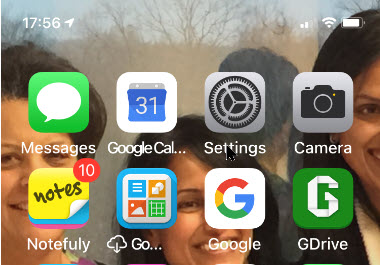
First, launch Settings. See below image:

Air Quality 1
Accessing Settings

Next, scroll down till you see Maps and tap it. See followingimage:

Air Quality 2
Accessing Maps

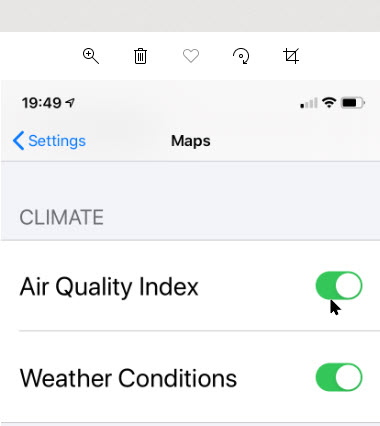
Now, scroll down to the CLIMATE section and enable Air Quality Index. Refer to below image:

Air Quality 3
Accessing Air Quality Index

Next, open the Apple Maps app and then tap the navigation arrow to center the map on your current location. (It is assumed you have enabled Location Services). See below image:

Air Quality 4
Accessing your current location

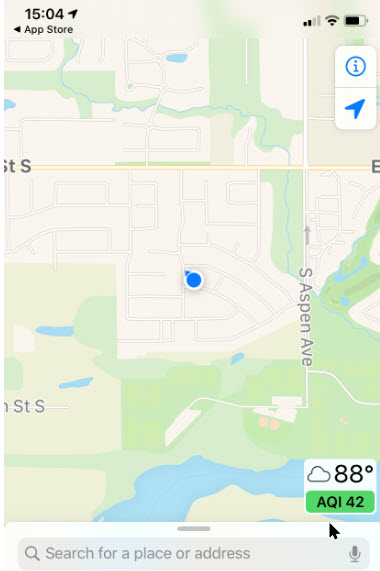
Once the map is correctly positioned, look for a small rectangular box in the bottom-right corner of your screen. If your country is supported, you will see a local temperature and an AQI number along with a category color code. See following image:

Air Quality 5
Positioning your current location

If you don’t see an AQI number in the corner, it might not be available in your country via Apple Maps. If the feature is supported, reposition the map, zoom in enough, wait a moment, and that area’s AQI will appear in the corner of your screen. Refer to below image:

Air Quality 6
Your local AQI from the Maps app

Check AQI using Apple Weather

You can also check the AQI using the Apple Weather pre-installed app. Open the the Weather app and then scroll down to the bottom of your local forecast page. There you will see the Air Qualtiy Index and Air Quality indication. Pretty neat! See below image:

Air Quality 8
Your local AQI from the Weather app

Third Party App

For a more global view of AQI, you may want to check out the Air Matters app, available on the Apple App store for the iPhone or iPad. Click here to preview and/or download. The free version comes with ads, but you can remove the ads with their paid version.

I hope you have found this post helpful. If so, click the Tweet icon below. This will launch Twitter where you click its icon to post the Tweet.

I have found TechSavvy.Life blog posts extremely helpful. Check them out for posts on smart phone apps, Macs and PCs!

The following is a previous Twitter feed so you can view how a Tweet will be displayed.

I Would Like to Hear From You

Please feel free to leave a comment. I would love hearing from you. Do you have a computer or smart device tech question? I will do my best to answer your inquiry. Please mention the device, app and version that you are using. To help us out, you can send screenshots of your data related to your question.

The author’s Vietnam eBook on the Battle for Tra Bong: Events and Aftermath

How to Launch Actions by Tapping on Back of iPhone in iOS 14

One of the new features that has arrived with iOS 14 that didn’t make a big splash but will be super useful for all users is something called Back Tap. The new iPhone feature lets you customize Double and Triple taps on the back of your iPhone to use for Shortcuts automations, Accessibility features, and iOS system actions.

One of the new features that has arrived with iOS 14 that did not make a big splash but will be super useful for all users is something called Back Tap. The new iPhone feature lets you customize Double and Triple taps on the back of your iPhone to use for Shortcuts automations, Accessibility features, and iOS system actions.

Possibilities for iPhone Back Tap custom controls are pretty much only limited by your imagination since the feature works with Shortcuts app automations. But if you want to keep things simpler, you can assign a Double or Triple tap on the back of your iPhone to do things like open Control Center, take a screenshot, or enable Accessibility features like AssistiveTouch, VoiceOver, Zoom, etc.

How Does It Work

Back Tap uses the accelerometer in the iPhone 8 or higher to detect taps on the back side of your device running iOS 14. You assign the actions you want to launch upon tapping.

Back Tap works from the Home Screen, within apps (including third-party), and even from your your lock screen.

Let’s explore how to launch the built-in iOS 14 actions upon tapping.

RELATED

If inactive, coming soon!
How to Tap the Back of Your iPhoneto Take a Screenshot in iOS 14

This is for the iPhone running iOS 14

Dilbert and Estimate
Copyright Scott Adams, Inc./Distributed by Universal Uclick for UFS

To Tweet about this post, click the Tweet icon below to launch Twitter, then click its Tweet icon to post.

Check out TechSavvy.Life for their blog posts on smartphone apps, PCs. and Macs!

Setup Back Tap

First, open Settings (the gear icon). Refer to below image:

Tap 1
Accessing Settings

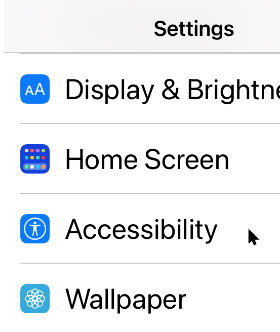
Now, scroll down and tap the Accessibility option. See below image:

Tap 2
Accessing Accessibility

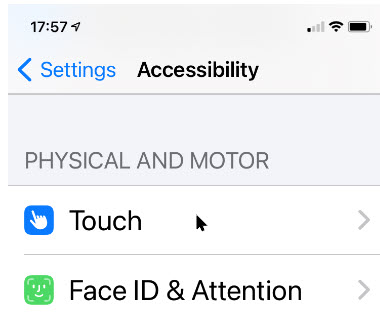
Under Accessibility option, scroll down and tap the Touch option. See following image:

Tap 3
Accessing Touch

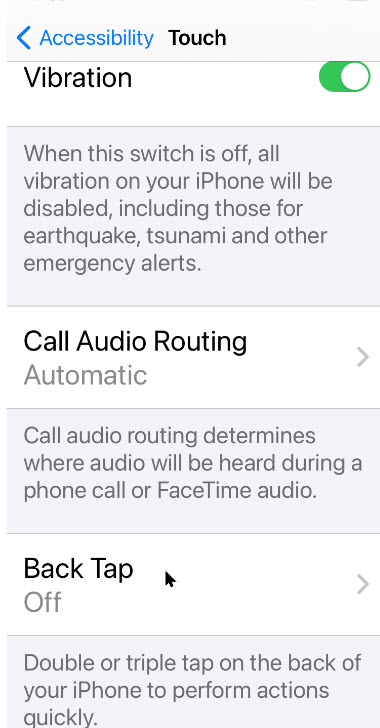
On the Touch Settings screen, scroll down until you see the Back Tap option, now tap it. Refer to below image:

Tap 4
Accessing Back Tap

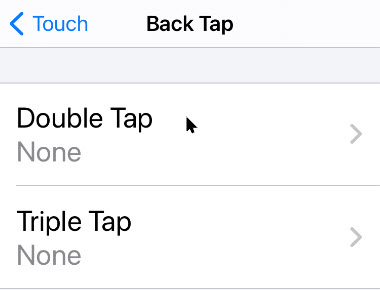
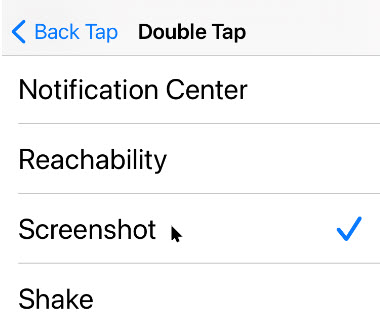
Next, in Back Tap settings, you can set the an action to either Double Tap or Triple Tap on back of the iPhone. See below image:

Tap 5
Selecting your Back Tap option

Chose one of the list of available actions. At the bottom you will find the System actions. See following image for my example in selecting Screenshot for a Triple Tap.

Tap 6
Selecting your Back Tap action

Scroll to the bottom to see your shortcuts. If you don’t see any or you want to create one, follow along. Here is how you can build a Camera Shortcut, then attach it to the Back Tap iOS 14 accessibility gesture.

Create a Shortcut

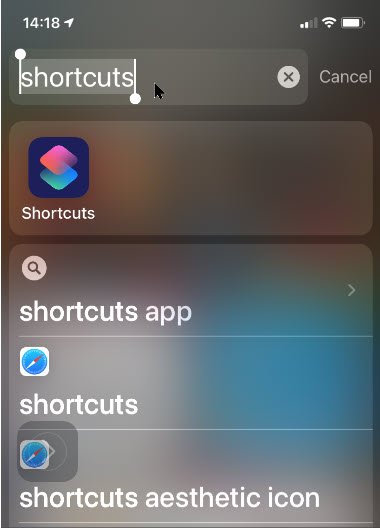
Open Shortcuts on your iPhone by swiping past your first Home Screen, then enter Shortcuts in the Search Box and tap the app. Refer to below image:

Shortcut 1
Entering Shortcuts search

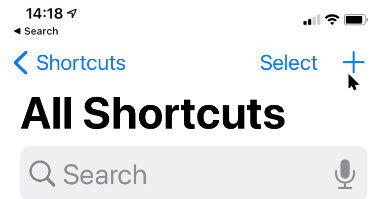
Tap the plus (+) button in the upper-right corner. See below image:

Shortcut 2
Selecting the Add icon

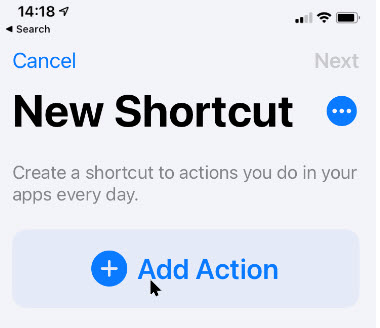
Tap Add Action. Refer to below image:

Shortcut 3
Selecting the Add Action option

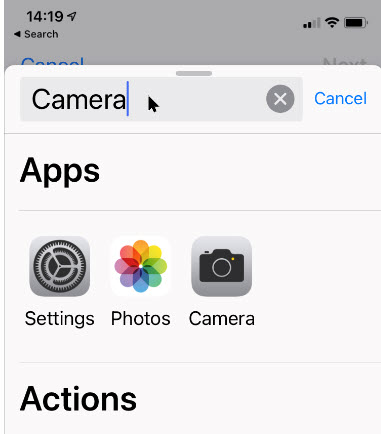
Tap the Search Bar. Now ttype in Camera and tap the app. See below image:

Shortcut 4
Entering the Camera search

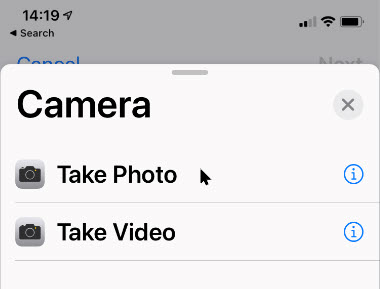
Tap your selection, Take Photo Or Take Video. See following image:

Shortcut 5
Selecting your Camera option

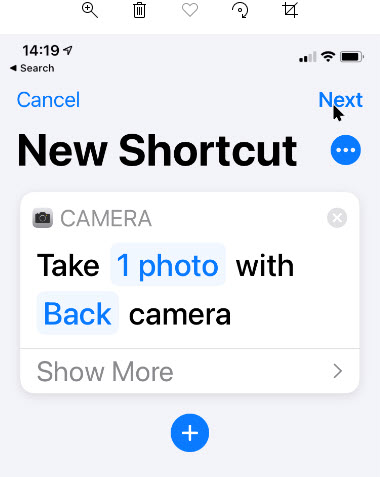
Tap Next in upper right-hand corner. Refer to below image:

Shortcut 6
Accessing the Next link

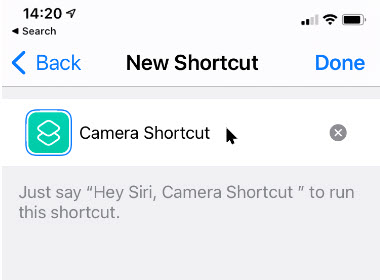
Enter a shortcut name, like Camera Shortcut and tap Done in upper right-hand corner. See below image:

Shortcut 7
Entering a Shortcut name

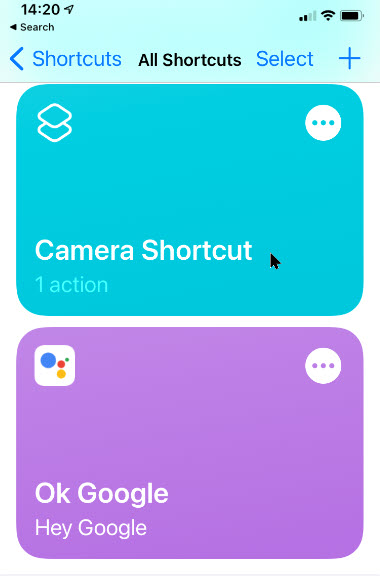
Your Shortcut(s) will be displayed. See following image;

Shortcut 8
Viewing your Shortcuts

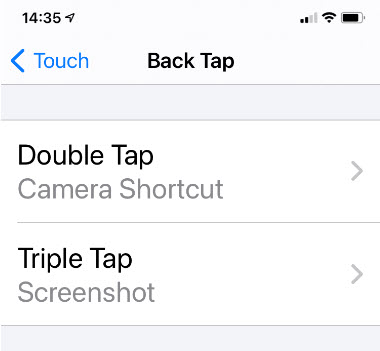
Now exit Shortcuts. You’have now successfully created your Camera shortcut. Just follow the above steps and chose this as an action to be associated with Double or Triple Back Tap. Refer to below image for my example of assigning Camera Shortcut to Double Tap and Screenshot to Triple Tap:

Shortcut 9
Displaying your Back Tap actions

That’s it. In writing this blog post, I have found the Double Tap to be too sensitive; the associated action goes off accidentally.

I hope you have found this post helpful. If so, click the Tweet icon below. This will launch Twitter where you click its icon to post the Tweet.

I have found TechSavvy.Life blog posts extremely helpful. Check them out for posts on smart phone apps, Macs and PCs!

I Would Like to Hear From You

Please feel free to leave a comment. I would love hearing from you. Do you have a computer or smart device tech question? I will do my best to answer your inquiry. Please mention the device, app and version that you are using. To help us out, you can send screenshots of your data related to your question.
The author’s Vietnam eBook on the Battle for Tra Bong: Events and Aftermath

How to Tap the Back of Your iPhone to Take a Screenshot in iOS 14

If you want to take a screengrab on your iPhone you may be thinking you have to press the Up Volume and Side Button at the same time. This was the way ever since Apple introduced the iPhone X. But with iOS 14 and later, there’s a new way and it’s extremely handy.

If you want to take a screengrab on your iPhone you may be thinking you have to press the Up Volume and Side Button at the same time. This was the way ever since Apple introduced the iPhone X. But with iOS 14 and later, there’s a new way and it’s extremely handy.

You can now take a screenshot just by tapping its back, thanks to a new accessibility feature called Back Tap, Let’s explore how to set up this feature.

How Does This Work

Back Tap, first introduced in iOS 14, uses the accelerometer in an iPhone 8 or later to detect if you have tapped on the back side of your device. In Settings, you can configure two or three taps to launch certain actions. Apple considers this an accessibility feature, but it is for everyone. With this tip, a quick screenshot is only just two or three taps away.

Related

If inactive, coming soon!
How to Launch Actions by Tapping on Back ofiPhone in iOS 14

Dilbert and Interface
Copyright Scott Adams, Inc./Distributed by Universal Uclick for UFS

To Tweet about this post, click the Tweet icon below to launch Twitter, then click its Tweet icon to post.

Check out TechSavvy.Life for their blog posts on smartphone apps, PCs. and Macs!

Setup Back Tap

First, open Settings (the gear icon). Refer to below image:

Tap 1
Accessing Settings

Now, scroll down and tap the Accessibility option. See below image:

Tap 2
Accessing the Accessibility option

Under Accessibility option, scroll down and tap the Touch option. See following image:

Tap 3
Accessing the Touch option

On the Touch Settings screen, scroll down until you see the Back Tap option, now tap it. Refer to below image:

Tap 4
Accessing the Back Tap option

Next, in Back Tap settings, you can set the screenshot action to either Double Tap or Three Taps on back of the iPhone. See below image:

Tap 5
Selecting your Back Tap preference

Now, scroll down the pop-up list that appears and select the Screenshot option. See following image:

Tap 6
Selecting the Screenshot optiond

Next, go back one menu level to make sure your selection is saved, then exit Settings.

Now, the next time you tap two or three times on the back of your iPhone (according to your selection), you will capture the current screen and save it to an image file. These images can be later viewed in your photo album.

That’s it. This feature is one of several you can setup for using the Back Tap.

I hope you have found this post helpful. If so, click the Tweet icon below. This will launch Twitter where you click its icon to post the Tweet.

I have found TechSavvy.Life blog posts extremely helpful. Check them out for posts on smart phone apps, Macs and PCs!

I Would Like to Hear From You

Please feel free to leave a comment. I would love hearing from you. Do you have a computer or smart device tech question? I will do my best to answer your inquiry. Please mention the device, app and version that you are using. To help us out, you can send screenshots of your data related to your question.
The author’s Vietnam eBook on the Battle for Tra Bong: Events and Aftermath

How to Move iPhone Apps From App Library to Home Screen in iOS 14

So as to not clutter up your Home Screen, newly-downloaded apps from the App Store can be sent directly to the App Library. But what if you later want to open the app without digging through the library?

Ina previous post, we discussed how to move an app from your Home Screen to your App Library. In this post, we are learning the opposite; moving an app from your App Library to your Home Screen in iOS 14.

Related

If inactive, coming soon!
How to Move iPhone Apps From Home Screen to App Library in iOS 14

So as to not clutter up your Home Screen, newly-downloaded apps from the App Store can be sent directly to the App Library. But what if you later want to open the app without digging through the library?

In regards to moving an app, we are not deleting an app. Your app remains in the App Library. Apple should have used the terminalogy of “copying” an app instead of “moving” one. Anyway, lets explore how to move an app from the App Library to your Home Screen.

This is for the iPhone running iOS 14

Dilbert and Context
Copyright Scott Adams, Inc./Distributed by Universal Uclick for UFS

Check out TechSavvy.Life for their blog posts on smartphone apps, PCs. and Macs!

Move an App

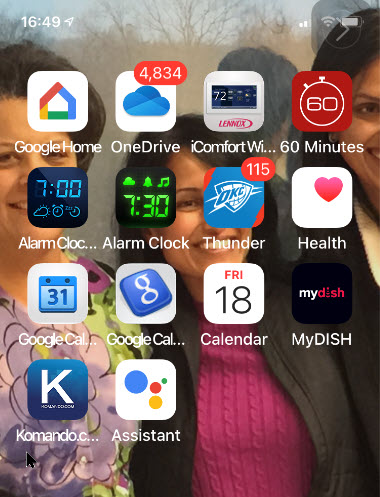
First, swipe over to the right-most Home Screen page, or press on the Dots Bar at bottom of screen and swipe; to view your App Library. Next, locate an app that you would like to move that isn’t already on your Home Screen. Press and hold down on the app. In my example, I am wanting to move the Kim Komando app under the Entertainment grouping. Refer to below image:

App Library 1
Locating an app to move

Next, tap the Add to Home Screen option from the pop-up context menu. Note! the app has moved to a different position because Apple automatically organizes the apps based on usage. See below image:

App Library 2
Selecting Add to Home Screen option

The application will be moved and placed on your Home Screen automatically in the first unused icon area which may not be your first screen. In my example, the app is moved to my eighth page because my preceeding seven pages are full. See following image:

App Library 3
The app added to Home Screen

Heading back to the App Library, notice that the Kim Komando app is still in the App Library under the Enertainment grouping. Refer to below image:

App Library 4
The app is still in your App Library

If an app is already on one of your Home Screens(s) (visible or hidden), the Add to Home Screen option won’t appear in the pop-up context menu. Instead, you’ll have to enter Jiggle mode.

Enter Jiggle Mode

Locate an app (not a folder) in your iPhone’s App Library that’s already on your Home Screen. Press and hold on the app’s icon. After a second, a pop-up context menu will appear. Continue holding down on the app until it appears on your Home Screen.

You will activate Jiggle mode (where your apps and folders will bounce around on your screen). See below image:

App Library 5
Entering Jiggle mode

Placing Your App

Hold down on your app and place it wherever you like on your iPhone. Tap the Done button in the top-right corner when you are finished moving the app. In my example, I am moving the Kim Komado app to the sixth screen. (Note! In between screengrabs, I deleted a page.) See following image:

App Library 6
Placing your app

Use the Search Bar

If you can not find a specific app in one of the App Library’s automatically-generated groupings, you can tap on the Search Bar at the top to locate the application. Just type in a few characters of the app name. Refer to below image:

App Library 7
Using the Search Bar to find your app

Use the Alphabet List

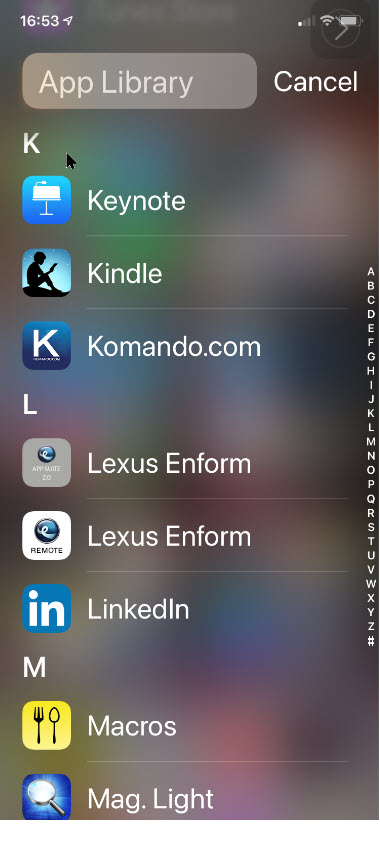
You may use the alphabetical list to find an app. Next, press and hold the listing until it is highlighted. The block will look like it is hovering above the rest of the menu when properly selected. See following image for my selection of “K”.

App Library 8
Using the alphabetical list to locate your app

In my example, when I release the hold, I can see the Kim Komando app. Refer to below image:

App Library 9
Viewing the found app

Enter Home Screen

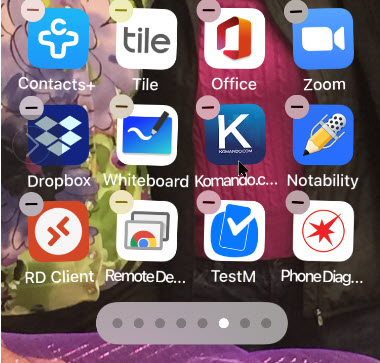
Now, press and hold the app to move it to the left or right. You will be immediately shifted to your Home Screen with Jiggle mode enabled. See below image:

App Library 10
App being added to your Home Screen

Tap the Done button in the top-right corner when you are finished moving the app. See See following image for my placement of the Kim Komando from App Linrary to Home Screen by swiping left:

App Library 11
Viewing the app on your Home Screen

Related

If inactive, coming soon!
How to Move iPhone Apps From Home Screen to App Library in iOS 14

That was a lot of swipes and knowing when and where to swipe. I find iOS 14 cumbersome to use; it’s like Apple created the App Library feature as an afterthought. Have you found the App Library useful?

I have found TechSavvy.Life blog posts extremely helpful. Check them out for posts on smart phone apps, Macs and PCs!

I Would Like to Hear From You

Please feel free to leave a comment. I would love hearing from you. Do you have a computer or smart device tech question? I will do my best to answer your inquiry. Please mention the device, app and version that you are using. To help us out, you can send screenshots of your data related to your question.

The author’s Vietnam eBook on the Battle for Tra Bong: Events and Aftermath

Cybersecurity Awareness Month

October is designated as National Cybersecurity Awareness Month with this event marking the 17th year that we in the cybersecurity community promote increased awareness on cybersecurity and privacy issues.

Guest Author
Michael Oglesby of True Digial Security

Cyber Security Awareness Resources | Free Tools

October is designated as National Cybersecurity Awareness Month with this event marking the 17th year that we in the cybersecurity community promote increased awareness on cybersecurity and privacy issues. After 17 years, you might think that we should be winding down; that we don’t have much left to say on this subject. The truth is the exact opposite. Every year more and more of our daily lives and services move to the digital world. Last year my family began doing most of our grocery shopping online and now this year due to the global events of 2020, most families, including ours, moved our children’s school online. Increased cybersecurity awareness it seems is needed now more than ever.

Password Security

For this month, I wanted to share with you some thoughts and advice about passwords. You have probably read a lot of advice on passwords in the past like “make them long and unguessable”, “use a password manager”, or “don’t use the same password on more than one website”. All this advice is great, and I still recommend you do all of these steps. Most browsers have a built-in password manager that’s pretty good, easy to setup, and will even sync your passwords between your phone and computer if you use the same browser. However, the truth is that passwords by themselves are not enough to keep you fully safe on the Internet. I view password like a VCR or 8-track player. Old technology for the past that can’t keep up with today’s 4K, blue ray, and streaming Internet. Passwords provide a very minimal level of protection, but they need some help.

Multi-Factor Security

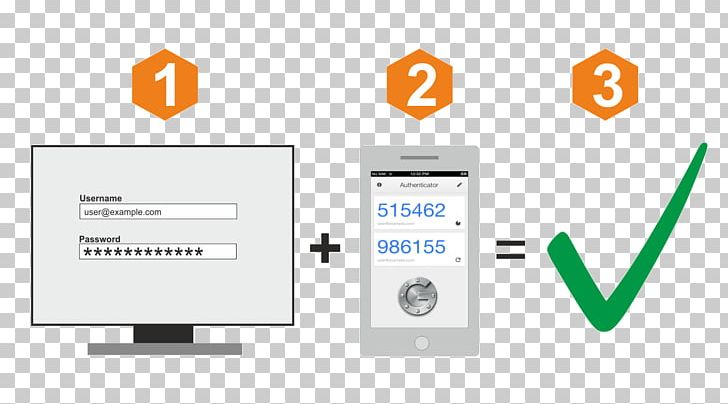
Security Token Multi-factor Authentication Google Authenticator One-time  Password PNG, Clipart, Active Directory, Authentication, Brand,

The good news is that help is already here, you just have to setup it up or turn it on. We call this additional level of security, Multi-Factor or just MFA for short. You also may see it called “Two-Factor” Authentication. You have probably already been exposed to it at your job or place of business, but it simply means using an additional level of security beyond a password. This might be a text message with a one-time code, an automated phone call, or a smart phone application. There are many different types of MFA setups. Personally, I use the smart phone version anywhere I can as I always have my phone handy.

So the question is where should you be using MFA. The easy answer is everywhere! Any place or website you use a password to login you should look and see if that website has MFA. Its usually tucked away in the account setting. You might be surprised when you find out that almost every important website you use today have some form of MFA features. Facebook, Google, Microsoft, Twitter, Amazon, Paypal, Ebay, most email providers, any financial websites, etc. They all support MFA and I highly recommend you turn it on.  Especially if the website has your credit card or gift cards stored or any place you make an online purchase.

Turing on MFA takes a little extra work but it makes a big difference in online safely. Criminals and hackers may be able to guess your password, but it’s much harder for them to also steal your phone.

A Big Thank You

Thanks to Michael for being our guest and creating this blog post.

I have found TechSavvy.Life blog posts extremely helpful. Check them out for posts on smart phone apps, Macs and PCs!

I Would Like to Hear From You

Please feel free to leave a comment. I would love hearing from you. Do you have a computer or smart device tech question? I will do my best to answer your inquiry. Please mention the device, app and version that you are using. To help us out, you can send screenshots of your data related to your question.
The author’s Vietnam eBook on the Battle for Tra Bong: Events and Aftermath

How to Move iPhone Apps From Home Screen to App Library in iOS 14

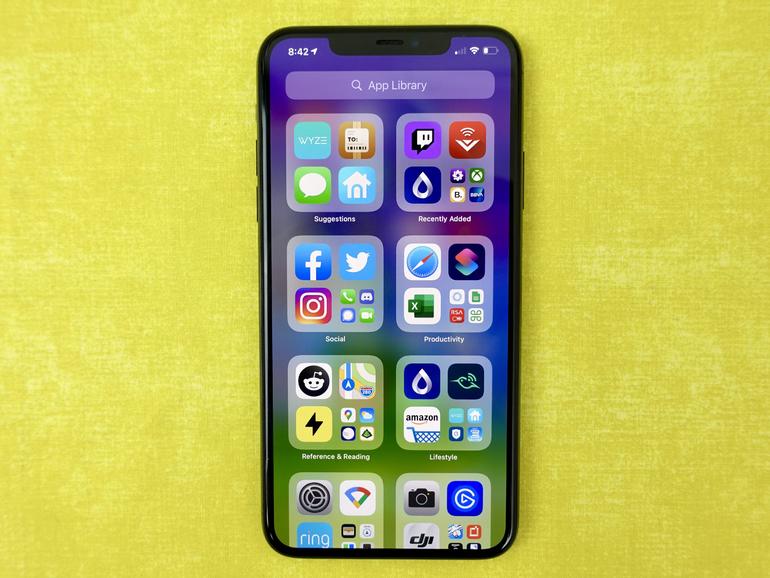
Apple added an App Library to the iPhone with the release of iOS 14. To view the App Library page, swipe all the way to the left, or press on the Dots Bar at bottom of screen and swipe; it will be your last page. To exit the App Library, swipe up. Ready to remove an app from your Home Screen to reduce your screen clutter?

In a previous post, we discussed how to move an app from your App Library to your Home Screen. In this post, we are learning the opposite; moving an app from your Home Screen to your App Library in iOS 14.

Related

If inactive, coming soon?
How to Move iPhone Apps from App Library to Home Screen in iOS 14

Apple added an App Library to the iPhone with the release of iOS 14. To view the App Library page, swipe all the way to the left, or press on the Dots Bar at bottom of screen and swipe; it will be your last page. To exit the App Library, swipe up. Ready to remove an app from your Home Screen to reduce your screen clutter? Lets explore how this is done

This is for the iPhone running iOS 14

Dilbert and Lying
Copyright Scott Adams, Inc./Distributed by Universal Uclick for UFS

Check out TechSavvy.Life for their blog posts on smartphone apps, PCs. and Macs!

Move an App

First, locate an app on your Home Screen you would like to move. Press and hold down the app. In my example, I am wanting to move the Kim Komando app. Refer to below image:

Home Screen 1
Viewing the Kim Komando app on the Home Screen

Next, tap the Remove App option from the pop-up context menu. See below image:

Home Screen 2
The pop-up menu for the Kim Komando app

Your iPhone will display a message asking if you want to move the selected app to the App Library or delete it. Just select the Move to App Library. See following image:

Home Screen 3
The message notification for the Kim Komando app

Use Alphabetical List

The app will now disappear from your Home Screen. Now, swipe over to the right-most Home Screen page, or press on the Dots Bar at bottom of screen and swipe; to view your App Library. You can find the app that you moved in one of the automatically-generated groupings, or by tapping on the App Library Search bar, or by tapping on a letter in the alphabetical list of installed apps. Refer to below image for searching by the alphabetical list:

Home Screen 5
Accessing the alphabetical list

Use Search Bar

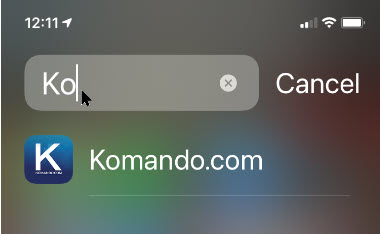
You may start typing into the App Library Search Bar the first couple of letters of the app’s name to find it. See below image in locating the Kim Komando app:

Home Screen 6
Typing in a few characters to locate the Kim Komando app

Launch the App

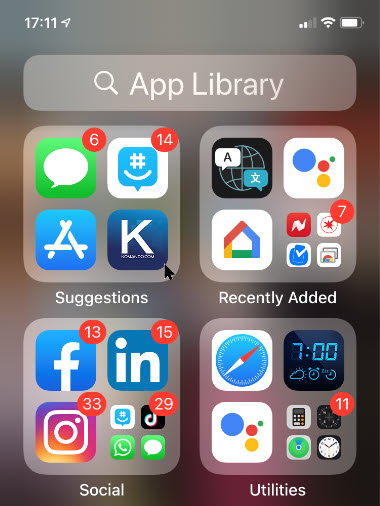
Once you have found the app, just tap it to launch the app. See following image for my Kim Komando app in the Suggestions library:

Home Screen 4
The App Library showing the Kim Komando app

For now, Apple doesn’t allow you to create your own groups or to decide which app should go in which group. Hopefully, Apple will improve the feature over the coming months.

Related

If inactive, coming soon!
How to Move iPhone Apps From App Library to Home Screen in iOS 14

I have found TechSavvy.Life blog posts extremely helpful. Check them out for posts on smart phone apps, Macs and PCs!

I Would Like to Hear From You

Please feel free to leave a comment. I would love hearing from you. Do you have a computer or smart device tech question? I will do my best to answer your inquiry. Please mention the device, app and version that you are using. To help us out, you can send screenshots of your data related to your question.
The author’s Vietnam eBook on the Battle for Tra Bong: Events and Aftermath

How to Add a Reminder Quickly on iPhone and iPad

The standard way is to use the Reminders app. But we can use faster ways to add a reminder. Follow these three handy tips to quickly add reminders.This way, you can remember to do important things later.

The standard way is to use the Reminders app. But we can use faster ways to add a reminder. Follow these three handy tips to quickly add reminders.This way, you can remember to do important things later.

This is for the iPhone and iPad

Dilbert and Ted

Check out TechSavvy.Life for their blog posts on smartphone apps, PCs. and Macs!

Tip 1 – Use a Widget

One of the quickest ways to add a Reminder on an iPhone or iPad is by using the Reminders Widget, which you can add to your Today Screen

First, access your Today View by swiping from left to right on the first page of your Home Screen.. Next, scroll to the bottom and tap Edit. Now, tap Reminders in the widget list to add it.

You might also want to move the Reminders Widget toward the top of your Today View list so you can access it quickly. Once you have done this, just tap it once to expand it, and then tap New Reminder to add one. Refer to below image:

Reminders 1
Add a Reminder using the Reminder Widget

Tip 2 – Use Siri

First, launch Siri by pressing and holding the Home or side button, or by saying “Hey Siri”, then say something like, “Remind me to visit CVS Pharmacy at 121st and Elm in Broken Arrow tomorrow at 10:00 am”.

Siri will confirm and show the reminder you just set up on the screen.

If you specify a location related to your home address, such as, “Remind me to check front porch for packages when I get home”, Siri will track your location via GPS and show the reminder when you arrive at your home. This Reminder feature uses the Home Address you have set for your Contacts card. See below image:

Reminders 2
Add a Reminder using Siri

Tip 3 – Use the Share Button

For some apps, you can add a Reminder using the Share button (the square button with the upward-pointing arrow).

For example, if you are browsing in Safari and want to read an article later, just tap the Share button on the toolbar. Next, locate Reminders in the Apps list. You might have to tap More and scroll down to find Reminders app.

Now, when you check the Reminder later in the Reminders app, it will include a link to the website. Just tap the link, and you’ll be taken to Safari automatically. See below image:

Reminders3
Add a Reminder to view a website

I have found TechSavvy.Life blog posts extremely helpful. Check them out for posts on smart phone apps, Macs and PCs!

I Would Like to Hear From You

Please feel free to leave a comment. I would love hearing from you. Do you have a computer or smart device tech question? I will do my best to answer your inquiry. Please mention the device, app and version that you are using. To help us out, you can send screenshots of your data related to your question.

The author’s Vietnam eBook on the Battle for Tra Bong: Events and Aftermath

How to Use Automatic Updates on iPhone or iPad

In iOS 13.6, or iPadOS. You can now choose not to install software updates automatically. There is now a second toggle just for downloading and saving the update for later.

With iOS 12 or later, or iPadOS, you can have your device automatically download and install updates overnight while it is charging. There is a single automatic updates toggle to turn on which is not enabled by default.

But what if you just wanted to download the updates but did not want to install them right away? You would have to dismiss the prompts and reminders for updates on an almost daily basis. This can be quite annoying.

Fast forward to iOS 13.6, or iPadOS. You can now choose not to install software updates automatically. There is now a second toggle just for installing the update. Let’s explore this feature.

This is for the iPhone and iPad

Copyright Scott Adams, Inc./Distributed by Universal Uclick for UFS

Check out TechSavvy.Life for their blog posts on smartphone apps, PCs. and Macs!

First, open the Settings app on your iPhone or iPad and then go to the General section. Refer to below image:

Accessing Settings

Next, chose the Software Update option. See below image:

Choosing Software Update option

Next, tap the Customize Automatic Updates option. See following image:

Choosing Customize option

Now, tap the toggle Download iOS/iPadOS Updates option. Refer to below image:

Choosing Download option

A new toggle labeled Install iOS/iPadOS Updates will appear. If you want to automatically install iOS, or iPadOS, updates overnight, tap the toggle to enable the feature. In our example, we have set the second toggle to off, meaning we will install the updates at our convenience. See below image:

Choosing Install option

Even if you do enable the feature, you will still get a notification before the updates are installed overnight (just like before iOS 13.6, or iPadOS).

Now, you can have the best of both worlds. New iOS and iPadOS updates will always be downloaded and ready to go. Simply navigate to the Software Update section and install them whenever you are ready (without waiting to download them first).

If you do not want to enable automatic updates, you can still update your iPhone or iPad whenever you want.

I have found TechSavvy.Life blog posts extremely helpful. Check them out for posts on smart phone apps, Macs and PCs!

I Would Like to Hear From You

Please feel free to leave a comment. I would love hearing from you. Do you have a computer or smart device tech question? I will do my best to answer your inquiry. Please mention the device, app and version that you are using. To help us out, you can send screenshots of your data related to your question.
The author’s Vietnam eBook on the Battle for Tra Bong: Events and Aftermath