How to Reset Cellular Data Settings on iPhone

If you are looking at your cellular data usage in the Settings app on your iPhone, you might notice data usage statistics from a Current Period. But what exactly is the current period, and when did it start?

RAYMOND OGLESBY @RaymondOglesby2
September 27, 2022

If you are looking at your cellular data usage in the Settings app on your iPhone, you might notice data usage statistics from a Current Period. But what exactly is the current period, and when did it start? Let’s find out.

This is for the iPhone. Screenshots are from iPhone XR

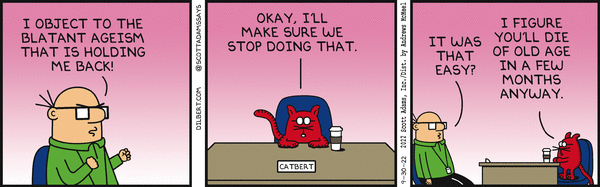
Dilbert and Work
Copyright Scott Adams, Inc./Distributed by Universal Uclick for UFS

First, open the Settings app and tap Cellular in the list. Refer to the below image:

Cellular 1
Selecting Cellular option

Next, near the top of the Cellular Settings page, you will see a section titled Cellular Data. At the top of that, you will see the Current Period with a cumulative data count beside it. This is how much cellular data you have used in total during the current period.

If you have never checked this statistic in Settings before, this number can look frighteningly large. So the big question remains: How long is this current period, and when did it start? See the below image:

Cellular 2
Selecting Current Period

It turns out that, on some cellular carriers, this Current Period is tied to your actual cell phone billing cycle. On other carriers, the Current Period is an arbitrary length of time since you last reset your cellular statistics.

If you have hundreds of apps installed on your iPhone, you might never notice that you can scroll all the way to the bottom of the app list and see the date when the Current Period statistics were last reset. On our iPhone, this statistic has never been reset. See the following image:

Cellular 3
Your last reset date and time

Now, to reset the statistics for the current period, tap Reset Statistics. Refer to the below image:

Warning: You will lose all your stored Cellular data statistics, and the counts will reset to zero.

Cellular 4
Selecting Reset Statistics

With a tap of Reset Statistics, a new Current Period has just begun. Check back in:

Settings > Cellular

over time to see your statistics and which apps are using the most data.

Why and When to Reset Cellular Statistics

It is recommended to reset cellular data statistics every month to ensure that you will get a more accurate picture of your actual data usage that corresponds to the billing cycle of your current data plan or subscription.

The latest statistics reset data will be posted at the bottom of the screen.

Resetting your iPhone’s Cellular Data settings, on the other hand, can also be considered among the potential solutions when dealing with cellular data issues including no service or no signal. 

Quote For the Day

It’s impossible to move, to live, to operate at any level without leaving traces, bits, seemingly meaningless fragments of personal information.

William Gibson

Tweet Info

That’s it. Please feel free to share this post! One way to share is via Twitter.

Just click the Tweet icon below. This will launch Twitter where you click its icon to post the Tweet.

Checkout TechSavvy.Life for blog posts on smartphones, PCs, and Macs! You may email us at contact@techsavvy.life for comments or questions.

I Would Like to Hear From You

Please feel free to leave a comment. I would love to hear from you. Do you have a computer or smart device tech question? I will do my best to answer your inquiry. Just send an email to contact@techsavvy.life. Please mention the device, app, and version you are using. To help us out, you can send screenshots of your data related to your question.

Author’s E-book

You can access the e-book from a Kindle device, the Kindle App for the desktop or smartphone, which is a free app.

The author’s Vietnam eBook on the Battle for Tra Bong Vietnam: Events and Aftermath

How to Turn On iPhone’s Predictive Text

To help you type faster and more conveniently, your iPhone offers a Predictive Text feature that automatically suggests the words that you are likely to type. You can activate this feature from both Settings and your Keyboard menu on your iPhone.

RAYMOND OGLESBY @RaymondOglesby2
September 20, 2022

To help you type faster and more conveniently, your iPhone offers a Predictive Text feature that automatically suggests the words that you are likely to type. You can activate this feature from both Settings and your Keyboard menu on your iPhone. Let’s find out about this feature.

This is for the iPhone. Screenshots are from iPhone XR running iOS 15.6 +

Dilbert and Strongman
Copyright Scott Adams, Inc./Distributed by Universal Uclick for UFS

What Is Predictive Text

As the name implies, the Predictive Text feature predicts the words that you are likely going to type next. You can then tap those predicted words to add them to what you are already typing, which speeds up your input.

For example, if you start typing “How are,” the feature automatically suggests “you,” so your resulting sentence is “How are you?”

The feature predicts words based on the data it has gathered from your past conversations, writing style, and the sites you have visited in Safari. It may also use your other apps and recent activity to suggest words.

Enable Predictive Text from Settings

If you are not typing anything at the moment (meaning your keyboard is not open), use the Settings app to activate Predictive Text on your iPhone.

First, head to:

Settings > General > Keyboard.

Refer to the below image:

Predictive Text 1
Accessing the Keyboard option

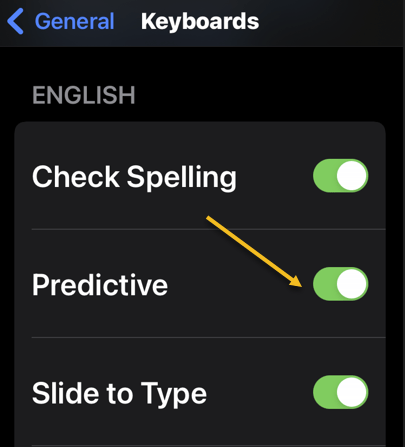
Next, scroll down the Keyboards page that opens to the bottom. There, turn on the Predictive option. See the below image:

Tip: To disable Predictive Text later, toggle off the Predictive option in General > Keyboard.

Predictive Text 2
Enabling Predictive Text

You are done. From now on, your keyboard will suggest words that you should be using in your text when you’re typing something on your iPhone.


Enable Predictive Text From Keyboard Settings

If you are typing something and your iPhone’s keyboard is open, you can use an option on the keyboard itself to toggle on the Predictive Text feature.

First, open your iPhone’s keyboard, then tap and hold on to the globe icon (just beside the space bar). See the following image:

Predictive Text 3
Tap and hold the Globe icon

Next, in the menu that opens, select Keyboard Settings. Refer to the below image:

Predictive Text 4
Selecting the Keyboard Settings button

Now, on the Keyboards page, scroll down to the bottom. There, enable the Predictive feature. See the below image:

Predictive Text 5
Enabling Predictive Text

Your keyboard will now predict the words you are likely going to type. And that’s how you make typing faster and easier on your iPhone.

Quote For The Day

The real problem is not whether machines think but whether men do.

B.F. Skinner

Tweet Info

That’s it. Please feel free to share this post! One way to share is via Twitter.

Just click the Tweet icon below. This will launch Twitter where you click its icon to post the Tweet.

Checkout TechSavvy.Life for blog posts on smartphones, PCs, and Macs! You may email us at contact@techsavvy.life for comments or questions.

I Would Like To Hear From You

Please feel free to leave a comment. I would love to hear from you. Do you have a computer or smart device tech question? I will do my best to answer your inquiry. Just send an email to contact@techsavvy.life. Please mention the device, app, and version you are using. To help us out, you can send screenshots of your data related to your question.

Author’s E-Book

You can access the e-book from a Kindle device, the Kindle App for the desktop or smartphone, which is a free app.

The author’s Vietnam eBook on the Battle for Tra Bong Vietnam: Events and Aftermath

Two Little Known Safari Features for the iPhone

Apple’s mobile browser is packed with features. They make it easier to use extensions and protect your privacy.

RAYMOND OGLESBY @RaymondOglesby2
September 13, 2022

Apple’s mobile browser is packed with features. They make it easier to use extensions and protect your privacy. Let’s explore two little-known features that all iPhone owners need to know about.

Note! Technology is always changing. This means if you are implementing this post, your OS, iOS, iPadOS, and Android screens or text may not resemble this post’s contents, especially, if you are looking at a post years old.

This is for the iPhone. Screenshots are from iPhone XR running iOS 15.5+

Copyright Scott Adams, Inc./Distributed by Universal Uclick for UFS

Safari Extensions

Safari gained the ability to use extensions with the arrival of iOS 15. This allows you to vastly expand the capabilities of Apple’s browser with third-party add-ons, though you will need to go through Apple’s channels to do so.

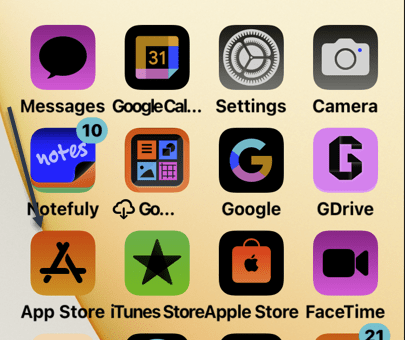
The extensions are in the App Store. First, open the App Store. Refer to the below image:

Accessing the App Store

Next, tap on Apps at the bottom of the screen. See the below image:

Selecting Apps

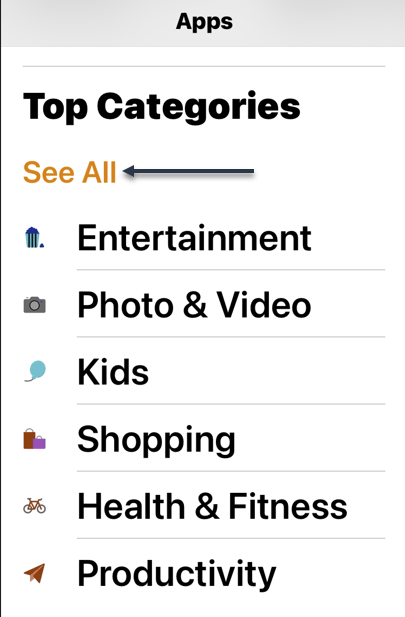
Now, scroll way down to the bottom of the page and find the Safari Extensions category under Top Categories. Tap See All if it’s not visible. From here you can install extensions just as you would any other app. See the following image:

Accessing Top Categories

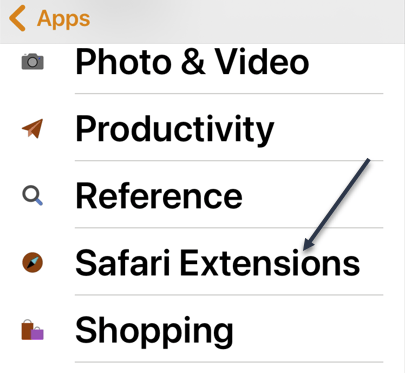
Next, scroll down and tap Safari Extensions. Refer to the below image:

Selecting Safari Extensions

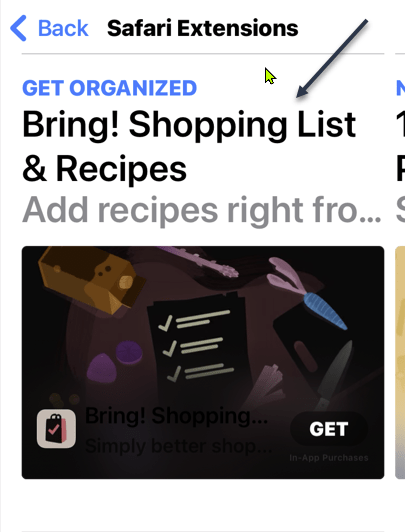
Now, you can install extensions just as you would any other app. See the below image:

Install an extension by tapping GET

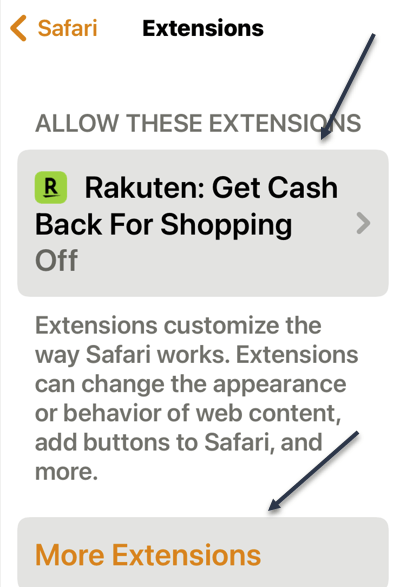
Next, many apps are bundled with Safari Extensions (just like Apple Watch apps and Home Screen widgets). To enable or disable these, head to:

Settings > Safari > Extensions

See the following image:

Safari Extensions

Advanced Privacy Features

Safari has a few privacy settings that you may have already enabled, but it’s worth checking they are on if you’re concerned about online privacy.

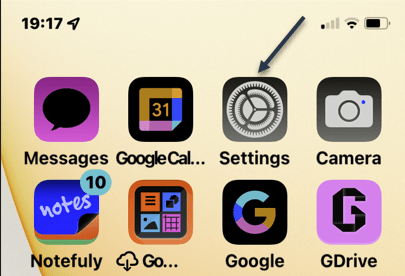
First, open Settings. Refer to the below image:

Accessing Settings

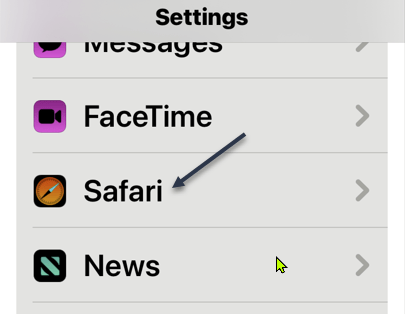
Now, tap Safari. See the below image:

Selecting Safari

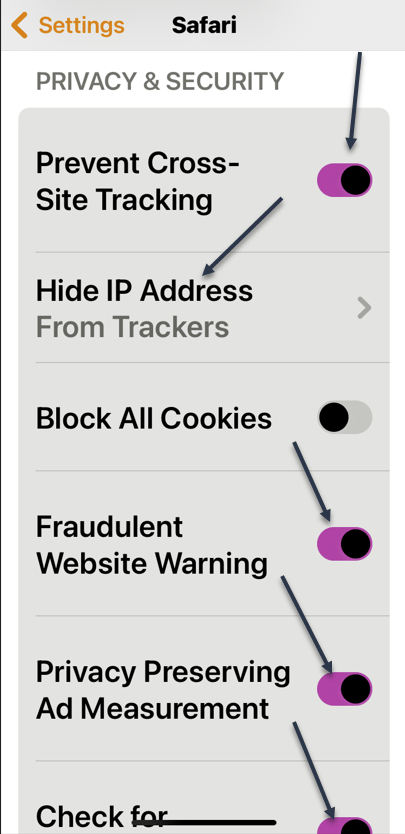
Next, scroll down to the Privacy & Security section. You can enable or disable the listed options. We recommend enabling each option except Block All Cookies and Privacy Preserving Ad Measurement by turning their toggle to ON. See the following image:

Setting Privacy options

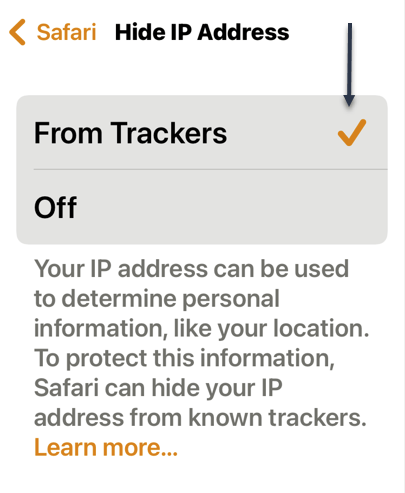
Now, tap the Hide IP Address and checkmark the From Trackers option. Refer to the below image:

Hide IP Address from Trackers

Quote For the Day

If you expect technology to solve your problems, you don’t understand technology or your problems.

Raymond Oglesby, author of TechSavvy.Life

Tweet Info

That’s it. Please feel free to share this post! One way to share is via Twitter.

Just click the Tweet icon below. This will launch Twitter where you click its icon to post the Tweet.

Checkout TechSavvy.Life for blog posts on smartphones, PCs, and Macs! You may email us at contact@techsavvy.life for comments or questions.

I Would Like to Hear From You

Please feel free to leave a comment. I would love to hear from you. Do you have a computer or smart device tech question? I will do my best to answer your inquiry. Just send an email to contact@techsavvy.life. Please mention the device, app, and version you are using. To help us out, you can send screenshots of your data related to your question.

Author’s E-Book

You can access the e-book from a Kindle device, the Kindle App for the desktop or smartphone, which is a free app.

The author’s Vietnam eBook on the Battle for Tra Bong Vietnam: Events and Aftermath

How to Delete Message(s) on iPhone

Your iPhone makes it super easy to remove individual text messages as well as entire conversations from the Messages app.

RAYMOND OGLESBY @RaymondOglesby2
August 30, 2022

Your iPhone makes it super easy to remove individual text messages as well as entire conversations from the Messages app. Let’s explore how to delete unwanted messages.

Warning: Once you have deleted a message or a conversation, you can not restore it, so make sure you are okay with losing your chats permanently.

This is for the iPhone. Screenshots are from iPhone XR running iOS 15.5+

Dilbert and Laser
Copyright Scott Adams, Inc./Distributed by Universal Uclick for UFS

Remove Individual Messages

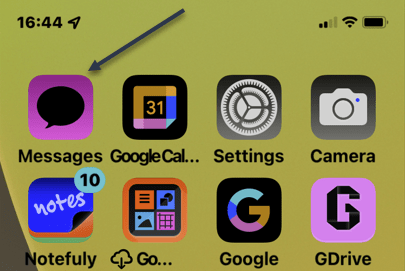
To remove single or multiple select messages from your iPhone, first, launch the Messages app on your iPhone. Refer to the below image:

Message 1
Accessing Messages

Next, in the app, find and tap the conversation in which you want to delete a message.

Now, on the Message screen, tap and hold on to the message you want to remove. Then, from the menu that opens, choose More. If the conversation has only one message, you will not see More, instead, tap Delete. See the below image:

Message 2
Accessing More option

Next, beside each message on your screen, you will see a Select icon. Tap this icon for all messages that you want to remove.

Now, when you are done, in the bottom-left corner, tap the Trash icon. See the following image:

Message 3
Selecting to delete a message

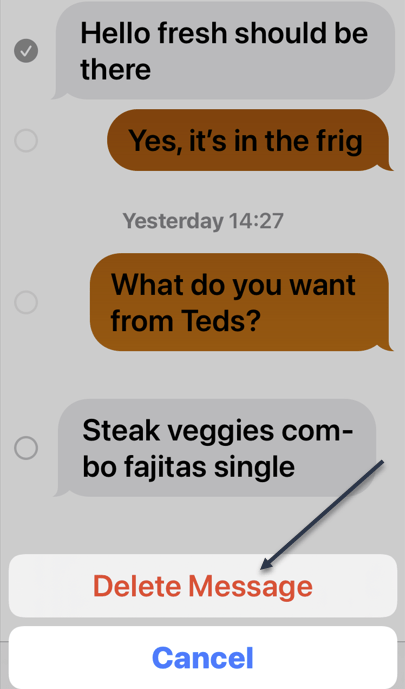
Next, in the prompt that opens, select Delete Message. Refer to the below image:

Message 4
Delete a Message

Your iPhone will delete the selected messages.

Remove Entire Conversations

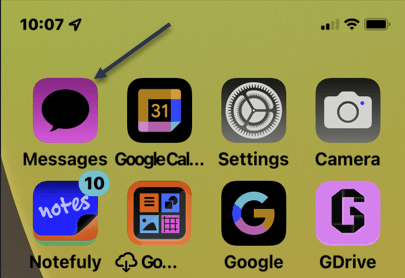
To remove an entire conversation from your iPhone, first, launch the Messages app on your iPhone. See the below image:

Message 5
Accessing Messages

Next, locate the conversation to delete but do not open it. On the conversation, you want to delete, swipe left. Then, from the options that appear, select Delete. See the following image:

Message 6
Selecting to delete a conversation

In the prompt that opens, choose Delete to confirm the deletion. Refer to the below image:

Message 7
Delete a conversation

Your iPhone will remove the entire chat from your Messages app.

Quote For The Day

Technology is a useful servant but a dangerous master.

Christian Lous Lange

Tweet Info

You are finished. Please feel free to share this post! One way to share is via Twitter.

Just click the Tweet icon below. This will launch Twitter where you click its icon to post the Tweet.

Checkout TechSavvy.Life for blog posts on smartphones, PCs, and Macs! You may email us at contact@techsavvy.life for comments or questions.

I Would Like to Hear From You

Please feel free to leave a comment. I would love to hear from you. Do you have a computer or smart device tech question? I will do my best to answer your inquiry. Just send an email to contact@techsavvy.life. Please mention the device, app, and version you are using. To help us out, you can send screenshots of your data related to your question.

Author’s E-Book

You can access the e-book from a Kindle device, the Kindle App for the desktop or smartphone, which is a free app.

The author’s Vietnam eBook on the Battle for Tra Bong Vietnam: Events and Aftermath

How to Turn Off Data Roaming on Smartphones

Roaming is a term that often gets mentioned in data plans for smartphones. Are you technically “roaming” when you’re out and about? Well, that’s not exactly what it means in the eyes of your mobile carrier.

RAYMOND OGLESBY @RaymondOglesby2
August 16, 2022

Roaming is a term that often gets mentioned in data plans for smartphones. Are you technically “roaming” when you are out and about? Well, that’s not exactly what it means in the eyes of your mobile carrier. Let’s explore data roaming.

This is for smartphones

Dilbert and Chip
Copyright Scott Adams, Inc./Distributed by Universal Uclick for UFS

Data Roaming

Data roaming is actually a very simple concept. You have a mobile carrier that provides data to your smartphone when it’s not connected to Wi-Fi. However, as you know, your carrier’s network is not limitless.

So what happens when you go somewhere not covered by your carrier’s network? That’s where data roaming comes in. Roaming allows you to hop on another network so you can still make calls, send texts, and use wireless data when your carrier’s network is disconnected.

This typically works through agreements between your carrier and other networks. The most common scenario in which data roaming comes into play is traveling to a country where your carrier does not have a presence. You can roam on the other network and not need to sign up for something new.

The Cost

Unfortunately, data roaming is not usually included for free as part of your data plan. If you want unlimited roaming you will need to pay for one of the more expensive plans. Roaming charges vary from carrier to carrier.

In general, if you do not pay extra for unlimited roaming, you will pay for how much you use. That could be around $0.25 per minute on calls, $0.10 per SMS, and $3 per MB of data. Needless to say, those numbers can add up quickly, so make sure to read the details of your data plan to find out what you could be charged.

Avoid the Charges

The good news is you probably do not have to worry about roaming charges. Your carrier may not have 5G or LTE coverage in all places, but there is almost always some lower-speed coverage everywhere in the country. Data roaming is primarily for traveling internationally.

That being said, there are some things you can do to be absolutely sure you are never roaming and being charged for it.

On the Android

On Android, go to:

Settings > Network & Internet > SIM

and toggle Roaming to OFF.

On the Samsung

On Samsung o to:

Settings > Connections > Mobile Networks

and toggle Data Roaming to OFF.

On the iPhone

On the iPhone, go to:

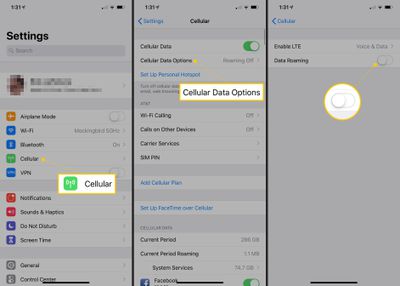
Settings > Cellular > Cellular Data Options

and toggle Data Roaming to OFF. Refer to the below image:

Roaming 1
Turn OFF Data Roaming

Tip: If you are not traveling internationally, you can also consider paying for an international data plan with your cellular carrier. You can also consider getting a SIM card and cellular data plan in the country you will be staying in. Both of these are good ways to avoid the usual pay-for-the-data-you-use roaming charges, which can be expensive.

That’s all there is to data roaming. It’s primarily a feature of mobile networks for traveling outside of your country of residence. In your day-to-day life, it’s not something to worry about. However, if you plan on traveling, you will want to see what your carrier has to offer.

Quote For The Day

In software systems it is often the early bird that makes the worm.

Alan Perlis

Tweet Info

That’s it. Please feel free to share this post! One way to share is via Twitter.

Just click the Tweet icon below. This will launch Twitter where you click its icon to post the Tweet.

Checkout TechSavvy.Life for blog posts on smartphones, PCs, and Macs! You may email us at contact@techsavvy.life for comments or questions.

I Would Like to Hear From You

Please feel free to leave a comment. I would love to hear from you. Do you have a computer or smart device tech question? I will do my best to answer your inquiry. Just send an email to contact@techsavvy.life. Please mention the device, app, and version you are using. To help us out, you can send screenshots of your data related to your question.

Author’s E-book

You can access the e-book from a Kindle device, the Kindle App for the desktop or smartphone, which is a free app.

The author’s Vietnam eBook on the Battle for Tra Bong Vietnam: Events and Aftermath

How to Make Text Shortcuts on iPhone

Typing things out on an iPhone keyboard can be tiresome, but it does not have to be that way for everything. You can make custom text shortcuts to automatically be replaced with longer words or phrases. It’s a super handy feature.

RAYMOND OGLESBY @RaymondOglesby2
August 9, 2022

Typing things out on an iPhone keyboard can be tiresome, but it does not have to be that way for everything. You can make custom text shortcuts to automatically be replaced with longer words or phrases. It’s a super handy feature. Let’s explore how to set up text shortcuts.

This is for the iPhone. Screenshots are from iPhone XR running iOS 15.6+

Dilbert and Fired
Copyright Scott Adams, Inc./Distributed by Universal Uclick for UFS

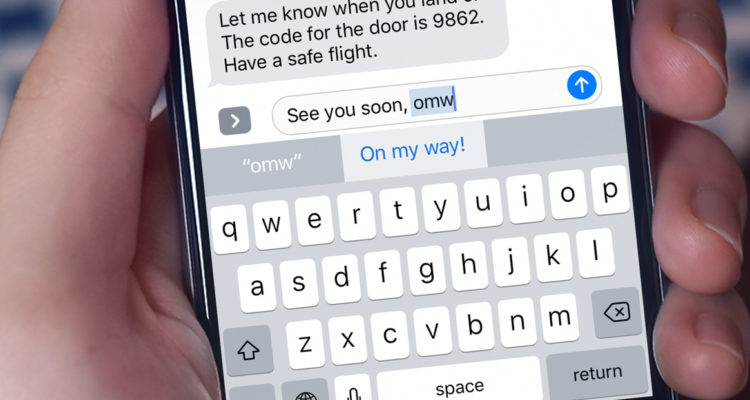
There’s a lot you can do with the iPhone’s Text Replacement feature. One example is included on every iPhone by default; omw is automatically replaced with On my way. You can use that same idea for anything. All you need is a shortcut and a phrase to go with it.

Note: The Text Replacement feature only works with the default iPhone keyboard, not third-party keyboards from the App Store.

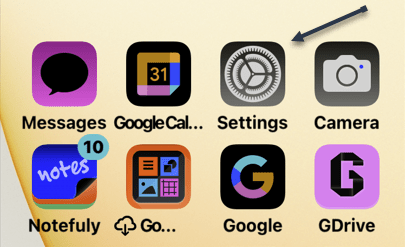
First, open the Settings app on your iPhone (this is also available on iPad). Refer to the below image:

Text 1
Selecting the Settings app

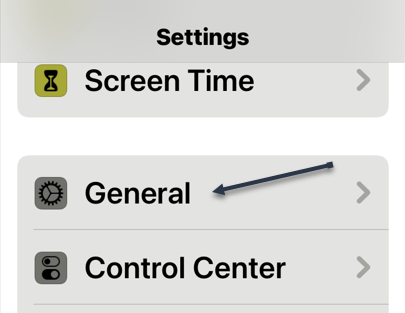
Next, go to the General section. See the below image:

Text 2
Selecting the General option

Now, select the Keyboard settings. See the following image:

Text 3
Selecting the Keyboard option

Next, go to Text Replacement. Refer to the below image:

Text 4
Selecting the Text Replacement option

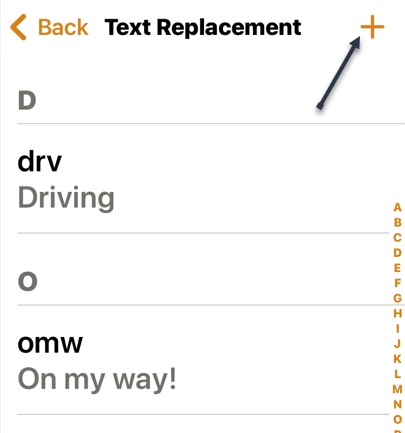
Now, tap the “+” icon in the top right-hand corner. See the below image:

Text 5
Selecting the add icon

Next, enter a Phrase and a Shortcut. The Phrase will replace the Shortcut. Tap Save when you are done. See the following image:

Text 6
Entering a Phrase and Shortcut

Now, your shortcut will be added. Refer to the below image:

Text 7
Your added shortcut

Next, you are ready to use it! We are using the Notes app for our example. Simply type the shortcut and you will see the full phrase appear above the keyboard. You can tap the phrase to insert it or continue typing by tapping the spacebar or return and it will automatically be inserted. Tap Done to finish in the Notes app. See the below image:

Text 8
Using your new text shortcut

This is a great time-saving feature for typing out longer phrases. One handy tip is to use your name as a shortcut for your entire address.

Quote For the Day

Technology should improve your life… not become your life.

Billy Cox

Tweet Info

You are finished. Please feel free to share this post! One way to share is via Twitter.

Just click the Tweet icon below. This will launch Twitter where you click its icon to post the Tweet.

Checkout TechSavvy.Life for blog posts on smartphones, PCs, and Macs! You may email us at contact@techsavvy.life for comments or questions.

I Would Like to Hear From You

Please feel free to leave a comment. I would love to hear from you. Do you have a computer or smart device tech question? I will do my best to answer your inquiry. Just send an email to contact@techsavvy.life. Please mention the device, app, and version you are using. To help us out, you can send screenshots of your data related to your question.

Author’s E-book

You can access the e-book from a Kindle device, the Kindle App for the desktop or smartphone, which is a free app.


The author’s Vietnam eBook on the Battle for Tra Bong Vietnam: Events and Aftermath

How to Disable Flash Notifications on iPhone

Want to stop your iPhone’s flash from blinking when you receive a notification on your phone? If so, you can toggle off the flash notifications feature and the LED flash won’t blink anymore.

RAYMOND OGLESBY @RaymondOglesby2
August 2, 2022

Want to stop your iPhone’s flash from blinking when you receive a notification on your phone? If so, you can toggle off the flash notifications feature and the LED flash will not blink anymore. It’s simple to disable.

This is for the iPhone. Screenshots are from iPhone XR using iOS 15.5+

Copyright Scott Adams, Inc./Distributed by Universal Uclick for UFS

First, open the Settings app on your iPhone. Refer to the below image:

Flash 1
Accessing Settings

Next, in Settings, choose Accessibility. See the below image:

Flash 2
Accessing Accessibility option

Now, from Accessibility, scroll down to the Audio/Visual option and tap it. See the following image:

Flash 3
Accessing Audio/Visual option

Next, in Audio/Visual, scroll down to the Visual section, and toggle OFF the LED Flash for Alerts. Refer to the below image:

Tip: To manage the flash alerts for when your iPhone is on silent mode, use the Flash on Silent option.

Flash 4
Disable LED Flash for Alerts option

From now on, your iPhone’s flash will not blink when you receive a new notification. Your regular notifications and their alerts will continue to arrive, though.

Quote For The Day

Once a new technology rolls over you, if you’re not part of the steamroller, you’re part of the road.

Stewart Brand

Tweet Info

That’s it. Please feel free to share this post! One way to share is via Twitter.

Just click the Tweet icon below. This will launch Twitter where you click its icon to post the Tweet.

Checkout TechSavvy.Life for blog posts on smartphones, PCs, and Macs! You may email us at contact@techsavvy.life for comments or questions.

I Would Like to Hear From You

Please feel free to leave a comment. I would love to hear from you. Do you have a computer or smart device tech question? I will do my best to answer your inquiry. Just send an email to contact@techsavvy.life. Please mention the device, app, and version you are using. To help us out, you can send screenshots of your data related to your question.

Author’s E-Book

You can access the e-book from a Kindle device, the Kindle App for the desktop or smartphone, which is a free app.
The author’s Vietnam eBook on the Battle for Tra Bong Vietnam: Events and Aftermath

Five Ways to Damage Your Smartphone Battery

There’s a lot of information out there about how to treat smartphone batteries. We can argue about the best practices, but there are some clearly bad things that can ruin batteries quickly.

RAYMOND OGLESBY @RaymondOglesby2
July 26, 2022

There’s a lot of information out there about how to treat smartphone batteries. We can argue about the best practices, but there are some clearly bad things that can ruin batteries quickly. Let’s find out.

This is for the smartphone

Copyright Scott Adams, Inc./Distributed by Universal Uclick for UFS

Smartphone batteries get worse over time, it’s inevitable. There are systems in place to slow it down as much as possible, but some things speed up that process and can even skip right to the end of it.

Damaged Cables

One of the worst and most dangerous things you can do is use cheap or incompatible cables with your phone. If you have ever heard a story about a phone spontaneously catching fire, it’s usually the fault of the cable.

It’s best to stick with charging accessories from the manufacturer of your phone or trusted brands. Avoid super low-cost accessories that do not have a lot of reviews. iPhone users can look for the Made for iPhone sticker to feel safe. All of this applies to wireless chargers as well. Refer to the below image:

Smartphone Battery 1
Damaged cables

Down to Zero

Charging cycles are what impact the lifespan of a battery the most. The constant cycle of charging and discharging slowly degrades the battery’s health. What makes it even worse is when your phone is frequently starting the cycle from 0%.

It’s best to keep your phone charged between 20-80% as much as possible. Some phones have features to help you do this, but they can only do so much. Shorter charge cycles are better for the battery, so try not to let it get below 20% as much. See the below image:

Smartphone Battery 2

Battery at zero charge

Keeping It Plugged In

It goes the opposite direction, too. Keeping your phone plugged in at 100% all the time is just as bad as letting it get to 0%. Charging your phone overnight is not necessarily bad, but you should not charge it more than you need to.

When the battery reaches 100% charge will protect itself by stopping charging. However, as soon as it drops back down to 99% it will charge back up to 100% again. This small cycle repeats itself over and over and it’s not good for the battery.

The good news is the iPhone and some Android phones now have Adaptive or Optimized charging features to reduce these charging cycles overnight. They keep the battery at around 80% most of the night and then finish the last 20% around your usual wake-up time. See the following image:

Smartphone Battery 3
Plugged in all the time

Extreme Heat

Most electronics do not like heat. This is especially true for batteries, including the ones in your phone. Excessive heat can shorten the lifespan of the battery. That’s another reason why it’s not great to keep your phone plugged in all the time.

Heat can come from other sources as well. Playing games that require a lot of resources, leaving your phone in a hot car, or letting it bake in the sun at the beach. All of these things can overheat your phone and damage the battery in the process. Refer to the below image:

Smartphone Battery 4
Smartphones in extreme heat

Screen Brightness

We have noticed this the most amongst adults, and their phone brightness levels are blinding. They are not only causing hurt to the eyes but also to the humble battery. Screens use the most amount of resources on the phone. That means, the higher the brightness level, the more battery drainage will occur. So, keep your brightness levels to a minimum, but also not to a point where you have to squint! See the below image:

Smartphone Battery 5
Screen brightness

The good news is you probably do not have to worry about ruining your smartphone’s battery. Most of these things are common sense. Stick with name-brand charging accessories, do not overly exhaust or juice up, and keep the device at a comfortable temperature. You will get the best you can out of your battery. Regardless, over time, your battery will slowly deplete, no longer charging to 100%.

Quote For the Day

Globalization, as defined by rich people like us, is a very nice thing… you are talking about the Internet, you are talking about cell phones, you are talking about computers. This doesn’t affect two-thirds of the people of the world.

Jimmy Carter

Tweet Info

That’s it. Please feel free to share this post! One way to share is via Twitter.

Just click the Tweet icon below. This will launch Twitter where you click its icon to post the Tweet.

Check out TechSavvy.Life for blog posts on smartphones, PCs, and Macs! You may email us at contact@techsavvy.life for comments or questions.

I Would Like to Hear From You

Please feel free to leave a comment. I would love to hear from you. Do you have a computer or smart device tech question? I will do my best to answer your inquiry. Just send an email to contact@techsavvy.life. Please mention the device, app, and version you are using. To help us out, you can send screenshots of your data related to your question.

Author’s E-Book

You can access the e-book from a Kindle device, the Kindle App for the desktop or smartphone, which is a free app.
The author’s Vietnam eBook on the Battle for Tra Bong Vietnam: Events and Aftermath

How to Loop a YouTube Video on iPhone

Using just the built-in features in iPhone’s Photos and YouTube app, you can make your videos play in a loop for as long as you want. This eliminates the need to manually re-play your videos. YouTube’s app for iPhone offers the option to play all your videos in a loop.

RAYMOND OGLESBY @RaymondOglesby2
July 21, 2022

Using just the built-in features in iPhone’s Photos and YouTube app, you can make your videos play in a loop for as long as you want. This eliminates the need to manually re-play your videos. YouTube’s app for iPhone offers the option to play all your videos in a loop. Let’s explore this feature.

This is for the iPhone

Dilbert and Pill
Copyright Scott Adams, Inc./Distributed by Universal Uclick for UFS

First, launch YouTube on your phone. In the app, tap the video you would like to play.

Next, on the video playback page, in the top right-hand corner, tap the Menu icon (the three dots). Refer to the below image:

Loop 1
Accessing the YouTube Video menu

Now, from the Menu that opens, tap the Loop Video option to turn it ON. See the below image:

Loop 2
Turn ON the Loop video option

YouTube will keep playing the same video until you disable the loop. You can turn off the loop feature by tapping the same Menu icon (the three dots) and tapping Loop Video to turn it OFF.

Quote For the Day

t is questionable if all the mechanical inventions yet made have lightened the day’s toil of any human being.

John Stuart Mill

Tweet Info

That was east. Please feel free to share this post! One way to share is via Twitter.

Just click the Tweet icon below. This will launch Twitter where you click its icon to post the Tweet.

Checkout TechSavvy.Life for blog posts on smartphones, PCs, and Macs! You may email us at contact@techsavvy.life for comments or questions.

I Would Like to Hear From You

Please feel free to leave a comment. I would love to hear from you. Do you have a computer or smart device tech question? I will do my best to answer your inquiry. Just send an email to contact@techsavvy.life. Please mention the device, app, and version you are using. To help us out, you can send screenshots of your data related to your question.

Author’s E-Book

You can access the e-book from a Kindle device, the Kindle App for the desktop or smartphone, which is a free app.
The author’s Vietnam eBook on the Battle for Tra Bong Vietnam: Events and Aftermath

How to Set Emergency Bypass on iPhone

If you would like to allow certain people to call, FaceTime, or message you when you have enabled Do Not Disturb (DND) mode, activate your iPhone’s Emergency Bypass option for those people.

RAYMOND OGLESBY @RaymondOglesby2
July 19, 2022

If you would like to allow certain people to call, FaceTime, or message you when you have enabled Do Not Disturb (DND) mode, activate your iPhone’s Emergency Bypass option for those people. Let’s explore how to do just that.

This is for the iPhone

Dilbert and Criminal
Copyright Scott Adams, Inc./Distributed by Universal Uclick for UFS

When you enable Emergency Bypass for a specific contact, they can reach out to you even while you are on DND mode. You can enable this feature for phone and FaceTime calls and text messages separately.

Enable Emergency Bypass for Phone and FaceTime Calls

To allow people to get through your iPhone’s Do Not Disturb (DND) mode, first, launch the Contacts app on your phone.

Next, in the Contacts app, find and select the person you want to bypass. On the contact page, in the top right-hand corner, tap Edit. Refer to the below image:

ByPass
Selecting a contact to edit

Now, on the Edit screen, scroll down and choose Ringtone. See the below image:

ByPass 2
Selecting the Ringtone option

Next, on the Ringtone page, at the top, toggle to ON the Emergency Bypass option. Then, at the top right-hand corner, tap Done. See the following image:

ByPass 3
Turning Emergency Bypass to ON

Note!, To disable the feature, turn off the “Emergency Bypass” option.

Now, your selected person will now be able to make regular, and FaceTime calls with you even when you have chosen not to be disturbed.

Enable Emergency Bypass for Text Messages on iPhone

If you want certain people to send you text messages when you have Do Not Disturb (DND) turned on, first, launch the Contacts app on your iPhone. Then find and tap your contact.

Next, on the Contact page, in the top right-hand corner, tap Edit. Refer to the below image:

ByPass 4
Selecting a contact to edit

Now, on the Edit page, scroll down and tap Text Tone. See the below image:

ByPass 5
Selecting the Text Tone option

Next, on the Text Tone page, at the top, toggle to ON the Emergency Bypass option. Then save your changes by tapping Done in the top right-hand corner. See the following image:

ByPass 6
Turning Emergency Bypass to ON

Note!, To disable the feature, turn off the “Emergency Bypass” option.

Now, your iPhone will now allow text messages from your selected contact whether you have or have not enabled Do Not Disturb (DND) mode.

Quote For the Day

Technological progress has merely provided us with more efficient means for going backwards.

Aldous Huxley

Tweet Info

That’s it. Please feel free to share this post! One way to share is via Twitter.

Just click the Tweet icon below. This will launch Twitter where you click its icon to post the Tweet.

Checkout TechSavvy.Life for blog posts on smartphones, PCs, and Macs! You may email us at contact@techsavvy.life for comments or questions.

I Would Like to Hear From You

Please feel free to leave a comment. I would love to hear from you. Do you have a computer or smart device tech question? I will do my best to answer your inquiry. Just send an email to contact@techsavvy.life. Please mention the device, app, and version you are using. To help us out, you can send screenshots of your data related to your question.

Author’s E-book

You can access the e-book from a Kindle device, the Kindle App for the desktop or smartphone, which is a free app.
The author’s Vietnam eBook on the Battle for Tra Bong Vietnam: Events and Aftermath