Notifications are a blessing and a curse. They can be great in a lot of situations, but you probably ignore most of them. There are several things we can do to make Notifications on your iPhone work a little better.
Unfortunately, the notification situation on the iPhone is a bit messy. There are a lot of settings and options, but Apple does not explain a lot of them well. Let’s explore some things to get the best notification experience.
This is for the iPhone. Screenshots are from iPhone XR running iOS 16+
Copyright Scott Adams, Inc./Distributed by Universal Uclick for UFS
Stop From Turning on the Screen
By default, iPhone notifications always turn on the screen. Not only can this be annoying, but it also drains the battery faster if you get a lot of them.
Each app has three different types of alerts it can do; Lock Screen, Notification Center, and Banners. Simply turning off the Lock Screen option will prevent notifications from turning on the screen. First, head to:
Settings > Notifications
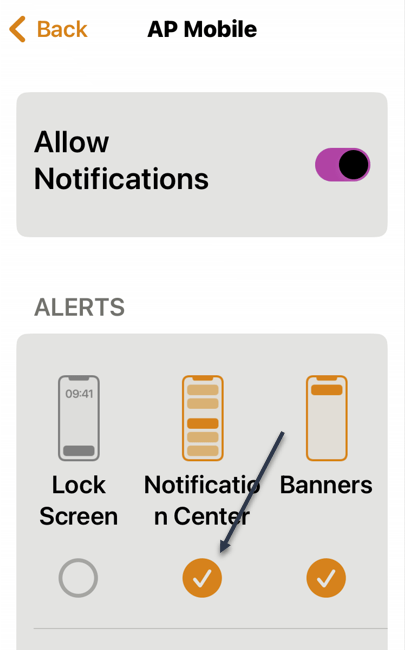
and scroll down and find an app, then tap on the app. Under the Alerts section, uncheck the Lock Screen option. Refer to the below image:
Disabling the Lock Screen option
Delivery Quietly
Notifications do not have to be loud and annoying. You have the option to make them appear Quietly. This can be done directly from the notification, as shown above, or from Settings.
When a notification is delivered quietly, it basically just appears on your device without any fanfare. You will still see it in the Notification Center and Home screen badge, but not on the Lock screen, and it will not vibrate or make a sound.
First, head to:
Settings > Notifications
and scroll down and find an app, then tap on the app. Under the Alerts section, check the Notification Center option. See the below image:
Enabling Deliver Quietly option
Group/Ungroup
Notifications from the same app can be grouped together. They appear as a bundle on the Lock screen and Notification Center. This is enabled by default, but it can be tweaked for any app.
Each app has three different options for Notification Grouping, Automatic is the default.
Automatic: The Notifications from the app are intelligently grouped by threads, topics, and other criteria.
By App: All the Notifications from the app are grouped together.
Off: Notifications are not grouped at all.
Just tap on Notification Grouping to see the options See the following image:
Selecting Group or Ungroup option
Using Focus
One of the iPhone’s most powerful notification features is called Focus. It’s essentially a way to make personalized Do Not Disturb modes for specific situations. First, head to:
Settings > Focus
and select one or create your own. Refer to the below image:
Setup Focus
iPhone notifications can be great and they can be awful. It’s up to you to customize the experience to your liking. If your iPhone is becoming too much of a distraction and frustration, try the above tips.
Quote For the Day
The human spirit must prevail over technology.
Albert Einstein
Tweet Info
You are finished. Please feel free to share this post! One way to share is via Twitter.
Just click the Tweet icon below. This will launch Twitter where you click its icon to post the Tweet.
Checkout TechSavvy.Life for blog posts on smartphones, PCs, and Macs! You may email us at contact@techsavvy.life for comments or questions.
Please feel free to leave a comment. I would love to hear from you. Do you have a computer or smart device tech question? I will do my best to answer your inquiry. Just send an email to contact@techsavvy.life. Please mention the device, app, and version you are using. To help us out, you can send screenshots of your data related to your question.
Author’s E-Book
You can access the e-book from a Kindle device, the Kindle App for the desktop or smartphone, which is a free app.
The author’s Vietnam eBook on the Battle for Tra Bong Vietnam: Events and Aftermath
You can schedule emails on your iPhone using the default Mail app without the need for third-party services. Plus, it works with any email address you want to add to your phone.
You can schedule emails on your iPhone using the default Mail app without the need for third-party services. Plus, it works with any email address you want to add to your phone. Let’s explore this feature in iOS 16+.
This is for the iPhone. Screenshots are from iPhone XR running iOS 16+
Copyright Scott Adams, Inc./Distributed by Universal Uclick for UFS
iOS 16 Required
The ability to schedule email was added to the Mail app in iOS 16. If you do not see the option, make sure you have upgraded to iOS 16 under the:
Settings > General > Software Update
You can check your current software version under the:
Settings > General > About
Some third-party mail apps also offer this service (including Gmail for iPhone), but make sure you are in Apple’s stock Mail app if you are trying to follow these instructions.
Schedule Emails Using the Mail App
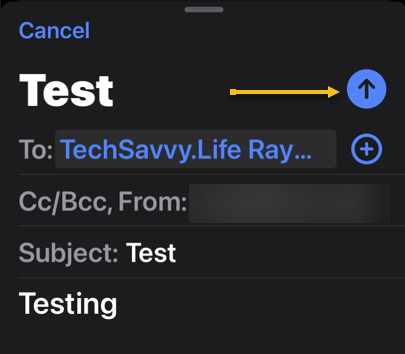
To schedule an email, first, launch the Mail app and tap the Compose button to start writing a new message. Once you have added a recipient, subject, and body to the email, you will notice the Send button (an upward arrow) turn blue. Refer to the below image:
Compose your email
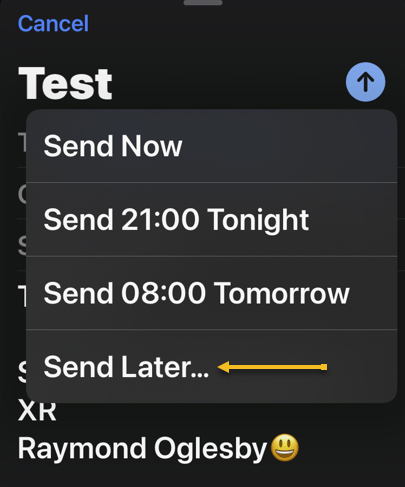
Next, to schedule the email, tap and hold the Send button. You will see a few options depending on the current time of day. See the below image:
choosing the Send Later option
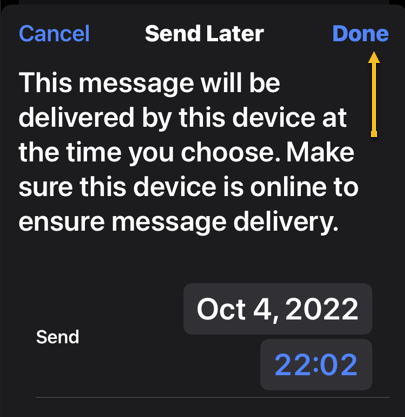
Now, we want to manually schedule the message. Tap Send Later… and enter a date and time manually. Hit Done to schedule the message. See the following image:
Tapping Done to schedule your email
Next, you can always tap the Send button (without holding) to send the email immediately. And if you accidentally send an email when you meant to schedule it, you can tap the Undo option at the bottom of the screen within 10 seconds. Refer to the below image:
Choosing to undo sending your email
Note! You can customize how long you have to undo sending an email under Settings > Mail. Inside these settings, you can choose between 10 seconds, 20 seconds, or 30 seconds.
Find Your Scheduled Email
Messages that have been scheduled will appear in a separate mailbox in the Mail app. First, launch Mail, then look at the top of the screen in the Mailboxes view.
Note! If you do not see a list of mailboxes, you are probably browsing a specific mailbox. You can use the back arrow in the top left-hand corner of the screen to get back to the main view.
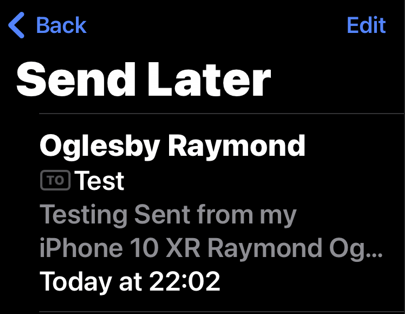
Next, you should see the Send Later mailbox. If you do not, tap Edit in the top right-hand corner and tap the circle next to the Send Later inbox to enable it. Then, tap Done. You should now see the mailbox in your list. See the below image:
Accessing your scheduled emails
Now, you can tap on the mailbox to see which messages are due to go out and the time they will be sent. See the following image:
Viewing your scheduled email
Note! You are unable to edit a message once it has been scheduled. You will have to delete it and schedule a new one. To delete your email, swipe the message to the left and tap Trash.
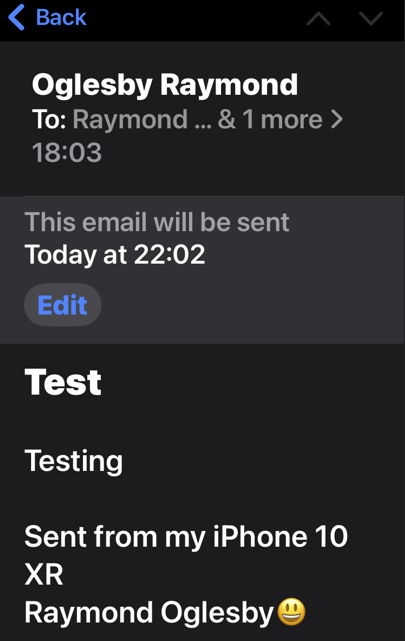
Next, if you selected the scheduled email, you can tap Edit next to it to change the time the email will be sent. Refer to the below image:
Notification on when the email will be sent
Warning! Be careful here, as tapping Edit will immediately change the scheduled time to now. That means if you hit Done instead of Cancel, your email will be sent immediately, with no option to undo it.
Quote For the Day
We are the children of a technological age. We have found streamlined ways of doing much of our routine work. Printing is no longer the only way of reproducing books. Reading them, however, has not changed.
Lawrence Clark Powell
Tweet Info
You are finished. Please feel free to share this post! One way to share is via Twitter.
Just click the Tweet icon below. This will launch Twitter where you click its icon to post the Tweet.
Checkout TechSavvy.Life for blog posts on smartphones, PCs, and Macs! You may email us at contact@techsavvy.life for comments or questions.
Please feel free to leave a comment. I would love to hear from you. Do you have a computer or smart device tech question? I will do my best to answer your inquiry. Just send an email to contact@techsavvy.life. Please mention the device, app, and version you are using. To help us out, you can send screenshots of your data related to your question.
Author’s E-Book
You can access the e-book from a Kindle device, the Kindle App for the desktop or smartphone, which is a free app.
The author’s Vietnam eBook on the Battle for Tra Bong Vietnam: Events and Aftermath
The iPhone camera is capable of shooting two aspect ratios, 4:3 and 16:9. The 4:3 aspect ratio uses the full megapixels, whereas the 16:9 crops in for a wider view.
The iPhone Camera is capable of shooting two aspect ratios, 4:3 and 16:9. The 4:3 aspect ratio uses full megapixels, whereas the 16:9 crops in for a wider view. Let’s explore this feature.
This is for the iPhone. Screenshots are from iPhone XR running iOS 16+
Copyright Scott Adams, Inc./Distributed by Universal Uclick for UFS
The difference between 4:3 and 16:9 is the width of the photo. However, it’s not that simple on the iPhone. Shooting in 16:9 does not necessarily mean you will get captured more from the sides of the shot. Depending on the cameras on your iPhone, it may simply crop the 4:3 photo.
First, open the Camera app on your iPhone. Refer to the below image:
Accessing Camera
Next, tap the Arrow at the top of the screen. To turn off Live Photo, tap the Concentric Circle icon. See the below image:
Accessing the Arrow and optionally turning off Live Photo
Now, some controls will slide up from the bottom of the screen. Tap the 4:3 or 16:9 button. See the following image:
Accessing the Aspect Ratio
Next, you can choose 16:9, Square, or 4:3. Refer to the below image:
Changing the Aspect Ratio to 16:9
Again, keep in mind that the 16:9 aspect ratio typically is a lower resolution than 4:3 since it’s cropping the shot. If you want to always take full advantage of the Camera hardware, shoot in 4:3.
To set your last Camera settings go to:
Settings > Camera > Preserve Settings > Camera Mode
and turn it ON, then open the Camera and take a photo.
Photos with Aspect Ratio
Aspect Ratio 4:3Aspect Ratio 16:9
Quote For the Day
Computers are useless. They can only give you answers
Pablo Picasso
Tweet Info
That’s it. Please feel free to share this post! One way to share is via Twitter.
Just click the Tweet icon below. This will launch Twitter where you click its icon to post the Tweet.
Checkout TechSavvy.Life for blog posts on smartphones, PCs, and Macs! You may email us at contact@techsavvy.life for comments or questions.
Please feel free to leave a comment. I would love to hear from you. Do you have a computer or smart device tech question? I will do my best to answer your inquiry. Just send an email to contact@techsavvy.life. Please mention the device, app, and version you are using. To help us out, you can send screenshots of your data related to your question.
Author’s E-Book
You can access the e-book from a Kindle device, the Kindle App for the desktop or smartphone, which is a free app.
The author’s Vietnam eBook on the Battle for Tra Bong Vietnam: Events and Aftermath
Copyright Scott Adams, Inc./Distributed by Universal Uclick for UFS Let’s explore these myths.
This is for smartphones
Copyright Scott Adams, Inc./Distributed by Universal Uclick for UFS
Maintain Battery Life Forever
Let’s open with the most persistent overarching myth: that you can somehow baby your phone’s battery to keep it in good health forever.
A smartphone battery is, ultimately, a consumable good. Like a battery in your car, the battery exists to be used and, when it has reached the end of its life cycle, replaced.
Sure it’s a minor hassle to get the battery on your phone replaced, given that many phones have sealed-body designs now. But it’s not particularly expensive to do so. You might have to spend $50-$70 for a new battery.
Kill Apps to Save Battery Life
Your phone was designed to be used the way the vast majority of people use it: opening apps when needed, never actually closing them, and just letting unused apps sit off to the side when moving on to the next app; leaving the original apps to hang out in a sort of suspended state until needed again.
Your phone was not designed with the idea that you, the end user, would force quit an app when you were done using it as if you were closing apps down on a desktop computer. That’s true for iPhones, and it’s true for Android-based phones.
Yes, there are rare instances of poorly coded applications using too much background data or otherwise negatively impacting your battery life. If you have an app you really need to use, and it’s one of those apps, force quitting it when you are not actually using it might be wise.
But for the majority of us, closing apps is a waste of time, and actually hurts the performance and battery life of your phone.
Discharge the Battery to 0% Before Using
The consumer use of lithium-ion batteries is fairly recent. Because of that, many people either have first-hand experience with older (and more finicky) batteries or were given advice by people who did.
Some types of rechargeable batteries suffer from “memory” issues. That’s not the case with lithium-ion batteries. In fact, you should go out of your way to avoid fully draining the battery. In general, your phone battery is healthier when it is being regularly used and charged.
However, once or twice a year it is useful to let your lithium-ion battery drain all the way down before recharging to recalibrate the battery. That does not extend the life of the battery, but it does ensure that your phone software can accurately report the charge of the battery.
While Charging Don’t Use It
This myth is based on the idea that heat is damaging to your phone and to the battery life. That’s not entirely untrue. Your battery is healthier operating near room temperature (and actually works a little better in cooler-than-room temperature conditions). Electronics, in general, do not like heat.
But the little bit of heat introduced by charging and then the extra heat introduced by you using the phone is not a big deal. Should you charge your phone while sitting in the direct summer sun, playing the most demanding mobile game you have? No, probably not. But anything short of those kinds of stress-test conditions is fine.
Third-Party Chargers Will Damage Your Phone
Is it ideal to only use first-party OEM chargers created by the manufacturer specifically for your smartphone? Sure. Is it a huge risk to do otherwise? In most cases, not at all.
There are plenty of really great third-party chargers out there from reputable companies like Anker, Belkin, Spigen, and so on.
What you want to avoid are the poorly constructed and poorly quality chargers you find at gas stations, flea markets, and other places where bargain-basement no-name products are sold. Do not trust your phone to a $4 gas station charger.
Fast and Wireless Charging Will Damage Your Battery
Let’s lump these two together because the basis of the myth is the same. There is a long-standing belief that using a fast charger or a wireless charger damages your battery because it introduces excess heat that degrades the battery circuits.
Technically, it’s true that the brief period of intense charging during the peak of a fast charging cycle introduces more heat than not using fast charging would introduce.
It’s also technically true that the inherent inefficiency of a wireless charger over a wired charger will also introduce extra heat.
Neither of these has an impact significant enough to merit any real consideration, that’s why new cars feature wireless charging.
Charging Overnight Damages Your Battery
Here’s another myth that was significantly more true in the past and barely relevant today: leaving your phone plugged in to charge overnight is bad for the battery.
In the past, smartphones were not smart about battery management. Your phone would charge up to 100%, stop charging, and then after slowly discharging, it would charge back up again. Modern phones have adaptive charging, and they strategically manage the charging window to minimize battery damage.
Having a fully charged and ready-to-go phone in the morning far outweighs any minor wear and tear overnight charging might put on the battery.
Battery Is Damaged by Turning It Off at Night
This myth, depending on who shares it, goes both ways. Some people will tell you turning the phone off is good for the battery. Some people will tell you leaving the phone on all the time is bad for the battery. The truth is, neither state really matters much.
Your phone is designed to be on all the time. Not a single phone manufacturer has designed their device with the intention that you power it down and put it in a drawer when you are not using it.
Sure, you can extend the life of a lithium-ion battery by charging it to roughly 50-60% and then storing it in a cool, dry place. But this is your smartphone, you do not have to put it in storage, instead, you use it every day.
Disable Bluetooth and Other Features
Years ago, disabling features to save battery life was a far more useful tip than it is now. To be certain, any features on your smartphone that require energy such as Wi-Fi, Bluetooth, background data, and so on, will impact your battery life.
Turning off Wi-Fi when you are on a plane and not using the plane’s in-flight Wi-Fi, for example, is a straightforward way to squeeze out a little battery life if you do not have a charger handy. And disabling background data updates for a particular app that is aggressively polling for data you do not need constant updates about is also a wise decision.
But turning off Bluetooth and Wi-Fi, leaving your phone in Airplane Mode, or disabling all background data is overkill. For day-to-day use, it just makes your phone a pain to use.
The same thing goes for Low-Power Mode. If you are stuck between locations where you can charge your phone, by all means, use it. But keeping your phone in Low-Power Mode just makes it more frustrating to use.
Micro-managing how you charge your smartphone can, at best, only add a tiny amount to the battery’s lifespan and is hardly worth worrying about.
Quote For the Day
The only way to define your limits is by going beyond them.
Arthur C Clarke
Tweet Info
That’s it. Please feel free to share this post! One way to share is via Twitter.
Just click the Tweet icon below. This will launch Twitter where you click its icon to post the Tweet.
Checkout TechSavvy.Life for blog posts on smartphones, PCs, and Macs! You may email us at contact@techsavvy.life for comments or questions.
Please feel free to leave a comment. I would love to hear from you. Do you have a computer or smart device tech question? I will do my best to answer your inquiry. Just send an email to contact@techsavvy.life. Please mention the device, app, and version you are using. To help us out, you can send screenshots of your data related to your question.
Author’s E-Book
You can access the e-book from a Kindle device, the Kindle App for the desktop or smartphone, which is a free app.
The author’s Vietnam eBook on the Battle for Tra Bong Vietnam: Events and Aftermath
Starting with iOS 16, the iPhone Home screen includes a small Search button located just above the dock. If you find the addition annoying, Apple makes it easy to remove the Search button.
Starting with iOS 16, the iPhone Home screen includes a small Search button located just above the dock. If you find the addition annoying, Apple makes it easy to remove the Search button. Let’s explore this easy fix.
This is for the iPhone. Screenshots are from iPhone XR running iOS 16+
Copyright Scott Adams, Inc./Distributed by Universal Uclick for UFS
Apple likely added the new search button in iOS 16 because launching Spotlight Search on an iPhone had previously been a mysterious process (you swipe downward with one finger in the middle of the Home screen.) With the new button, all you have to do is tap it, and Spotlight opens instantly. Refer to the below image:
Accessing Search button
To remove this Search button, first, open Settings on your iPhone by tapping the Gear icon. See the below image:
Accessing Settings
Next, in Settings, scroll down and tap Home Screen. See the following image:
Accessing the Home Screen option
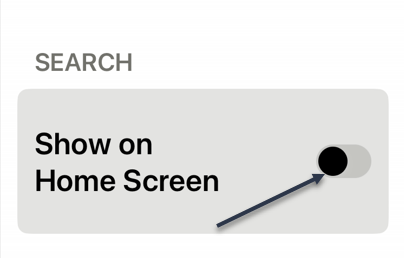
Now, on Home Screen settings, locate the section labeled Search and toggle the Show on Home Screen to the OFF position. Refer to the below image:
Disable the Search button on Home Screen
ANext, exit Settings, and you will see that the Search button has been replaced with the Home screen page number dots like iOS 15 and earlier. See the below image:
Back to the dots
These dots visually show you the Home screen you are on. You can hold your finger on them, then slide it to quickly scroll through your Home screen pages.
Even after you disable this Search button, you can swipe downward with one finger in the middle of the Home screen to open Spotlight search.
Quote For the Day
Maxwell’s equations were foundational for our revolution in technology; without them we would have had no television, radio, computers, iPods, X ray etc.
James Clerk Maxwell (1831-1879), physics
Tweet Info
You are finished. Please feel free to share this post! One way to share is via Twitter.
Just click the Tweet icon below. This will launch Twitter where you click its icon to post the Tweet.
Checkout TechSavvy.Life for blog posts on smartphones, PCs, and Macs! You may email us at contact@techsavvy.life for comments or questions.
Please feel free to leave a comment. I would love to hear from you. Do you have a computer or smart device tech question? I will do my best to answer your inquiry. Just send an email to contact@techsavvy.life. Please mention the device, app, and version you are using. To help us out, you can send screenshots of your data related to your question.
Author’s E-Book
You can access the e-book from a Kindle device, the Kindle App for the desktop or smartphone, which is a free app.
The author’s Vietnam eBook on the Battle for Tra Bong Vietnam: Events and Aftermath
The process of storing your contacts’ information on your device is not always foolproof. iCloud errors or syncing issues between your iPhone and email account can cause contacts to be duplicated on your phone.
The process of storing your contacts’ information on your device is not always foolproof. iCloud errors or syncing issues between your iPhone and email account can cause contacts to be duplicated on your phone. Thankfully, this issue has a few easy fixes to take care of the duplicates. Here’s how to do it.
This is for the iPhone. Screenshots are from iPhone 14 Pro running iOS 16+
Copyright Scott Adams, Inc./Distributed by Universal Uclick for UFS
Method 1: Manually Delete Duplicate Contacts
First, locate the Contacts app icon and tap to open. Scroll through your list of contacts until you find the duplicate entry you wish to delete and tap to open. Refer to the below image:
Selecting a duplicate
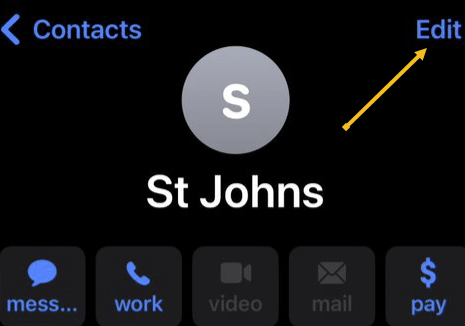
Next, tap the Edit button in the upper right-hand corner of the screen. See the below image:
Selecting the Edit mode
Now, scroll down to the bottom of the screen to find the Delete Contact option. Tap this to delete the contact. See the following image:
Delete a duplicate
A small pop-up will appear asking you to confirm your deletion. Tap Delete Contact again to remove the duplicate. Refer to the below image:
Confirm the deletion
Method 2: Merge and Delete Duplicates
In order to get rid of all duplicate contacts on your iPhone and clean up your contacts so you only have one contact card for each individual, follow these steps.
First, open up the Contacts app. If you have duplicate contacts, a pop-up message will appear under your card at the top of the display (if you do not see this message, see the Pop-Up Message section below). Tap on View Duplicates. See the below image:
Duplicates Found pop-up message
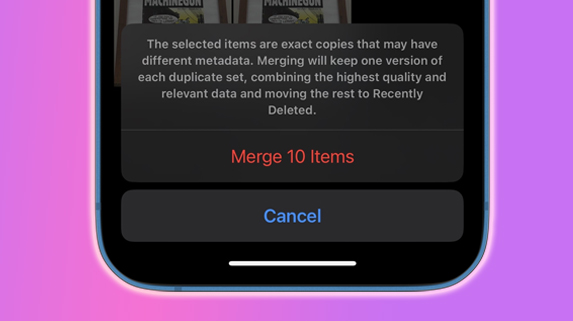
Next, to merge all contacts, tap on the Merge All button at the bottom of your screen. See the following image:
Merge all duplicates
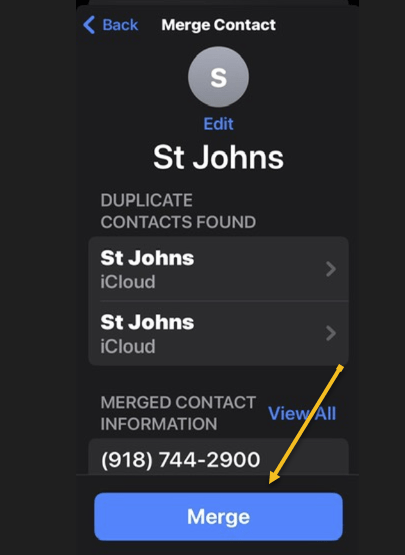
Next, to merge one contact, select a duplicate entry and tap the Merge button at the bottom of your screen. Refer to the below image:
Merge the one duplicate
Pop-Up Message
The pop-up window beneath your card is problematic. If you do not see the pop-up, scroll all the way to the bottom of your Contacts and tap the Duplicates Found link. See the below image:
Accessing duplicates at bottom of contacts
Now, select a duplicate entry or Merge All. See the following image where we selected a duplicate contact card:
Selecting a duplicate
Next, tap the Merge button at the bottom of your screen. Refer to the below image:
Merge the one duplicate
Your duplicated contacts will then be transferred to one contact card and combine all the unique information from each extra card.
Quote For the Day
Technology is a word that describes something that doesn’t work yet.
Douglas Adams
Tweet Info
That’s it. Please feel free to share this post! One way to share is via Twitter.
Just click the Tweet icon below. This will launch Twitter where you click its icon to post the Tweet.
Checkout TechSavvy.Life for blog posts on smartphones, PCs, and Macs! You may email us at contact@techsavvy.life for comments or questions.
Please feel free to leave a comment. I would love to hear from you. Do you have a computer or smart device tech question? I will do my best to answer your inquiry. Just send an email to contact@techsavvy.life. Please mention the device, app, and version you are using. To help us out, you can send screenshots of your data related to your question.
Author’s E-Book
You can access the e-book from a Kindle device, the Kindle App for the desktop or smartphone, which is a free app.
The author’s Vietnam eBook on the Battle for Tra Bong Vietnam: Events and Aftermath
This is for the desktop, iPhone, and Android. Screenshots are from iPhone XR
Copyright Scott Adams, Inc./Distributed by Universal Uclick for UFS
Manage Alexa
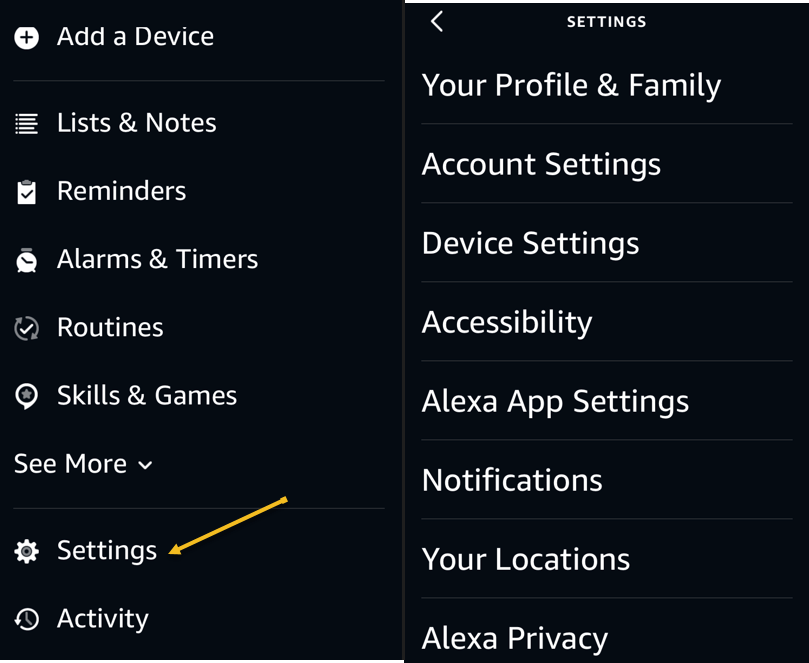
In case you do not already know, you can control Alexa’s various features right from your desktop, iPhone, or Android smartphone. This allows you to tweak various setting options for your Echo without needing physical access to your device. You can manage everything from reminders and alarms to connected smart home devices. Refer to the below image:
Accessing Alexa Settings
On your desktop, you can use the Amazon Alexa website to do that, though it’s worth noting that the web implementation is not as robust as it used to be. You will have a better experience using the official Alexa mobile app on iPhone and Android.
Alexa Voice Tempo
If you find Alexa’s speech too fast or too slow, you can ask her to adjust her speaking speed. Simply say “Alexa, speak slower” or “Alexa, speak faster” and she will obey your command.
That will allow you to listen to certain words carefully, or go through everything quickly if you like to get your information fast.
Alexa Brief Mode
Sometimes, Alexa’s answers are too verbose. She might keep saying little things that you will eventually find annoying. Fortunately, there’s a way around it.
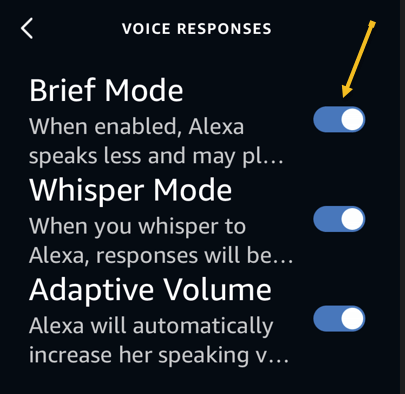
Enter Brief Mode, an Alexa feature that makes the virtual assistant keep her responses shorter. When this mode is enabled, Alexa will not speak as many words as she normally does. You can enable the mode by accessing the Alexa website, heading into:
Settings > Alexa Voice Responses
and enabling Brief Mode. See the below image:
Enabling Brief Mode
On the same page, you can make Alexa whisper her responses by enabling the Whisper Mode option.
Alexa Commute
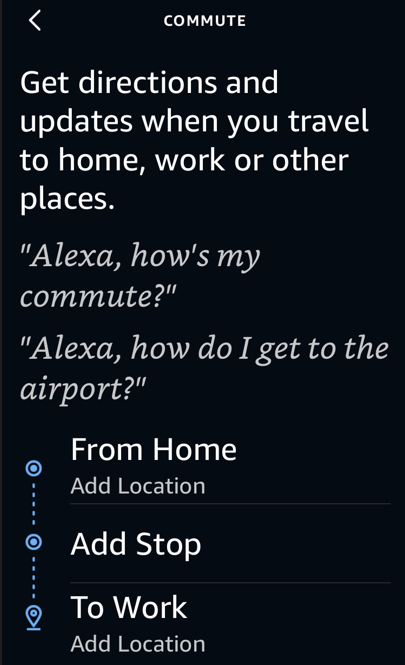
Alexa can let you know what kind of traffic you will meet on your way to your office. As long as you have specified your To and From addresses in Alexa, you can get your commute’s traffic details. See the following image:
Commute info
If you have not already, you can configure your To and From addresses in the
Settings > Traffic
menu on the Alexa website.
Alexa Reminder App
It’s easy to forget your important tasks in this busy life. Setting up a reminder for each of your tasks in a mobile reminder app is also cumbersome.
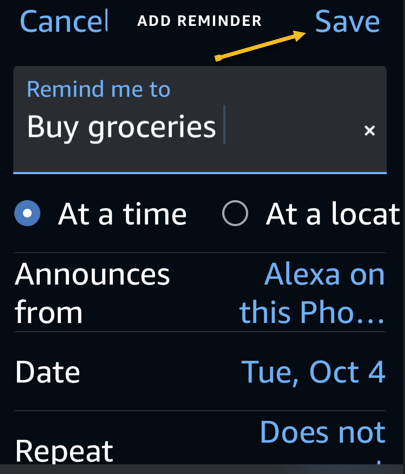
Fortunately, you can use your Alexa assistant as a reminder tool. Simply ask Alexa when you would like to be reminded and about what or type in a reminder, and she will make sure to send you a notification at the specified time. Refer to the below image:
Enter and Save your reminder
Alexa Security Updates
Alexa offers a security feature called Guard to help you keep a check on your home when you are away. This feature listens to certain sounds, like those of breaking glass and smoke alarms going off.
When Alexa detects those sounds, you get a notification as well as a short audio clip of the sound, letting you know something’s not right at your home.
You can activate Alexa’s Guard feature from the
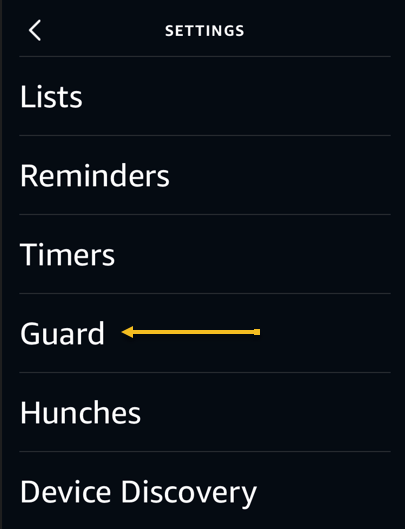
More > Settings > Guard
menu in the Alexa mobile app. You can purchase the Guard Plus feature for a fee if you would like emergency authorities to be notified when those sounds play at your home. See the below image:
Accessing Guard
Alexa Echo as a Bluetooth Speaker
Last but not least, you can use your Alexa-enabled Amazon Echo as a Bluetooth speaker. This way, you can connect any of your Bluetooth-enabled devices to your Echo and play your favorite music.
You may want to use this feature when your favorite music app is not supported by Alexa, or when you prefer to play music from your phone or your desktop. You can pair your phone or desktop with your Amazon Echo by simply asking “Alexa, pair.”
Those are some of the Alexa features you can use to make your Amazon Echo device even more useful.
Quote For the Day
I might love my e-reader, but I’d never pass up the chance to browse real books.
Nichole Chase
Tweet Info
That’s it. Please feel free to share this post! One way to share is via Twitter.
Just click the Tweet icon below. This will launch Twitter where you click its icon to post the Tweet.
Checkout TechSavvy.Life for blog posts on smartphones, PCs, and Macs! You may email us at contact@techsavvy.life for comments or questions.
Please feel free to leave a comment. I would love to hear from you. Do you have a computer or smart device tech question? I will do my best to answer your inquiry. Just send an email to contact@techsavvy.life. Please mention the device, app, and version you are using. To help us out, you can send screenshots of your data related to your question.
Author’s E-Book
You can access the e-book from a Kindle device, the Kindle App for the desktop or smartphone, which is a free app.
The author’s Vietnam eBook on the Battle for Tra Bong Vietnam: Events and Aftermath
There’s a lot to love about the iPhone, and it can be overwhelming at times. Apple’s smartphone includes thousands of handy features tucked away in places you might never discover unless someone told you about them.
There’s a lot to love about the iPhone, and it can be overwhelming at times. Apple’s smartphone includes thousands of handy features tucked away in places you might never discover unless someone told you about them. Here are five great features.
This is for the iPhone. Screenshots are from iPhone XR running iOS 15.6+
Copyright Scott Adams, Inc./Distributed by Universal Uclick for UFS
Silence Unknown Callers
If you are tired of interruptions by phone calls from unknown numbers or spammers, you can silence them completely.
First, head to:
Settings> Phone > Silence Unknown Callers
and toggle Silence Unknown Callers to ON. Refer to the below image:
Enabling Silence Unknown Callers
While enabled, all calls from numbers that are not in your Contacts list will go straight to voicemail without ringing. You will still see silent notifications for the calls if your iPhone is unlocked.
Customize Your Control Center
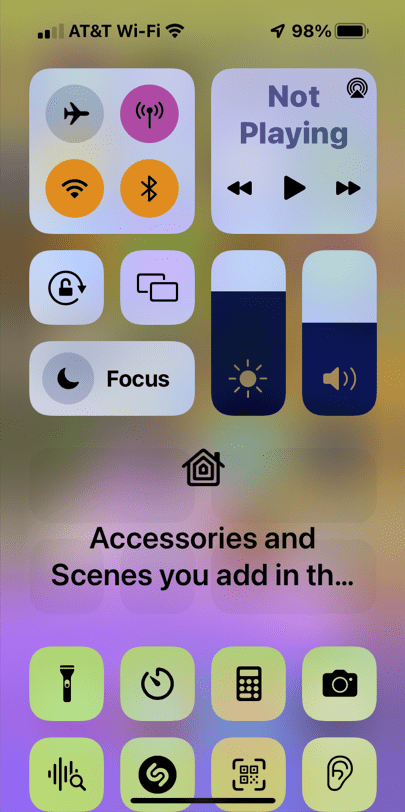
Control Center allows you to quickly access media playback controls, system volume, Wi-Fi settings, your screen’s brightness, and more. (To see it, swipe down from the upper right-hand corner of the screen on phones with Face ID, and swipe up from the bottom edge of the screen on iPhones with Home buttons.). See the below image:
Your Control Center
Control Center also includes a customizable slate of shortcut buttons that you can change to suit your needs. To customize, head to:
Settings > Control Center
Here you can add or remove Control Center shortcuts to functions like the flashlight, timer, calculator, low power mode, Apple TV remote, and much more.
Enable Do Not Disturb
Do Not Disturb mode (which is part of a feature called Focus) is a great way to silence all of your notifications when you do not want to be disturbed. You can schedule it to turn on and off automatically, or just turn it on manually. Head to:
Settings > Focus
and activate the option, or when using Control Center (tap the crescent moon icon). See the following image:
Accessing Focus option
When activated, your iPhone will not ring or vibrate with calls, and you will not hear alerts from any notifications. You can toggle it OFF quickly at any time using Control Center.
Use AirDrop
AirDrop allows you to easily share photos, videos, and other files from your iPhone with other nearby Apple device owners. It works locally through Bluetooth and Wi-Fi, and you can find the AirDrop option under the Share menu.
To use it, open the Share sheet in almost any app (tap the square with the arrow coming up out of it), then select the AirDrop icon, which looks like a bunch of concentric circles with a wedge cut out of it. Then choose who you want to share with, and your files will be beamed wirelessly to the other device. AirDrop must be enabled and configured properly on both devices. Refer to the below image:
Accessing AirDrop
Enable Low Power Mode
If you find yourself running out of battery power before the end of the day, you can extend your battery life by turning on Low Power Mode. When Low Power Mode is on, your iPhone will disable background tasks, reduce screen brightness, and your iPhone’s screen will darken faster when idle. To enable, head to:
Settings > Battery
and toggle Low Power Mode to ON. See the below image:
Enabling Low Power Mode
You can also add a Control Center shortcut that will let you toggle Low Power Mode quickly with a swipe and a tap.
Quote For the Day
If it keeps up, man will atrophy all his limbs but the push-button finger.”
Frank Lloyd Wright
Tweet Info
That’s it. Please feel free to share this post! One way to share is via Twitter.
Just click the Tweet icon below. This will launch Twitter where you click its icon to post the Tweet.
Checkout TechSavvy.Life for blog posts on smartphones, PCs, and Macs! You may email us at contact@techsavvy.life for comments or questions.
Please feel free to leave a comment. I would love to hear from you. Do you have a computer or smart device tech question? I will do my best to answer your inquiry. Just send an email to contact@techsavvy.life. Please mention the device, app, and version you are using. To help us out, you can send screenshots of your data related to your question.
Author’s E-Book
You can access the e-book from a Kindle device, the Kindle App for the desktop or smartphone, which is a free app.
The author’s Vietnam eBook on the Battle for Tra Bong Vietnam: Events and Aftermath
Using Facebook Messenger’s “Secret Conversations” feature, you can ensure your messages and calls are end-to-end encrypted so that only the sender and the receiver can access them.
Using Facebook Messenger’s “Secret Conversations” feature, you can ensure your messages and calls are end-to-end encrypted so that only the sender and the receiver can access them. Let’s explore how to utilize this feature on your iPhone and Android phone.
Note:Facebook Messenger’s “Secret Conversations” feature is only available on iPhone and Android. You can not use it in Messenger on the web.
This is for iPhone and Android. screenshots are from iPhone XR running iOS 16+
Copyright Scott Adams, Inc./Distributed by Universal Uclick for UFS
How Does the Secret Conversations Feature Work
When you enable the “Secret Conversations” feature with a user, Messenger encrypts your messages and calls as soon as you send them. Then, these contents are only decrypted on the receiver’s phone. This ensures no one can access your chat content, not even Meta without physical access.
That encryption is the difference between a regular chat and a secret one. If any bad actors gain access to Meta’s servers, they can not see your encrypted messages. Any of your regular chats might be visible, as they remain unencrypted on Meta’s servers.
However, Meta restricts who you can have secret chats with. At the time of writing in September 2022, you can not start such a chat with businesses, professional accounts, Instagram accounts from Messenger, and people you have not messaged before. Also, both you and your chatting partner need to be using the latest version of the app, so make sure you both update Messenger on your respective devices.
Additionally, certain features you might be used to will not work while in one of these chats. Meta states that group messages and money payments are not supported in secret conversations. If those limitations create problems for you, look into alternative secure communication methods that might offer the features you need.
Start a Secret Chat
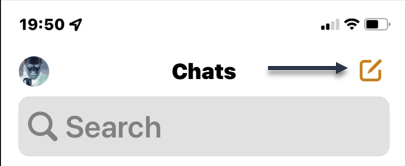
First, launch the Messenger app on your phone. In the Messenger app’s top-right corner, tap the Edit icon. Refer to the below image:
Accessing Edit mode
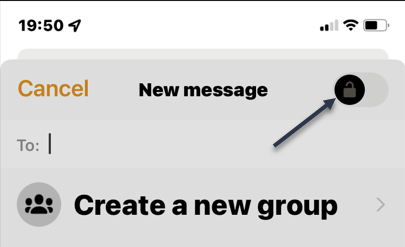
Next, in the New Message screen, at the top-right-hand corner, enable the “Secret Conversations” (the lock icon) option. See the below image:
Selecting the Lock icon
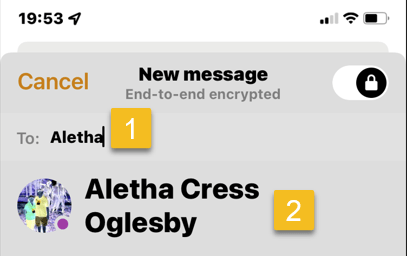
Now, on the same page, in the To field, enter the name of the person you want to have a secret chat with. Then, select that person from the list. See the following image:
Selecting a person to Chat with
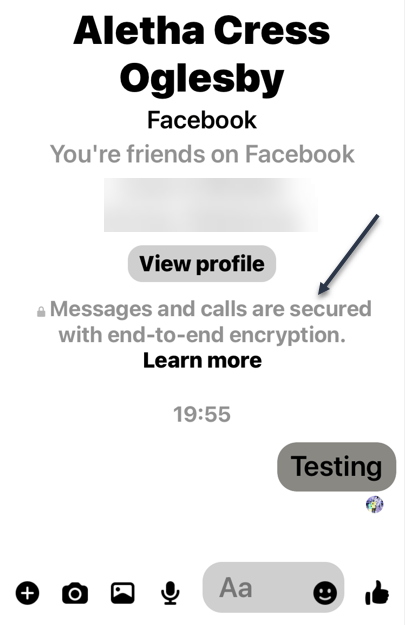
Next, a new chat will start with your chosen person. Any messages or calls you make in this conversation will be end-to-end encrypted. You can start sending messages as usual. Refer to the below image:
Sending your encrypted message
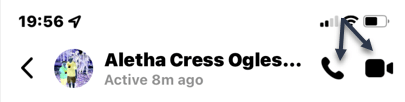
Now, to make a voice or video call, at the top of the chat screen, tap the appropriate icon. See the below image:
Making a voice or video call
Delete a Chat
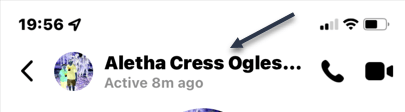
Next, to delete your secret chat with someone, tap the person’s name at the top. See the following image:
Selecting a person to delete the Chat
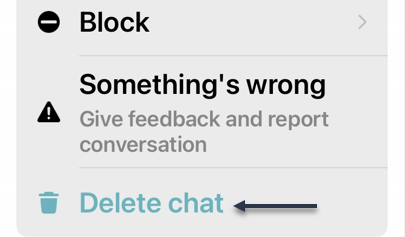
Now, in the menu that opens, choose Delete Chat. Refer to the below image:
Deleting the Chat
Quote For the Day
We take the highest and best of human faculties, and, exalting them in our imagination to an unlimited extent, endeavour to attain an imperfect conception of that Infinite Power which created everything around us.
Charles Babbage (1791-1871), pioneer of modern computer
Tweet Info
That’s it. Please feel free to share this post! One way to share is via Twitter.
Just click the Tweet icon below. This will launch Twitter where you click its icon to post the Tweet.
Checkout TechSavvy.Life for blog posts on smartphones, PCs, and Macs! You may email us at contact@techsavvy.life for comments or questions.
Please feel free to leave a comment. I would love to hear from you. Do you have a computer or smart device tech question? I will do my best to answer your inquiry. Just send an email to contact@techsavvy.life. Please mention the device, app, and version you are using. To help us out, you can send screenshots of your data related to your question.
Author’s E-Book
You can access the e-book from a Kindle device, the Kindle App for the desktop or smartphone, which is a free app.
The author’s Vietnam eBook on the Battle for Tra Bong Vietnam: Events and Aftermath
Changing your iPhone Lock screen and Home screen wallpaper is probably the most effective way of making your phone look and feel unique. Now you can take your wallpaper to the next level by creating or modifying your own designs in just a few taps; no app is required.
This is for the iPhone running iOS 16+. Screenshots are from iPhone XR
Copyright Scott Adams, Inc./Distributed by Universal Uclick for UFS
iOS 16 Required
You can access the new wallpaper creation tools and Lock Screen gallery using iOS 16. If you do not see the Lock screen gallery when you long-press your Lock screen, you might need to update your iPhone to iOS 16.
If you need to, you can upgrade to iOS 16 by going to:
Settings > General > Software Update
Create a Wallpaper
You can create your own wallpapers using the Lock screen gallery. To access the gallery, first, tap and hold the Lock screen to reveal it.
Next, tap Customize to modify your existing Lock screen or tap the plus “+” icon to create a new Lock screen. Refer to the below image:
Customize or add a wallpaper
Now, creating a new Lock screen will take you straight to the wallpaper picker. You will then see a few options at the top of the screen that will allow you to create your own wallpaper:
Photos: Pick a photo from your media library, then customize it by swiping left and right to apply different filters.
Photo Shuffle: Using shuffle mode, you can choose more than one background image. These photos will then change throughout the day. You can also have your iPhone pick photos for you.
Emoji: Pick your favorite emoji, then choose from different patterns and background colors.
Weather: The weather option is a dynamic background that changes based on the weather conditions in your area.
Astronomy: This dynamic background changes based on the position of the earth, the moon, or the planets in our solar system.
Color: Pick a solid color, then swipe left and right to choose different effects like gradients and color intensity.
Next, you can create multiple wallpapers and save them to the Lock screen gallery, then switch between them as you please by tapping and holding your Lock screen at any time. See the below image:
Select a wallpaper
Now, the most fun you can have here is by creating custom Emoji and color wallpapers. Creating wallpapers using your own photos is easier using these tools too. There’s no need to edit or apply filters to your photos inside the Photos app first.
Next, some photos can even be used to create a Depth Effect that overlays subjects on top of the clock (though getting this to work is a bit hit-and-miss).
Using Existing Designs
You can also use the Lock screen gallery to pick from existing or featured designs. Now, take a look at the Featured and Collections areas to see some of Apple’s best offerings. See the following image :
Select template wallpapers
Next, iOS will also put photos in the Suggested Photos slider that should work well on a Lock screen, many of which are compatible with the Depth Effect mentioned above.
If you use Widgets on your Lock screen, you forgo the ability to use the Depth Effect.
There’s also a huge range of apps in the App Store for creating or downloading custom wallpapers, including, Vellum, Everpix, and Pixs. Unlike those apps, Apple’s built-in options are completely free to use.
Please feel free to leave a comment. I would love to hear from you. Do you have a computer or smart device tech question? I will do my best to answer your inquiry. Just send an email to contact@techsavvy.life. Please mention the device, app, and version you are using. To help us out, you can send screenshots of your data related to your question.
Author’s E-Book
You can access the e-book from a Kindle device, the Kindle App for the desktop or smartphone, which is a free app.
The author’s Vietnam eBook on the Battle for Tra Bong Vietnam: Events and Aftermath