How to View an Alphabetical List of Your iPhone Apps

The App Library is an iPhone-only feature in iOS 14 and above bringing, among other things, an overview of all the apps installed on the iPhone, that can be sorted alphabetically for quick and effortless browsing,

The App Library is an iPhone-only feature in iOS 14 and above bringing, among other things, an overview of all the apps installed on the iPhone, that can be sorted alphabetically for quick and effortless browsing,

This is for the iPhone

Dilbert and Trust
Copyright Scott Adams, Inc./Distributed by Universal Uclick for UFS

Find Your App Library Page

To find the App Library, visit your iPhone’s Home Screen and swipe left as many times as it takes to reach the App Library screen or tap, hold, and swipe right on the Dots Bar to move quickly through your pages. Refer to below image:

Alpha 1
The Dots Bar to swipe through pages quickly

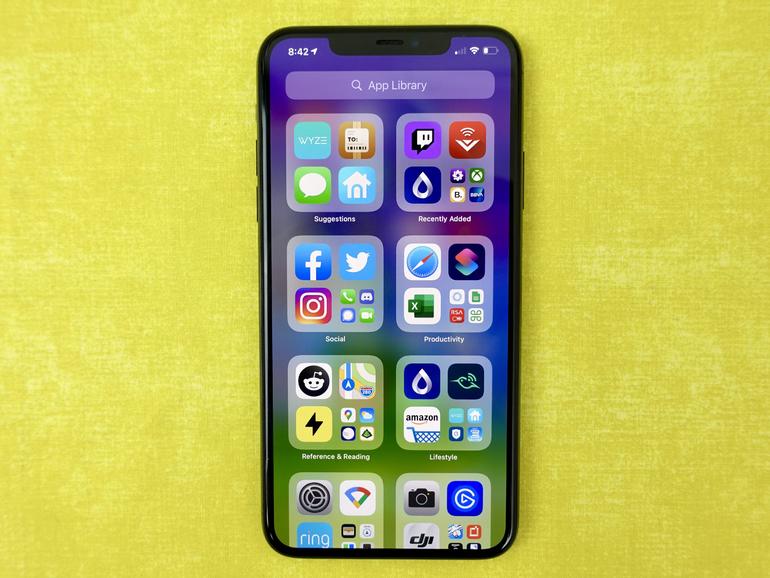
This is always the last page after your Home Screen icons. Once you are there, you will see groups of app icons sorted automatically by category. See below image:

Alpha 2
The App Library page

Note! If you do not see it, you have yet to update to the latest version of iOS.

Using Your Alphabetical List

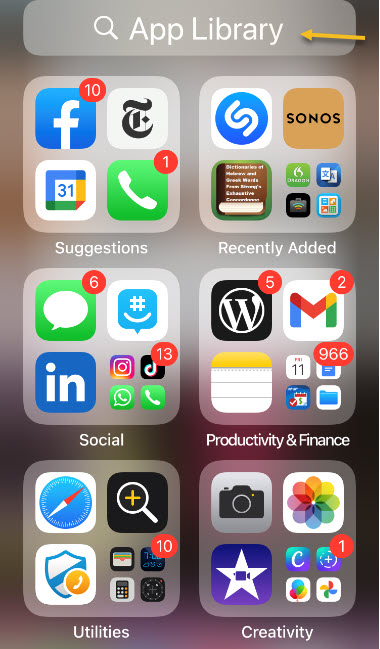
To see an alphabetical list of apps, swipe downward from the middle of the App Library screen or tap the Search bar at the top. See following image:

Alpha 3
Accessing the App Library

A new screen will appear that lists your apps sorted by the first letter of each app’s name. Refer to below image:

Alpha 4
Alphabetical listing of the App Library

You can swipe your finger up and down to browse through the list. To launch an app, just tap it.

If you would like to quickly scroll through the list of apps, slide your finger along the vertical letter index on the far right side of the screen (on your iPhone it’s very small letters) and the list will quickly navigate to that position. See below image:

Alpha 5
Alphabetical listing using the list on right side of your screen

You can also type a search in the Search bar at the top of the screen, and the results will immediately appear below. Once again, tap an app to launch it. See following image:

Alpha 6
Alphabetical listing using the Search bar at the top of your screen

Cancel Your Alphabetical List

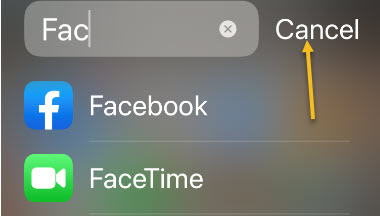
If you would like to return to the App Library screen, tap Cancel just to the right of the Search bar. Refer to below image:

Alpha 7
Return back to your App Library screen

You are finished. Please feel free to share this post! One way to share is via Twitter, as mentioned below.

I hope you have found this post helpful. If so, click the Tweet icon below. This will launch Twitter where you click its icon to post the Tweet.

Check them out for blog posts on smartphones, Macs and PCs! You may email us at techsavvy.life for comments or questions.

I Would Like to Hear From You

Please feel free to leave a comment. I would love hearing from you. Do you have a computer or smart device tech question? I will do my best to answer your inquiry. Just send an email to contact@techsavvy.life. Please mention the device, app and version that you are using. To help us out, you can send screenshots of your data related to your question.

The author’s Vietnam eBook on the Battle for Tra Bong: Events and Aftermat

How to Save Battery Life by Turning Off 5G on iPhone

Connecting to lightning fast 5G networks, requires a sacrifice: battery life. But Apple baked a Smart Data Mode setting into new iPhones to give you more control over using 5G.

Connecting to lightning fast 5G networks, requires a sacrifice: battery life. But Apple baked a Smart Data Mode setting into new iPhones to give you more control over using 5G.

Apple gives you three options: You can keep 5G on all the time, switch over to LTE and never use 5G, or allow your iPhone to make that decision for you with an auto mode. There is no reason to upgrade to an iPhone 12 just for the 5G feature because the network carriers are behind the iPhone hardware. 6G is already in the works and Apple is planning on using it in its iPhone 13 lineup.

But, if you have an iPhone 12, here is how to easily turn off 5G to save your battery life.

This is for iPhone 12 lineup

Dilbert and Lists
Copyright Scott Adams, Inc./Distributed by Universal Uclick for UFS

First, open Settings (the gear icon) on your iPhone. Refer to below image:

5G 1
Accessing Settings

Next, tap the Cellular option. See below image:

5G 2
Accessing the Cellular option

Next. tap the Cellular Data Options. See following image:

5G 3
Accessing the Cellular Data Options

Now, tap the Voice & Data option. Refer to below image:

5G 4
Accessing Voice & Data option

Next, select LTE from the list to disable 5G completely. Not shown in the below image are the options 5G On and 5G Auto because the screenshot is from an iPhone XR. See below image:

5G 5
Selecting the LTE option to save draining the battery

The option, 5G Auto, allows the iPhone to automatically deactivate 5G to save battery life when it is not needed.

Now, exit Settings. 5G is now disabled on your iPhone. If you ever need to turn it back on, just revisit the above steps and select 5G On or 5G Auto.

That’s it. Please feel free to share this post! One way to share is via Twitter.

Just click the Tweet icon below. This will launch Twitter where you click its icon to post the Tweet.

Check out TechSavvy.Life for blog posts on smartphones, PCs, and Macs! You may email us at contact@techsavvy.life for comments on questions.

I Would Like to Hear From You

Please feel free to leave a comment. I would love hearing from you. Do you have a computer or smart device tech question? I will do my best to answer your inquiry. Just send an email to contact@techsavvy.life. Please mention the device, app and version that you are using. To help us out, you can send screenshots of your data related to your question.
The author’s Vietnam eBook on the Battle for Tra Bong: Events and Aftermath

How to Use Smart Invert on iPhone

If you love Dark Mode but your favorite iPhone or iPad app or website does not support it, you can force a simulated Dark Mode everywhere using Apple’s built-in Smart Invert accessibility feature.

If you love Dark Mode but your favorite iPhone or iPad app or website does not support it, you can force a simulated Dark Mode everywhere using Apple’s built-in Smart Invert accessibility feature.

This is for the iPhone

Dilbert and Error
Copyright Scott Adams, Inc./Distributed by Universal Uclick for UFS

Defining Smart Invert

Smart Invert is an Apple accessibility feature that inverts the colors on your screen (like a negative image), but with a twist. It’s “smart” because it usually prevents images, videos, and some apps that are already dark-colored from getting inverted. It was designed for people with vision loss, low vision, or other vision issues that might benefit from an inverted screen but might not want to see inverted images.

How About Dark Mode

Apple’s system wide Dark Mode (first introduced in iOS 13) generally works well and is supported by a large number of iPhone and iPad apps, but some apps with largely white interfaces still do not support it. Also, if you want to browse the web at night without waking a sleeping buddy, Smart Invert keeps the light low.

Enabling Smart Invert

First, launch Settings (the gear icon). Refer to below image:

Invert 1
Accessing Settings

Now, navigate to the Accessibility option. See below image:

Invert 2
Accessing Accessibility option

Next, tap the Display & Text Size option. See following image:

Invert 3
Accessing Display & Text Size option

In its settings, scroll down until you see Smart Invert toggle. Tap it to turn it on. Your screen will immediately be inverted (a black screen). Refer to below image: (Note! This iPhone will not capture the inverted screen).

Invert 4
Enabling Smart Invert

Now, exit Settings and use your apps as usual.

Disable Smart Invert

If you want to to turn it off, revisit

Settings > Accessibility > Display & Text Size > Smart Invert

and toggle off the switch. Or you can use a shortcut. Let’s see how to setup a shortcut.

Use a Shortcut

Using a built-in feature called Accessibility Shortcut on your iPhone, you can triple-click your Home button (on older iPhones or your Side button on newer models) to quickly launch an accessibility function such as Smart Invert.

To set it up, launch Settings and navigate to Accessibility. Next, scroll down and tap Accessibility Shortcut. See below image:

Invert 5
Accessing Shortcut option

Now, you will see a list of Accessibility functions you can toggle with the shortcut. Tap Smart Invert then tap the Back button. See following image:

Invert 6
Enabling Smart Invert shortcut

Now, whenever you triple-click your Home or Side button (depending on which iPhone model you have), you will launch Smart Invert. If you triple-click it again, Smart Invert will turn off.

Use a Back Tap

Starting with iOS 14 and higher, if you have an iPhone 8 or above, you can use the Back Tap feature to toggle Smart Invert. To do so, go to

Settings > Accessibility > Touch > Back Tap

Now, select whether you want to trigger Smart Invert using a double-tap or triple-tap on the back of your iPhone. In the list of actions that appears, select Smart Invert. Refer to below image where we selected the triple-tap action:

Invert 7
Assigning Smart Invert option to Back Tap

Now, go back one screen and exit Settings. With Back Tap enabled, you can tap on the back of your iPhone two or three times to quickly turn Smart Invert on or off. That’s it. Please feel free to share this post! One way to share is via Twitter, as mentioned below.

I hope you have found this post helpful. If so, click the Tweet icon below. This will launch Twitter where you click its icon to post the Tweet.

Check out TechSavvy.Life for blog posts on smartphones, PCs, and Macs! You may email us at contact@techsavvy.life for comments or questions.

I Would Like to Hear From You

Please feel free to leave a comment. I would love hearing from you. Do you have a computer or smart device tech question? I will do my best to answer your inquiry. Just send an email to contact@techsavvy.life. Please mention the device, app and version that you are using. To help us out, you can send screenshots of your data related to your question.
The author’s Vietnam eBook on the Battle for Tra Bong: Events and Aftermath

How to Use Sound Recognition on iPhone in iOS 14

Sound Recognition, first introduced in iOS 14, lets iPhone users with hearing loss receive visual alerts when the iPhone detects certain sounds like smoke alarms, sirens, door knocks, or dogs barking.

Sound Recognition, first introduced in iOS 14, lets iPhone users with hearing loss receive visual alerts when the iPhone detects certain sounds like smoke alarms, sirens, door knocks, or dogs barking. It does this with onboard intelligence, so no network connection is required. Let’s explore how to setup and use this feature.

This is for the iPhone running iOS 14+

Dilbert and Lunch
Copyright Scott Adams, Inc./Distributed by Universal Uclick for UFS

Setup Sound Recognition

First, launch Settings (the gear icon). Refer to below image:

Sound 1
Accessing Settings

in Settings, scroll down and tap Accessibility. See below image:

Sound 2
Accessing Accessibility

In Accessibility, navigate to the Hearing section. Now, tap Sound Recognition. See following image:

Sound 3
Accessing Sound Recognition

Enabling Sounds

In Sound Recognition settings, tap the switch beside Sound Recognition to turn it on. Next, tap Sounds below that to choose which sounds to recognize. Refer to below image:

Sound 4
Enabling Sound Recognition

Siri is Disabled

Once you enable a Sound, a message will be displayed about Siri being disabled if you Turn On Sound Recognition, or you may Cancel. See below image:

Sound 5
Hey Siri message if a Sound is enabled

Now, you will see a list of switches that correspond to types of sound your iPhone can recognize, such as sirens and water running. As of iOS 14, here’s the full list:

  • Fire Alarm
  • Siren
  • Smoke Alarm
  • Cat
  • Dog
  • Appliances
  • Car Horn
  • Door Bell
  • Door Knock
  • Water Running
  • Baby Crying

Tap the switch beside each sound that you would like for your iPhone to recognize. You can enable any combination of them, or all of them. See following image where I enabled Fire, Smoke, and Dog:

Sound 6
Enabling Sounds

Now, to save your selection(s), press the Back link in upper left-hand corner, then exit Settings.

The Notifications

If you wouldd like to test the Sound Recognition feature, try searching for sounds like “Smoke Alarm” or “Dog Barking” on YouTube. When triggered, Sound Recognition will place an alert notification at the top of your screen. Later, you can see a list of these alerts in your iPhone’s Notification Center. Refer to below image:

Sound 7
Sound Recognition notifications

If you wish to activate other sounds or disable them, navigate back to the Sounds in the Sound Recognition screen. Also, you could create a shortcut in the Control Center to activate/deactivate the Sounds.

A Viewpoint

I usually don’t comment on what Apple engineers intended to do or how a feature is to work. This feature does work as advertised. But, if my house was on fire and the alarm goes off, I want my iPhone to blast our a fire alarm sound. What good is a notification alert; yikes, my house is burning! I don’t have time to grab my iPhone and launch the Notification Center. To me, this is a flaw.

While sleeping, I would like for my iPhone to blast out the sound of a fire or smoke alarm and call 911. Other sounds you might wnat to hear through your iPhone is Baby Crying and Water Running. For these reasons, this is a poorly designed feature.

At the same time,I realize that Apple wants no liability claims for missing sounds, like smoke or fire. They chose not to use the iPhone as an alarm in Sound Recognition.

That’s it. Please feel free to share this post! One way to share is via Twitter.

Just click the Tweet icon below. This will launch Twitter where you click its icon to post the Tweet.

Check out TechSavvy.Life for blog posts on smartphones, PCs, and Macs! Feel free to email us at contact@techsavvy.life.

I Would Like to Hear From You

Please feel free to leave a comment. I would love hearing from you. Do you have a computer or smart device tech question? I will do my best to answer your inquiry. Just send an email to contact@techsavvy.life. Please mention the device, app and version that you are using. To help us out, you can send screenshots of your data related to your question.

The author’s Vietnam eBook on the Battle for Tra Bong: Events and Aftermath

How to Enable Offline Translation on iPhone in iOS 14

The Translate app, introduced in iOS 14, allows you to quickly translate between languages using text or voice input. With speech output, support for a dozen languages, and a comprehensive built-in dictionary, it’s an essential tool for travelers or students.

The Translate app, introduced in iOS 14, allows you to quickly translate between languages using text or voice input. With speech output, support for a dozen languages, and a comprehensive built-in dictionary, it’s an essential tool for travelers or students.

By default, the app uses cloud services to perform translations. However, you can also enable offline translation on your iPhone running this app by downloading the languages.

As a disclaimer, Apple warns that the offline translations might not be as accurate as online translations. This is because in the offline mode, the app does not use Apple’s cloud computing’s ability to deliver the best translated results.

Still, it’s handy if you do not have a network connection, especially while traveling to third world countries where Internet bandwidth is poor. It is also ideal if you have a sensitive job and do not want any translation data transferred over the Internet or potentially stored in the cloud

Let’s explore how to setup offline translation.

This is for the iPhone running iOS 14

Dilbert and Developers
Copyright Scott Adams, Inc./Distributed by Universal Uclick for UFS


Accessing Translate

First, launch Settings (the Gear icon). Refer to below image:

Offline 1
Accessing Settings

Next, scroll way down and tap Translate. See below image:

Offline 2
Accessing Translate option

Enable On Device

Now, toggle to On the label On device mode. See following image:

Offline 3
Enabling on=device mode

Download Languages

A pop-up will be displayed alerting you that you need to download languages to translate locally on your device. Just tap Open App. Refer to below image:

Offline 4
Accessing Open App link

Next, a pop-up message will be displayed about the download of languages. See below image:

Offline 5
Downlaod of languages message

On the next screen, tap either of the two language pair buttons at top of the page. See following image:

Translate 4

In the list that appears, scroll down to the Available Offline Languages section. Now, tap the language you want to use offline, and it will download automatically. Please wait for the download to finish.

Now, repeat the above procedure for other language(s).

Once a language is downloaded, a checkmark will appear beside it. In my example, I have downloaded Spanish, so now I have English and Spanish for offline translations. Refer to below image:

Offline 6
Checkmark of downloaded languages

Translate Off Line

Next, tap Done in upper right-hand corner and you will be returned to the main Translate screen. Now, type in your text and the app will translate as usual but without a network connection. All of your translations will stay on your local device. See below example for translation from English to Spanish:

Offline 7
Translating Englis to Spanish

To return to cloud service translation, just toggle Off the label On device mode in Settings.

You are finished! You now have mastered offline translation on your iPhone.

I hope you have found this post helpful. If so, click the Tweet icon below. This will launch Twitter where you click its icon to post the Tweet.

I hope you have found this post helpful. If so, click the Tweet icon below. This will launch Twitter where you click its icon to post the Tweet.

I Would Like to Hear From You

Please feel free to leave a comment. I would love hearing from you. Do you have a computer or smart device tech question? I will do my best to answer your inquiry. Please mention the device, app and version that you are using. To help us out, you can send screenshots of your data related to your question.
The author’s Vietnam eBook on the Battle for Tra Bong: Events and Aftermath

How to Use the Translate App for iPhone in iOS 14

The Translate app, introduced in iOS 14, allows you to quickly translate between languages using text or voice input. With speech output, support for a dozen languages, and a comprehensive built-in dictionary, it’s an essential tool for travelers or students.

The Translate app, introduced in iOS 14, allows you to quickly translate between languages using text or voice input. With speech output, support for a dozen languages, and a comprehensive built-in dictionary, it’s an essential tool for travelers or students.

This is for the iPhone running iOS 14

Dilbert and Donut
Copyright Scott Adams, Inc./Distributed by Universal Uclick for UFS

Locate the App

First, let’s locate the Translate app. From your first Home screen, swipe right to open Today View. Now, type “translate” into the search bar that appears, then tap the Apple Translate icon (the first one in my example). If this is the first time to launch the Translate app, you will be presented with a few introductory screens; just follow the instructions to start the app. Refer to below image:

Translate 1
Accessing the Apple Translate app

When Translate opens, make sure you are in translate mode by tapping the Translate button at the bottom of the screen. See below image:

Translate 3
Accessing Translate button

Select the Languages

Next, you willl need to choose the language pair using the two buttons at the top of the screen.

The button on the left sets the source language, and the button on the right sets the destination language. See following image:

Translate 4
Accessing Source and Destination lanuguage

Just tap either language to select your source or destination language. When finished, tap Done in upper right-hand corner. Refer to below image:

Translate 5
Selecting your languages

Translation by Text

Now it’s time to enter the phrase you would like to translate. If you would like to type it with an on-screen keyboard, tap the Enter Text area on the main Translate screen. See below image:

Translate 6
The text input area

Your screen will display an on-screen keyboard. Type in what you would like to translate , then tap Go at the bottome right-hand corner. See Following image:

Translate 7
Entering text to translate

Translation by Voice

Another method is to speak the phrase that needs translation. Just tap the Microphone icon at the bottom on the main Translate screen. Refer to below image:

Translate 8
Accessing microphone

When the screen changes, say the phrase you would like to translate out loud. As you speak, Translate will recognize the words and write them out on your screen. See below image:

Translate 6
The translated text

When you are finished, you will see the resulting translation on the main screen, just below the phrase you spoke or entered.

Favorites and Dictionary

At the bottom of your screen, you will see a toolbar. See following image:

Translate 6
The Translate toolbar

If you press the Favorite button (which resembles a star), you can add the translation to your Favorites list. You can access it later by pressing the Favorites button at the bottom of the screen. Refer to below image:

Translate 12
Saving to Favorites

If you press the Dictionary button (which resembles a book) in the toolbar, the screen will to switch to Dictionary mode. In this mode, you can tap each individual word in a translation to see what it means. The Dictionary can also help you explore possible alternative definitions for the selected word. See below image:

Translate 13
Accessing the Dictionary

Playback

If you press the Play button (a triangle in a circle) in the toolbar, you can hear the translation result spoken aloud by a computer synthesized voice. See following image:

Translate 14
Playback your translation

That’s it. I hope you find this helpful on your travels to other countries or as a student mastering a different language.

I hope you have found this post helpful. If so, click the Tweet icon below. This will launch Twitter where you click its icon to post the Tweet.

I have found TechSavvy.Life blog posts extremely helpful. Check them out for posts on smart phone apps, Macs and PCs!

I Would Like to Hear From You

Please feel free to leave a comment. I would love hearing from you. Do you have a computer or smart device tech question? I will do my best to answer your inquiry. Please mention the device, app and version that you are using. To help us out, you can send screenshots of your data related to your question.
The author’s Vietnam eBook on the Battle for Tra Bong: Events and Aftermath

How to Disable Noise Cancellation on iPhone in iOS 14

Does your iPhone earpiece sound muffled or somewhat weird? The iPhone has a microphone next to the iSight camera for noise cancellation, allowing the user to block out ambient noise and get a more clearer sound in the earpiece. But at times, noise cancellation can be a hit or miss, resulting in muffled or fuzzy sound, making things tough to understand. If you’re facing such an issue, let’s turn off noise cancellation to fix things in a jiffy.

Does your iPhone earpiece sound muffled or somewhat weird? The iPhone has a microphone next to the iSight camera for noise cancellation, allowing the user to block out ambient noise and get a more clearer sound in the earpiece. But at times, noise cancellation can be a hit or miss, resulting in muffled or fuzzy sound, making things tough to understand. If you’re facing such an issue, let’s turn off noise cancellation to fix things in a jiffy.

This is for the iPhone running iOS 14

Dilbert and Safety
Copyright Scott Adams, Inc./Distributed by Universal Uclick for UFS

To Tweet about this post, click the Tweet icon below to launch Twitter, then click its Tweet icon to post.

Check out TechSavvy.Life for their blog posts on smartphone apps, PCs. and Macs!

How Does It Work

Phone noise cancellation, first introduced in iOS 7, monitors levels of ambient background noise and produces an inverse audio signal to cancel that background noise, so you don’t hear it on a phone call. The technology works best with continuous low-level background noise, and it typically works very well. But sometimes it can produce an eerily quiet phone conversation or unsettling audio sounds, such as small crowd noises or low-level background music.

Also, some people find the noise-cancellation effect physically uncomfortable especially when using a headset. Fortunately, phone noise cancellation is easy to turn off on the iPhone. Let’s explore how to do this.

Disable Noise Cancellation

First, open Settings (the gear icon). Refer to below image:

Noise 1
Accessing Settings

Now, scroll down and launch Accessibility. See below image:

Noise 2
Accessing Accessibility

Next, scroll down to the Hearing section and tap Audio/Visual. See following image:

Noise 3
Accessing Audio/Visual

Now, tap the Phone Noise Cancellation toggle to turn it off (the default setting is On). Refer to below image:

Noise 4
Disabling Phone Noise Cancellation

Next, let’s go back one screen to make sure the change registers. You can now exit Settings. The next time you place or receive a phone call, noise cancellation will be disabled.

That’s it. You may enable the feature at any time by following the above steps.

I hope you have found this post helpful. If so, click the Tweet icon below. This will launch Twitter where you click its icon to post the Tweet.

I have found TechSavvy.Life blog posts extremely helpful. Check them out for posts on smart phone apps, Macs and PCs!

The following is a previous Twitter feed so you can view how a Tweet will be displayed.

I Would Like to Hear From You

Please feel free to leave a comment. I would love hearing from you. Do you have a computer or smart device tech question? I will do my best to answer your inquiry. Please mention the device, app and version that you are using. To help us out, you can send screenshots of your data related to your question.

The author’s Vietnam eBook on the Battle for Tra Bong: Events and Aftermath

How to Set a Do Not Disturb Message on iPhone

Do Mot Disturb is a helpful iPhone setting when you do not want to be interrupted, such as at meetings, formal events, driving, or at night.

Do Mot Disturb is a helpful iPhone setting when you do not want to be interrupted, such as at meetings, formal events, driving, or at night.

This option stops notifications, alerts, and calls from making any noise, vibration, or lighting up the iPhone when the screen is locked.

In this post, we are exploring how to send an “Auto-Reply” message when you receive a text message and who can receive that message once you have Do Not Disturb enabled.

This is for the iPhone

Dilbert and Glasses
Copyright Scott Adams, Inc./Distributed by Universal Uclick for UFS

To Tweet about this post, click the Tweet icon below to launch Twitter, then click its Tweet icon to post.

Check out TechSavvy.Life for their blog posts on smartphone apps, PCs. and Macs!ds

First, open Settings by tapping the gear icon. Refer to below image:

Do Not Disturb 1
Accessing Settings

Setup for Do Not Disturb

Now, locate and tap the Do Not Disturb option. See below image:

Do Not Disturb 2
Accessing Do Not Disturb option

Next, enable the Do Not Disturb option. See following image;

Do Not Disturb 3
Enabling Do Not Disturb toggle

Setup for “Auto-Reply” Message

Now, scroll down until you see the “Auto-Reply” options. Tap Auto-Reply .Refer to below image:

Do Not Disturb 4
Accessing “auto-reply” option

On the next screen, tap the text input area, and type any message you would like. Or, you can chose one of the canned messages. The message will be automatically texted to people you select that send you a message while your Do Not Disturb is enabled.

When you are done entering your message, or choosing one, tap the blue link Back button. See below image:

Do Not Disturb 6
Choosing an “auto-reply” message

Setup Your Audience

Now, tap Auto-Reply To in the Do Not Disturb options.

You will see a list of options, including No One, which turns off “Auto-Reply”. Tap an option to select it. See following image:

Do Not Disturb 6
Selecting your audience for the Do Not Disturb message

In my example, I am choosing the “I am driving…” canned message sent to my Contacts Favorities list.

When yo are done, tap the blue link Back button, then exit Settings.

That its. You have now set a Do Not DisturbAuto-Reply” message.

I hope you have found this post helpful. If so, click the Tweet icon below. This will launch Twitter where you click its icon to post the Tweet.

I have found TechSavvy.Life blog posts extremely helpful. Check them out for posts on smart phone apps, Macs and PCs!

The following is a previous Twitter feed so you can view how a Tweet will be displayed.

I Would Like to Hear From You

Please feel free to leave a comment. I would love hearing from you. Do you have a computer or smart device tech question? I will do my best to answer your inquiry. Please mention the device, app and version that you are using. To help us out, you can send screenshots of your data related to your question.
The author’s Vietnam eBook on the Battle for Tra Bong: Events and Aftermath

How to Extract an Image From a Live Photo on iPhone

If you have ever taken a Live Photo on your iPhone,it has basically created a short video clip attached to an image. If you do not like the resulting photo (or want to use a different one), it is possible to extract a different photo from the video clip that you can save or share

If you have ever taken a Live Photo on your iPhone it has basically created a short video clip attached to an image. If you do not like the resulting photo (or want to use a different one), it is possible to extract a different photo from the video clip that you can save or share. Let us explore how to do this.

This is for the iPhone

Dilbert and Design
Copyright Scott Adams, Inc./Distributed by Universal Uclick for UFS

To Tweet about this post, click the Tweet icon below to launch Twitter, then click its Tweet icon to post.

Check out TechSavvy.Life for their blog posts on smartphone apps, PCs. and Macs!

Edit a Live Photo

First, open the Photos app. Browse your photos until you find the Live Photo you would like to work on. Tap it to view it in detail. Now, tap the Edit button in the upper-right corner of your screen. Refer to below image:

Still Image 1
Accessing the Edit icon

Next, on the Edit screen, tap the Live Photo icon near the bottom of the screen; the one that looks like three concentric circles. See below image:

Still Image 2
Accessing the Live Photo icon

Extract an Image

A filmstrip will appear just below the photo. Drag your finger along the filmstrip until you find the image that you would like to extract. You will be making this the Key Photo, or the one you want to visually represent the Live Photo when viewed in the Photos app.

Now, lift your finger from the film strip, then tap the Make Key Photo pop-up. See following image:

Still Image 3
Accessing Make Key Photo option

The Key Photo will be set. Next, tap Done to leave the Edit screen. Refer to below image:

Still Image 3
Save your changes

When you return to the photo detail screen, notice that the image has changed to the one you selected.

Duplicate the Live Photo

To extract the image while leaving the original Live Photo intact, we are going to duplicate it.

First, tap the Share button which looks like a square with an arrow pointing upward out of it at the bottom left hand corne of your screen. See below image:

Still Image 5
Accessing the Share button

Next, in the Share menu, swipe down and tap Duplicate. See following image:

Still Image 6
Accessing the Duplicate option

Next, from the pop-up, tap Duplicate as Still Photo. Refer to below image:

Still Image 7
Selecting make a Duplicate as Still Photo

Revert Back to Original

After that, a new duplicate photo of the key frame you picked will appear in your Photos library just beside the original Live Photo.

If you would like, you can also return to your original Live Photo. On the photo, tap Edit again, then tap Revert to restore the Live Photo to its original settings.

The resolution of the extracted photo may not match that of a typical still photo on the iPhone. That’s because you have just extracted a still frame from a video, and Apple devices record video frames at a lower resolution than still photos.

I hope you have found this post helpful. If so, click the Tweet icon below. This will launch Twitter where you click its icon to post the Tweet.

I have found TechSavvy.Life blog posts extremely helpful. Check them out for posts on smart phone apps, Macs and PCs!

I Would Like to Hear From You

Please feel free to leave a comment. I would love hearing from you. Do you have a computer or smart device tech question? I will do my best to answer your inquiry. Please mention the device, app and version that you are using. To help us out, you can send screenshots of your data related to your question.

The author’s Vietnam eBook on the Battle for Tra Bong: Events and Aftermath

How to Stop Siri When Pressing Hold Button on iPhone

It is easy to accidentally trigger Siri on your iPhone by pressing and holding either the Side button (on newer models), or the Home button (on older ones). If you are like me, this is annoying. I find myself trying to stop Siri by pressing harder, which only changes Siri help commands. Or, I find myself turning off the iPhone by accident. Fortunately, there is an easy way to disable this feature. Siri voice commands will still be available.

It is easy to accidentally trigger Siri on your iPhone by pressing and holding either the Side button (on newer models), or the Home button (on older ones). If you are like me, this is annoying. I find myself trying to stop Siri by pressing harder, which only changes Siri help commands. Or, I find myself turning off the iPhone by accident. Fortunately, there is an easy way to disable this feature. Siri voice commands will still be available. Let’s explore how to do this.

This is for the iPhone

Dilbert and Work
Copyright Scott Adams, Inc./Distributed by Universal Uclick for UFS

To Tweet about this post, click the Tweet icon below to launch Twitter, then click its Tweet icon to post.

Check out TechSavvy.Life for their blog posts on smartphone apps, PCs. and Macs!

Accessing Accessibility

First, launch Settings by tapping the Gear icon. Refer to below image:

Stop Siri 1
Accessing Settings

Next, swipe down the list and tap Accessibility. See below image:

Stop Siri 2
Accessing Accessibility option

The Side or Home Button

Now, swipe down until you locate the Physical and Motor section. The next step will be different depending on which model of iPhone you have.

  • On iPhone X or later; Tap the Side Button.
  • On older iPhones: Tap the Home Button,

See following image:

Stop Siri 3
Accessing the Side Button button on iPhone XR

Next, locate the section labeled Press and Hold to Speak. Refer to below image:

Stop Siri 4
Side Button for Siri is enabled

Stop Siri

You will notice that the Siri option is On. Now, tap the Off option. See below image:

Stop Siri 5
Side Button for Siri is disabled

Now, exit all Settings screens.. The next time you press and hold your Side or Home button, Siti will not be triggered.

You will still be able to launch Siri with your voice using the “Hey Siri” feature if enabled.

I hope you have found this post helpful. If so, click the Tweet icon below. This will launch Twitter where you click its icon to post the Tweet.

I have found TechSavvy.Life blog posts extremely helpful. Check them out for posts on smart phone apps, Macs and PCs!

I Would Like to Hear From You

Please feel free to leave a comment. I would love hearing from you. Do you have a computer or smart device tech question? I will do my best to answer your inquiry. Please mention the device, app and version that you are using. To help us out, you can send screenshots of your data related to your question.

The author’s Vietnam eBook on the Battle for Tra Bong: Events and Aftermath