How to Add Widgets on iPhone Lock Screen in iOS 16+

Your iPhone has Lock screen widgets that give you quick access to information regarding your schedule, the weather, and more. You can even tie these widgets to specific Focus Modes so that different widgets appear (or disappear) depending on what you are doing.

RAYMOND OGLESBY @RaymondOglesby2
October 6, 2022

Your iPhone has Lock screen widgets that give you quick access to information regarding your schedule, the weather, and more. You can even tie these widgets to specific Focus Modes so that different widgets appear (or disappear) depending on what you are doing. Let’s ex[ore this feature.

This is for the iPhone running iOS 16+. Screenshots are from iPhone XR

Dilbert and Age
Copyright Scott Adams, Inc./Distributed by Universal Uclick for UFS

Tip: It is recommended you view the post on “How to Use Lock and Home Screen Wallpapers on iPhone in iOS 16+” before implementing this post.

Using the Lock Screen Galleries

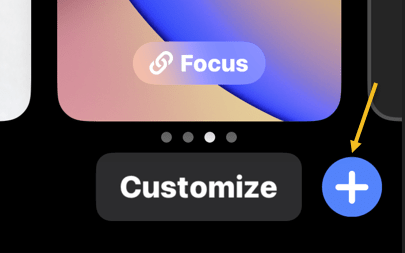
First, tap and hold your Lock screen anywhere to show the Lock screen gallery, then tap on the plus “+” icon to add a new Lock screen. Refer to the below image:

Lock 1
About to add a wallpaper

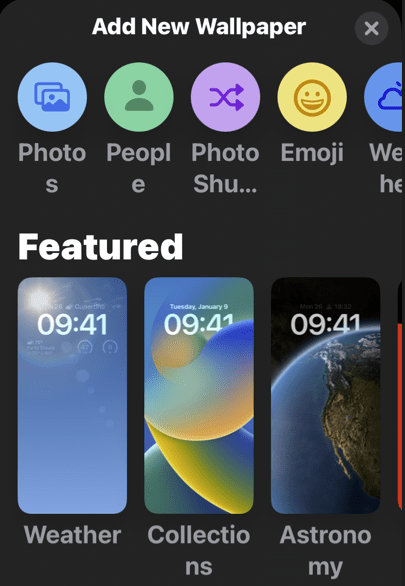
Next, select a wallpaper to appear on your Lock screen. Tap on the Photos option to use an image you have taken or saved to your device. You can also use emojis, the weather, the position of the planets, and more. See the below image:

Lock 3
Selecting a wallpaper from the gallery

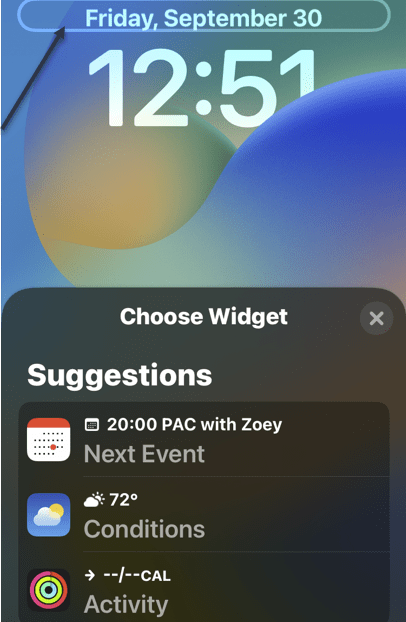
Now, with your wallpaper chosen, modify your Lock screen by tapping on the various elements. You can tap on the date to change what information is displayed here, which will add more information to the date display like how much energy you have burned or upcoming calendar events. See the following image:

Widget 3
Browse your suggestions

Next, you can also tap on the time to choose a specific font and color scheme, and swipe left and right on the wallpaper to change how your background is displayed with filters. Refer to the below image:

Widget 4
Choosing elements

Finally, tap on the Add Widgets box to add a single row of widgets to your Lock screen. See the below image:

Widget 5
Selecting to add widgets

Choosing Widgets

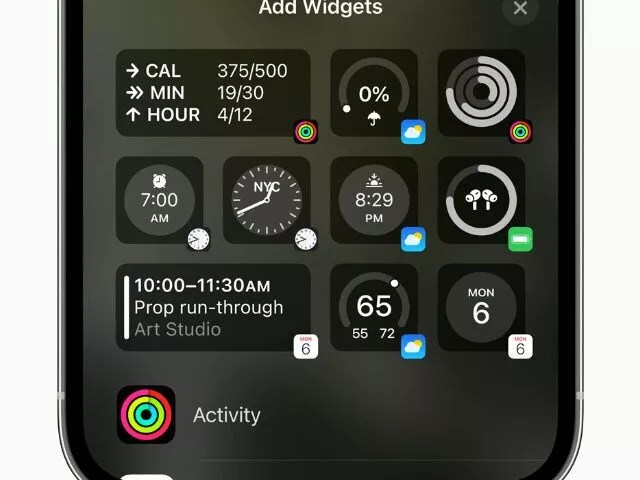
Widgets are information that you can easily see from your Lock screen. Many of these appear as smaller circles, of which you can fit four on a single Lock screen. See the below image:

Widget 6
Adding the weather widget

Others take the form of double-length rectangles, including a more detailed weather forecast, upcoming reminders, news headlines, and information about markets and stocks. You can fit two of these, or one rectangular and two smaller circular widgets. See the following image:

Widget 7
The added weather widget

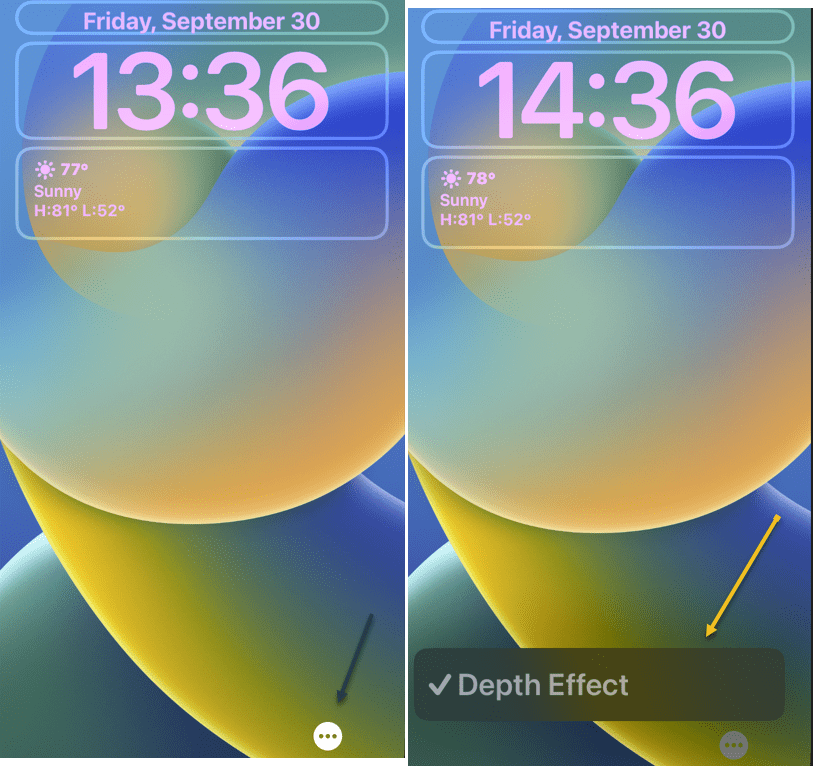
When you choose to use widgets, you forego the ability to use the Depth Effect with your wallpaper. This can be toggled using the “…” ellipsis button while customizing a wallpaper. Refer to the below image:

Widget 11
Adding Depth Effect

This effect makes it possible to overlay some elements of an image over the clock, for a more dynamic feel. It looks impressive, but it’s not particularly useful and widgets are arguably more useful.

At this point, save your newly created Lock screen wallpaper. Tap Done in the upper right-hand corner. See the below image:

Widget 8a
Save your wallpaper

Focus Modes

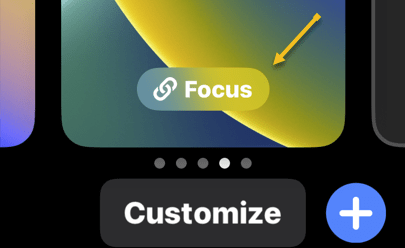
While selecting a Lock screen from the Lock screen gallery, tap on the Focus button to tie your chosen Lock screen to a particular Focus Mode. Assuming you have set up Focus Modes already, this lets you show relevant information while specific Focus Modes are active. See the following image:

Widget 9
Accessing Focus

You can set up a custom Focus that triggers a particular activity or use one of the common ones. Refer to the below image:

Widget 10
Selecting a Focus Mode

The Lock screen gallery and its associated widgets are available with the iOS 16 update. If you do not see these options, make sure you have updated your iPhone (and that your device is compatible with iOS 16).

Quote For the Day

Just because something doesn’t do what you planned it to do doesn’t mean it’s useless.

Thomas Edison

Tweet Info

That’s it. Please feel free to share this post! One way to share is via Twitter.

Just click the Tweet icon below. This will launch Twitter where you click its icon to post the Tweet.

Checkout TechSavvy.Life for blog posts on smartphones, PCs, and Macs! You may email us at contact@techsavvy.life for comments or questions.

I Would Like to Hear From You

Please feel free to leave a comment. I would love to hear from you. Do you have a computer or smart device tech question? I will do my best to answer your inquiry. Just send an email to contact@techsavvy.life. Please mention the device, app, and version you are using. To help us out, you can send screenshots of your data related to your question.

Author’s E-Book

You can access the e-book from a Kindle device, the Kindle App for the desktop or smartphone, which is a free app.

The author’s Vietnam eBook on the Battle for Tra Bong Vietnam: Events and Aftermath

How to Use Lock and Home Screen Wallpapers on iPhone in iOS 16+

Wallpaper is probably the easiest way to customize the look of your iPhone, and you have two areas to do it; the Home screen and the Lock screen.

RAYMOND OGLESBY @RaymondOglesby2
October 4, 2022

Wallpaper is probably the easiest way to customize the look of your iPhone, and you have two areas to do it; the Home screen and the Lock screen. Let’s explore this iOS 16+ feature.

This is for the iPhone. Screenshots are from iPhone XR running iOS 16+

Dilbert and Late
Copyright Scott Adams, Inc./Distributed by Universal Uclick for UFS

Tip: It is recommended you view the post on “How to Add Widgets on iPhone Lock Screen in iOS 16+” next.

The iPhone has supported separate wallpapers on the Home screen and Lock screen for a while, but iOS 16 introduced a big reworking of the process in 2022.

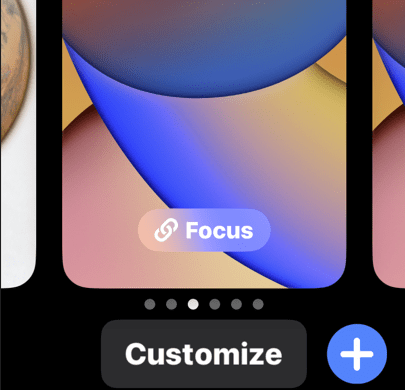
First, unlock your iPhone and tap and hold on a blank space on the Lock screen. The Lock screen will zoom out, and you will see a Customize and a plus button. Tap the plus button. Refer to the below image:

Lock 1
Selecting to add a wallpaper

If this is your first time playing with the Lock screen wallpaper in iOS 16, you will need to tap Add New when prompted. This will switch you over to the new Lock screen style. See the below image:

Lock 2
Add a new wallpaper

Next, you have a bunch of different options for wallpapers. At the top, you can select from a few categories. Scroll down to see a bunch of pre-made Lock screens. Choose a wallpaper for the Lock screen to proceed. See the following image:

Lock 3
Choosing a wallpaper

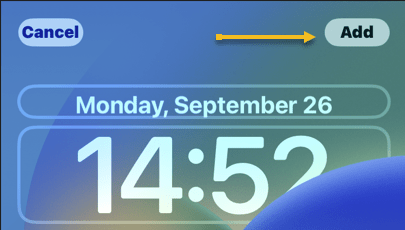
Now, once you have a wallpaper that you want to use for the Lock screen, tap the Add button in the top right-hand corner. Refer to the below image:

Lock 4
Selecting the Add button

Next, here’s where you have to option to use a different wallpaper for the Home screen. Tap Customize Home Screen to proceed. See the below image:

Lock 5
Selecting Customize Home Screen button

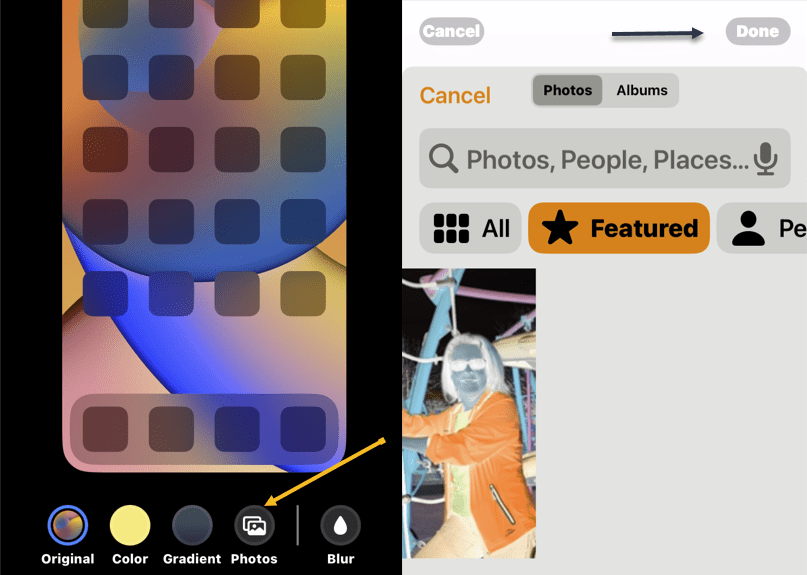
Now, you have a few options to choose from. You can blur the Lock screen wallpaper, choose a color based on the Lock screen wallpaper, a gradient based on the Lock screen wallpaper, or from your photos. After you have made your selection, tap Done in the top right-hand corner (if you choose a photo, you will need to tap Done twice). See the following image:

Lock 6
Adding a Home Screen wallpaper

Next, you will be brought back to the Lock screen preview screen. Tap the Lock screen to leave and see your new Lock screen and Home screen wallpapers! Refer to the below image:

Lock 7
Your Lock Screen

This is just a fraction of what you can do with the Lock screen on iOS 16+. You can also add widgets, customize the clock font, and apply a cool 3D depth effect to some wallpapers. More on this in another post as mentioned above.

Delete a Wallpaper

First, unlock your iPhone. Next, long-press anywhere on the unlocked Lock screen. See the below image:

Lock 8
Accessing the Lock Screen for deletion

Now, when the Lock screen goes into edit mode, you will see your current Lock screen as a preview among other Lock screens. Swipe to the wallpaper you want to delete. Then, swipe up on the wallpaper preview to reveal more options.

Note: The swipe-up gesture only works if you have another wallpaper added to your Lock screen collections. If you are trying to delete the only remaining Lock screen wallpaper from your iPhone, you will not be able to perform the swipe gesture on this wallpaper. 

Next, you will now see a red-colored Trash icon below the selected wallpaper. Tap on the Trash icon to delete this Lock screen wallpaper permanently from your iPhone. See the following image:

Lock 9
Selecting the Trash icon to delete

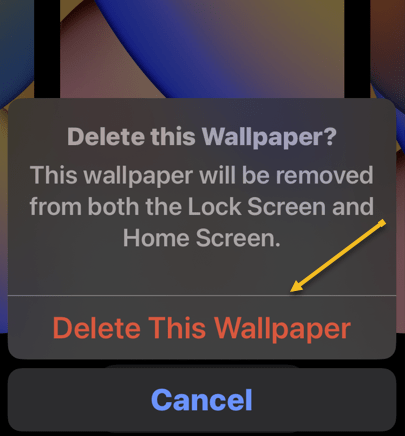
Now, to confirm your action, tap on Delete This Wallpaper in the prompt that appears at the bottom. Refer to the below image:

Lock 10
Confirming the deletion

The selected wallpaper will now be removed from the edit screen and iOS will now load up your previous wallpaper for your Lock screen. 

Quote For the Day

Technology like art is a soaring exercise of the human imagination.

Daniel Bell

Tweet Info

You are finished. Please feel free to share this post! One way to share is via Twitter.

Just click the Tweet icon below. This will launch Twitter where you click its icon to post the Tweet.

Checkout TechSavvy.Life for blog posts on smartphones, PCs, and Macs! You may email us at contact@techsavvy.life for comments or questions.

I Would Like to Hear From You

Please feel free to leave a comment. I would love to hear from you. Do you have a computer or smart device tech question? I will do my best to answer your inquiry. Just send an email to contact@techsavvy.life. Please mention the device, app, and version you are using. To help us out, you can send screenshots of your data related to your question.

Author’s E-Book

You can access the e-book from a Kindle device, the Kindle App for the desktop or smartphone, which is a free app.

The author’s Vietnam eBook on the Battle for Tra Bong Vietnam: Events and Aftermath

How to Delete/Hide Chrome Shortcuts From New Tab Page

Google Chrome keeps shortcuts to your most visited sites on its home page. If you do not find this list useful, you can either individually remove these shortcuts or hide all the shortcuts at once.

RAYMOND OGLESBY @RaymondOglesby2
September 29, 2022

Google Chrome keeps shortcuts to your most visited sites on its home page. If you do not find this list useful, you can either individually remove these shortcuts or hide all the shortcuts at once. Let’s explore how to do this.

Tip: When you delete a shortcut, that item’s gone forever. However, you can bring back all your hidden shortcuts at once with a few clicks.

This is for devices running the latest version of Google Chrome. Screenshots are from Windows 10

Dilbert and Office
Copyright Scott Adams, Inc./Distributed by Universal Uclick for UFS

Delete a New Tab Shortcut

To individually remove your site shortcuts from the New Tab page, first, open a new tab in Chrome. You can do this by pressing Ctrl+T (Windows) or Command+T (Mac).

Next, on the New Tab page, find the shortcut you want to delete. Hover your cursor in that shortcut’s top-right corner, then click the three dots (the Menu icon) that appear. Refer to the below image:

Chrome Shortcuts 1
Accessing the shortcut Menu on the New Tab page

Now, in the three-dot Menu icon, choose Remove. See the below image:

Chrome Shortcuts 2
Selecting to Remove the shortcut

Instantly, Chrome will remove the selected shortcut from your New Tab page.

Note: If you accidentally delete a shortcut, you can restore it by clicking Undo in the confirmation message that opens at the bottom left-hand corner.

Hide All New Tab Shortcuts

If you do not wish to see any shortcuts at all, you can hide all of them with a few easy clicks.

First, launch a New Tab in Chrome. Then, in the New Tab screen’s bottom right-hand corner, select the Pencil icon for Customize this page. See the following image:

Chrome Shortcuts 3
Selecting the Pencil icon

Next, in the left sidebar of the open window, click Shortcuts. Refer to the below image:

Chrome Shortcuts 4
Selecting the Shortcuts option

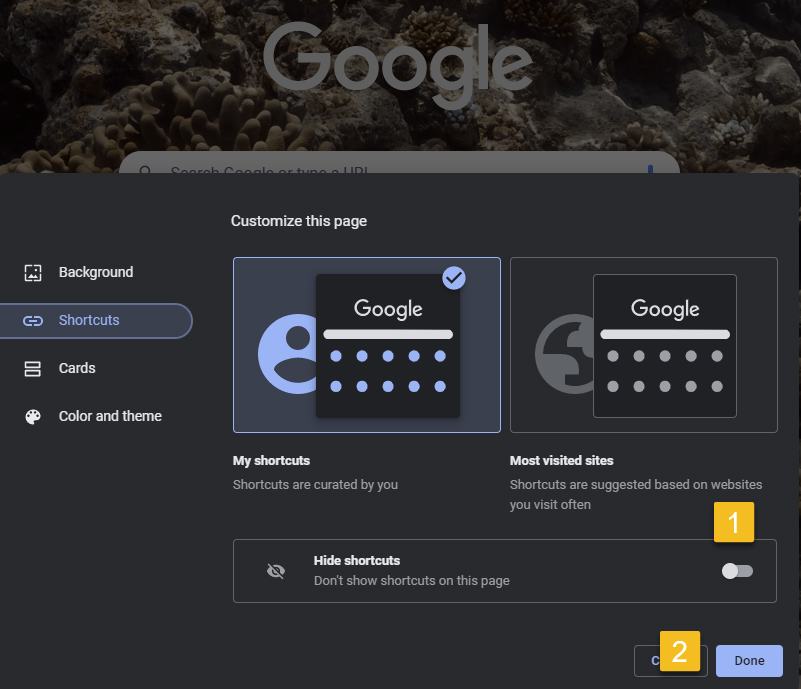
Now, on the right pane, toggle the Hide Shortcuts option to ON. Then, at the bottom, click Done. See the below image:

Note: Later, to unhide your shortcuts and bring them back to your New Tab page, toggle the Hide Shortcuts option to OFF and click Done.

Chrome Shortcuts 5
Enabling to Hide shortcuts

Back on the New Tab page, you will find all your site shortcuts are gone.

Quote For the Day

Technology is so much fun but we can drown in our technology. The fog of information can drive out knowledge

Daniel J Boorstin

Tweet Info

That’s it. Please feel free to share this post! One way to share is via Twitter.

Just click the Tweet icon below. This will launch Twitter where you click its icon to post the Tweet.

Checkout TechSavvy.Life for blog posts on smartphones, PCs, and Macs! You may email us at contact@techsavvy.life for comments or questions.

I Would Like to Hear From You

Please feel free to leave a comment. I would love to hear from you. Do you have a computer or smart device tech question? I will do my best to answer your inquiry. Just send an email to contact@techsavvy.life. Please mention the device, app, and version you are using. To help us out, you can send screenshots of your data related to your question.

Author’s E-book

You can access the e-book from a Kindle device, the Kindle App for the desktop or smartphone, which is a free app.

The author’s Vietnam eBook on the Battle for Tra Bong Vietnam: Events and Aftermath

How to Reset Cellular Data Settings on iPhone

If you are looking at your cellular data usage in the Settings app on your iPhone, you might notice data usage statistics from a Current Period. But what exactly is the current period, and when did it start?

RAYMOND OGLESBY @RaymondOglesby2
September 27, 2022

If you are looking at your cellular data usage in the Settings app on your iPhone, you might notice data usage statistics from a Current Period. But what exactly is the current period, and when did it start? Let’s find out.

This is for the iPhone. Screenshots are from iPhone XR

Dilbert and Work
Copyright Scott Adams, Inc./Distributed by Universal Uclick for UFS

First, open the Settings app and tap Cellular in the list. Refer to the below image:

Cellular 1
Selecting Cellular option

Next, near the top of the Cellular Settings page, you will see a section titled Cellular Data. At the top of that, you will see the Current Period with a cumulative data count beside it. This is how much cellular data you have used in total during the current period.

If you have never checked this statistic in Settings before, this number can look frighteningly large. So the big question remains: How long is this current period, and when did it start? See the below image:

Cellular 2
Selecting Current Period

It turns out that, on some cellular carriers, this Current Period is tied to your actual cell phone billing cycle. On other carriers, the Current Period is an arbitrary length of time since you last reset your cellular statistics.

If you have hundreds of apps installed on your iPhone, you might never notice that you can scroll all the way to the bottom of the app list and see the date when the Current Period statistics were last reset. On our iPhone, this statistic has never been reset. See the following image:

Cellular 3
Your last reset date and time

Now, to reset the statistics for the current period, tap Reset Statistics. Refer to the below image:

Warning: You will lose all your stored Cellular data statistics, and the counts will reset to zero.

Cellular 4
Selecting Reset Statistics

With a tap of Reset Statistics, a new Current Period has just begun. Check back in:

Settings > Cellular

over time to see your statistics and which apps are using the most data.

Why and When to Reset Cellular Statistics

It is recommended to reset cellular data statistics every month to ensure that you will get a more accurate picture of your actual data usage that corresponds to the billing cycle of your current data plan or subscription.

The latest statistics reset data will be posted at the bottom of the screen.

Resetting your iPhone’s Cellular Data settings, on the other hand, can also be considered among the potential solutions when dealing with cellular data issues including no service or no signal. 

Quote For the Day

It’s impossible to move, to live, to operate at any level without leaving traces, bits, seemingly meaningless fragments of personal information.

William Gibson

Tweet Info

That’s it. Please feel free to share this post! One way to share is via Twitter.

Just click the Tweet icon below. This will launch Twitter where you click its icon to post the Tweet.

Checkout TechSavvy.Life for blog posts on smartphones, PCs, and Macs! You may email us at contact@techsavvy.life for comments or questions.

I Would Like to Hear From You

Please feel free to leave a comment. I would love to hear from you. Do you have a computer or smart device tech question? I will do my best to answer your inquiry. Just send an email to contact@techsavvy.life. Please mention the device, app, and version you are using. To help us out, you can send screenshots of your data related to your question.

Author’s E-book

You can access the e-book from a Kindle device, the Kindle App for the desktop or smartphone, which is a free app.

The author’s Vietnam eBook on the Battle for Tra Bong Vietnam: Events and Aftermath

How To Setup Marketplace Alerts on Facebook

Facebook Marketplace has become the go-to place for selling things online. If you are on the lookout for a specific item, an alert can help you hopefully snag a great deal before everyone else.

RAYMOND OGLESBY @RaymondOglesby2
September 22, 2022

Facebook Marketplace has become the go-to place for selling things online. If you are on the lookout for a specific item, an alert can help you hopefully snag a great deal before everyone else. Let’s explore this Facebook feature.

Be aware that by using Marketplace, you may be scammed. In a recent survey, one in six (17%) respondents had been defrauded on the site.

Note! Technology is always changing. This means if you are implementing this post, your OS (PC, Mac), iOS (iPhone), iPadOS (iPad), and Android screens or text may not resemble this post’s contents, especially, if you are looking at a post years old.

This is for desktops using Facebook

Dilbert and Idiot
Copyright Scott Adams, Inc./Distributed by Universal Uclick for UFS

Setting up an alert will allow you to be notified when new items matching your search parameters are posted. You can skip the search process and always know when new items are posted.

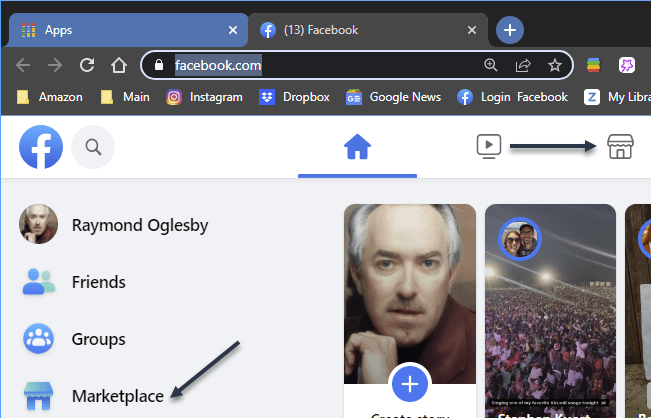
First, head on over to Facebook.com in your desktop browser. Click the Marketplace icon in the sidebar or top bar. Refer to the below image:

FB Marketplace 1
Selecting Marketplace

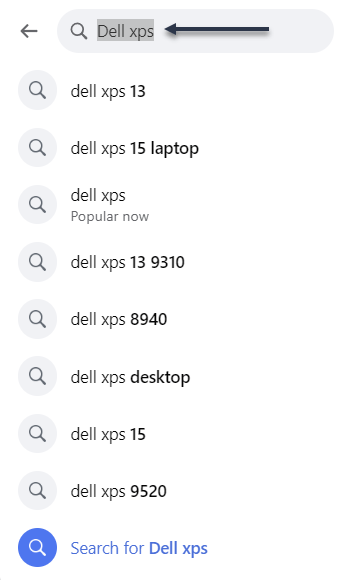
Next, use the search box to enter what you are looking for. See the below image:

FB Marketplace 2
Locate an item

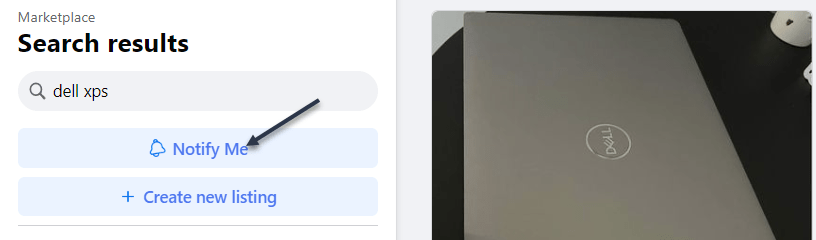
Now, click the Notify Me button under the search bar. See the following image:

FB Marketplace 3
Selecting Notify Me

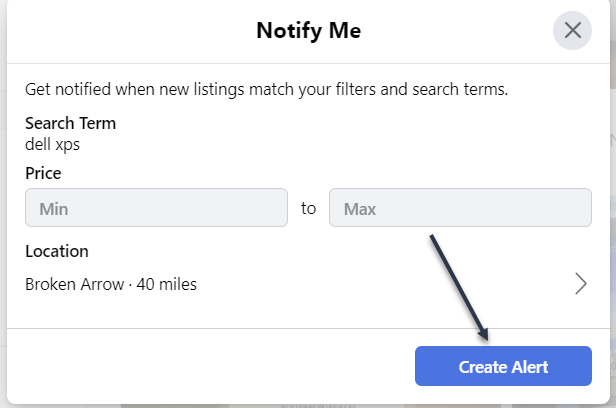
Next, in the pop-up window that opens, enter a minimum and maximum price and adjust the search radius if you would like. Then click Create Alert to finish. Refer to the below image:

FB Marketplace 4
Setup search parameters

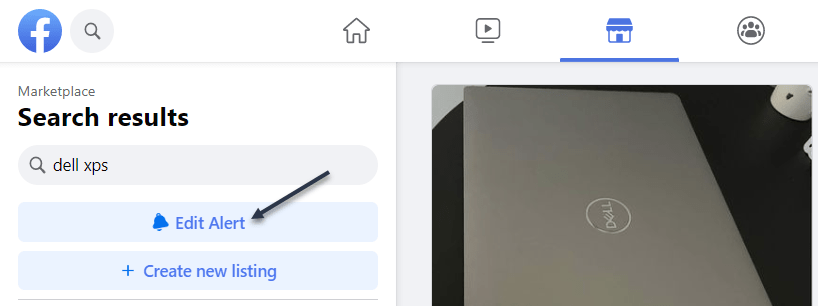
Now, to edit or remove an alert, repeat the search and click Edit Alert. See the below image:

FB Marketplace 5
Selecting to Edit Alert

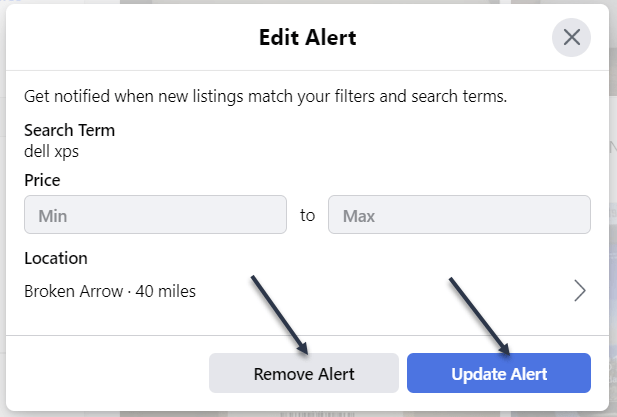
Next, you will have the option to adjust the parameters or Remove Alert. See the following image:

FB Marketplace 6
Change Parameters or Remove Alert

Facebook Marketplace has a lot of advantages over other online sellers like Craigslist. If you do a lot of shopping in the Marketplace, you should take advantage of the alert feature.

Quote For the Day

It’s not that we use technology, we live technology.

Godfrey Reggio

Tweet Info

That’s it. Please feel free to share this post! One way to share is via Twitter.

Just click the Tweet icon below. This will launch Twitter where you click its icon to post the Tweet.

Checkout TechSavvy.Life for blog posts on smartphones, PCs, and Macs! You may email us at contact@techsavvy.life for comments or questions.

I Would Like to Hear From You

Please feel free to leave a comment. I would love to hear from you. Do you have a computer or smart device tech question? I will do my best to answer your inquiry. Just send an email to contact@techsavvy.life. Please mention the device, app, and version you are using. To help us out, you can send screenshots of your data related to your question.

Author’s E-Book

You can access the e-book from a Kindle device, the Kindle App for the desktop or smartphone, which is a free app.

The author’s Vietnam eBook on the Battle for Tra Bong Vietnam: Events and Aftermath

How to Turn On iPhone’s Predictive Text

To help you type faster and more conveniently, your iPhone offers a Predictive Text feature that automatically suggests the words that you are likely to type. You can activate this feature from both Settings and your Keyboard menu on your iPhone.

RAYMOND OGLESBY @RaymondOglesby2
September 20, 2022

To help you type faster and more conveniently, your iPhone offers a Predictive Text feature that automatically suggests the words that you are likely to type. You can activate this feature from both Settings and your Keyboard menu on your iPhone. Let’s find out about this feature.

This is for the iPhone. Screenshots are from iPhone XR running iOS 15.6 +

Dilbert and Strongman
Copyright Scott Adams, Inc./Distributed by Universal Uclick for UFS

What Is Predictive Text

As the name implies, the Predictive Text feature predicts the words that you are likely going to type next. You can then tap those predicted words to add them to what you are already typing, which speeds up your input.

For example, if you start typing “How are,” the feature automatically suggests “you,” so your resulting sentence is “How are you?”

The feature predicts words based on the data it has gathered from your past conversations, writing style, and the sites you have visited in Safari. It may also use your other apps and recent activity to suggest words.

Enable Predictive Text from Settings

If you are not typing anything at the moment (meaning your keyboard is not open), use the Settings app to activate Predictive Text on your iPhone.

First, head to:

Settings > General > Keyboard.

Refer to the below image:

Predictive Text 1
Accessing the Keyboard option

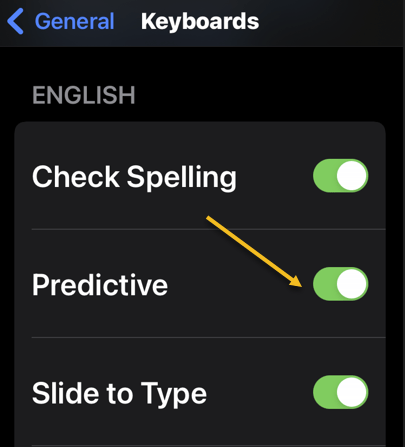
Next, scroll down the Keyboards page that opens to the bottom. There, turn on the Predictive option. See the below image:

Tip: To disable Predictive Text later, toggle off the Predictive option in General > Keyboard.

Predictive Text 2
Enabling Predictive Text

You are done. From now on, your keyboard will suggest words that you should be using in your text when you’re typing something on your iPhone.


Enable Predictive Text From Keyboard Settings

If you are typing something and your iPhone’s keyboard is open, you can use an option on the keyboard itself to toggle on the Predictive Text feature.

First, open your iPhone’s keyboard, then tap and hold on to the globe icon (just beside the space bar). See the following image:

Predictive Text 3
Tap and hold the Globe icon

Next, in the menu that opens, select Keyboard Settings. Refer to the below image:

Predictive Text 4
Selecting the Keyboard Settings button

Now, on the Keyboards page, scroll down to the bottom. There, enable the Predictive feature. See the below image:

Predictive Text 5
Enabling Predictive Text

Your keyboard will now predict the words you are likely going to type. And that’s how you make typing faster and easier on your iPhone.

Quote For The Day

The real problem is not whether machines think but whether men do.

B.F. Skinner

Tweet Info

That’s it. Please feel free to share this post! One way to share is via Twitter.

Just click the Tweet icon below. This will launch Twitter where you click its icon to post the Tweet.

Checkout TechSavvy.Life for blog posts on smartphones, PCs, and Macs! You may email us at contact@techsavvy.life for comments or questions.

I Would Like To Hear From You

Please feel free to leave a comment. I would love to hear from you. Do you have a computer or smart device tech question? I will do my best to answer your inquiry. Just send an email to contact@techsavvy.life. Please mention the device, app, and version you are using. To help us out, you can send screenshots of your data related to your question.

Author’s E-Book

You can access the e-book from a Kindle device, the Kindle App for the desktop or smartphone, which is a free app.

The author’s Vietnam eBook on the Battle for Tra Bong Vietnam: Events and Aftermath

Avoid These Mistakes When Sitting in an Office Chair

Are you trying to maintain good posture but find yourself constantly slouching? If you are experiencing body aches or pain, you are probably doing one or more of these six posture mistakes.

RAYMOND OGLESBY @RaymondOglesby2

September 15, 2022

Are you trying to maintain good posture but find yourself constantly slouching? If you are experiencing body aches or pain, you are probably doing one or more of these six posture mistakes. Let’s explore how to correct your posture.

This is for an office environment

Dilbert and Credit
Copyright Scott Adams, Inc./Distributed by Universal Uclick for UFS

Crossing Your Legs

Although it’s tempting to cross your legs while sitting, it’s actually not good for your posture. It may feel comfortable, but crossing your legs can put extra stress on your hips and lower back. You may start feeling the need to slouch, too.

The best way to sit is with both feet flat on the floor. If you are unable to plant your feet firmly, you can get a footrest to help. Simply place one where you would normally rest your feet and set them on top. This will help take the strain off your lower body so you can comfortably sit back in your office chair. As an alternative, you can get up to walk around or stretch, which leads us to the next mistake. Refer to the below image:

Posture 1
Crossing your legs

Sitting Down Too Long

Even with good posture, your muscles will start tightening up if you sit for too long. You may start to feel restless and possibly experience some pain or aching around your body. This is why it’s important to take breaks every 30 minutes or so to get up and move around.

You do not have to stand up for a long time. Go for a small walk or do some plight stretching. Just do anything to keep your body active, it could be as simple as swinging your arms around. The key is to increase blood flow and loosen up your muscles. You can set a timer to go off every 30 minutes to remind you to take a break. See the below image:

Posture 2
Sitting too long

Hunching Over

Most people already know that hunching over is bad for your posture. When you are hunched over, it puts a lot of strain on your spine and neck. This is why you will often feel pain in these areas after sitting at a desk all day. Your back’s going to feel most of the strain, especially since your spine will not be in a neutral position.

To correct this, you want to set your chair between 90 degrees and 120 degrees so that you can sit with a straight or slightly reclined back. This will take the strain off your spine and keep your body aligned. See the following image:

Posture 3
Hunching over

Leaning Your Head Forward

Many people tend to lean their heads forward when they are trying to focus on something or while slouching, and even more so while using the computer or playing video games. Leaning your head forward is a common cause of neck pain, as it puts extra weight and strain on it. Human heads are heavy, so when you are leaning forward even slightly, it puts excess stress on your neck muscles.

The easiest way to solve this is by leaning back on a chair with a high back. This type of backrest supports your head and neck, so you never have to lean forward. If your chair does not have a high back, you will have to remind yourself to not lean forward. Refer to the below image:

Posture 4
Head leaning forward

Looking At Poorly Positioned Monitor

Where you position your monitor can also affect your posture. If it’s too high or low, you will end up putting unnecessary strain on your neck and eyes. The screen also should not be too close or far, as it can cause eye strain and fatigue.

You should position your monitor 20-30 inches away from your eyes, which is about arm’s length. Adjust the height so that you are able to read the first line of text at eye level or slightly below it.

Change the font to a san-serif typeface, so it’s easier to read. Also, use a font size that’s large enough for you to see without squinting or needing to lean forward. See the below image:

Monitor not in a position

Using a Non-Ergonomic Chair

One of the most common posture mistakes is sitting on chairs that are not ergonomic for extended periods. Ergonomic chairs promote good posture by supporting your entire body. You can practically adjust every part of the chair to support your frame. This includes the height and tilt of the chair,

If you can afford an ergonomic chair, you should always choose it over a regular one. Non-ergonomic chairs can cause long-term pain in your back, neck, and shoulders, especially if you are sitting on them for many hours. These chairs are not designed for extended use, as they provide little to no support. This is why you will constantly find yourself slouching or hunching over.

Invest in an ergonomic chair if you sit for long hours each day. They are absolutely worth the investment. Not only do they promote good posture and prevent pain, but they are also very comfortable to be seated in. With these chairs, you sit in them all day without complaining.

We recommend considering a gaming chair, since they are always ergonomic, and they offer great value for their price! See the following image:

Posture 6
Non-Ergonomic chair

Quote For the Day

Technology like art is a soaring exercise of the human imagination.

Dainel Bell

Tweet Info

That’s it. Please feel free to share this post! One way to share is via Twitter.

Just click the Tweet icon below. This will launch Twitter where you click its icon to post the Tweet.

Checkout TechSavvy.Life for blog posts on smartphones, PCs, and Macs! You may email us at contact@techsavvy.life for comments or questions.

I Would Like to Hear From You \

Please feel free to leave a comment. I would love to hear from you. Do you have a computer or smart device tech question? I will do my best to answer your inquiry. Just send an email to contact@techsavvy.life. Please mention the device, app, and version you are using. To help us out, you can send screenshots of your data related to your question.

Author’s E-book

You can access the e-book from a Kindle device, the Kindle App for the desktop or smartphone, which is a free app.

The author’s Vietnam eBook on the Battle for Tra Bong Vietnam: Events and Aftermath

Two Little Known Safari Features for the iPhone

Apple’s mobile browser is packed with features. They make it easier to use extensions and protect your privacy.

RAYMOND OGLESBY @RaymondOglesby2
September 13, 2022

Apple’s mobile browser is packed with features. They make it easier to use extensions and protect your privacy. Let’s explore two little-known features that all iPhone owners need to know about.

Note! Technology is always changing. This means if you are implementing this post, your OS, iOS, iPadOS, and Android screens or text may not resemble this post’s contents, especially, if you are looking at a post years old.

This is for the iPhone. Screenshots are from iPhone XR running iOS 15.5+

Copyright Scott Adams, Inc./Distributed by Universal Uclick for UFS

Safari Extensions

Safari gained the ability to use extensions with the arrival of iOS 15. This allows you to vastly expand the capabilities of Apple’s browser with third-party add-ons, though you will need to go through Apple’s channels to do so.

The extensions are in the App Store. First, open the App Store. Refer to the below image:

Accessing the App Store

Next, tap on Apps at the bottom of the screen. See the below image:

Selecting Apps

Now, scroll way down to the bottom of the page and find the Safari Extensions category under Top Categories. Tap See All if it’s not visible. From here you can install extensions just as you would any other app. See the following image:

Accessing Top Categories

Next, scroll down and tap Safari Extensions. Refer to the below image:

Selecting Safari Extensions

Now, you can install extensions just as you would any other app. See the below image:

Install an extension by tapping GET

Next, many apps are bundled with Safari Extensions (just like Apple Watch apps and Home Screen widgets). To enable or disable these, head to:

Settings > Safari > Extensions

See the following image:

Safari Extensions

Advanced Privacy Features

Safari has a few privacy settings that you may have already enabled, but it’s worth checking they are on if you’re concerned about online privacy.

First, open Settings. Refer to the below image:

Accessing Settings

Now, tap Safari. See the below image:

Selecting Safari

Next, scroll down to the Privacy & Security section. You can enable or disable the listed options. We recommend enabling each option except Block All Cookies and Privacy Preserving Ad Measurement by turning their toggle to ON. See the following image:

Setting Privacy options

Now, tap the Hide IP Address and checkmark the From Trackers option. Refer to the below image:

Hide IP Address from Trackers

Quote For the Day

If you expect technology to solve your problems, you don’t understand technology or your problems.

Raymond Oglesby, author of TechSavvy.Life

Tweet Info

That’s it. Please feel free to share this post! One way to share is via Twitter.

Just click the Tweet icon below. This will launch Twitter where you click its icon to post the Tweet.

Checkout TechSavvy.Life for blog posts on smartphones, PCs, and Macs! You may email us at contact@techsavvy.life for comments or questions.

I Would Like to Hear From You

Please feel free to leave a comment. I would love to hear from you. Do you have a computer or smart device tech question? I will do my best to answer your inquiry. Just send an email to contact@techsavvy.life. Please mention the device, app, and version you are using. To help us out, you can send screenshots of your data related to your question.

Author’s E-Book

You can access the e-book from a Kindle device, the Kindle App for the desktop or smartphone, which is a free app.
The author’s Vietnam eBook on the Battle for Tra Bong Vietnam: Events and Aftermath

How to Delete Message(s) on iPhone

Your iPhone makes it super easy to remove individual text messages as well as entire conversations from the Messages app.

RAYMOND OGLESBY @RaymondOglesby2
August 30, 2022

Your iPhone makes it super easy to remove individual text messages as well as entire conversations from the Messages app. Let’s explore how to delete unwanted messages.

Warning: Once you have deleted a message or a conversation, you can not restore it, so make sure you are okay with losing your chats permanently.

This is for the iPhone. Screenshots are from iPhone XR running iOS 15.5+

Dilbert and Laser
Copyright Scott Adams, Inc./Distributed by Universal Uclick for UFS

Remove Individual Messages

To remove single or multiple select messages from your iPhone, first, launch the Messages app on your iPhone. Refer to the below image:

Message 1
Accessing Messages

Next, in the app, find and tap the conversation in which you want to delete a message.

Now, on the Message screen, tap and hold on to the message you want to remove. Then, from the menu that opens, choose More. If the conversation has only one message, you will not see More, instead, tap Delete. See the below image:

Message 2
Accessing More option

Next, beside each message on your screen, you will see a Select icon. Tap this icon for all messages that you want to remove.

Now, when you are done, in the bottom-left corner, tap the Trash icon. See the following image:

Message 3
Selecting to delete a message

Next, in the prompt that opens, select Delete Message. Refer to the below image:

Message 4
Delete a Message

Your iPhone will delete the selected messages.

Remove Entire Conversations

To remove an entire conversation from your iPhone, first, launch the Messages app on your iPhone. See the below image:

Message 5
Accessing Messages

Next, locate the conversation to delete but do not open it. On the conversation, you want to delete, swipe left. Then, from the options that appear, select Delete. See the following image:

Message 6
Selecting to delete a conversation

In the prompt that opens, choose Delete to confirm the deletion. Refer to the below image:

Message 7
Delete a conversation

Your iPhone will remove the entire chat from your Messages app.

Quote For The Day

Technology is a useful servant but a dangerous master.

Christian Lous Lange

Tweet Info

You are finished. Please feel free to share this post! One way to share is via Twitter.

Just click the Tweet icon below. This will launch Twitter where you click its icon to post the Tweet.

Checkout TechSavvy.Life for blog posts on smartphones, PCs, and Macs! You may email us at contact@techsavvy.life for comments or questions.

I Would Like to Hear From You

Please feel free to leave a comment. I would love to hear from you. Do you have a computer or smart device tech question? I will do my best to answer your inquiry. Just send an email to contact@techsavvy.life. Please mention the device, app, and version you are using. To help us out, you can send screenshots of your data related to your question.

Author’s E-Book

You can access the e-book from a Kindle device, the Kindle App for the desktop or smartphone, which is a free app.

The author’s Vietnam eBook on the Battle for Tra Bong Vietnam: Events and Aftermath

How to Use Quiet Mode on Facebook

If you are having trouble stepping away from Facebook’s endless scroll, Quiet Mode can help silence the chatter, memes, and misinformation.

RAYMOND OGLESBY @RaymondOglesby2
August 25, 2022

If you are having trouble stepping away from Facebook’s endless scroll, Quiet Mode can help silence the chatter, memes, and misinformation. Let’s explore this Facebook feature.

This is for devices using Facebook on mobile. Screenshots are from iPhone XR

Dilbert and Management
Copyright Scott Adams, Inc./Distributed by Universal Uclick for UFS

Social media is designed to keep you hooked. The endless scrolling. A constant stream of notifications. The temptation of opening an app. It all works together to suck you in and keep your attention for longer than what could be considered a harmless distraction.

If you feel like you are ready to pull back without fully unplugging, Facebook offers a built-in tool called Quiet Mode that can help you manage your time on the platform.

To get started, first, open Facebook, tap the Menu (the Hamburger icon) in the mobile app, and head to:

Settings & privacy > Settings > Your Time on Facebook under the Preferences section.

Time You Spend on Facebook

Next, tap See Time on the Your Time on Facebook page. Here you can view several graphs that show app usage. Swipe the screen to view total time, daytime versus nighttime hours, and how many times you opened the app over the last week. Refer to the below image:

FB Time 1
Your time on Facebook

Now, if you simply want to be mindful of your usage and not change anything, enable Weekly Update, which will send you a weekly email reviewing your Facebook usage from the last seven days. You can also tap Activity Log to view all your recent actions on the platform.

Setup Daily Reminder

Next, tap the See Tools button on the Your Time on Facebook page. You can start off slow by setting a reminder that will tell you to stop using the app after a set amount of time.

Now, from the Manage Your Time page, enable Daily Time Reminder at the bottom of the page, and then set the timer to a specific amount of hours and minutes. The app will tell you how much time you average per day so you can set the timer to something under that number. Tap Set Reminder, then continue using the app until your time is up. See the below image:

FB Time 2
Daily Reminder

Set Quiet Mode

Next, if you need a little help cutting down on Facebook usage, Quiet Mode is here to help. When enabled, this feature will mute push notifications to your phone, limit the notification dots that appear in the app, and stop you from using the app the next time you open it. Enable Quiet Mode from the Manage Your Time page, and then set how long you want it to stay on.

Now, you can also schedule Quiet Mode to turn on at a specific time each day. Enable Scheduled Quiet Mode, then tap Add Schedule to set the start and end time, as well as which days the feature should be used. TapDelete Schedule to remove or redo it. See the following image:

FB Time 3

Quiet Mode

Manage Quiet Mode

Next, when you open the app while Quiet Mode is enabled, you will be greeted by a reminder that shows you how long you have left. If you really need to do something in the app, tap Manage Quiet Mode and either end Quiet Mode immediately or get a 15-minute reprieve. Or choose Edit Settings to change how Quiet Mode works for you. Refer to the below image:

FB Time 4
Manage Quiet Mode

Quote For the Day

Innovation is the outcome of a habit, not a random act.

Sukant Ratnakar

Tweet Info

That’s it. Please feel free to share this post! One way to share is via Twitter.

Just click the Tweet icon below. This will launch Twitter where you click its icon to post the Tweet.

Checkout TechSavvy.Life for blog posts on smartphones, PCs, and Macs! You may email us at contact@techsavvy.life for comments or questions.

I Would Like to Hear From You

Please feel free to leave a comment. I would love to hear from you. Do you have a computer or smart device tech question? I will do my best to answer your inquiry. Just send an email to contact@techsavvy.life. Please mention the device, app, and version you are using. To help us out, you can send screenshots of your data related to your question.

Author’s E-Book

You can access the e-book from a Kindle device, the Kindle App for the desktop or smartphone, which is a free app.

The author’s Vietnam eBook on the Battle for Tra Bong Vietnam: Events and Aftermath