How to Save Google Chrome Passwords

Google Chrome can save your website passwords and help you automatically fill them the next time you visit your sites.

RAYMOND OGLESBY @RaymondOglesby2
April 13, 2022

Google Chrome can save your website passwords and help you automatically fill them the next time you visit your sites.

There are several ways to turn on the password saving feature in Chrome. Note that Chrome syncs your passwords with your Google account, which means if you enable Chrome to save passwords on one device, that change automatically applies to all your signed-in devices. Let’s explore this feature on both desktop and mobile devices.

This is for desktop and mobile running Chrome. Screenshots are from Windows 10 and iPhone XR

Dilbert and Bonus
Copyright Scott Adams, Inc./Distributed by Universal Uclick for UFS

Save Passwords on Desktop

To enable Chrome’s password manager on your Windows, Mac, Linux, or Chromebook computer, first, open Chrome on your computer.

Next, in Chrome’s top right-hand corner, click the three dots (the Menu icon). Refer to the below image:

Passwords 1
Selecting the Menu icon

Now, from the three-dots Menu icon, select the Settings option. See the below image:

Passwords 1
Accessing the Settings option

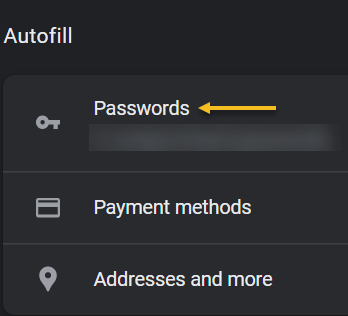
Next, on the left sidebar of the Settings page, click the Autofill option. See the following image:

Passwords 3
Accessing the Autofill option

Now, on the right of the Autofill section, click the Passwords option. Refer to the below image:

Passwords 4
Selecting the Passwords option

Next, toggle the Offer to save passwords option to ON at the top of the Passwords page. See the below image:

Passwords 5
Enable Offer to save passwords

Note! If you decide you do not want password prompts, just toggle the Offer to save passwords to OFF.

From now on, when you log in to a site in Chrome on any of your devices, the browser will ask you to save your password for that site. 

Save Passwords on Mobile

First, open Chrome on your iPhone, iPad, or Android device.

Next, tap the three dots (the Menu icon) in Chrome on your device. If you are on Android, these dots are in Chrome’s top right-hand corner. If you are on an iPhone or iPad, you will find the Menu icon in the bottom right-hand corner. See the following image:

Passwords 6
Accessing the Menu icon

Now, in the menu that opens, tap the Settings option. Refer to the below image:

Passwords 7
Accessing the Settings option

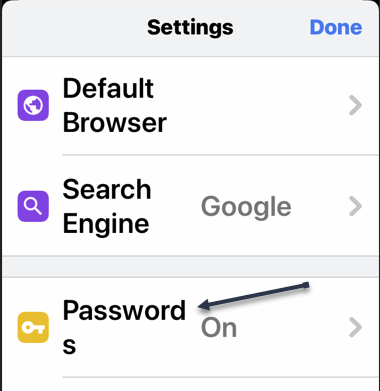
Next, in the Basics section of the Settings page, tap the Passwords option. See the below image:

Passwords 8
Accessing the Passwords option

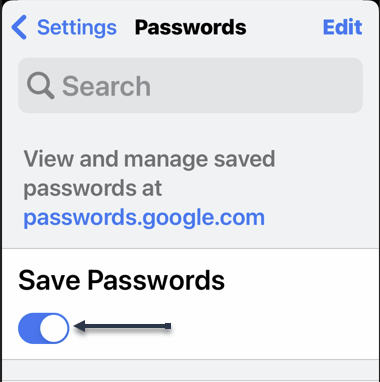
Now, on the Passwords page, toggle the Save Passwords option to ON. See the following image:

Passwords 9
Enable Save Passwords

Save Passwords Using Password Manager Site

To use this method, first, open a web browser on your device and access the Google Password Manager site. Log in to the site with the same Google account that you use in Chrome.

Now, when the Password Manager site opens, in the top right-hand corner, click the password options (the gear icon). Refer to the below image:

Passwords 10
Accessing Password options

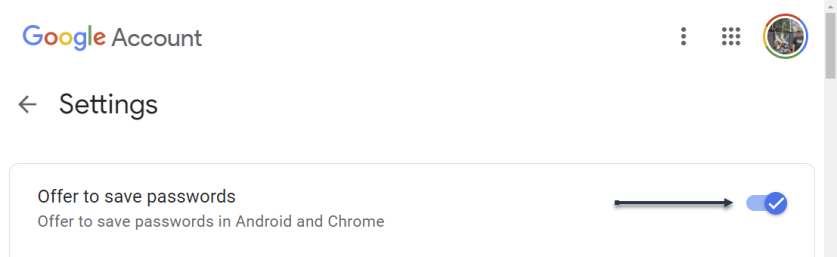
Next, the Settings page will open. Here, at the top, toggle the Offer to save passwords option to ON. See the below image:

Passwords 11
Enable Offer to sasve passwords

From now on, no matter what method you used above, Chrome will start prompting you to save passwords on all your signed-in devices. 

Quote For the Day

If people like you, they’ll listen to you, but if they trust you, they’ll do business with you.

Zig Ziglar

You are finished. Please feel free to share this post! One way to share is via Twitter.

Just click the Tweet icon below. This will launch Twitter where you click its icon to post the Tweet.


Check out TechSavvy.Life blog posts on smartphones, PCs, and Macs! You may email us at contact@techsavvy.life for comments or questions.

I Would Like to Hear From You

Please feel free to leave a comment. I would love to hear from you. Do you have a computer or smart device tech question? I will do my best to answer your inquiry. Just send an email to contact@techsavvy.life. Please mention the device, app, and version you are using. To help us out, you can send screenshots of your data related to your question.

Author’s E-book

You can access the e-book from a Kindle device, the Kindle App for the desktop or smartphone, which is a free app.

The author’s Vietnam eBook on the Battle for Tra Bong Vietnam: Events and Aftermath

How to Turn Off the Prompt “Sign In With Google”

Some websites show you a “Sign in with Google” prompt to help you quickly sign in to that website. If you would like to avoid this prompt, there’s an easy way to disable it from your Google account’s Settings menu

RAYMOND OGLESBY @RaymondOglesby2
April 7, 2022

Some websites show you a “Sign in with Google” prompt to help you quickly sign in to that website. If you would like to avoid this prompt, there’s an easy way to disable it from your Google account’s Settings menu. Let’s see how this is done.

This is for devices using Google. Screenshots are from Windows 10

Dilbert and Experiment
Copyright Scott Adams, Inc./Distributed by Universal Uclick for UFS

The “Sign in with Google” prompt is tied to your Google account and not to a particular web browser. This means that you will need to disable the prompt in your account to prevent it from appearing across all your web browsers, including both desktop and mobile browsers.

First, open your Google My Account site in a web browser on your Windows, Mac, or Linux computer. Then, log in to your Google account if you have not already done so.

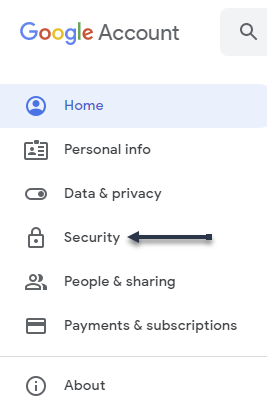
Next, when the site loads, first, select Security in the left sidebar. Refer to the below image:

Signin Google 1
Selecting Security option

Now, on the Security page, scroll down to the Signing in to other sites section. Here, click the Signing in with Google option. See the below image:

Signin Google 2
Selecting Google sign in

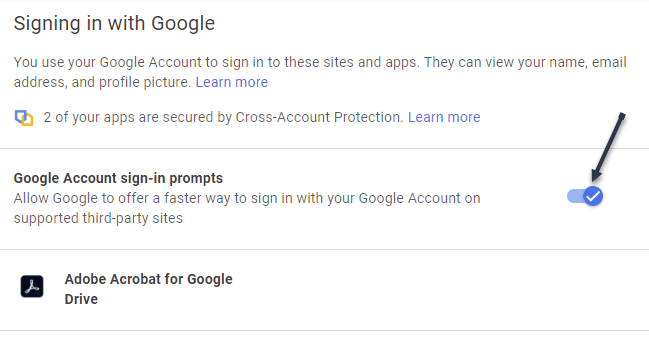
On the next page, under the Signing in with Google section, toggle OFF the Google Account sign-in prompts. See the following image:

Signin Google 3
Disable Google sign in

Now, you will see an Updated message in the lower left-hand corner of your browser telling you that your settings are saved. Refer to the below image:

Signin Google 4
Your updated change notification

Note: If you are logged in to multiple Google accounts in your web browser, repeat the above process for each account to get rid of the Sign in with Google prompt.

If you want to reverse this action, simply repeat the above steps and toggle ON the Google Account sign-in prompts.

From now on, you will not see the Sign in with Google prompt on any website.

Quote For The Day

Time can be an ally or an enemy. What it becomes depends entirely upon you, your goals, and your determination to use every available minute.

Zig Ziglar

That’s it. Please feel free to share this post! One way to share is via Twitter.

Just click the Tweet icon below. This will launch Twitter where you click its icon to post the Tweet.

Check out TechSavvy.Life for blog posts on smartphones, PCs, and Macs! You may email us at contact@techsavvy.life for comments or questions.

I Would Like to Hear From You

Please feel free to leave a comment. I would love to hear from you. Do you have a computer or smart device tech question? I will do my best to answer your inquiry. Just send an email to contact@techsavvy.life. Please mention the device, app, and version you are using. To help us out, you can send screenshots of your data related to your question.

Author’s E-book

You can access the e-book from a Kindle device, the Kindle App for the desktop or smartphone, which is a free app.

The author’s Vietnam eBook on the Battle for Tra Bong Vietnam: Events and Aftermath

How to Drag and Drop Browser Links to Desktop

In four major browsers; Chrome, Edge, Firefox, and Safari; on Windows, Mac, and Linux, you can easily drag and drop a shortcut link to a website straight to your desktop.

RAYMOND OGLESBY @RaymondOglesby2
JMarch 1, 2022

In four major browsers; Chrome, Edge, Firefox, and Safari; on Windows, Mac, and Linux, you can easily drag and drop a shortcut link to a website straight to your desktop. Let’s see how easily this is done.

This is for PCs, Macs, and web browsers. Screenshots are from Windows 10

Dilbert and Plan
Copyright Scott Adams, Inc./Distributed by Universal Uclick for UFS

Create Shortcut Using Chrome, Edge, and Firefox

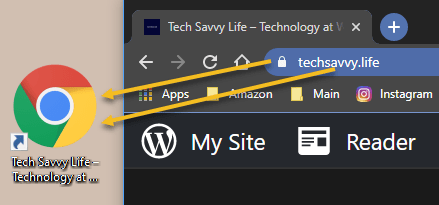
To create a desktop web shortcut, first open a Chrome, Edge, or Firefox browser window and navigate to the site you want to create a shortcut from. In the address bar at the top of the window, click and drag the Padlock icon (located to the left of the address) out of the browser window, or drag and drop the URL address onto your desktop. Refer to the below image:

Links 1
Drag to create a shortcut on the desktop

Next, as soon as you click and drag, you will see the title or address of the website besides your pointer. When you are hovering over the desktop, release your mouse button, and a shortcut icon will be created. To use the shortcut, double-click it at any time, and the site will open in your default browser.

This shortcut does not have to stay on your desktop either; you can move it to any folder on your PC.

Create Shortcut Using Safari on Mac

To make a desktop web shortcut on a Mac, first, open a Safari browser window and navigate to the site you want to create a shortcut to.

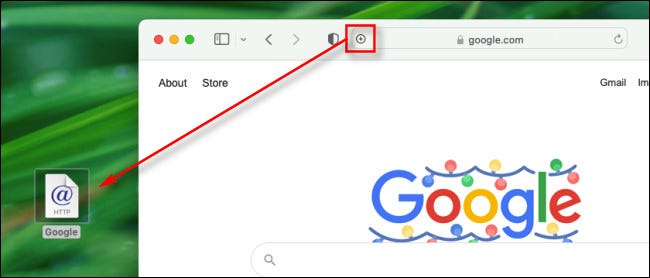
Next, in that window, hover your mouse cursor over the address bar at the top of the window, and a small Plus (“+”) icon will appear on the far left side. Click and drag the Plus icon onto your desktop and release your mouse or trackpad button. A shortcut icon will appear. See the below image:

Links 2
Drag to create a shortcut on Mac

Now, you can double-click the shortcut icon, and your default browser app will open and automatically load the website stored in the link.

By the way, this is not the only drag-and-drop trick you can do with browsers. Most browsers also allow you to drag tabs between open windows of the same browser.

How to Drag Tabs Between Browser Windows

Quote For the Day

If you learn from defeat, you haven’t really lost.

Zig Ziglar

That’s it. Please feel free to share this post! One way to share is via Twitter.

Just click the Tweet icon below. This will launch Twitter where you click its icon to post the Tweet.

Check out TechSavvy.Life for blog posts on smartphones, PCs, and Macs! You may email us at contact@techsavvy.life for comments or questions.

I Would Like to Hear From You

Please feel free to leave a comment. I would love to hear from you. Do you have a computer or smart device tech question? I will do my best to answer your inquiry. Just send an email to contact@techsavvy.life. Please mention the device, app, and version you are using. To help us out, you can send screenshots of your data related to your question.

Author’s E-book

You can access the e-book from a Kindle device, the Kindle App for the desktop or smartphone, which is a free app.

The author’s Vietnam eBook on the Battle for Tra Bong Vietnam: Events and Aftermath

How to View Chrome Saved Credit Card Numbers

If you need to check, update, or delete your credit card numbers saved by Google Chrome’s Autofill feature, it’s easy to do so using the browser’s payment method settings.

RAYMOND OGLESBY @RaymondOglesby2
February 10, 2022

If you need to check, update, or delete your credit card numbers saved by Google Chrome’s Autofill feature, it’s easy to do so using the browser’s payment method settings. Let’s explore how this is done.

This is for devices running Google Chrome

Dilbert and Explain
Copyright Scott Adams, Inc./Distributed by Universal Uclick for UFS

First, open Google Chrome on your Mac, PC, or Linux computer. In any Chrome window, click the three vertical dots button in the top right-hand corner. In the menu, click Settings. Refer to the below image:

Credit Card 1

Accessing Settings

Next, click the Autofill option in the sidebar, and select Payment methods. See the below image:

Credit Card 2
Accessing Payment methods

Now, look for a subsection also called Payment methods near the bottom of the window. If Chrome has previously saved any credit cards, they will be listed here. To see more information on any card, click the three-dots button beside it. See the following image:

Credit Card 3
Accessing more information about the card

Next, in the small menu, select the Edit option. Refer to the below image:

Credit Card 4
Accessing to Edit the card

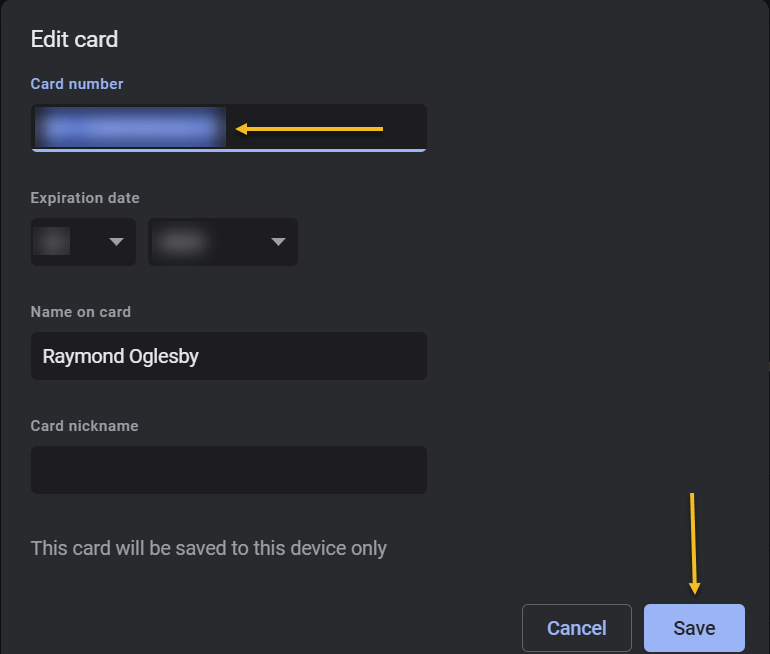
Now, in the Edit card pop-up window, you can see the full number of the credit card, its expiration date, the name on the card, and the card’s nickname. See the below image:

Credit Card 5
Editing the card information and Save your change(s)

While on the card’s edit screen, you can make changes to the stored card information if necessary, or copy and paste the information to another destination. When you are done making changes, click Save. If you have a problem saving your card information, you will see a small pop-up window at the bottom center of the screen regarding an error.

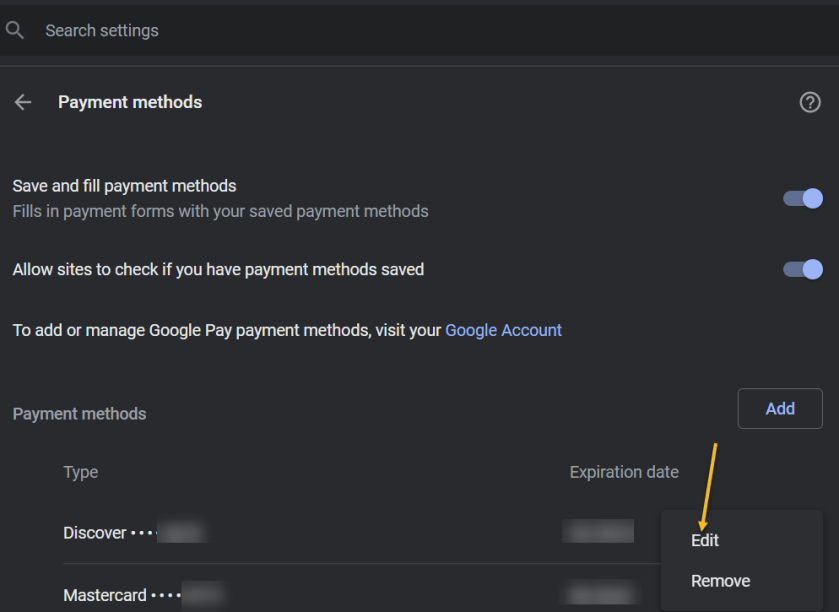
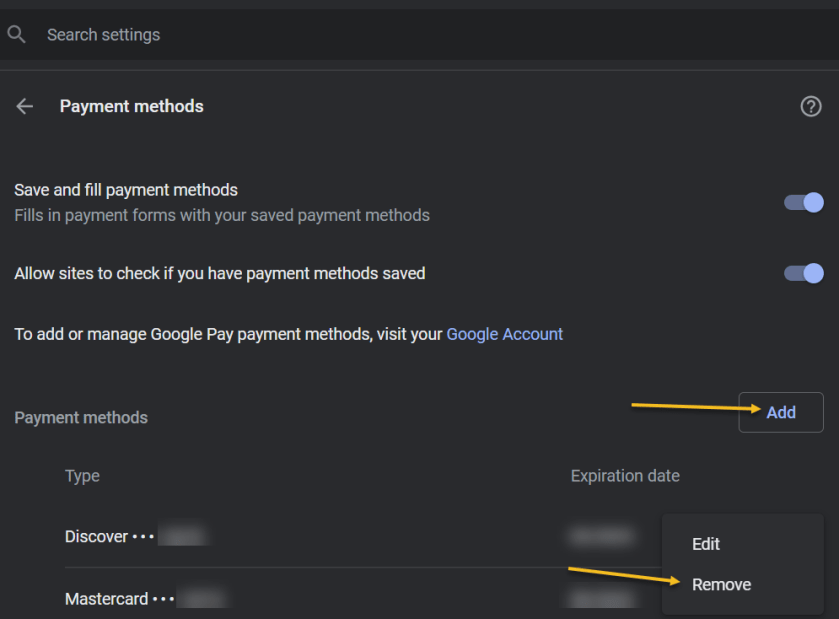
Back on the Payment methods screen, if you would like to add a new credit card that Chrome will use in Autofill, click the Add button. Or if you would like to delete a credit card saved in Google Chrome, click the three-dots button beside the card in the list and select the Remove option. See the following image:

Credit Card 6
Add a new card or remove an existing one

Next, close the Settings tab, and you are good to go. Any time you need to refer to your stored cards again, just revisit Google Chrome:

Settings > Autofill > Payment Methods

Managing Google Pay

If you are logged into a Google account in Chrome and have a credit card linked to Google Pay, you will see it listed. Google Pay is primarily used for mobile payments with your credit, debit, or loyalty cards. You can tap your phone to contactless readers to make payments.  Open:

Settings > Autofill > Payment methods

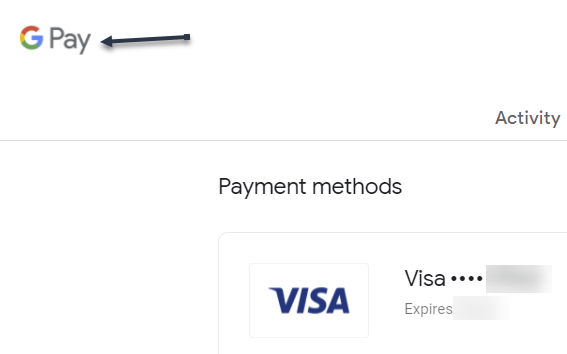
To view details about a Google Pay-linked card, click the icon beside it (that looks like a square with an arrow inside it), and the Google Pay website will open. Refer to the below image:

Credit Card 7
Accessing a Google Pay credit card

Now, if you have a balance on the card, you will not be able to view the entire credit card number like you can with a card that was stored by Autofill locally (see section above). But you can view the last four digits and expiration date. See the below image where we are on the Google Pay website but we do not have an account balance:

Credit Card 8
The Google Pay website

You can also add or remove a stored card on the Google Pay website by clicking Remove or Add Payment Method.

Quote For the Day

Should you find yourself in a chronically leaking boat, energy devoted to changing vessels is likely to be more productive than energy devoted to patching leaks.

Warren Buffett

You are finished. Please feel free to share this post! One way to share is via Twitter.

Just click the Tweet icon below. This will launch Twitter where you click its icon to post the Tweet.

Checkout TechSavvy.Life for blog posts on smartphones, PCs, and Macs! You may email us at contact@techsavvy.life for comments or questions.

I Would Like to Hear From You

Please feel free to leave a comment. I would love to hear from you. Do you have a computer or smart device tech question? I will do my best to answer your inquiry. Just send an email to contact@techsavvy.life. Please mention the device, app, and version you are using. To help us out, you can send screenshots of your data related to your question.

Author’s E-book

You can access the e-book from a Kindle device, the Kindle App for the desktop or smartphone, which is a free app.

The author’s Vietnam eBook on the Battle for Tra Bong Vietnam: Events and Aftermath

How to Clear Chrome Browsing History on iPhone and iPad

The browsing history in Google Chrome for iOS and iPadOS helps you easily get back to your favorite sites. But if you need to clear out a portion of the history on your iPhone or iPad, it’s easy.

RAYMOND OGLESBY @RaymondOglesby2
February 9, 2022

The browsing history in Google Chrome for iOS and iPadOS helps you easily get back to your favorite sites. But if you need to clear out a portion of the history on your iPhone or iPad, it’s easy. Let’s explore how to do this.

This is for the iPhone and iPad

Copyright Scott Adams, Inc./Distributed by Universal Uclick for UFS

Clear Chrome Browsing History

Clearing the browsing history in Safari, the browser for iPhone and iPad is relatively simple, but it is not exactly intuitive. Fortunately, clearing the browsing history in Google Chrome is even easier than in Safari, since you can do it directly within the browser.

First, tap the three-dot icon in the bottom right-hand corner of the browser and select History from the pop-up list. (If you are on the Start page, you can tap the History icon below the Search bar). Refer to the below image where we are selecting History from the pop-up list:

Clear 1
Accessing History option

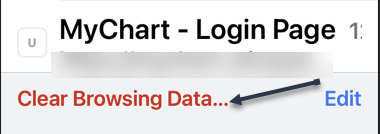
Next, scroll down to the bottom of the screen and tap Clear Browsing Data… to begin clearing your history. See the below image:

Clear 2
Accessing Clear Browsing Data option

Now, select the time range at the top of the page. This ranges from the last hour to all of your browsing history. See the following image:

Clear 3
Setting a Time Range

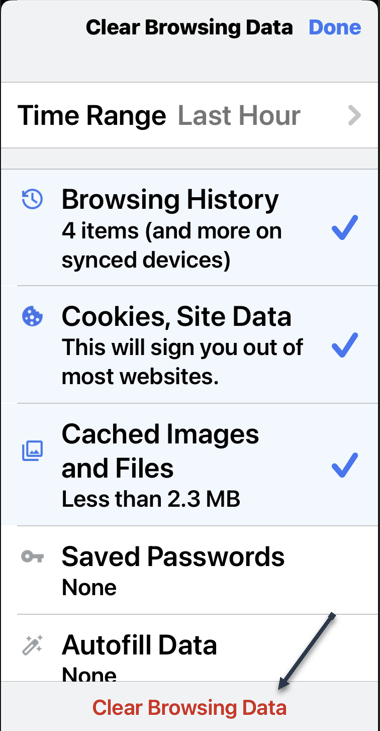
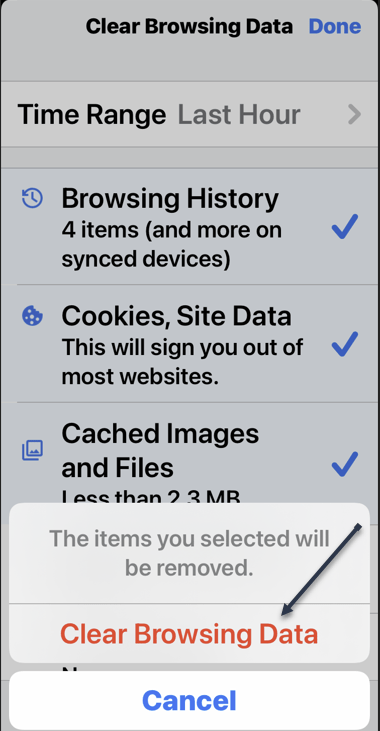
Next, once you have selected the period you wish to delete, check over the data that you are going to delete. By default, Browsing History, Cookies and Site Data, and Cached Images are selected. You can select or deselect these as you see fit. Once you have made your selections, tap Clear Browsing Data at the bottom of the screen. Refer to the below image:

Clear 4
Selecting what information to clear

Now, select this option again in the pop-up dialog at the bottom of the screen to finish clearing your history. See the below image:

Clear 5
Selecting Clear Browsing Data once again

Keep in mind that clearing browsing history in Chrome for iPhone and iPad does not always clear browsing history in the desktop version of the browser. To make sure your history is fully clear, take a look at some guides on how to clear your browsing history in any browser.

Don’t Delete Everything

As we touched on above, you do not have to delete all of your browsing history. By selecting the right time range, you can delete your history only from the last hour or the last day. See the following image:

Clear 6
Selecting a Time Range

You also do not need to delete all the data selected by default. For example, you may want to delete all of your website history but do not want to log into sites over again. To accomplish this, just deselect Cookies, Site Data when you are clearing your history.

You can also choose to delete more than what is selected by default. For example, if you’re preparing an iPad for your kids, you might not want your passwords saved. In this case, check Saved Passwords when clearing your history.

Browse Incognito Mode

If you find yourself frequently clearing your browsing history, it could be that you are not making enough use of private browsing, or Incognito Mode.

For the desktop:

How to Easily Open Chrome to Incognito Mode

For the iPhone or iPad:
  • Open your Google App and sign in, if necessary
  • Tap your Profile icon
  • Select Turn on Incognito from the drop-down menu

Quote For the Day

It takes 20 years to build a reputation and five minutes to ruin it. If you think about that, you’ll do things differently.

Warren Buffett

That’s it. Please feel free to share this post! One way to share is via Twitter.

Just click the Tweet icon below. This will launch Twitter where you click its icon to post the Tweet.

Checkout TechSavvy.Life blog posts on smartphones, PCs, and Macs! You may email us at contact@techsavvy.life for comments or questions.

I Would Like to Hear From You

Please feel free to leave a comment. I would love to hear from you. Do you have a computer or smart device tech question? I will do my best to answer your inquiry. Just send an email to contact@techsavvy.life. Please mention the device, app, and version you are using. To help us out, you can send screenshots of your data related to your question.

Author’s E-book

You can access the e-book from a Kindle device, the Kindle App for the desktop or smartphone, which is a free app.
The author’s Vietnam eBook on the Battle for Tra Bong Vietnam: Events and Aftermath

How to Bulk Delete Emails in Gmail

Want to wipe your Gmail inbox clean? Using Gmail’s bulk delete option, you can delete all emails from your Gmail account at once in just a few clicks.

RAYMOND OGLESBY @RaymondOglesby2
January 11, 2022

Want to wipe your Gmail inbox clean? Using Gmail’s bulk delete option, you can delete all emails from your Gmail account at once in just a few clicks.

If you use the Gmail app on an iPhone, iPad, or Android phone, you can not delete all emails at once on your device. This means you will have to rely on the Gmail site to purge your inbox. Let’s explore how this is done.

This is for Windows, Mac, Linux, and Chromebook using Gmail

Dilbert and Dumb
Copyright Scott Adams, Inc./Distributed by Universal Uclick for UFS

Deleting all your emails does not delete your Gmail account. You can still send and receive emails after you have deleted all your existing emails.

First, open a web browser on your Windows, Mac, Linux, or Chromebook computer and access the Gmail site. Log in to your Gmail account on the site if not already logged in.

Next, in the sidebar on the left, click All Mail. If you do not see this option, click More to reveal the option. Refer to the below image:

Gmail 1
Accessing All Mail option

Now, in the pane on the right, you will see all your Gmail emails, including your archived emails. To delete these emails, you will have to first select all these emails. This is done by clicking the Select option (a square icon) at the top of the Gmail interface. See the below image:

Gmail 2
Selecting up to 50 emails

Once check-marked, up to the default (50) emails will be highlighted for deletion.

Next, to select the emails that are not on this page, at the top of the emails list, click the Select all X conversations in All Mail, where “X” is the number of emails in the All Mail folder. See the following image:

Gmail 3
Selecting to delete all emails

Now, all your emails are now selected. To start deleting them, at the top of the Gmail interface, click the Delete option (the trash icon). Refer to the below image:

Gmail 4
Delete all emails

Next, you will see a Confirm bulk action pop-up message. Here, click OK. See the below image:

Gmail 5
Confirming the deletion

Now, Gmail will start deleting and moving your emails to the Trash folder. To remove your emails for good, you will have to empty the Trash. To do so, in Gmail’s left sidebar, click the Trash folder. See the following image:

Gmail 6
Selecting your Trash emails

In the pane on the right, at the top, click Empty Trash now. Refer to the below image:

Gmail 7
Selecting to empty your Trash emails

Next, in the Confirm deleting messages pop-up message that opens, click OK. See the below image:

Gmail 8
Confirm the deletion

You will receive a cute message from Google about how their servers “feel”. (By the way, servers have no “feelings”). See the following image:

Gmail 10
The servers are “feeling unloved”

Now, all your emails except for the ones in the Spam folder are now deleted.

Next, to clear the spam emails, in Gmail’s left sidebar, click Spam. Then, in the pane on the right, click Delete all spam messages now. Refer to the below image:

Gmail 9
Deleting Spam emails

Quote For the Day

If a window of opportunity appears, don’t pull down the shade.

Tom Peters

That’s it. Please feel free to share this post! One way to share is via Twitter.

Just click the Tweet icon below. This will launch Twitter where you click its icon to post the Tweet.

Check out TechSavvy.Life for blog posts on smartphones, PCs, and Macs! You may email us at contact@techsavvy.life for comments or questions.

I Would Like to Hear From You

Please feel free to leave a comment. I would love to hear from you. Do you have a computer or smart device tech question? I will do my best to answer your inquiry. Just send an email to contact@techsavvy.life. Please mention the device, app, and version you are using. To help us out, you can send screenshots of your data related to your question.

Author’s E-book

You can access the e-book from a Kindle device, the Kindle App for the desktop or smartphone, which is a free app.

The author’s Vietnam eBook on the Battle for Tra Bong Vietnam: Events and Aftermath

How to Use Chrome’s Reader Mode

Most web browsers have a built-in Reader Mode that converts web pages into a more reader-friendly view. Strangely, Google Chrome does not have this feature; unless you know how to find it.

RAYMOND OGLESBY @RaymondOglesby2
January 6, 2022

Most web browsers have a built-in Reader Mode that converts web pages into a more reader-friendly view. Strangely, Google Chrome does not have this feature; unless you know how to find it. Let’s explore this hidden feature.

This is for desktop devices using Google Chrome

Dilbert and Employee
Copyright Scott Adams, Inc./Distributed by Universal Uclick for UFS

Google Chrome has included a hidden Reader Mode since all the way back to version 75. However, it’s never been upgraded to a stable, standard feature. Even Microsoft Edge, which is also based on Chromium, has a Reader Mode.

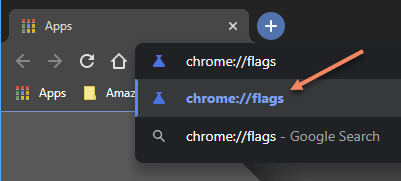
First, we will need to enable a Chrome feature flag. Open the Chrome browser on your computer and type:

chrome://flags

in the address bar, then click Enter. Refer to the below image:

Reader 1
Accessing Chrome flags

Next, search for Reader Mode in the text box at the top and enable the flag titled Enable Reader Mode. See the below image:

Reader 2
Enabling Reader Mode

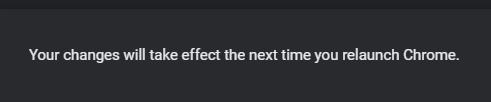
Now, after enabling the flag, see the Relaunch text at the bottom of the screen and restart Chrome to apply the change. See the following image:

Reader 3
Relaunch Chrome message

Next, when you visit a webpage that has a lot of text, you will see a little book icon on the right side of the address bar. Click it to switch to Reader Mode.

You can also click:

Menu > Enter Reader Mode

to activate it. Refer to the below image:

Reader 4
Activate Reader Mode

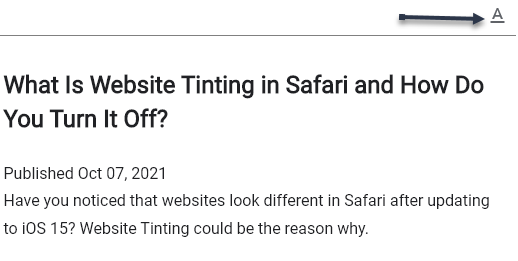
Now, you are looking at a much simpler, less cluttered view of the webpage. Images still appear, but ads and a few other items are removed. To adjust the view, click the A icon in the top right. See the below image:

Reader 5
Selecting the A icon to see more options

Next, you can change the font, text size, and background color. See the following image:

Reader 6
Your options

That’s all there is to it! You can now minimize distractions while reading long articles in Chrome. It’s strange that Google has kept this a hidden feature for years, but now you know how to enable it yourself.

Quote For the Day

If you carefully consider what you want to be said of you in the funeral experience, you will find your definition of success.

Stephen Covey

That’s it. Please feel free to share this post! One way to share is via Twitter.

Just click the Tweet icon below. This will launch Twitter where you click its icon to post the Tweet.

Checkout TechSavvy.Life for blog posts on smartphones, PCs, and Macs! You may email us at contact@techsavvy.life for comments or questions.

I Would Like to Hear From You

Please feel free to leave a comment. I would love to hear from you. Do you have a computer or smart device tech question? I will do my best to answer your inquiry. Just send an email to contact@techsavvy.life. Please mention the device, app, and version you are using. To help us out, you can send screenshots of your data related to your question.

Author’s E-book

You can access the e-book from a Kindle device, the Kindle App for the desktop or smartphone, which is a free app.

The author’s Vietnam eBook on the Battle for Tra Bong Vietnam: Events and Aftermath

How to Create a QR Code in Google Chrome

With Google Chrome’s built-in QR code option on your desktop, you can make QR codes for any sites and web pages you visit in the browser. When others scan them, they will be taken to the site.

RAYMOND OGLESBY @RaymondOglesby2
December 23, 2021

With Google Chrome’s built-in QR code option on your desktop, you can make QR codes for any sites and web pages you visit in the browser. When others scan them, they will be taken to the site. Let’s explore how this is done.

This is for Windows, Mac, Linux, or Chromebook running Chrome

Dilbert and Interface
Copyright Scott Adams, Inc./Distributed by Universal Uclick for UFS

There are many reasons to generate QR codes for websites. The main reason is to add a QR code to your documents, spreadsheets, presentations, emails, and more. Chrome lets you save the QR codes as images, so you can basically use them anywhere you want.

Since Chrome has a built-in QR code generator, you do not have to install any third-party extensions to get the job done.

First, launch Chrome on your Windows, Mac, Linux, or Chromebook computer. Then access the website you want to turn into a QR code.

At the top of Chrome, click the address bar to reveal the QR code option. Refer to the below image:

qr code 1
Selecting the website

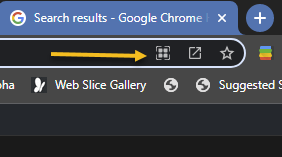
Next, in the far right of the address bar, you will now see various icons. Click the Create QR Code For This Page icon (which is a partial square icon with four small squares). If the icon is missing, click the Zoom icon and click Reset. See the below image:

qr code 2
Selecting the QR icon

Now, Chrome will open a Scan QR Code pop-up with your generated QR code in it. You can now scan this QR code from your iPhone or Android phone. See the following image:

qr code 3
Your generated QR code

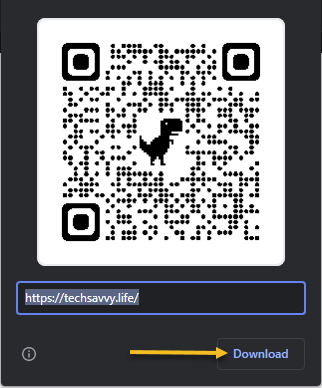
Next, to save this QR code as an image to your computer, at the bottom-right-hand corner of the Scan QR Code pop-up window, click Download. Refer to the below image:

qr code 4
Selecting to Download the QR code

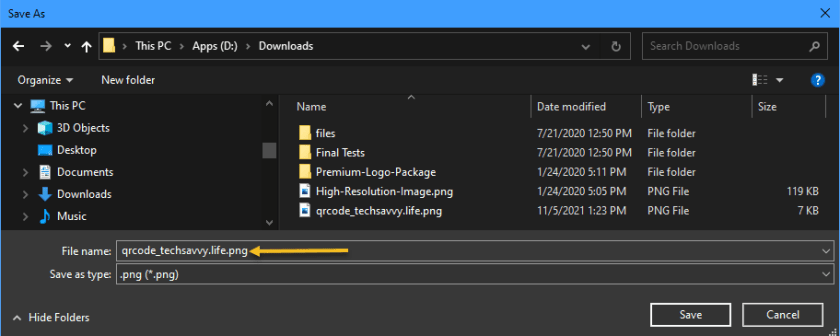
Now, you will see your computer’s standard Save As window. Select a folder to save your QR code image in, type a name for the image, and click Save. See the below image:

qr code 5
Saving the QR code

And that’s all there is to making QR codes in Chrome on the desktop. A nice feature of Chrome.

Quote For the Day

Risk comes from not knowing what you’re doing.

Warren Buffett

You are finished. Please feel free to share this post! One way to share is via Twitter.

Just click the Tweet icon below. This will launch Twitter where you click its icon to post the Tweet.

Check out TechSavvy.Life for blog posts on smartphones, PCs, and Macs! You may email us at contact@techsavvy.life for comments or questions.

I Would Like to Hear From You

Please feel free to leave a comment. I would love to hear from you. Do you have a computer or smart device tech question? I will do my best to answer your inquiry. Just send an email to contact@techsavvy.life. Please mention the device, app, and version you are using. To help us out, you can send screenshots of your data related to your question.

The author’s Vietnam eBook on the Battle for Tra Bong Vietnam: Events and Aftermath

How to Use Apple Notes in a Browser

Apple Notes syncs between devices for anyone with an Apple ID, which is required to use devices like the iPhone, iPad, and Mac computers. Unfortunately, there’s no native app for Windows or Android users, but the web version can make a suitable substitute.

RAYMOND OGLESBY @RaymondOglesby2
December 22, 2021

Apple Notes syncs between devices for anyone with an Apple ID, which is required to use devices like the iPhone, iPad, and Mac computers. Unfortunately, there’s no native app for Windows or Android users, but the web version can make a suitable substitute. Let’s explore how to use Apple Notes on the web.

This is for devices using Notes on iCloud

Dilbert and Time
Copyright Scott Adams, Inc./Distributed by Universal Uclick for UFS

Turn on iCloud Sync for Notes

If you use Apple Notes on an Apple device, first ensure you have iCloud sync enabled so that new notes and changes are pushed to all of your devices. This should be enabled by default, but it’s a good idea to check.

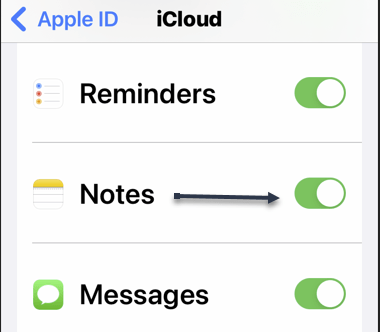
First, on an iPhone or iPad, you can do this under:

Settings > [Your Name] > iCloud

and enabling the Apple Notes setting. Refer to the below image:

Notes 1
Enabling iCloud Notes sync

On a Mac, this can be turned on under:

System Preferences > Apple ID

and checkmark the Notes setting.

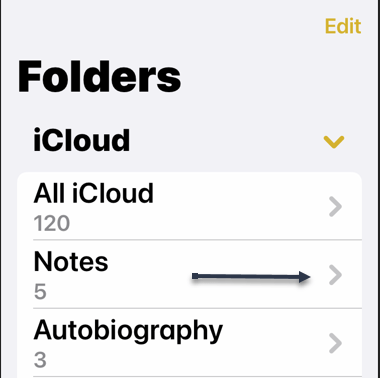
When making notes, make sure that you are placing them in your iCloud folders since it’s possible to have offline folders too that are device-specific. See the below image:

Notes 2
Ensuring Notes are under iCloud

Once enabled, new notes will be placed in iCloud by default.

Access Notes in a Browser via iCloud

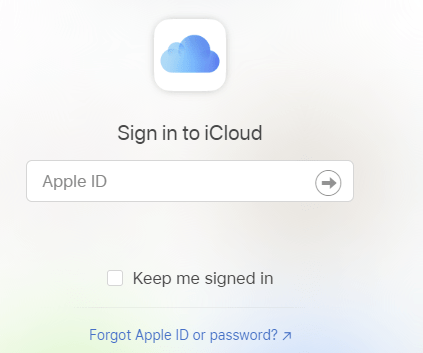
Next, with your Mac, iPhone, and iPad now syncing Apple Notes to iCloud, you can access them using a web browser by heading to iCloud.com and logging in with your Apple ID. See the following image:

Notes 3
Signing in to iCloud.com

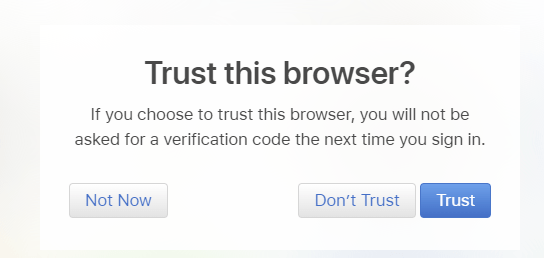
Now, you may need to pass a two-factor authentication check, so make sure you choose to Trust this computer if you want to log in faster in the future. You should only trust personal computers and smartphones that you own, and never trust a computer or device that you share with others. Refer to the below image:

Notes 4
Trusting your device

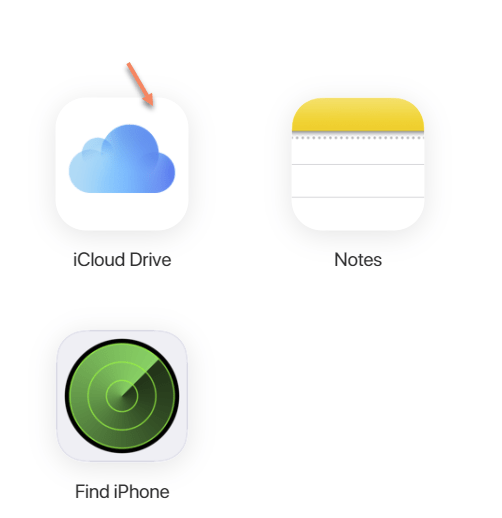
Next, once you are in, click on Notes to see a web-based version of the Apple Notes app. You can use this to access and edit existing notes, create new ones, and share with other iCloud users. See the below image:
Notes 5
Selecting iCloud Notes on the web

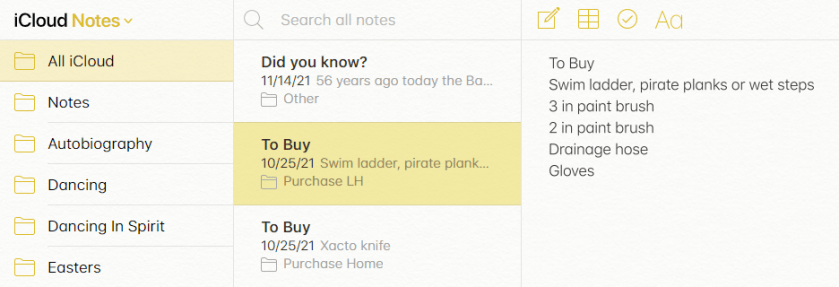
While you can access locked notes by entering your Apple ID password, you can not apply a lock to existing or new notes. See the following image for a listing of your Notes:

Notes 6
Listing of your iCloud Notes

Turn iCloud Into an App on Windows or Android

Now, you can keep Apple Notes open in its own pinned tab, but it may be more convenient to turn the web app into an application or shortcut you can run from your Start menu or Android home screen.

  • Windows users can do this using Chrome or Edge, pin it to your Taskbar, and apply a custom icon if you like. You will need to log in from time to time, but as long as you Trust your browser when entering the two-factor authentication code this process will not be quite as tedious.
  • Android users can also do this using Chrome, which places a shortcut on your home screen.

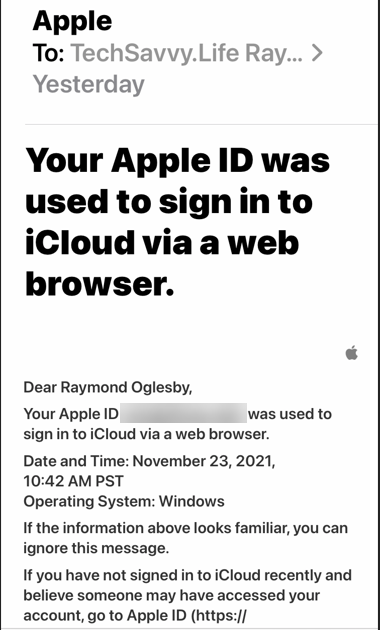
Next, you will receive a message about signing in to iCloud from a browser. Refer to the below image:

Notes 7
Apple message

Apple Notes is just one service you can take advantage of using a browser thanks to iCloud’s web interface.

Quote For the Day

Every time you think the problem is ‘out there,’ that very thought is the problem.

Stephen Covey

You are finished. Please feel free to share this post! One way to share is via Twitter.

Just click the Tweet icon below. This will launch Twitter where you click its icon to post the Tweet.

Checkout TechSavvy.Life for blog posts on smartphones, PCs, and Macs! You may email us at contact@techsavvy.life for comments or questions.

I Would Like to Hear From You

Please feel free to leave a comment. I would love to hear from you. Do you have a computer or smart device tech question? I will do my best to answer your inquiry. Just send an email to contact@techsavvy.life. Please mention the device, app, and version you are using. To help us out, you can send screenshots of your data related to your question.

The author’s Vietnam eBook on the Battle for Tra Bong Vietnam: Events and Aftermath

How to Make Guest Optional for Google Calendar Events

Not everyone you invite to a meeting may be a required guest. There might be someone that you want to give the choice to attend. Google Calendar provides the ability to make attendees optional, but it’s not obvious.

RAYMOND OGLESBY @RaymondOglesby2
December 9, 2021

Not everyone you invite to a meeting may be a required guest. There might be someone that you want to give the choice to attend. Google Calendar provides the ability to make attendees optional, but it’s not obvious.

It could be your supervisor, a coworker who may not be available, or someone else with an interest in the meeting. By marking them optional, they can decide for themselves if they should or want to attend. And you can make guests optional at the time you create the Google Calendar event or afterward.

This is for devices using Google Calendar

Dilbert and Strike
Copyright Scott Adams, Inc./Distributed by Universal Uclick for UFS

When Creating the Event

First, launch Google Calendar and sign in if necessary. When you click to create a new event in Google Calendar, you see a small pop-up window to add all the details including your attendees. But you will not spot the optional feature for your guests immediately.

Next, hover your cursor over the attendee’s name or email address after you add it. To the right, you will see a gray contact (person) icon. Click that icon to mark your guest as optional. Refer to the below image:

Optional 1
Marking a guest as Optional

Now, the icon will appear white indicating the Optional status. You can click it again to make the guest required. See the below image:

Optional 2
Guest is Optional

After Creating the Event

If you have already created the event, you can still make an attendee optional. Select the event on your Google Calendar to open the small detail window and then click the pencil icon to edit it. See the following image:

Optional 3
Selecting to Edit the event

Next, on the event detail screen, hover your cursor over the attendee you want to make optional in the Guests section. To the right, click the gray contact icon. Refer to the below image:

Optional 4
Marking a guest as Optional

Now, click Save at the top to apply your change. See the below image:

Optional 5
Save your changes

Next, the icon turns white and shows you the person is optional. If you want to make the attendee required again, just click that icon and hit Save. See the following image:

Optional 6
Guest is Optional

What Guest See

When you make an attendee optional for your event, the word Optional appears below their name. Anyone in the list of guests without the word Optional is required. Refer to the below image:

Optional 7
Viewing guests who are Optional

If you are setting up a meeting, conference call, or video call in Google Calendar and have certain guests that may want to attend but are not required to, you can easily use the Optional feature.

Quote For the Day

If we did all the things we are capable of, we would literally astound ourselves.

Thomas A Edison

That’s it. Now you know a seldom-used feature for making guests Optional in a Google Calendar event. Please feel free to share this post! One way to share is via Twitter.

Just click the Tweet icon below. This will launch Twitter where you click its icon to post the Tweet.

Check out TechSavvy.Life for blog posts on smartphones, PCs, and Macs! You may email us at contact@techsavvy.life for comments or questions.

I Would Like to Hear From You

Please feel free to leave a comment. I would love hearing from you. Do you have a computer or smart device tech question? I will do my best to answer your inquiry. Just send an email to contact@techsavvy.life. Please mention the device, app, and version you are using. To help us out, you can send screenshots of your data related to your question.

The author’s Vietnam eBook on the Battle for Tra Bong Vietnam: Events and Aftermath