How to Remove Twitter Followers

If you do not like someone following you on Twitter but do not want to block them, you can remove them from your follower list. This only takes a few clicks.

RAYMOND OGLESBY @RaymondOglesby2
April 20, 2022

If you do not like someone following you on Twitter but do not want to block them, you can remove them from your follower list. This only takes a few clicks. Let’s explore how to do it on Twitter’s desktop and mobile site.

This is for the devices using Twitter

Dilbert and Spy
Copyright Scott Adams, Inc./Distributed by Universal Uclick for UFS

Note: As of the writing, the option to remove a follower is only available on Twitter’s desktop and mobile site. The option is not yet available on Twitter for Android or iOS.

The Old and New Methods

Twitter has launched the ability to remove followers at the end of 2021. Earlier, if you wanted to remove a follower, you had to block them. Doing so basically removed that user from your follower’s list, prevented them from following you again, and also hid your tweets from them.

In the new method of removing followers, you can remove someone from your follower’s list without blocking them. Twitter does not notify a user when you remove them from your follower’s list. However, they may notice they are not following you anymore, and they can then choose to follow you again. You will need to block them if you do not want them capable of following you, or choose the nuclear option and delete your Twitter account as a last resort.

Remove Followers Using Desktop

To delete a follower from your Twitter profile on a Windows, Mac, Linux, or Chromebook computer, use the Twitter desktop website.

First, open a web browser on your computer and launch the desktop Twitter site. Log in to your account if you have not already done so.

Next, in Twitter’s left sidebar, click the Profile option (the person icon). Refer to the below image:

Twitter 1
Selecting your Profile

Now, your profile page will open. Here, beneath your profile information, click the Followers link to see your followers list. See the below image:

Twitter 2
Selecting your Followers link

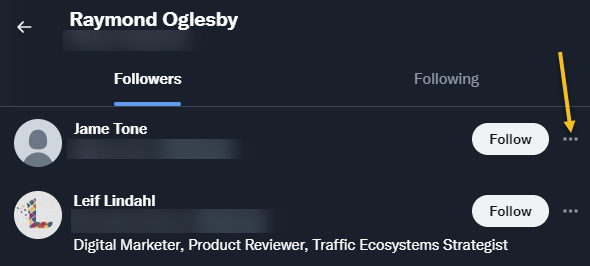
Next, on the follower’s page, find the follower you want to remove. Then, next to that user’s name, click the Menu icon (the three dots). See the following image:
Twitter 3
Selecting the Menu for a follower

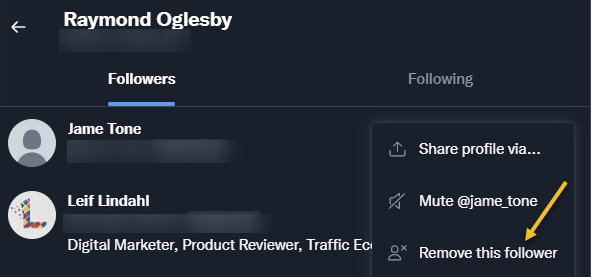
Now, in the three-dots Menu, click Remove this follower. Refer to the below image:
Twitter 4
Selecting to Remove this follower

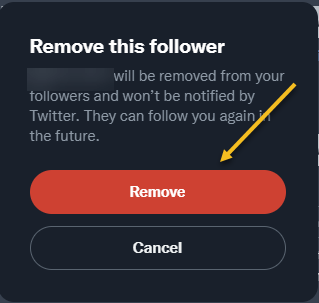
Next, you will see a Remove this follower prompt. Just click the Remove button. See the below image:

Warning: Make sure you really want to remove that follower before clicking “Remove.” Twitter will not show any further prompts and will immediately remove that user from your followers list.
Twitter 5
Remove the follower

Now, you are all set. Your selected follower is now removed from your Twitter followers list.

Remove Followers Using Mobile

If you are on an iPhone, iPad, or Android phone, you can use Twitter’s mobile site to remove a follower from your account.

First, open a web browser on your phone and launch the mobile Twitter site (mobile.twitter.com/home). If you launch Twitter.com (as you do on the desktop), the removal process will not work. Sign in to your Twitter account if not already done so.

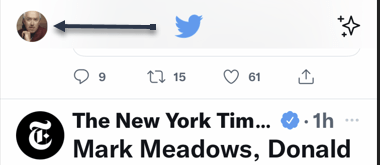
Next, in Twitter’s top left-hand corner, tap your Profile icon. See the following image:

Twitter 6
Selecting your Profile

Now, an Account info menu will open. Here, tap the Followers link. Refer to the below image:
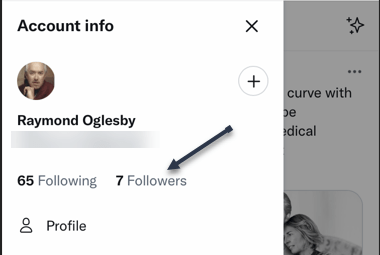
Twitter 7
Selecting your Followers link

Next, on the follower’s page, find the follower you want to remove. Then, next to that user’s name, tap the Menu icon (the three dots). See the below image:

Twitter 8
Selecting the Menu for a follower

Now, in the three-dots Menu, tap Remove this follower. See the following image:
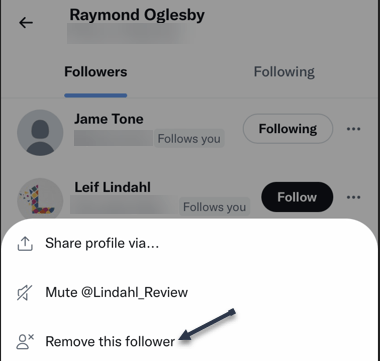
Twitter 9
Selecting to Remove this follower

Next, you will see a Remove this follower prompt. Just tap the Remove button. Refer to the below image:

Warning: Make sure you really want to remove that follower before clicking “Remove.” Twitter will not show any further prompts and will immediately remove that user from your followers list.
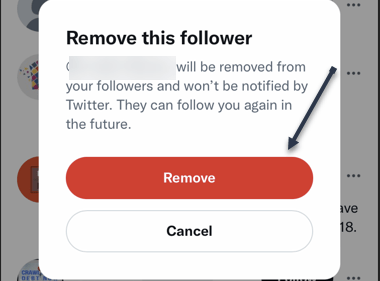
Twitter 10
Remove the follower

Now, you are all set. Your selected follower is now removed from your Twitter followers list.

Quote For the Day

I have not failed. I’ve just found 10,000 ways that won’t work.

Thomas Edison

That’s it. Please feel free to share this post! One way to share is via Twitter.

Just click the Tweet icon below. This will launch Twitter where you click its icon to post the Tweet.

Check out TechSavvy.Life for blog posts on smartphones, PCs, and Macs! You may email us at contact@techsavvy.life for comments or questions.

I Would Like to Hear From You

Please feel free to leave a comment. I would love to hear from you. Do you have a computer or smart device tech question? I will do my best to answer your inquiry. Just send an email to contact@techsavvy.life. Please mention the device, app, and version you are using. To help us out, you can send screenshots of your data related to your question.

Author’s E-book

You can access the e-book from a Kindle device, the Kindle App for the desktop or smartphone, which is a free app.


The author’s Vietnam eBook on the Battle for Tra Bong Vietnam: Events and Aftermath

How to Save Google Chrome Passwords

Google Chrome can save your website passwords and help you automatically fill them the next time you visit your sites.

RAYMOND OGLESBY @RaymondOglesby2
April 13, 2022

Google Chrome can save your website passwords and help you automatically fill them the next time you visit your sites.

There are several ways to turn on the password saving feature in Chrome. Note that Chrome syncs your passwords with your Google account, which means if you enable Chrome to save passwords on one device, that change automatically applies to all your signed-in devices. Let’s explore this feature on both desktop and mobile devices.

This is for desktop and mobile running Chrome. Screenshots are from Windows 10 and iPhone XR

Dilbert and Bonus
Copyright Scott Adams, Inc./Distributed by Universal Uclick for UFS

Save Passwords on Desktop

To enable Chrome’s password manager on your Windows, Mac, Linux, or Chromebook computer, first, open Chrome on your computer.

Next, in Chrome’s top right-hand corner, click the three dots (the Menu icon). Refer to the below image:

Passwords 1
Selecting the Menu icon

Now, from the three-dots Menu icon, select the Settings option. See the below image:

Passwords 1
Accessing the Settings option

Next, on the left sidebar of the Settings page, click the Autofill option. See the following image:

Passwords 3
Accessing the Autofill option

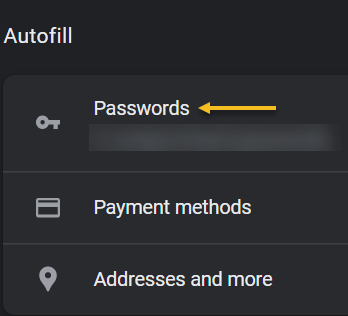
Now, on the right of the Autofill section, click the Passwords option. Refer to the below image:

Passwords 4
Selecting the Passwords option

Next, toggle the Offer to save passwords option to ON at the top of the Passwords page. See the below image:

Passwords 5
Enable Offer to save passwords

Note! If you decide you do not want password prompts, just toggle the Offer to save passwords to OFF.

From now on, when you log in to a site in Chrome on any of your devices, the browser will ask you to save your password for that site. 

Save Passwords on Mobile

First, open Chrome on your iPhone, iPad, or Android device.

Next, tap the three dots (the Menu icon) in Chrome on your device. If you are on Android, these dots are in Chrome’s top right-hand corner. If you are on an iPhone or iPad, you will find the Menu icon in the bottom right-hand corner. See the following image:

Passwords 6
Accessing the Menu icon

Now, in the menu that opens, tap the Settings option. Refer to the below image:

Passwords 7
Accessing the Settings option

Next, in the Basics section of the Settings page, tap the Passwords option. See the below image:

Passwords 8
Accessing the Passwords option

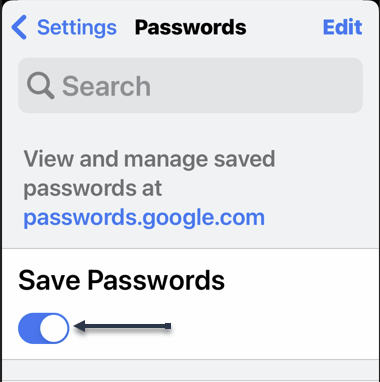
Now, on the Passwords page, toggle the Save Passwords option to ON. See the following image:

Passwords 9
Enable Save Passwords

Save Passwords Using Password Manager Site

To use this method, first, open a web browser on your device and access the Google Password Manager site. Log in to the site with the same Google account that you use in Chrome.

Now, when the Password Manager site opens, in the top right-hand corner, click the password options (the gear icon). Refer to the below image:

Passwords 10
Accessing Password options

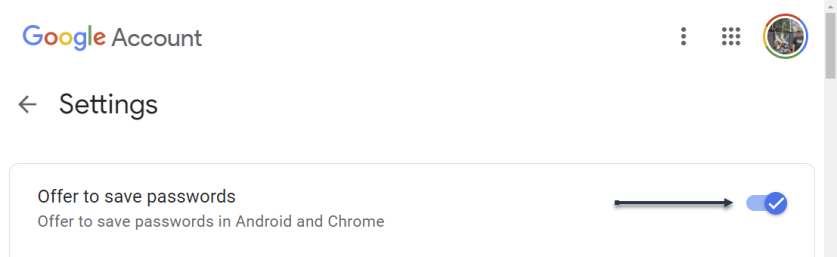
Next, the Settings page will open. Here, at the top, toggle the Offer to save passwords option to ON. See the below image:

Passwords 11
Enable Offer to sasve passwords

From now on, no matter what method you used above, Chrome will start prompting you to save passwords on all your signed-in devices. 

Quote For the Day

If people like you, they’ll listen to you, but if they trust you, they’ll do business with you.

Zig Ziglar

You are finished. Please feel free to share this post! One way to share is via Twitter.

Just click the Tweet icon below. This will launch Twitter where you click its icon to post the Tweet.


Check out TechSavvy.Life blog posts on smartphones, PCs, and Macs! You may email us at contact@techsavvy.life for comments or questions.

I Would Like to Hear From You

Please feel free to leave a comment. I would love to hear from you. Do you have a computer or smart device tech question? I will do my best to answer your inquiry. Just send an email to contact@techsavvy.life. Please mention the device, app, and version you are using. To help us out, you can send screenshots of your data related to your question.

Author’s E-book

You can access the e-book from a Kindle device, the Kindle App for the desktop or smartphone, which is a free app.

The author’s Vietnam eBook on the Battle for Tra Bong Vietnam: Events and Aftermath

How to Unhide a Facebook Post on Mobile

Do you want to bring a hidden post back to your timeline so everyone can see it? If so, Facebook makes it easy to unhide your hidden posts.

RAYMOND OGLESBY @RaymondOglesby2
March 30, 2022

Do you want to bring a hidden post back to your timeline so everyone can see it? If so, Facebook makes it easy to unhide your hidden posts. Let’s explore how this is done on mobile devices.

This is for mobile devices using Facebook. Screenshots are from iPhone XR

Dilbert and Promote
Copyright Scott Adams, Inc./Distributed by Universal Uclick for UFS

When you unhide a post, the post becomes available on your timeline. Later, if you change your mind, you can re-hide the post and make it hidden again.

If you are using an iPhone, iPad, or Android phone, use the official Facebook app to make a post visible.

First, open the Facebook app on your phone. At the top right-hand corner of the app, tap the Menu icon (three horizontal lines). On some devices, the Menu icon may be in the lower right-hand corner. Refer to the below image:

Unhide 1
Accessing the Menu

Next, a Menu page will open. Scroll down this page, then tap Settings & Privacy. See the below image:

Unhide 2
Accessing Settings & Privacy option

Now, in the expanded Settings & Privacy menu, tap Settings. See the following image:

Unhide 3
Accessing Settings option

Next, on the Settings & Privacy page, scroll down to the Your Information section and tap Activity Log. Refer to the below image:

Unhide 4
Accessing Activity Log option

Now, scroll down the Activity Log page to the Logged Actions and Other Activity section. Here, tap the down-arrow icon. See the below image:

Unhide 5
Accessing Logged Action and Other Activity option

Next, select Hidden from profile in the menu. See the following image:

Unhide 6
Accessing Hidden from profile option

Facebook will now display all your hidden posts depending on the number of posts. If you have a large number of posts, you may get a server timeout message in trying to load your data. If you keep timing out, select the View Activity History button to locate a hidden post.

Now, to unhide one of these posts, tap the three dots next to the post. Refer to the below image:

Unhide 7
Selecting a post to unhide

Next, from the menu that opens, select Add to profile. See the below image:

Unhide 8
Add the post to your timeline

And Facebook will add your post back to your timeline.

Quote For the Day

You don’t drown by falling into water. You only drown if you stay there.

Zig Ziglar

You are finished. Please feel free to share this post! One way to share is via Twitter.

Just click the Tweet icon below. This will launch Twitter where you click its icon to post the Tweet.

Check out TechSavvy.Life for blog posts on smartphones, PCs, and Macs! You may email us at contact@techsavvy.life for comments or questions.

I Would Like to Hear From You

Please feel free to leave a comment. I would love to hear from you. Do you have a computer or smart device tech question? I will do my best to answer your inquiry. Just send an email to contact@techsavvy.life. Please mention the device, app, and version you are using. To help us out, you can send screenshots of your data related to your question.

Author’s E-book

You can access the e-book from a Kindle device, the Kindle App for the desktop or smartphone, which is a free app.

The author’s Vietnam eBook on the Battle for Tra Bong Vietnam: Events and Aftermath

How to Turn Off Facebook Active Status

When your active status is enabled on Facebook, your contacts can see that you are currently or recently have been online. If you do not want them to know your online presence, turn off your active status on Facebook.

RAYMOND OGLESBY @RaymondOglesby2
March 24, 2022

When your active status is enabled on Facebook, your contacts can see that you are currently or recently have been online. If you do not want them to know your online presence, turn off your active status on Facebook. Let’s explore this feature.

This is for iPhone, iPad. and Android. Screenshots are from iPhone XR. Images may be different on iPad and Android.

Dilbert and Press
Copyright Scott Adams, Inc./Distributed by Universal Uclick for UFS

Later, if you change your mind, you can re-enable active status and let people know that you are online.

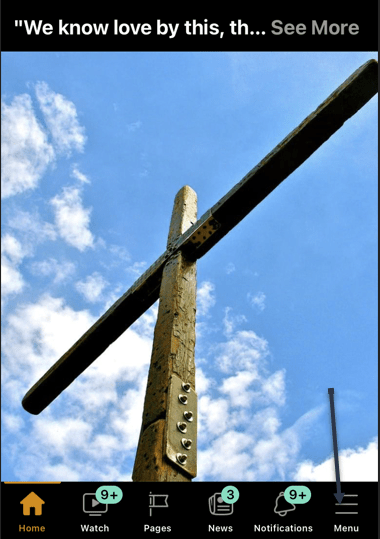
First, launch the Facebook app on your phone. In the app, tap the three horizontal lines. If you are on an iPhone or iPad, you will find these lines at the bottom right-hand corner. If you are on an Android phone, these lines are at the top right-hand corner. Refer to the below image:

FB Active 1
Accessing the Menu

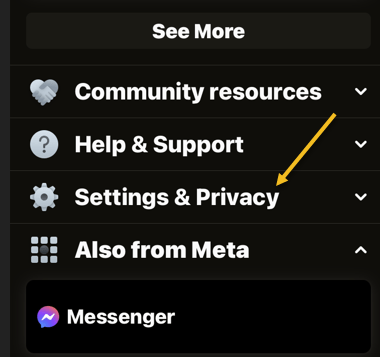
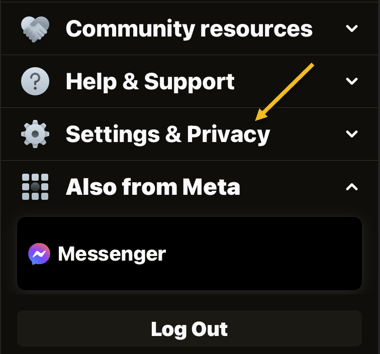
Next, scroll down the Menu screen that opens to the bottom, then tap Settings & Privacy. See the below image:

FB Active 2
Accessing Settings &Privacy option

Now, on the screen that opens, tap Settings. See the following image:

FB Active 3
Accessing Settings

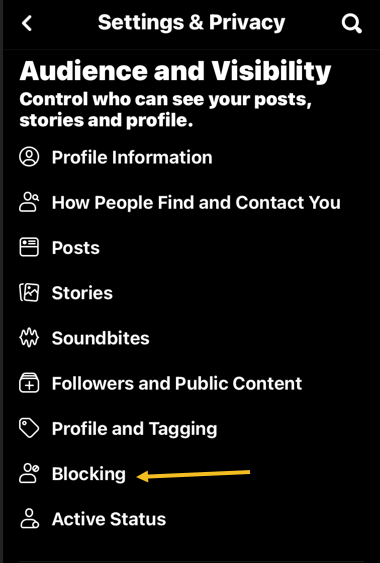
Next, on the Settings & Privacy page, at the bottom of the Audience and Visibility section, select Active Status. Refer to the below image:

FB Active 4
Selecting Active Status

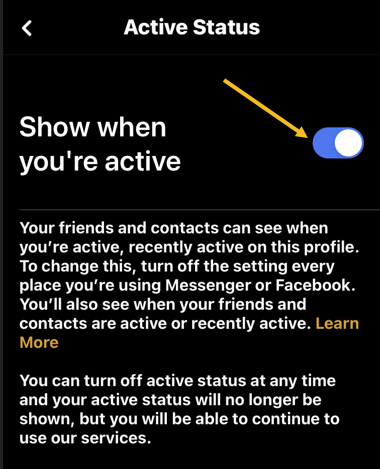
Now, to turn off your active status, on the Active Status page, disable the Show When You’re Active option.

Note: To re-enable your active status on Facebook, turn on the Show When You’re Active option.

See the below image:

FB Active 5
Disable Active Status

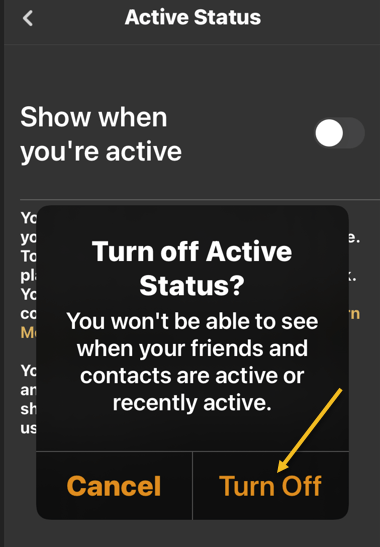
Next, tap Turn Off in the prompt that appears. See the following image:

FB Active 6
Select Turn Off to hide your Active Status

Quote For the Day

When you encourage others, you in the process are encouraged because you’re making a commitment and difference in that person’s life. Encouragement really does make a difference.

Zig Ziglar

That’s it. Please feel free to share this post! One way to share is via Twitter.

Just click the Tweet icon below. This will launch Twitter where you click its icon to post the Tweet.

Check out TechSavvy.Life for blog posts on smartphones, PCs, and Macs! You may email us at contact@techsavvy.life for comments or questions.

I Would Like to Hear From You

Please feel free to leave a comment. I would love to hear from you. Do you have a computer or smart device tech question? I will do my best to answer your inquiry. Just send an email to contact@techsavvy.life. Please mention the device, app, and version you are using. To help us out, you can send screenshots of your data related to your question.

Author’s E-book

You can access the e-book from a Kindle device, the Kindle App for the desktop or smartphone, which is a free app.

The author’s Vietnam eBook on the Battle for Tra Bong Vietnam: Events and Aftermath

How to View/Unblock Blocked People on Facebook Using Mobile

Want to find all the people you have blocked in your Facebook account? If so, Facebook keeps a list of all your blocked users, which you can access and use to unblock a user if you want.

RAYMOND OGLESBY @RaymondOglesby2
March 22, 2022

Want to find all the people you have blocked in your Facebook account? If so, Facebook keeps a list of all your blocked users, which you can access and use to unblock a user if you want. Let’s explore how to do this.

This is for mobile phones using Facebook. Screenshots are from iPhone XR

Dilbert and Experience
Copyright Scott Adams, Inc./Distributed by Universal Uclick for UFS

To check your blocked people list on your iPhone, iPad, or Android phone, we can use the Facebook app.

First, open the Facebook app on your phone. In the app, tap the Hamburger icon (the three horizontal lines). On an iPhone and iPad, the icon is in the bottom right-hand corner. On Android, you will see the icon in the top right-hand corner. Refer to the below image:

FB Blocked 1
Accessing the Hamburger icon

Next, scroll the Menu screen to the bottom and tap Settings & Privacy. See the below image:

FB Blocked 2
Accessing Settings & Privacy

Now, in the expanded menu, tap Settings. See the following image:

FB Blocked 3
Accessing Settings

Next, in the Audience and Visibility section, choose Blocking. Refer to the below image:

FB Blocked 4
Selecting Blocking option

Now, on the Blocking page, you will now see a list of people you have blocked in your account. To unblock someone, next to their name, tap the Unblock option. See the below image:

FB Blocked 5
Selecting to unblock a person

Next, on the message that opens, confirm your action by taping Unblock. Continue to unblock others or exit Settings. See the following image:

FB Blocked 6
Confirming to Unblock a person

Quote For the Day

I read the paper every day and the Bible every day; that way I know what both sides are up to.

Zig Ziglar

You are finished. Please feel free to share this post! One way to share is via Twitter.

Just click the Tweet icon below. This will launch Twitter where you click its icon to post the Tweet.

Check out TechSavvy.Life for blog posts on smartphones, PCs, and Macs! You may email us at contact@techsavvy.life for comments or questions.

I Would Like to Hear From You

Please feel free to leave a comment. I would love to hear from you. Do you have a computer or smart device tech question? I will do my best to answer your inquiry. Just send an email to contact@techsavvy.life. Please mention the device, app, and version you are using. To help us out, you can send screenshots of your data related to your question.

Author’s E-book

You can access the e-book from a Kindle device, the Kindle App for the desktop or smartphone, which is a free app.
The author’s Vietnam eBook on the Battle for Tra Bong Vietnam: Events and Aftermath

How to Remove a Credit Card from Your Amazon Account on Mobile

If your credit card has expired, or you simply do not wish to use it for Amazon purchases, it’s easy to remove your credit cards as well as any other payment methods from your Amazon account on a mobile phone. Let’s see how this is done.

RAYMOND OGLESBY @RaymondOglesby2
March 10, 2022

If your credit card has expired, or you simply do not wish to use it for Amazon purchases, it’s easy to remove your credit cards as well as any other payment methods from your Amazon account on a mobile phone. Let’s see how this is done.

Note: Keep in mind that removing a payment method does not cancel any open orders that use that payment method.

This is for mobile phones using Amazon. Screenshots are from iPhone XR

Dilbert and Topic
Copyright Scott Adams, Inc./Distributed by Universal Uclick for UFS

To get rid of an unused payment method from your phone, first, open the Amazon app.

In the Amazon app’s bottom bar, tap the User icon. Refer to the below image:

Amazon Pay 1
Selecting the User icon

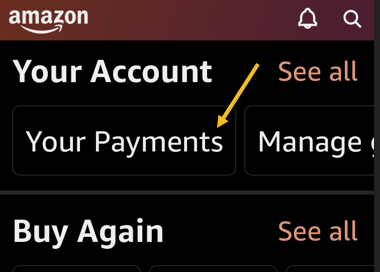
Next, scroll down the page to the Your Account section, then tap Your Payments. See the below image:

Amazon Pay 2
Selecting Your Payments option

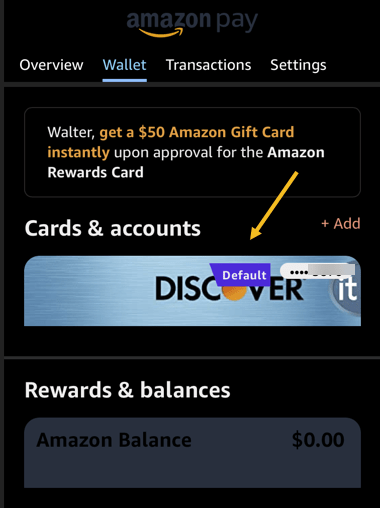
Now, choose the credit card or any other payment method to remove. See the following image:

Amazon Pay 3
Selecting a credit card to remove

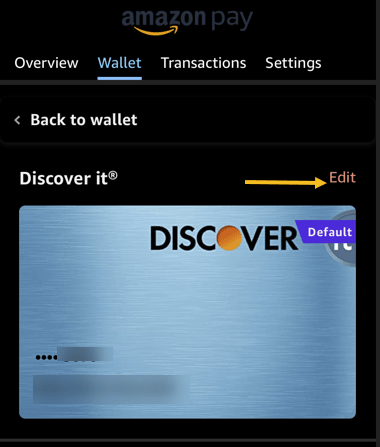
Next, at the top right-hand corner, tap Edit. Refer to the below image:

Amazon Pay 4
Selecting to Edit the credit card

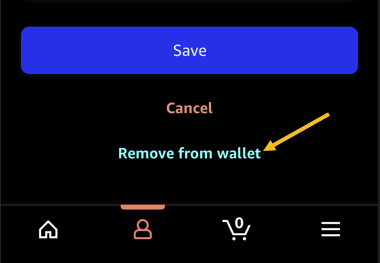
Now, scroll the Edit Payment Method page to the bottom then tap Remove From Wallet. See the below image:

Amazon Pay 5
Selecting to remove the credit card

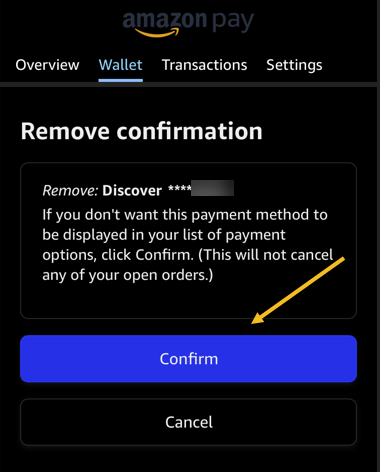
Next, tap Confirm in the Remove Confirmation prompt. See the following image:

Amazon Pay 6
Confirm your removal

And Amazon has now removed your selected payment method.

You may want to check Google Chrome as well if you have saved an expired or unwanted credit card there.

Quote For the Day

You’ve got to be before you can do and do before you can have.

Zig Ziglar

That’s it. Please feel free to share this post! One way to share is via Twitter.

Just click the Tweet icon below. This will launch Twitter where you click its icon to post the Tweet.

Check out TechSavvy.Life for blog posts on smartphones, PCs, and Macs! You may email us at contact@techsavvy.life for comments or questions.

I Would Like to Hear From You

Please feel free to leave a comment. I would love to hear from you. Do you have a computer or smart device tech question? I will do my best to answer your inquiry. Just send an email to contact@techsavvy.life. Please mention the device, app, and version you are using. To help us out, you can send screenshots of your data related to your question.

Author’s E-book

You can access the e-book from a Kindle device, the Kindle App for the desktop or smartphone, which is a free app.

The author’s Vietnam eBook on the Battle for Tra Bong Vietnam: Events and Aftermath

How to Make a Shareable Facebook Post

If you are the type of person who often makes long, informative posts on Facebook, you have probably gotten the request, “Can you make this shareable?

RAYMOND OGLESBY @RaymondOglesby2
March 8, 2022

If you are the type of person who often makes long, informative posts on Facebook, you have probably gotten the request, “Can you make this shareable?

This is for mobile devices. Screenshots are from iPhone XR

Dilbert and Press
Copyright Scott Adams, Inc./Distributed by Universal Uclick for UFS

Facebook’s sharing feature is a great way to allow users to spread posts, in their entirety, from the original source, instead of just reposting.

Make Individual Post Shareable

First, find the post you want to make shareable and click the three dots (the Menu icon) in the upper right-hand corner. Refer to the below image:

FB Shareable 1
Accessing the menu

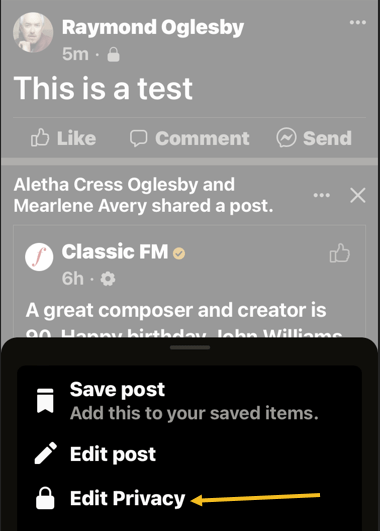
Next, in the pop-up menu, tap Edit Privacy. See the below image:

FB Shareable 2
Accessing Edit Privacy option

Now, in the Edit Privacy menu, tap the checkbox next to Public, then tap Done. See the below image:

FB Shareable 3
Set Privacy to Public

And you are all set. Your friends and followers will now see a Share button beneath your post. They can click this button to share your post wherever they want.

You will have to repeat this process for each post you want to make shareable.

Make All Posts Shareable

You can make all posts sharable when creating a post by tapping on the Select Audience button. Refer to the below image:

FB Shareable 4
AccessingSelect Audience

Next, in the Edit Audience menu. select Public, then tap Done. See the below image:

FB Shareable 5
Selecting Audience to Public

Quote For the Day

You’ve got to be before you can do and do before you can have.

Zig Ziglar

That’s it. Please feel free to share this post! One way to share is via Twitter.

Just click the Tweet icon below. This will launch Twitter where you click its icon to post the Tweet.

Check out TechSavvy.Life for blog posts on smartphones, PCs, and Macs! You may email us at contact@techsavvy.life for comments or questions.

I Would Like to Hear From You

Please feel free to leave a comment. I would love to hear from you. Do you have a computer or smart device tech question? I will do my best to answer your inquiry. Just send an email to contact@techsavvy.life. Please mention the device, app, and version you are using. To help us out, you can send screenshots of your data related to your question.

Author’s E-book

You can access the e-book from a Kindle device, the Kindle App for the desktop or smartphone, which is a free app.

The author’s Vietnam eBook on the Battle for Tra Bong Vietnam: Events and Aftermath

How to Disable/Enable Google Search Dark Theme

Google Search’s Dark Theme looks great, but it’s not for everyone. If you would prefer performing your searches on a light theme, here’s how to turn off/on Dark Theme on Google Search on desktop and mobile.

RAYMOND OGLESBY @RaymondOglesby2
February 15, 2022

Google Search’s Dark Theme looks great, but it’s not for everyone. If you would prefer performing your searches on a light theme, here’s how to turn off/on Dark Theme on Google Search on desktop and mobile.

This is for devices using Google Search. Screenshots are from Windows 10 and iPhone XR

Dilbert and Murder
Copyright Scott Adams, Inc./Distributed by Universal Uclick for UFS

Turn Off on Desktop

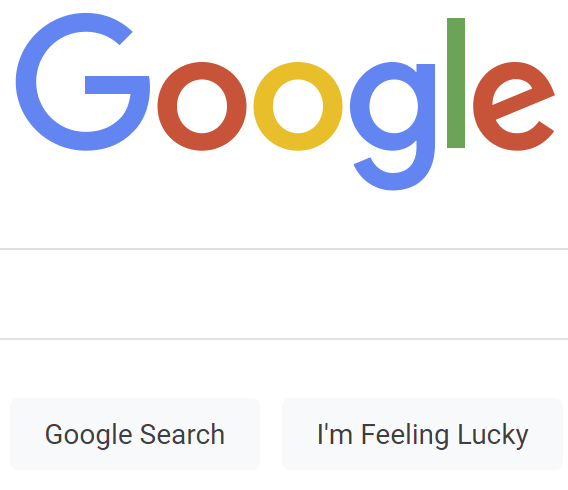
To disable Google Search’s Dark theme on your Windows, Mac, Linux, or Chromebook computer, first, launch your web browser and access the Google site.

Next, in the bottom-right-hand corner of the Google site, click Settings. Refer to the below image:

Searvh 1
Accessing Settings

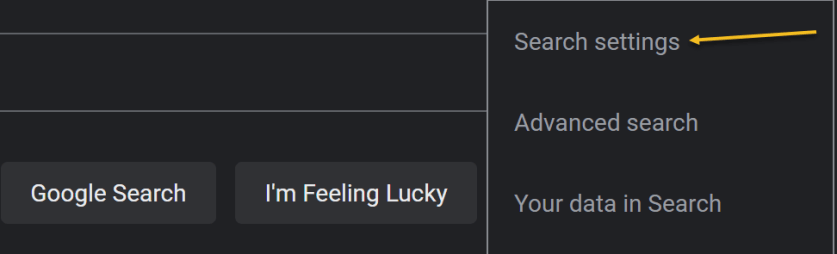
Now, in the menu that opens, select Search Settings. See the below image:

Search 2
Selecting Search settings option

Next, on the Search Settings page, in the left sidebar, click Appearance. See the following image:

Search 3
Selecting Appearance option

Now, in the Appearance section on the right, enable the Light theme option. This disables the Dark theme and enables the Light theme. Simply do the opposite to re-enable the Dark theme.

Next, to save your settings, at the bottom of the Appearance section, click Save. Refer to the below image:

Search 4
Save your change

Now, you will see a Your preferences have been saved prompt. Click OK. See the below image:

Search 5
Confirm your change

Next, your Google Search will be displayed in the Light theme. See the following image:

Search 6
Your Light theme

Turn Off on Mobile

To deactivate Dark theme on Google Search on your iPhone, iPad, or Android phone, first, launch your web browser and open the Google site.

Next, in Google’s top left-hand corner, tap the Hamburger menu (the three horizontal lines). Refer to the below image:

Search 7
Selecting the menu

Next, from the menu that opens, select Settings. See the below image:

Search 8
Accessing Settings

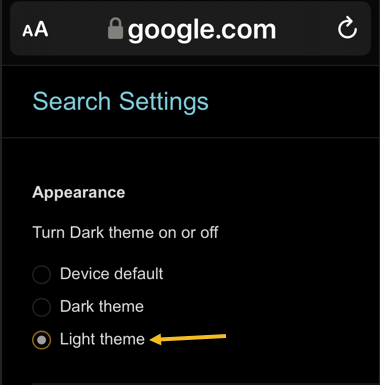
Now, on the Search Settings page, in the Appearance section, enable the Light theme option. See the following image:

Search 9
Selecting Light theme

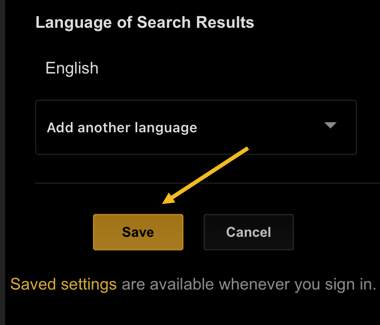
Now, to save your changes, scroll the Search Settings page to the bottom. and tap Save. Refer to the below image:

Search 10
Save your change

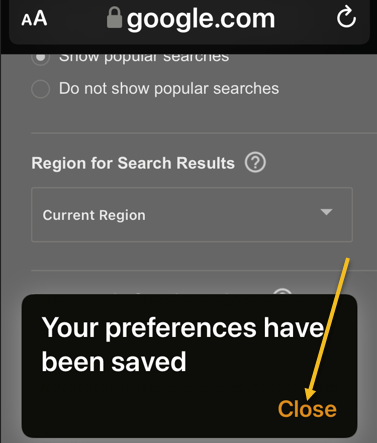
Next, in the Your preferences have been saved prompt, tap Close. See the below image:

Search 11
Close the dialog

And your favorite search engine is now back to Light theme. Simply do the opposite to re-enable the Dark theme.

Now, your Google Search will be displayed in the Light theme. See the following image:

Search 12
Your Light theme

Quote For the Day

When you combine ignorance and leverage, you get some pretty interesting results.

Warren Buffett

You are finished. Please feel free to share this post! One way to share is via Twitter.

Just click the Tweet icon below. This will launch Twitter where you click its icon to post the Tweet.

Check out TechSavvy.Life for blog posts on smartphones, PCs, and Macs! You may email us at contact@techsavvy.life for comments or questions.

I Would Like to Hear From You

Please feel free to leave a comment. I would love to hear from you. Do you have a computer or smart device tech question? I will do my best to answer your inquiry. Just send an email to contact@techsavvy.life. Please mention the device, app, and version you are using. To help us out, you can send screenshots of your data related to your question.

Author’s E-book

You can access the e-book from a Kindle device, the Kindle App for the desktop or smartphone, which is a free app.

The author’s Vietnam eBook on the Battle for Tra Bong Vietnam: Events and Aftermath

Netflix Subscription Now Includes More Free Mobile Games

Netflix is going heavy on mobile games. The company just added two more games to its service, bringing the total up to 12.

RAYMOND OGLESBY @RaymondOglesby2
February 1, 2022

Netflix is going heavy on mobile games. The company added two more games to its service, bringing the total up to 12.

This is for the iPhone and Android

Dilbert and Sneak
Copyright Scott Adams, Inc./Distributed by Universal Uclick for UFS

You do not need to do anything special to get these games on your Netflix account (which is good since Netflix just increased its price again. Maybe that’s why its stock value dropped). As long as you are a Netflix subscriber, you need to download the games on Android or iPhone, and you will be able to play them without spending anything extra.

Here’s a quick look at the games currently available as part of a Netflix subscription:

  • Arcanium: Rise of Akhan – Card battle game in the vane of Hearthstone
  • Krispee Street – Hidden Object game based on a popular webcomic
  • Asphalt Xtreme – Off-road racing game
  • Bowling Ballers – Endless runner meets bowling game
  • Card Blast – Poker-based card game
  • Dominoes Café – Dominoes game with various modes
  • Knittens – Cat-based match-three puzzle
  • Shooting Hoops – Basketball and dart hybrid game
  • Stranger Things: 1984 – Retro-styled adventure games based in Stranger Things universe
  • Stranger Things 3: The Game – Official game for the third season of Stranger Things
  • Teeter (Up) – Ball manipulating puzzle game
  • Wonderputt Forever – Mini golf game

If you are a Netflix subscriber with an Android or Apple device, you might as well download these games and see if any of them work for you, as they are included in the subscription you are already paying for.

Quote For the Day

Remember that failure is an event, not a person.

Zig Ziglar

That’s it. Please feel free to share this post! One way to share is via Twitter.

Just click the Tweet icon below. This will launch Twitter where you click its icon to post the Tweet.

Check out TechSavvy.Life for blog posts on smartphones, PCs, and Macs! You may email us at contact@techsavvy.life for comments or questions.

I Would Like to Hear From You

Please feel free to leave a comment. I would love to hear from you. Do you have a computer or smart device tech question? I will do my best to answer your inquiry. Just send an email to contact@techsavvy.life. Please mention the device, app, and version you are using. To help us out, you can send screenshots of your data related to your question.

Author’s E-book

You can access the e-book from a Kindle device, the Kindle App for the desktop or smartphone, which is a free app.
The author’s Vietnam eBook on the Battle for Tra Bong Vietnam: Events and Aftermath

How to Add a Cover Image to Twitter

Want to change your cover image or add one to your Twitter account? If you have not inserted an image, you will see a blue blank area at top of your account.

RAYMOND OGLESBY @RaymondOglesby2
January 25, 2022

Want to change your cover image or add one to your Twitter account? If you have not inserted an image, you will see a blue blank area at top of your account. Let’s explore how to add a cover image.

This is for devices using Twitter. Screenshots are from iPhone XR.

Dilbert and Work
Copyright Scott Adams, Inc./Distributed by Universal Uclick for UFS

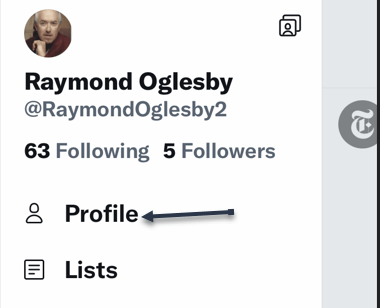
First, log in to Twitter, if not already logged in, and open Twitter. Here, tap your Profile icon. Refer to the below image:

Twitter Header 1
Selecting your Profile icon

Next, in the pop-up window that opens, tap on Profile. See the below image:

Twitter Header 2
Selecting the Profile option

Now, in the upper right-hand corner, tap the Edit profile link. See the following image:

Twitter Header 3
Selecting Edit Profile link

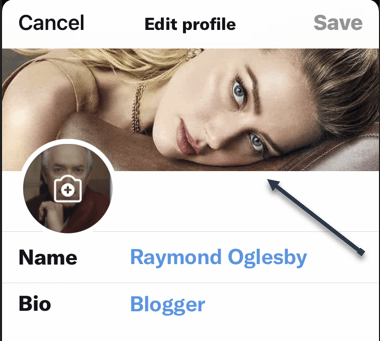
Next, tap on the top of your screen or on an existing image to open your Photos. (On the desktop, click the Camera icon in the image area). Depending on your Twitter settings, you may not see any images. If so, tap on Manage to change your settings or the plus “+” sign to open your photos. Refer to the below image:

Twitter Header 4
Selected image from Photos

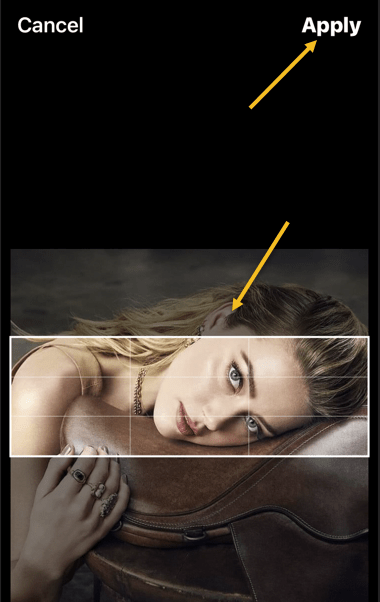
Now, position your image to your liking. Then in the upper right-hand corner, tap Apply. See the below image:

Twitter Header 5
Position your image and Apply

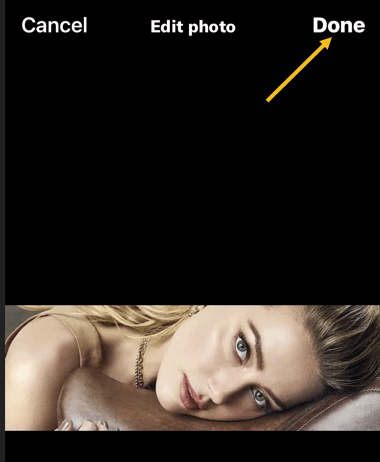
Next, in the upper right-hand corner, tap Done. See the following image:

Twitter Header 6
Finish your change

Now, tap Save in the upper right-hand corner. Refer to the below image:

Twitter Header 7
Save your change

Instantly, your saved image is now your cover photo. See the below image:

Twitter Header 8
Your finished image

Quote For the Day

We become what we repeatedly do.

Stephen Covey

That’s it. Please feel free to share this post! One way to share is via Twitter.

Just click the Tweet icon below. This will launch Twitter where you click its icon to post the Tweet.

Checkout TechSavvy.Life for blog posts on smartphones, PCs, and Macs! You may email us at contact@techsavvy.life for comments or questions.

I Would Like to Hear From You

Please feel free to leave a comment. I would love to hear from you. Do you have a computer or smart device tech question? I will do my best to answer your inquiry. Just send an email to contact@techsavvy.life. Please mention the device, app, and version you are using. To help us out, you can send screenshots of your data related to your question.

The author’s Vietnam eBook on the Battle for Tra Bong Vietnam: Events and Aftermath