Setup Time to Leave Notifications on iPad and iPhone

Apple has introduced the Time to Leave feature for iOS 18, which alerts users when it’s time to depart for calendar events. By enabling Location Services and adjusting settings in the Calendar app, users receive timely notifications that include traffic conditions, ensuring they arrive on time to their destinations.

RAYMOND OGLESBY @RaymondOglesby2
February 11, 2025 – 3 minutes read time

Have you ever wished your iPad or iPhone would not only remind you of calendar events but also give a calendar alert when it’s time to depart? Well, now you can. Apple has just introduced the new Time to Leave feature, which automatically calculates when you need to leave your current location so you can arrive at your destination on time. Let’s explore how to use the Time to Leave feature.

  • Get notified when it’s time to get in your car and head to your appointment or meet-up.
  • With built-in drive time reminders, you need never be late again!

The steps below will only work on an iPhone updated to iOS 18. The screenshots are from iPhone 14 Pro running iOS 18.3.

Click here to learn how to update your iPhone to the latest iOS version.

You will also need to be sure Location Services is enabled. Head to:

Settings > Privacy & Security > Location Services

and turn the toggle to the ON position.

First, navigate to:

Settings > Apps > Calendar

Refer to the below image:
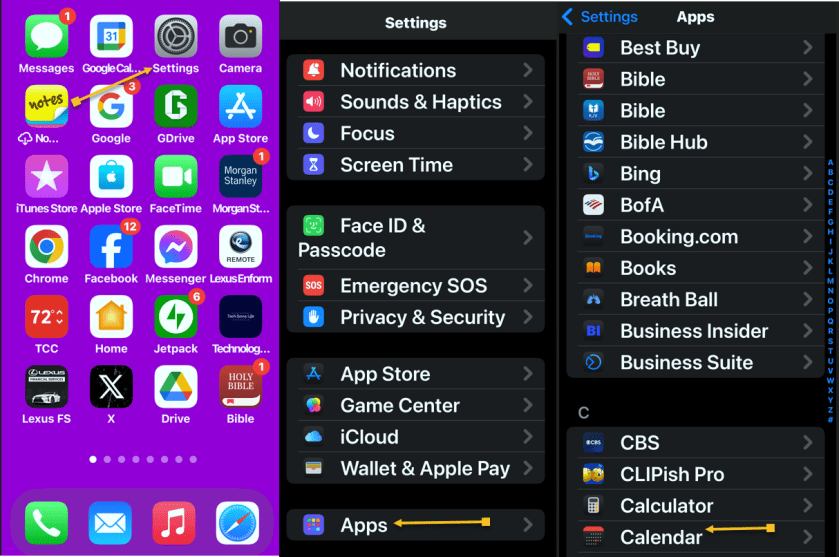
Time to Leave 1
Open the Calendar app

Next, tap the Default Alert Times option. See the below image:
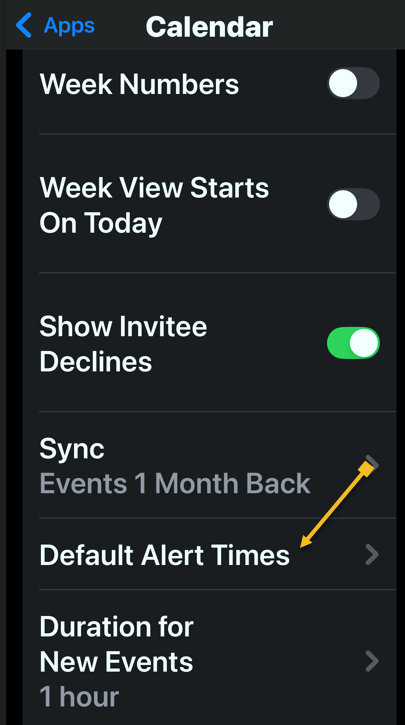
Time to Leave 2
Select the Default Alert Times option

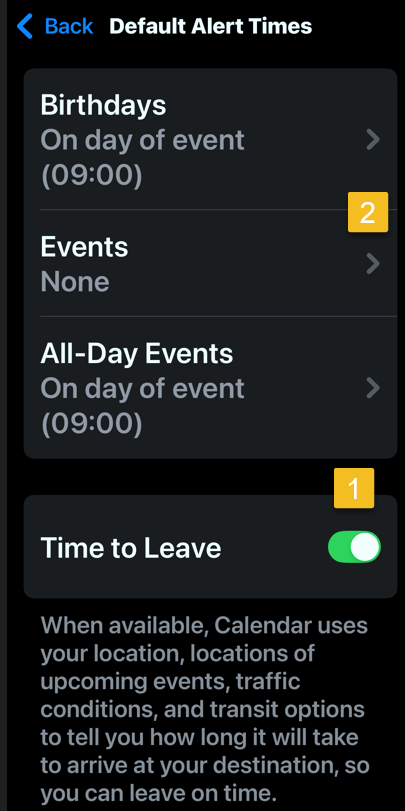
Now, toggle Time to Leave to the ON position.

Note! the Event must be set to None for this feature to work!

See the following image:
Time to Leave 3
Enable Time to Leave toggle

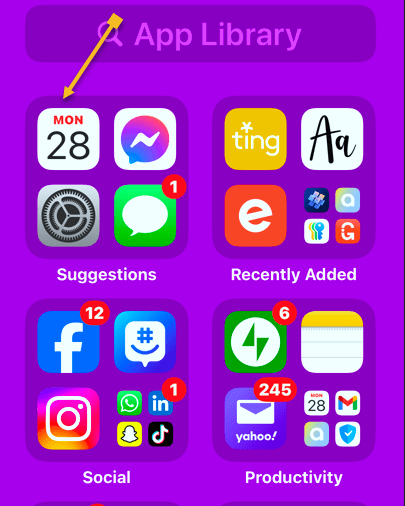
Next, open the Calendar app. Refer to the below image:
Time to Leve 4
Open the Calendar app

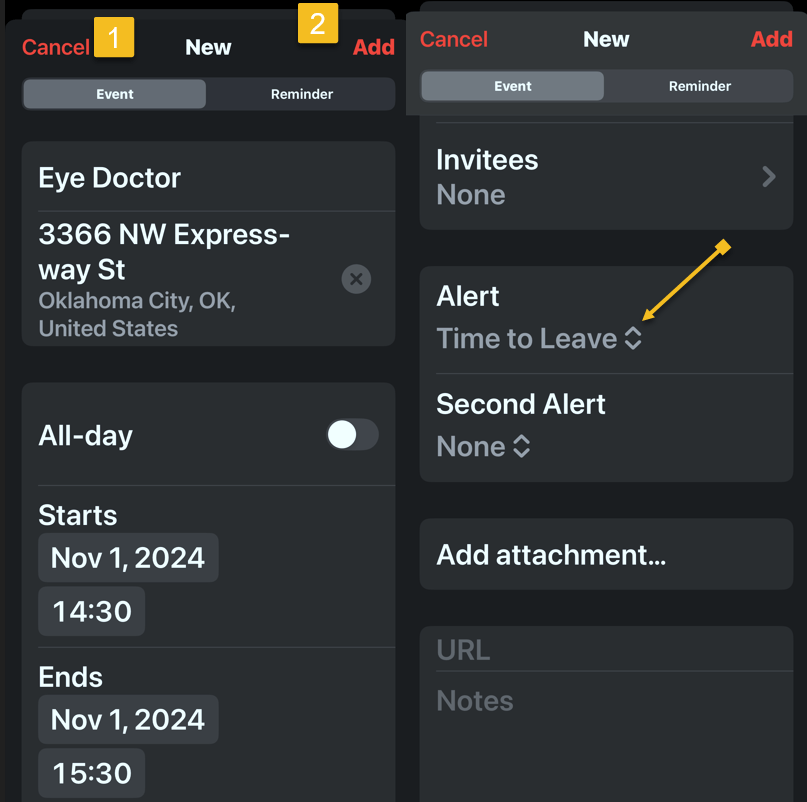
Now, create a calendar event as you normally would, then tap the Add icon. You will see that your Time to Leave alert has been automatically added to the event. See the below image:
Time to Leave 5
Create a calendar event

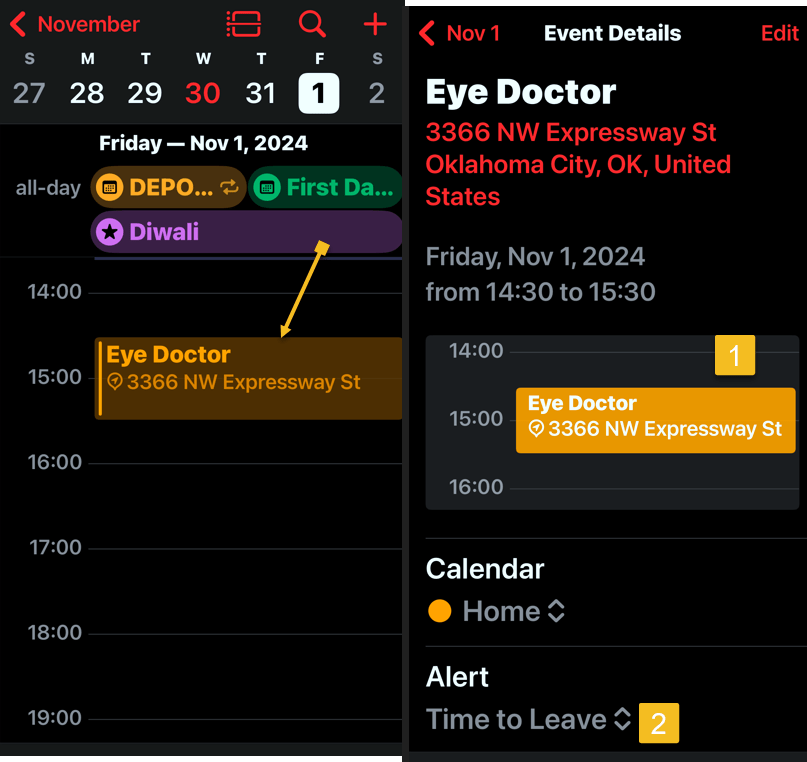
Next, open your Calendar and find your event. Tap the event to see its details. Notice the Time to Leave alert. See the following image:
Time to Leave 6
Time to Leave details

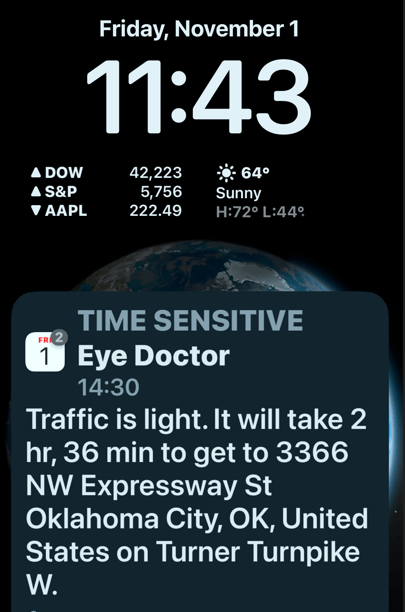
At the designated time, you will receive a Notification about the event that includes traffic conditions and travel time to reach your destination. Refer to the below image:
Time to Leave 7
Your Time to Leave notification

Now you know how to enable and use Time to Leave alerts in your iPad and iPhone Calendar settings

Technology is always changing. Rarely is there static tech for smartphones and desktops. Thus, the contents of this post are only valid at the time of writing. Blog posts older than six months may have directions incompatible with your device or OS. Hopefully, older post content will continue to work as advertised. Thank you for reading TechSavvy.Life for Technology at Work For You.

The great myth of our times is that technology is communication.

Libby Larsen

That’s it. Please feel free to share this post! One way to share is via Twitter.

Just click the Tweet icon below. This will launch Twitter where you click its icon to post the Tweet.

Checkout TechSavvy.Life for blog posts on smartphones, PCs, and Macs! You may email us at contact@techsavvy.life for comments or questions.

Was this post helpful? We would love to hear your comments. Do you have a computer or smart device tech question? I will do my best to answer your inquiry. Just send an email to contact@techsavvy.life. Please mention the device, app, and version you are using. To help us, you can send screenshots of the data related to your question.

Author’s eBook

The author’s Vietnam eBook on the “Battle for Tra Bong Vietnam: Events and Aftermath” can be accessed from a Kindle device or the Kindle App for a desktop or smartphone. The apps are free.
The author’s Vietnam eBook on the Battle for Tra Bong Vietnam: Events and Aftermath

How to Make Guest Optional for Google Calendar Events

Not everyone you invite to a meeting may be a required guest. There might be someone that you want to give the choice to attend. Google Calendar provides the ability to make attendees optional, but it’s not obvious.

RAYMOND OGLESBY @RaymondOglesby2
December 9, 2021

Not everyone you invite to a meeting may be a required guest. There might be someone that you want to give the choice to attend. Google Calendar provides the ability to make attendees optional, but it’s not obvious.

It could be your supervisor, a coworker who may not be available, or someone else with an interest in the meeting. By marking them optional, they can decide for themselves if they should or want to attend. And you can make guests optional at the time you create the Google Calendar event or afterward.

This is for devices using Google Calendar

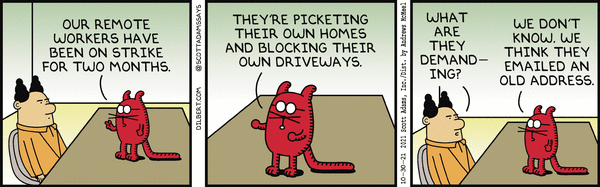
Dilbert and Strike
Copyright Scott Adams, Inc./Distributed by Universal Uclick for UFS

When Creating the Event

First, launch Google Calendar and sign in if necessary. When you click to create a new event in Google Calendar, you see a small pop-up window to add all the details including your attendees. But you will not spot the optional feature for your guests immediately.

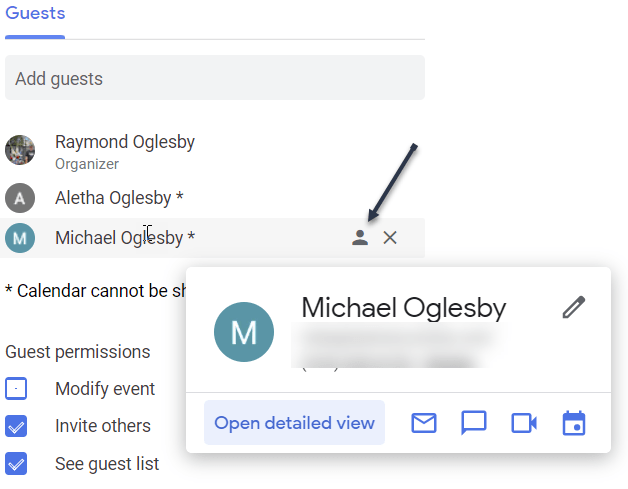
Next, hover your cursor over the attendee’s name or email address after you add it. To the right, you will see a gray contact (person) icon. Click that icon to mark your guest as optional. Refer to the below image:

Optional 1
Marking a guest as Optional

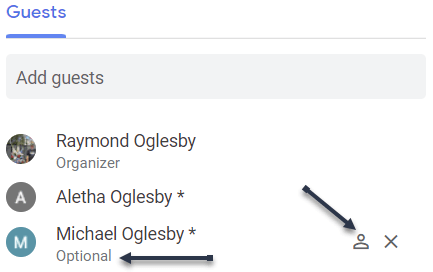
Now, the icon will appear white indicating the Optional status. You can click it again to make the guest required. See the below image:

Optional 2
Guest is Optional

After Creating the Event

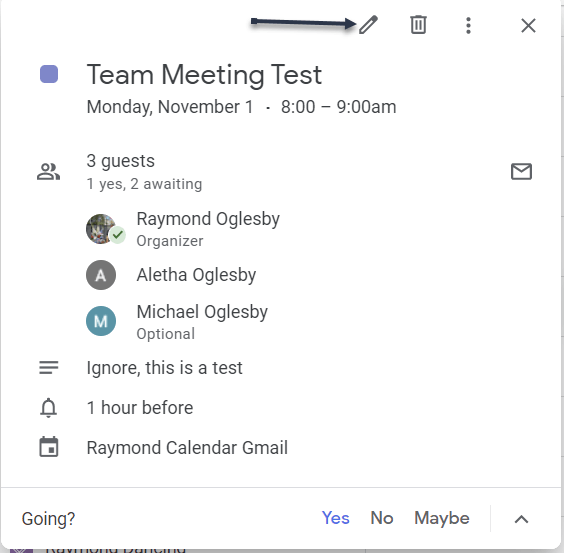
If you have already created the event, you can still make an attendee optional. Select the event on your Google Calendar to open the small detail window and then click the pencil icon to edit it. See the following image:

Optional 3
Selecting to Edit the event

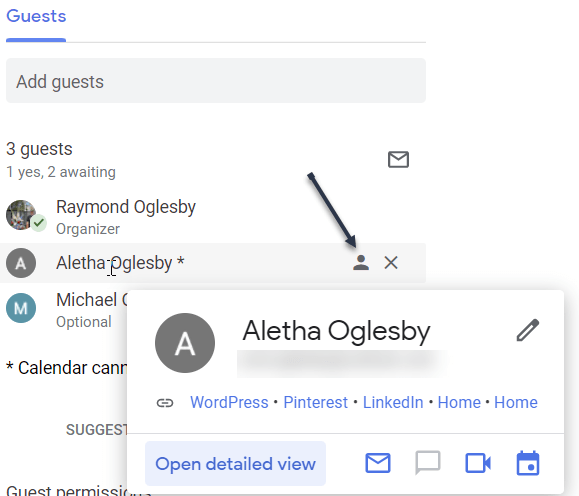
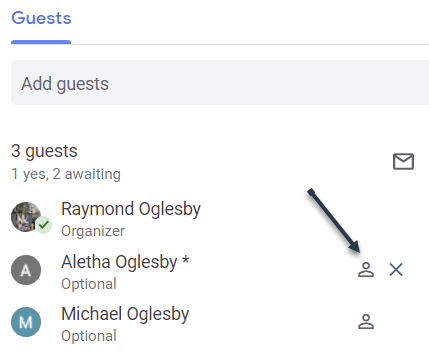
Next, on the event detail screen, hover your cursor over the attendee you want to make optional in the Guests section. To the right, click the gray contact icon. Refer to the below image:

Optional 4
Marking a guest as Optional

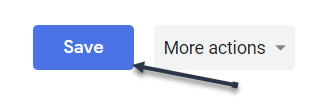
Now, click Save at the top to apply your change. See the below image:

Optional 5
Save your changes

Next, the icon turns white and shows you the person is optional. If you want to make the attendee required again, just click that icon and hit Save. See the following image:

Optional 6
Guest is Optional

What Guest See

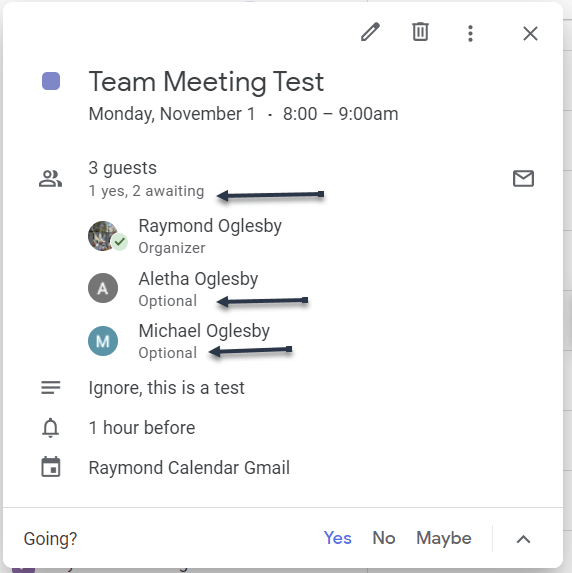
When you make an attendee optional for your event, the word Optional appears below their name. Anyone in the list of guests without the word Optional is required. Refer to the below image:

Optional 7
Viewing guests who are Optional

If you are setting up a meeting, conference call, or video call in Google Calendar and have certain guests that may want to attend but are not required to, you can easily use the Optional feature.

Quote For the Day

If we did all the things we are capable of, we would literally astound ourselves.

Thomas A Edison

That’s it. Now you know a seldom-used feature for making guests Optional in a Google Calendar event. Please feel free to share this post! One way to share is via Twitter.

Just click the Tweet icon below. This will launch Twitter where you click its icon to post the Tweet.

Check out TechSavvy.Life for blog posts on smartphones, PCs, and Macs! You may email us at contact@techsavvy.life for comments or questions.

I Would Like to Hear From You

Please feel free to leave a comment. I would love hearing from you. Do you have a computer or smart device tech question? I will do my best to answer your inquiry. Just send an email to contact@techsavvy.life. Please mention the device, app, and version you are using. To help us out, you can send screenshots of your data related to your question.

The author’s Vietnam eBook on the Battle for Tra Bong Vietnam: Events and Aftermath

How to Use Different Time Zones in Google Calendar on Mobile Devices

You can change your time zone and create events with certain time zones. This helps if you will be traveling when the event happens, or if you are creating events for people in different time zones.

You can change your time zone and create events with certain time zones. This helps if you will be traveling when the event happens, or if you are creating events for people in different time zones.

Time might be constant, but your time zone does not have to be. You can set a one-off time zone to an event, or set primary and secondary (desktop version only) time zones for an entire calendar or account.

This is for Android, iPhone, and iPad running Google Calendar

Copyright Scott Adams, Inc./Distributed by Universal Uclick for UFS

How Your Calendar Uses Time Zones

According to Google:

  • For Events; When you create an event, you will see it in your local time zone. It will also show up in the local time zones for anyone you invite, even if they are in a different time zone.
  • For Reminders: Reminders always show up at the same hour regardless of time zone. For example, a daily 9 AM MT reminder becomes a 9 AM ET reminder if you travel from Denver to New York.
  • For Tasks: Tasks adapt to the new time zone if the Calendar’s time zone is changed after a task is created. For example, a 9 AM MT task changes to an 11 AM ET task if you travel from Denver to New York.

Confused, I am. Why not make all these options the same? I do not know why Google treats each option differently. Lets explore how to set a Google Calendar time zone.

Change Your Time Zone for One Event

You can change the time zone for a new or existing event in the Google Calendar app on Android, iPhone, and iPad.

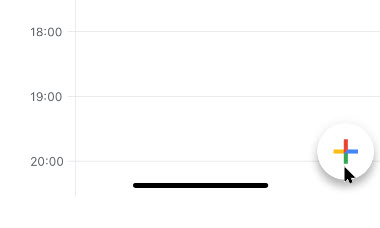
To create a new event, click the Add button in the bottom-right corner and select the type of event you wish to create. Refer to below image:

Calendar 1
Add an Event

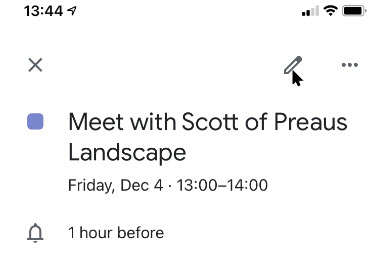
To edit an existing event, tap on that event in your calendar view and then tap the Edit Event button. See below image:

Calendar 2
Edit an Event

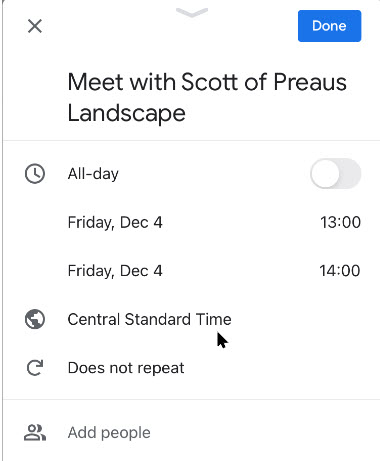
Next, in the event details menu, tap the current time zone. (Note!. You may have to tap More options to see the time zone). See following image:

Calendar 3
The current time zone for the Event

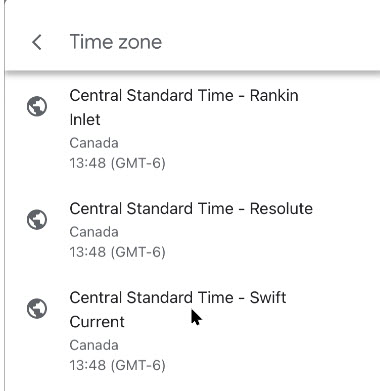
In the next menu, search for a country or specific time zone. Next, tap one of the results to select it as the new time zone. (Note! I kept the Event in CST). Refer to below image:

Calendar 4
Selecting a time zone for the Event

The time zone for the event will be added immediately after selecting it from the Search menu.

Confirm the rest of the event details are correct. Now, tap the Save button in the top-right corner to save the Event with the new time zone details. See below image:

Calendar 5
Save your changes

Change Your Time Zone Settings for All Events

When you travel to a different time zone, you can see your calendar in the local time. This can be confusing. The time zone is updated depending on if you are creating an event, reminder, or task. To keep your event times in your local time, I recommend not to create events, reminders, or tasks while in a different time zone, espicially if you are only going to be away from home a short while; wait till you get back to your local time zone to create them.

To change this setting:

Launch the Google Calendar app.

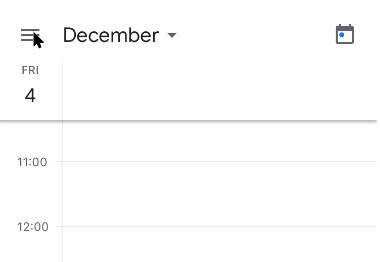
Next, tap the Menu hamburger icon in top left of your screen. See following image:

Calendar 6
Acccess the Menu

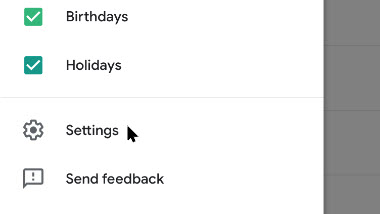
Now, swipe down and tap the Settings option. Refer to below image:

Calendar 7
Access Settings

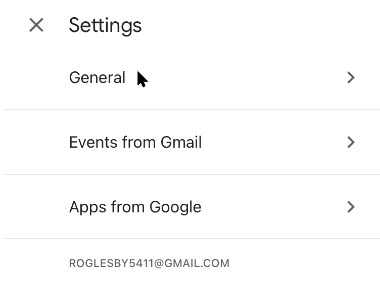
Next, tap the General option. See below image:

Calendar 8
Access the General option

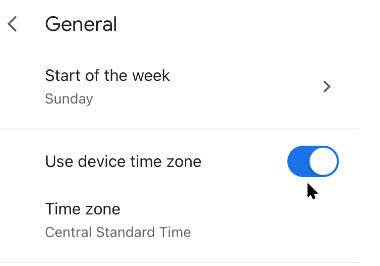
Now, tap Use device time zone on or off. If On, your device will update automatically as you travel. See following image:

Calendar 9
Selecting Use device time zone toggle

If Off, you can select a new time zone from the drop down menu. (Note! I kept the Events in CST). Refer to below image:

Calendarr 10
=Select a time zone for all Events

The new time zone for Google Calendar on your device will be applied automatically. Any entries in your Google Calendar will now be displayed in this new time zone on your mobile device. As I mentioned previously, this can be confusing, at least to me it is, so make sure what time zone you want to create events, teminders, or tasks. Now, tap back and exit Settings.

You are finished. Now you know how to see time zones in Google Calendar for events, remindars, or tasks. Please feel free to share this post! One way to share is via Twitter, as mentioned below.

Just click the Tweet icon below. This will launch Twitter where you click its icon to post the Tweet.

Check out TechSavvy.Life for blog posts on smartphones, PCs, and Macs! You may email us at contact@techsavvy.life for comments or questions.

I Would Like to Hear From You

Please feel free to leave a comment. I would love hearing from you. Do you have a computer or smart device tech question? I will do my best to answer your inquiry. Just send an email to contact@techsavvy.life. Please mention the device, app and version that you are using. To help us out, you can send screenshots of your data related to your question.

The author’s Vietnam eBook on the Battle for Tra Bong: Events and Aftermath